
Bloomberg Connection
Where you connect Orbit to your firm's Bloomberg Data License account, check that the connection works, and see how much activity is on the account. Everything under Bloomberg in Settings starts from the credentials you save here.
The Bloomberg pages are only available to administrators. If you do not have the required permission the Bloomberg entry does not appear in the settings menu, and opening a Bloomberg address directly sends you to the access-denied page. The saved credentials belong to the person who saved them: each administrator connects their own Bloomberg credentials.
Opening the page
- Click your avatar at the bottom of the left rail and choose Settings.
- Under DATA, select Bloomberg. It carries a NEW badge and opens a list of five pages, starting with Connection.
/setting/bloomberg/connection. The shorter /setting/bloomberg
also lands here.
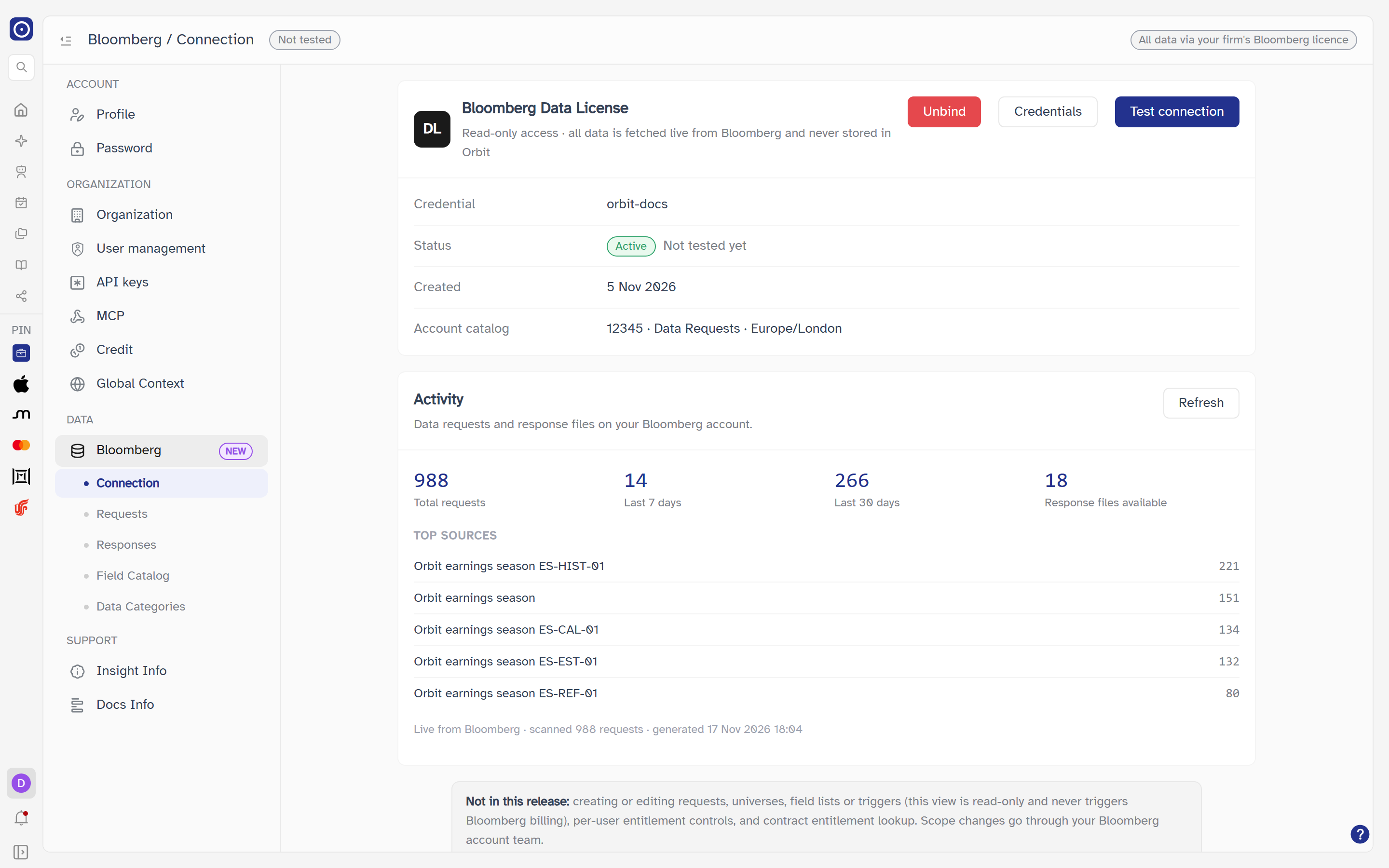
The five Bloomberg pages
| Page | What it is for |
|---|---|
| Connection | This page: credentials, a connection test and an activity summary. |
| Requests | The data requests on your Bloomberg account. |
| Responses | The response files Bloomberg is currently holding, with preview and download. |
| Field Catalog | Search Bloomberg's field catalog. |
| Data Categories | Which Bloomberg commercial model categories your recent requests draw on. |
All five are read-only: the pages read from Bloomberg live and nothing from Bloomberg is stored in Orbit. Creating or editing requests, universes, field lists or triggers is not possible here — scope changes go through your Bloomberg account team.
The status chips in the top bar
Every Bloomberg page shows two chips in the top bar. The second always reads All data via your firm's Bloomberg licence. The first reflects the last connection test:
| Chip | Meaning |
|---|---|
| Not tested | No test has been run since the page was loaded or you last signed in. It is the starting state; nothing is tested automatically. |
| Connected | The last test, or the last time credentials were saved, reached Bloomberg and passed. |
| Connection failed | The last test, or the last attempt to save credentials, failed. |
The result is remembered while you move between the five pages, and cleared by a full page reload or when you unbind the credentials.
Both chips sit in the top bar: the test result next to the page title, and All data via your firm's Bloomberg licence at the far right.
Bloomberg Data License card
The first card is headed Bloomberg Data License, with the line Read-only access · all data is fetched live from Bloomberg and never stored in Orbit. It holds three buttons and a table of facts about your credentials.
Buttons
| Button | When it shows | What it does |
|---|---|---|
| Credentials | Always. | Opens the credentials dialog: connect for the first time, or replace what is saved. |
| Test connection | Always. | Opens a window and checks the saved credentials against Bloomberg. See Test connection. The button is disabled while a test is running. |
| Unbind | Only when credentials are saved. | Asks for confirmation, then removes the saved credentials. See Unbind. |
What the card shows
| Row | Notes |
|---|---|
| Credential | The name you gave the credential, or if you gave none a masked version of the client ID. — when nothing is saved. |
| Status |
A tag reading Active when credentials are saved, or
Not configured together with Credentials are not configured
when they are not. Beside it, Not tested yet until a test has run, then
Last test passed or Last test failed followed by the
date and time (D MMM YYYY HH:mm).
|
| Created | When the credentials were saved, as D MMM YYYY. |
| Account catalog |
Your account's catalog on Bloomberg: its identifier, its title and its default time
zone, separated by ·. It loads on its own, so it can fail without
affecting the other rows — it then reads Unavailable with a
Retry link.
|
If the card itself cannot load it reads Failed to load connection info with a Retry button.
Connecting your Bloomberg account
The Credentials button opens a dialog. Its title depends on whether credentials are already saved:
| State | Dialog title |
|---|---|
| Nothing saved | Connect your Bloomberg account |
| Credentials saved | Update credentials — it also shows the current client ID in masked form and asks you to re-enter the secret. |
If you open any Bloomberg page without saved credentials, this dialog appears automatically and the page's data does not load until the credentials are saved. You can close the dialog; the page then stays empty. Open it again with Credentials on this page.
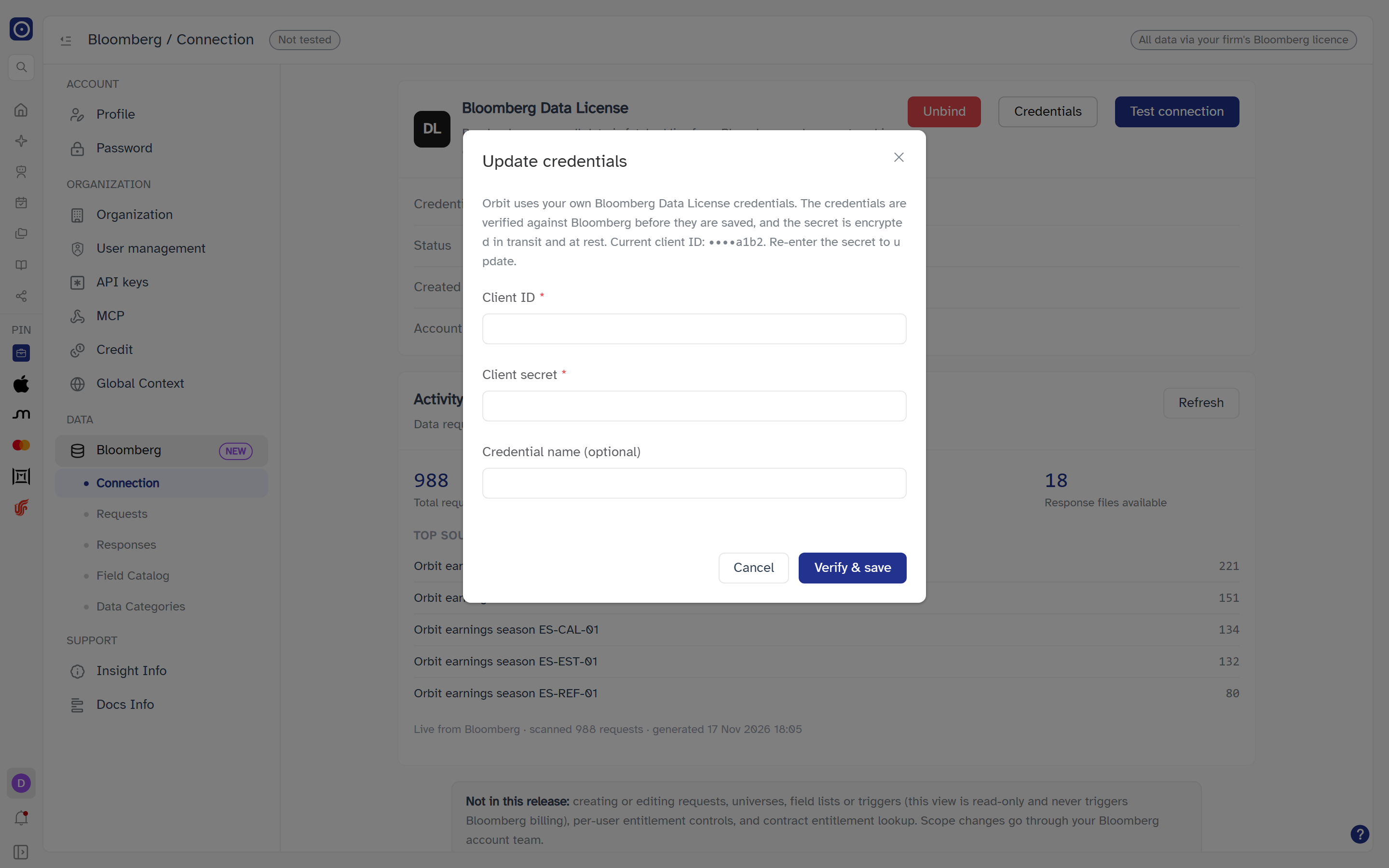
The dialog explains: Orbit uses your own Bloomberg Data License credentials. The credentials are verified against Bloomberg before they are saved, and the secret is encrypted in transit and at rest.
| Field | Notes |
|---|---|
| Client ID | Required — Client ID is required if left empty. Up to 255 characters. |
| Client secret | Required — Client secret is required if left empty. Typed as a password, with a show/hide control. Up to 512 characters. When you update saved credentials you must enter the secret again. It is the hexadecimal string from your Bloomberg Data License credentials, and is encrypted in your browser before it is sent. |
| Credential name (optional) | A label to recognise the credential by; it is what the Credential row shows. Up to 255 characters. |
Verify & save
Verify & save does not just store what you typed. Orbit first makes a real, read-only call to Bloomberg with the credentials and saves them only if Bloomberg accepts them. While it works the dialog cannot be closed and the fields are locked. It ends one of three ways:
| Result | What you see |
|---|---|
| Accepted | Bloomberg credentials saved. The dialog closes, the card refreshes, the top-bar chip reads Connected, and any Bloomberg page that was waiting for credentials loads. |
| Rejected by Bloomberg | Nothing is saved. A message appears in the dialog and as a notification, using the first failed step's explanation, or Bloomberg rejected these credentials. The top-bar chip reads Connection failed. |
| Could not be attempted | Failed to save credentials. Please try again. |
The explanations Bloomberg's answer can produce are:
| Message | What it means |
|---|---|
| Client secret format is invalid — it should be the hexadecimal string from your Bloomberg Data License credentials | The secret could not be used to sign a request. Paste it again from Bloomberg. |
| Bloomberg rejected the credentials (HTTP 401) / (HTTP 403) | The client ID or secret is wrong, or the credentials are not allowed. |
| Server IP … is not allowlisted with Bloomberg | Bloomberg only accepts calls from addresses on its allowlist and Orbit's server address is not on yours. The address is named in the message when Bloomberg reports it. Ask your Bloomberg account team to allowlist it. |
| Bloomberg did not respond within 15s | Bloomberg was too slow to answer. |
| Could not reach … | Orbit could not connect to Bloomberg at all. |
| Bloomberg returned HTTP …, Unexpected response from Bloomberg | Bloomberg answered, but not in the expected way. |
Test connection
Checks that the saved credentials still work. It makes the same read-only call to Bloomberg as Verify & save, but with what is already saved. It is never run automatically — only when you click.
- Click Test connection. A window titled Connection test opens at once.
- Wait while four steps run in order, each shown as pending until it finishes.
- Read the result, then click Done.
| Step | What it checks |
|---|---|
| Load credentials | That credentials are saved. With none saved this step fails with Bloomberg credentials are not configured. |
| Sign request JWT | That the secret can be used to sign a request. |
| Reach Bloomberg & authenticate | That Bloomberg can be reached and accepts the credentials. This is where an allowlist or credential problem shows up. |
| Resolve account catalog | That Bloomberg returns your account's catalog. |
Each step ends as a tick, Failed or Skipped. The first failure stops the test, so the steps after it read Skipped, and the failed step carries the explanation from the table above. When the test passes the window adds the account catalog (identifier and title) and the Latency of the call in milliseconds, and a message reads Connection test passed followed by the catalog; a failure reads Connection test failed. If the test could not be run at all the window says Could not run the connection test. Please try again.
The result updates the top-bar chip and the Status row. Closing the window before the test finishes does not cancel it; the chip still updates when the answer arrives. Leaving the page does cancel it and the previous result stays.
Unbind
Unbind asks first: Unbinding removes your saved Bloomberg credentials from Orbit. You will need to enter them again to use Bloomberg data. under the title Unbind Bloomberg credentials. Unbind confirms and Cancel backs out.
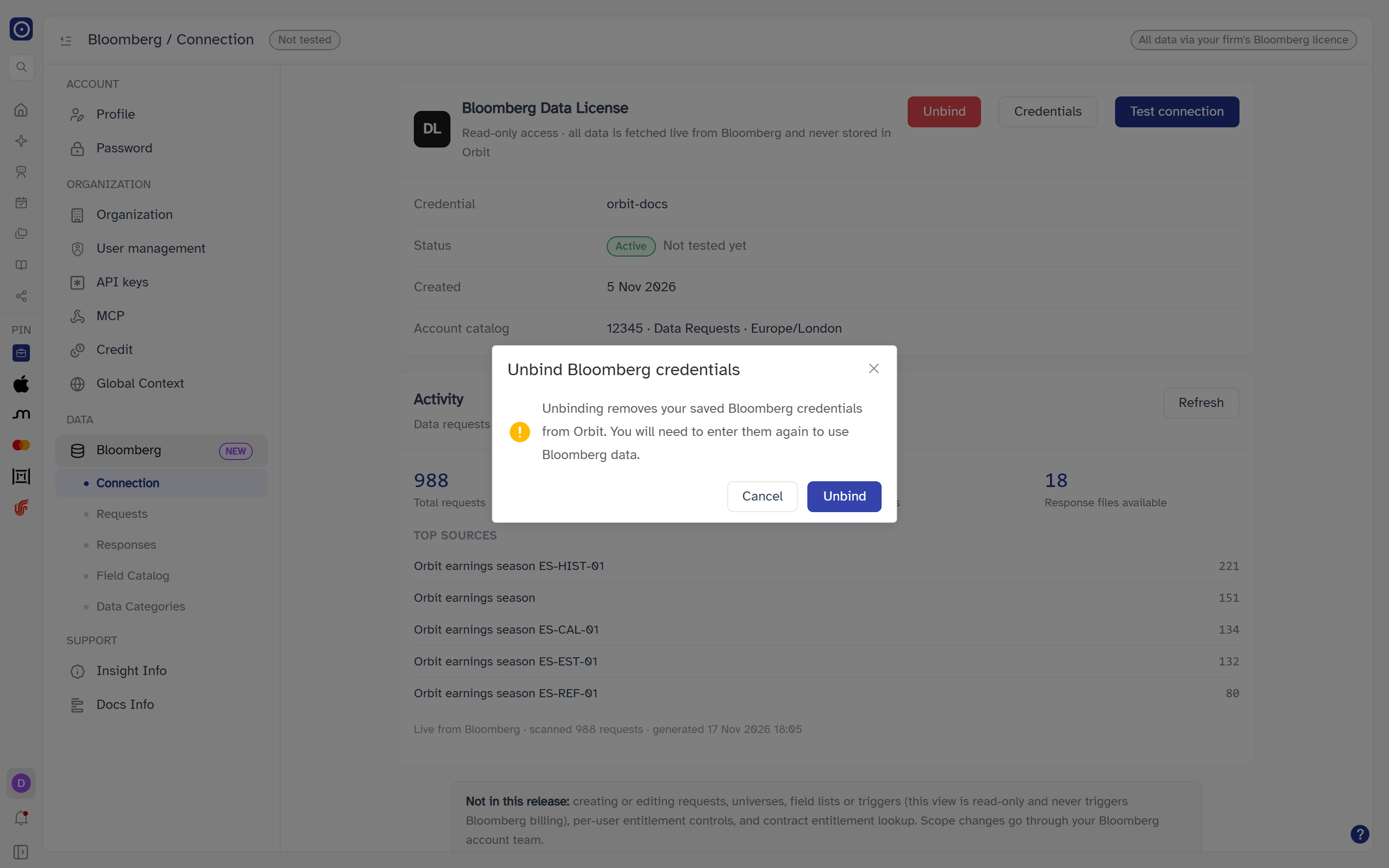
Your saved credentials are deleted from Orbit, the Activity card disappears, and the top-bar chip goes back to Not tested. The other Bloomberg pages will ask you to connect again the next time you open them. It does not touch anything on Bloomberg's side. Confirming shows Bloomberg credentials unbound; unbinding when nothing is saved is not an error.
Activity
A summary of the requests and response files on your Bloomberg account. The card is shown only while credentials are saved. Its data is gathered live from Bloomberg each time, which can take a few seconds: until then it reads Loading live from Bloomberg — this may take a few seconds. The card loads separately from the one above it, so one can fail without the other.
| Part | Meaning |
|---|---|
| Total requests | How many data requests the account has. |
| Last 7 days / Last 30 days | How many of them were issued in that period. |
| Response files available | How many response files Bloomberg is holding at the moment. Bloomberg keeps them for about a day; see Responses. |
| Top sources | The request titles that occur most, up to five, each with its count. No requests yet when there are none. A request with no title counts as (untitled). |
| Footnote | Live from Bloomberg · scanned N requests and when the figures were generated. When the scan stopped before reading everything it adds Results may be incomplete (scan stopped early). |
| Refresh | Gathers the figures again. Disabled while it is loading. |
If it cannot load the card reads Failed to load activity with a Retry button.
What this release does not include
A note at the foot of the page spells it out: creating or editing requests, universes, field lists or triggers (this view is read-only and never triggers Bloomberg billing), per-user entitlement controls, and contract entitlement lookup. Scope changes go through your Bloomberg account team.
If a Bloomberg call fails
Most failures on the Bloomberg pages end as a short message and an in-page Retry. When Bloomberg itself is the cause, the message names the reason:
| Message | What it means |
|---|---|
| Bloomberg credentials are not configured | Save credentials first, on this page. |
| Bloomberg rejected the request (authentication or entitlement) | Your credentials do not allow that request. |
| Resource not found on Bloomberg (it may have expired) | For example a response file that Bloomberg has already removed. |
| Bloomberg did not respond in time | Try again. |
| Bloomberg service error | Bloomberg returned an error of its own. |
| Only read-only Bloomberg requests are allowed | Orbit refused to send anything that would change data on Bloomberg. |
Where Bloomberg shows up elsewhere in Orbit
The Bloomberg options in Concept Library and Screening use the credentials saved here.