
Notifications
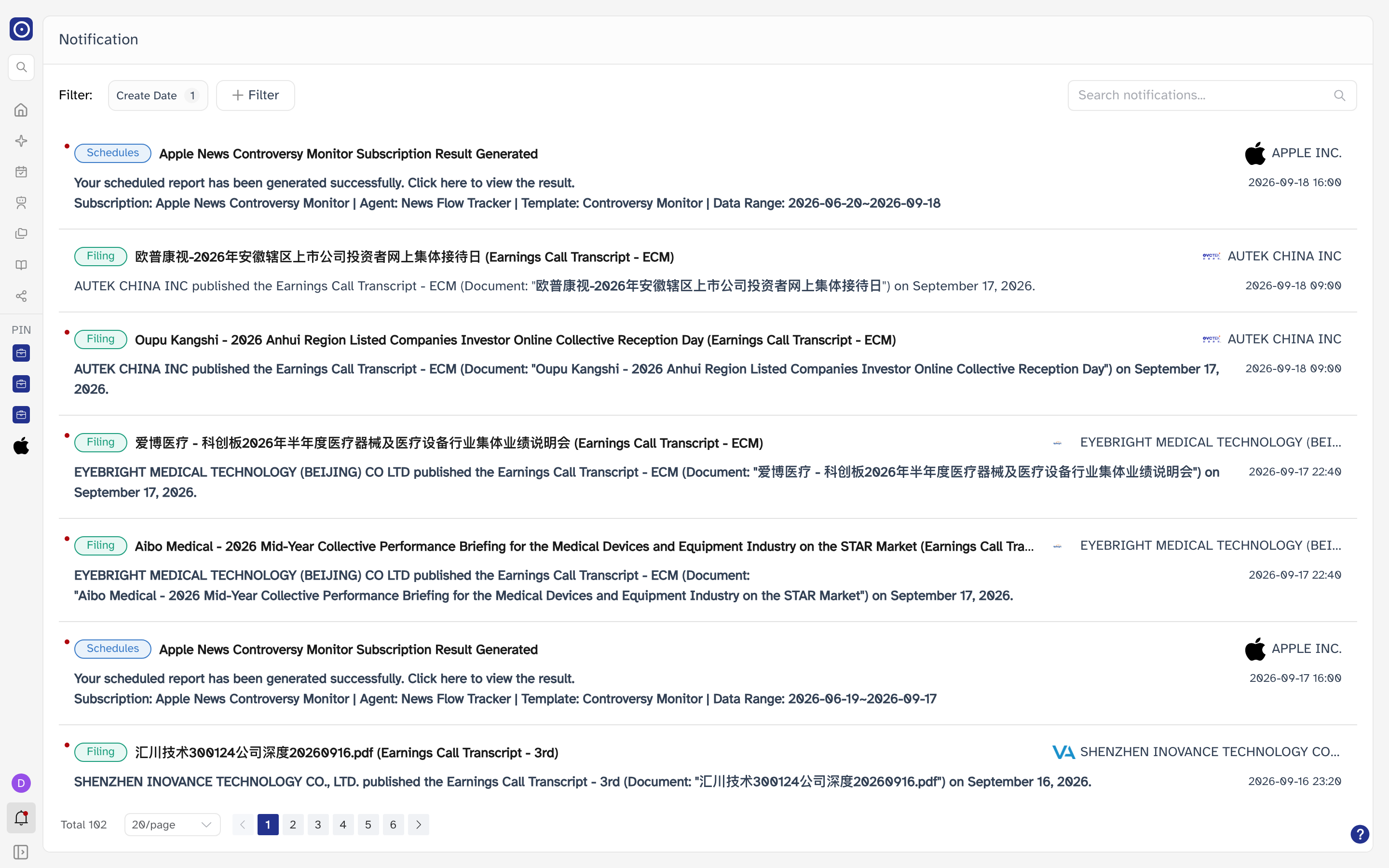
Orbit's own inbox. One line for each thing that happened on your account — a document filed, a scheduled report that finished, a company added to a portfolio — newest first.
Opening the page
- At the bottom of the left rail, click Notification. The rail shows icons only until you widen it with Collapse Sidebar.
- Or open the Dashboard and find the Notification panel. Clicking the panel's title opens this page.
- Or click one of the alerts inside that panel. This page then opens on that alert, with its category and its company or portfolio already selected — see Arriving from an alert below.
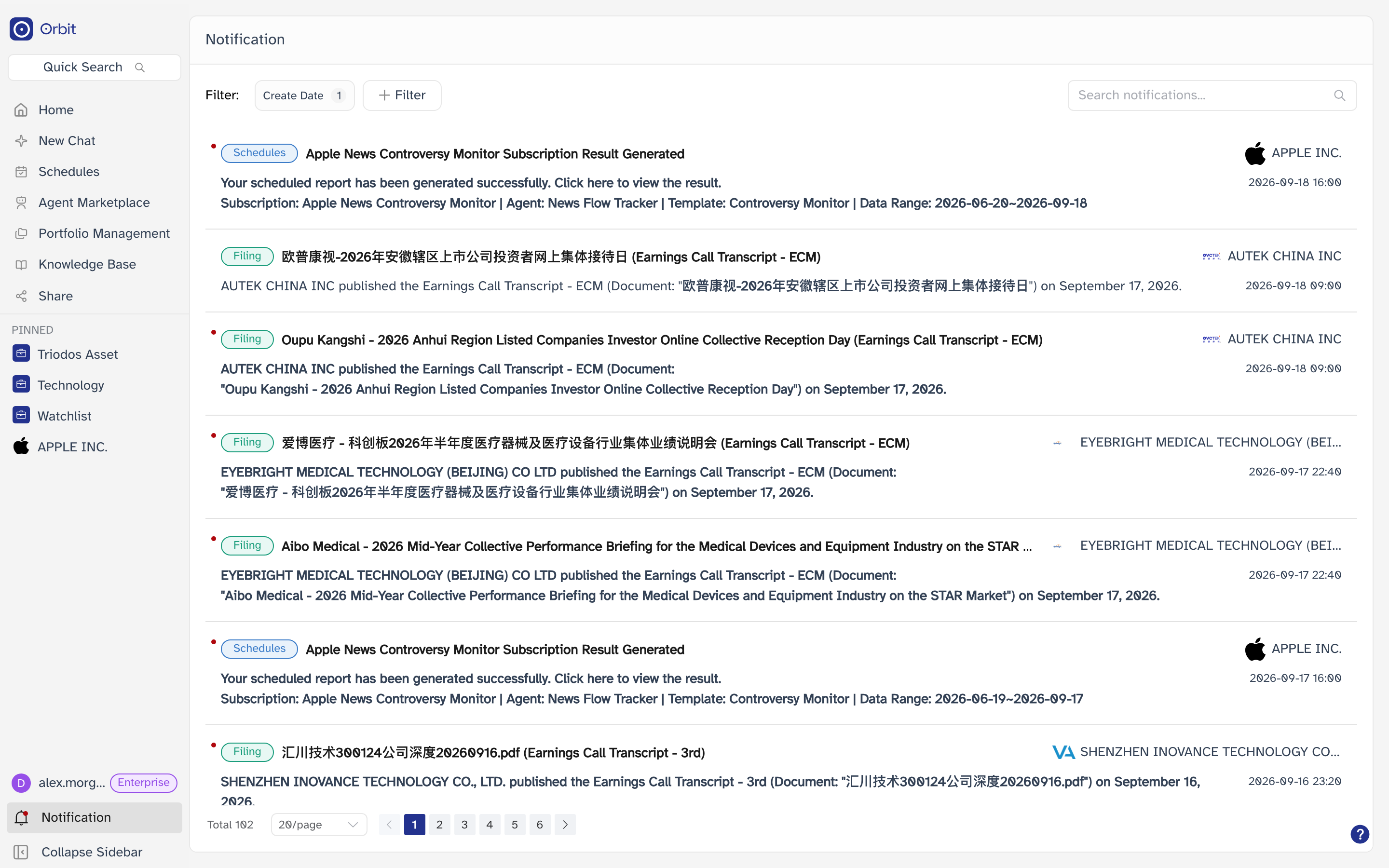
Notification is not one of the main menu entries — it sits at the foot of the rail, below the pinned portfolios.
Orbit asks whether anything is unread when the app loads and does not ask again. Reading notifications during a session can therefore leave the dot on screen until you reload.
Arriving from an alert
Following an alert from the Dashboard panel carries two things over: the alert's category, and its company or portfolio. The rest of the list is left alone, so the entry you clicked can still be sitting among many others.
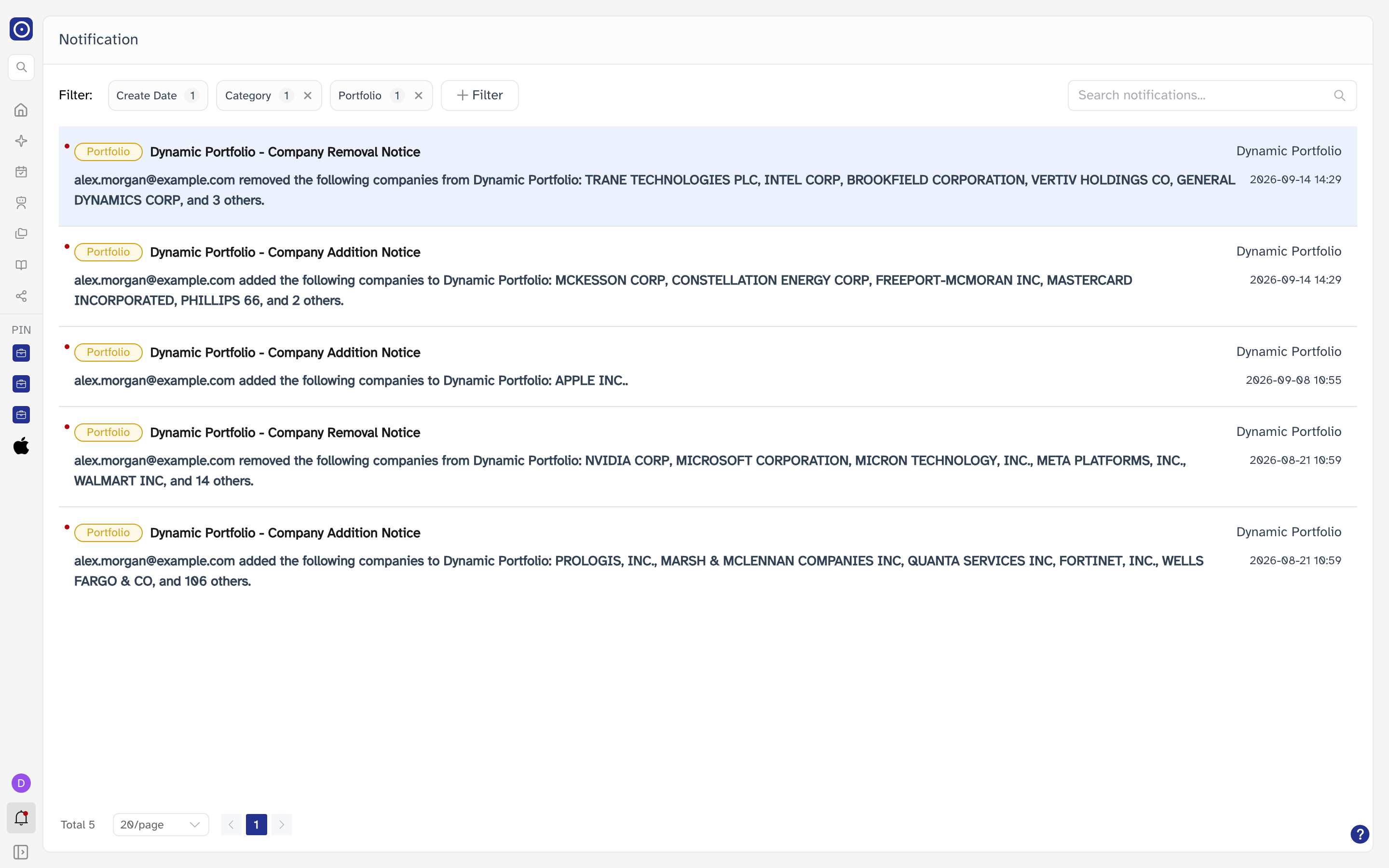
The tint is a one-off. Changing any filter or typing in the search box takes it away, and the only way back to it is to open the alert from the Dashboard again.
The notifications
Every entry has the same four parts: what kind of event it was, its headline, the company or portfolio it concerns, and when it arrived.
| Part | What it holds |
|---|---|
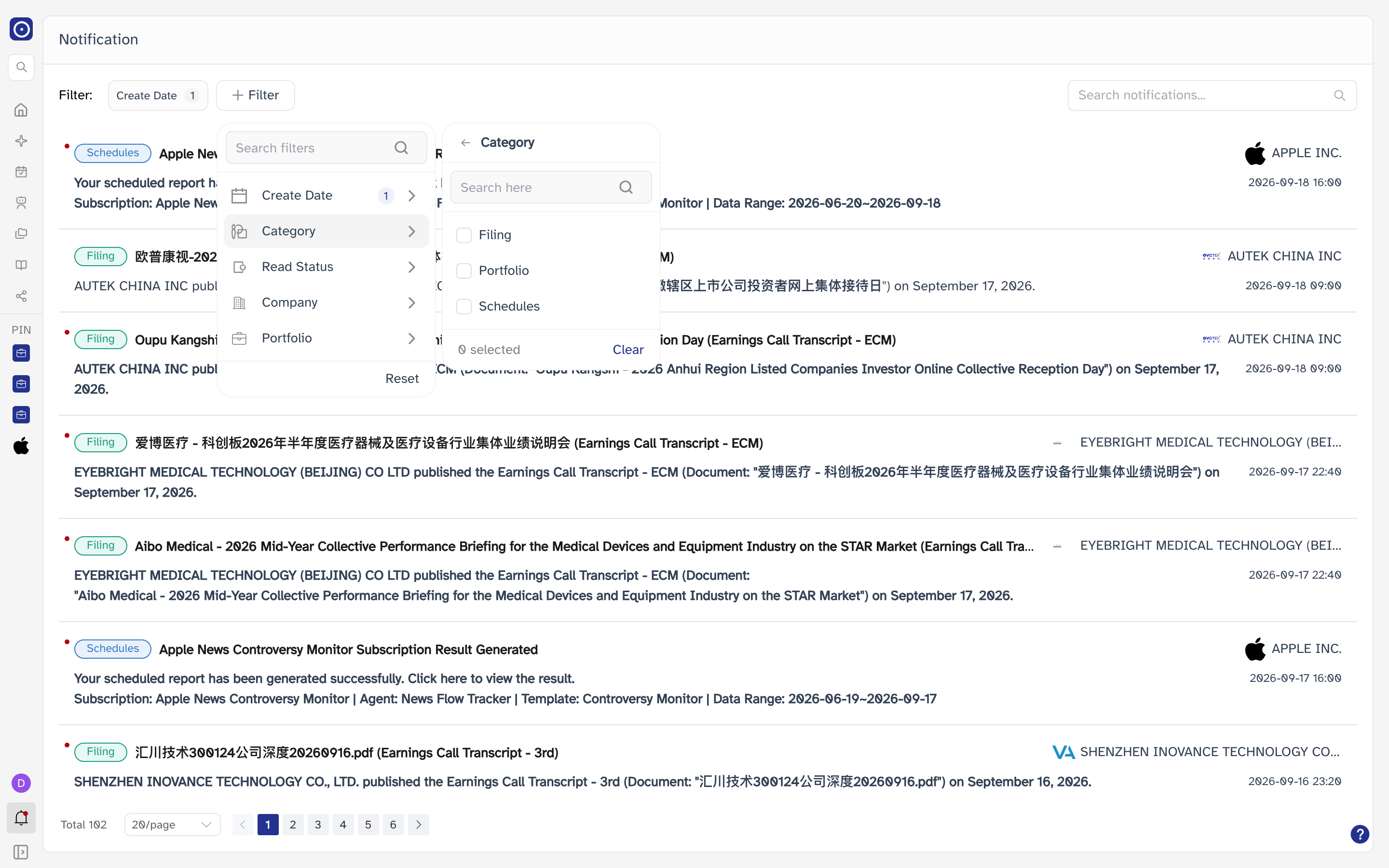
| Category tag | The kind of event, at the left of the headline. This account produces Filing, Portfolio and Schedules: green, gold and blue respectively. The set is whatever the account generates, and it is the same set the Category filter offers. It is a label, not a link — clicking it marks the entry read like any other part of the row. |
| Headline | One line naming what happened. It is cut short when it does not fit, and hovering it brings the whole thing up in a tooltip. |
| Company or portfolio | The subject, at the right of the headline. A company is shown with its logo and a portfolio as a plain name. Entries that concern neither leave this empty. |
| Message | The detail, in a sentence or two, and often a link to whatever the entry is about. Links open in a new browser tab. |
| Timestamp | When the entry arrived, in your own time zone and to the minute. The list is ordered by it, newest first. |
Unread and read
Entries you have not opened yet are drawn in heavier type and carry a small red dot at the left. An entry becomes read when you click it, and what exactly that click does depends on what you hit:
| You click | What happens |
|---|---|
| Anywhere on the entry | It is marked read. Nothing opens. |
| A link in the message | The link opens in a new tab, and the entry stays unread — the click stops at the link. |
| A company's name | The company's page opens in a new tab. Because that click also lands on the entry, the entry is marked read as well. |
| A company's logo | Only the name is a link, so the logo does nothing but mark the entry read. |
| A portfolio's name | Takes you to Portfolio Management with that portfolio in view, and leaves the entry unread. |
The company page covers what opens when you click a company: its header, the cards held for it, and the actions you can take on it.
Reading is one-way. There is no way to put an entry back to unread, and no button that marks the whole list read at once.
Filtering the list
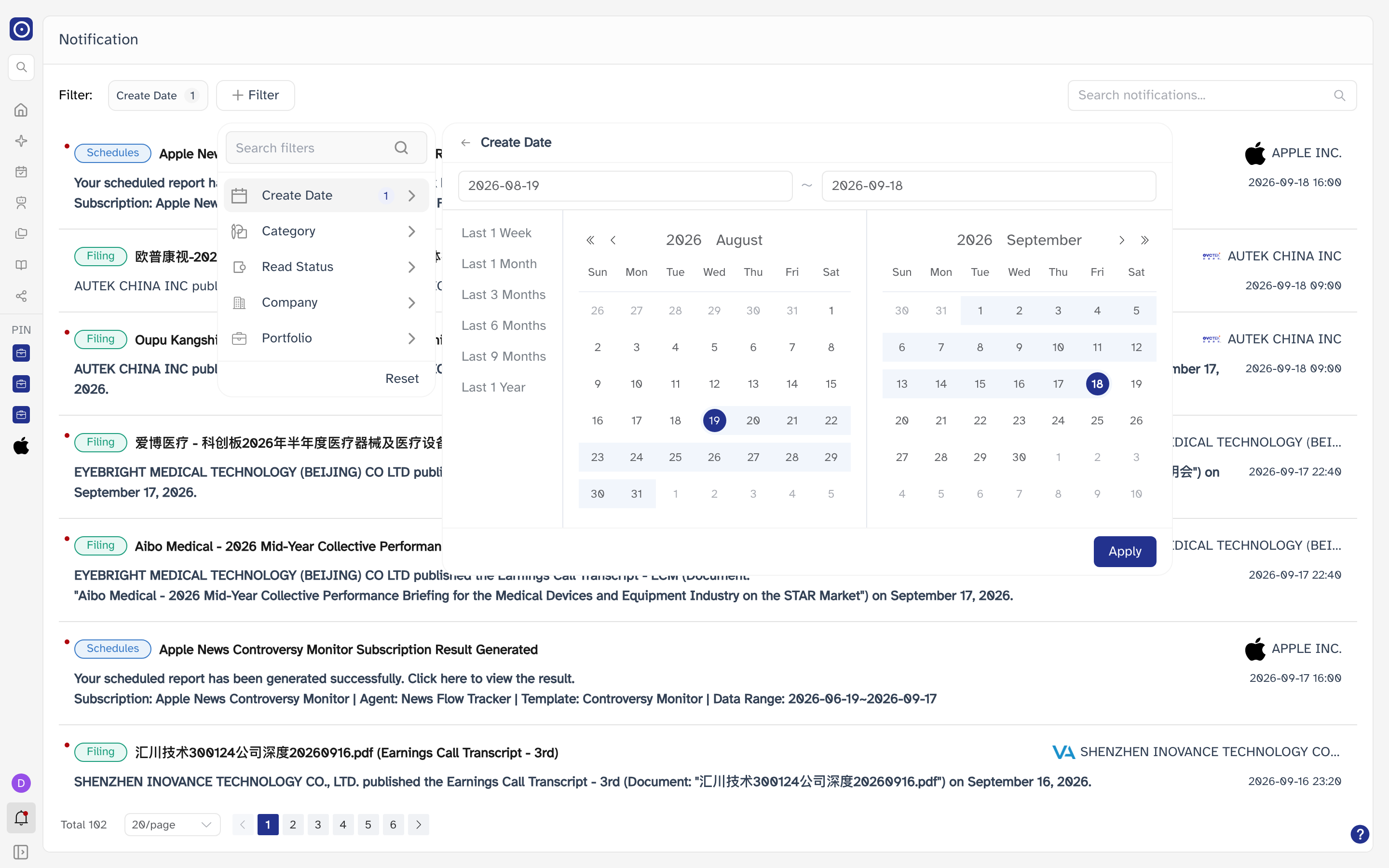
The line at the top of the page holds Filter and a chip for each filter you have set, with the number of values it holds beside the name — Create Date 1 is one date range. A filter left alone shows no chip at all. Each chip carries an ✕ to drop that filter, except Create Date, which cannot be dropped.
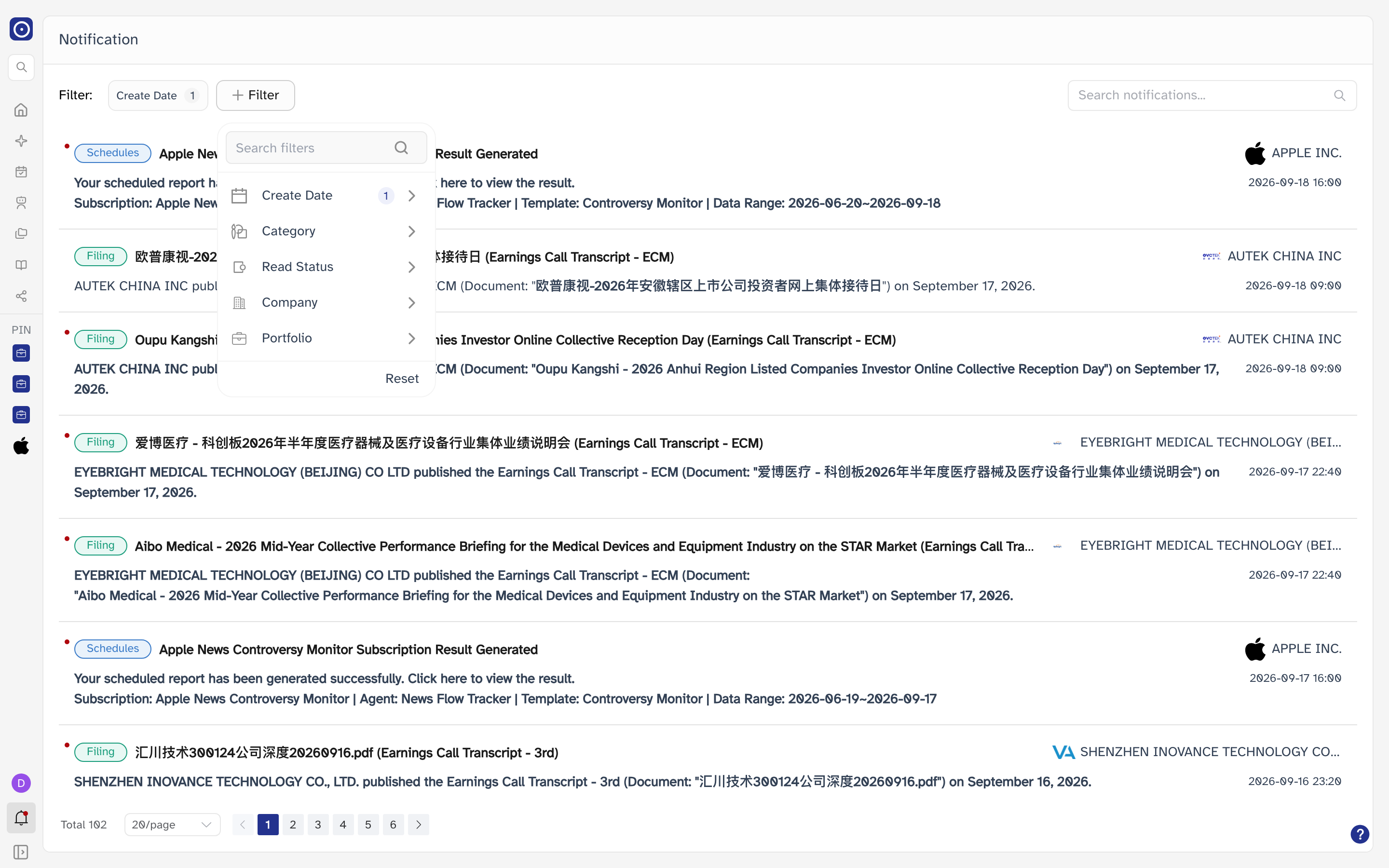
| Filter | What it holds |
|---|---|
| Create Date | The window the entries arrived in. It always holds a range: the page opens on the last thirty days, and this is the one filter that cannot be cleared. |
| Category | Which kinds of event to include. More than one at a time. |
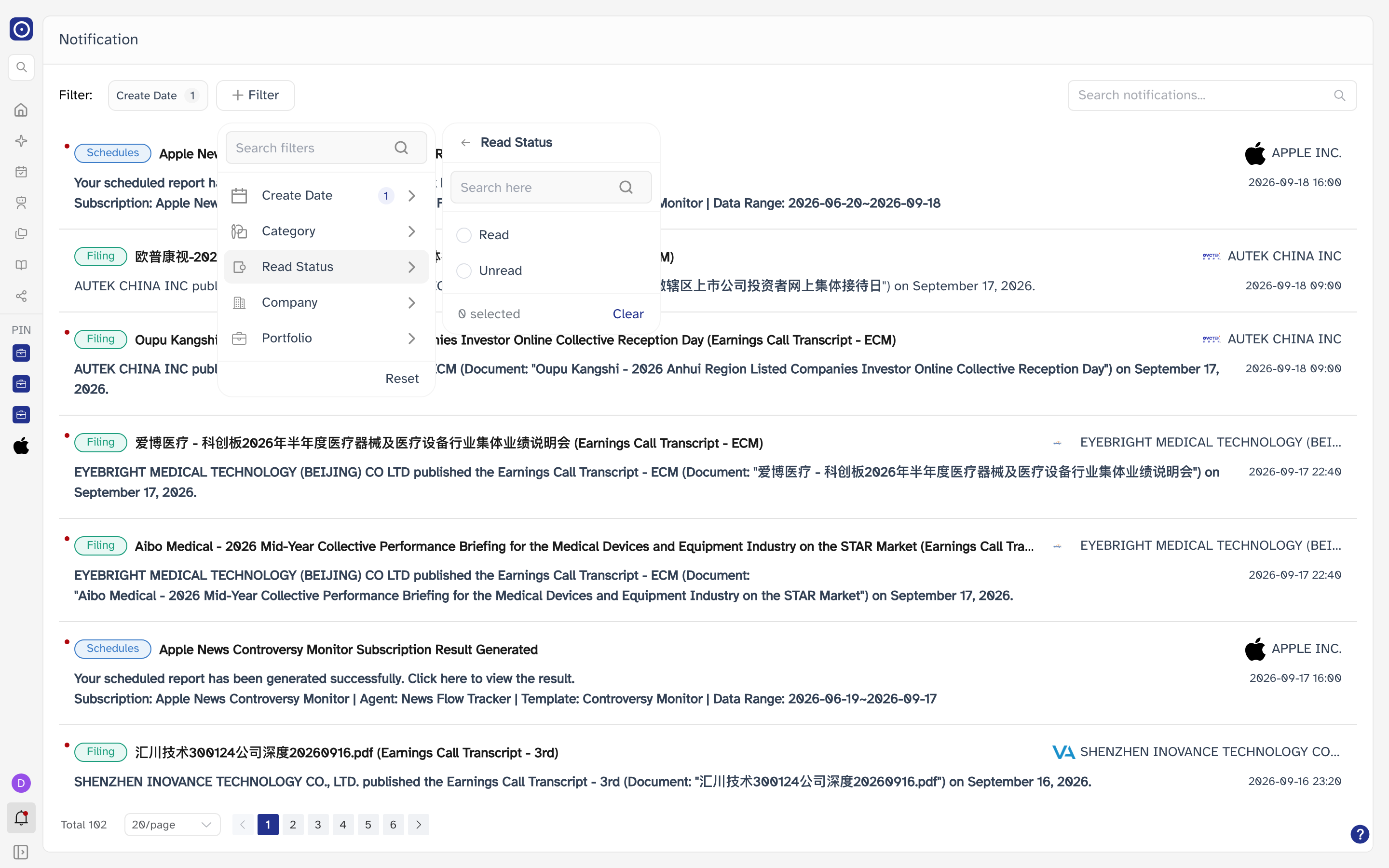
| Read Status | Read or Unread — one or the other, not both. |
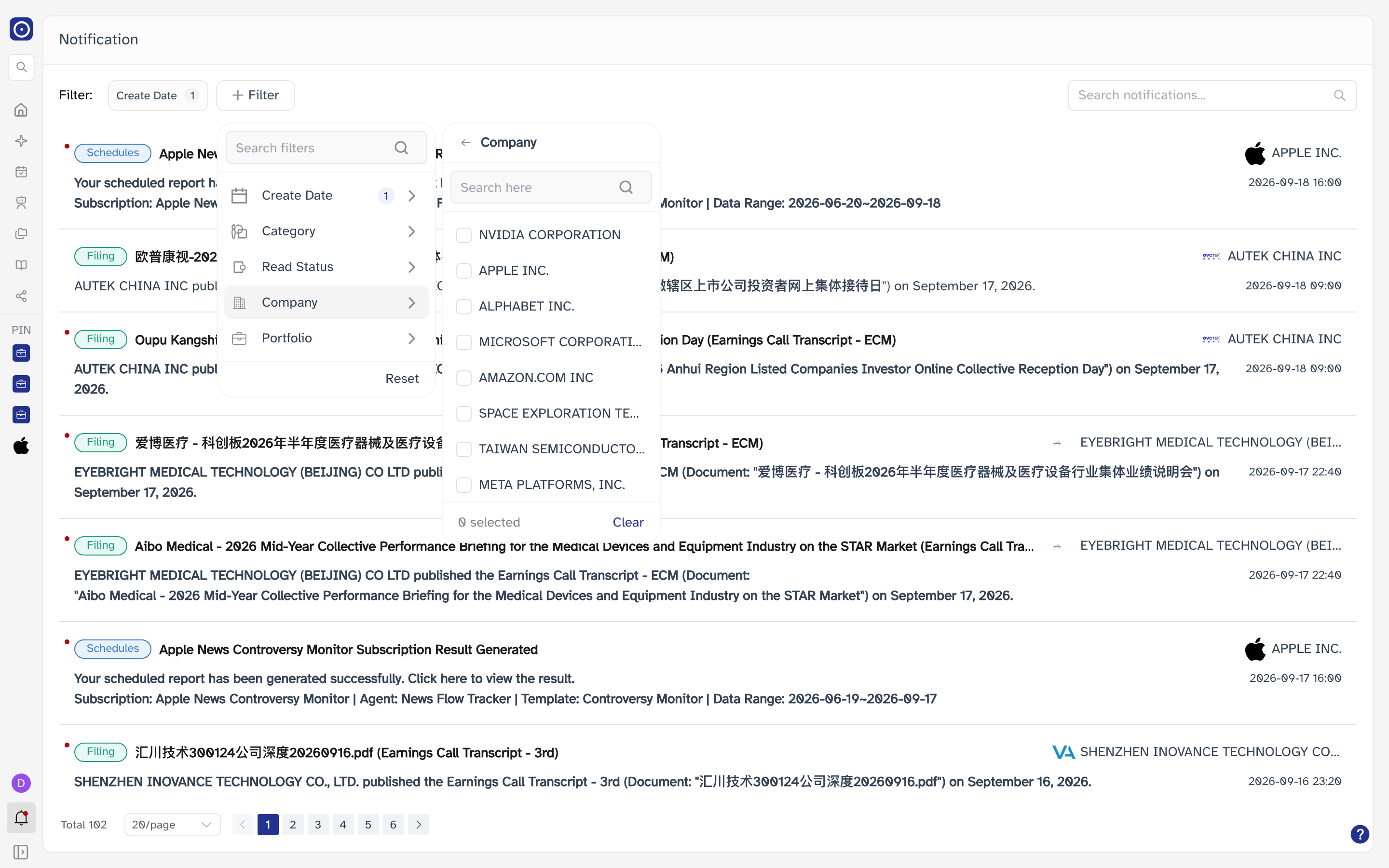
| Company | The companies to include. Long lists are narrowed by typing, which looks up matching company names and offers the three closest. |
| Portfolio | The portfolios to include. More than one at a time. |
Changing any of them re-runs the query and returns you to the first page.
Create Date
Category
Read Status
Company
Portfolio
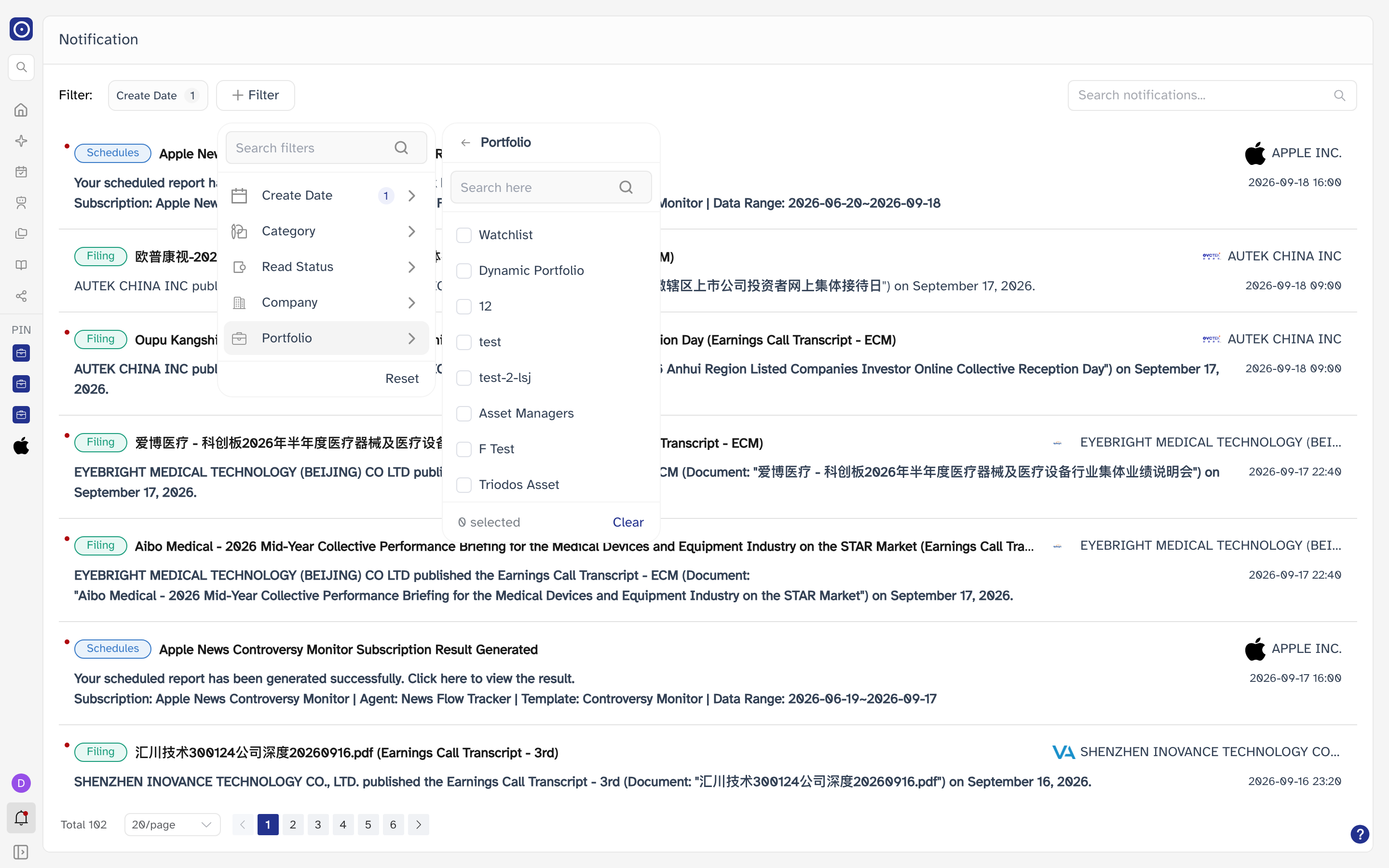
Two buttons clear things, and they are not the same size of action. Reset at the foot of the panel drops every filter at once. Clear at the foot of one filter's options drops only that one.
Because the range starts at thirty days, an entry you remember from last quarter is not in the list, and no amount of filtering will bring it back. Widen Create Date before concluding that something never arrived.
Searching the list
The box at the right of the filter line searches the headlines and messages of the entries already on screen.
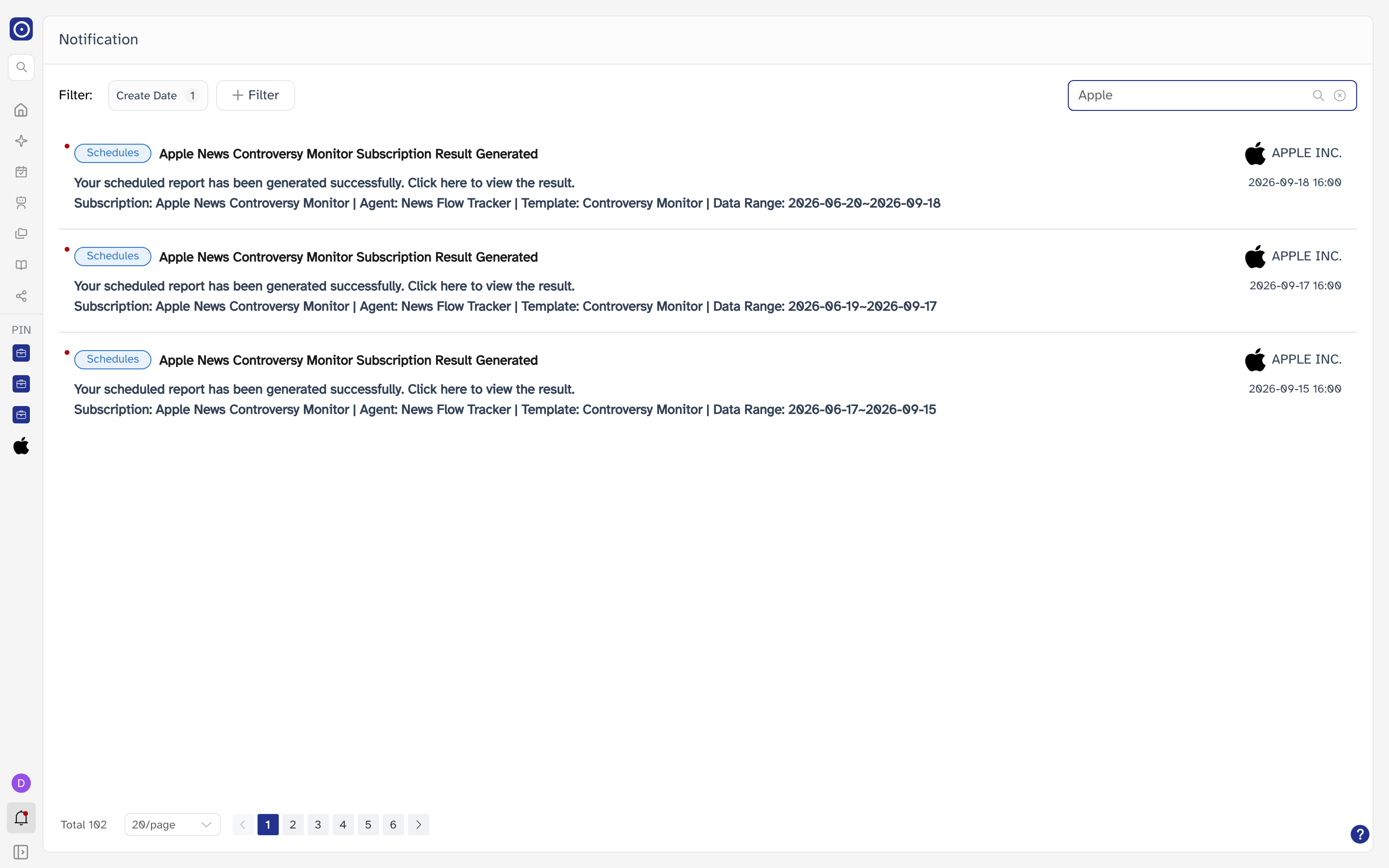
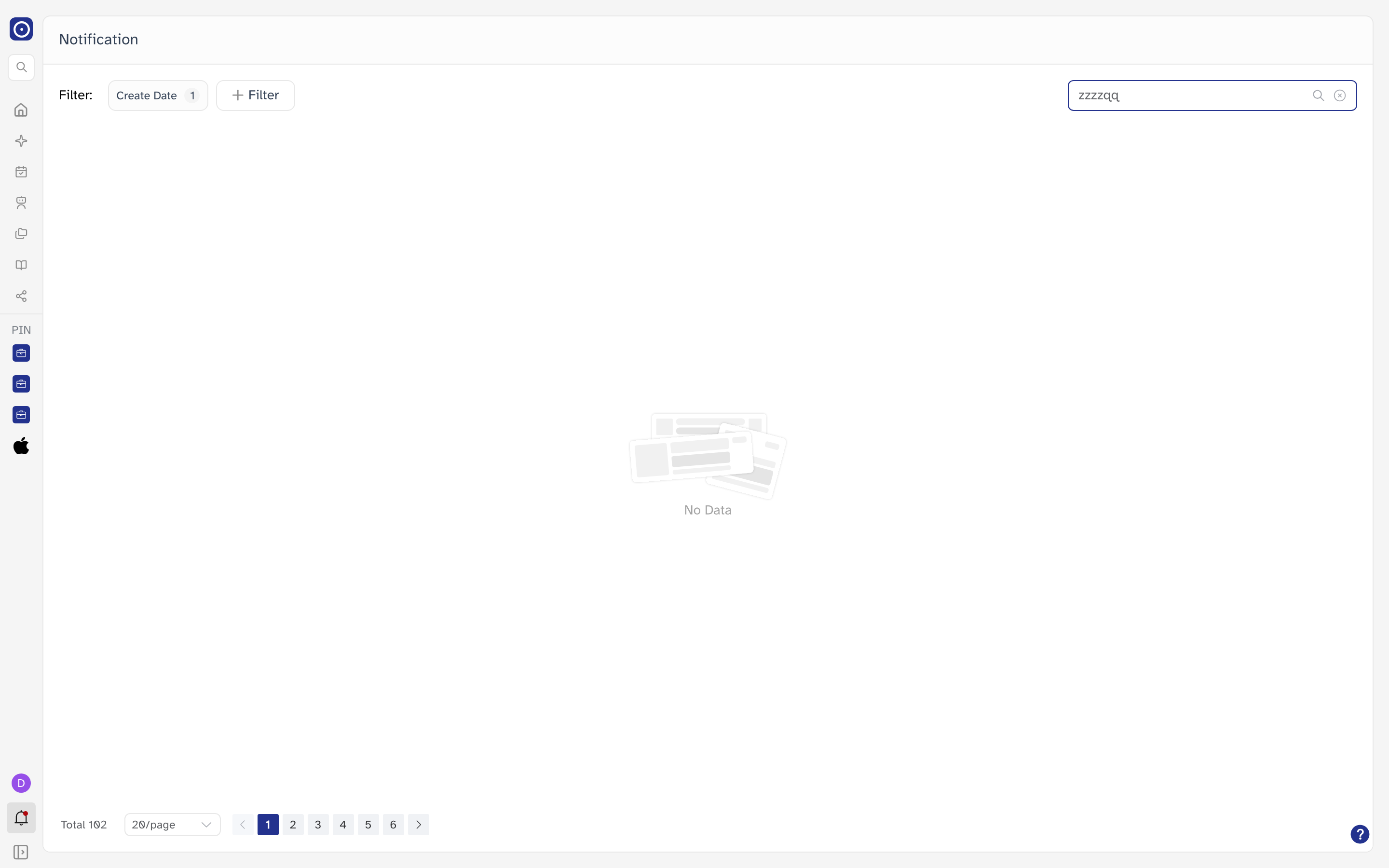
It filters the entries already fetched — the handful in front of you — and nothing beyond them. A search that comes back empty may simply mean the match is on another page. Widen Create Date, narrow the other filters, or move to the next page, and search again.
Moving through the list
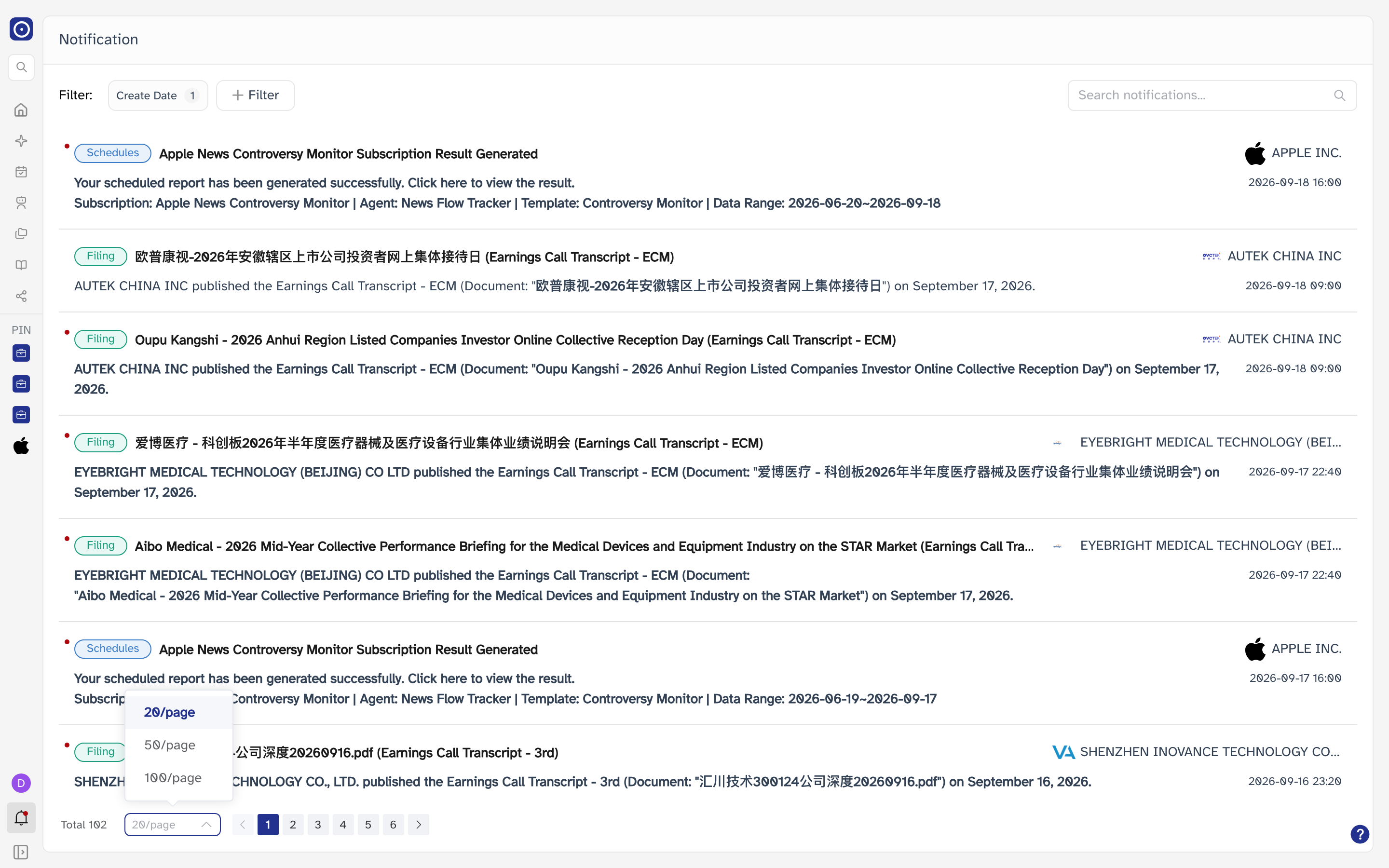
The foot of the page carries how many entries match, a page size, and the pager.
Where to go from here
A notification is a pointer, not the thing itself. What it points at lives elsewhere: a finished report on Schedules, a change to a list on Portfolio Management, a document on Company Report.
If the same alert keeps arriving and you no longer need it, the fix is at the source — pause the schedule that produces it, or take the company off the portfolio it belongs to.