
Company Report
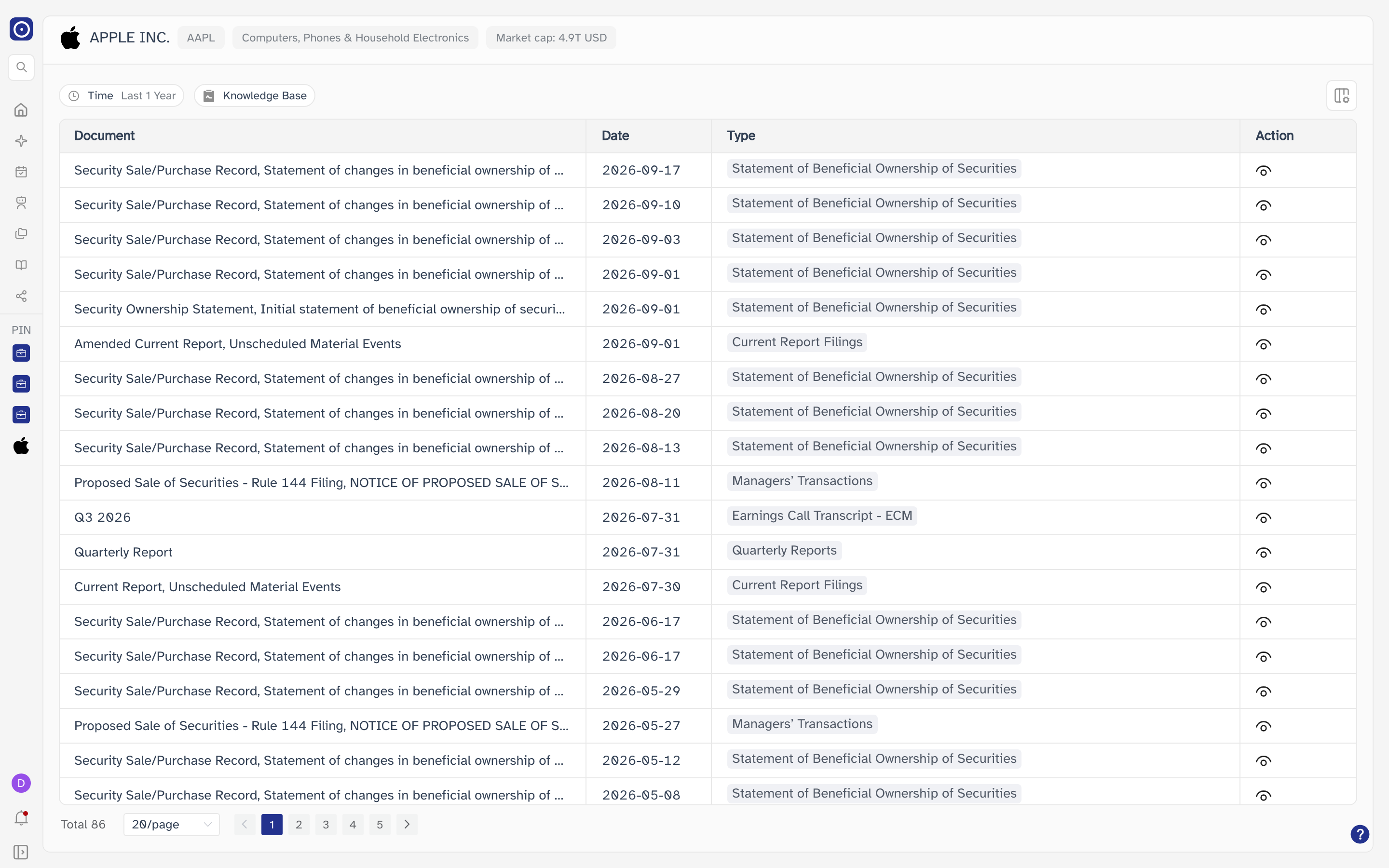
Everything Orbit holds for one company — filings, annual and quarterly reports, earnings call transcripts, your own uploads — in one list you can narrow by date and by document library.
Opening the page
- Open the company you want, the same way you would for Company News.
- Find the reports card. It opens on Filing Reports, and has Earnings Call Transcript beside it — a company regulated by a financial authority gets Regulation Reports instead. Each tab lists up to five documents. Choose View All.
- Where a tab holds more than five documents it also shows More. That button opens the same page already narrowed to the tab you were reading, which is the quicker way in when you only want one kind of document.
Both View All and More build an encrypted query into the
address, and the page reads the company and the pre-set library filter out of it. A
/company-report address without that query has nothing to decrypt, and the page
comes up empty rather than asking you which company you meant. So don't keep the URL and
drop the query — go back to the company and click through again.
Filtering the list
Both controls sit in the row above the table, and both act as soon as you confirm them — the list runs again and returns to its first page.
Time
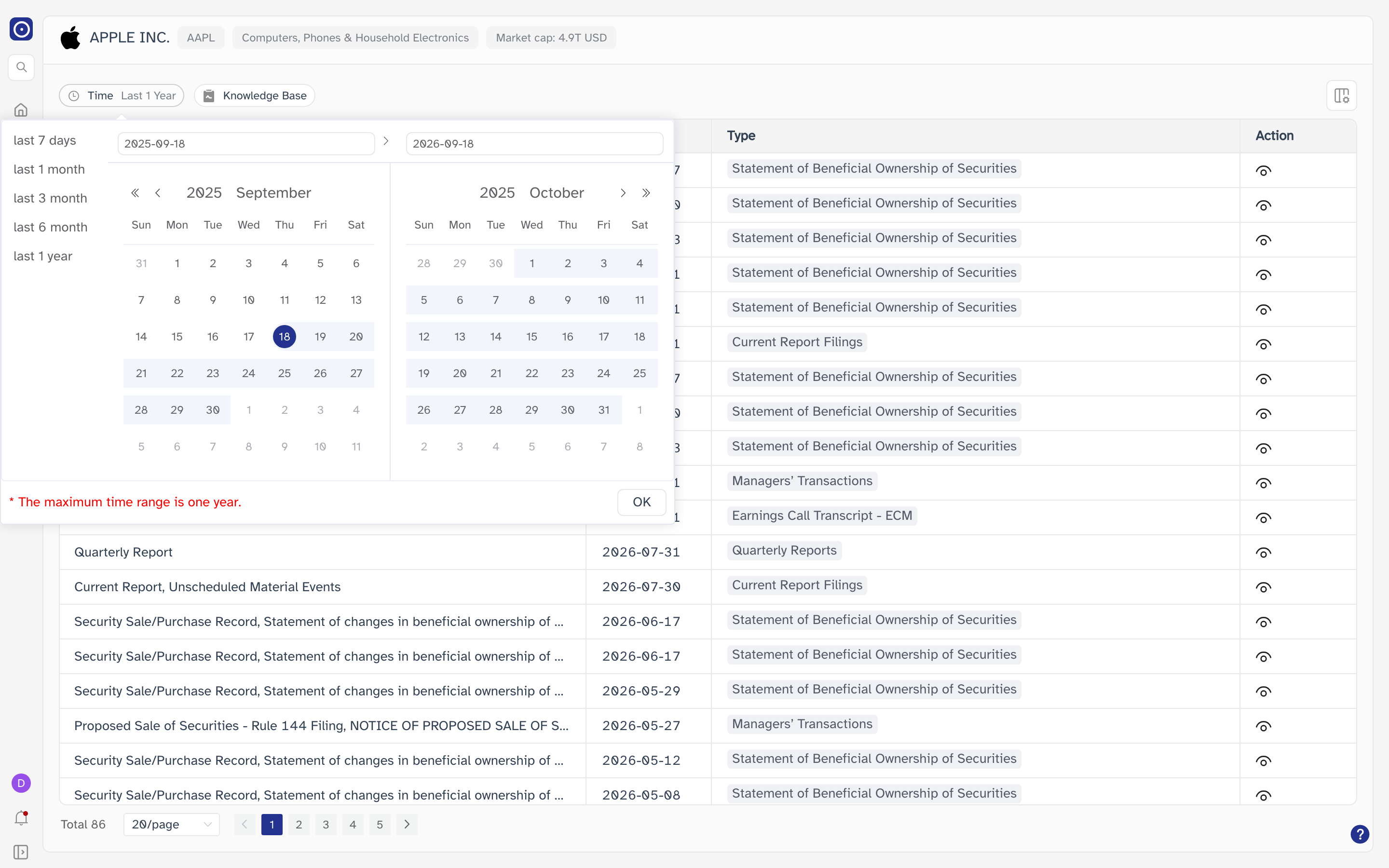
Time holds the range of dates the documents were published in, and opens on the last 1 year. The shortcuts down the side of the panel — last 7 days, last 1 month, last 3 month, last 6 month, last 1 year — fill both ends for you. Otherwise pick a start and an end across the two months on show, move between months with the arrows, and press OK.
The panel says so itself: the maximum range is one year. Once one end is picked, dates more than a year from it are greyed out, and no date after today can be picked at all. Documents older than the range you can name are still in the table's total — you just cannot ask for them in one go.
Knowledge Base
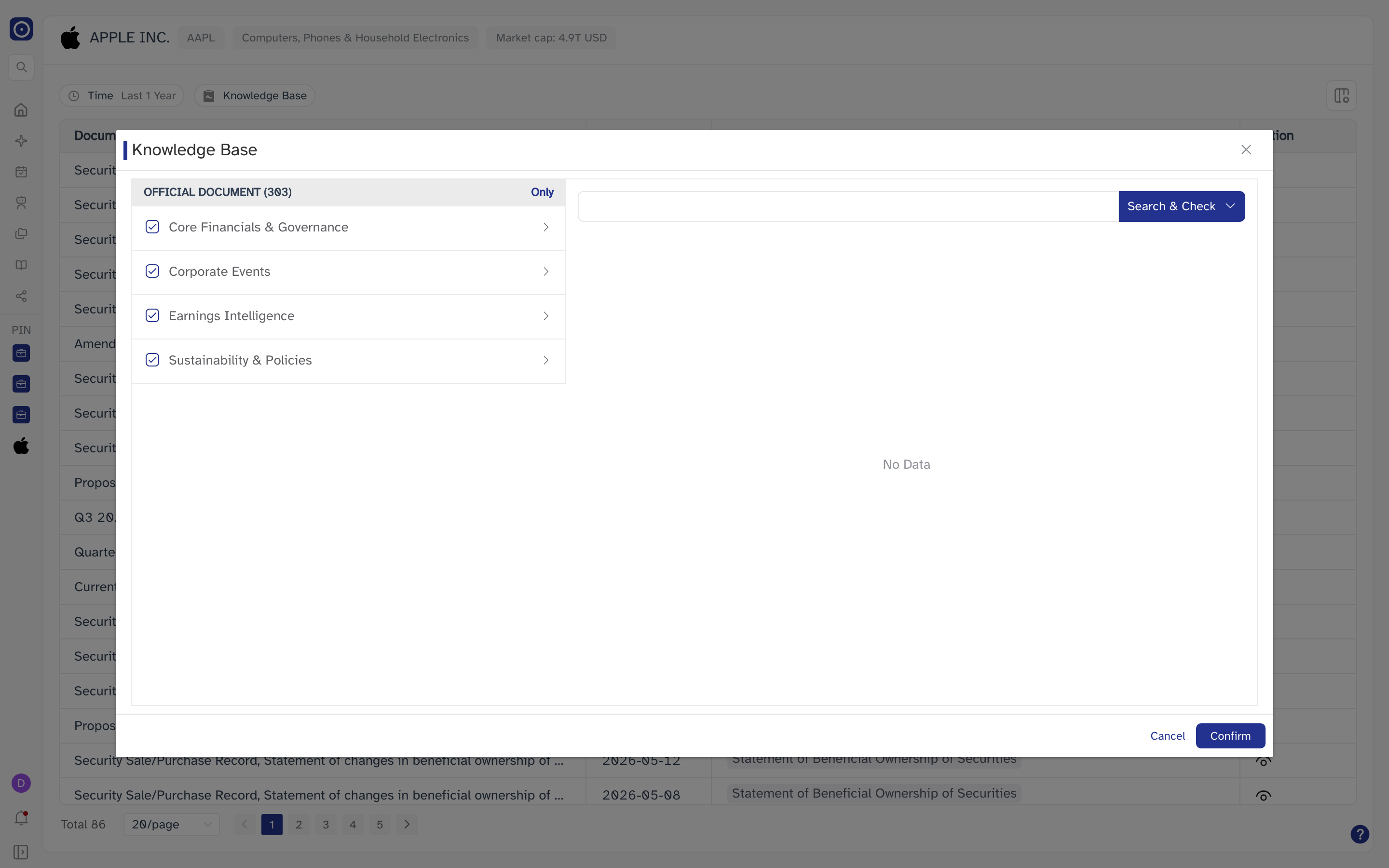
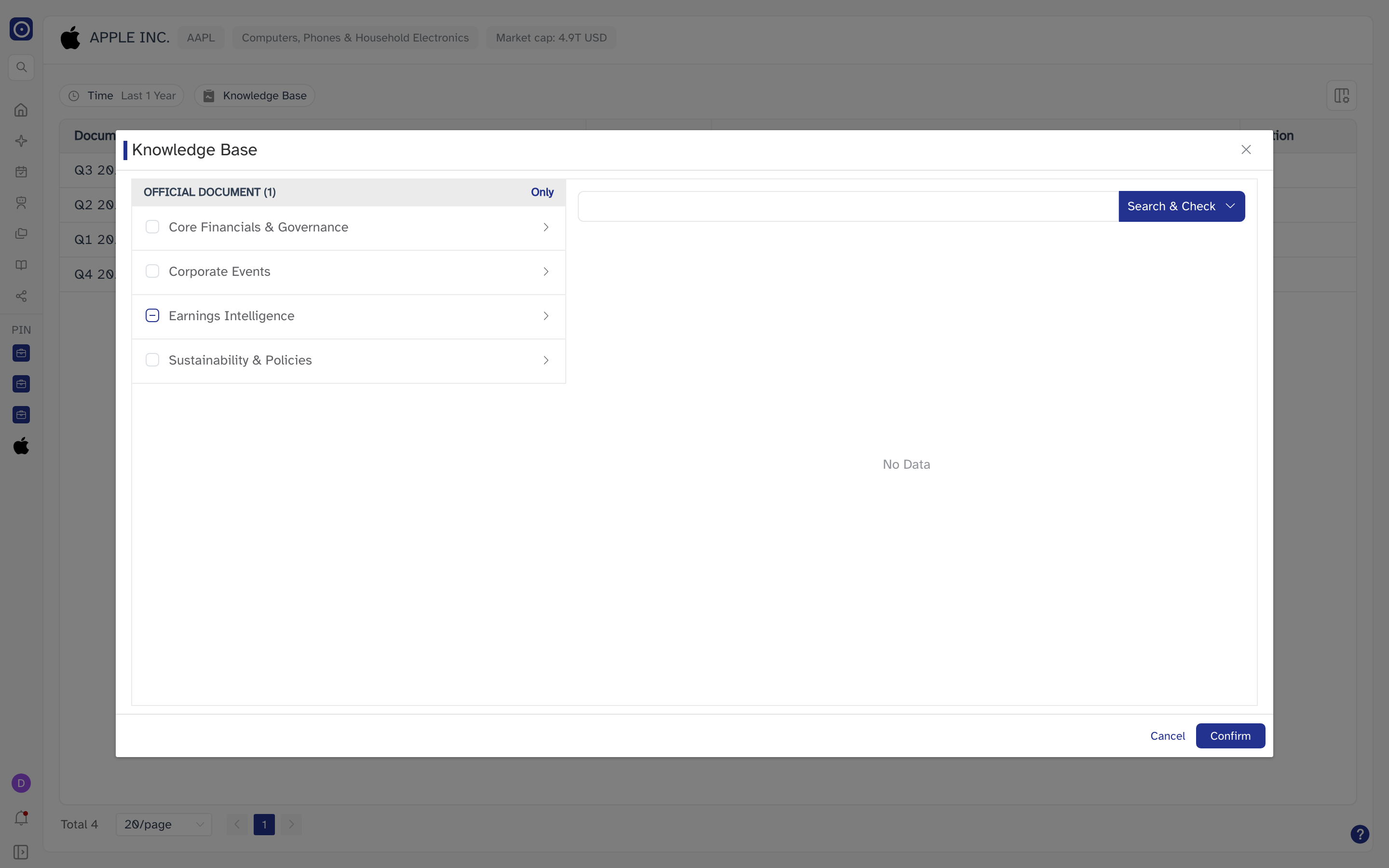
Knowledge Base chooses which document types the list is drawn from. The dialog is in two halves. On the left, one block per library, headed by the library's name and the number of its document types you are currently searching, with an Only link that ticks everything in that block; under the heading, one entry per group inside the library. On the right, a search box, a button that runs it — Search & Check, or plain Search if you pick that from the dropdown beside it — and a checkbox tree of the document types, each node with children carrying its own Only link.
Confirm applies the selection and runs the list again; Cancel leaves the list as it was.
Unticking everything and confirming gets you a warning — Select at least one knowledge base — and no list at all, because the page has nothing left to search. Two libraries are never offered here: Custom and News. Your own uploads are read in PDF Chat and on the company page, and news is what Company News is for.
A company regulated by a financial authority also loses Official Document, since for those companies Orbit files regulation reports instead — which is also why their reports card offers Regulation Reports as its tab.
Columns
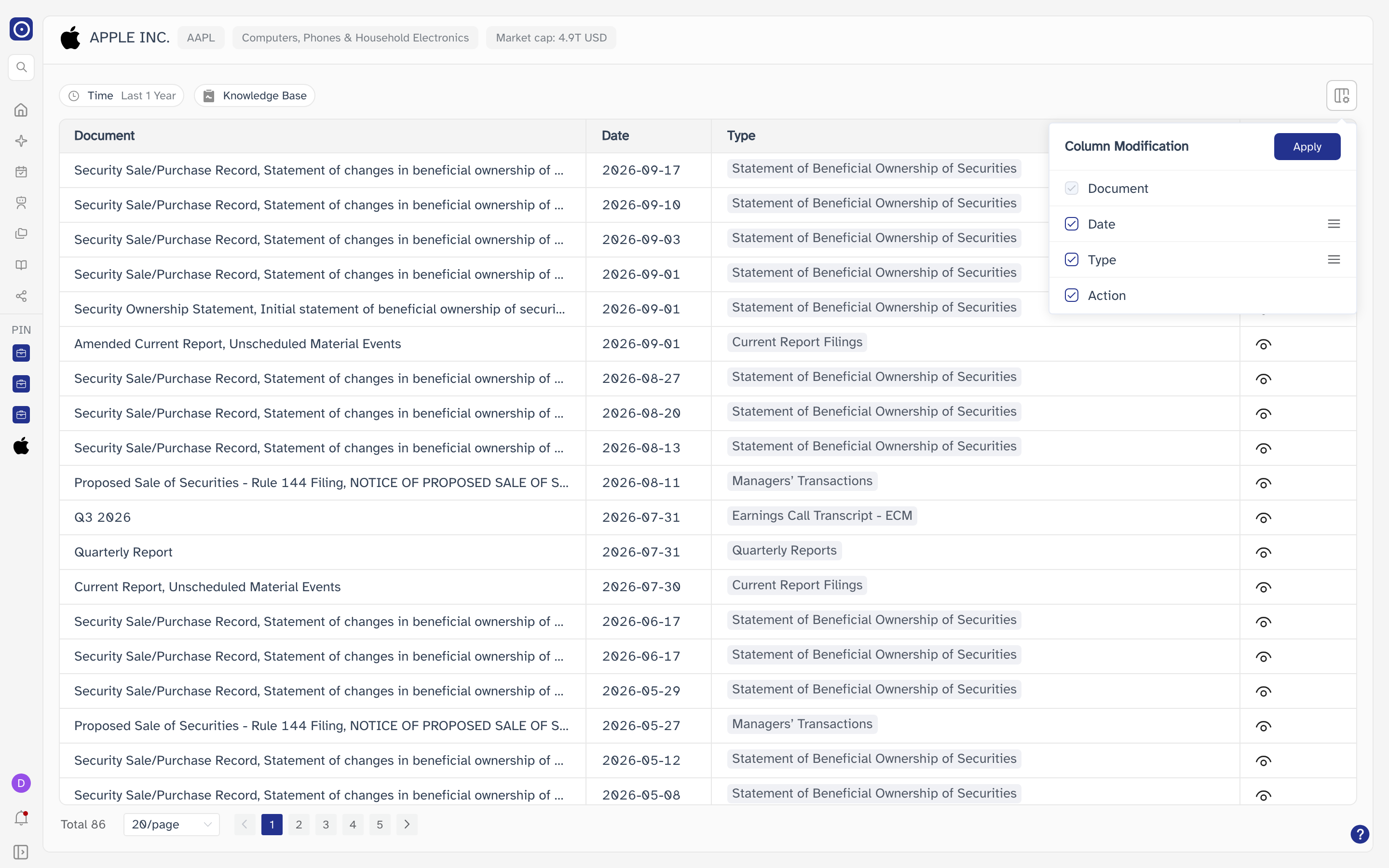
The icon button at the right-hand end of the filter row opens Column Modification. Tick a column to show it, untick it to hide it, and drag the ones you keep into the order you want. Apply redraws the table and closes the popover; there is no Cancel, so the columns stay as you left them either way.
The report table

| Column | What it holds |
|---|---|
| Document | The document's title. A long one is cut off at the column width; hover it to read the rest. |
| Date | The date the document was published or filed. |
| Type | What kind of document it is — a quarterly report, a statement of beneficial ownership, an earnings call transcript. |
| Action | The two things you can do with the document: View and Chat. |
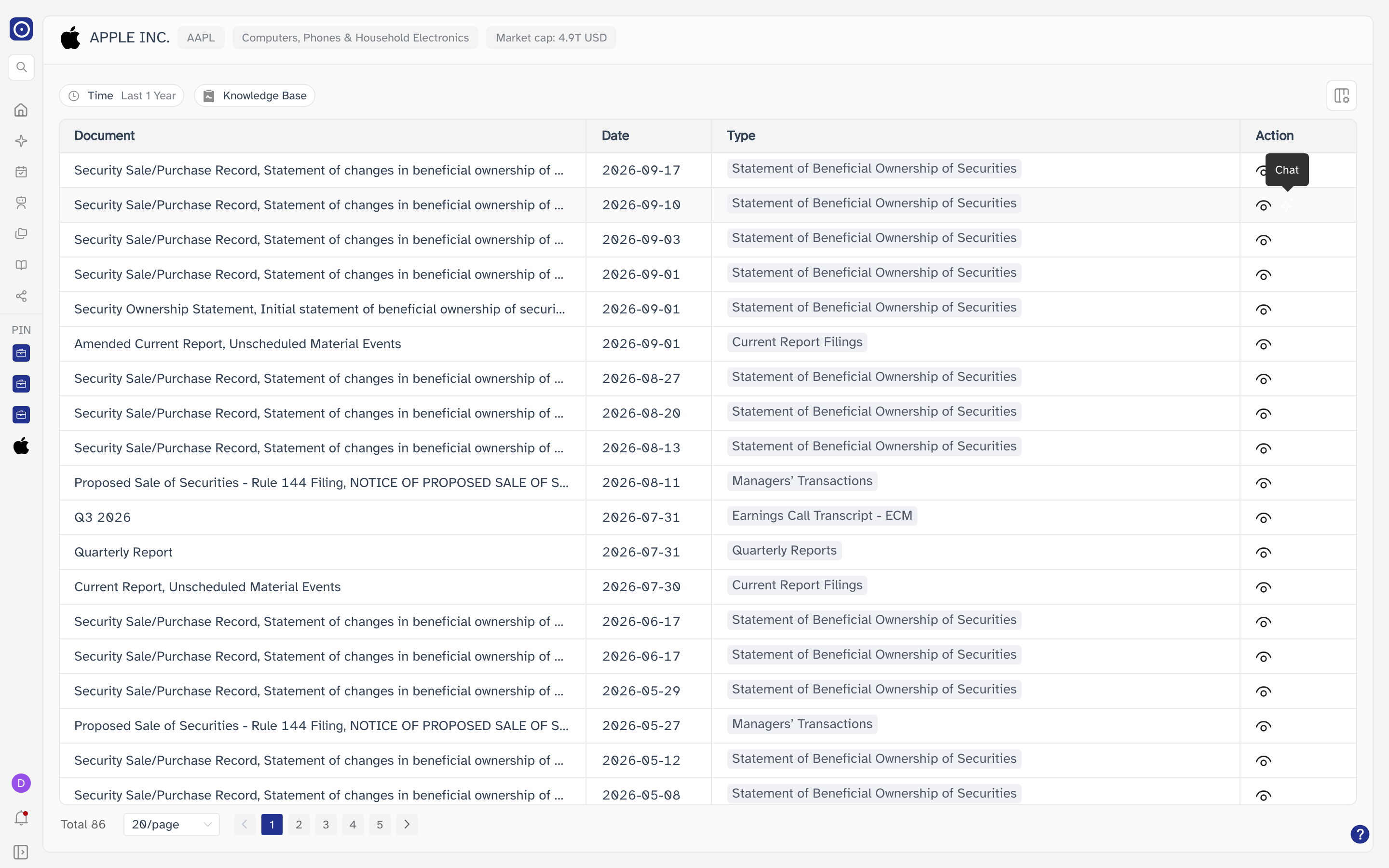
View opens the document read-only. Chat opens the same document with its question panel ready, so you can start asking about it straight away. Both land on PDF Chat, and neither of them downloads the file — that is the reader's own download button.
Two things in the table change shape depending on the document behind the row:
-
A document that belongs to more than one type shows the first type and a
+nbeside it. Hovering the cell lists every type the document is filed under. -
Where Orbit holds several documents of the same type for the same date, the two
Action icons are replaced by a single count,
×n. Clicking it opens a dropdown naming each document, and picking one opens that document. The icons inside the dropdown carry the same View and Chat meaning as above.
Moving through the list
The count at the bottom left is every document Orbit holds for this company under the filters you have set. 20 are shown at a time; the dropdown beside the count switches that to 50 or 100 and returns you to the first page. Between the arrows are the page numbers.
Opening the page filtered to one kind of document
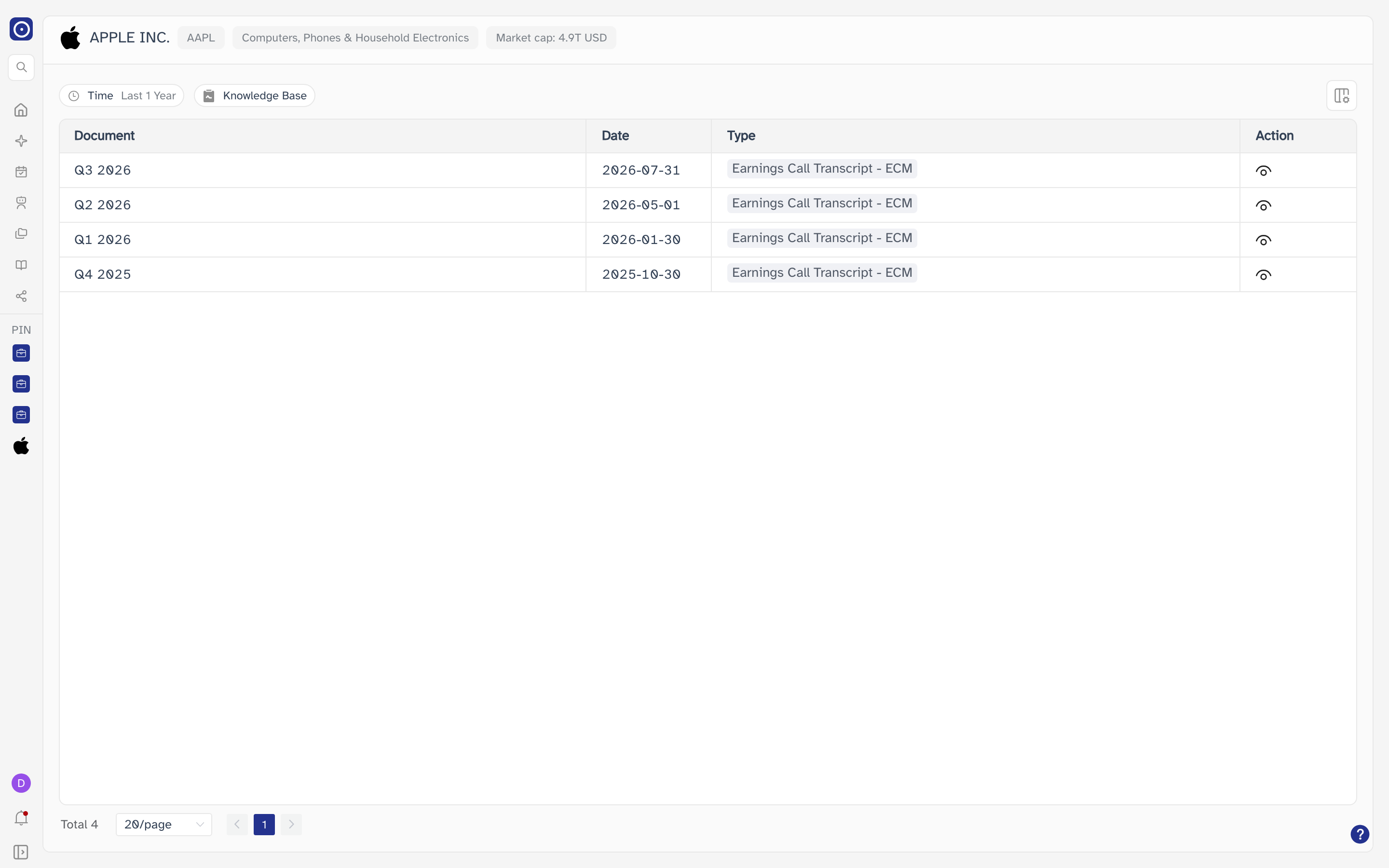
The query in the address can carry a library filter as well as the company, which is what More on the company page uses. Read from the Filing Reports tab it asks for every library except earnings call transcripts; read from the Earnings Call Transcript tab it asks for earnings call transcripts and nothing else.
Where to go from here
Company News covers what has been written about the company, rather than what the company and its regulators have filed. For reading one of these documents in depth, see PDF Chat.