
Company Relations Agent
One set of companies, held up against each other: who supplies whom, who owns whom, who competes with whom, and which outsiders sit behind several of them at once. Five views onto the same relations, one shared set of filters, and one list of companies they all read from.
Opening the page
The page needs a set of companies to work on, so it is always opened from somewhere that already has one — usually a portfolio. On Portfolio detail, the Relationships view is the way in:
- Open the portfolio on Portfolio detail.
- Select the Relationships filter, so the Target Network card is showing.
- Click Open in Relationships at the top right of the card.
Clicking a company's node on that card's network does the same thing, focused on that one company — see Looking at one company on its own.
A portfolio brings all of its companies with it. The page can also be opened with a single company instead, which is what happens when you arrive from a company's own page or from the marketplace. Then the list holds that one company and you build the rest up from there — see Adding a company. Two things follow from which way you came in:
| You arrived with | What you land on |
|---|---|
| A portfolio | Target network, with the portfolio's companies in the list. Large portfolios do not start out fully selected — see The companies list. |
| One company | Company board, showing that company and everything Orbit has connected to it. The comparison views have nothing to compare yet. |
A company page offers Open relationship graph, and the System Agents list in the Agent Marketplace has a Company Relations Agent card that asks you to pick a company first. Both work; neither of the two pages they start from is in this manual yet.
The header figures
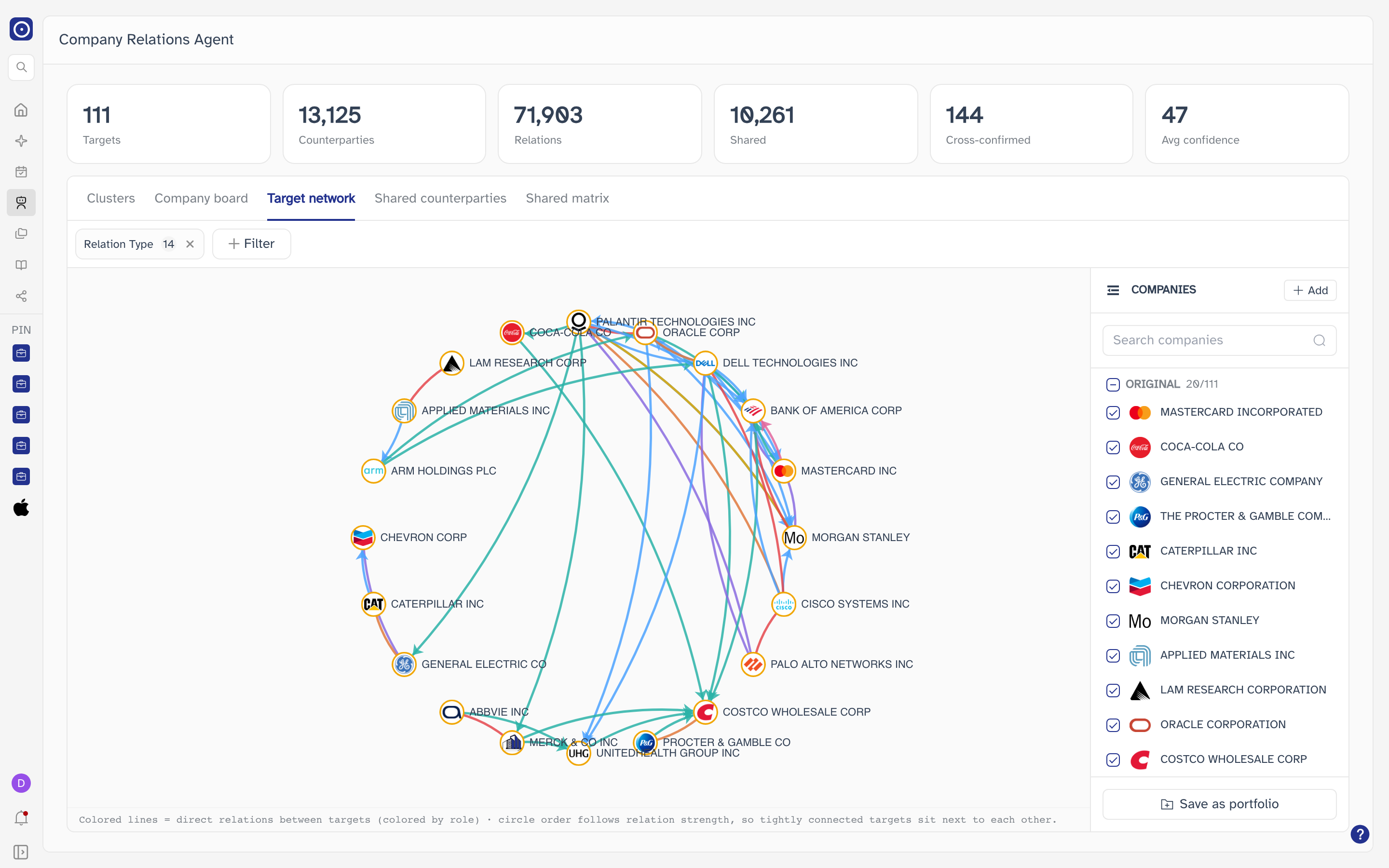
Across the top sit six counts for the whole company list. They are worked out from the list rather than from what is drawn below, so switching views or narrowing the filters does not move them.

| Figure | What it counts |
|---|---|
| Targets | How many companies are in the list. |
| Counterparties | How many other companies those targets are connected to, counted once each however many of the targets they touch. |
| Relations | How many connections were found in total. |
| Shared | How many of the counterparties sit behind more than one target. This is the count the Shared counterparties and Shared matrix views are built on. |
| Cross-confirmed | How many relations between two targets were recorded from both ends — each company's own record of the same link. |
| Avg confidence | Orbit's average confidence in the relations found here. |
The five views
The same relations are offered five ways, and moving between them is free. A view is fetched the first time you select it and kept from then on, so leaving one and coming back does not fetch it again.

| View | What it is for |
|---|---|
| Clusters | One company's relations as a ring, grouped by the kind of relation. See Clusters. |
| Company board | One company's relations sorted into three columns by direction, with the relations themselves listed. See Company board. |
| Target network | The relations between the selected companies themselves. See Target network. |
| Shared counterparties | Outsiders that more than one selected company is connected to, and the part each one plays. See Shared counterparties. |
| Shared matrix | The same outsiders as a grid, one column per selected company. See Shared matrix. |
The five are not equally hungry: Clusters and Company board focus on one company at a time, while the other three compare a set. Which of the two you get is settled by the view, not by you — the list on the right offers a single choice in the first two and tick boxes in the last three.
Clusters
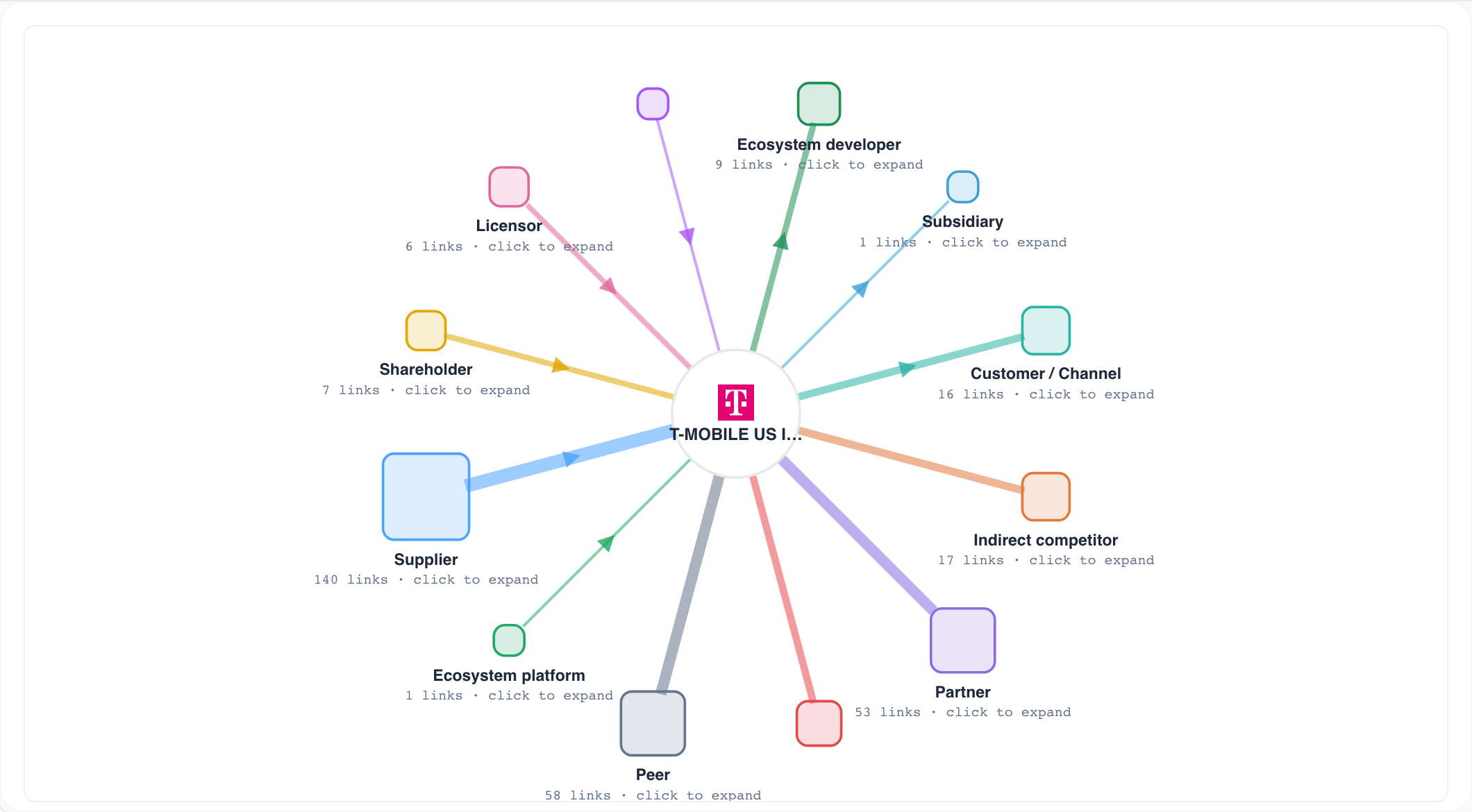
Clusters draws one company — the one selected in the list — as a hub, with a spoke out to each kind of relation Orbit has found for it. Each kind is a square on the outer ring, sized by how many counterparties fall under it, and the ring is divided into three stretches: relations arriving at the company, relations leaving it, and relations with no direction at all.
Click a square to fan its counterparties out around it, and click it again — or click the empty canvas — to fold them back. The counterparties appear as dots: bigger where there is more than one relation, firmer where the confidence is higher, and outlined differently where the counterparty is shared with another of the listed companies or is privately held.
Hovering any part of the drawing fades everything that is not on the same path — hovering a counterparty lights up the whole chain from the hub out to it. Scroll to zoom and drag to pan.
Company board
Company board takes the same single company and lays its relations out as lists instead of a ring. The company sits in the middle with its own totals, relations arriving from other companies are on the left, and relations going out to other companies are on the right. Relations with no direction — the ones where both companies stand in the same position — get the full-width row underneath.
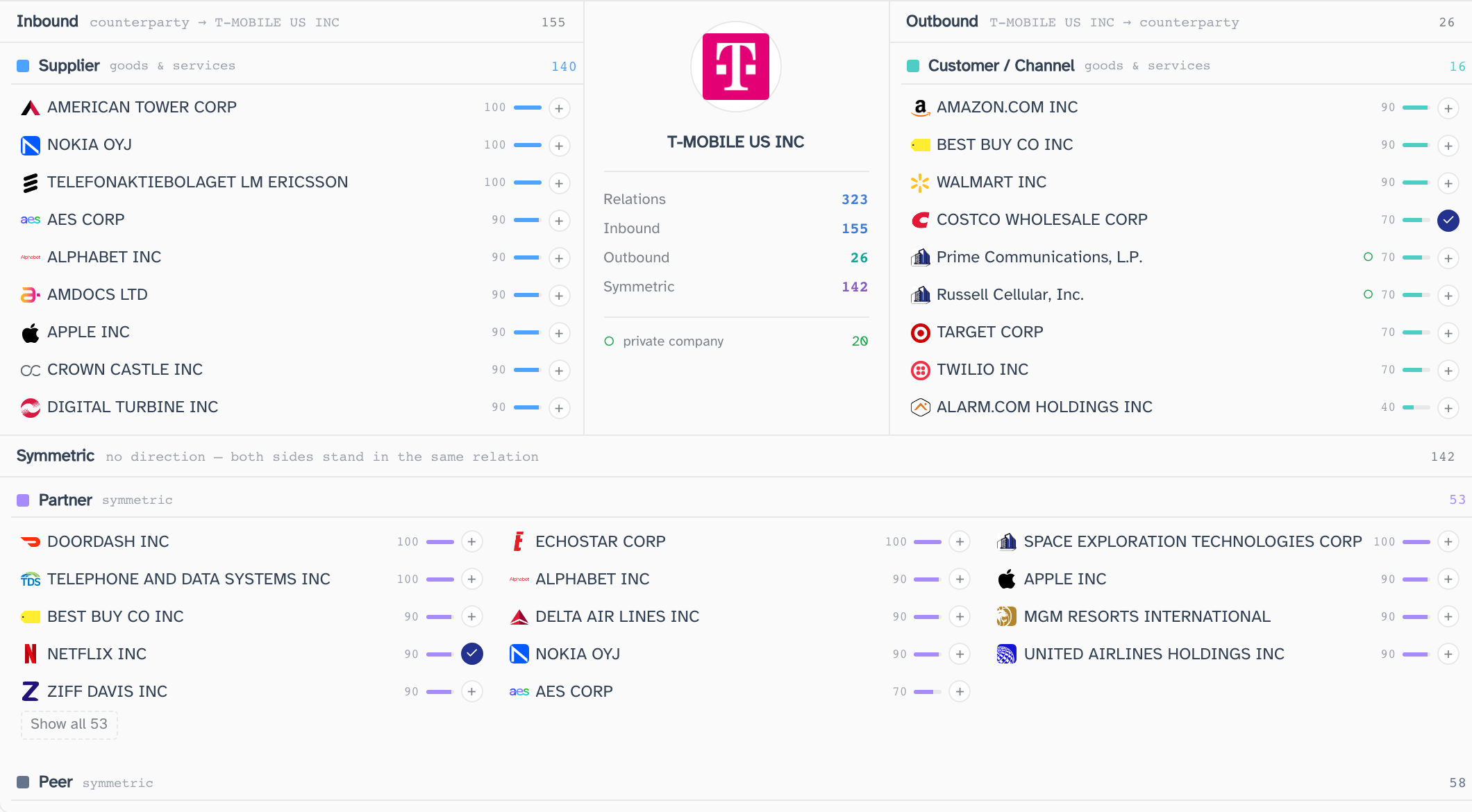
Each column collects its relations into one block per kind, and the blocks follow a fixed order rather than the order the data arrives in, so the same kind of relation always sits in the same place and the two facing columns line up with each other. Every entry names the other company, carries the confidence, and draws it as a small bar. A ring marks a privately held company, and the count of them is given in the middle column.
A block shows the strongest entries first and stops at fourteen, with Show all N beneath it to open the rest and Collapse to close them again.
Two things at the end of each entry act on the company named in it. The circle with a + adds that company to the list on the right so it can be compared; once it is there the circle turns into a tick and clicking it removes it again.
Clicking the company's name opens its own page, and hovering the name brings up the details of that relation — the kind, the confidence, which way it points and where it came from. The company page is where that landing page is documented, including the relationships card that leads here.
Target network
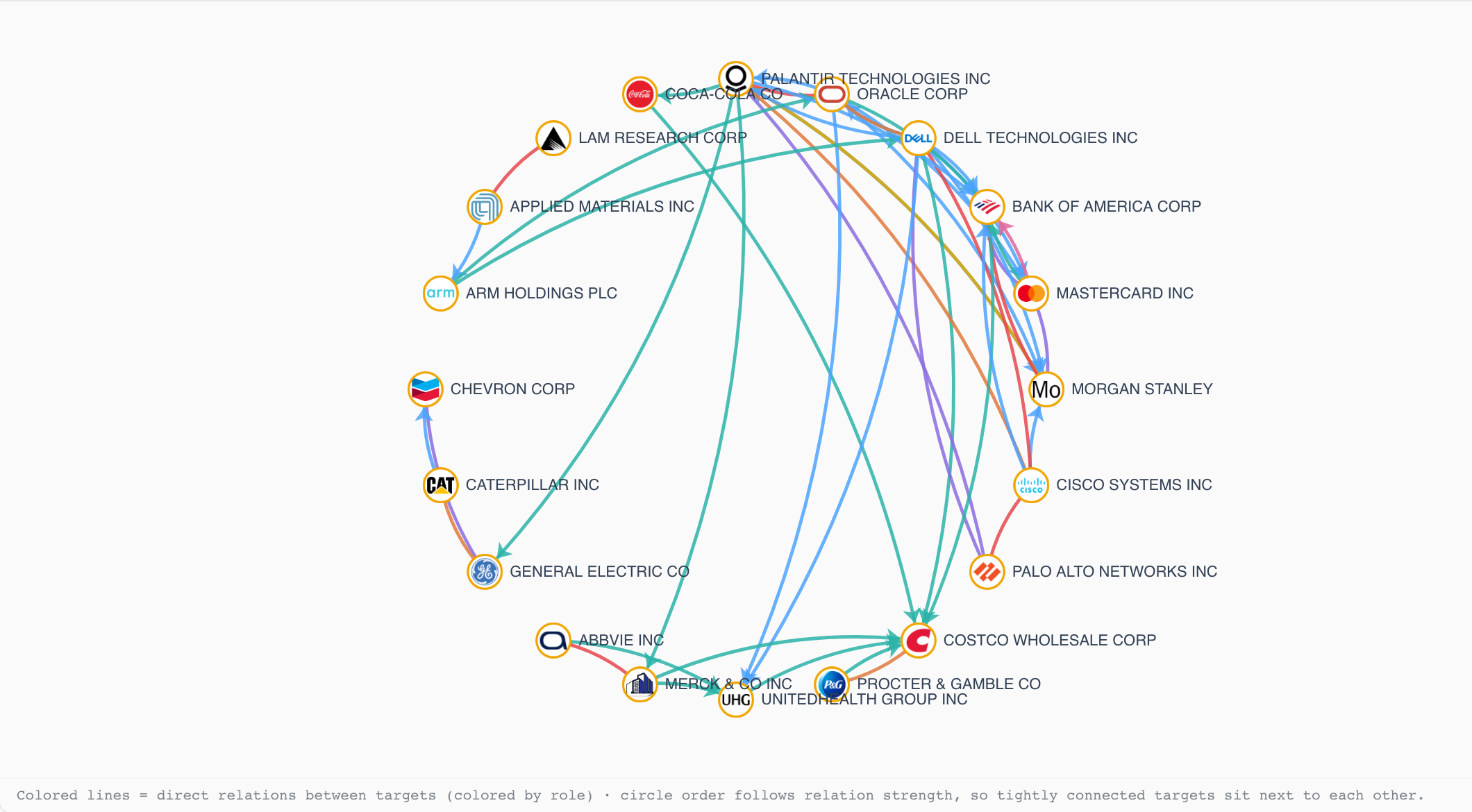
Target network sets the outsiders aside and draws only the selected companies, with a line wherever a relation was found between two of them. Lines are coloured by the part the relation gives one of the pair, and where a relation points one way rather than both, the line carries an arrowhead.
The order around the ring is not alphabetical. Companies are placed by how strongly they are connected, so those with the most between them end up beside each other and the lines gather into bundles instead of crossing the whole ring.
Past twenty companies drawn at once the shape changes: the ring becomes rings wrapping outwards, the company names come off, and the lines are drawn faintly until you hover a company. Hovering lights up that company's own relations and fades the rest; scroll to zoom and drag to pan.
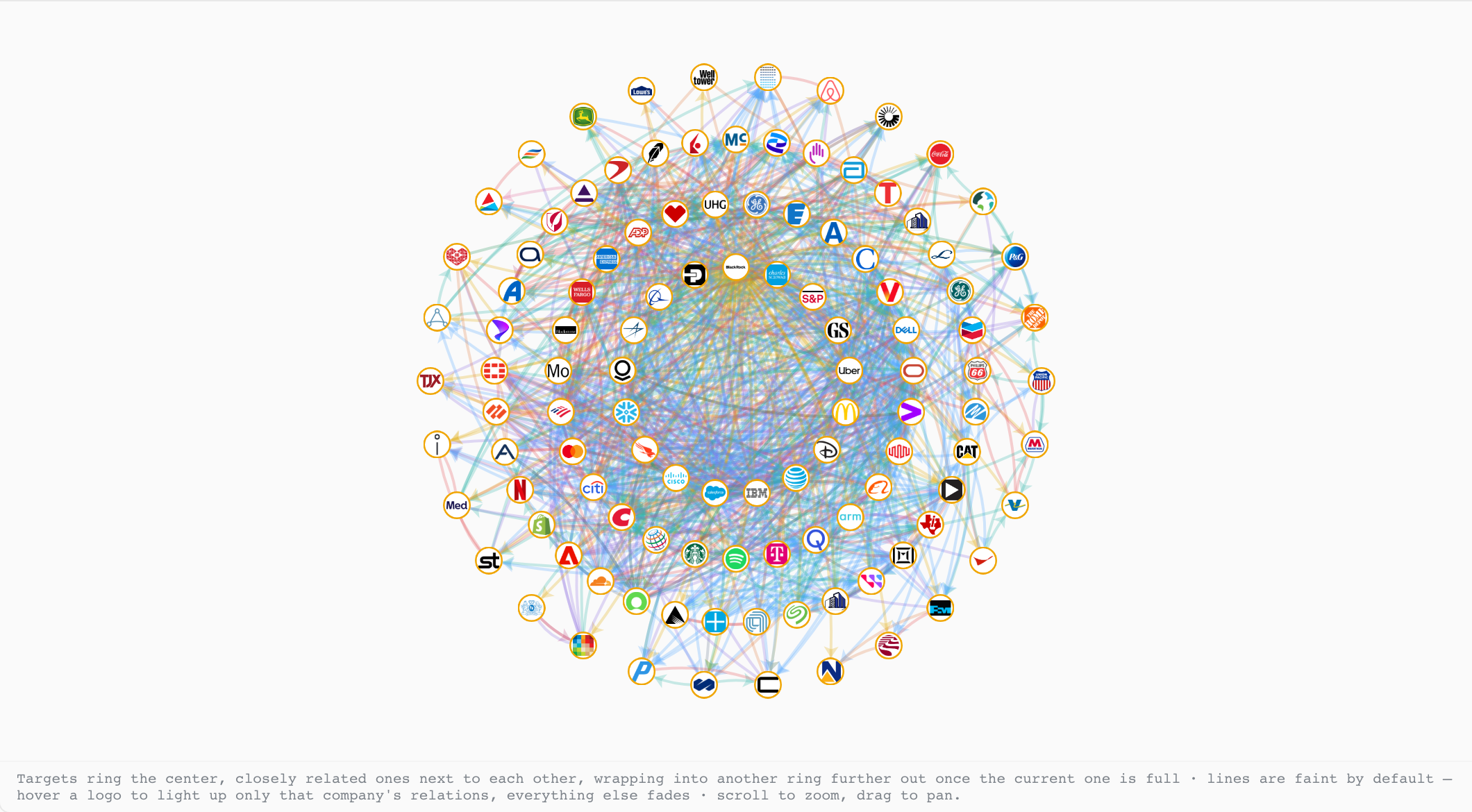
Clicking a company's node takes you to Looking at one company on its own — the same company's direct relations, one row each, rather than the whole network.
Shared counterparties
The first of the two comparison views asks a different question: not how the selected companies relate to each other, but which outsiders more than one of them is connected to. Anything touched by a single company only is left out here — that is the point of the view.
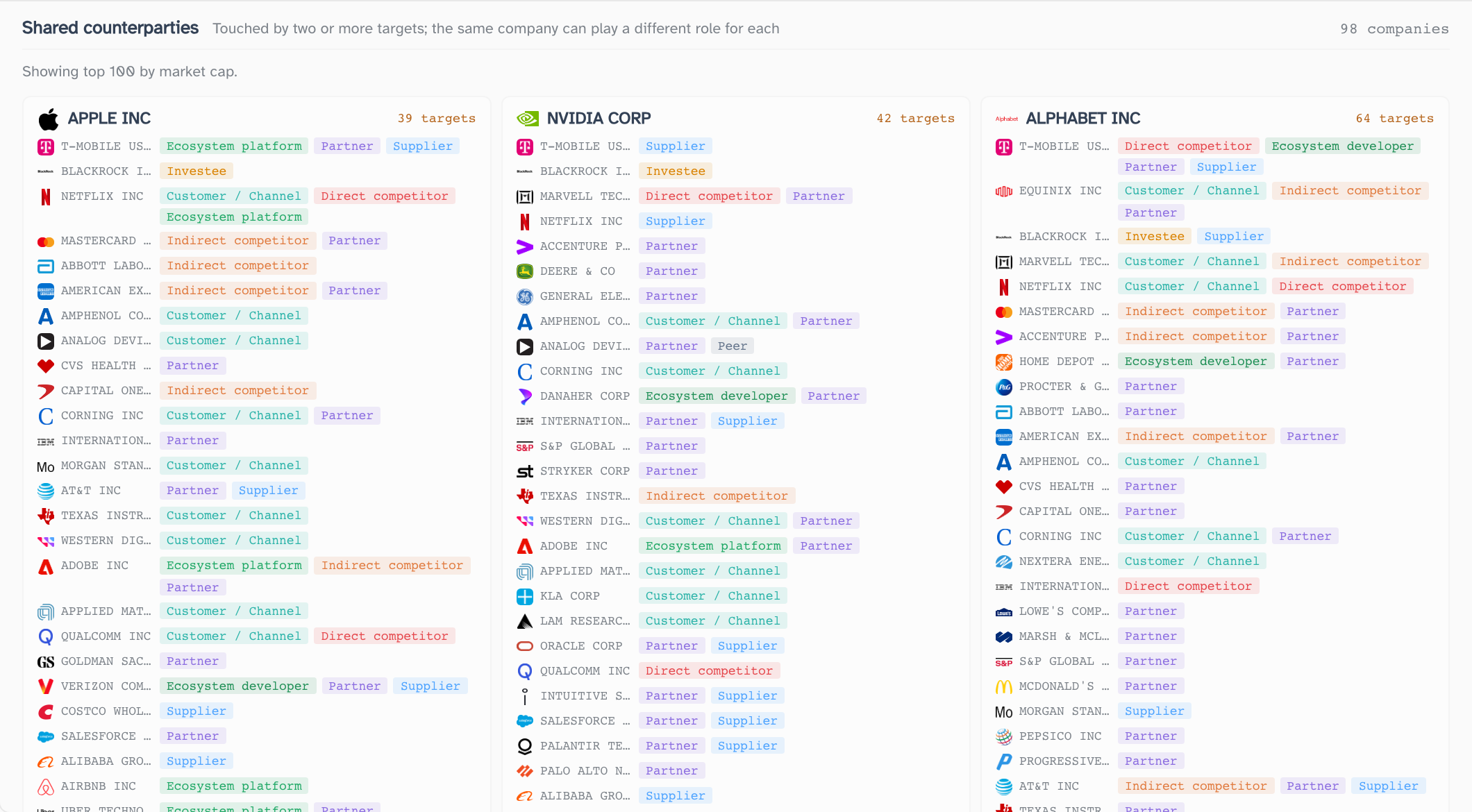
Each card is one such outsider, with the number of selected companies that reach it. Under that, one line per company, naming it and the part it plays — which is often a different part for each, so a bank can be a customer of one company and an investor in another.
The list runs to a hundred cards, taken from the largest companies by market capitalisation, and says so above itself. Narrowing it further is what the filter's Counterparty choice is for.
A card highlights under the pointer, but clicking one does not open a panel or change the page. Everything the card has to say is on the card.
Shared matrix
Shared matrix asks the same question as Shared counterparties and answers it as a grid: one row per outsider, one column per selected company, so the outsiders that reach several companies can be read straight down the page.
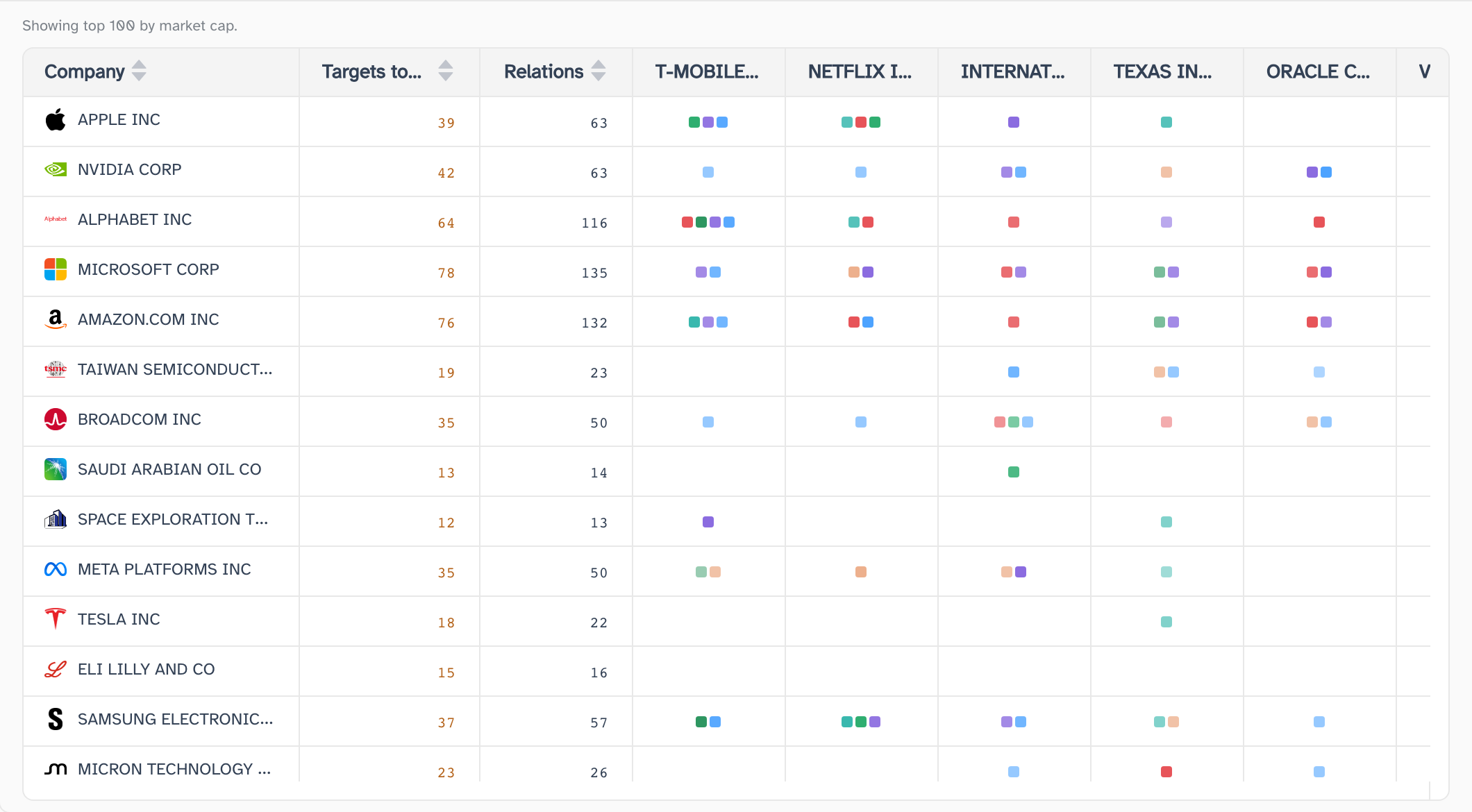
A cell holds one small square per kind of relation found between that outsider and that company, coloured by kind — the same colours as everywhere else on the page — and drawn fainter where the confidence is lower. Hovering a square names the part and the confidence; clicking one does not open anything. Reading across a row shows one outsider's whole spread; reading down a column shows one company's.
The first three columns are the outsider itself, how many of the selected companies touch it, and how many relations that comes to under the current filters. The header of a column can be clicked to sort by it. Like the cards, the matrix is cut off at the hundredth company by market capitalisation.
Looking at one company on its own
Clicking a company's node on the Target network view brings you here in a narrower form: the grid keeps a single column, for that one company, and every row is one of its direct relations. The count on each row is what that company's node showed on the network, so the two views agree.
It is a temporary state rather than a different view. Clicking another node on the network switches the focus to that company, and moving to any other view and back puts the grid back the way it was — the companies you had selected are still selected.
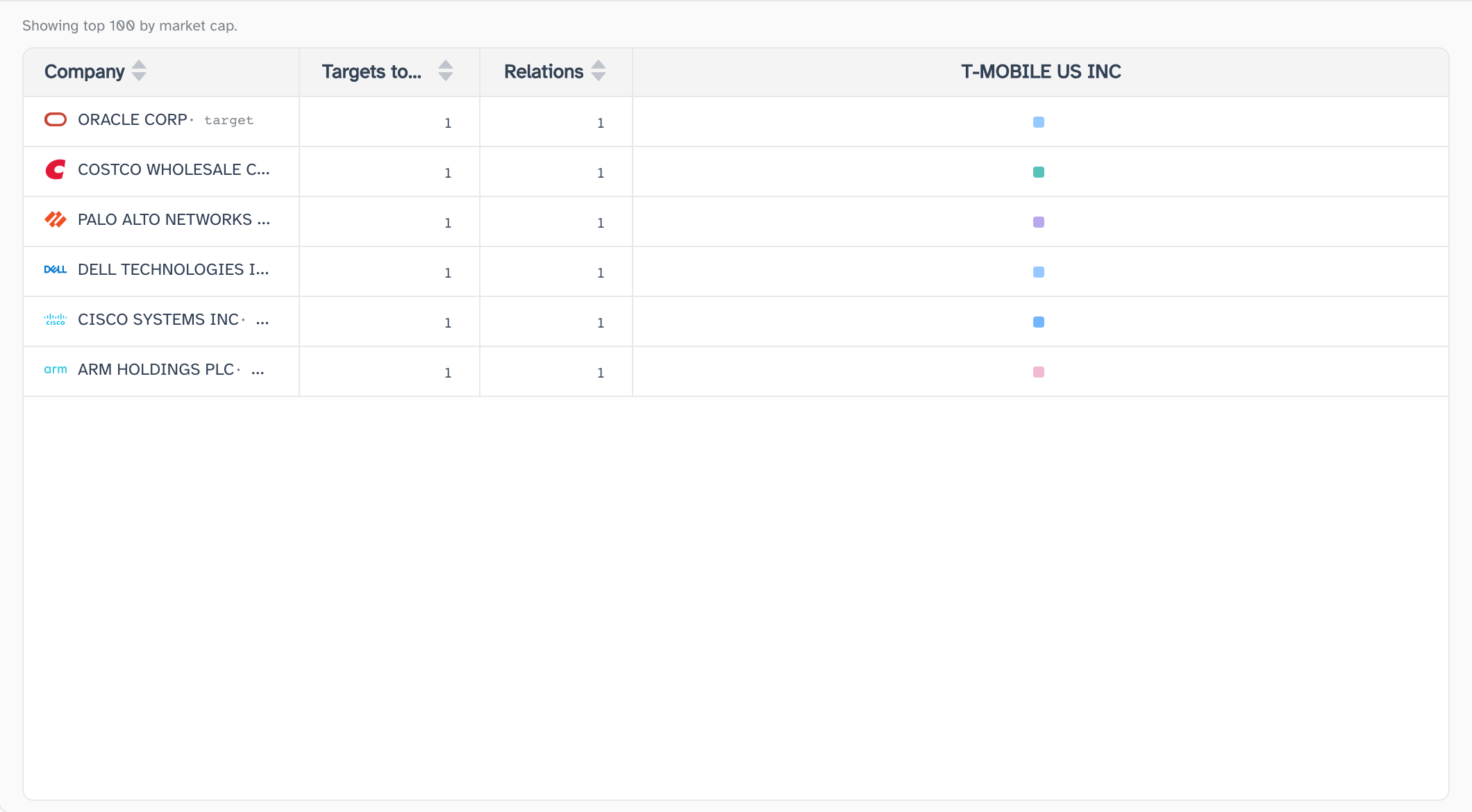
The name and logo in the first column open that company's own page. The company page is on the list of pages still to be written.
Narrowing what is shown
The filter bar sits under the view names and applies to all five views at once. A choice made here stays made as you move between views.
| Filter | What it does |
|---|---|
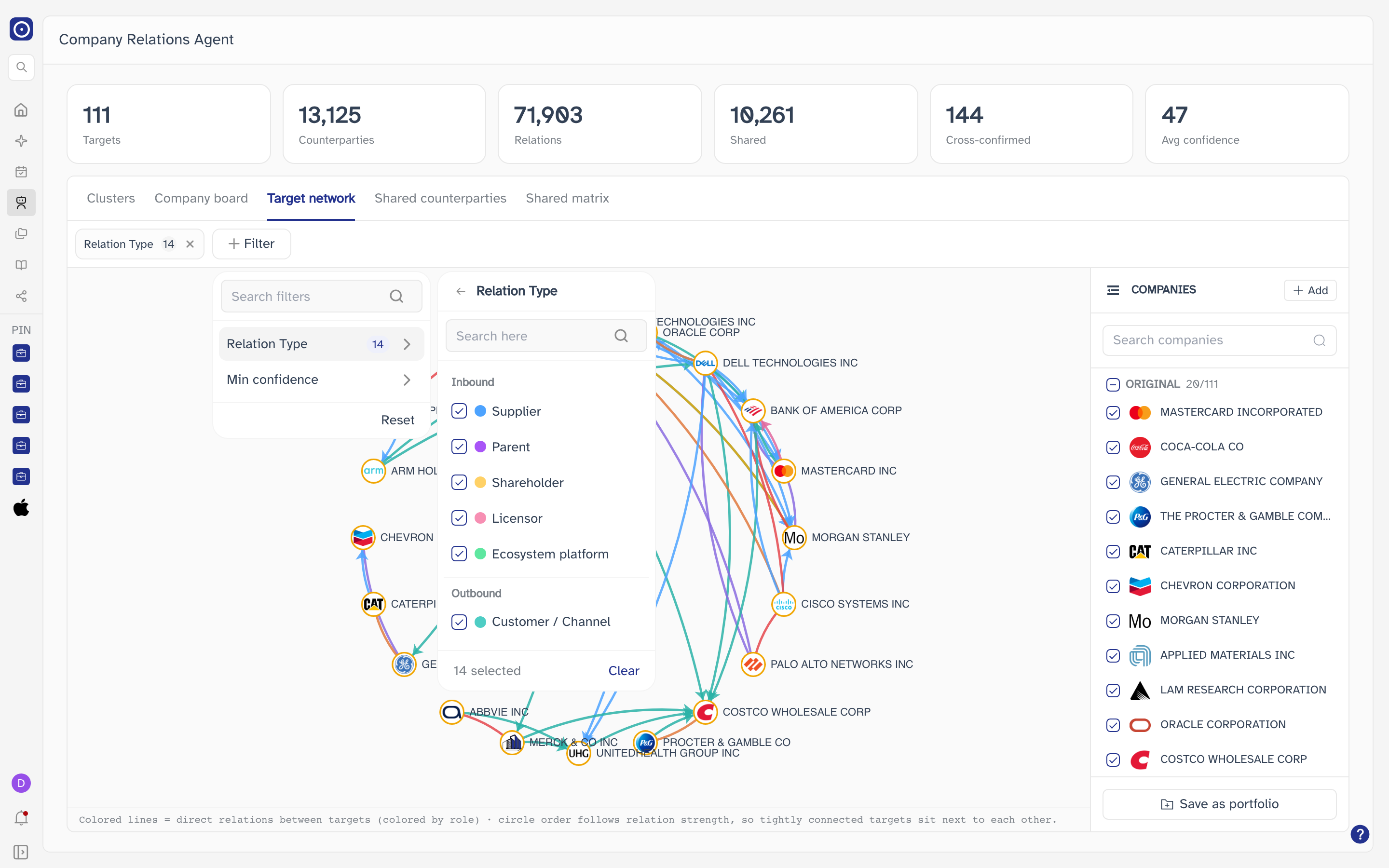
| Relation Type | All fourteen kinds of relation, grouped into the same three directions the views use — arriving, leaving, and no direction. Every kind starts out switched on; clearing one takes that kind off every view at once. |
| Min confidence | A single choice out of >=20, >=40, >=60, >=80 and >=100. Relations Orbit is less sure of than the threshold are dropped. |
| Counterparty | Offered only on Shared counterparties and Shared matrix, because it is the outsiders those two list. Choosing some keeps only them. The two views remember their choices separately. |
Relation Type carries a chip beside the + Filter button from the moment the page opens, with all fourteen choices behind it — a chip means a filter has choices in it, not that it is narrowing anything. Each chip carries the number of those choices and a cross that clears that filter in one click, and Reset clears every filter at once and puts the Relation Type list back to fully switched on.
The header figures are counted from the whole company list, so they stay put while you filter. The counts written into the views themselves — a column heading, a block in Company board, the total above the shared counterparties — do follow the filters.
The companies list
The panel down the right-hand side holds the companies every view works from. It is one list, not one per view: a company added here is available to all five.
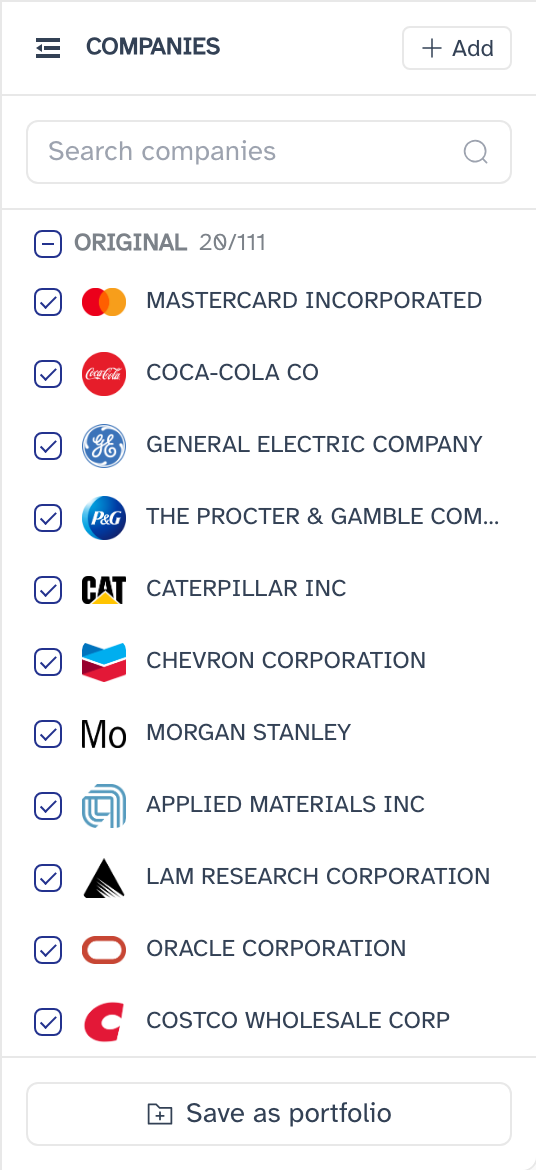
The list is split in two. ORIGINAL holds the companies you arrived with — the portfolio's companies, or the single company you came in on. TEMPORARY holds the ones added on this page, and only those rows carry the cross that takes them off the list again. Both headings carry a count.
Choosing from the list does different things in different views. On Clusters and Company board, where one company is shown at a time, the rows carry circles and an entry replaces whatever was being shown. On the three comparison views the rows carry tick boxes, and each of those views keeps its own selection — ticking companies on Target network leaves Shared matrix as it was.
Ticking is deliberate rather than instant: the tick appears under the pointer straight away, but the views redraw once you have stopped clicking. Rapid ticking therefore costs one redraw instead of one per click, and none of the clicks are lost.
The search box narrows the list to the companies matching what you type, in name or in identifier, without changing which of them are selected. On the three comparison views each heading also carries a tick box that selects or clears that whole group, with the number selected shown beside it. A large portfolio does not start out fully selected: past twenty companies, Target network starts with the twenty largest by market capitalisation and leaves the rest clear, so that what it draws is readable. A company with no relations found for it still appears in the list.
The icon at the top left of the panel folds it away, leaving only that icon; the other way round brings it back.
Adding a company
Add at the top of the panel opens a search box. Picking a company puts it on the list straight away, under TEMPORARY, and selects it, so it joins the current view without any further step.
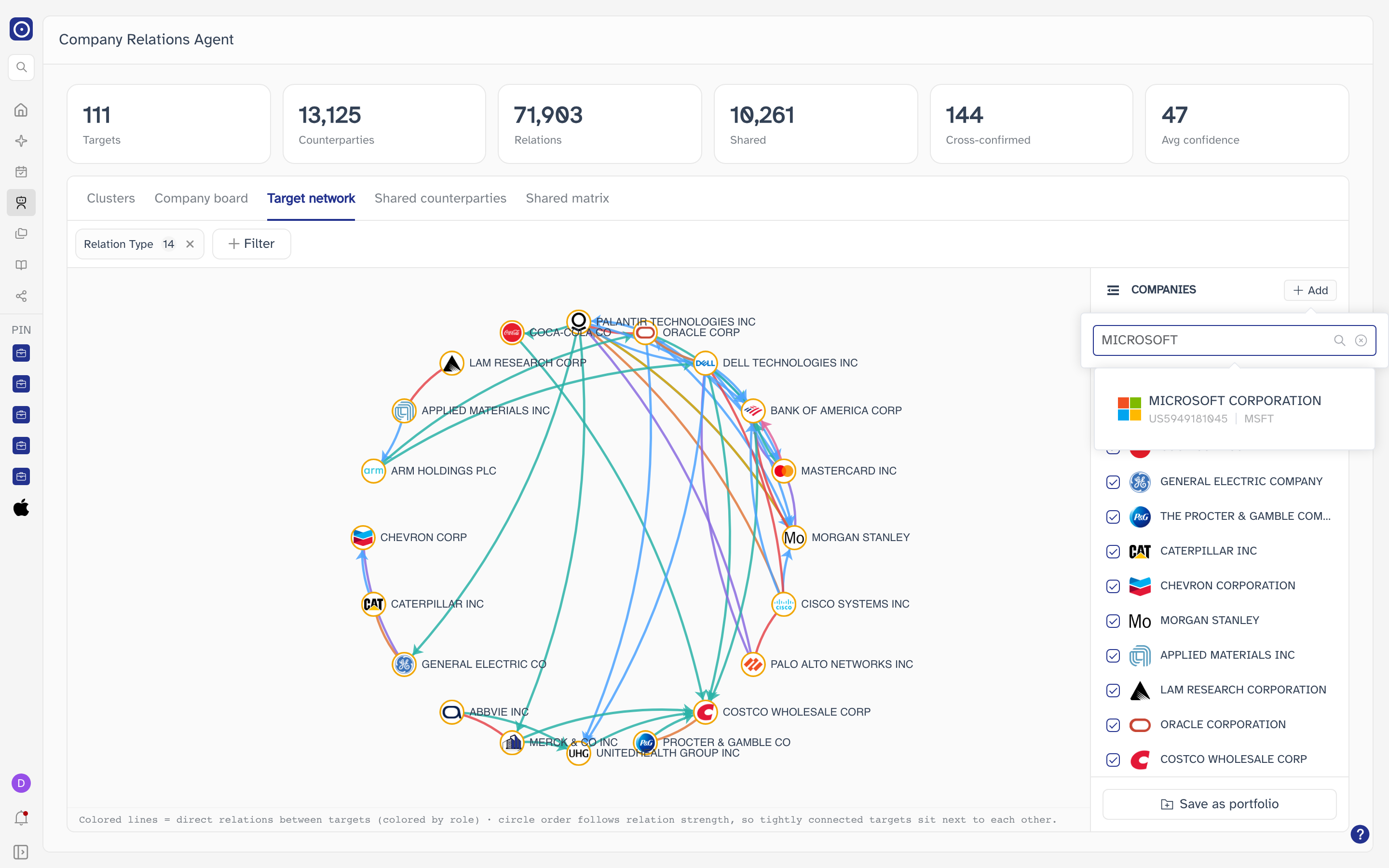
The cross appears on TEMPORARY rows only. A company you arrived with stays on the list for as long as the page is open — removing it from the portfolio itself is Portfolio Management's job.
Saving the list as a portfolio
Save as portfolio at the foot of the panel turns the whole list — original and added companies together — into a portfolio, which is the way to keep a set you have built up by hand. The dialog says how many companies are in scope and where they came from, and offers Create new portfolio with a name, or Add to existing with a portfolio picked from your own.
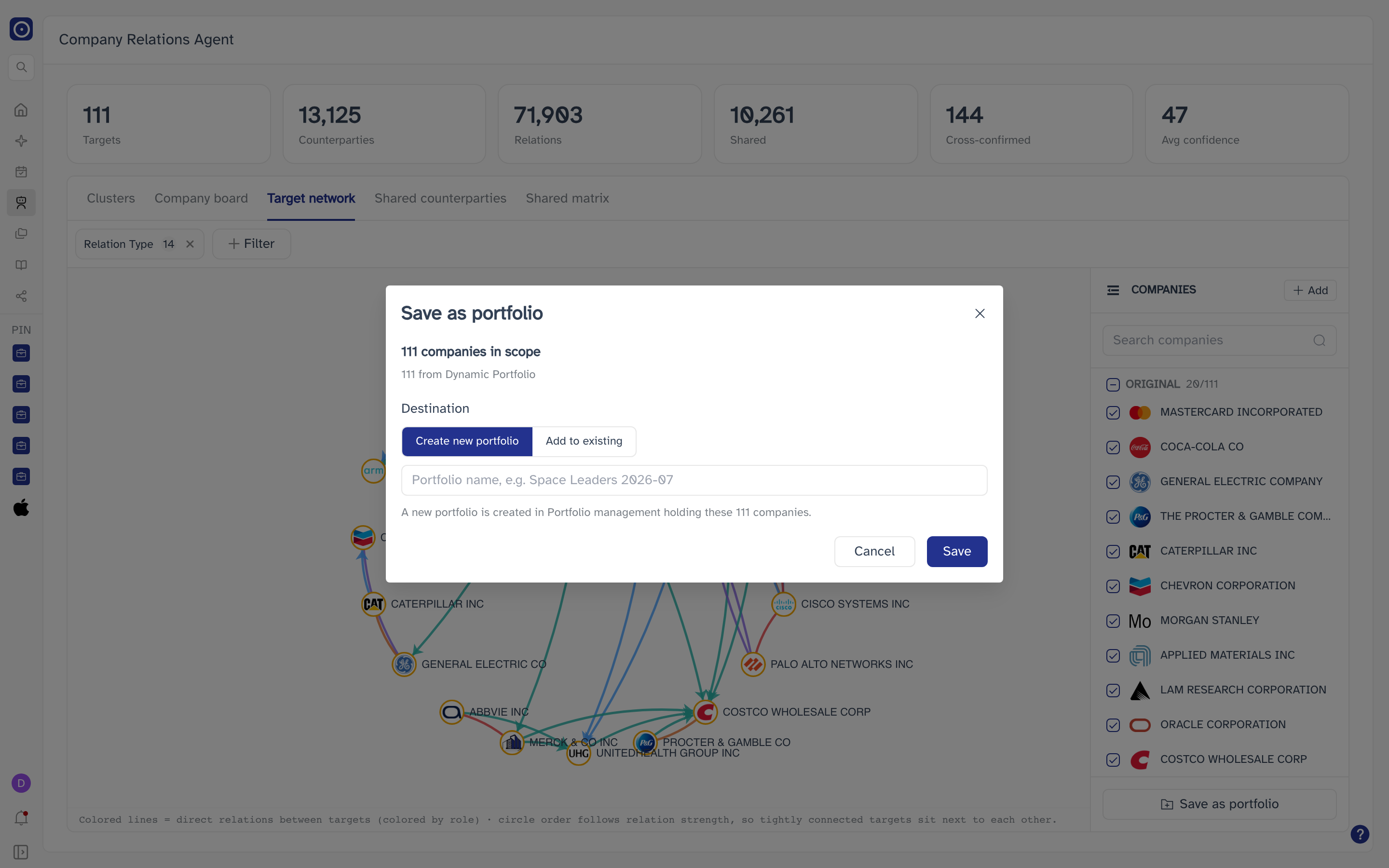
Save is not a way of keeping the page's arrangement for later; it creates a real portfolio, or adds the companies into one you already have. The result shows up in Portfolio Management and in the left rail's PINNED list if the portfolio is pinned.
When there is nothing to compare
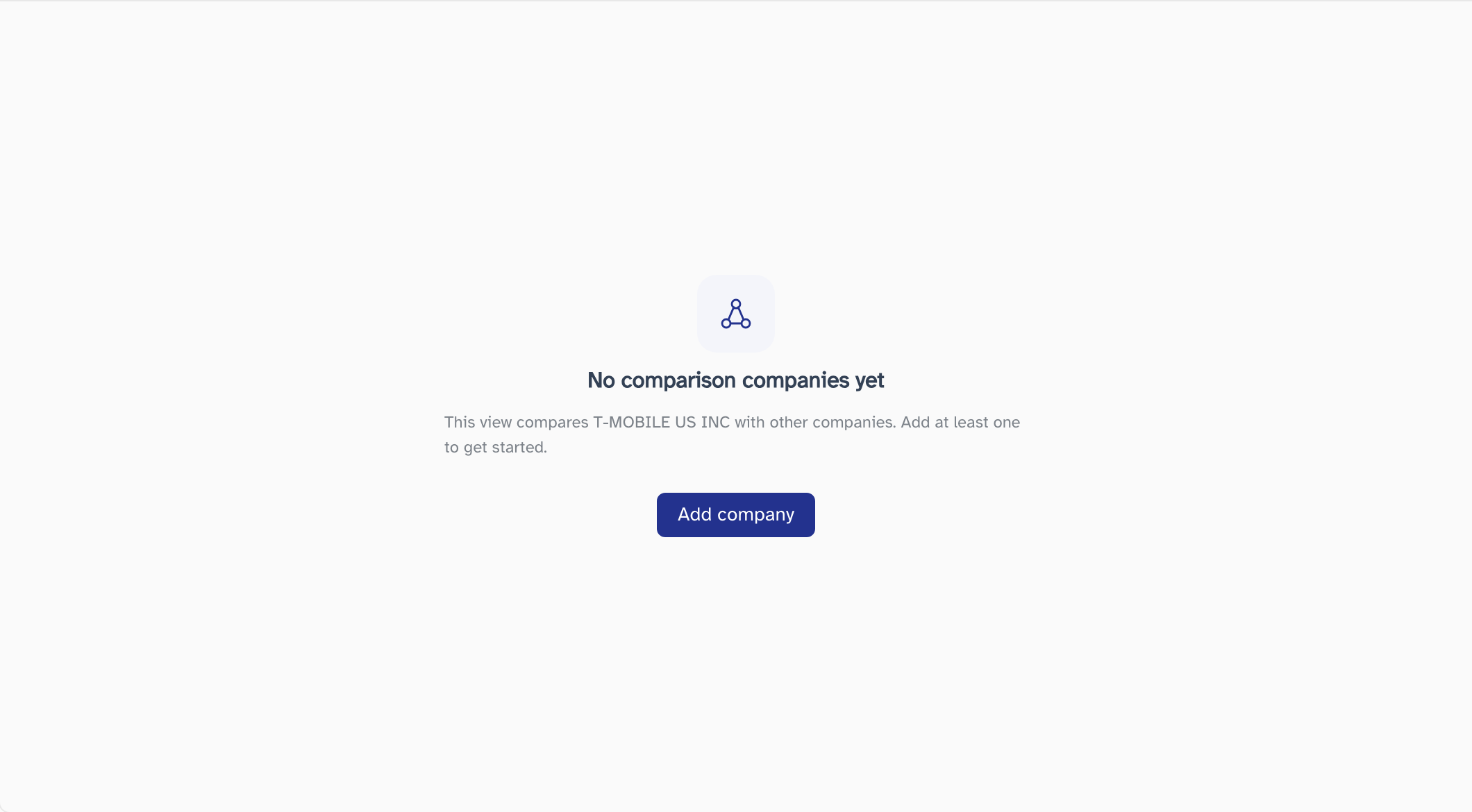
Target network, Shared counterparties and Shared matrix compare companies, so they need something to compare. Rather than draw an empty frame they say which of two things is missing, and one of them comes with a button that starts fixing it.
| Message | What it means |
|---|---|
| No comparison companies yet | The list holds fewer than two companies — the state a single-company arrival starts in. Add company opens a search box that takes several companies at once and puts them on the list when you confirm. |
| No companies selected | The list holds enough companies, but this view has none of them ticked. The fix is in the list on the right — see The companies list. |
A link with neither a portfolio nor a company in it leaves the page with an empty list and nothing to draw. Something has usually been lost from the address on the way here; the two ways in are listed under Opening the page.