
Quick start
A first tour of Orbit Insight for new users. It walks through the five things most people do in their first session — ask a question, build a portfolio, read up on a company, get daily news delivered and put an agent to work — and points to the page of this manual that covers each one in full.
Before you start
Click your avatar at the bottom of the left rail and choose Settings. It opens on Profile, which confirms the account and company you are signed in as, and is where you set the name and photo your colleagues see.
Organization holds your organisation's details and its member list. The list is read-only — to add or remove people, contact Orbit.
Finding your way around
Orbit opens on the Dashboard, a grid of widgets that each show one part of the product at a glance. Everything else is reached from the left rail.
- The rail shows icons only at first. Click Collapse Sidebar at the bottom of the rail to show the names next to the icons.
- Use the house icon near the top of the rail to come back to the Dashboard from anywhere.
Step 1 — Ask your first question
- Click New Chat in the left rail.
- Type your question into the box under Orbit Research Agent.
- Press Enter, or click the round arrow button, to send it.
Not sure what to ask? The Quick Analysis cards under the box are ready-made prompts — pick one, choose a company, and click Run Chat.
The two buttons under the box decide what happens when you send.
| Mode | Use it when |
|---|---|
| Chat | You want an answer. The Chat Agent looks things up for itself and writes a reply with every claim linked to its source document. This is the default. |
| Search | You want the documents themselves. Results open in Explore, and filters for time, entity and document type appear above the box. |
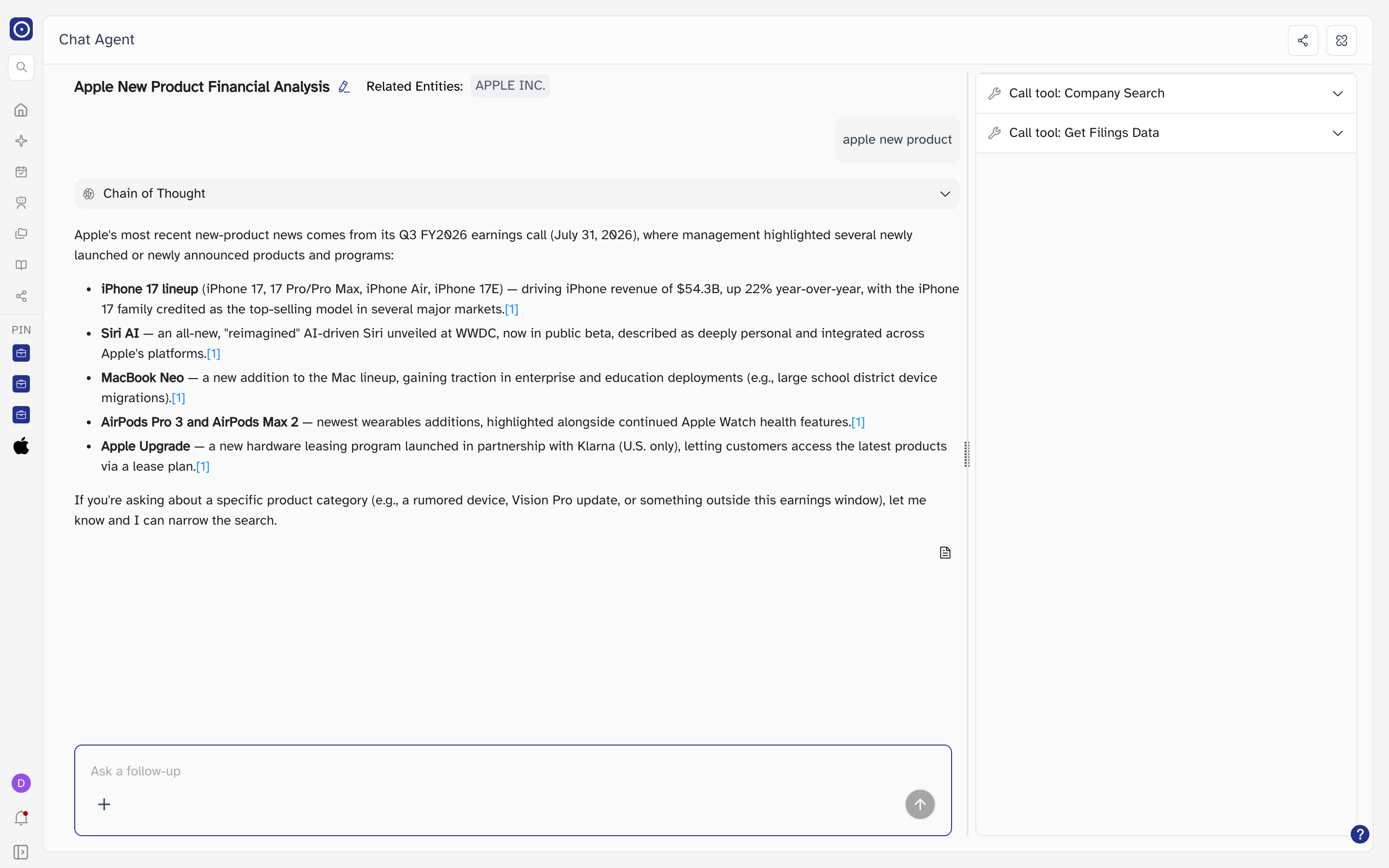
Everything you ask is kept in Chat History, and your recent conversations are listed down the left of New Chat.
Step 2 — Build a portfolio
A portfolio is a named list of companies. Alerts, agents and several Dashboard widgets work from portfolios, so it is worth creating one early.
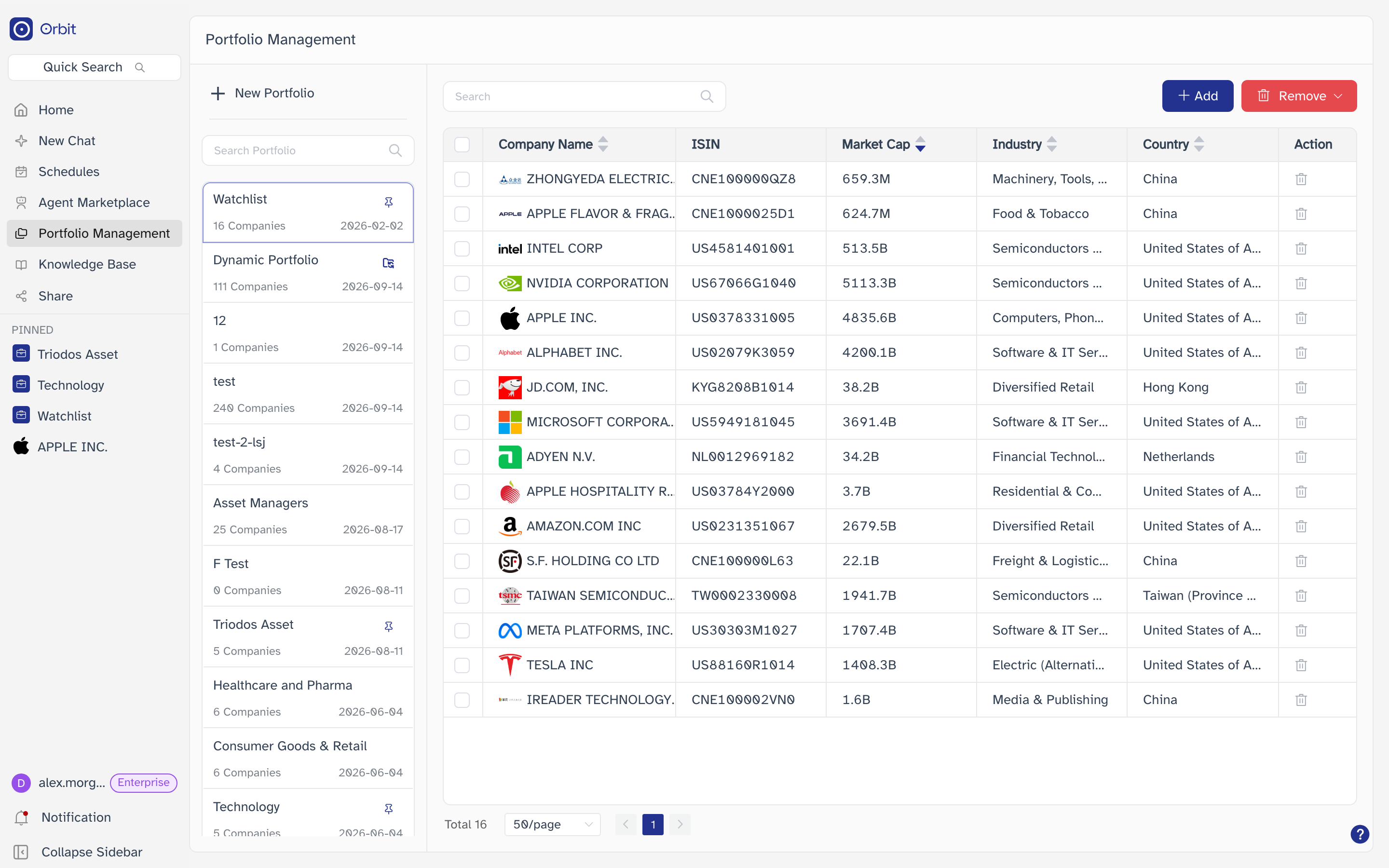
- Click Portfolio Management in the left rail.
- Click New Portfolio and give it a name.
- Choose how to fill it — see the table below — then click Create Portfolio.
| Tab | How it fills the portfolio |
|---|---|
| Select manually | Search by company name or ticker and tick the ones you want. |
| Build by criteria | Filter by country, sector and market cap. The portfolio keeps the rule, but only updates when you click Sync. |
| Upload Excel | Drop in a spreadsheet with an ISIN column. Download template gives you one in the right shape. |
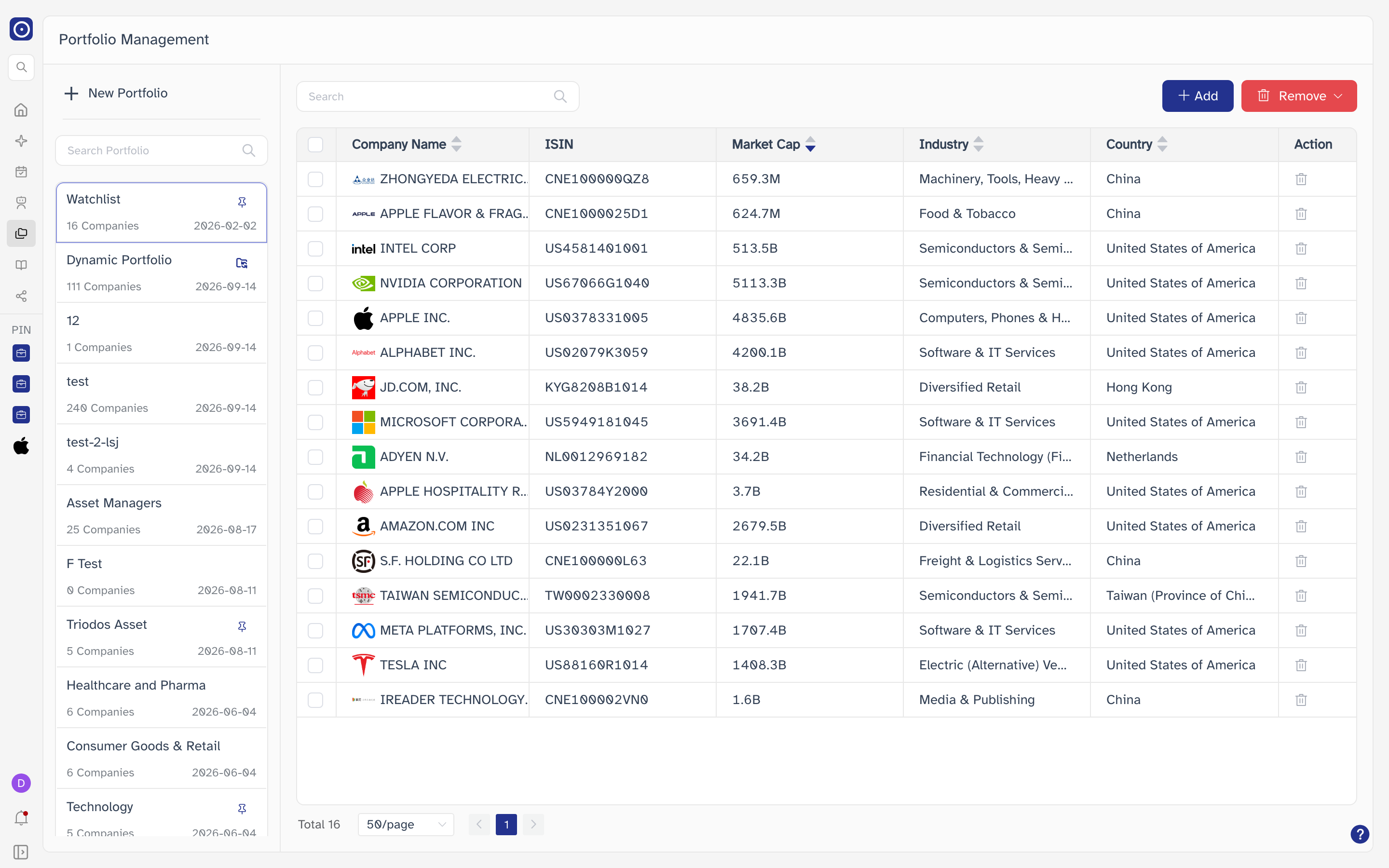
Then pin it: hover the portfolio in the list, click ⋮ and choose Pin. A pinned portfolio appears under PINNED in the left rail, one click from anywhere. Portfolio Management covers every option on this page.
Step 3 — Look up a company
Click any company name, ticker or logo — in your portfolio's company table, for example — to open the company page. It brings together everything Orbit holds for that one company.
| Card | What you get |
|---|---|
| Reports | The documents Orbit holds for the company, plus any you have uploaded. View All opens Company Report. |
| Latest news | The most recent stories about the company. View All opens Company News. |
| Ask AI | Ready-made analyses of the company, and a way into a chat about it. |
| Company relationships | The companies it is tied to, grouped by kind of relationship. |
Step 4 — Get daily news for a portfolio
Orbit can write a news alert for a portfolio every day.
- Click your portfolio under PINNED in the left rail. This opens Portfolio detail.
- Click Create Daily News Alert Job in the header.
- Pick a date and click Confirm. Read the message that follows, then confirm again.
The first time, this subscribes the portfolio to daily alerts and also writes one for the date you picked. New alerts appear in the list on the same page, and every subscription is listed under Portfolio Alert on Schedules.
Step 5 — Put an agent to work
An agent researches on a schedule and writes reports for you. Open Agent Marketplace from the left rail and click New Agent.
| Agent | Good for |
|---|---|
| Single Stock Agent | Following one company closely. Pick the company, then fill in the form on Creating a Single Stock Agent. |
| Custom Agent | Any research you can describe — you set it up through a conversation. See Creating a Custom Agent. |
An agent's scheduled runs only go ahead once it is Published; you switch that on the agent's own page. After that:
- Schedules lists every recurring report, whether it is running, and the reports it has already produced.
- Notifications, at the bottom of the left rail, tells you when a report has finished, a document has been filed or a portfolio has changed.
Where to go next
Once the basics are in place, these pages help you get more out of Orbit.
| Page | What it adds |
|---|---|
| Dashboard | Arrange your home screen, or start a new dashboard from a template such as Portfolio Monitor. |
| Global Context | Upload your own PDF and DOCX files so chats can draw on them. |
| PDF Chat | Ask questions about a single filing with the document open beside the answers. |
| Earnings Call Transcript | Orbit's write-up of each earnings call — results, guidance and analyst questions — beside the original transcript. |
| Theme Discovery | Weekly and monthly reports on the themes running through the news, scored by how strongly each one is running. |
| Share | Every share link you have created, and how to withdraw one. |
| MCP and API keys | Use Orbit from Claude Desktop, Cursor or your own code. |
Use the search box at the top of the sidebar to jump straight to a topic — press / from anywhere in this manual to focus it.