
News Research
A long-form report on what the news has been saying about a company — sentiment over time, the positive and negative events behind it, and what both mean for the investment case. This is the page behind the News Chat rows in Chat History.
Opening the page
- Click a News Chat title in Chat History.
The same record also opens from the Chat History panel on a company page and from the search box at the top of the left rail. Every one of these opens a report that already exists: there is no button in today's interface that starts a new one.
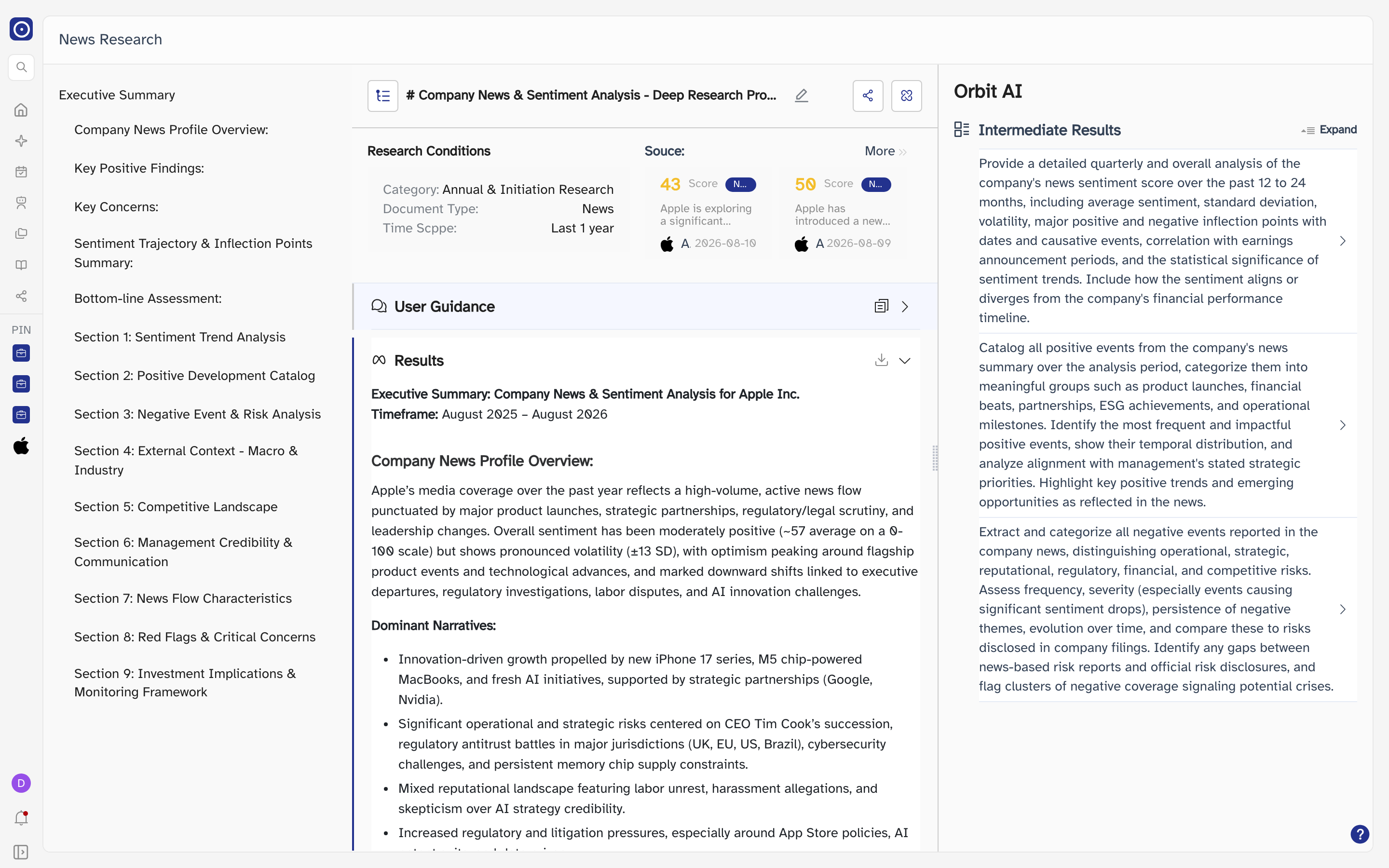
The header
| Element | What it does |
|---|---|
| Expand Contents | The icon at the far left. Shows and hides the contents column. |
| Title | The prompt the report was built from, shortened. The pencil beside it renames the record — up to 100 characters, exactly as in Chat History. |
| Share | Creates a public link to this report and copies it to your clipboard. It is listed on the Share page, which is where you withdraw it. |
| Reasoning Process | Shows and hides the Orbit AI column on the right. |
Research Conditions
The panel under the title records what the report was asked to cover. It is a record of the run, not a set of controls — nothing here can be changed after the fact.
| Label | What it holds |
|---|---|
| Category | The kind of research this was, for example annual and initiation research. |
| Document Type | What the report drew on — news, for a News Chat. |
| Time Scppe | The window of coverage the report looked at, such as the last year. |
Souce
Beside the conditions is a row of the news items behind the report. Each card shows a sentiment score out of 100, the tag News Flow Tracker for where the item came from, a line of summary, and the company and date it belongs to.
| Where you click | What opens |
|---|---|
| A card | That news item's own page — see News flow detail. |
| The company name on a card | That company's page, if your account may open it. |
| More | The News Flow Tracker agent, on its Detail tab. The company and date range it carries are not applied — see that chapter's note. |
User Guidance and Results
The report itself sits in two panels that behave as one accordion — opening either closes the other.
| Panel | What it holds |
|---|---|
| User Guidance | The full prompt the report was built from, formatted. The copy icon on its header copies the prompt to your clipboard. |
| Results |
The report: an executive summary, then numbered sections. Open by default. The download icon
on its header saves it as a Markdown .md file named after the record.
|
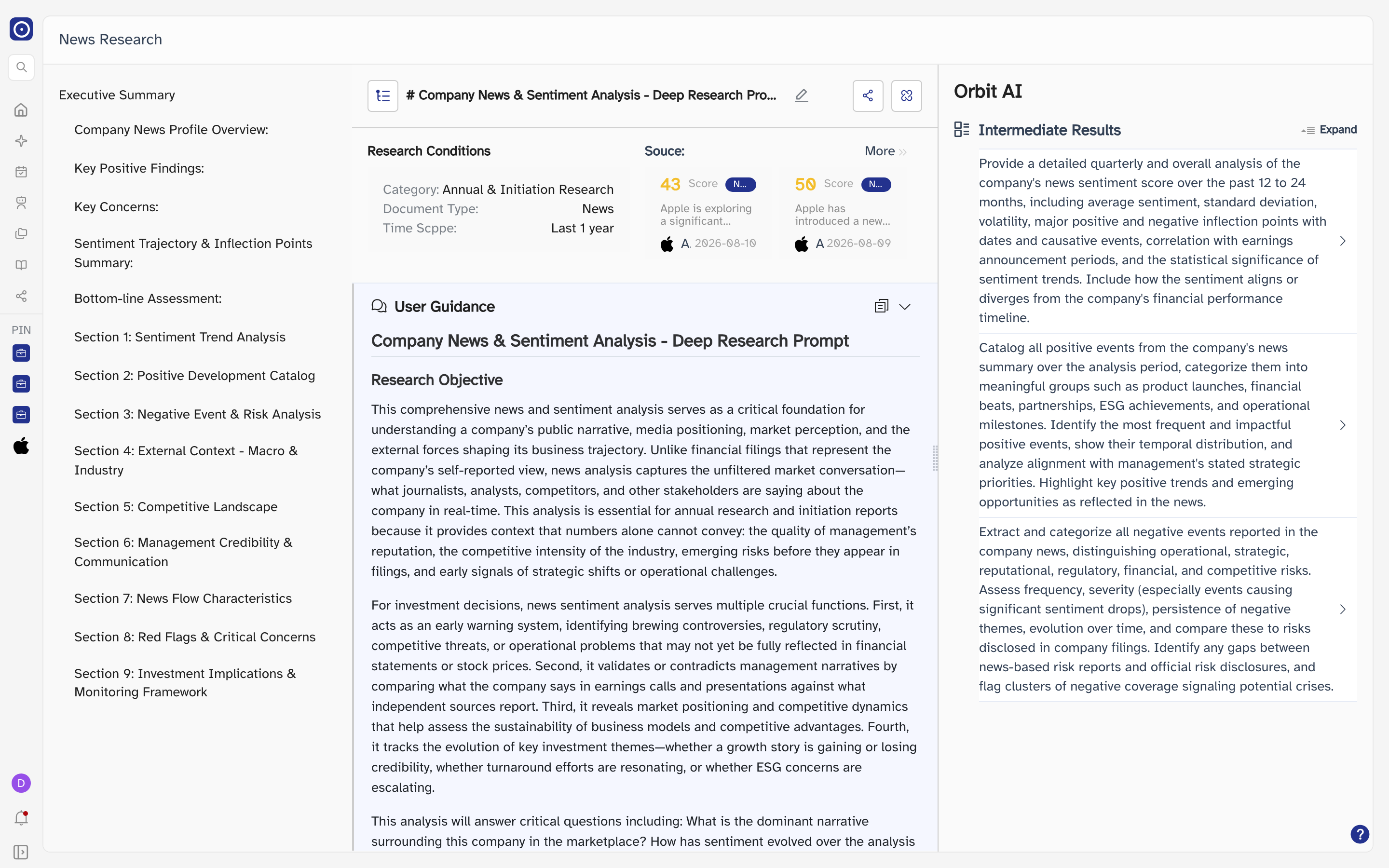
Finding your way around the report
The contents column on the left lists the report's headings — the executive summary's parts first, then the numbered sections. Click a heading to jump to it; the one you are reading stays highlighted.
Making room for the report
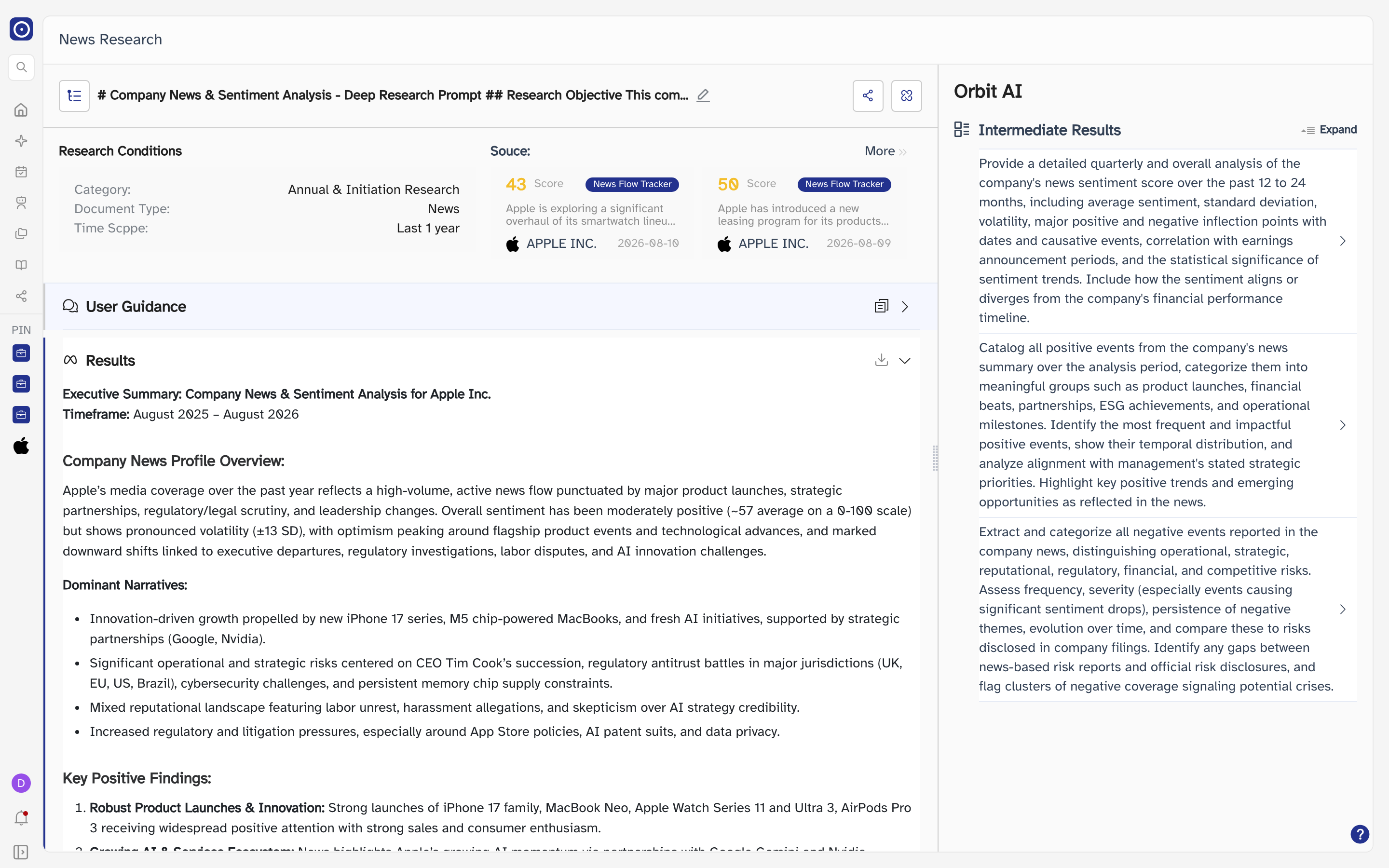
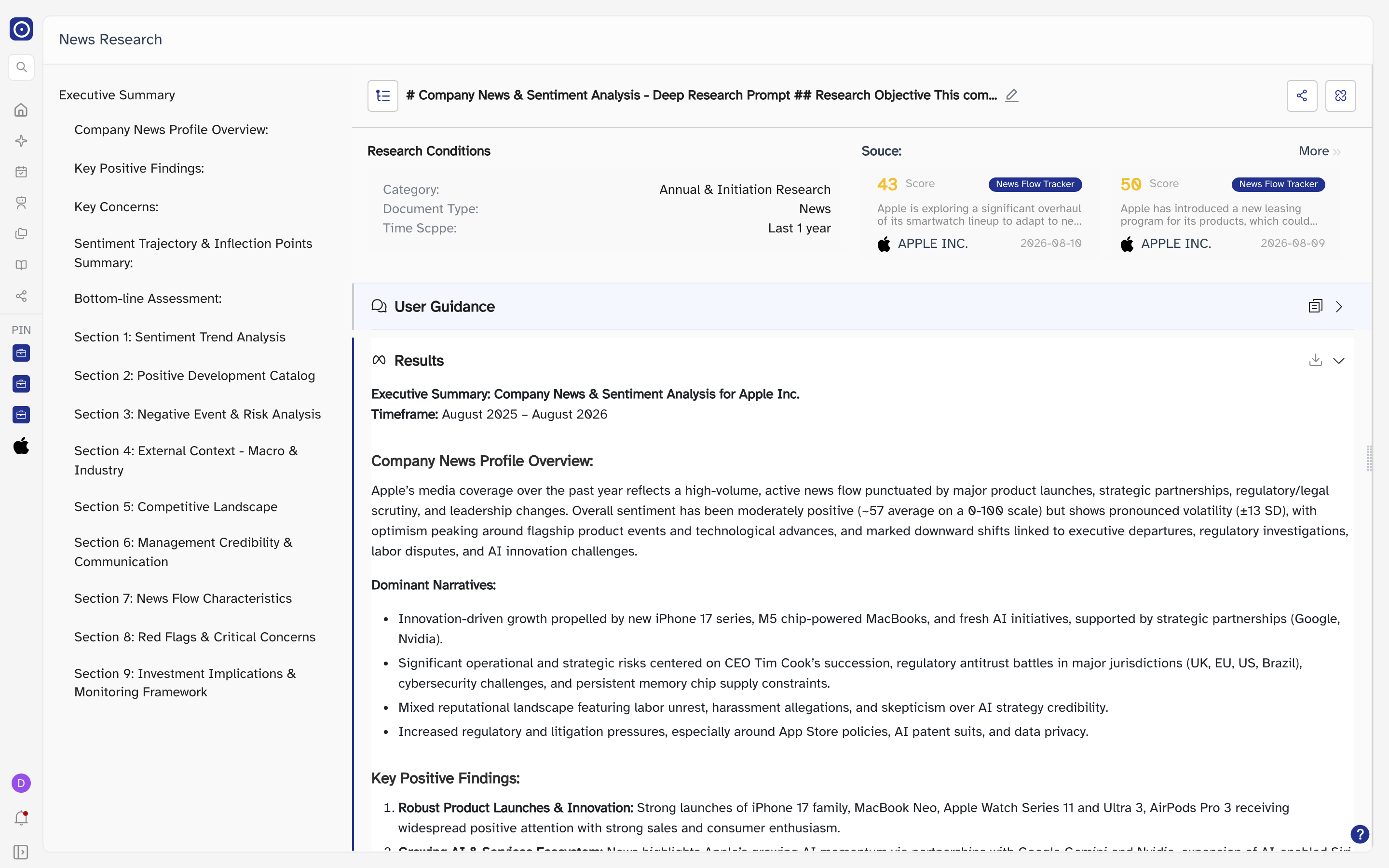
Both side columns start open. The icon at the far left of the header puts the contents column away, and Reasoning Process puts the Orbit AI column away; either way the report itself widens to fill the space. Click the same control again to bring the column back.
Orbit AI
The right-hand column, headed Orbit AI, holds Intermediate Results: the sub-questions Orbit set itself before writing the report. Each can be opened on its own, and Expand at the top opens all of them at once (it then reads Collapse). Like the tool calls in Chat Agent, this is there for auditing how the report was reached — it changes nothing in the report.
Everything on this page was produced when the report first ran. Opening it again, expanding panels, copying the prompt and downloading the Markdown all cost nothing.