
The company page
Everything Orbit holds for one company, on that company's own page: the documents it has filed, the companies it is tied to, the agents watching it, and the news written about it. The things you can do to a company rather than read about it — pin it, point an agent at it, put it in a list — sit in one menu at the top, and the ready-made questions about it sit in a card of their own.
Opening the page
- Click the company's name, ticker or logo wherever Orbit shows it. The commonest ways in are a pinned company in the left rail, a company chip on a portfolio, the company table in Portfolio Management, and a company name in Notifications.
- Orbit checks that you may open that company, then opens its page. Some of the ways in open it in a new browser tab rather than in place.
The page is opened with an encrypted company identifier in the address, and reads the
company out of it. There is no company picker on the page itself, so a
/search/company-info address with nothing after it has nothing to show.
Company names in Explore, Chat, Chat Agent and News Research open it too, as does the Entity column in Chat History, a company name in Agent Marketplace, and a company in the list behind a card on Schedules.
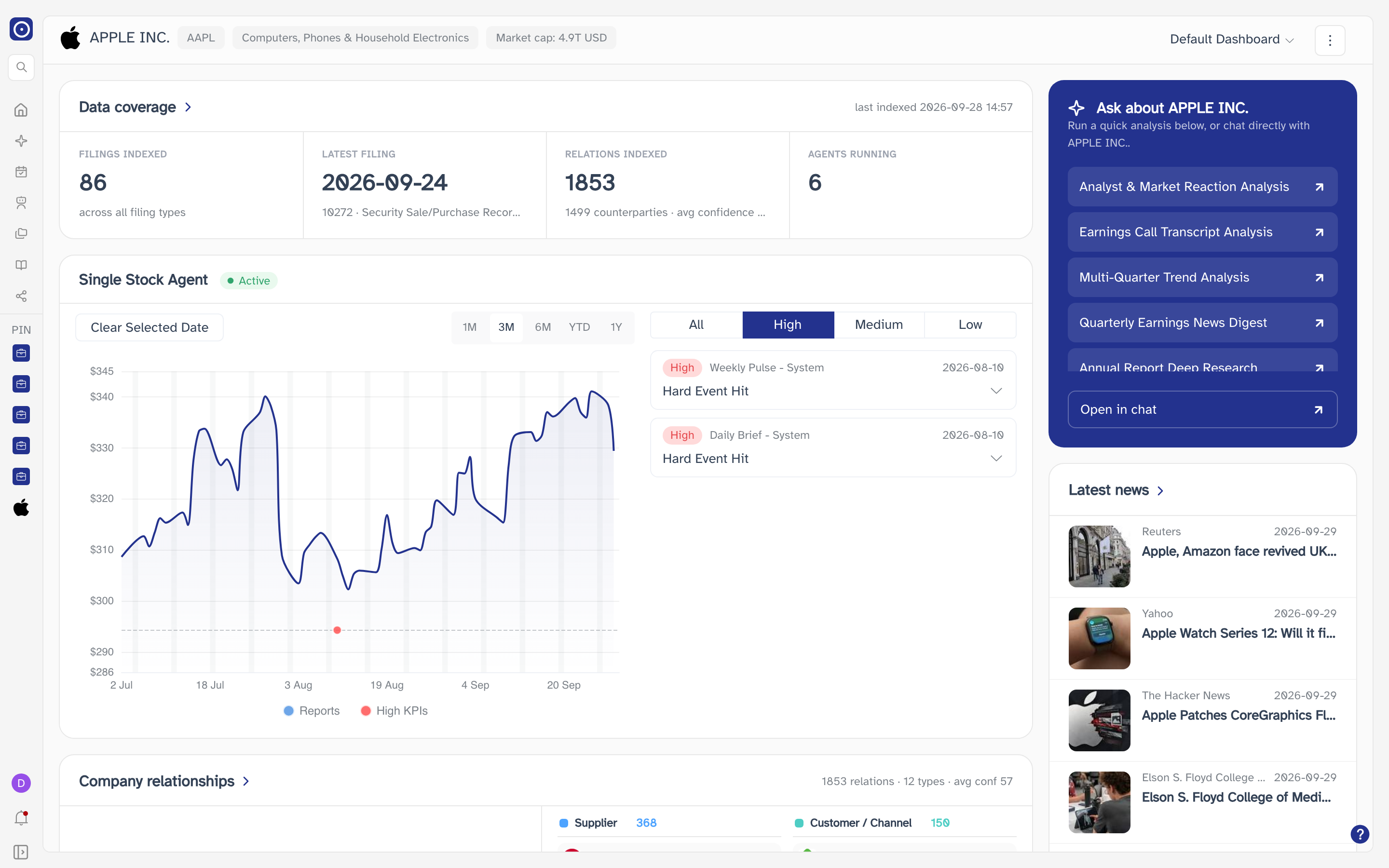
The page is a dashboard of cards, laid out in two columns. Seven cards exist, and the shared Default Dashboard arrives with all seven on it. How the page is laid out lists them and says which column each one goes in.
The company header

The strip across the top of the page describes the company in the address, whichever card you are looking at. Reading left to right: the company's logo and name, then its ticker, the industry Orbit files it under, and its market capitalisation.
| Item | Notes |
|---|---|
| Logo and name | The name as Orbit's company record holds it, in capitals. |
| Ticker pill | The exchange ticker, without the exchange prefix. |
| Industry pill | Orbit's own grouping, not the company's description of itself. |
| Market cap pill | In USD, with T for trillions and B for billions. |
It is a shared component, so it is also the header of Company News and Company Report. A pill with nothing in it means Orbit does not hold that field for this company — it is not a loading state.
How the page is laid out
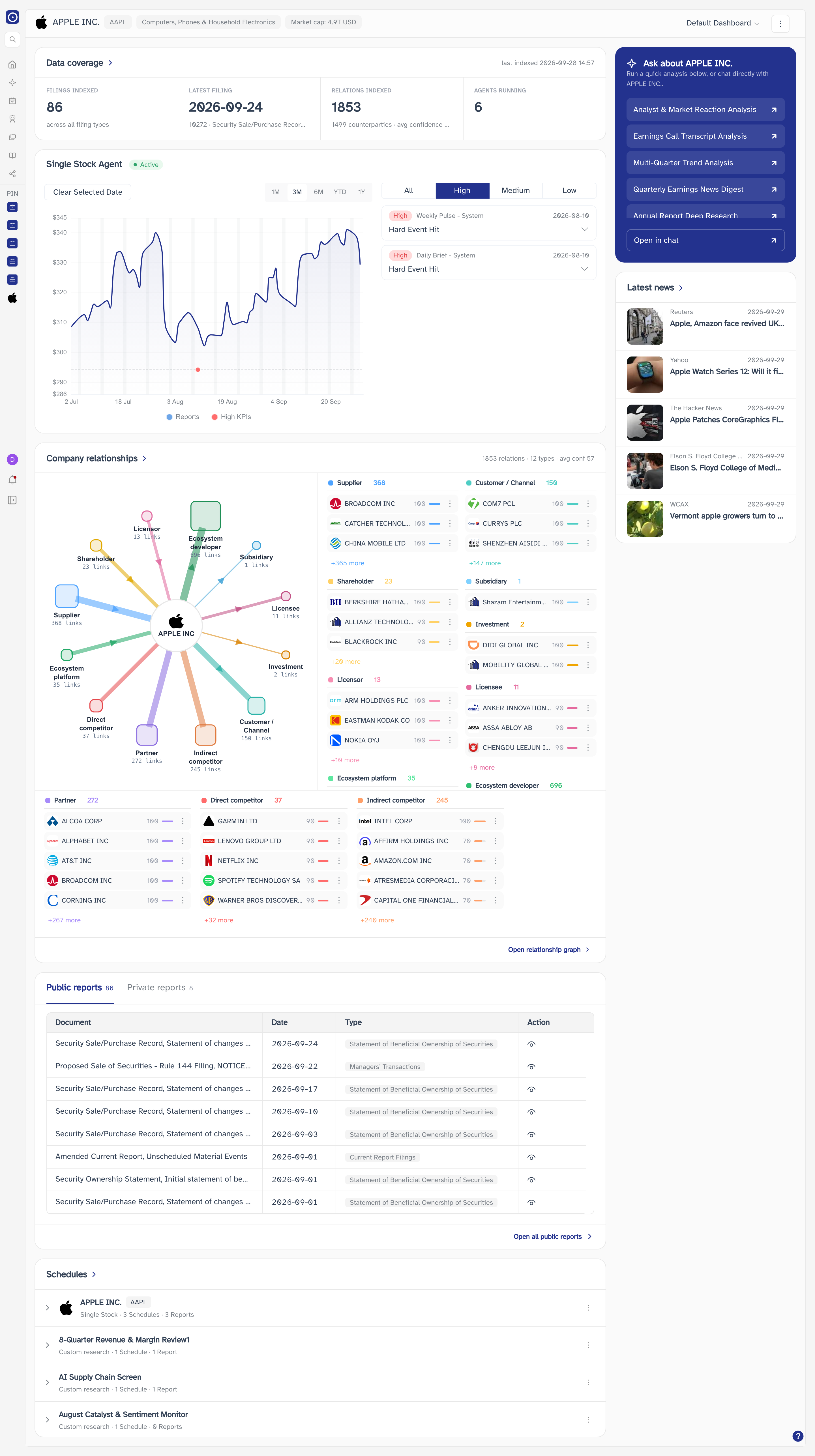
Two columns: a wide main column, and a narrower one down the right. Which column a card goes in is fixed by the card, not by you — and so is its size. All you can change is the order of the cards within their own column, and which cards are there at all.
| Card | Column | What it holds |
|---|---|---|
| Data coverage | Main | Four counts of what Orbit has indexed for the company. |
| Single Stock Agent | Main | The company's price with its agent's verdicts plotted against it. Only present when the company has a single stock agent. |
| Company relationships | Main | The relations indexed for the company, grouped by kind. |
| Reports | Main | The documents Orbit holds and the ones you have uploaded yourself. |
| Schedules | Main | Every agent and alert that runs for this company. |
| Ask AI | Right | Orbit's ready-made analyses, and a way into a chat about the company. |
| Latest news | Right | The most recent stories written about the company. |
Its width is fixed, so a dashboard with nothing in that column does not draw it at all rather than leaving a strip of empty page. A card cannot be dragged between the two columns.
Looking after the dashboard
The top right of the page holds the name of the dashboard you are on, then the page actions menu — with Add Widget between them on a dashboard of your own. The dashboard control and the widget gallery are about the page; the actions menu is about the company.
Default Dashboard is the same for everyone and cannot be changed: Add Widget is not shown on it, its cards have no drag handle and no ⋮, and it cannot be deleted. To arrange cards your own way, create a dashboard of your own — everything below applies to those.
Switching dashboards
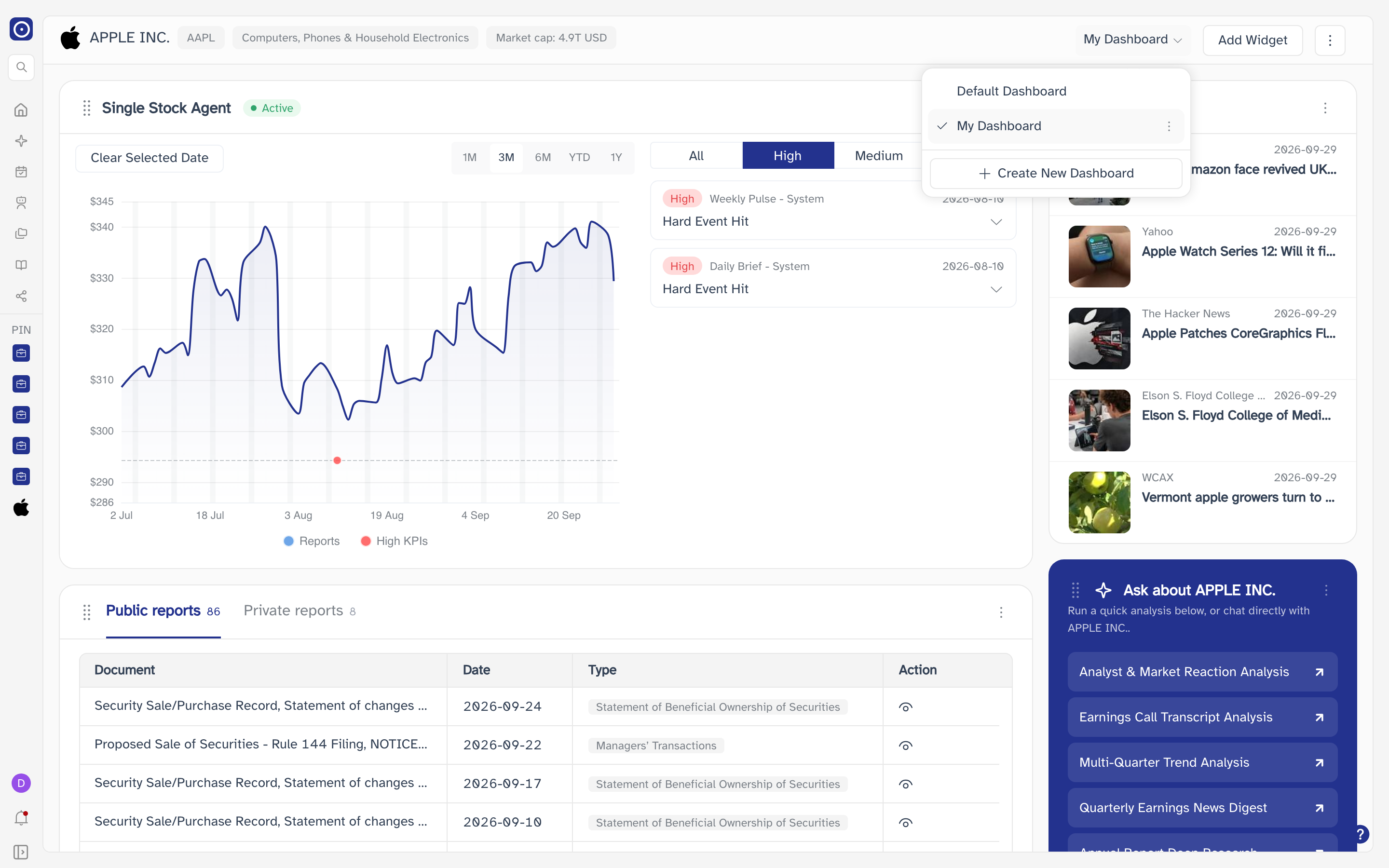
The dashboard's name at the right of the header is a control: click it to list the dashboards available to you, the shared one first and your own after it. Picking one loads its cards, and makes it the one a company page opens on from then on. Reads No dashboards when the list is empty.
The same list is on every company page, so a dashboard built for one company is the one you get on the next company you open, with the same cards in the same order. What changes as you move between companies is what the cards show, not which cards there are.
A dashboard's name and description are set when it is created and cannot be changed afterwards. The only thing the per-row ⋮ offers is Delete.
Creating a dashboard
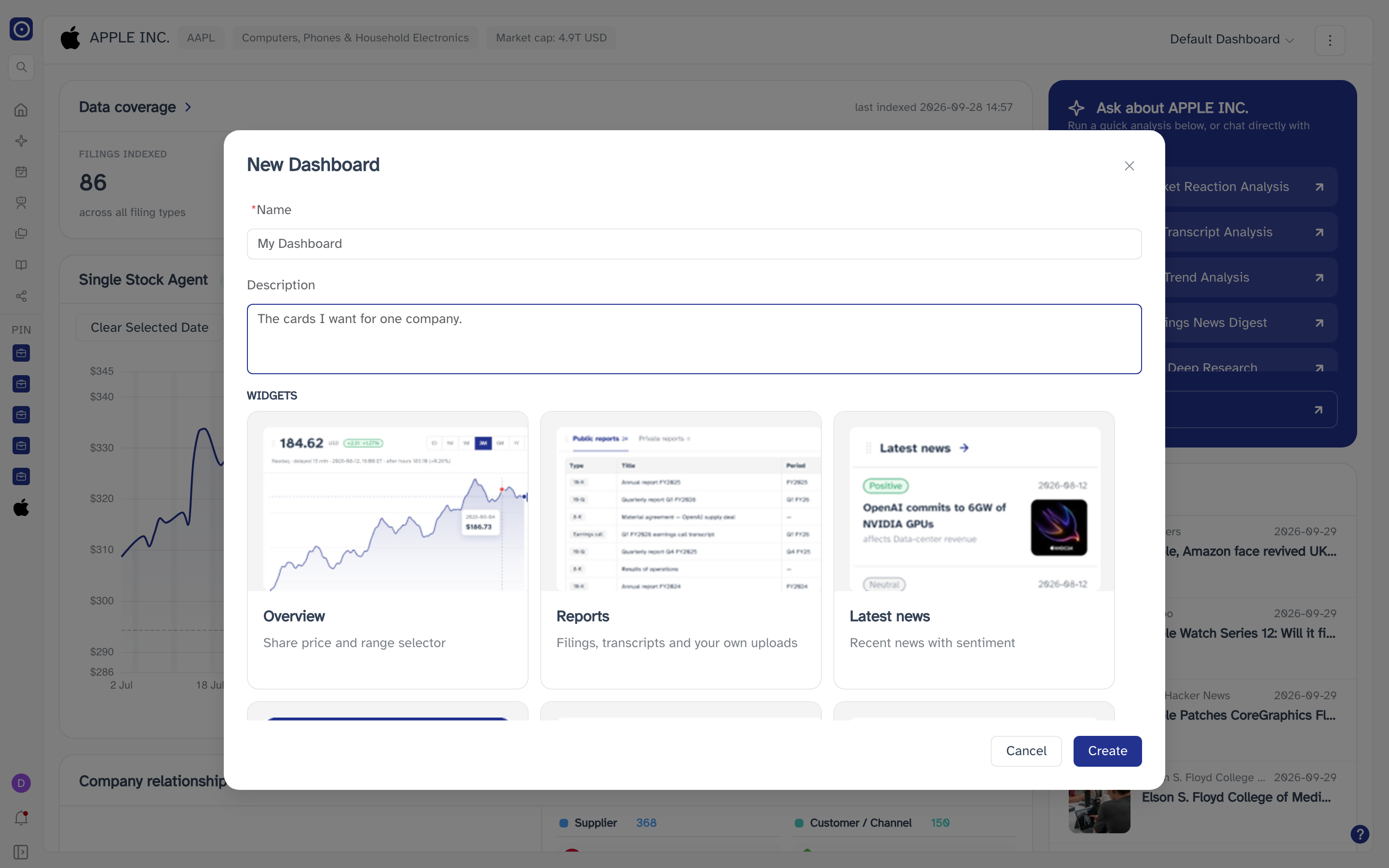
Create New Dashboard sits at the foot of that list. It asks for a Name — required, up to 100 characters — and a Description of up to 255, then offers the widget gallery under a Widgets heading. Ticking cards is optional: Create makes the dashboard and puts the ticked cards on it in one go. Cancel discards the lot.
Adding a widget
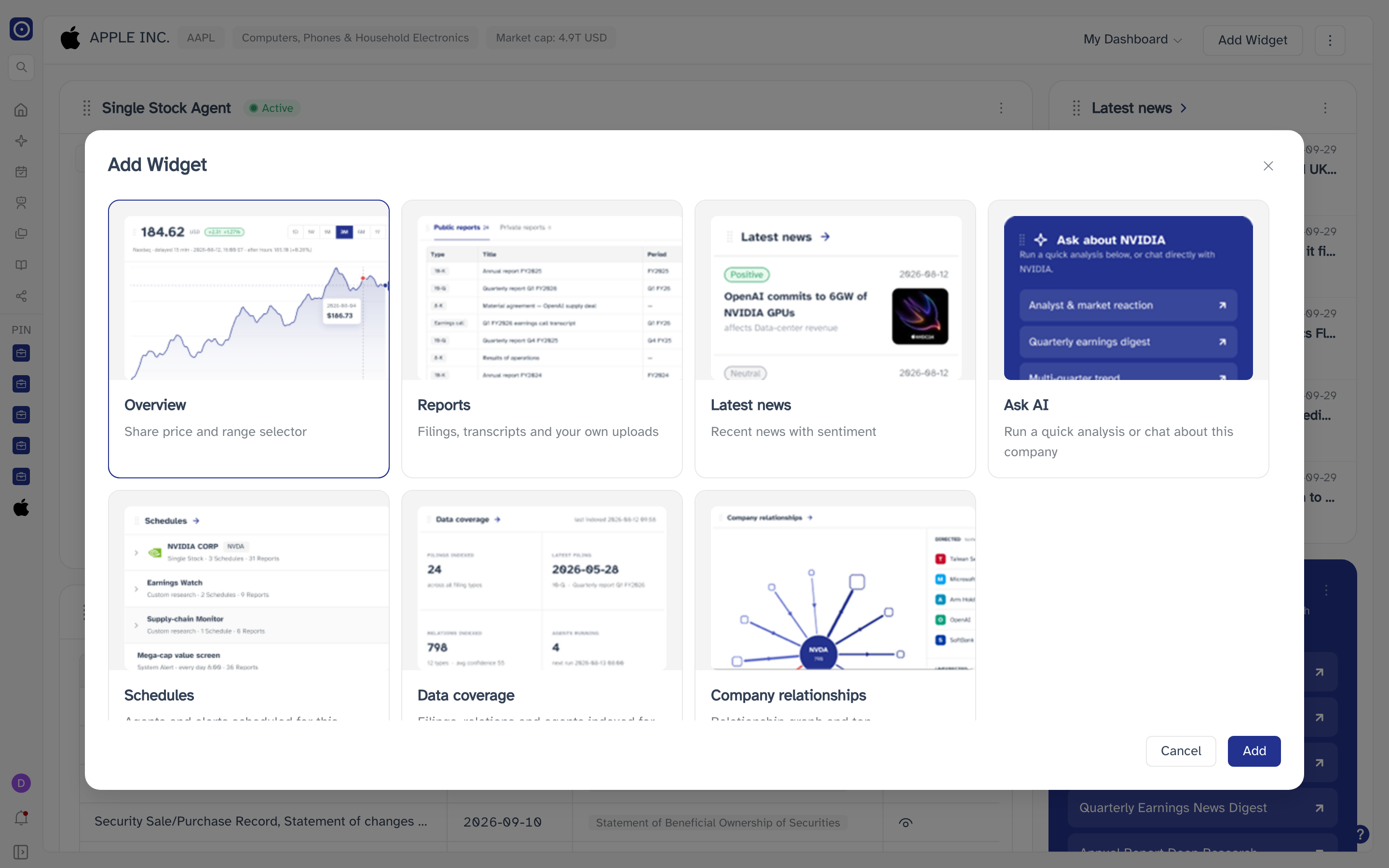
Add Widget opens the same gallery, with no name or description to fill in. Pick the cards you want and press Add; it stays greyed out until you tick something. Nothing here asks where the card should go, because nothing can: each card belongs to one column, and a new card is added at the bottom of it. The same card can be added more than once.
Arranging and removing widgets
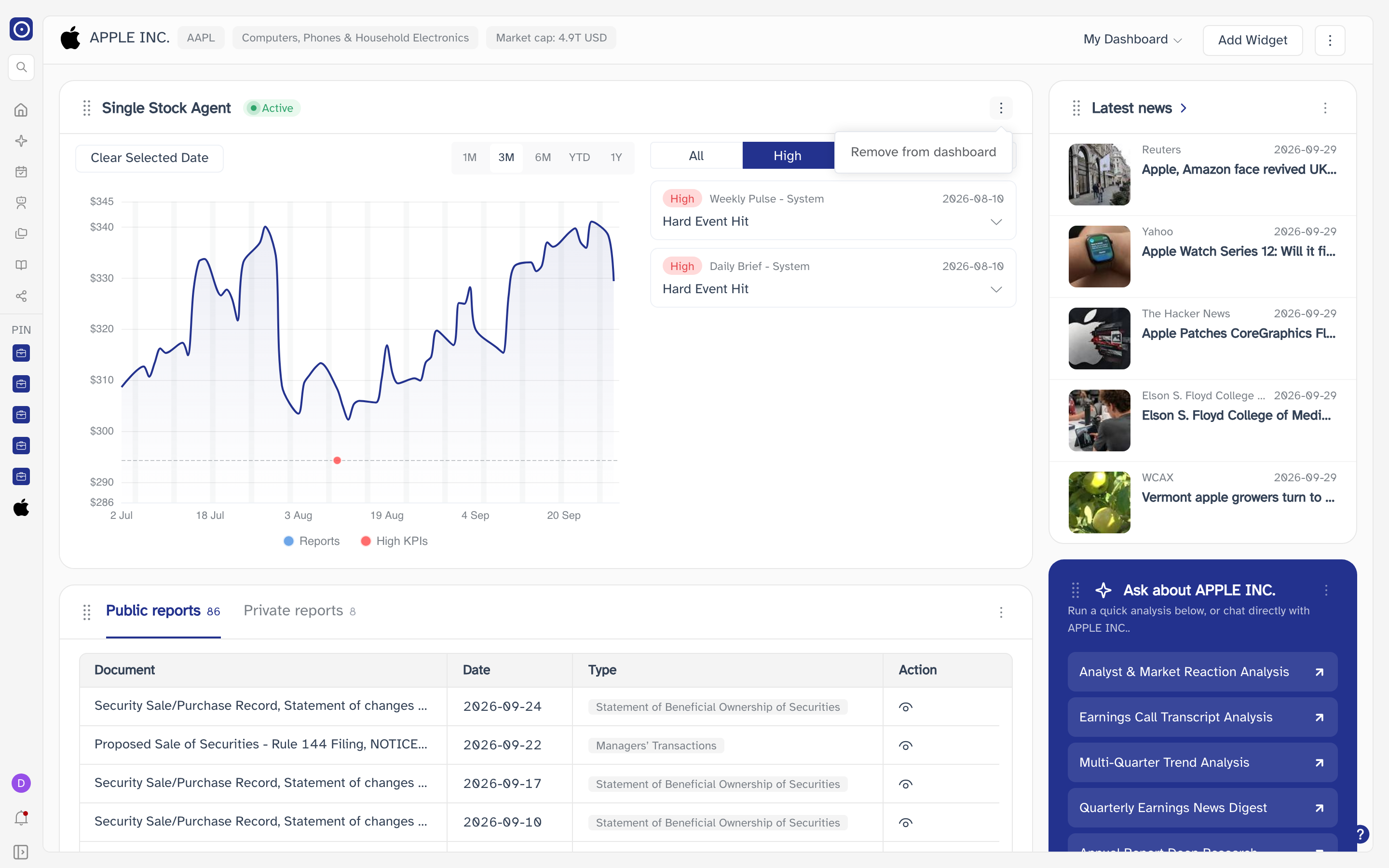
Each card carries a handle at the left of its title. Drag it to move the card up or down within its own column; the new order is saved as soon as you let go. The ⋮ at the right of the title removes the card from the dashboard.
Remove from dashboard takes the card off this dashboard only. The company's documents, relations, agents and news are untouched, and the card can be added back from Add Widget at any time.
Deleting a dashboard
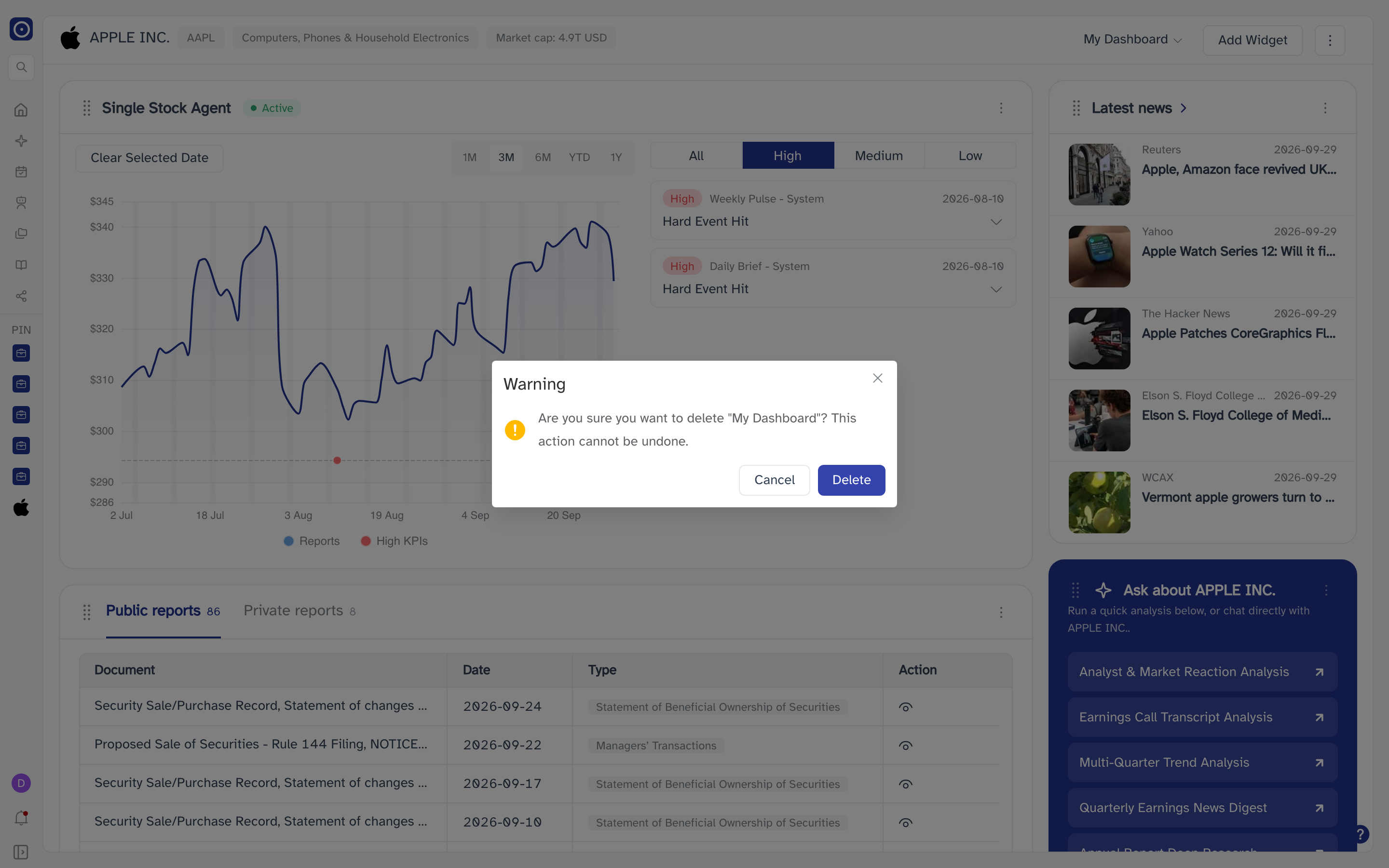
The ⋮ beside a dashboard's name in the list offers Delete. It asks first, naming the dashboard it is about to remove.
Deleting a dashboard takes its layout with it. Nothing else is lost — the cards are definitions, not data — but the arrangement has to be built again from scratch. The shared Default Dashboard cannot be deleted.
The page actions menu
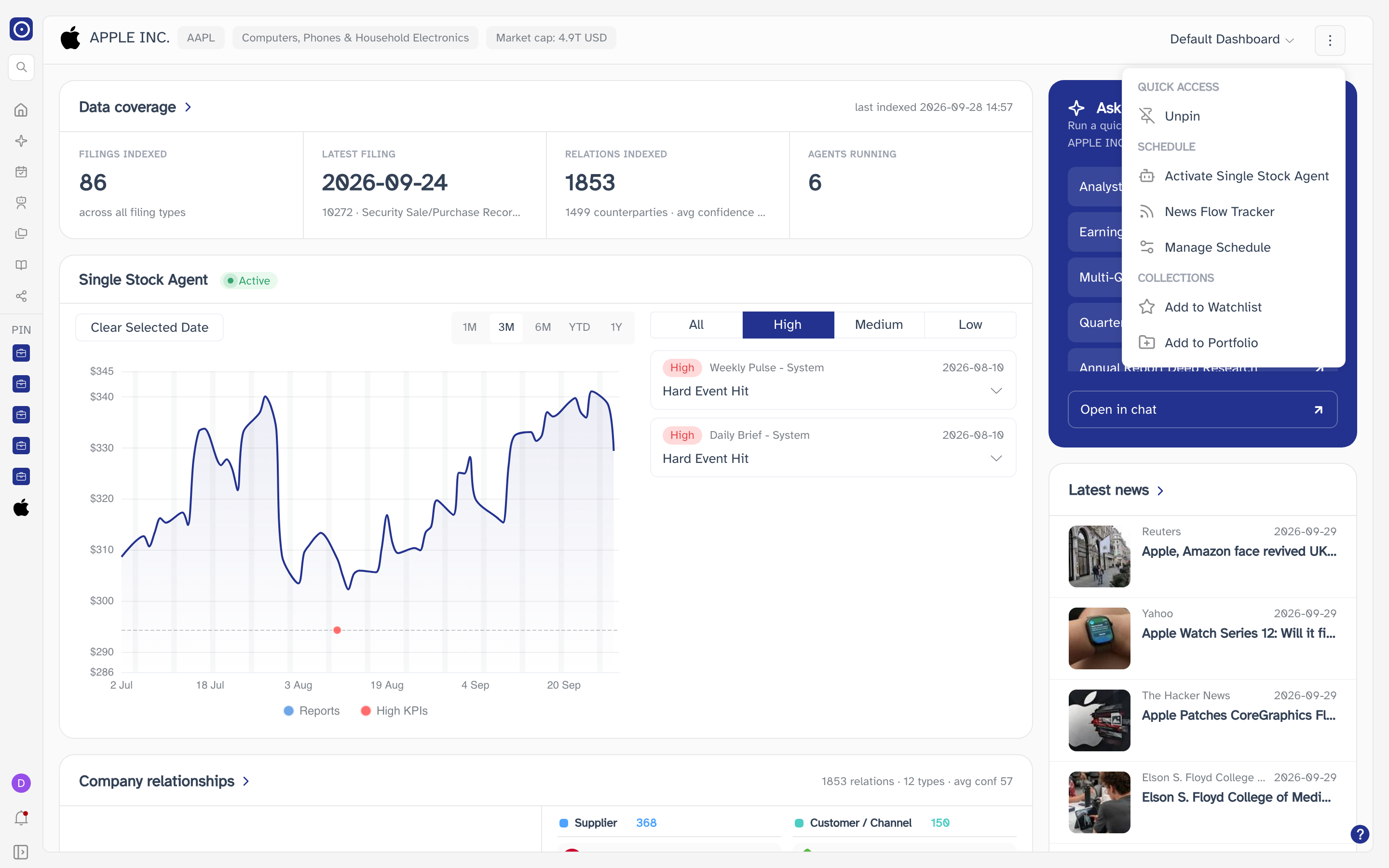
The ⋮ at the right-hand end of the header collects what you can do with this company, in three groups. None of them change the dashboard you are looking at.
| Entry | What it does | Where it goes |
|---|---|---|
| Pin / Unpin | Adds the company to the PINNED list in the left rail, or takes it out. The entry reads Unpin once the company is pinned, and asks before removing it. | — |
| Activate Single Stock Agent | Goes to the company's single stock agent if it has one, and to the form that creates one if it does not. | The single stock agent page or Creating a Single Stock Agent |
| News Flow Tracker | Opens the subscription panel for the company's news tracking agent. | — |
| Manage Schedule | Goes to the schedules you subscribe to. | Schedules |
| Add to Watchlist | Adds the company to your watchlist and confirms it did. Reports No watchlist found if the account has none. | — |
| Add to Portfolio | Opens a dialog for choosing which portfolios the company should join. | — |
Pin acts straight away and confirms with Added to your pinned list. Unpin asks Are you sure you want to unpin this company? before it does anything.
Data coverage

Four counts of what Orbit has read for this company. They cover four different kinds of record, so they are filled in separately and do not arrive at the same moment.
| Column | What it counts |
|---|---|
| FILINGS INDEXED | How many filings Orbit holds for the company, across every type. |
| LATEST FILING | The date of the most recent one, with its type and title underneath. |
| RELATIONS INDEXED | How many relations have been extracted, with the number of counterparties and the average confidence. |
| AGENTS RUNNING | How many agents are running for the company. |
The card's title is a link. It opens the company's relations on their own page, where they can be filtered and read in full.
The Company Agent page is where the relations are read in full, with its own filters and its own list of companies.
The top right of the card carries a last indexed timestamp. It covers the card as a whole, not any one of the four columns — a filing can arrive after the last indexing run and still be counted.
The Single Stock Agent card
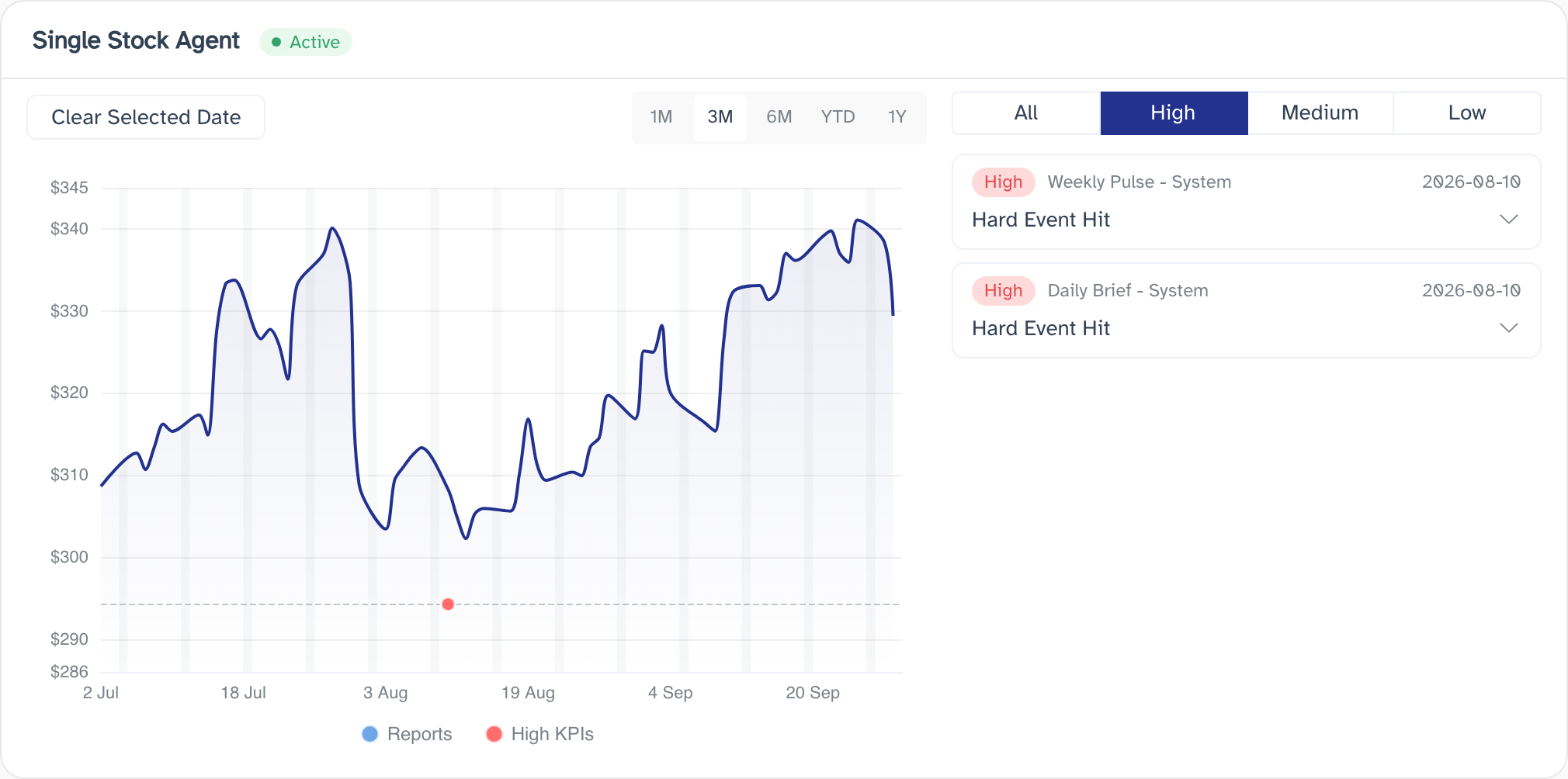
The company's share price with the agent's activity marked on it, so a call can be read against what the price did afterwards. Blue marks are reports; red marks are High KPIs, the ones that fired at the highest severity. The card is the same chart as the one on the single stock agent page, with the company's own agent behind it.
| Control | What it does |
|---|---|
| 1M / 3M / 6M / YTD / 1Y | How much price history the chart covers. |
| All / High / Medium / Low | Limits the list beside the chart to KPI hits of that severity. |
| Clear Selected Date | Drops the filter set by clicking a mark on the chart. |
Clicking a mark filters the card to that report, or to that day. Where the agent has no KPIs configured, the panel beside the chart points at Reports Settings on the agent instead of reading No Data.
The chart, the list beside it and the KPI badges come from the company's single stock agent rather than from the company, so a company with no agent does not get this card at all. It is not offered in Add Widget either, so there is no way to add a card that would stay empty.
The gallery calls this card Overview; on the page itself the card is headed Single Stock Agent, with an Active badge beside it.
Company relationships
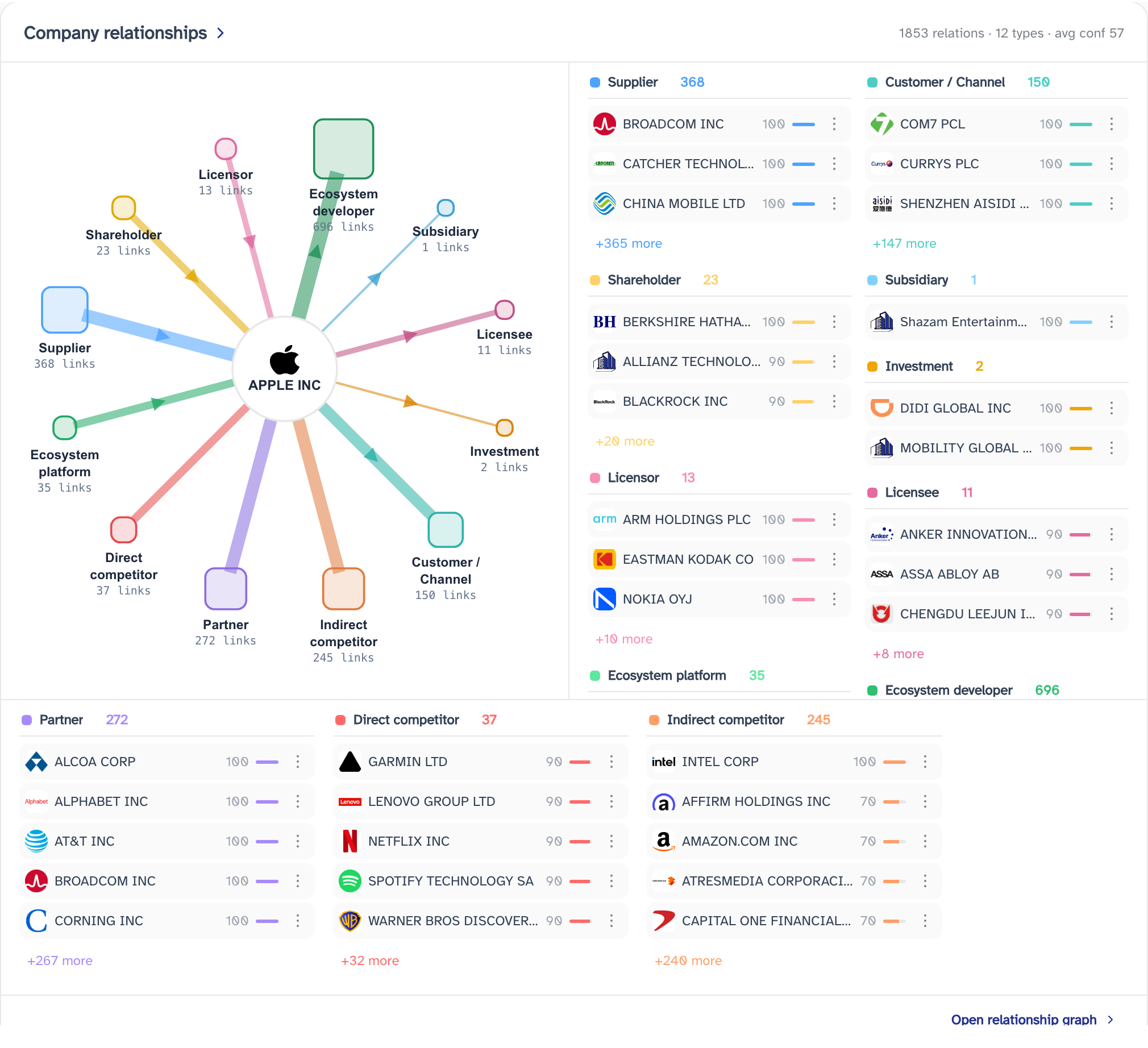
The companies this one is tied to, read out of its filings, transcripts and news. The card is a condensed version of the company's relations page: the graph on one side, the counterparties grouped by the kind of relation on the other.
| Area | What it shows |
|---|---|
| Graph, left | The relations as a network, with the company itself in the middle. |
| Upper right, two columns | The relations that have a direction — left column the counterparties pointing at this company, right column the ones it points at. |
| Lower band | The relations with no direction. Absent when the company has none. |
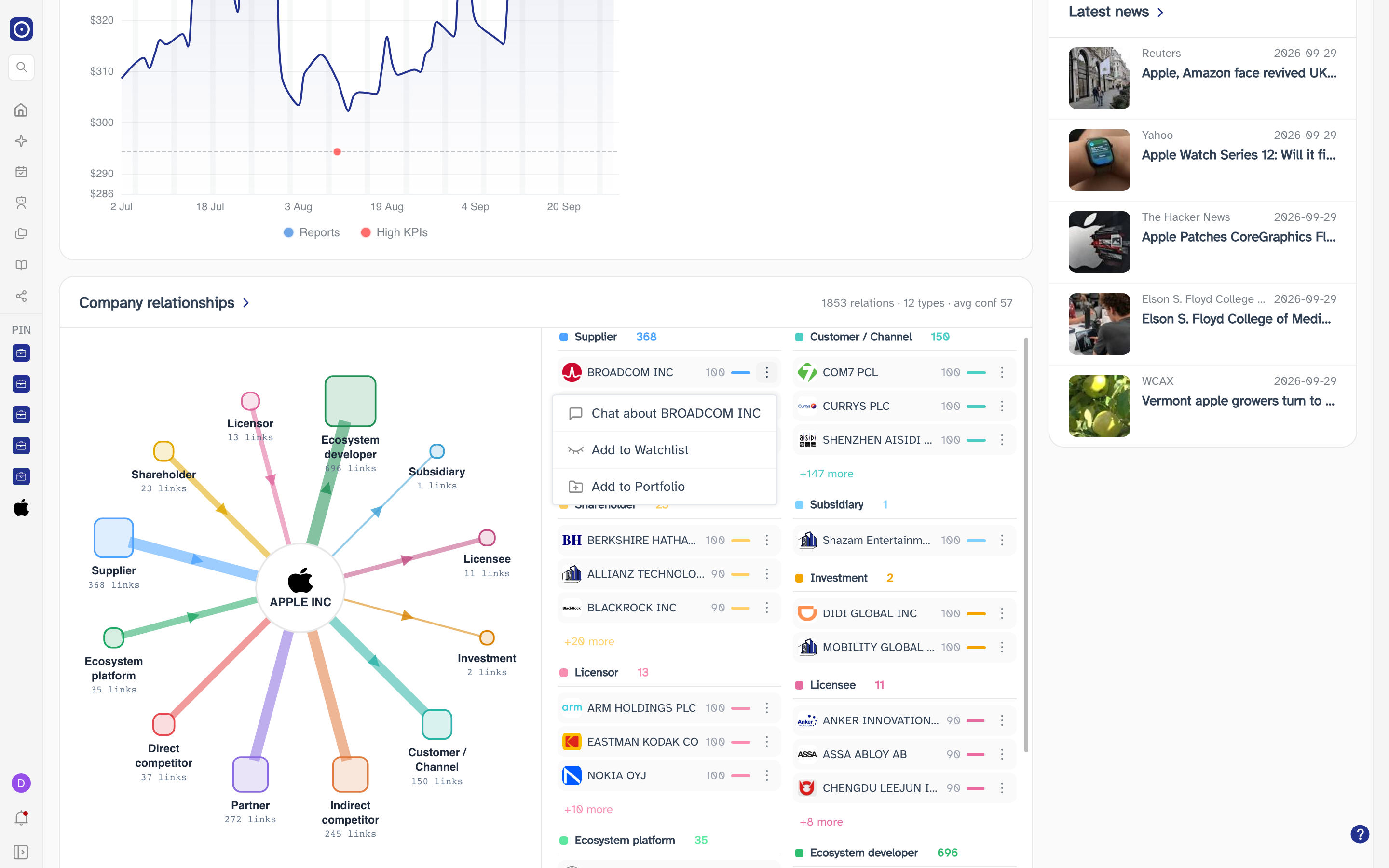
Each group is headed by the kind of relation and how many of them there are. Under the heading one line per counterparty, with its logo and name, its confidence, and a ⋮. Hovering a name brings up the evidence behind that one relation.
| Element | What it does | Where it goes |
|---|---|---|
| Logo or name | Opens that counterparty's own company page. | This page, for the other company |
| ⋮ | Chat about that company, Add to Watchlist, or Add to Portfolio — the same three things as on the page actions menu, aimed at the counterparty. | New Chat for the chat entry |
| +N more | Opens the full list for that kind of relation. | Company Agent page |
The card's title, the +N more buttons and Open relationship graph at the foot all lead to the same place: the company's relations on their own page, unfiltered and complete.
A counterparty Orbit holds no listing for has no page to open, so its logo and name are inert rather than missing. The ⋮ on such a line still offers the chat, but neither of the two list entries.
The Company Agent page is where the relations are read in full — the same twelve kinds, unfiltered and complete.
Reports
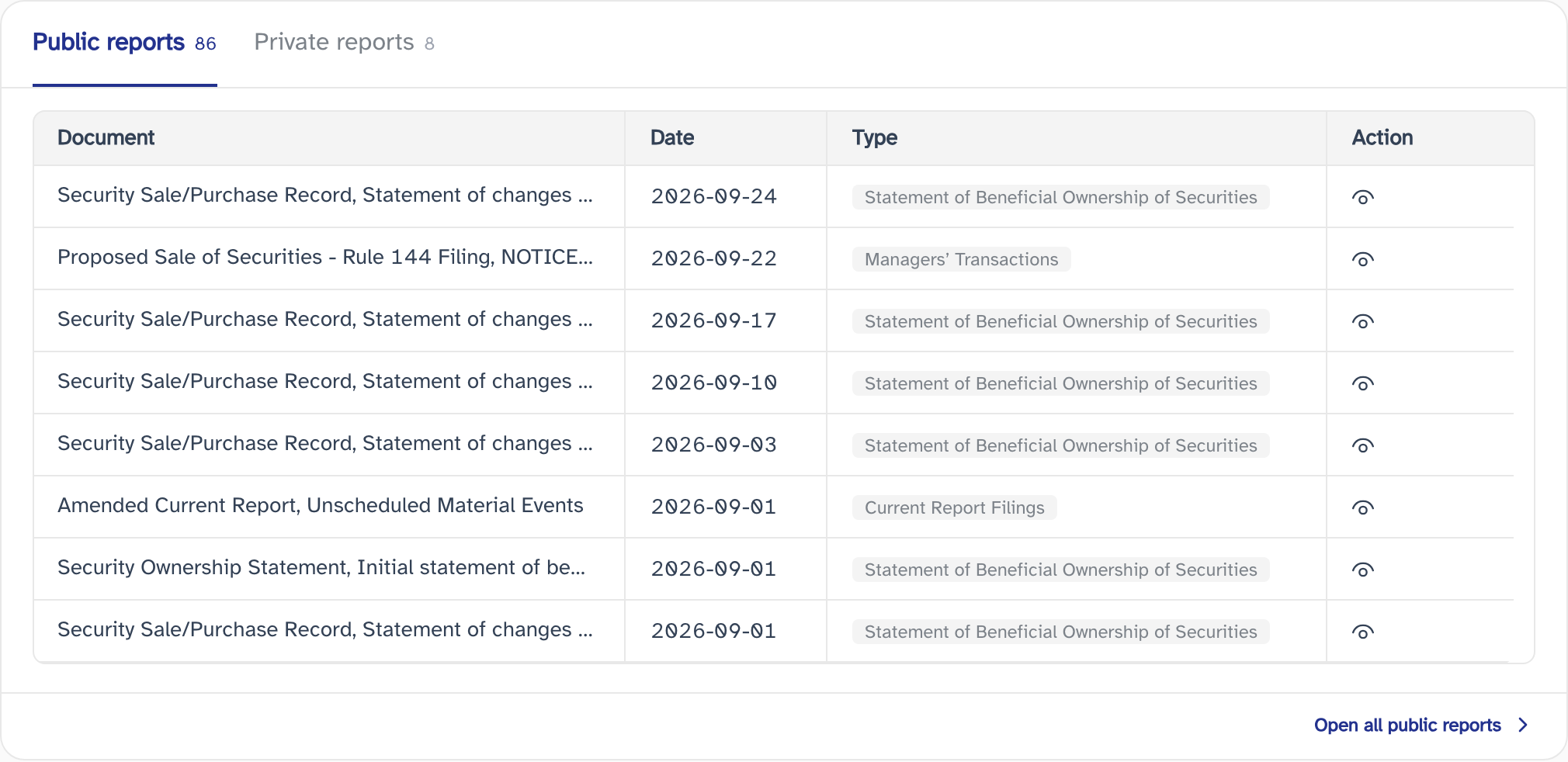
Two lists behind one set of tabs, each tab carrying how many documents are behind it. The table covers a year, and shows up to twenty rows.
| Tab | What it holds |
|---|---|
| Public reports | The filings, reports and transcripts Orbit holds for the company. Its Action column offers View and Chat. |
| Private reports | The documents you have uploaded for the company yourself, with an Upload button above the table. |
View opens a document read-only; Chat opens the same
document with its question panel ready. Both land on
PDF Chat. Neither is labelled on the row, and
Chat is drawn in white, so it is the harder of the two to see — hovering the
cell names it. A document filed under more than one type shows the first type and a
+n beside it; where Orbit holds several documents of the same type on the same
date, the two icons are replaced by a single ×n that opens a list to pick from.
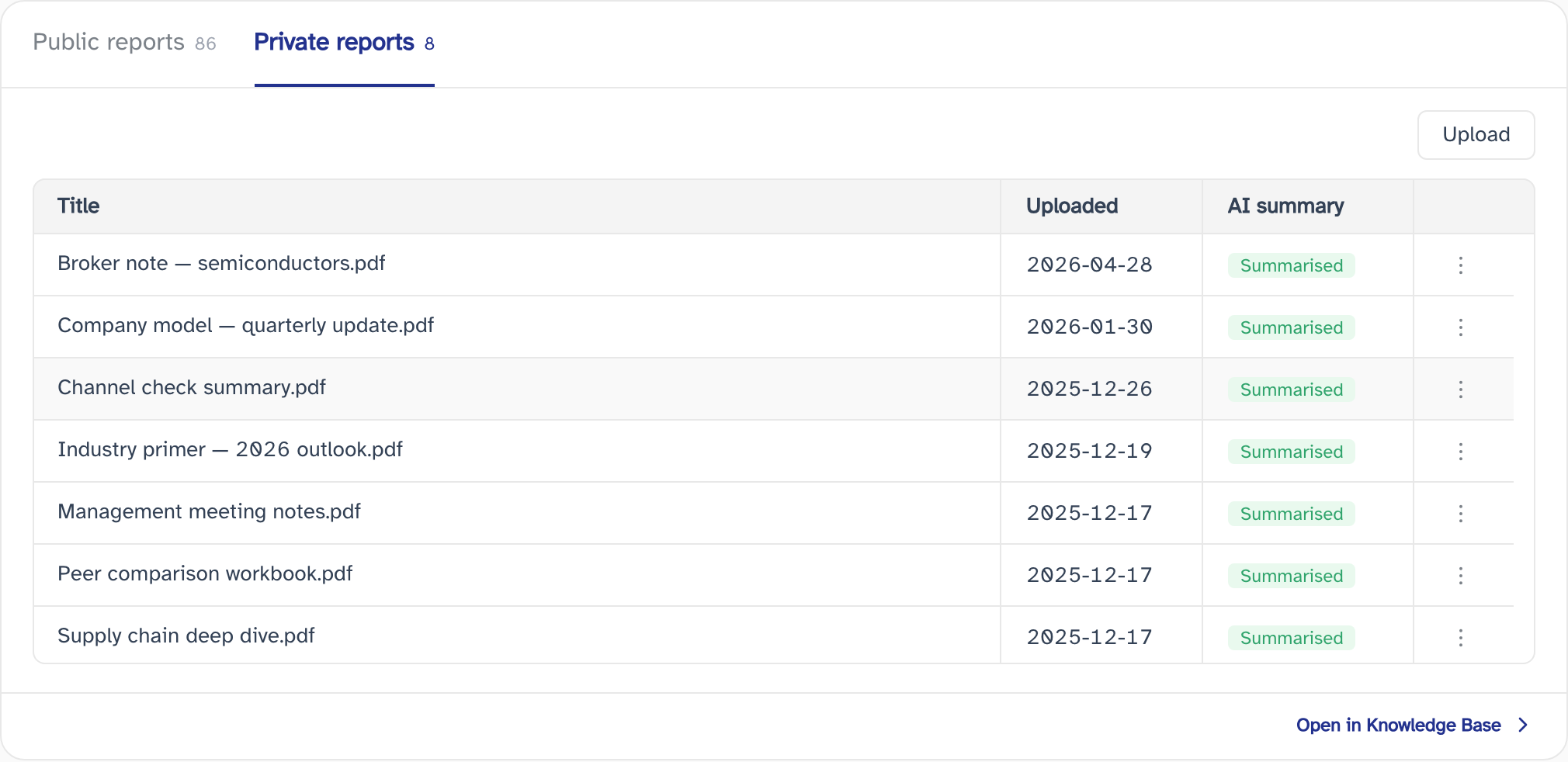
The private table lists what you uploaded, when, and what Orbit has made of it. A document whose summary is ready reads Summarised; one still being processed reads Pending, and its ⋮ offers Open but not Chat until it is done.
PDF only, under 10 MB per file, and no more than 50 pages each. Several files can be chosen at once. Uploads go to your own Knowledge Base, where only your team can see them — they are not shared with other Orbit users.
The Uploaded column carries the date the file was added to Orbit, not the period the document covers.
The link at the foot of the card changes with the tab. Under Public reports it opens the full document list for the company, with its date and library filters, on Company Report. Under Private reports it opens your Knowledge Base instead.
Schedules
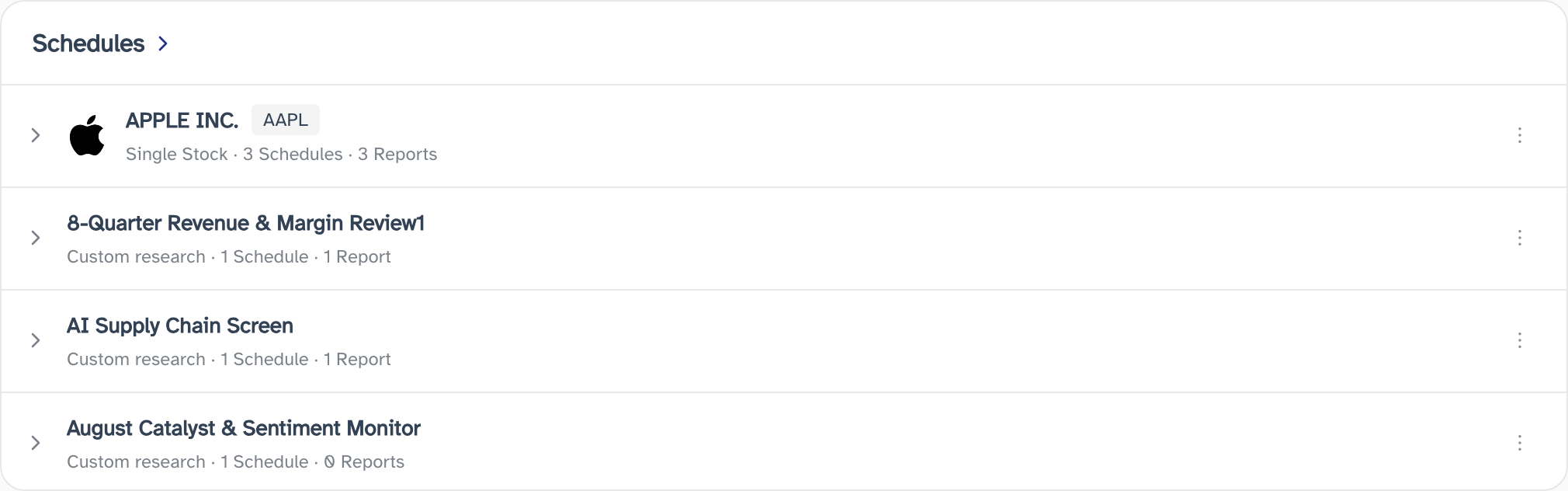
Everything that runs for this company: its own single stock agent, custom agents that cover it, and the portfolio and system alerts that include it. All four kinds share the one list, each row saying which it is, so a row reads like Custom research · 1 Schedule · 1 Report.
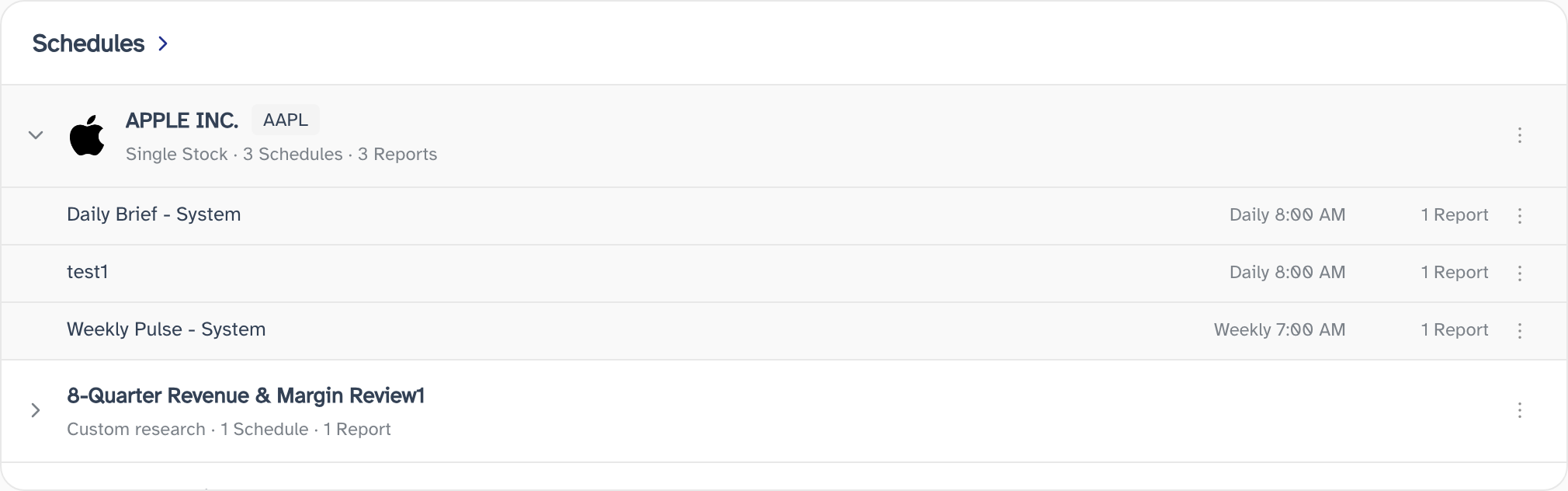
Rows with a chevron expand to show the individual schedules behind them, each with when it runs and how many reports it has produced. Rows without a chevron are a single schedule already, and give theirs on the row itself.
| Entry | What it does | Where it goes |
|---|---|---|
| Open Agent | On a group row. Opens the agent the group belongs to. | The single stock agent page or the custom agent page |
| Open Schedule | On a single schedule. Opens the list it came from, already filtered to this company. | Schedules |
| Open Latest Report | On a single schedule. Opens the most recent report it produced. | Report detail |
The menus here offer only the opening actions. Deleting an agent or a schedule is done on Schedules, which is also where the card's title takes you — the full list, with the company already filtered in.
Where a company has more than one agent, the group row's Open Agent is greyed out: it cannot tell which agent you meant. Expand the row and open a single schedule's agent instead.
Ask AI
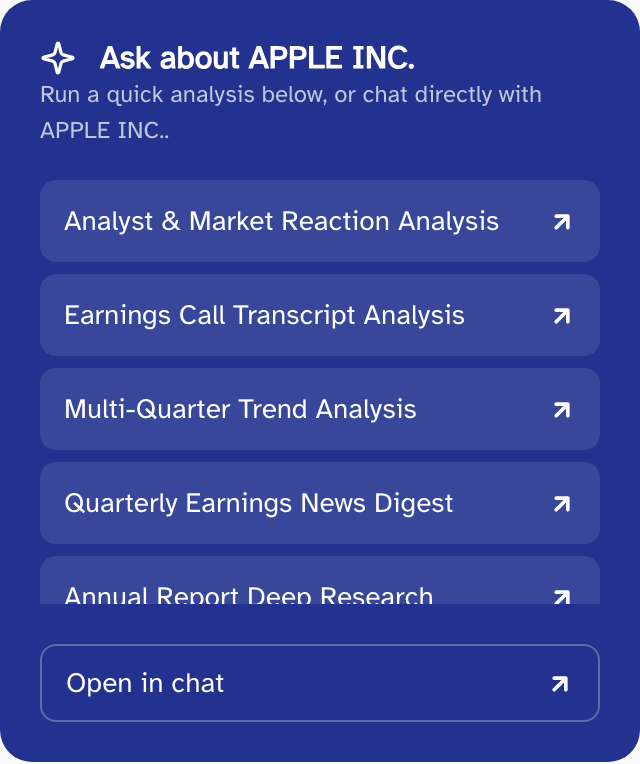
Orbit's ready-made analyses for the company, and a way into a conversation about it. The heading carries the company's name, and the list is the same set of analyses as Quick Analysis elsewhere in Orbit, ordered by category.
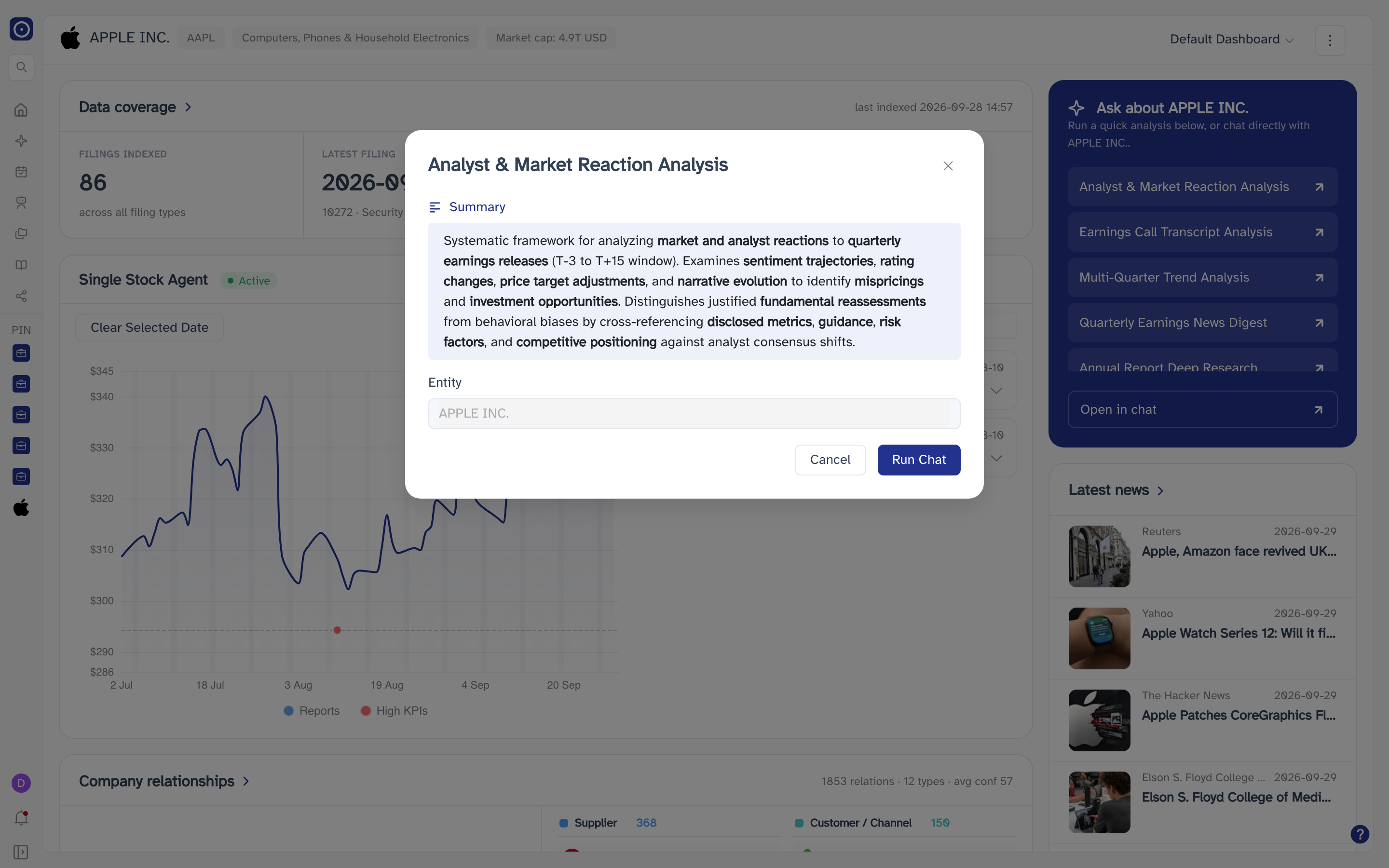
Clicking an analysis opens it before running it: what it looks at, and the company it is aimed at. Run Chat starts it and lands on Chat Agent; Cancel closes the dialog.
There is nothing to choose here — the dialog shows the entity as read-only, because the page already knows which company you are on. The company is carried across as a line of text at the start of the question, not as a filter, so the answers can mention other companies.
Open in chat at the foot of the list skips the analyses and opens New Chat with the company already named in the input box, waiting for whatever you want to ask. It does not send anything on its own.
Latest news
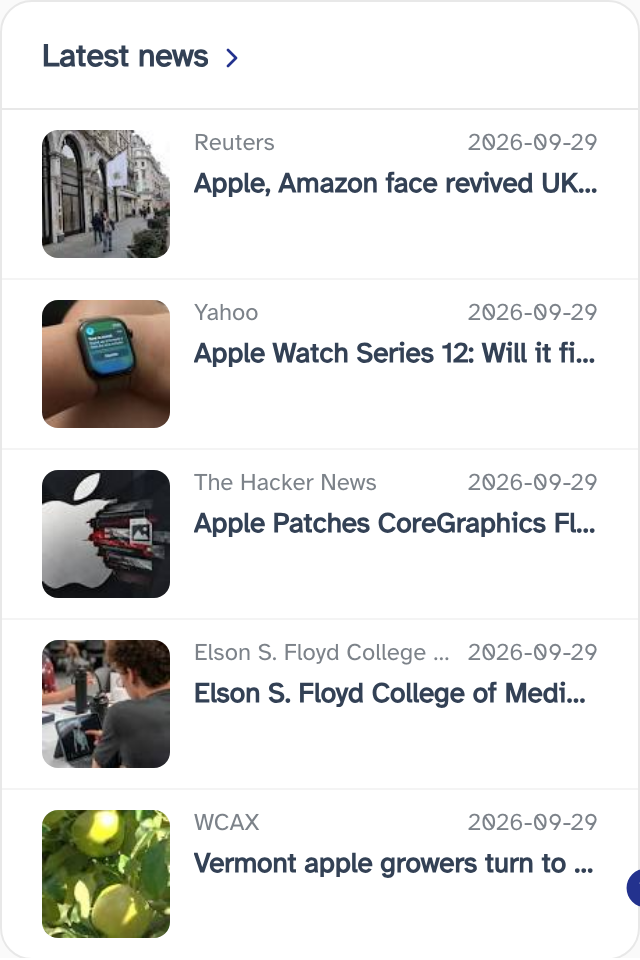
The most recent stories Orbit has collected about the company — five of them, from the last year, newest first. Each line carries the publisher, the date it was published, and the headline.
Clicking a headline leaves Orbit and opens the original article on the publisher's own site, in a new browser tab. The card's title opens all of them on Company News, where the date range can be changed and the whole list paged through.
Headlines, summaries and thumbnails are the publishers' own, and the thumbnails are fetched from their servers — so a story can show with a broken image while its headline still reads fine.
Where to go from here
Company News and Company Report are this page's two cards expanded into full pages: everything written about the company, and everything it and its regulators have filed. For reading one of those documents in depth, see PDF Chat.
To change what the company's agent watches, see The single stock agent page. To change what runs for it, see Schedules.