Explore
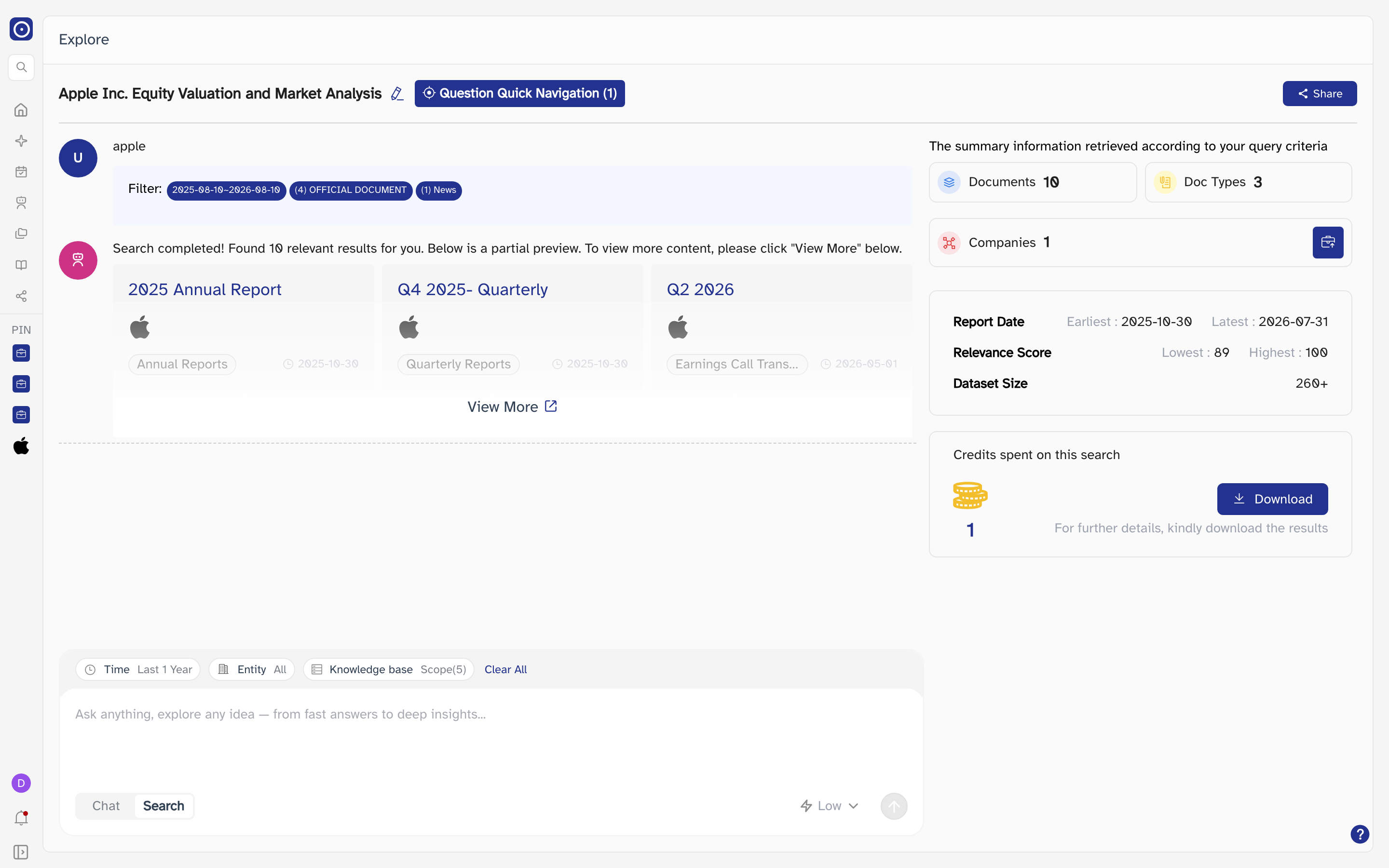
Where a document search lands. Rather than writing you an answer, Explore tells you what it found — how many documents match, which companies they belong to, how recent they are — and hands you the documents themselves. This is the page behind the Search and Deep Search rows in Chat History.
Opening the page
- Switch to Search mode on New Chat and send a question. The search runs and its results open here.
- Or click a Search or Deep Search title in Chat History to reopen a search you have already run.
Explore is not in the left rail and opening its address on its own sends you back to New Chat. It always arrives with a search attached, either a new one or one from your history.
The header
| Element | What it does |
|---|---|
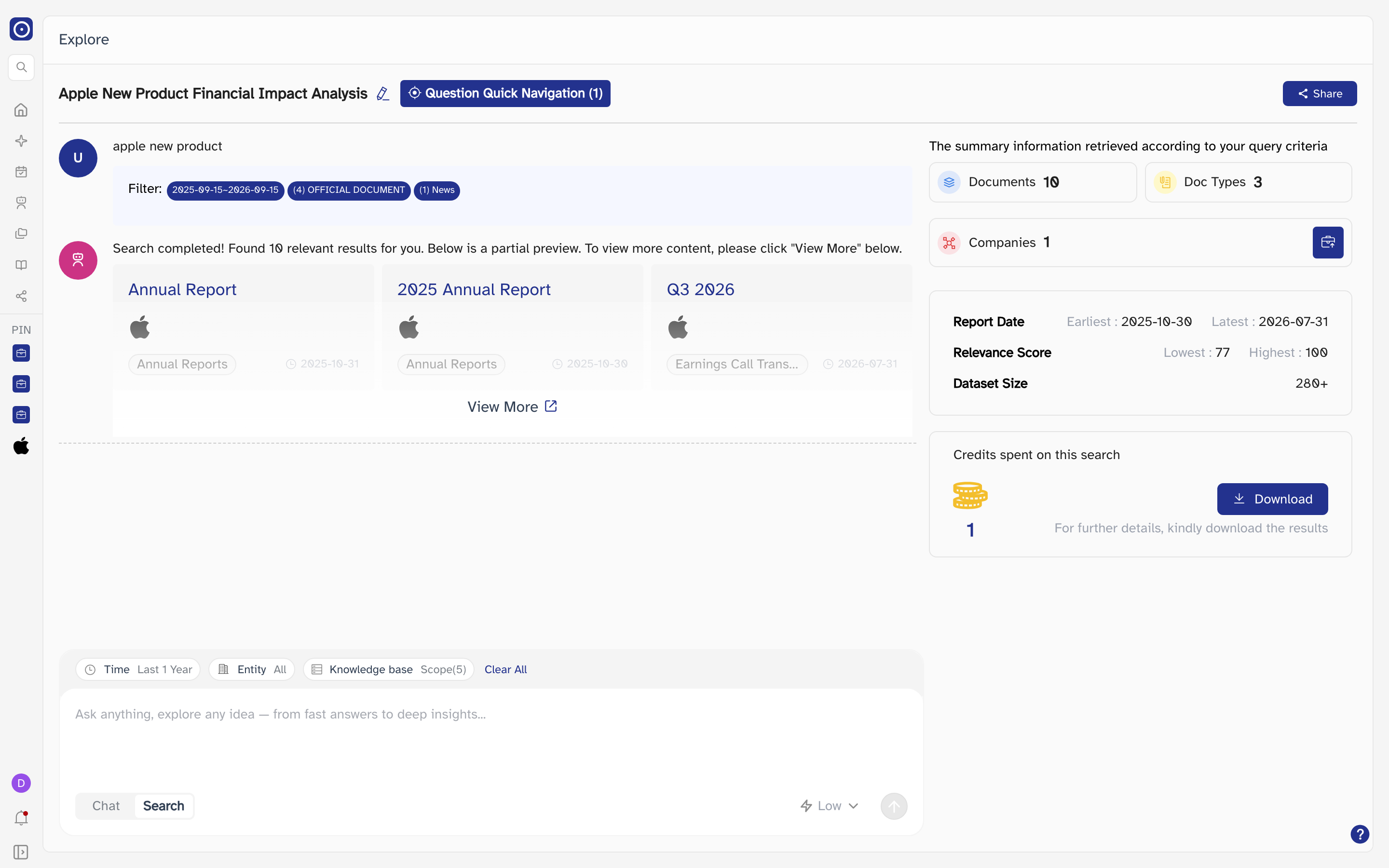
| Title | Written by Orbit from what you searched for. The pencil beside it renames the record — up to 100 characters, exactly as in Chat History. |
| Question Quick Navigation | Lists every question in this record, with the count in brackets. Picking one scrolls to it and switches the summary panel on the right to that question's numbers. |
| Share | Creates a public link to this search and copies it to your clipboard. It is listed on the Share page, which is where you withdraw it. |
What was searched
Under your question is the set of filters the search ran with — the date range it covered, the document types, and any company, portfolio, sector or country you had narrowed it to. The numbers in brackets are how many of each type were included.
These filters are a record of what happened, not controls: changing the row of filters at the bottom of the page affects the next question you send, not the results above it.
The result preview
Orbit reports how many documents it found, then shows the three most relevant as cards. Each card carries the document title, the company it belongs to, the document type and its date.
| Where you click | What opens |
|---|---|
| The document title | The document itself in PDF Chat, in a new browser tab. |
| The company logo or name | That company's page, in a new browser tab. |
| View More | The full result list, in a new browser tab — see below. |
When a search matches nothing, the cards are replaced by a line telling you so and asking you to change the criteria and search again. The summary panel on the right stays empty.
The summary panel
The right-hand column describes the whole result set rather than any one document. It belongs to whichever question is currently selected.
| Figure | What it means |
|---|---|
| Documents | How many documents matched. |
| Doc Types | How many different document types they span. |
| Companies | How many companies they belong to. |
| Report Date | The oldest and newest document in the set. |
| Relevance Score | The lowest and highest match score in the set. |
| Dataset Size | How large the pool was that Orbit searched through. |
| Credits spent on this search | What this search cost. It is charged once, when the search runs. |
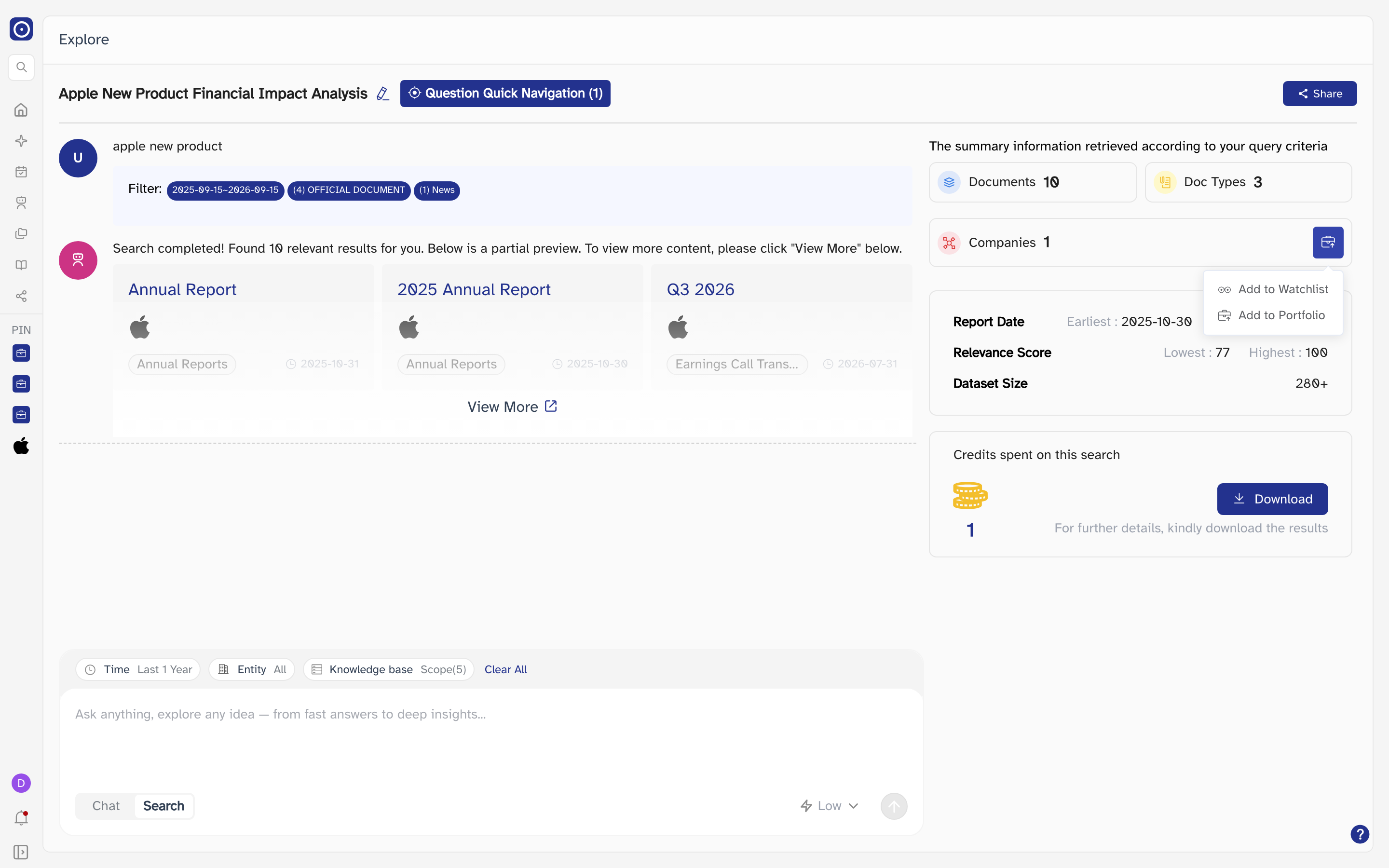
The button beside Companies adds every company in the result set to a list you keep.
Download under Credits spent on this search saves the full result set as a spreadsheet. It is switched off while a search is still running and on shared copies of a search.
The full result list
View More opens every matching document as a table in a new browser tab, with the same four figures repeated along the top.
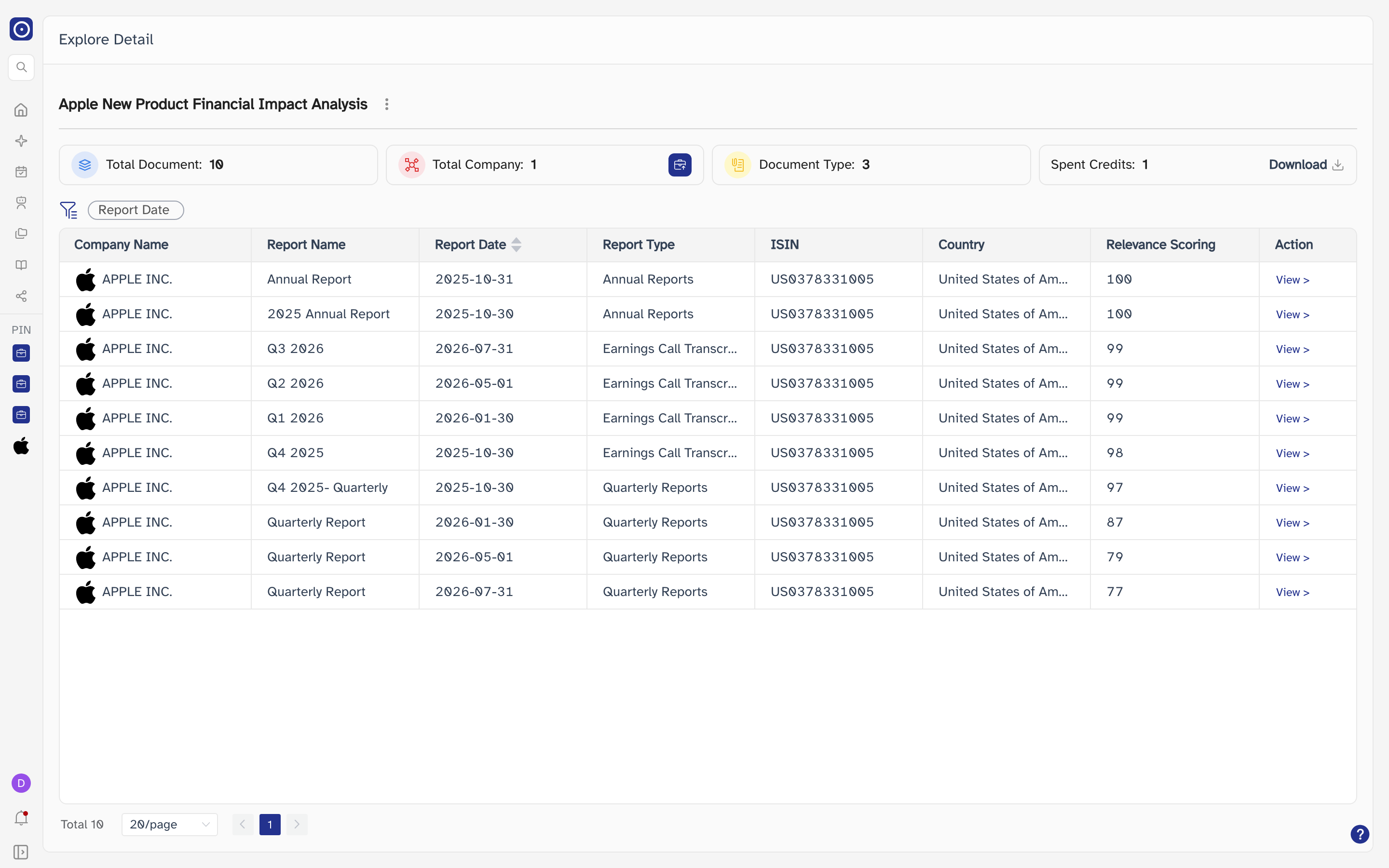
| Column | Notes |
|---|---|
| Company Name | With the company's logo. Click the name to open its page in a new tab. |
| Report Name | The document's title. |
| Report Date | When it was published. This is the one sortable column — click the header to reverse the order. |
| Report Type | Annual report, quarterly report, earnings call transcript, and so on. |
| ISIN | The security identifier for the company. |
| Country | Where the company is domiciled. |
| Relevance Scoring | How well the document matched, on the same scale as Relevance Score in the summary panel. |
| Action | View > opens that document in PDF Chat, in a new tab. |
The filter above the table narrows what is shown by company and by report date, without running the search again. The list shows 20 rows per page by default, and the page-size box offers 20, 50 and 100.
Asking another question
The box along the bottom is the same one as on New Chat, with the same Time, Entity and Knowledge base filters, Clear All, and the Chat / Search switch. Sending from here adds another question to this record instead of starting a new one, so the history keeps a single entry with several searches inside it.
Every search you send spends credits — the amount is shown afterwards under Credits spent on this search. Switching to Chat and sending hands the question to Chat Agent instead, which is charged as a chat.
Search and Deep Search
Both types open this same page and look identical. The difference is in how the search was run: Deep Search is what you get when Effort was set to High on New Chat, which searches harder and costs more. Once the results are stored there is nothing to tell them apart here — the Type column in Chat History is where the distinction shows.