
Chat History
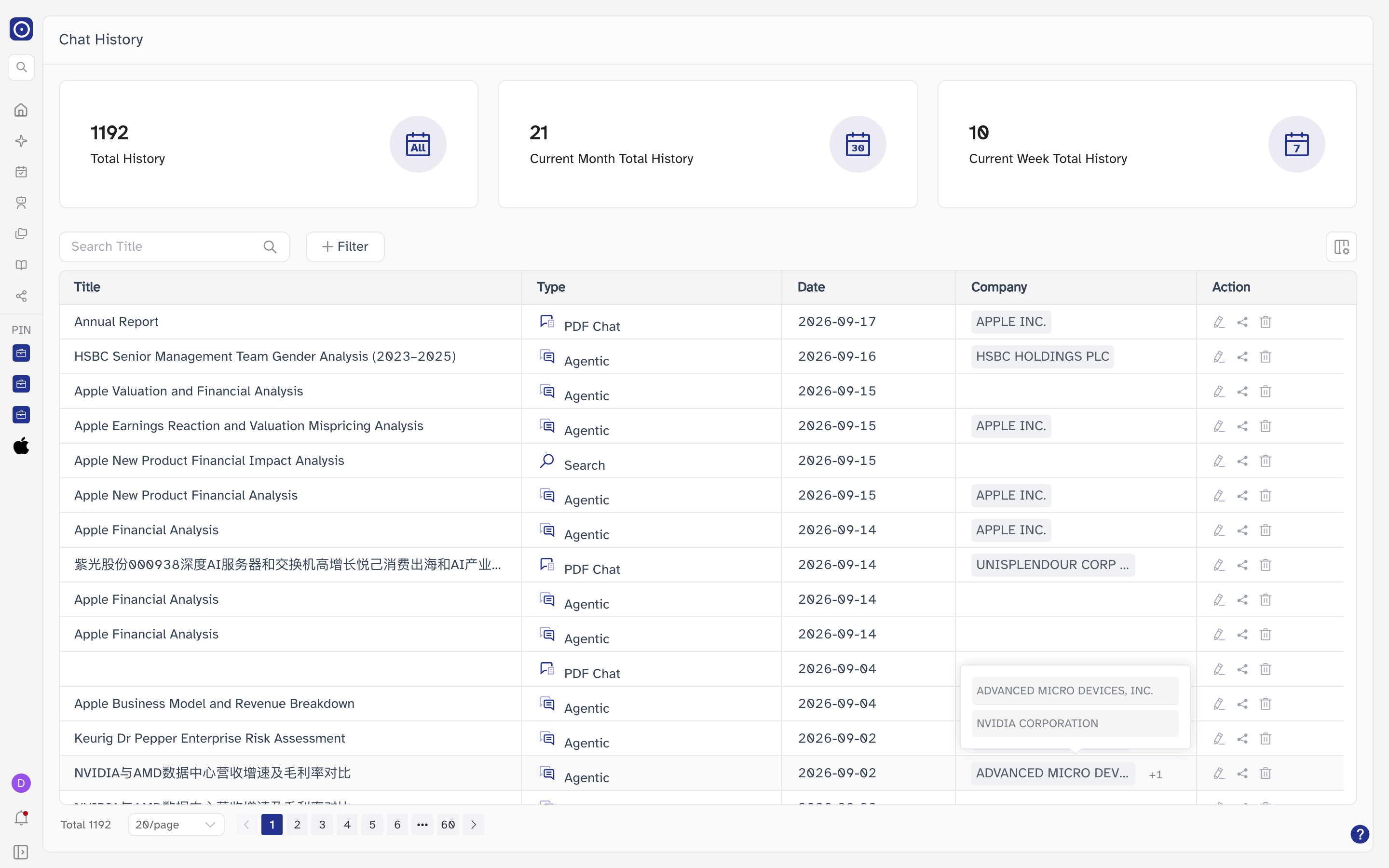
Every question you have asked Orbit is kept here, whichever page you asked it on — a chat, a document search, a conversation about one PDF. The list is the way back into any of them: clicking a title reopens the original conversation on the page it belongs to.
Opening the page
- Click New Chat in the left rail.
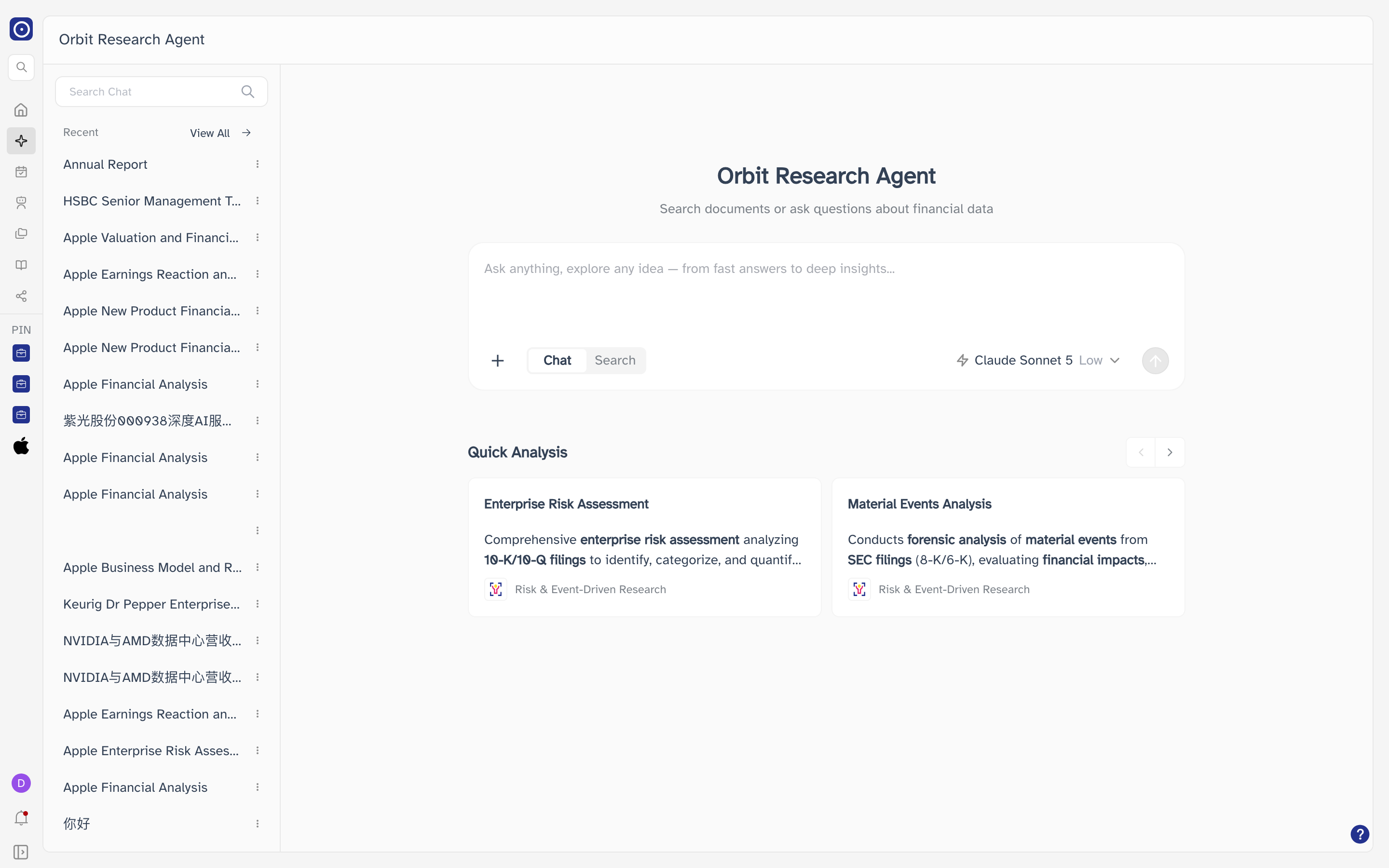
- Click View All at the right of the Recent heading, at the top of the left-hand column.
There is no entry for this page in the left rail — View All is the way in. The column on New Chat only holds your 50 most recent conversations, so anything older can only be reached from here.
Company pages have their own Chat History panel with the same View All button. Coming in that way opens this page with Entity already set to that company, so you see only the conversations about it.
The three counters
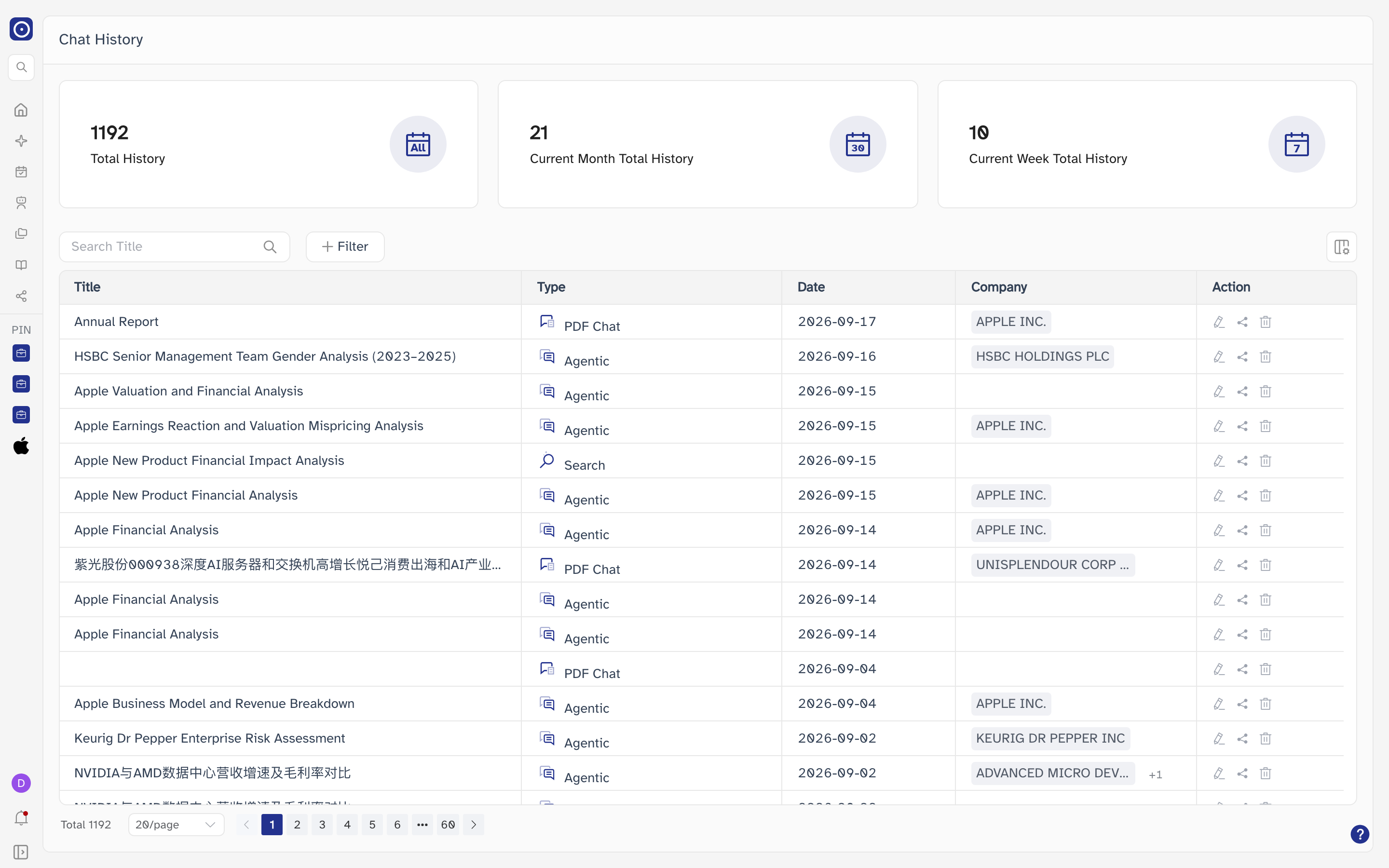
The cards across the top count records, not credits. They are not affected by the search box or the filters underneath them: narrow the list down to a handful of rows and the three numbers stay exactly the same.
| Counter | What it counts |
|---|---|
| Total History | Every record you have, all the way back. |
| Current Month Total History | Records created since the start of this calendar month. |
| Current Week Total History | Records created since the start of this week. |
Finding a record
Type into Search Title at the left of the row under the counters and press Enter, or click the magnifier, to match on the title. Clearing the box brings the full list back. Searching always returns you to the first page of results.
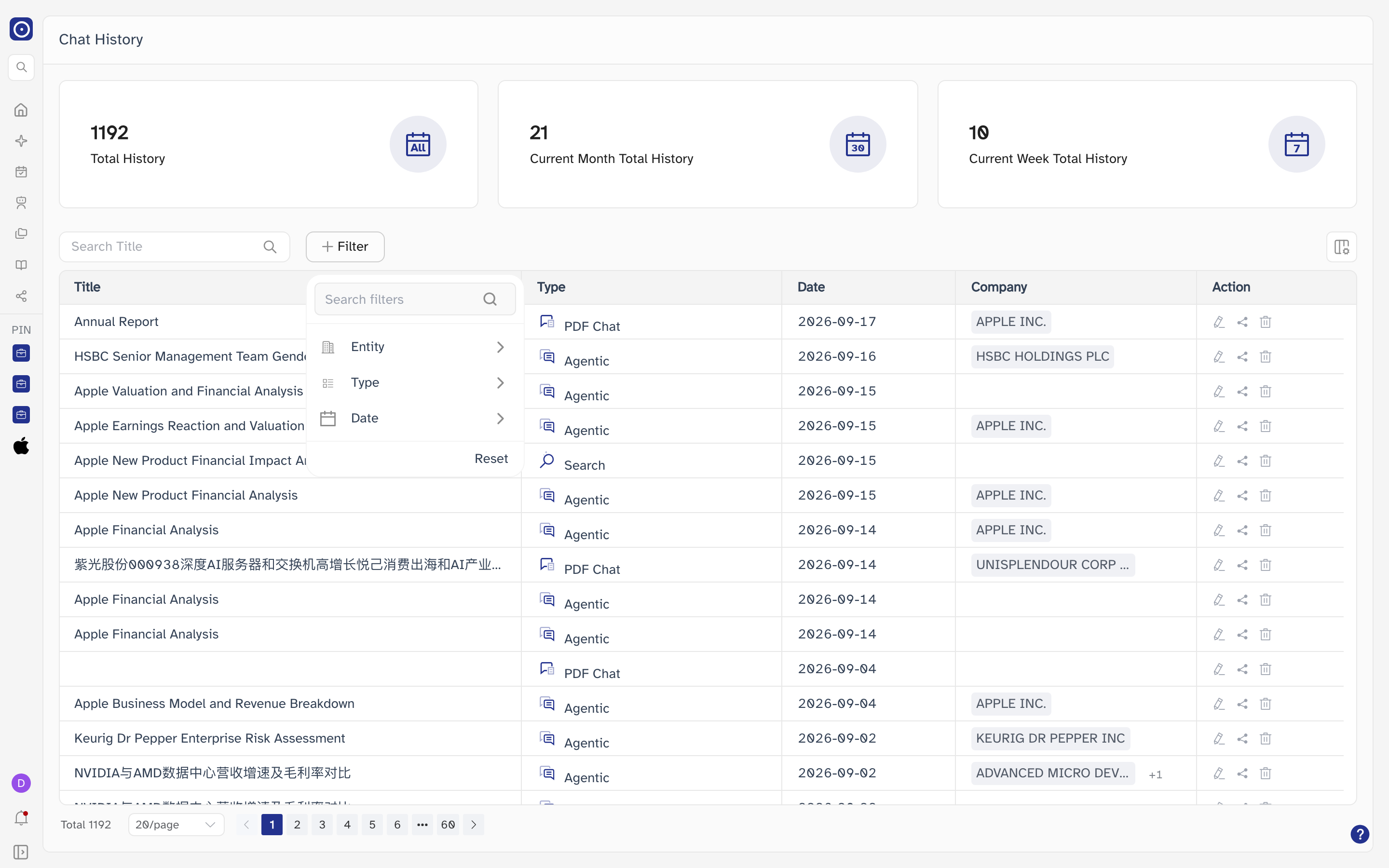
Filter beside it narrows the list three more ways. Click it, then click a row in the panel to open that filter.
| Filter | Notes |
|---|---|
| Entity | The company a conversation is about. Tick boxes, applied as soon as you tick one. The list starts with the companies you have used; Search here looks up any other. |
| Type | What kind of conversation it was. Radio buttons, so one type at a time — see Opening a record below for what each one means. |
| Date | When the conversation was started. Two dates, or one of the shortcuts from Last 1 Week to Last 1 Year. This one needs Apply. |
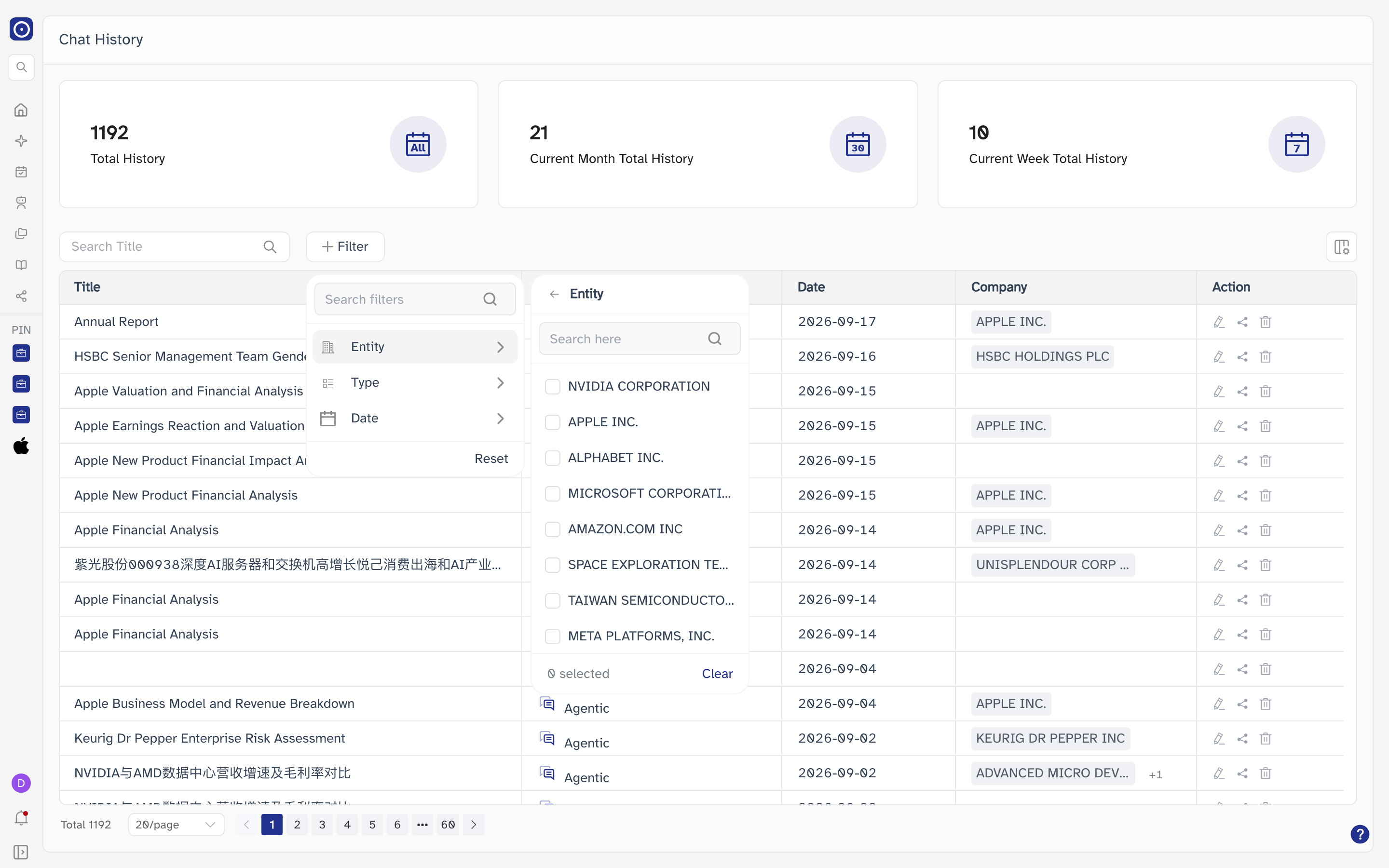
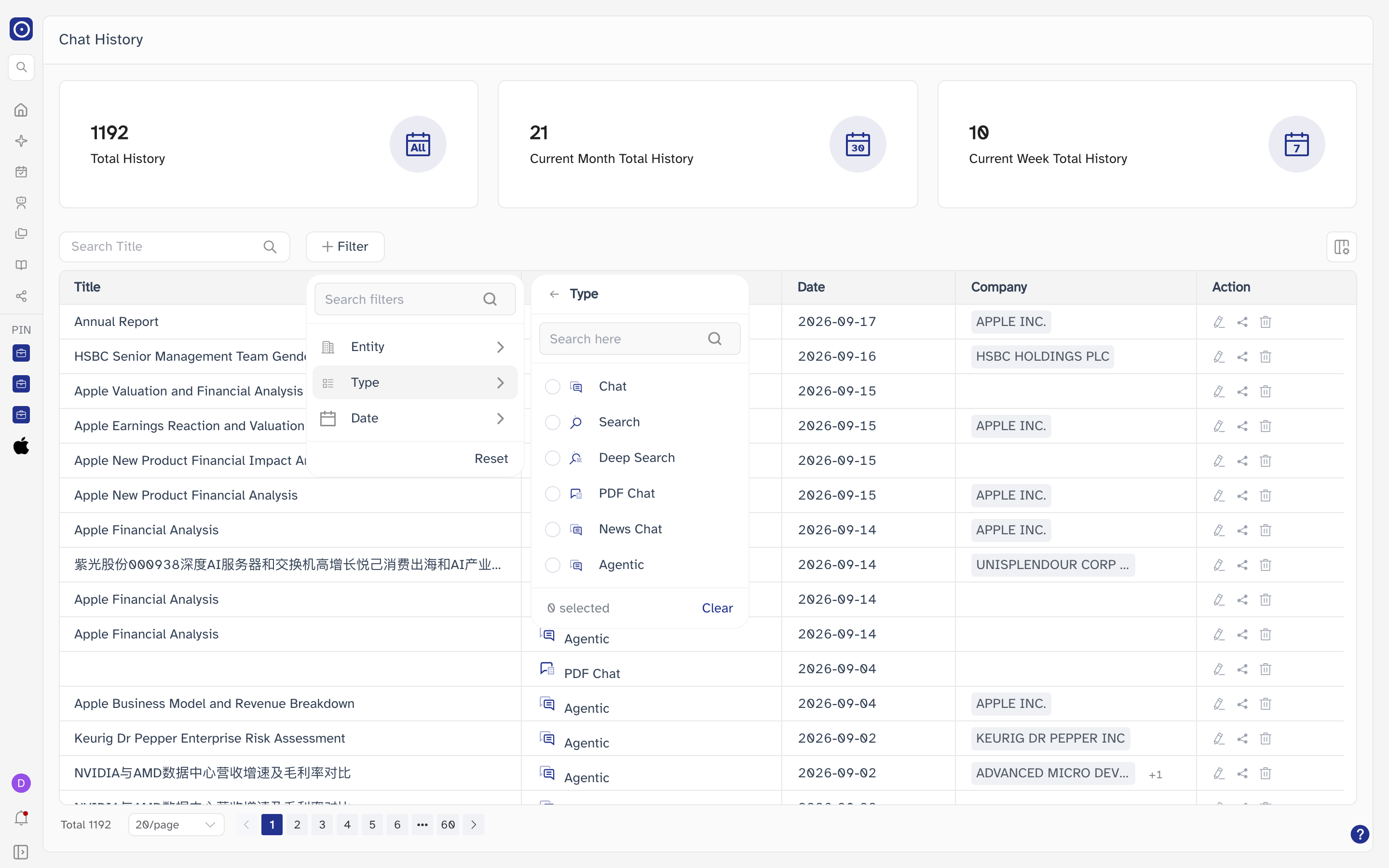
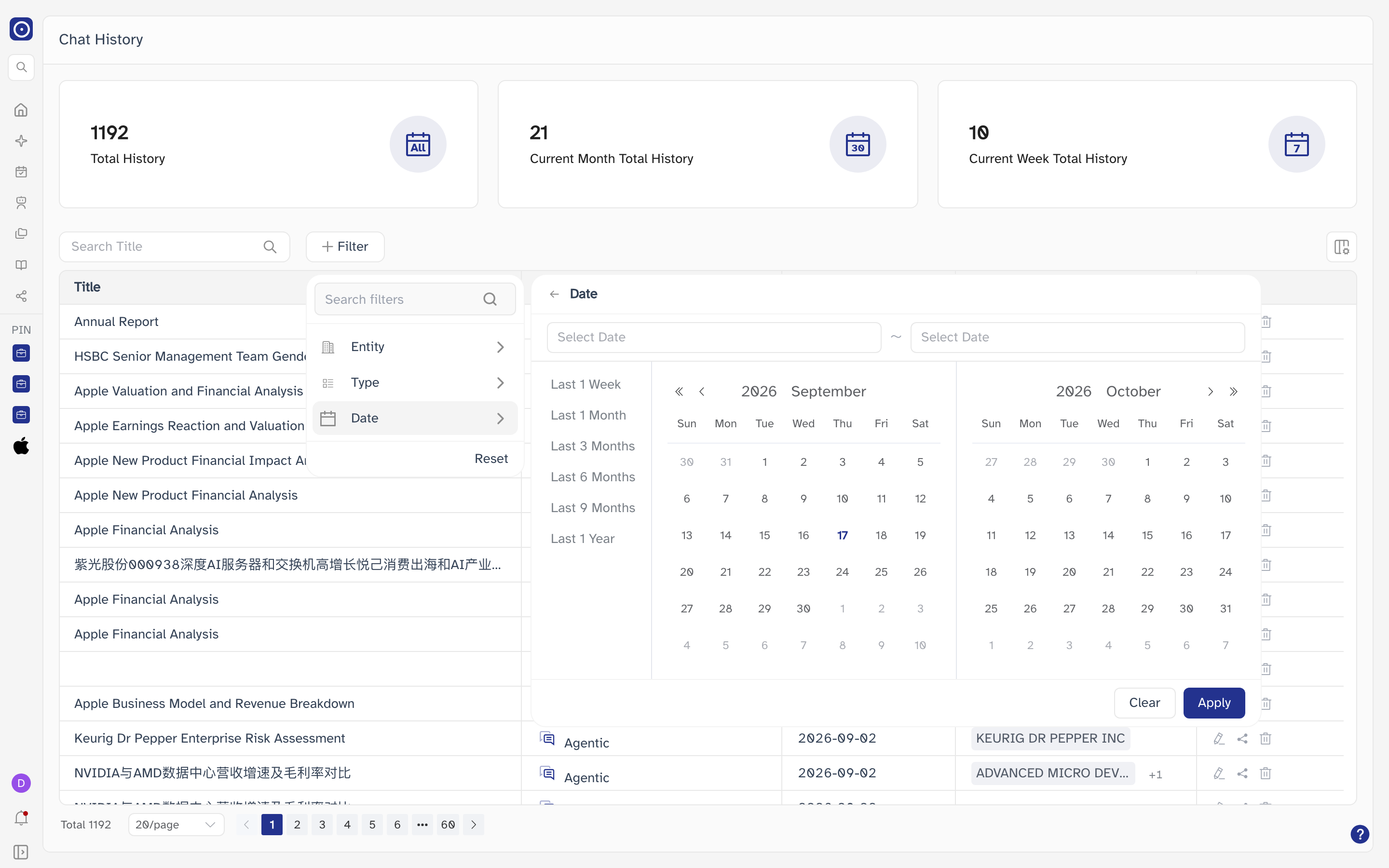
Whatever you have set shows as a chip to the left of Filter, with the number of values it holds, and the ✕ on the chip removes it.
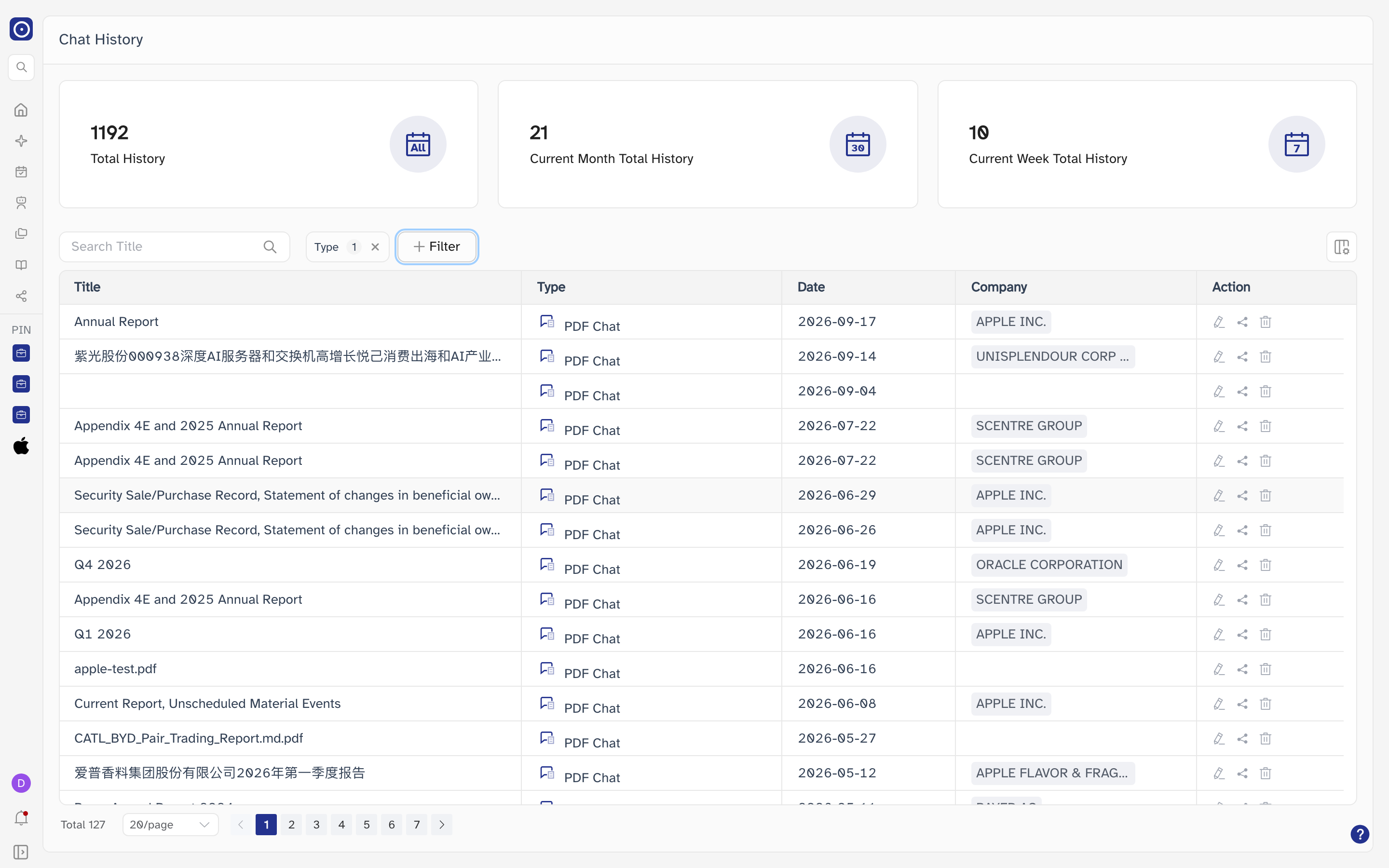
Entity lets you tick more than one company, but the list is narrowed by the first one you ticked. To look at a second company, clear the first.
The filters you set and the page you are on are kept in the address bar. Refreshing, or coming back with the browser's Back button after opening a conversation, returns you to the same list rather than to the top of it.
Choosing the columns
The icon at the far right of the search row opens Column Modification. Untick a column to hide it, drag the handle at the right of a row to change the order, then click Apply. Title is fixed — its tick box is greyed out and it has no drag handle — and Action is not listed at all, so those two are always there.
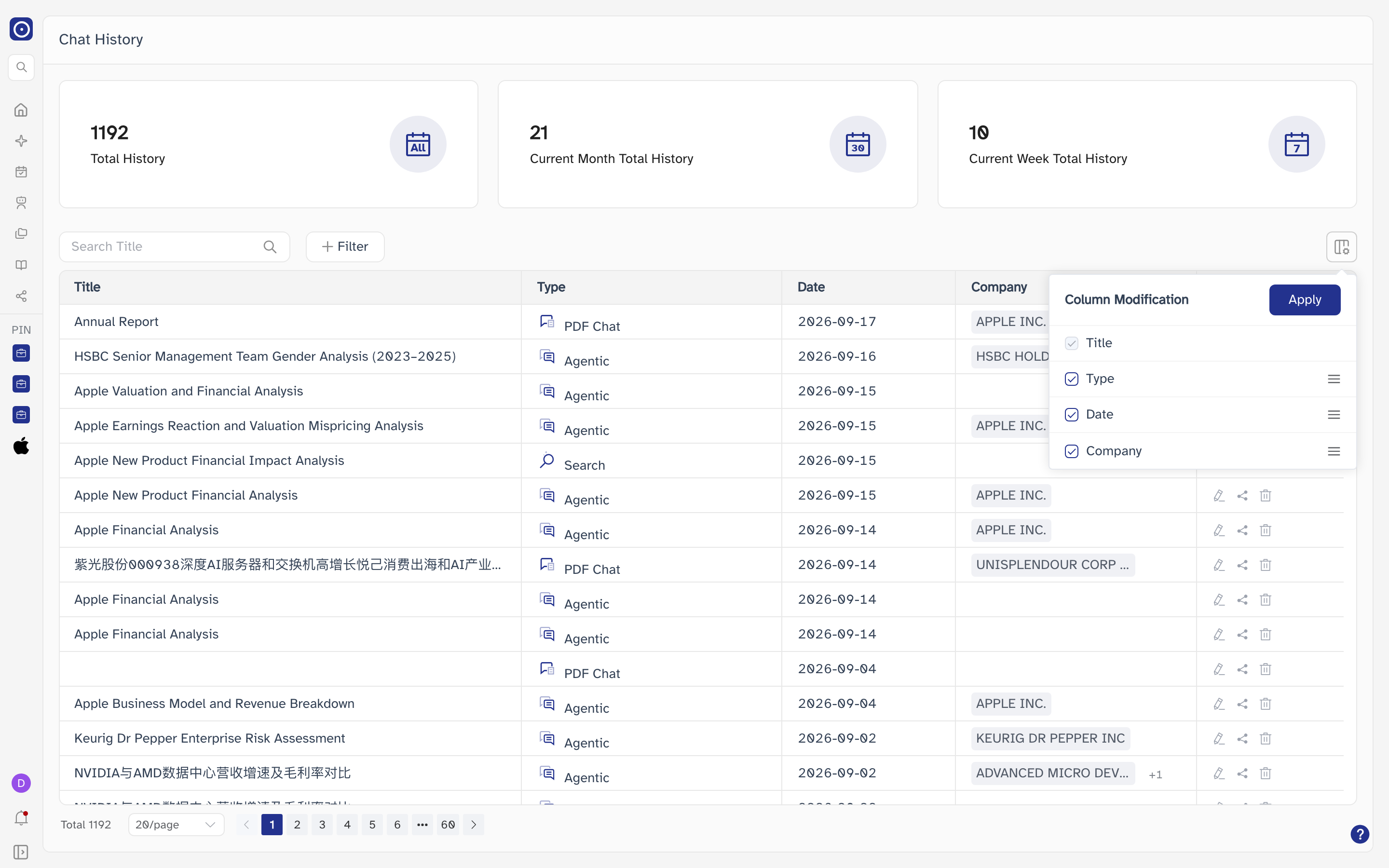
The layout is not saved to your account. Opening the page again brings back all four columns in their original order.
What each column shows
| Column | Notes |
|---|---|
| Title | The name of the conversation — written by Orbit from what you asked, unless you have renamed it. Click it to reopen the conversation; see Opening a record below. |
| Type | Which part of Orbit the conversation happened in, with a matching icon. This is also what decides where the title takes you. |
| Date | The day the conversation was started, as YYYY-MM-DD. |
| Company | The companies the conversation was about, as grey tags. Only the first is shown; a +N after it means there are more. Conversations that are not tied to a company leave this cell empty. |
| Action | Three icons: Edit, Share and Delete, each covered below. They are faint until you point at them. |
A record occasionally arrives with nothing in Title, which leaves nothing to click. Use Edit on that row to give it a name, and the row becomes usable like any other.
Opening a record
Click a title and Orbit reopens that conversation — its questions, its answers and its settings — on the page it was held on. Each type goes to a different page, so the same list is the way back into six different parts of the product.
| Type | What it was | Where the title takes you |
|---|---|---|
| Chat | A conversation held on Orbit's standard chat page. | The Chat page, with the conversation reloaded. |
| Search | A document search run from Search mode on New Chat with Effort on Low. | Explore, showing what the search found and the documents behind it. |
| Deep Search | The same search run with Effort on High. | Explore, the same page as Search. |
| PDF Chat | Questions asked about a single document. | PDF Chat, with the document on the right and the conversation on the left. |
| News Chat | A conversation about news coverage. | News Research, with the report reloaded. |
| Agentic | A conversation handled by an agent, including anything started from Quick Analysis. | Chat Agent, with the run, its answer and its tool calls. |
A question you send in Chat mode on New Chat is answered by an agent, so it is filed as Agentic, not as Chat. Chat rows are older conversations, and the page they open can only be reached from here or from a share link.
Reopening a conversation replays what was already produced. Credits are only spent when you ask something new once you are there.
Deep Research and Agent Summary records are not offered in the Type filter, but the list still handles them if you have any. A Deep Research row carries a status tag next to its type and offers only Edit until the run reports COMPLETED; Share and Delete appear once it has finished.
Renaming a record
The pencil icon in Action, labelled Edit when you hover it, opens a dialog holding the current title. A title is required and can be up to 100 characters; the counter under the box shows how many you have used. Update saves, Cancel closes without changing anything.
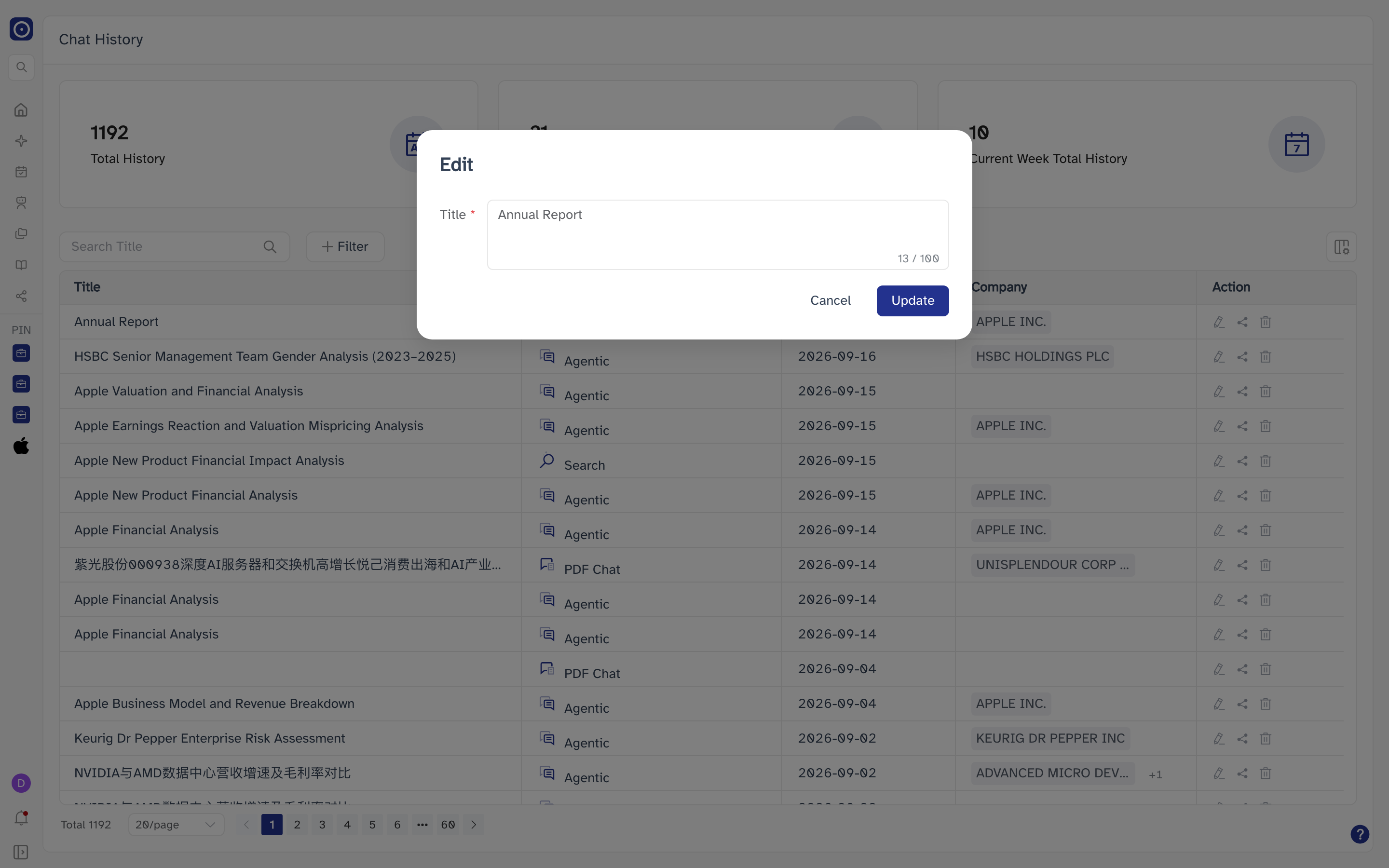
The conversation itself is untouched, and so is any share link you have already sent out — the Share page keeps the name the record had when you shared it.
Sharing a record
The share icon creates a link to that conversation and copies it to your clipboard in one step — there is no dialog to fill in. Orbit confirms with Copied to clipboard at the top of the screen. Sharing a record you have already shared copies the same address again rather than making a second link.
Every link you create this way is listed on the Share page, which is also where you withdraw one.
A share address works without signing in to Orbit, and it carries the whole conversation — your questions as well as the answers. Treat it like a password: whoever you send it to can pass it on.
Deleting a record
The bin icon, labelled Delete, opens a Warning dialog naming the
record. You have to type permanently delete into the box before
Confirm will accept it; anything else is refused with
Error Input.
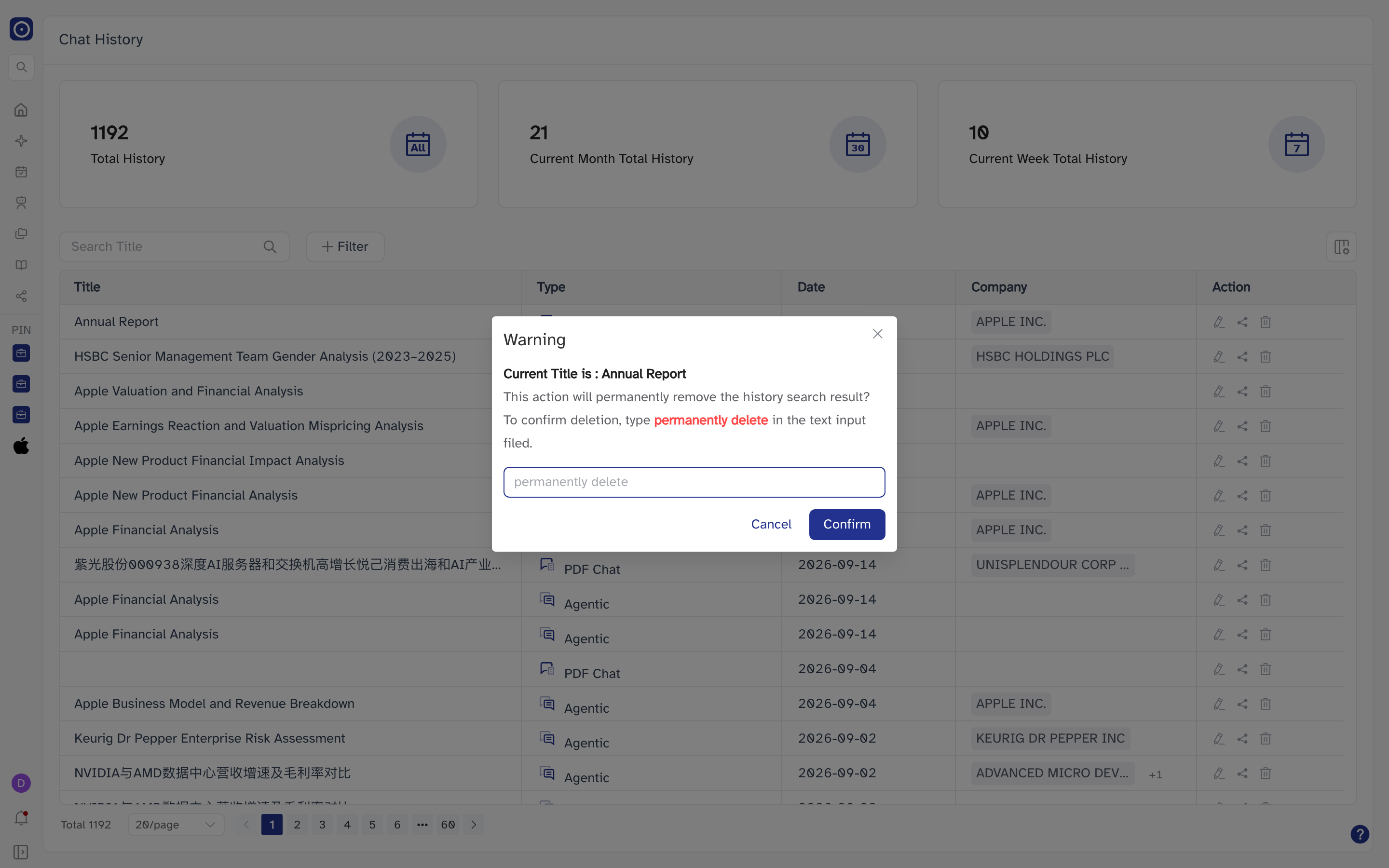
Deleting removes the conversation and its answers for good. There is no recycle bin and no way to restore it afterwards. The record also disappears from the Recent column on New Chat.
Pinning
Pinning is not done from this page. Use the ⋮ menu beside a conversation in the Recent column on New Chat — pinned conversations then sit in a Pinned group at the top of that column. It makes no difference to the order of this list.
Paging through the list
The number of records matching your filters is shown at the bottom left, next to the pager. The list shows 20 per page by default; the page-size box offers 20, 50 and 100. Changing the page size takes you back to the first page.