
Schedules
Every recurring report Orbit writes for you, in one list — what runs, how often, whether it is running at all, and the reports it has already produced.
Opening the page
- Open the left rail — click Collapse Sidebar at the bottom if it is showing icons only.
- Click Schedules.
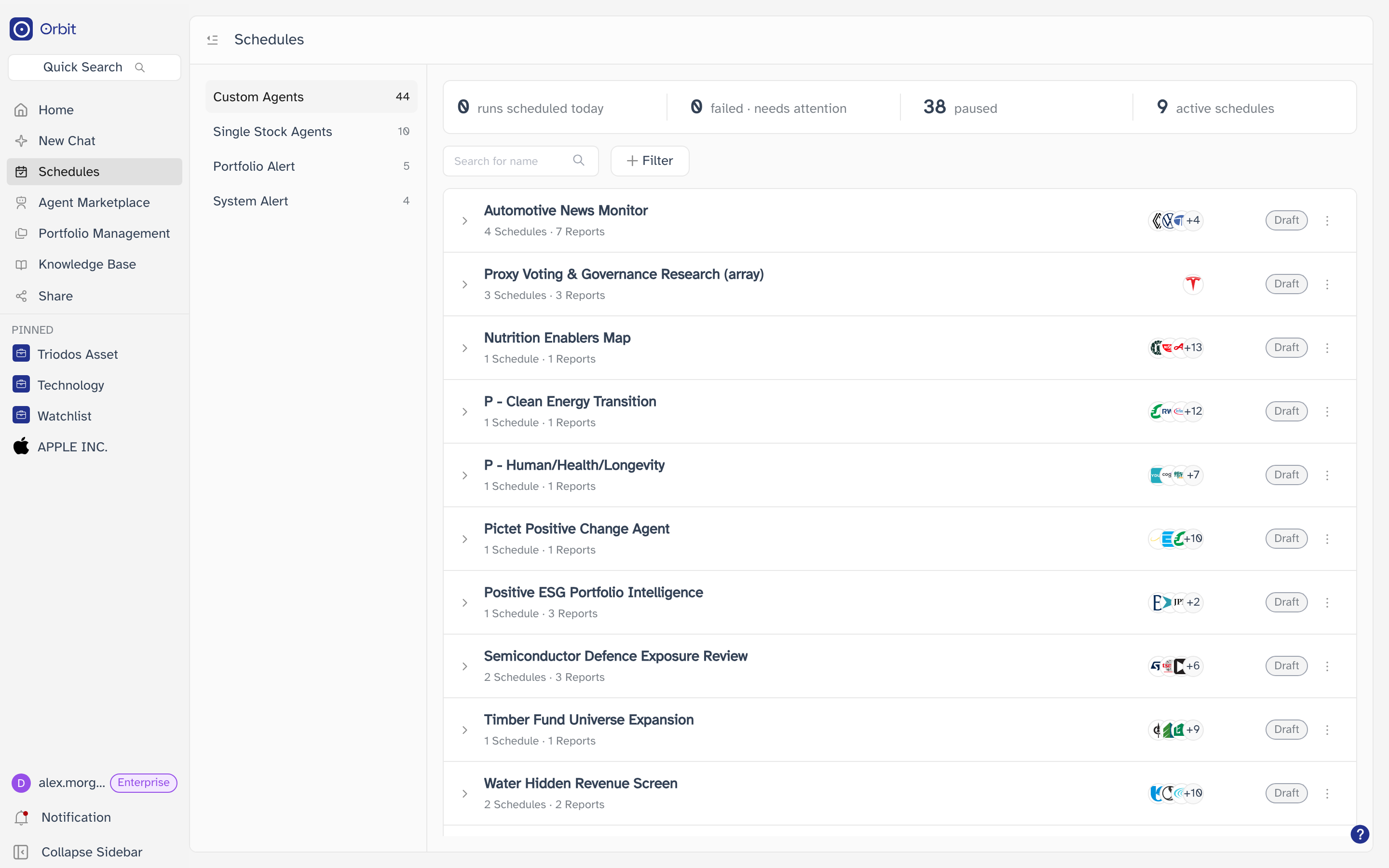
The page at a glance
Three bands, read from the top down: a summary bar counting what is running, a search and filter row, and the list itself. The column on the left splits everything into four categories.
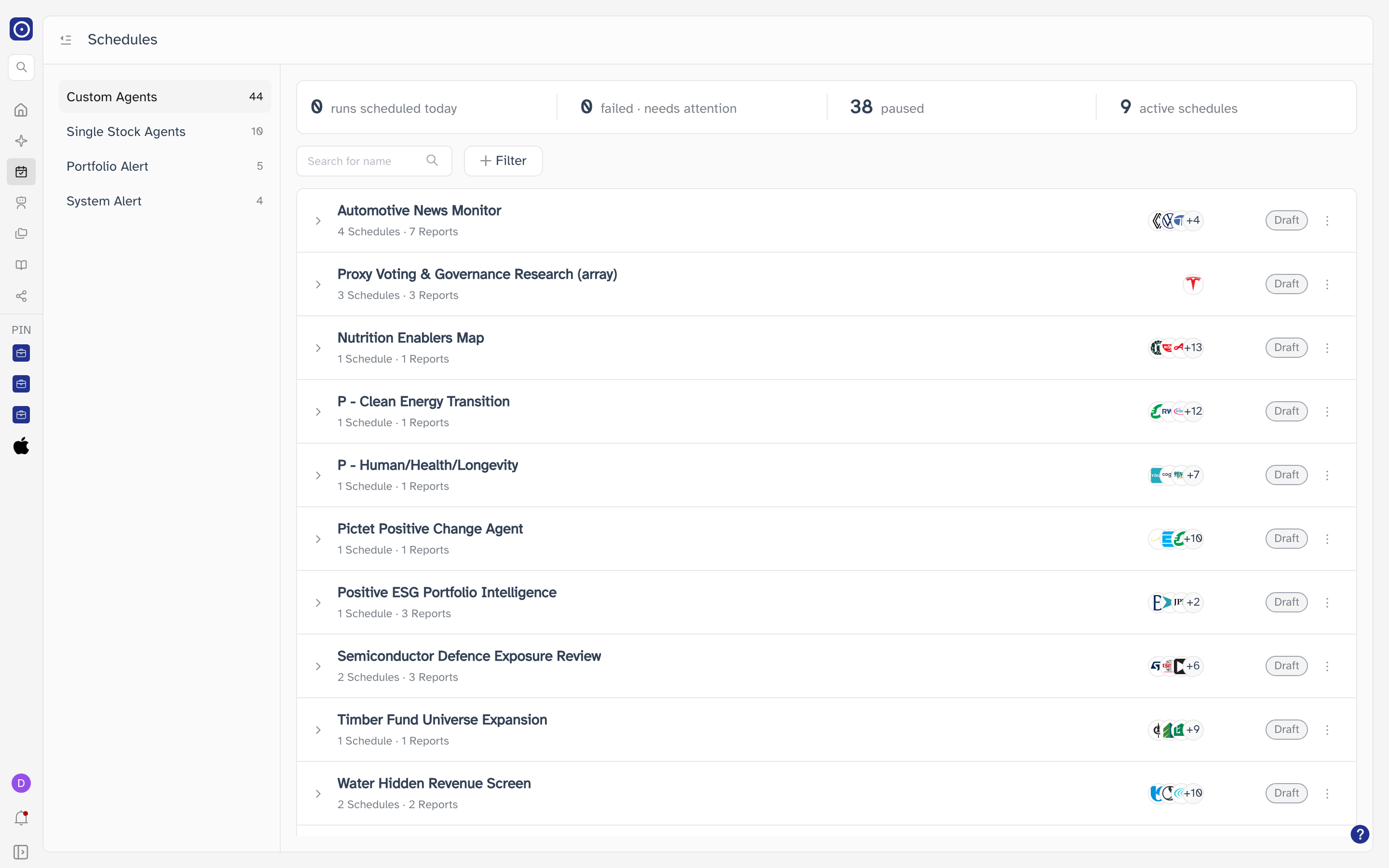
The button to the left of the page title collapses the category column and gives the list the full width. Click it again to bring the column back.
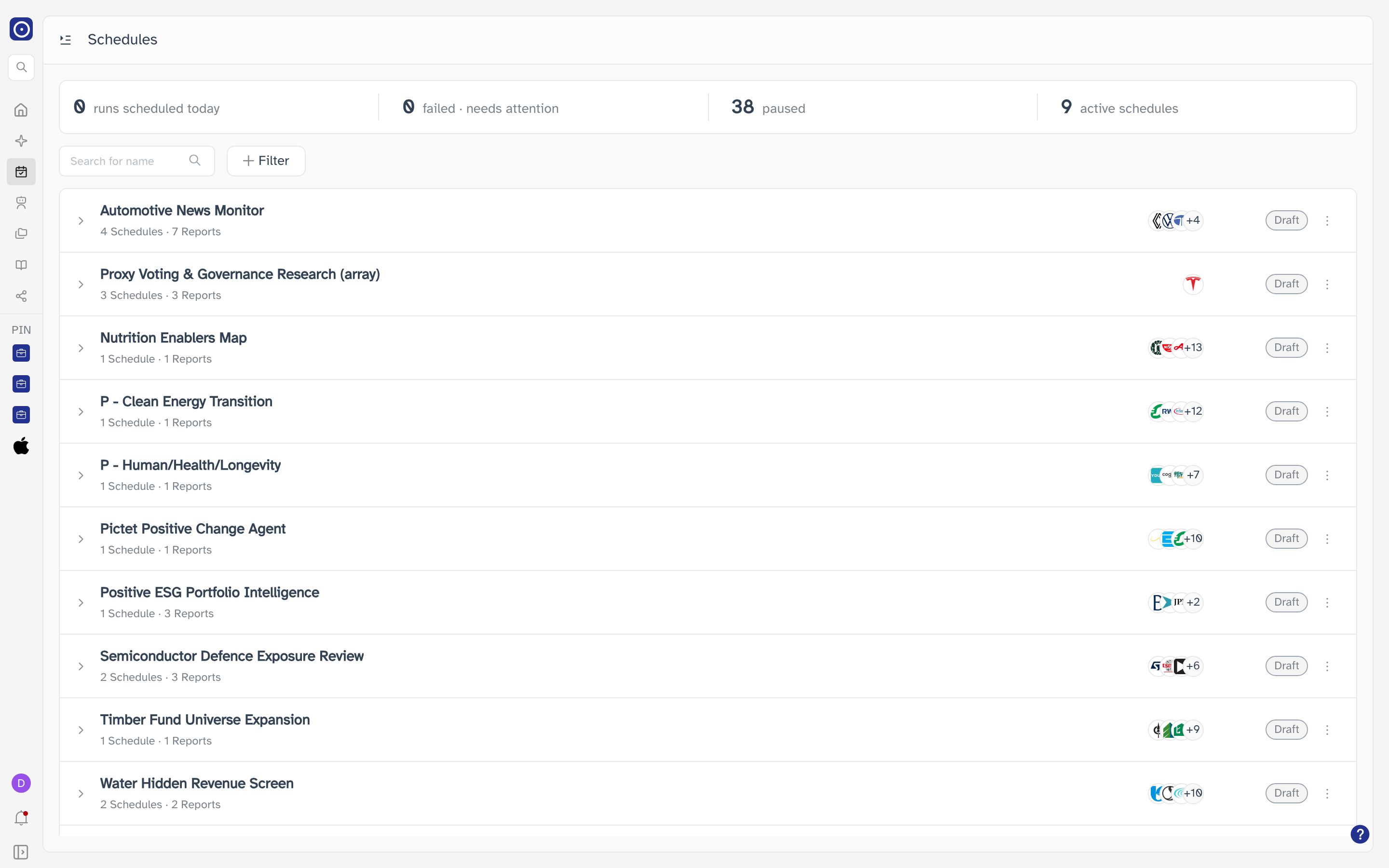
The four categories
The number beside each category is how many entries it holds in total. That number never changes when you search or filter, so it is a reliable count even when the list below is showing three rows.
| Category | What it holds |
|---|---|
| Custom Agents | One row per agent you built yourself. Expand a row to reach its schedules. See The custom agent page. |
| Single Stock Agents | Grouped by company rather than by agent — one row per company you track. See The single stock agent page. |
| Portfolio Alert | The daily news alerts you subscribed a portfolio to, one row each. They are created from Portfolio detail, not from an agent. |
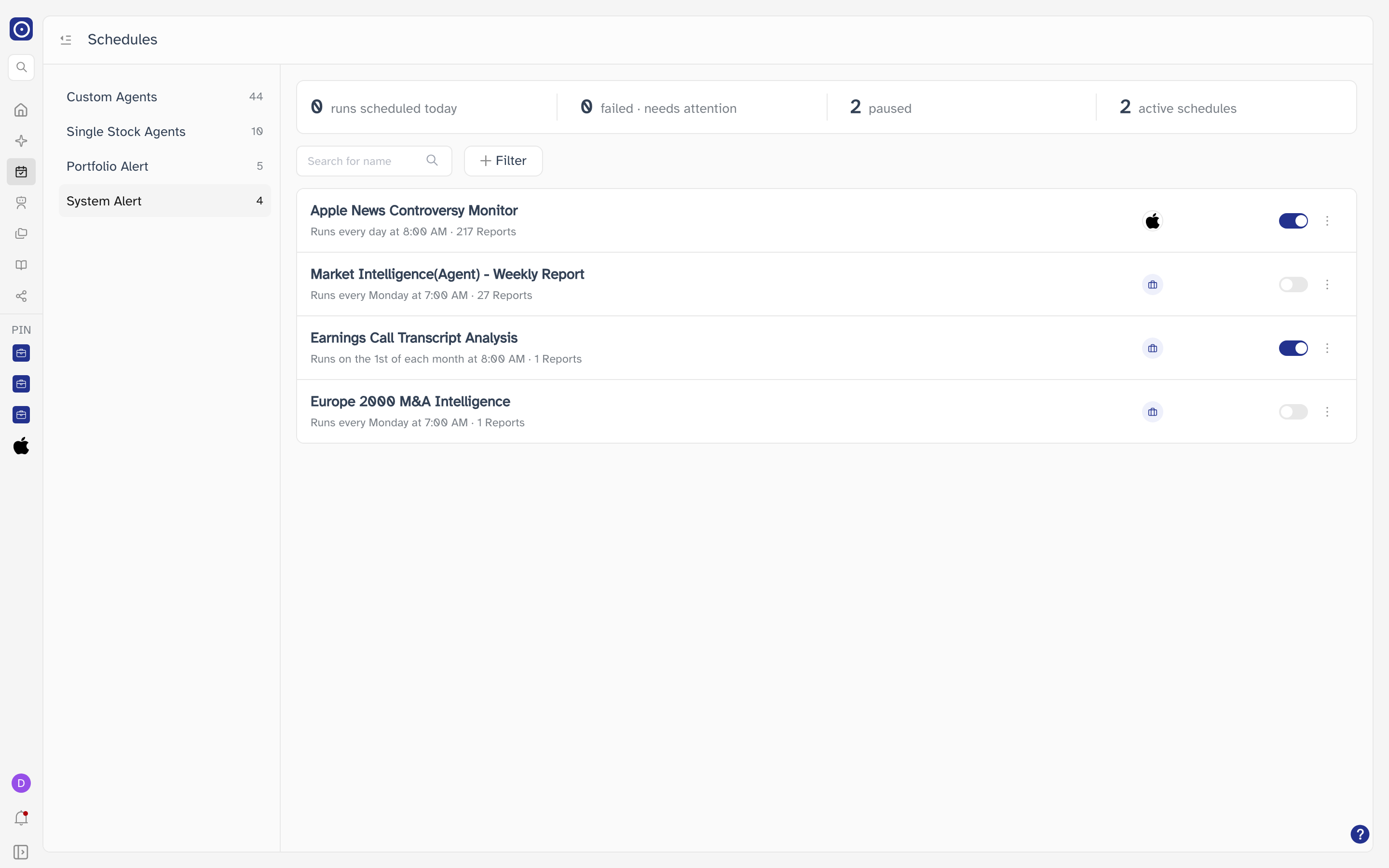
| System Alert | Recurring reports Orbit set up for you. One row each, and no agent behind them. |
Moving to another category empties the search box and clears every filter. This is deliberate: the categories do not share the same fields, so a filter that makes sense under Custom Agents would return nothing under System Alert.
The summary bar
Four counts across the top, all of them for the category you are in — and, like the category counts, unaffected by anything you type or filter.
| Count | Meaning |
|---|---|
| runs scheduled today | How many of this category's schedules are due to run today. |
| failed · needs attention | Recent runs that did not finish. Shown in red when it is not zero. |
| paused | Schedules switched off. They stay in the list and keep their past reports. |
| active schedules | Schedules switched on, which is what Orbit will actually run. |
Finding a schedule
Searching by name
Search for name matches the names shown in the list. It searches as you type, shortly after you stop; press Enter or click the magnifying glass to search at once instead of waiting. Clearing the box with the ✕ brings the whole list back immediately.
Filtering
Filter opens a panel of four dimensions. Pick values in as many as you like — they narrow the list together.
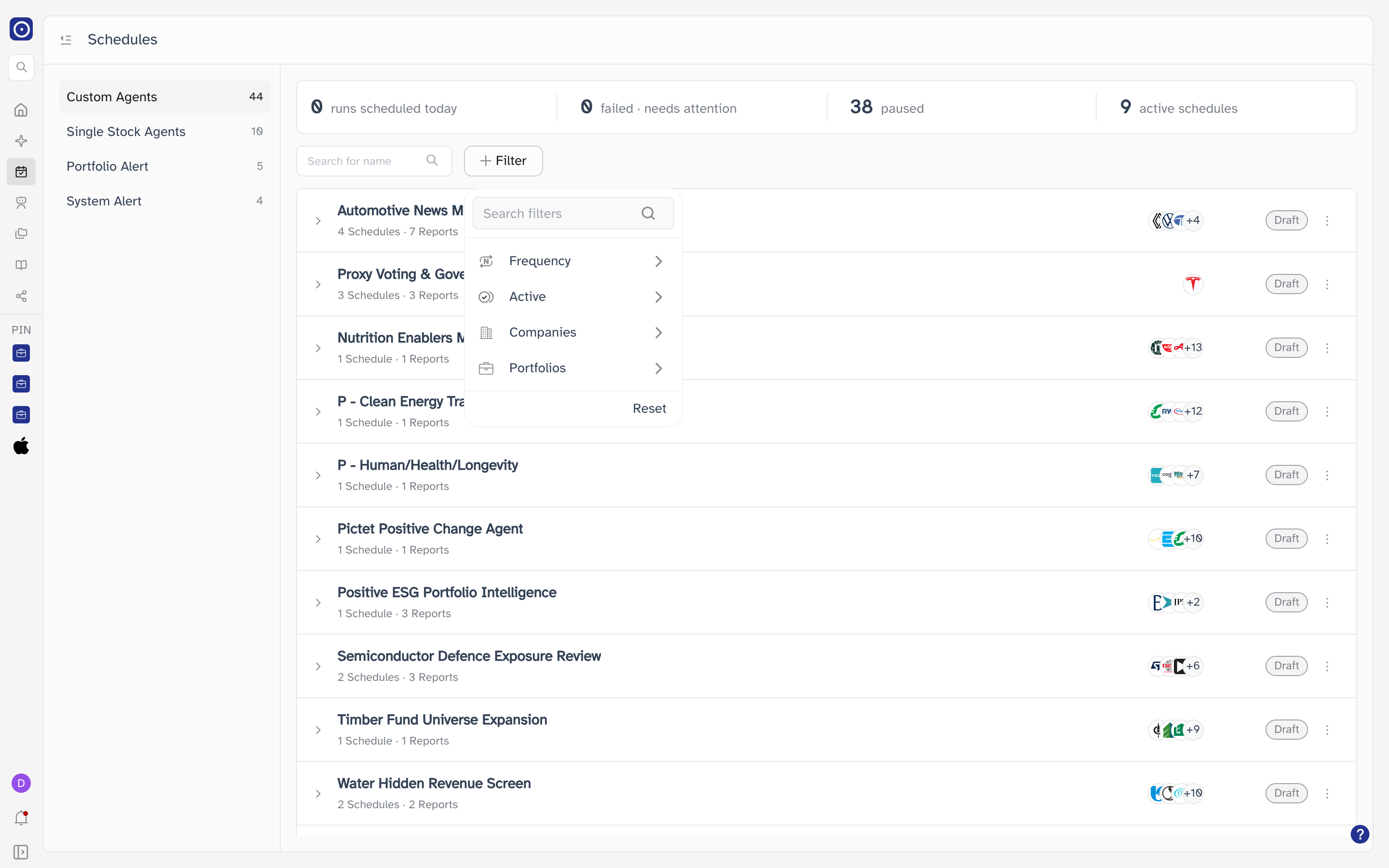
| Dimension | What it narrows by |
|---|---|
| Frequency | How often the schedule runs. |
| Active | Whether the schedule is switched on or off. |
| Companies | The companies a schedule covers. |
| Portfolios | The portfolio a schedule covers. |
Click a dimension to open its values. Each value is a checkbox, so you can select several.
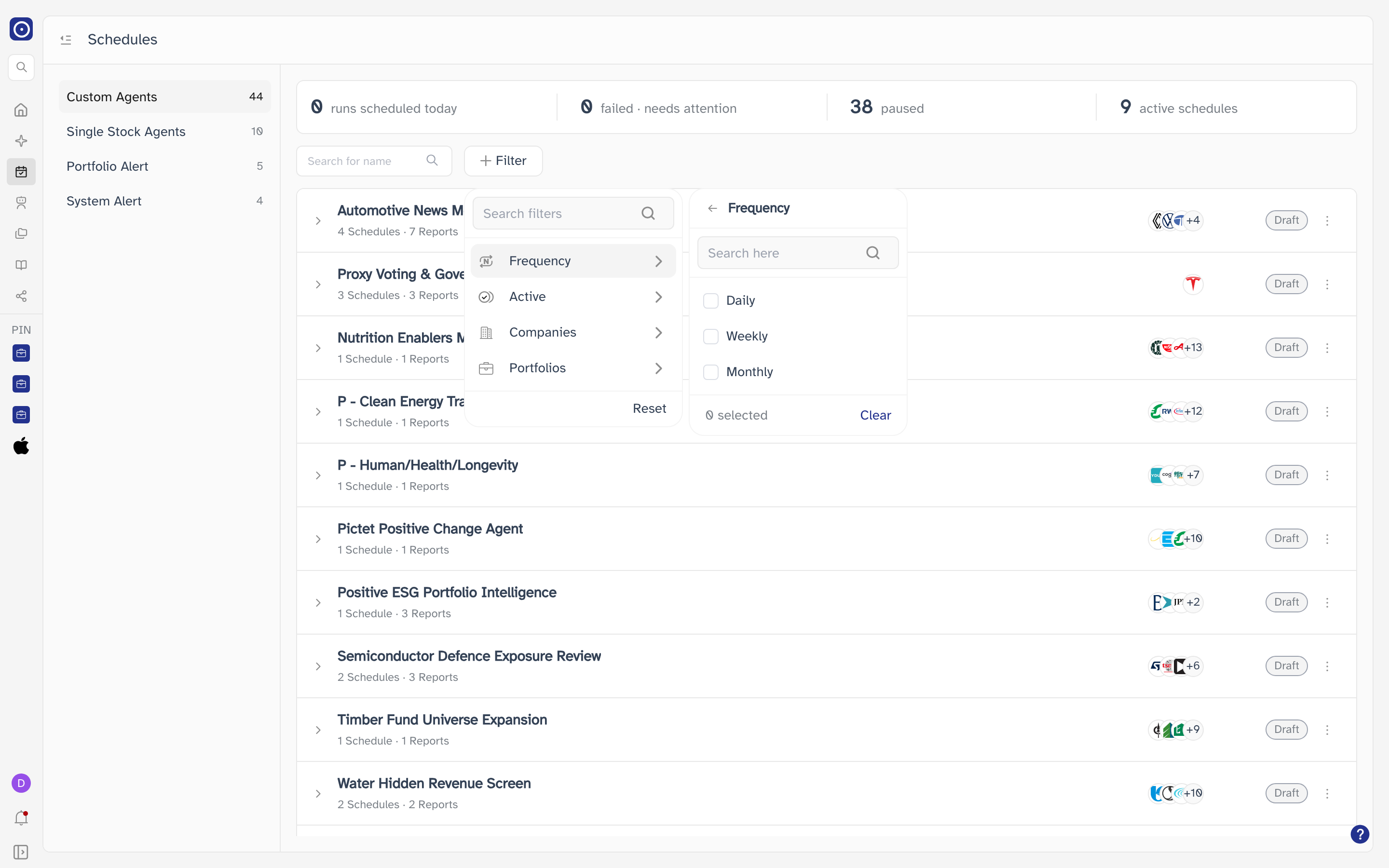
Companies and Portfolios list what your schedules actually cover. Portfolio Alert and System Alert have no agent behind them, so filtering those categories by company rarely returns anything.
When nothing matches
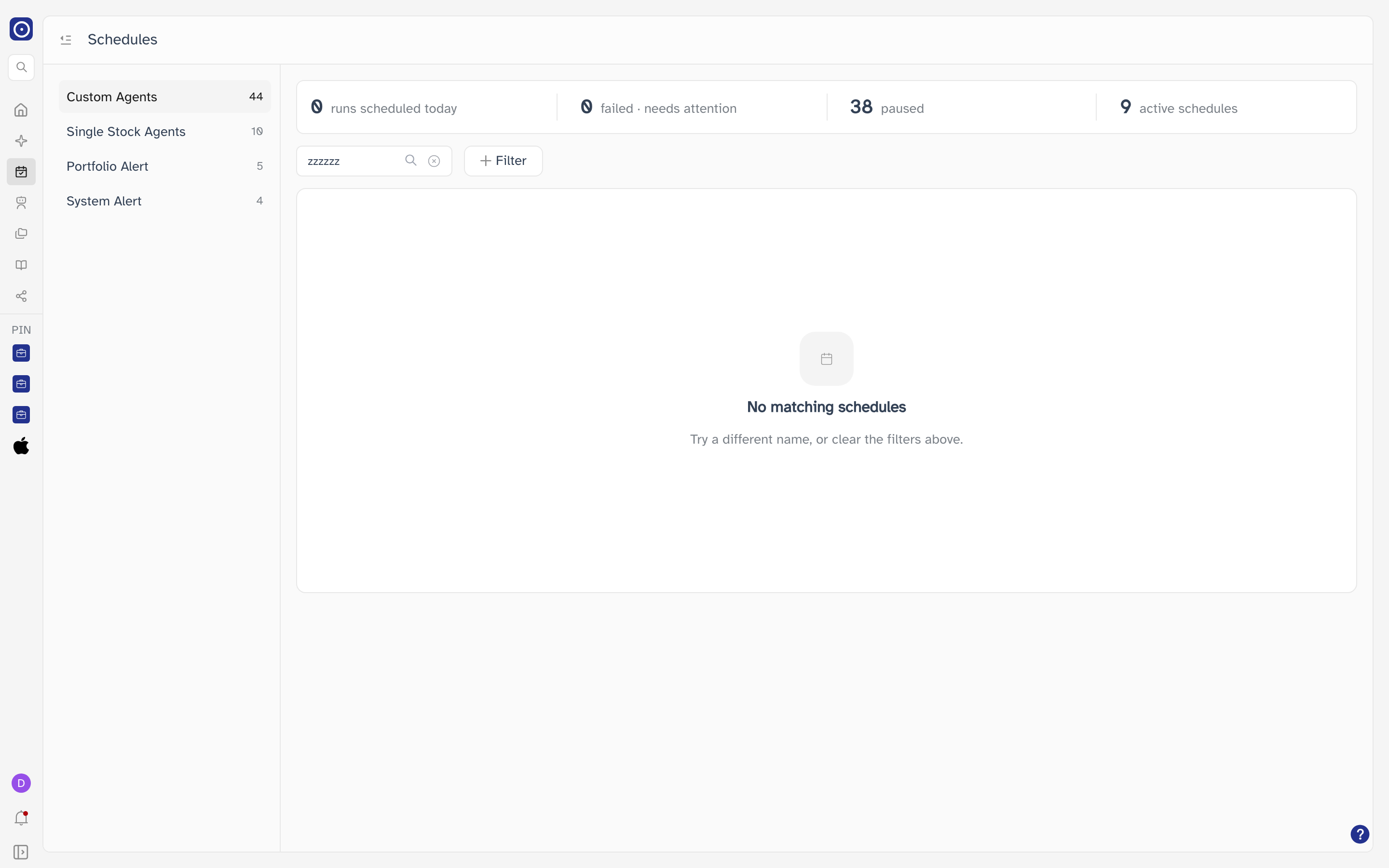
When a category is empty in the first place — rather than filtered down to nothing — the message is No scheduled reports yet, and it carries a Go Agent Marketplace button that takes you to Agent Marketplace to pick an agent. The search box and Filter are hidden in that state, since there is nothing to search.
Reading a card
Every row carries the same parts, though not all of them appear on every card.
| Part | Meaning |
|---|---|
| Arrow | Present when the card holds schedules underneath. Click anywhere on the row to open and close it. |
| Logo and ticker | On Single Stock Agents only, where each card is a company. |
| Name | The agent's name, the company's name, or the schedule's own name — depending on the category. |
| Second line | N Schedules · N Reports on a card that holds schedules; on a card that is itself one schedule, when it runs followed by N Reports. |
| Stacked logos | The companies this card's schedules cover. See below. |
| Briefcase icon | Shown instead of the logos when the card covers a portfolio rather than named companies. It is a marker, not a button. |
| Published / Draft | Only on cards backed by an agent. Draft means the agent is not live. Portfolio Alert and System Alert cards have no badge. |
| Switch | On cards that are themselves a single schedule. Cards holding schedules have one switch per schedule inside instead. |
| ⋮ | The actions menu. Which menu you get is covered further down. |
An agent that has never been given a schedule still gets a card, so the list matches Agent Marketplace. Its second line reads 0 Schedules and its arrow is greyed out, because there is nothing to open.
The companies behind a card
Hover the stacked logos to list every company the card covers; the +N on the
stack is how many did not fit. Clicking a company in that list opens its company page
in a new browser tab, leaving Schedules as it was. Clicking the stack itself does
nothing.
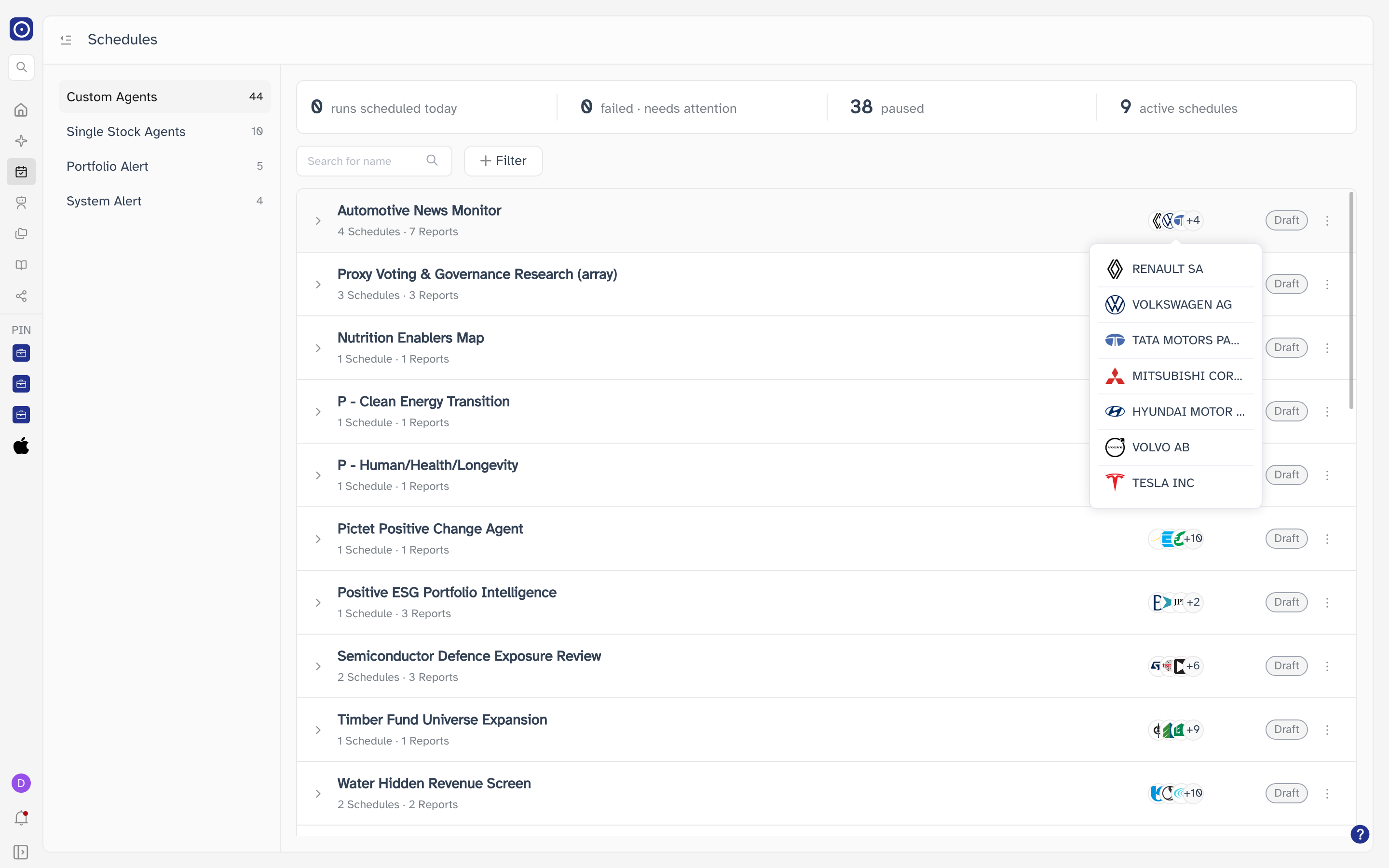
The company page covers what opens when you click a company, including the Schedules card that leads back here.
The schedules inside a card
Opening a card lists its schedules. Each line is one recurring report, with its own switch and its own menu.
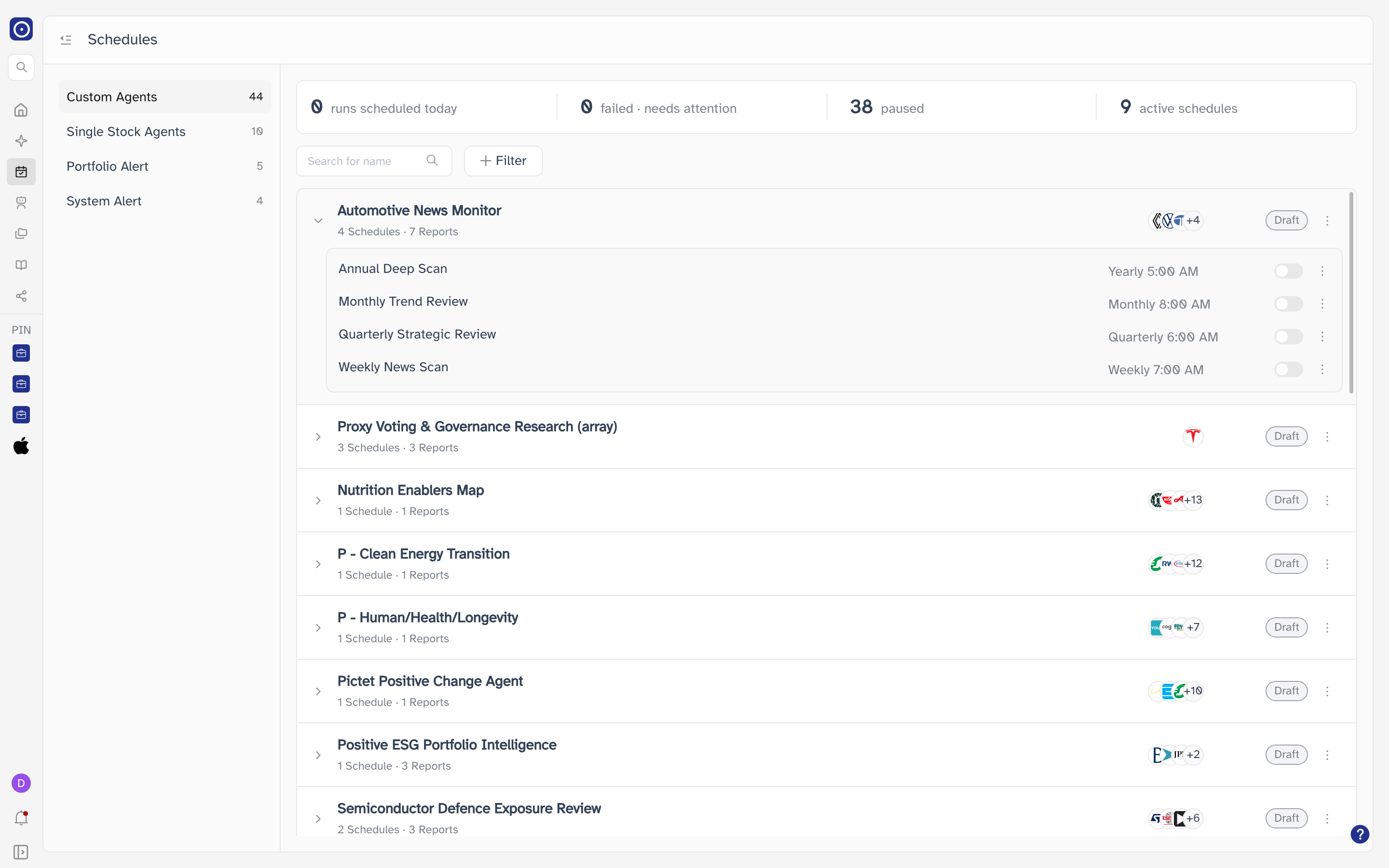
| Element | What it does |
|---|---|
| The name | Opens this schedule's most recent report — the same thing as Open Latest Report in its menu. See Report detail. A schedule that has never produced a report is not clickable. |
| The frequency and time | A short form such as Weekly 7:00 AM. Hover it for the full sentence — Runs every Monday at 7:00 AM. |
| Switch | Turns the schedule on and off. Covered next. |
| ⋮ | Open the latest report, change the frequency, or delete the schedule. |
Turning a schedule on and off
The switch takes effect straight away — there is no confirmation and no save button. Switching one off stops Orbit running it; the schedule stays in the list and every report it has already written stays readable. The paused and active schedules counts move as you go.
When Orbit cannot save the change, a message appears in the corner and the switch returns to where it was, so what you see always matches what is stored.
Acting on an agent
The ⋮ on the card row acts on the agent behind the card — all of its schedules at once. It appears on Custom Agents and Single Stock Agents cards only.
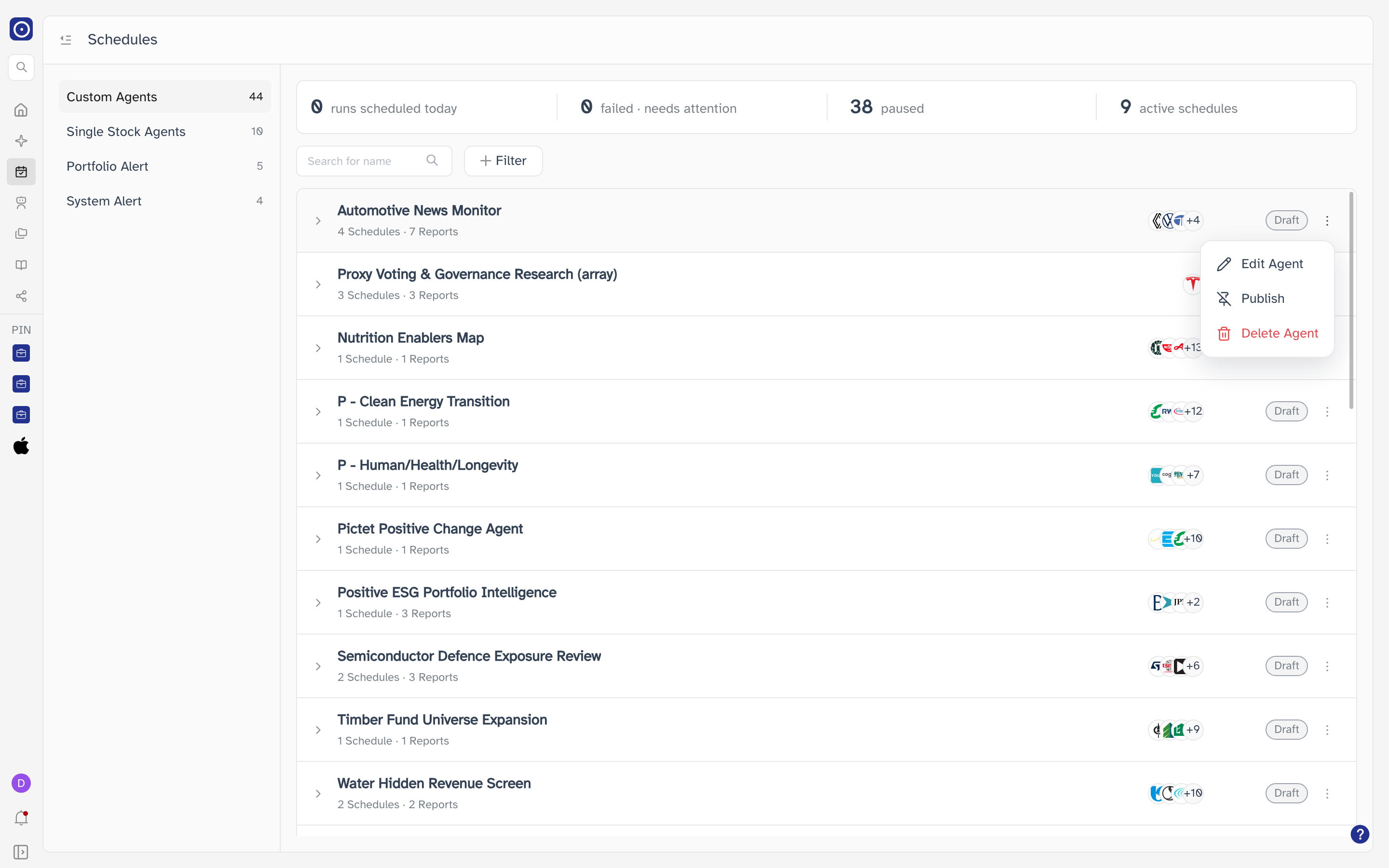
| Entry | What it does |
|---|---|
| Edit Agent | Opens the agent on its General tab, where its instructions, companies and schedules are set — see The custom agent page. |
| Publish / Unpublish | Switches the agent between live and draft, matching the badge on the card. The entry reads Unpublish on a published agent and Publish on a draft. It applies immediately, with a message to confirm. |
| Delete Agent | Removes the agent and everything it schedules. Asks first. |
On Single Stock Agents a card is a company, and a company can have several agents. When it does, all three entries are greyed out and hovering one explains why — Orbit cannot tell which agent you meant. Open the card and act on a single schedule instead.
Deleting an agent
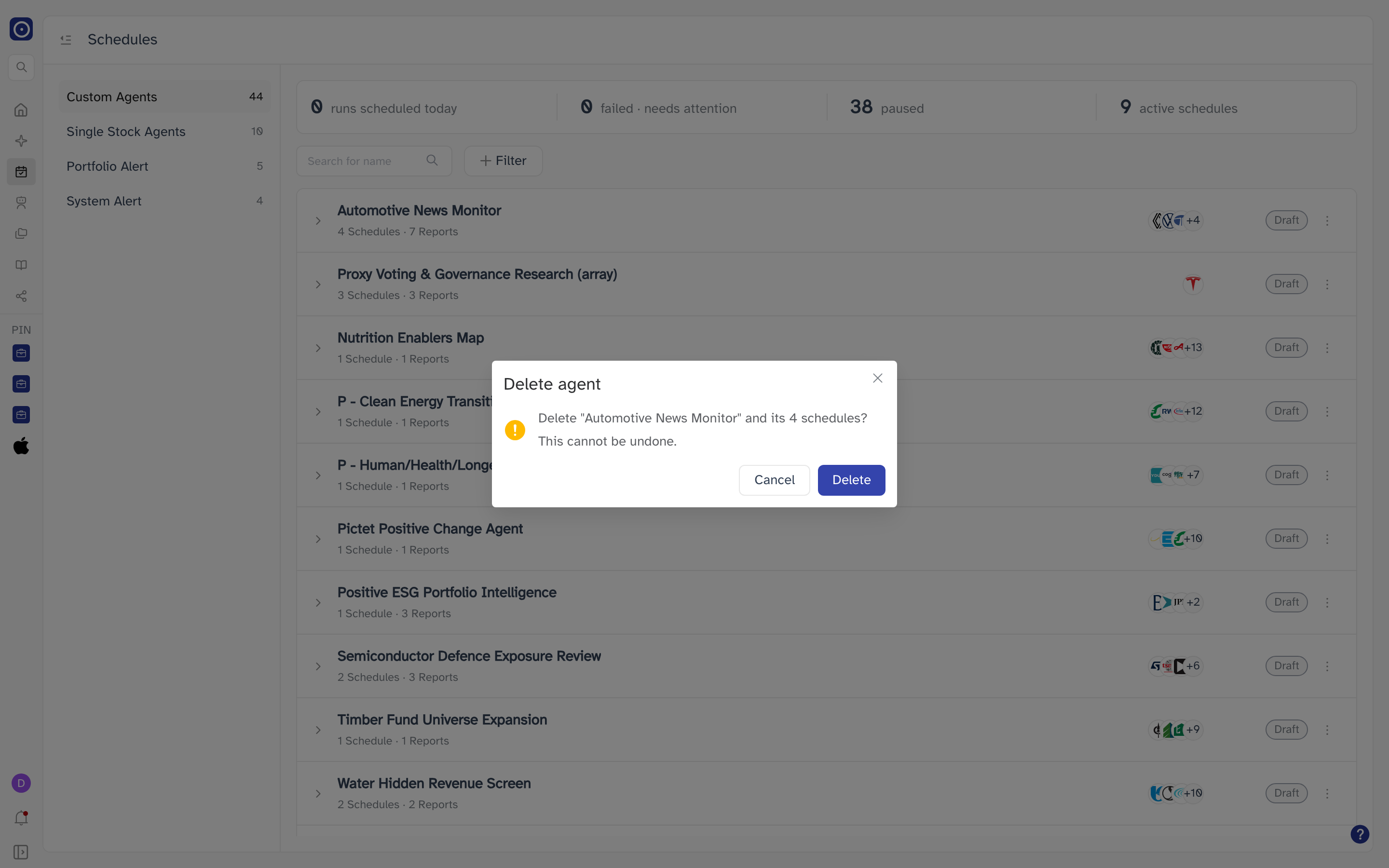
Every schedule under that agent goes too, along with the reports they produced. There is no undo. To stop an agent running without losing anything, switch its schedules off or use Unpublish instead.
Acting on a single schedule
The ⋮ beside a schedule — inside an opened card, or on the card row itself under Portfolio Alert and System Alert — acts on that one schedule.
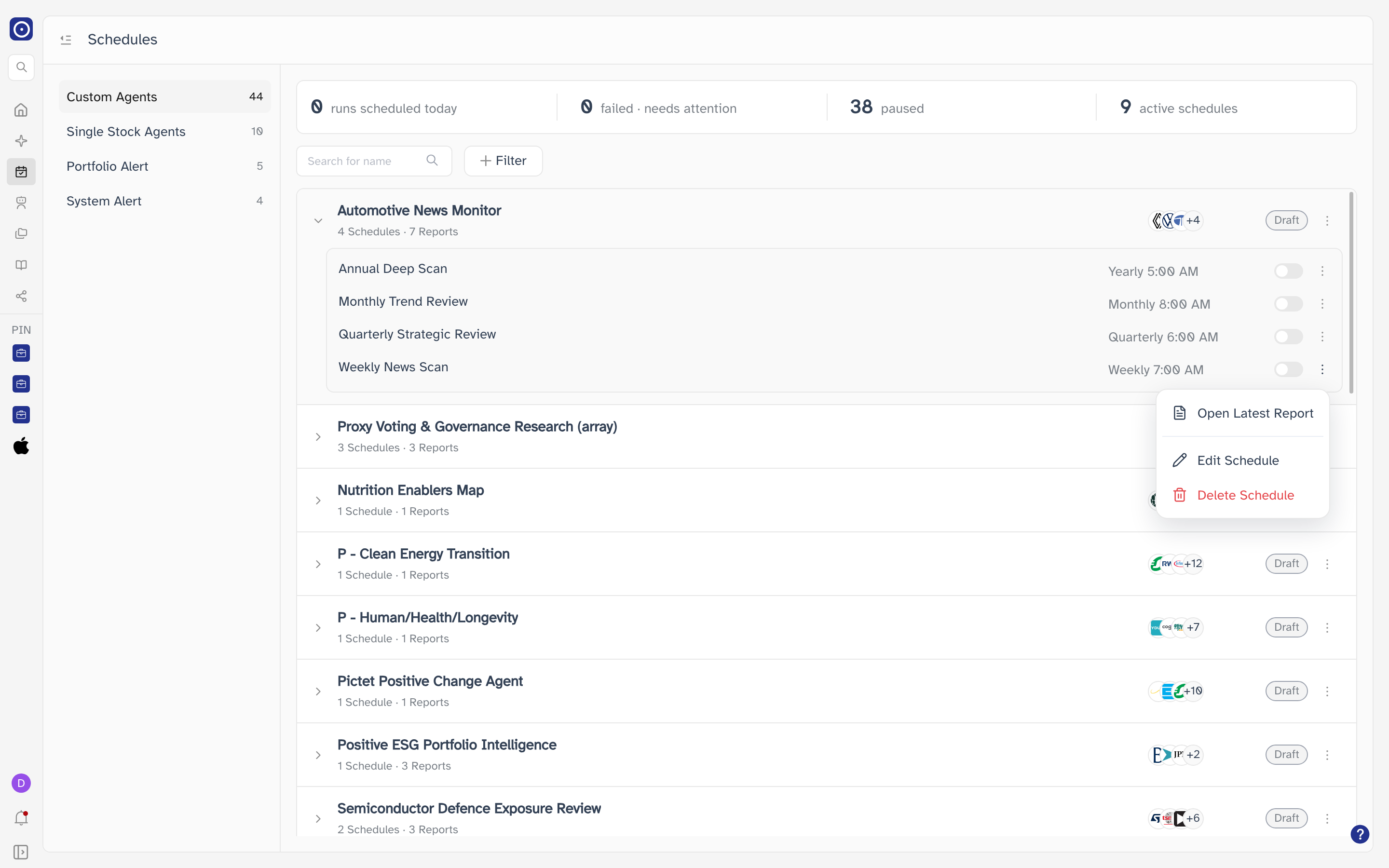
| Entry | What it does |
|---|---|
| Open Latest Report | Opens the most recent report this schedule produced — see Report detail. Greyed out until there is one, and hovering it then says so. |
| Edit Schedule | Changes how often the schedule runs. Covered next. |
| Delete Schedule | Removes this schedule only, leaving the agent and its other schedules alone. |
Changing how often a schedule runs
- Click ⋮ beside the schedule and choose Edit Schedule.
- Pick a value under Frequency.
- Click Save Change.
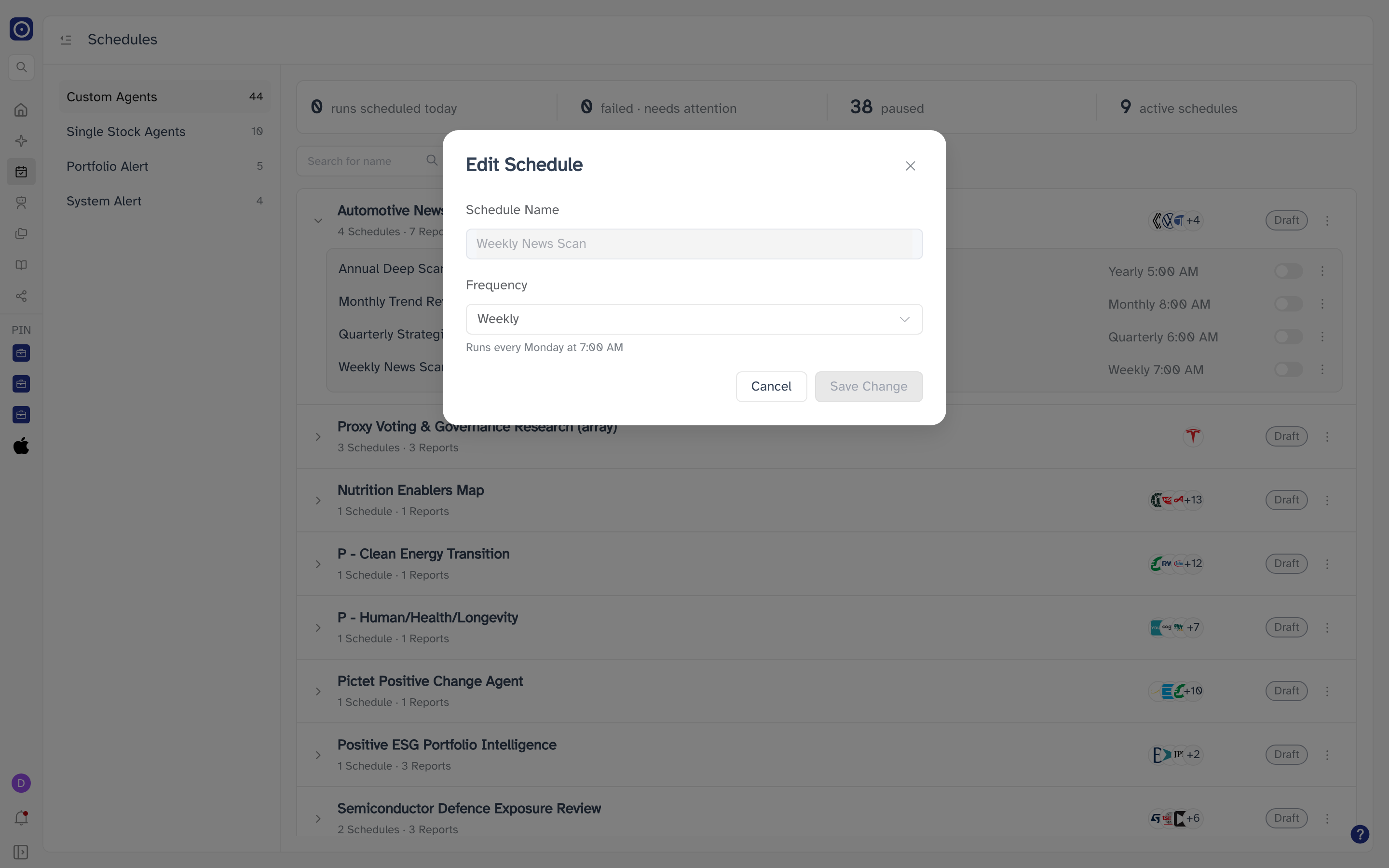
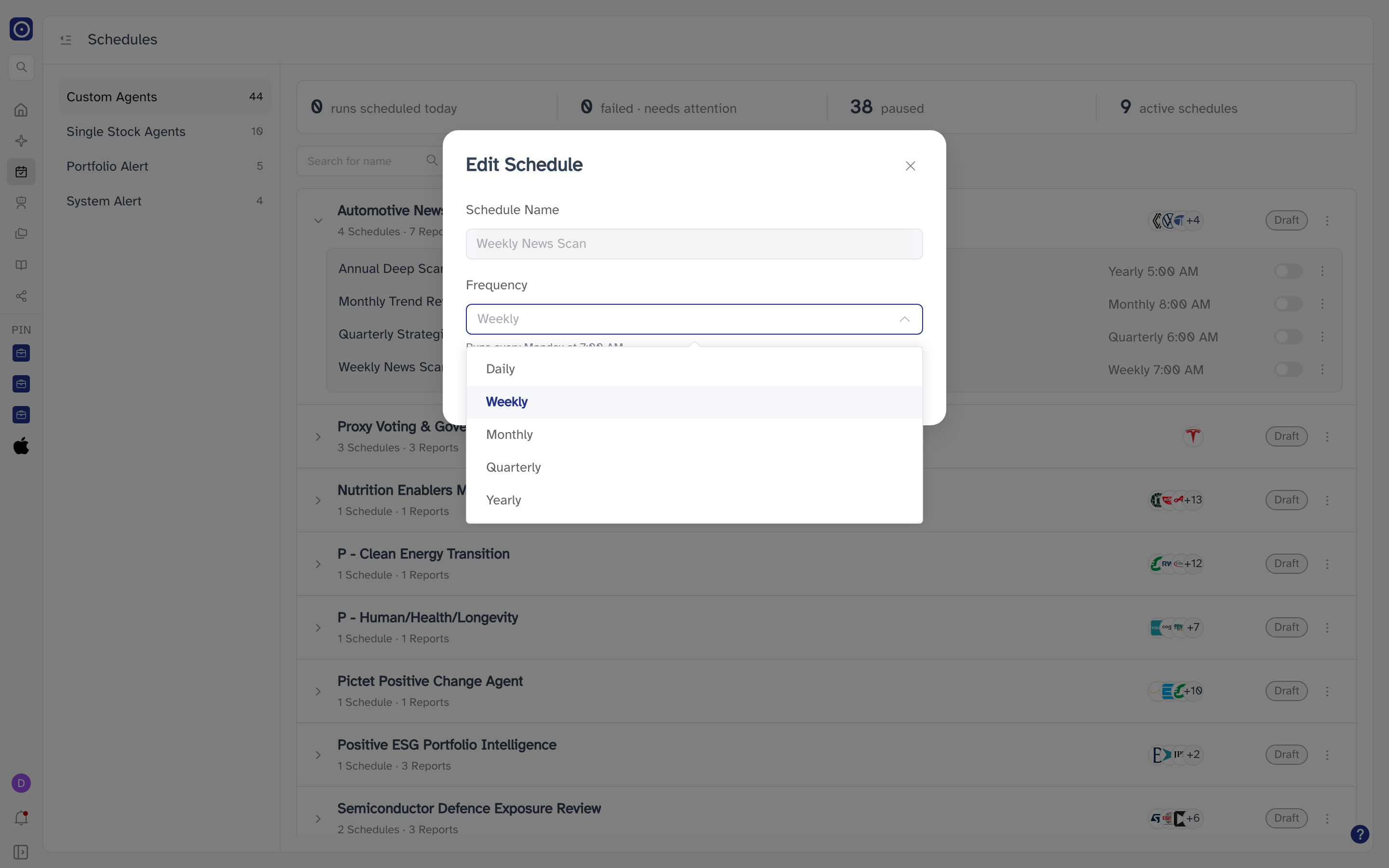
The line under the field tells you exactly when the schedule will run once saved.
| Frequency | When it runs |
|---|---|
| Daily | Every day at 8:00 AM. |
| Weekly | Every Monday at 7:00 AM. |
| Monthly | The 1st of each month at 8:00 AM. |
| Quarterly | 1 January, 1 April, 1 July and 1 October at 6:00 AM. |
| Yearly | 1 January at 5:00 AM. |
Saving replaces the schedule's old timing; the line in the list updates to match. Reports already written are not affected. Cancel and ✕ both close the dialog without changing anything.
An older schedule may run on a timing that is not one of the five — a half-yearly report, say. Frequency then opens blank rather than guessing, and you have to choose one of the five before you can save. Leave the dialog with Cancel to keep the existing timing.
Deleting a schedule
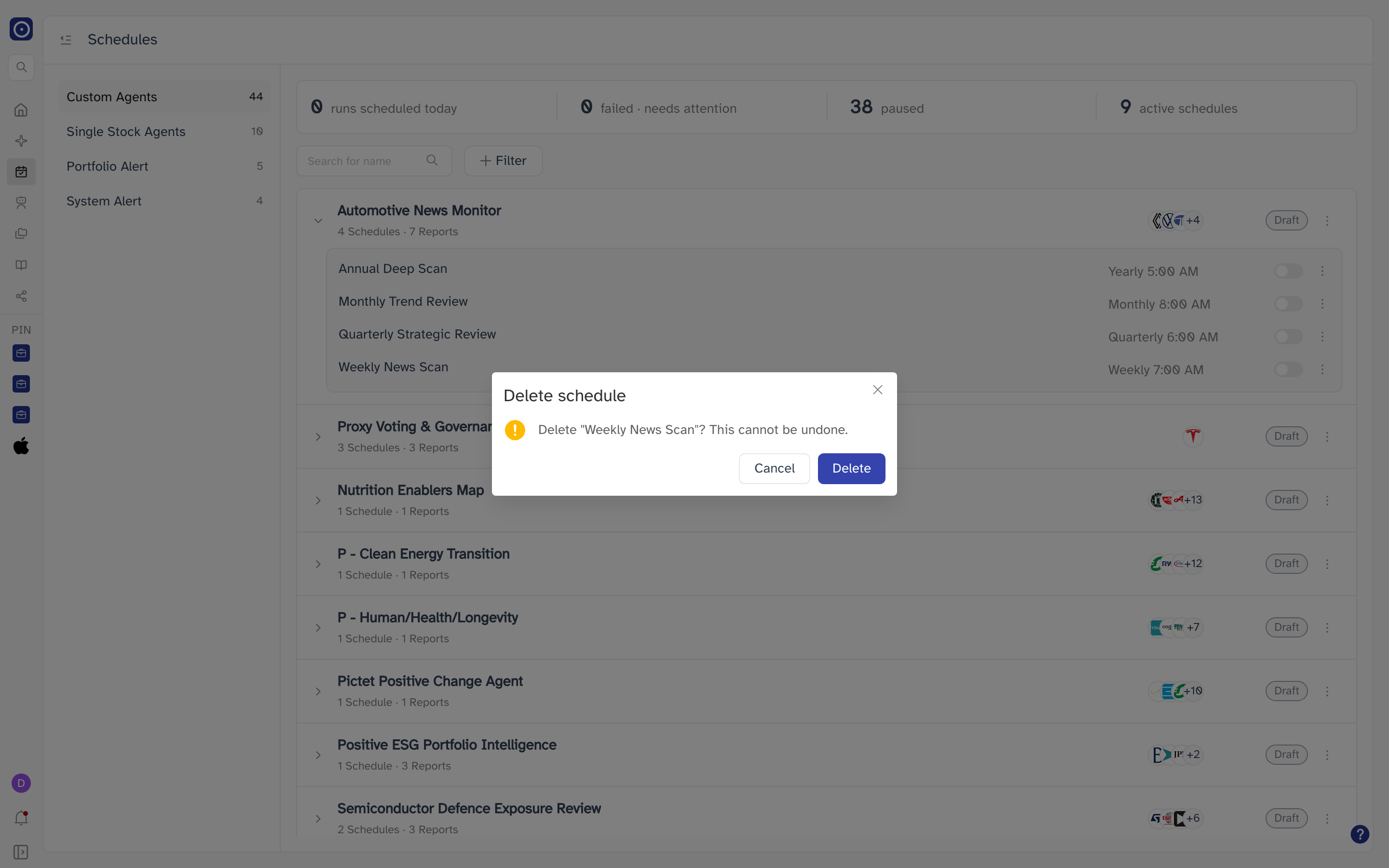
To stop a schedule running without deleting it, switch it off instead — it stays in the list and its reports stay readable.
Single Stock Agents
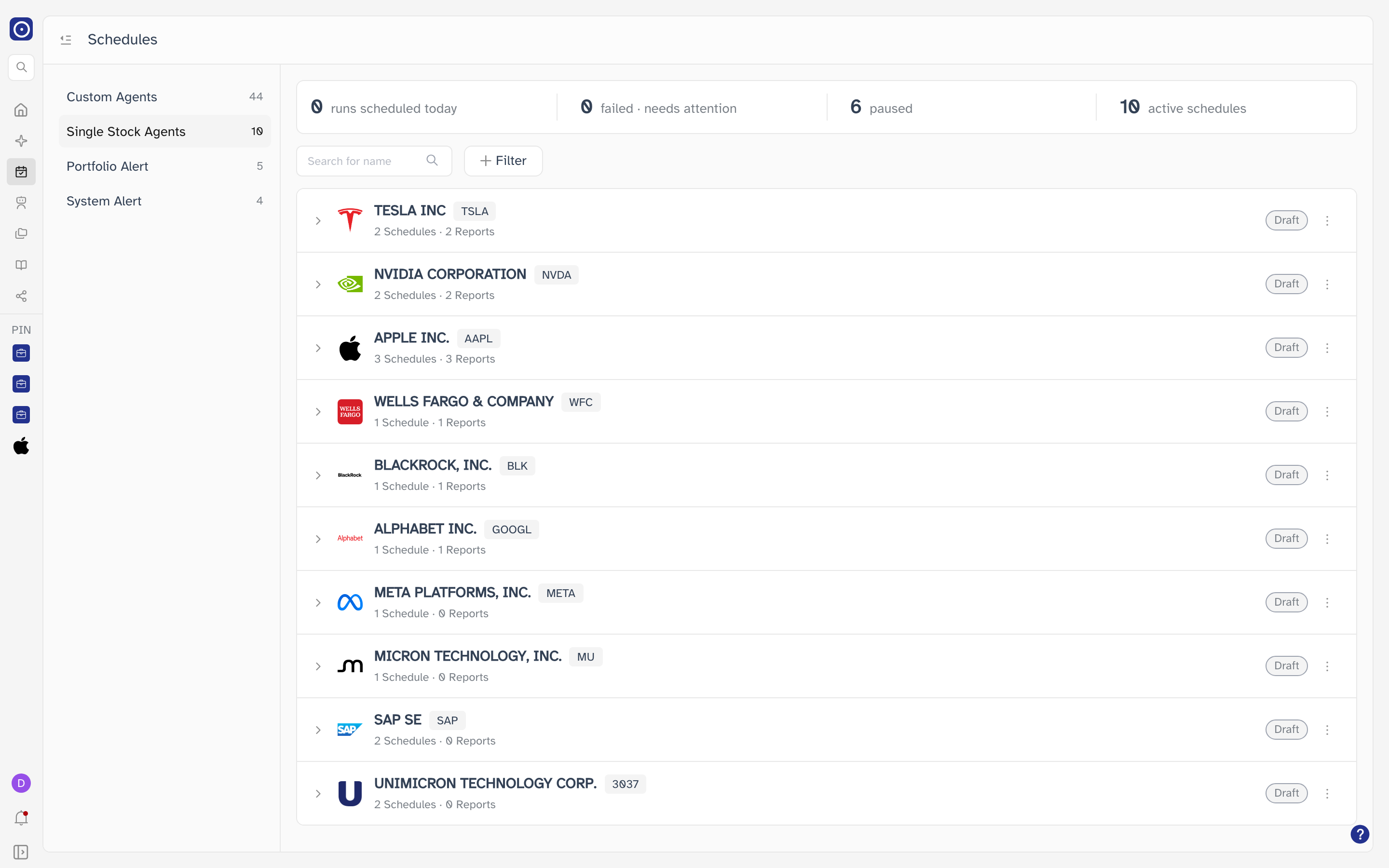
Cards here are companies, not agents: the company logo, its name and its ticker, and underneath the number of schedules tracking it. Two agents watching the same company appear as one card.
Portfolio Alert
One row per portfolio you subscribed to daily news alerts, created from Portfolio detail rather than from an agent. These cards do not open: each one is a single schedule, so its switch and its menu sit on the row itself.
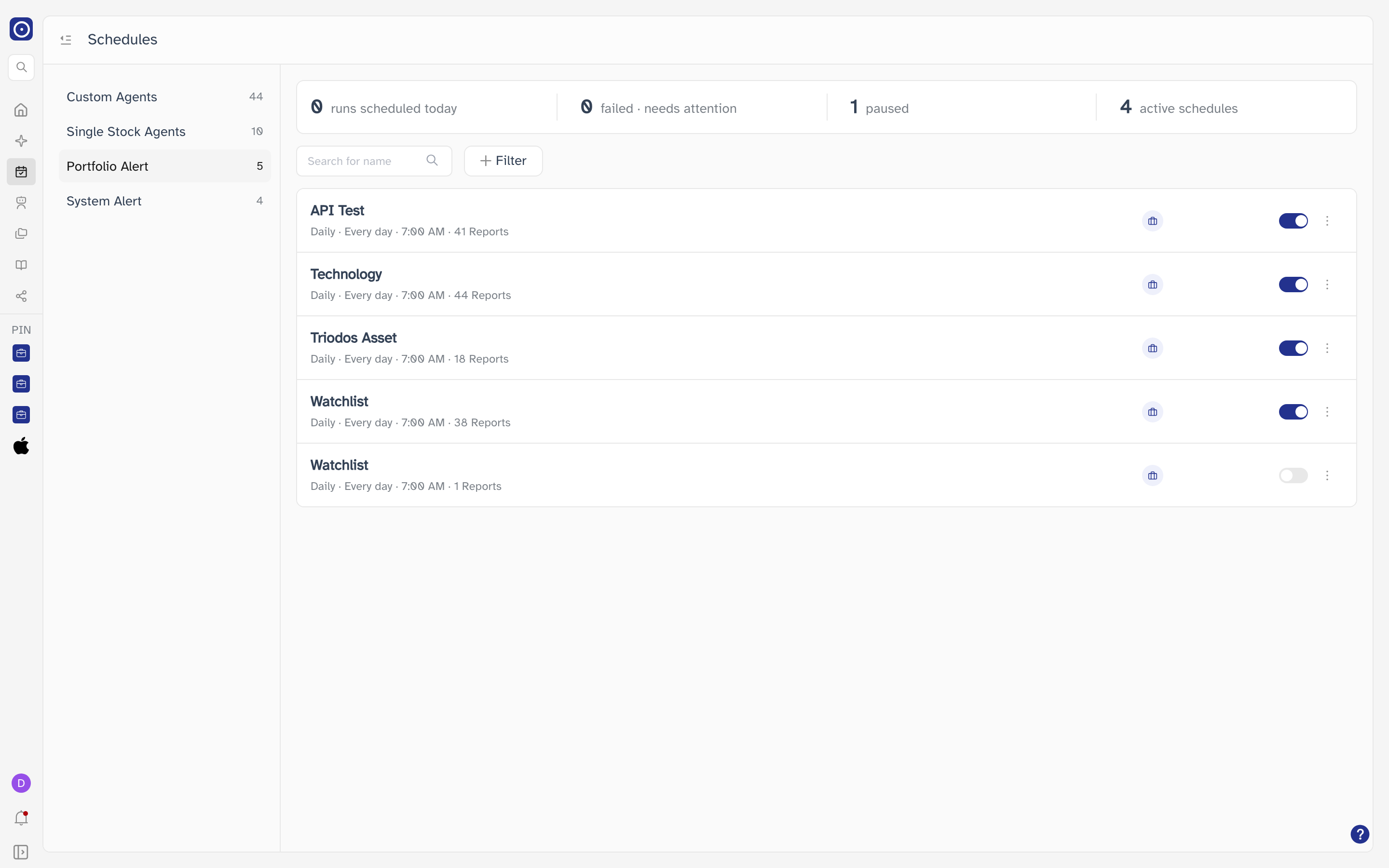
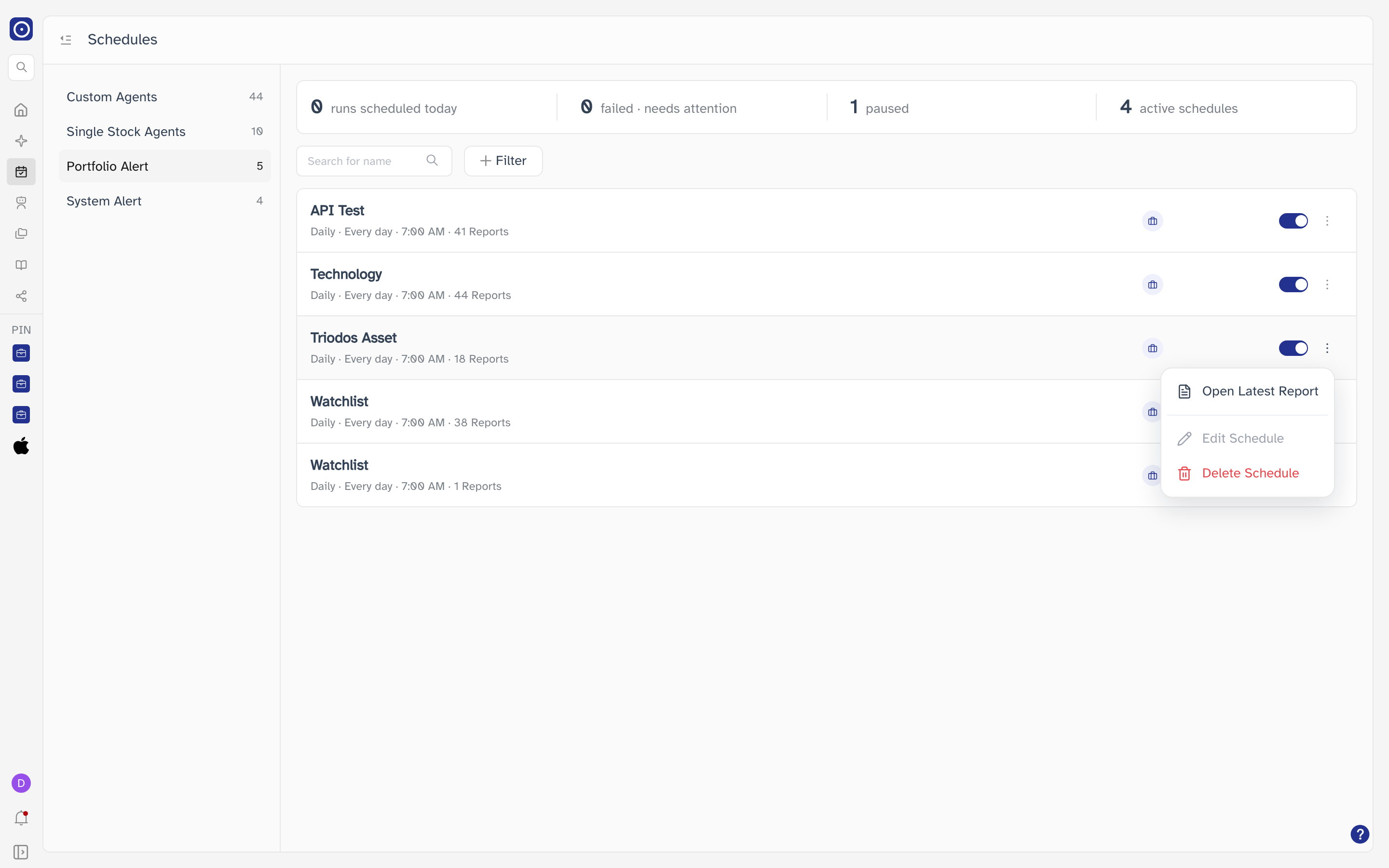
The switch here pauses it and keeps it in the list. Unsubscribe Daily News Alert on Portfolio detail ends the subscription itself. Either way, alerts already written stay readable.
System Alert
Recurring reports set up for you rather than built by you. Like portfolio alerts, each card is a single schedule with its switch and menu on the row — but their timings vary, so each card states when it runs.
Longer lists
The list loads thirty cards at a time and fetches the next thirty as you approach the bottom, showing Loading… while it does. There are no page numbers — keep scrolling.