
Report detail
One report from one schedule, with every other run of that same schedule listed beside it — so you can read this week's and last week's without going back to the list.
Opening the page
Both ways in are on Schedules, and both open the newest report.
- Open a card to list its schedules, then click the schedule's name.
- Or click ⋮ beside the schedule and choose Open Latest Report.
Under Portfolio Alert and System Alert the card is itself a schedule, so use its ⋮ directly. Either way, a schedule that has not produced a report yet cannot be opened — the name is not clickable and the menu entry is greyed out.
The page at a glance
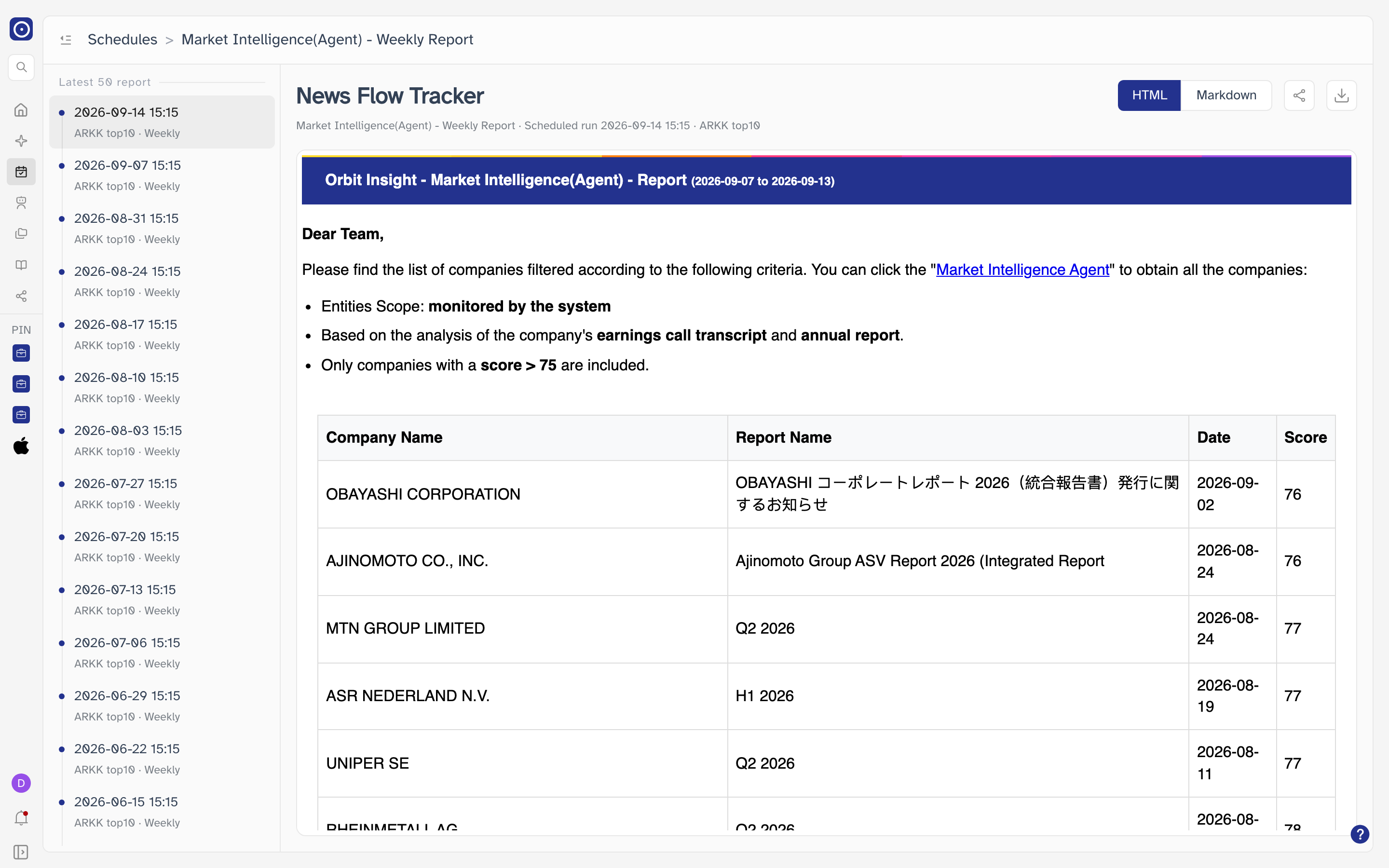
Above the report, two lines identify what you are reading.
| Line | What it says |
|---|---|
| The title |
The name of the agent or template that wrote the report. Some reports — portfolio alerts
in particular — carry no such name, and the title then reads —. The
schedule's own name is on the line below.
|
| The line under it | The schedule's name, when this run was scheduled for, and what it covered — a count such as 18 companies, or the name of the portfolio or company. A part with nothing to show is left out rather than shown empty. |
Run times on this page are shown in your own timezone, so a report whose schedule says 8:00 AM may be stamped at a different hour here.
The run timeline
The left column lists this schedule's most recent runs, newest first, under the heading Latest 50 report — that is the limit, so a schedule with hundreds of runs shows the last fifty. Each entry gives the time it ran and, underneath, what it covered and how often the schedule runs.
Click any entry to read that run: the report on the right is replaced and the entry you picked is marked as current. The address changes with it, so the page can be bookmarked or refreshed on the run you are reading.
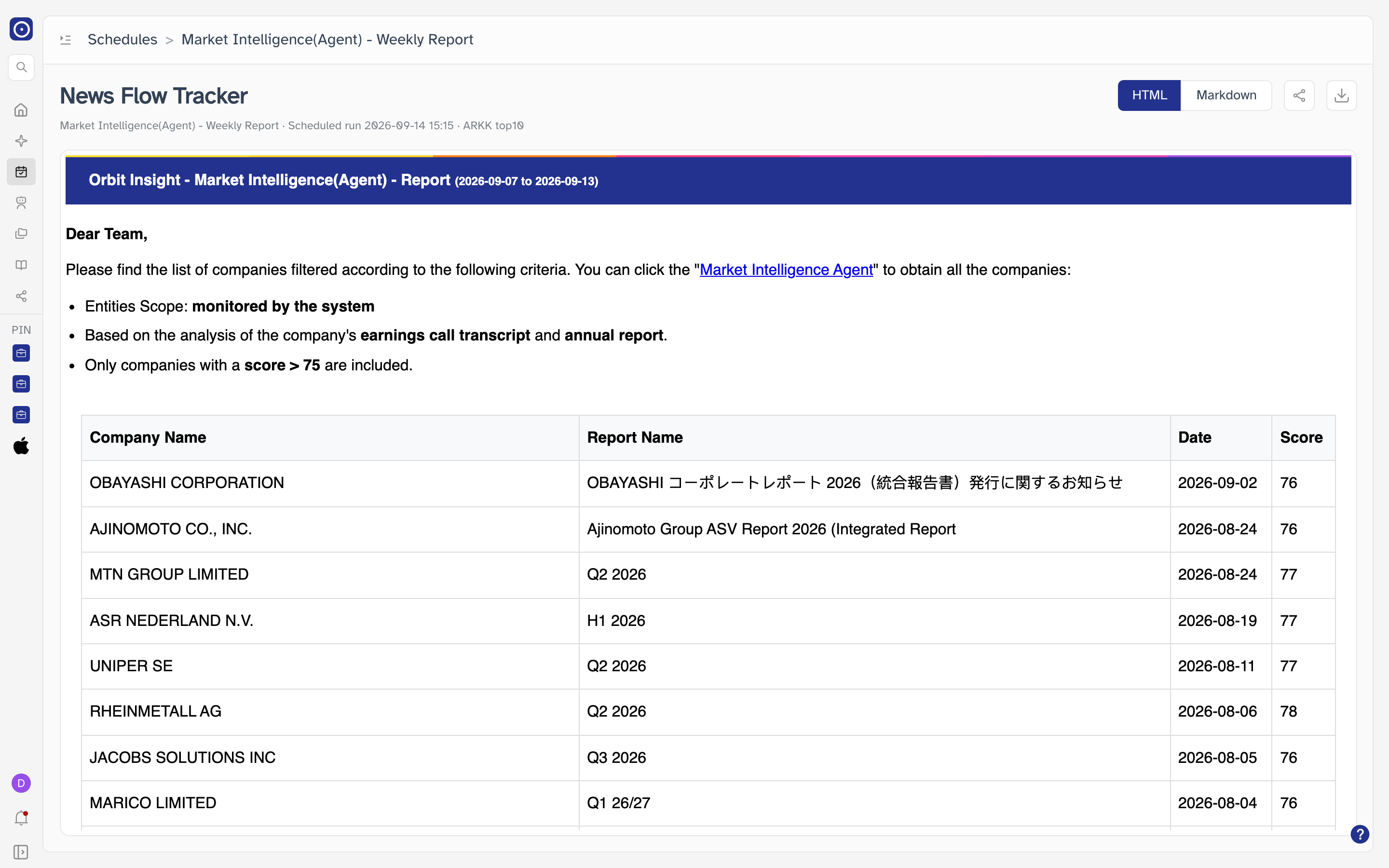
The button to the left of the breadcrumb hides the timeline and gives the report the full width. Click it again to bring the timeline back.
Reading the report
HTML and Markdown at the top right are two renderings of the same report. The page opens on whichever one the report was written in.
| View | What you get |
|---|---|
| HTML | The formatted report — headings, tables and any links it contains, laid out as designed. |
| Markdown | The same content as plain formatted text. Easier to copy out of. |
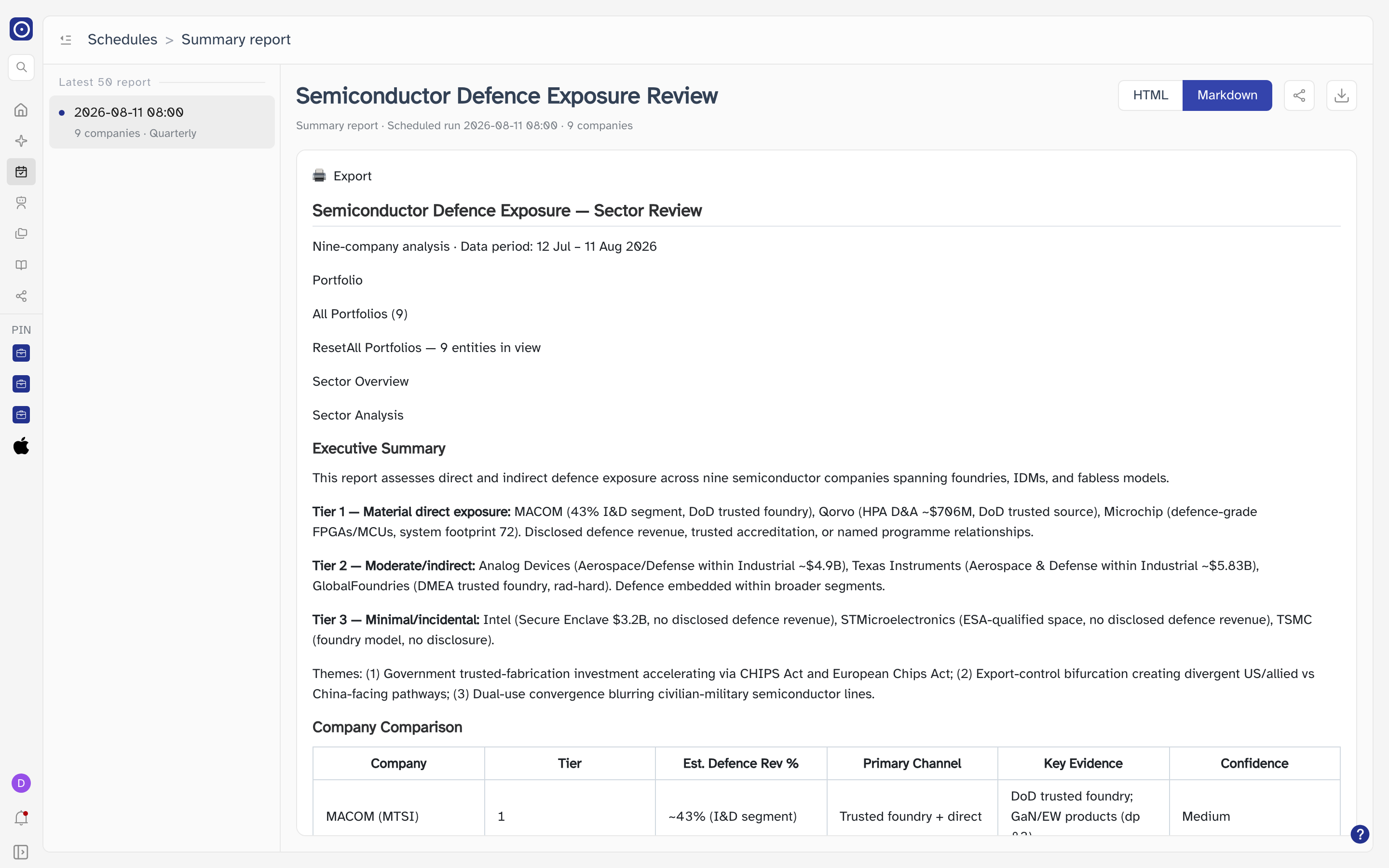
A report is only stored in the format it was produced in. Switching to the other one shows No Data when that version was never written, and Download is greyed out while you are on it. Switch back to read the report.
Sharing and downloading
Two icon buttons sit to the right of the format switch. Hover either one for its name.
| Button | What it does |
|---|---|
| Share | Creates a link to this report and copies it to your clipboard — a message confirms when it is copied. Anyone with the link can read the report without signing in. |
| Download |
Saves the report you are looking at, named after the schedule: an
.html file from the HTML view, a .md file
from Markdown.
|
It works for anyone who has it, signed in or not. Every link you create is listed on the Share page, where you can copy it again or delete it to withdraw access.
Orbit checks the report belongs to you before showing it. When it does not — an old link, or one meant for another account — you are returned to your dashboard instead.