
Portfolio detail
Everything Orbit has gathered for one portfolio in a single reading view — the daily news alerts written for it, the filings published by the companies inside it with the document open beside the list, and a network of the relations between those companies themselves.
Opening the page
This page opens from a portfolio shortcut rather than from a menu entry. Pin a portfolio first — on Portfolio Management, hover a portfolio, click ⋮ and choose Pin.
- Open the left rail — click Collapse Sidebar at the bottom if it is showing icons only.
- Under PINNED, click the portfolio you want to read.
The same page opens from Quick Search at the top of the left rail, and from the portfolio widget on your dashboard. If more portfolios are pinned than the rail can show, More next to the PINNED heading lists the rest.
The page at a glance
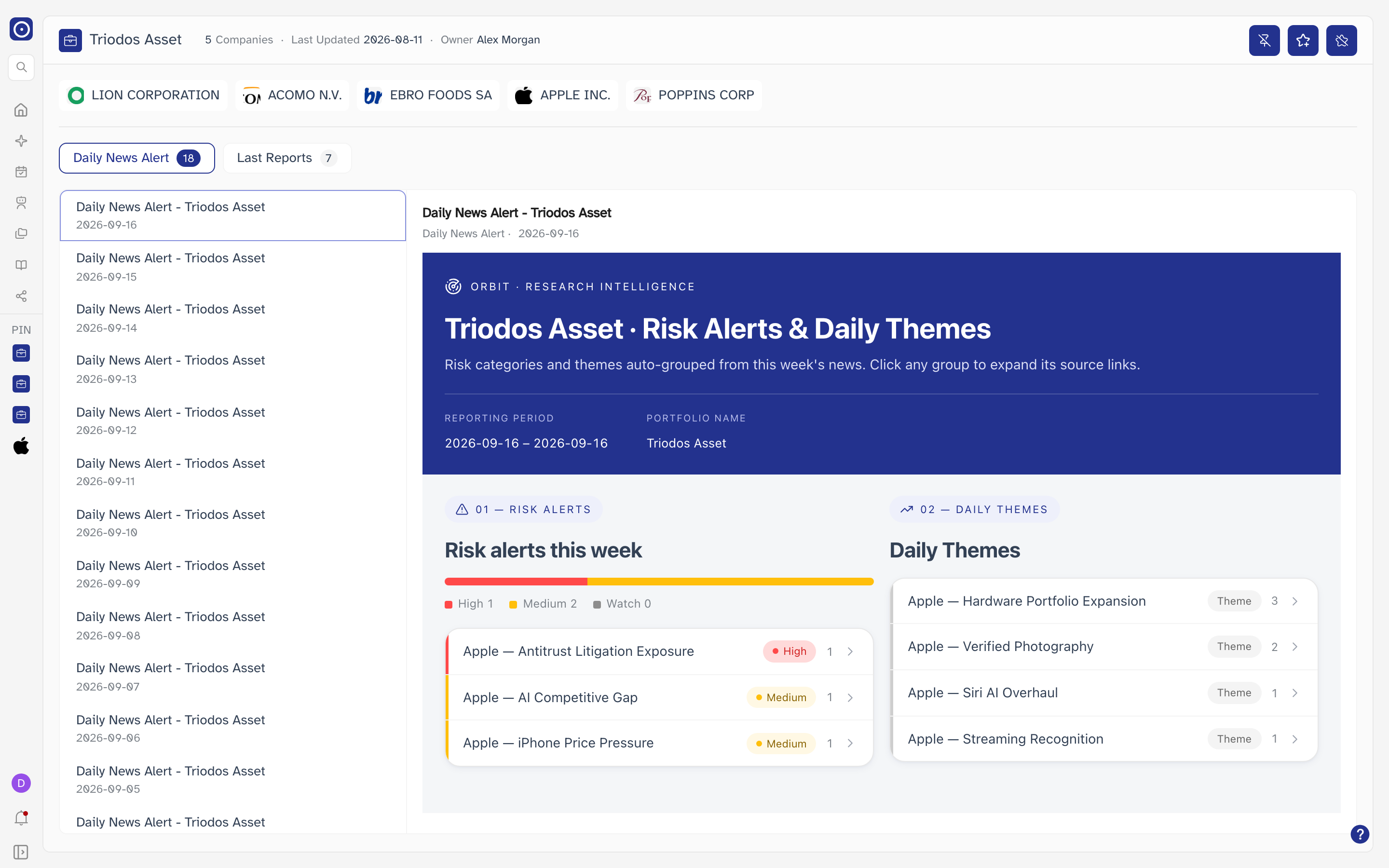
The header
Across the top, the portfolio's identity.
| Item | Meaning |
|---|---|
| Name | The portfolio's name. |
| N Companies | How many companies it holds. |
| Last Updated | The date its membership last changed. |
| Owner | Who created it. |
Header actions
The buttons at the top right act on the portfolio as a whole. They carry icons rather than labels — hover one to see its name. There are three when the portfolio is subscribed to daily alerts, and two when it is not.
| Button | What it does |
|---|---|
| Pin / Unpin | Adds or removes the portfolio from the PINNED list in the left rail. |
| Create Daily News Alert Job | Subscribes the portfolio to daily alerts and runs one for a date you choose. |
| Unsubscribe Daily News Alert | Only present once the portfolio is subscribed. Stops the daily alerts. |
Create Daily News Alert Job is greyed out while the portfolio holds no companies. Pin and Unsubscribe stay available.
Pinning and unpinning
The first button reads Pin when the portfolio is not pinned and Unpin when it is. Pinning is immediate: a message appears in the bottom-right corner and the portfolio joins the PINNED list straight away.
Unpinning asks first.
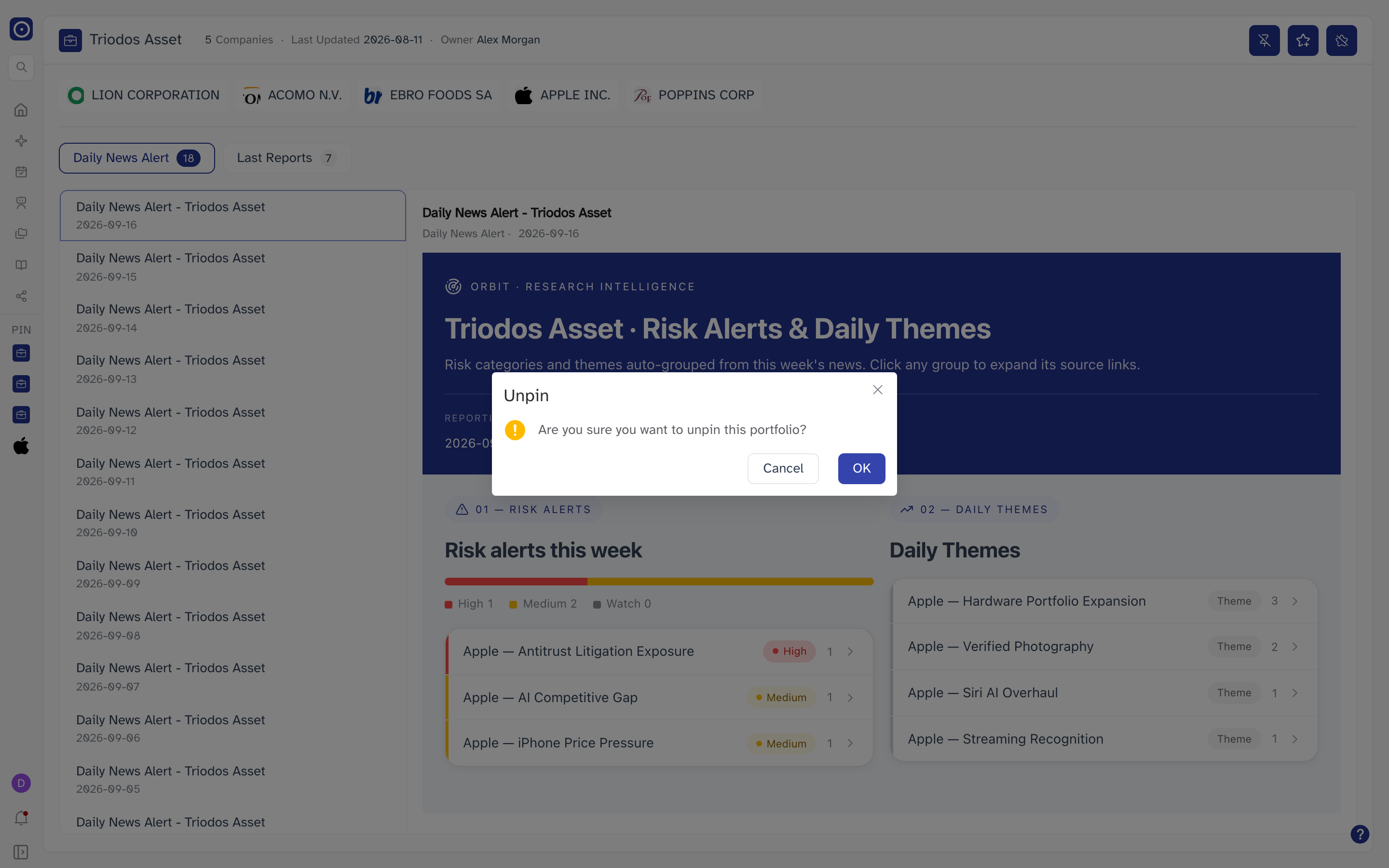
The portfolio and its reports are untouched — only the left-rail shortcut goes. It is still on Portfolio Management, and you can pin it again from there. Removing the same portfolio from the left rail instead has the same effect, and this button switches back to Pin when you do.
Creating a daily news alert job
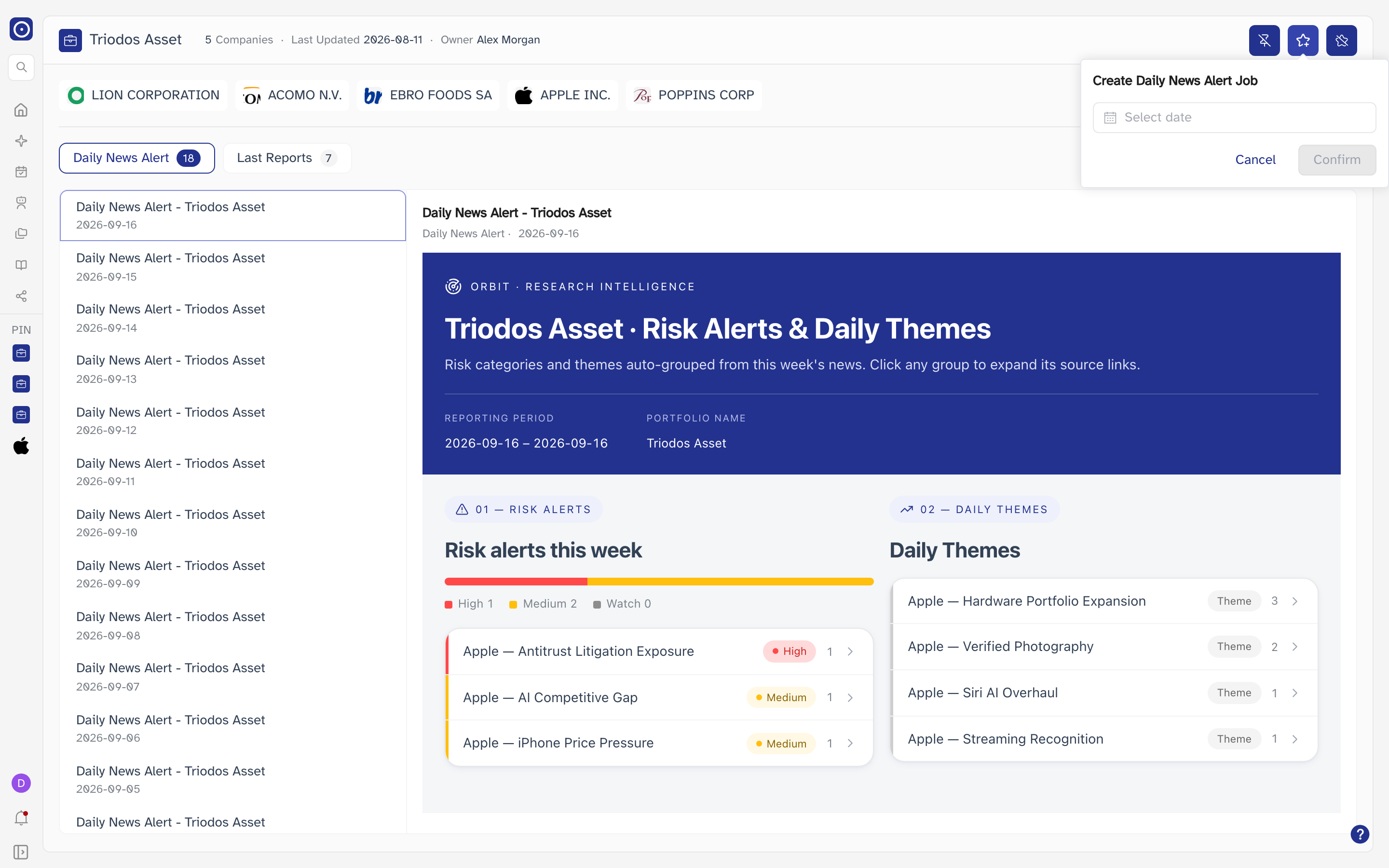
- Click Create Daily News Alert Job in the header.
- Pick the date you want the alert written for.
- Click Confirm and read the message that follows.
The message tells you exactly what is about to happen. The first time, it subscribes the portfolio to daily alerts at 8:00 AM UTC and runs the job for the date you picked; after that it only runs the job for that date. Confirm again to go ahead.
The job then runs in the background. A notice in the bottom-right corner confirms it started, and a second one tells you when it finished — at which point the new alert appears in the list. A long-running job reports that it is still going rather than failing.
Running an alert job costs credits, scaled to how many companies the portfolio holds. If your balance is too low, Orbit says so instead of starting the job. Your balance is on the Credit page.
Subscribing starts the daily alerts from that point on. To get an alert for an earlier day, run a job for that date.
Unsubscribing from daily news alerts
The third button appears only once the portfolio is subscribed. It asks for confirmation before it stops anything.
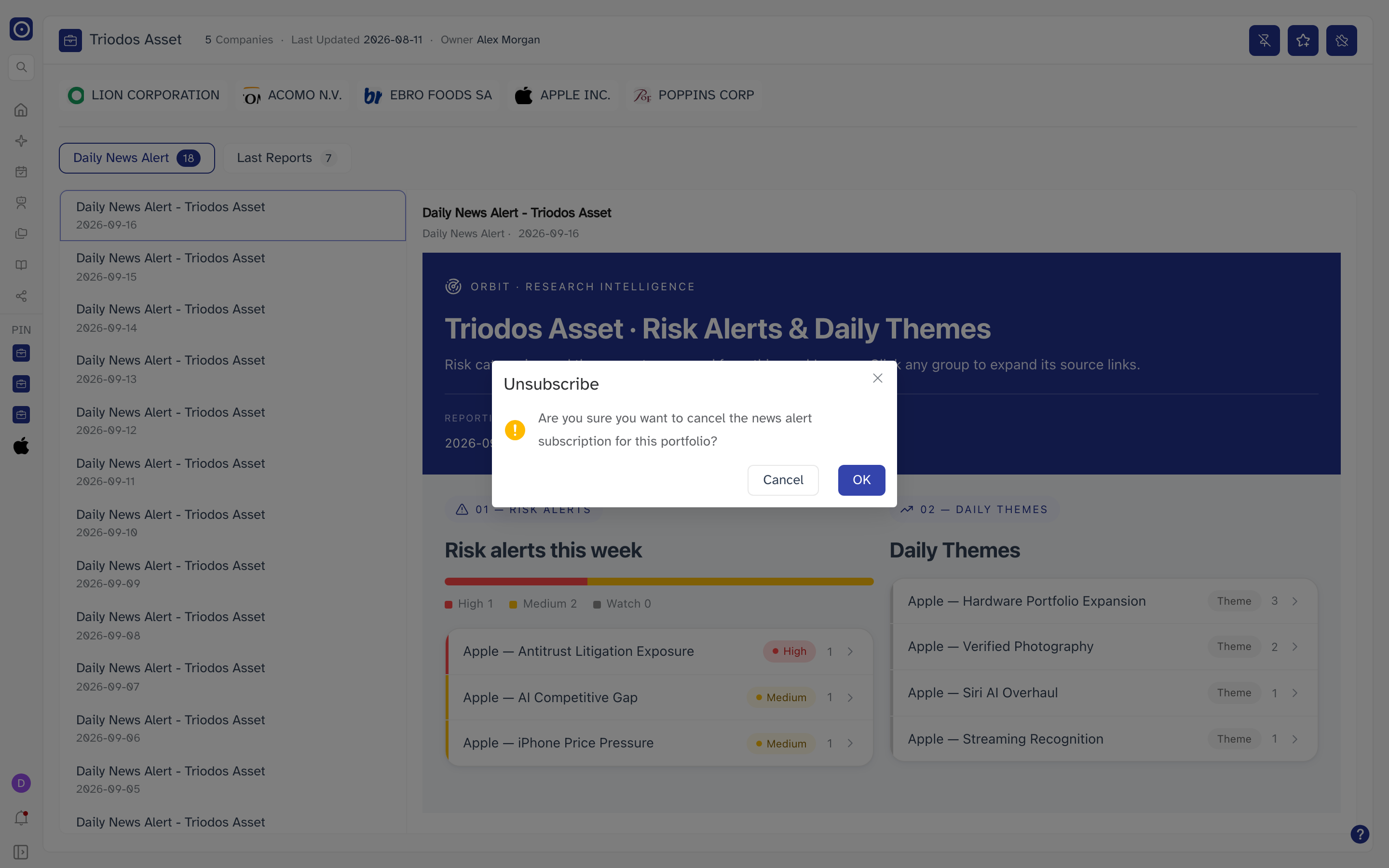
Unsubscribing stops Orbit writing new alerts from tomorrow on. Every alert already in the list stays readable. To start again, use Create Daily News Alert Job — but the days in between will have no alert, because subscribing is not retrospective.
The company row
Under the header, one chip per company in the portfolio. Click a chip to open that company's page — the company's profile, its price chart and verdicts, its latest news and filings, and the agents subscribed to it.
When there are more companies than fit on one line, the row ends with a More button carrying the number left over. Click it for the rest; the companies listed there open the same way.
Choosing what to read
The filters under the company row are the kinds of content available for this portfolio, each with a count. Which kinds are offered comes from Orbit and differs from portfolio to portfolio; a kind can also appear carrying a count of zero, when the portfolio has nothing of that kind yet. Selecting one replaces the list underneath and opens its first entry. Relationships is the exception — it is offered whatever else is, and instead of a list it puts a network view in place of the list and the reading pane together. It has its own section further down this page.
| Filter | What it lists |
|---|---|
| Daily News Alert | One report per day, written across the whole portfolio. Only present once you have subscribed the portfolio to alerts. |
| Last Reports | Filings published by the companies in the portfolio, newest first. |
| Relationships | What Orbit knows about how the portfolio's own companies are connected to each other. Unlike the report kinds this one is always offered — it is there even for a portfolio with nothing else in it — and its count is the number of companies the portfolio holds. |
Click any entry in the list to open it on the right. The list loads 20 entries at a time and fetches more as you scroll to the bottom.
Daily News Alert
Each entry is a day's alert for the portfolio, showing the date it covers. Opening one shows the report itself on the right: risk alerts graded High, Medium, and Watch, and the themes Orbit grouped out of that day's news. Click any group in the report to expand its source links.
Last Reports
Each entry names the filing, the date, the company that published it, and a tag for the filing type. The document opens on the right in a PDF reader with search, page navigation, and zoom.
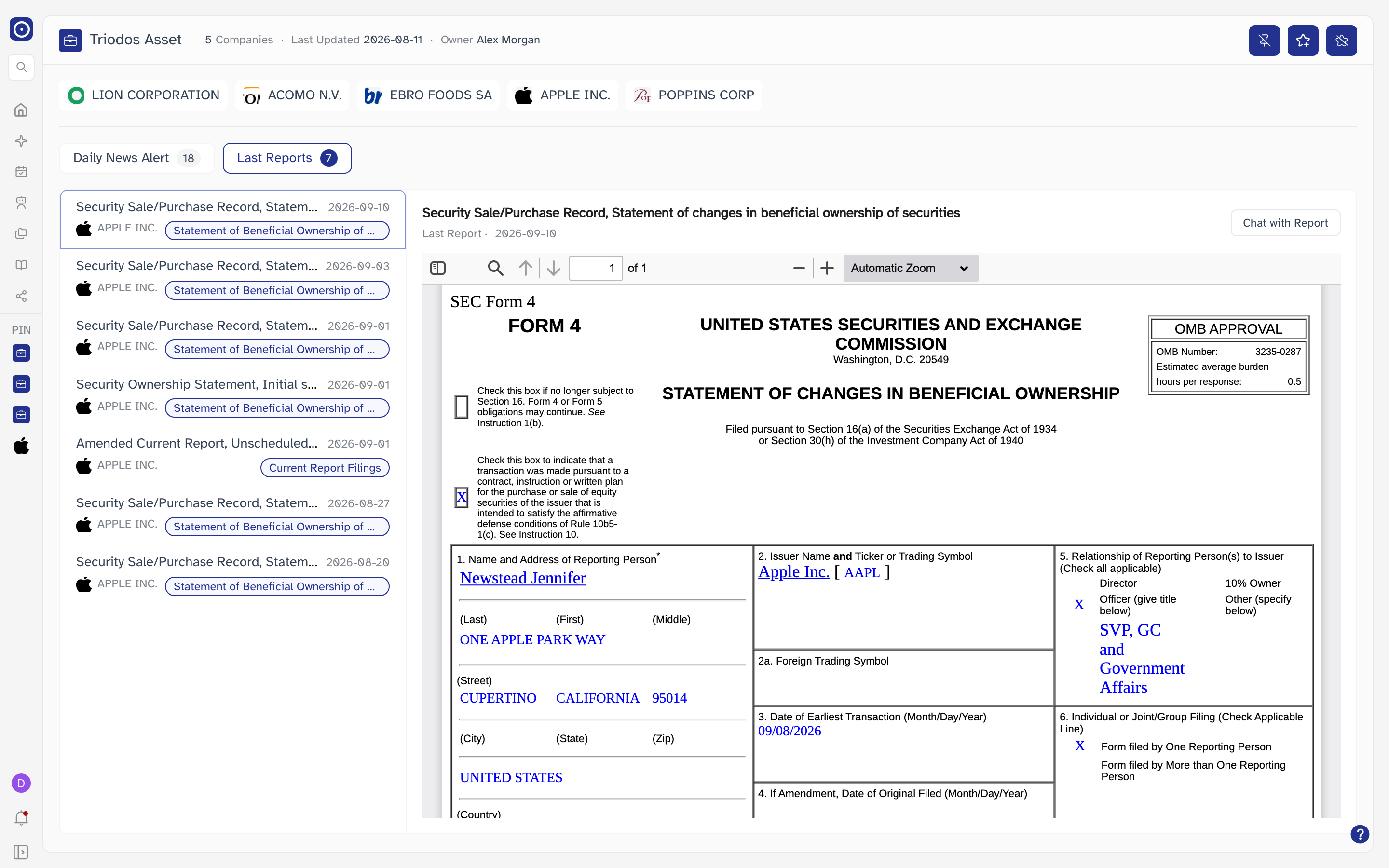
Two things inside a row are clickable on their own, separately from the row itself:
| Element | What it does |
|---|---|
| The company name | Opens that company's page, the same one the chips in the company row lead to — without changing which filing is open on the right. |
| +N | Only where a filing carries more than one type. The first type is shown as a tag; click +N for the others. |
Orbit checks your access before opening a company. If your plan does not cover it, the page does not change and a message says it could not find a match for the company and asks you to get in touch.
The reading pane
Whatever is selected opens on the right, under its title, type, and date. One button sits at the top right of that pane, and which one you get depends on the filter you are on.
| Button | When it appears | What it does |
|---|---|---|
| Chat with Report | On Last Reports. | Takes the open document into PDF Chat — the PDF on one side, a chat panel on the other, where you can ask about the document and jump to the pages an answer cites. |
| Open Report | On report types other than Daily News Alert and Last Reports. | Opens the report summary and the original document side by side on their own page. |
| — | On Daily News Alert. | Neither button is offered; the alert is read in place. |
| — | On Relationships. | Neither — that filter has no reading pane. It puts the network view in place of the list and the pane together. |
Chat with Report itself is free — it only opens the document. Each question you then ask in PDF Chat consumes credits, and Orbit says so rather than answering if your balance is too low. Your balance is on the Credit page.
Relationships
The last filter is a different kind of view. Where the others list reports you can read, Relationships shows what Orbit knows about how the portfolio's own companies are connected to each other — who supplies whom, who holds whom, who competes with whom.
Selecting it puts a single card, Target Network, where the list and the reading pane were. The data behind it is fetched when you first select the filter rather than with the page, and it is kept from then on: leaving the filter and coming back does not fetch it again.
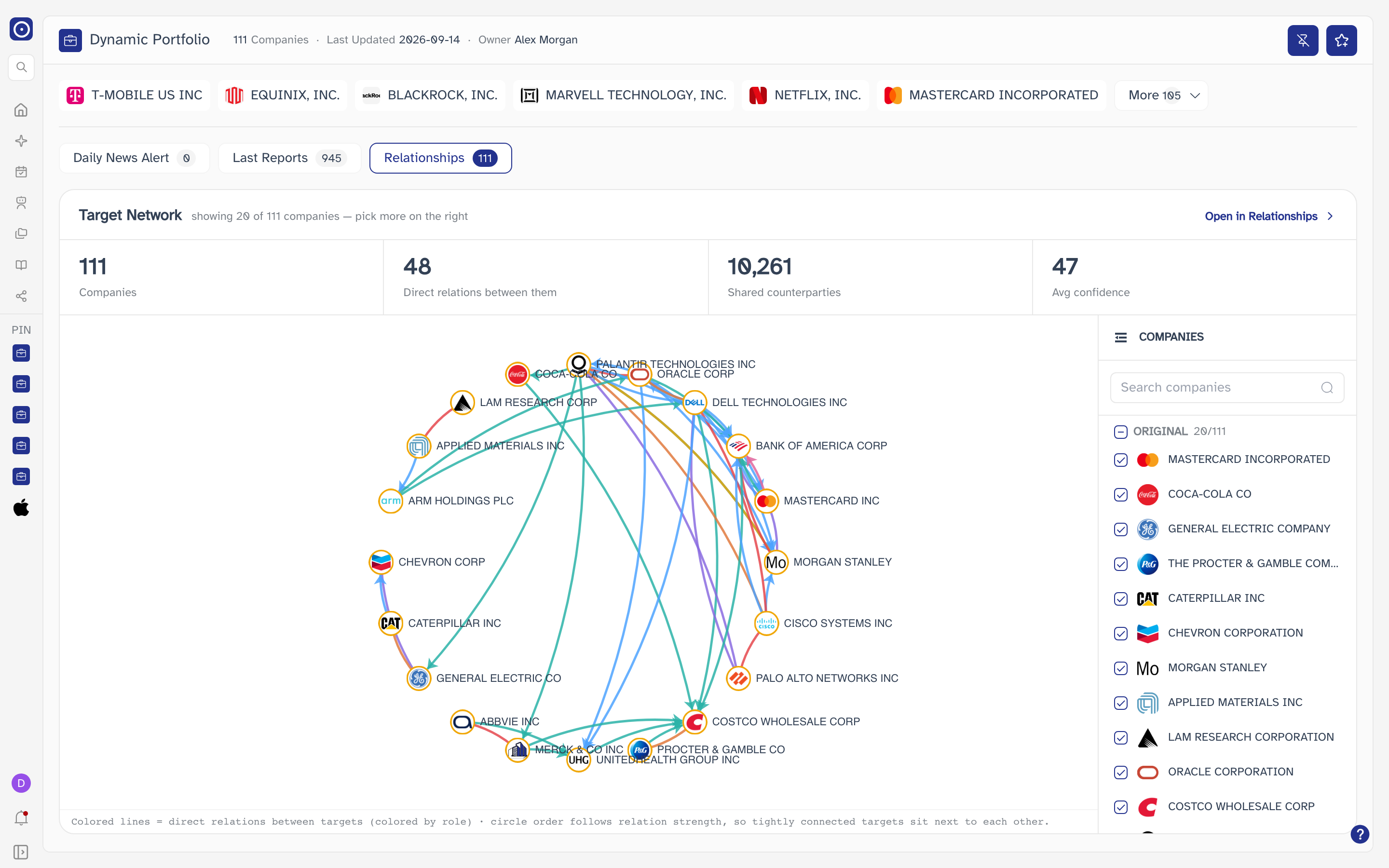
What the card holds
| Part of the card | What it is |
|---|---|
| Target Network | The card's title. Under it sits a subtitle describing what is currently drawn: how the N companies in this portfolio relate to each other when every company in the list is drawn, or showing N of M companies — pick more on the right when only some of them are. |
| Open in Relationships | Opens the same portfolio on another page that carries these relations across more views than the one here. See Where the network leads. |
| Four figures | Counts for the portfolio. See What the four figures count. |
| The network | One node per company and one line per relation found between two of them. See Reading the network. |
| COMPANIES | The panel's heading. Under it, the portfolio's companies with a checkbox against each, which decides which of them are drawn. See Choosing which companies to draw. |
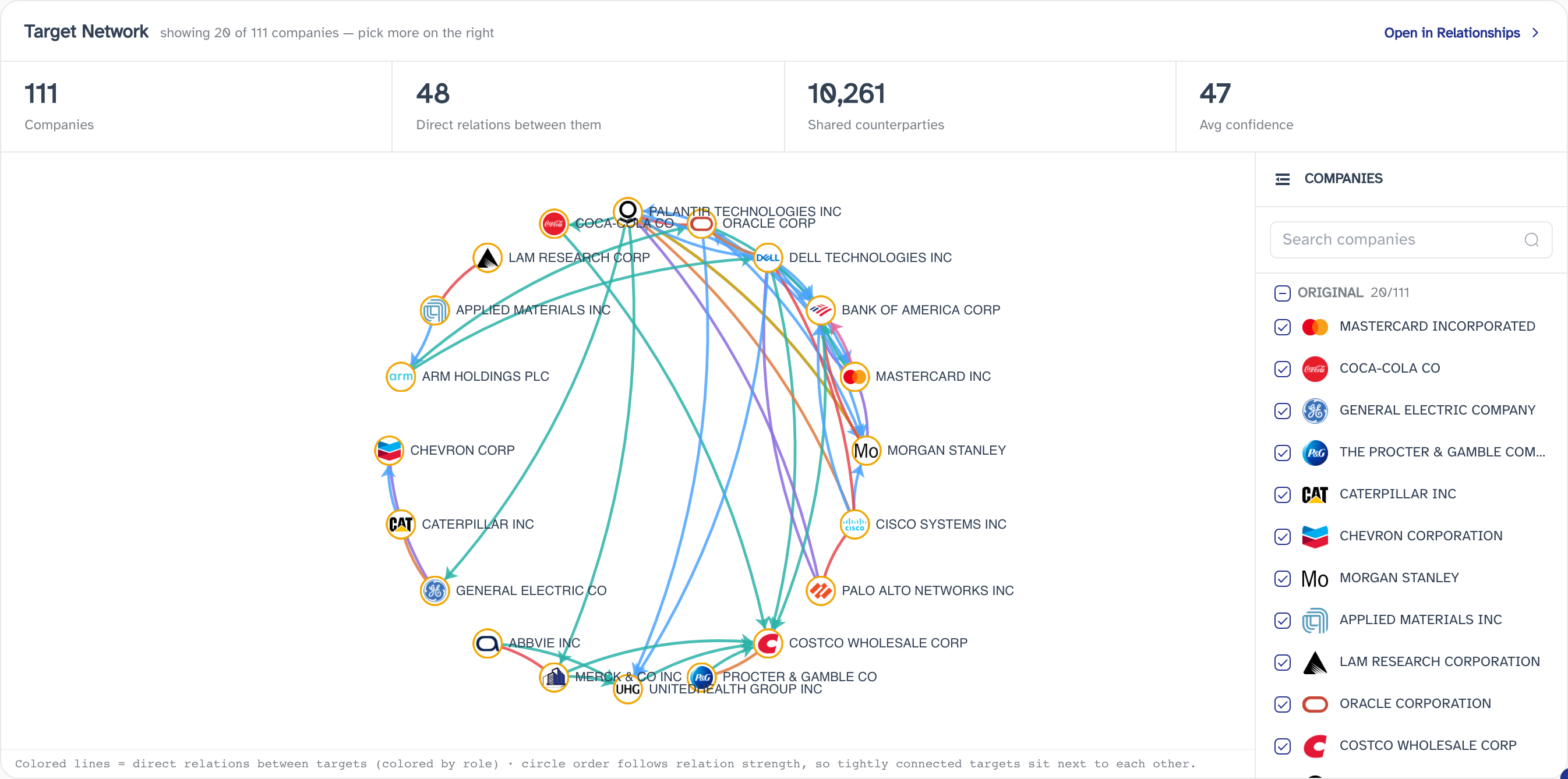
What the four figures count
All four describe the portfolio as a whole — with one exception worth knowing, because it makes the numbers move at different times.
| Figure | What it counts |
|---|---|
| Companies | How many companies the relation data covers. |
| Direct relations between them | How many relations were found between the companies currently drawn. This is the exception: it follows your ticking and counts the drawn companies only, so it falls when you clear companies and rises when you tick more. The other three stay where they are. |
| Shared counterparties | How many companies outside the portfolio sit behind more than one of the portfolio's own companies. |
| Avg confidence | The average confidence Orbit places on the relations it has found here. |
Reading the network
Each company is a node and each relation between two of them is a line. Lines are coloured by role — the part the relation gives one of the two companies. Among the roles are Supplier, Customer / Channel, Shareholder, Subsidiary, Parent, Peer, Direct competitor and Partner. Where a relation points one way rather than both, its line carries an arrowhead at the far end.
Hover a company to light up its own relations and fade everything else out of the way. Hover a line for a panel naming the two companies it joins and the role each one plays, with the relation type, its confidence, which way the relation points, and the source it came from. Scroll to zoom and drag to pan.
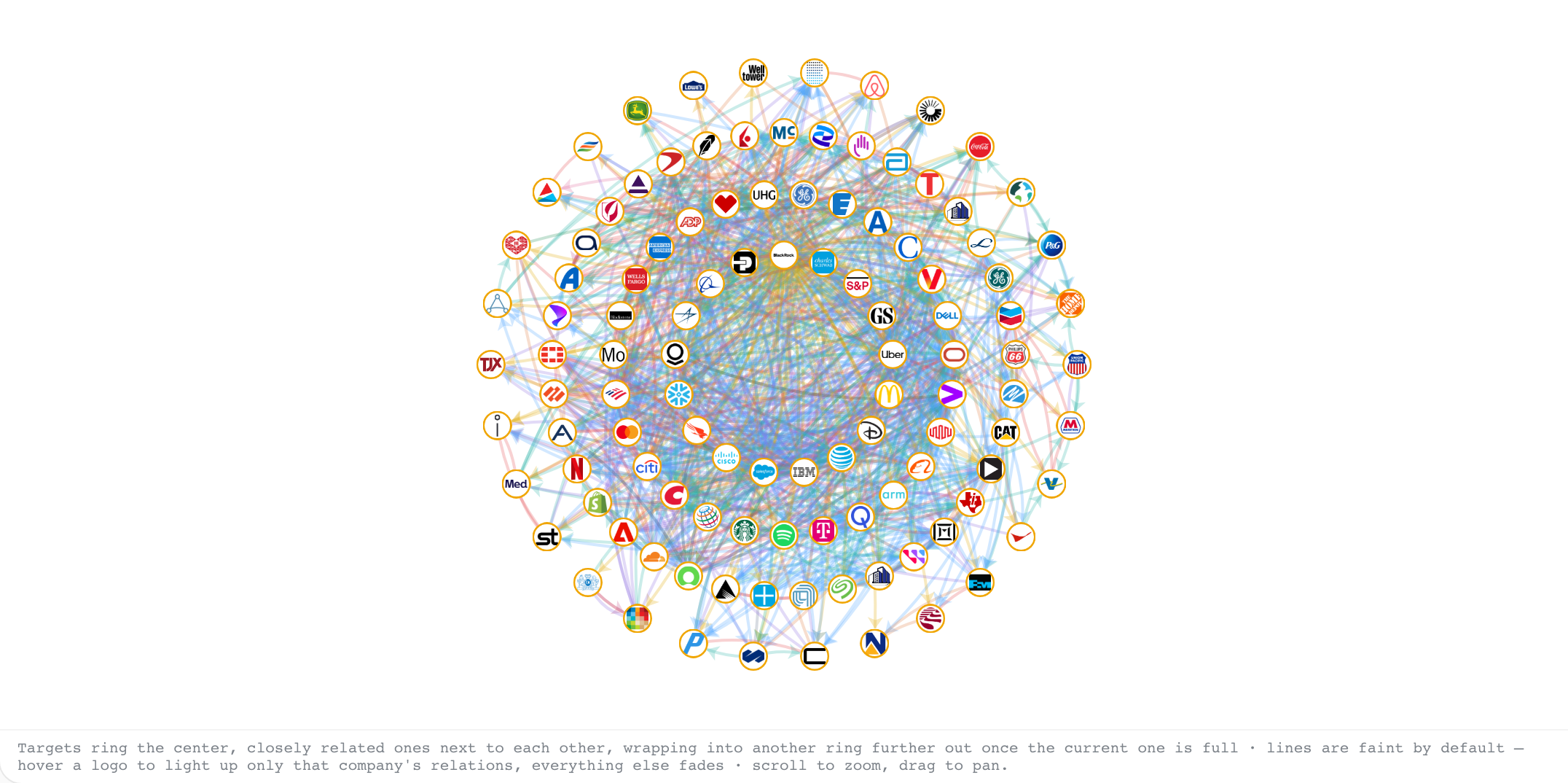
How the companies are arranged depends on how many of them are drawn. Up to twenty they sit in a single ring, ordered by relation strength so that closely connected companies end up beside each other. Past twenty the ring wraps into further rings around the first, the lines are drawn faintly until you hover a company, and the company names are left off until you do. The note under the network follows suit: it describes the single ring in one case and the rings, hovering, zooming and panning in the other.
Choosing which companies to draw
The panel headed COMPANIES lists the portfolio's companies with a checkbox against each. Ticking and clearing them redraws the network — not on every click, but once you have stopped clicking. A company Orbit has found no relations for still appears, as a node with no lines.
A portfolio can hold far more companies than a network can usefully draw at once. Up to twenty of them they all start out ticked. Past that, the twenty largest by market capitalisation start out ticked and the rest start out clear, so the card opens on something readable; the subtitle says how many of the list are drawn. Ticking the rest works the same way.
The heading's own checkbox ticks or clears every company at once, and the count beside it says how many of them are ticked. The search box narrows the list by name. The collapse icon at the top of that panel hides the search box and the list, and brings them back.
It only chooses among the companies the portfolio already holds — there is no way to bring a company in from outside here. That is what Portfolio Management is for.
A network needs two companies and something between them. Short of that, a message takes its place and says which of these it is:
- Add at least two companies to this portfolio to see a network.
- Select at least two companies on the right to see a network.
- None of the N selected companies has relationship data yet.
- Only 1 of the N selected companies has relationship data yet.
The last two are not a fault in the page. Relation extraction does not reach every company — smaller ones in particular often have nothing yet — and the card says so rather than drawing an empty ring.
Where the network leads
Open in Relationships takes the portfolio to Company Relations Agent, which holds these same relations across more views than the single one offered here.
Clicking a company's node does the same thing, focused on that company: the page opens with that company picked out and only its direct relations showing, as if you had found it on its own network.
The button brings the whole portfolio with it; a click on a node brings only that one company, and you build a comparison around it from there. Both are the same page, described under Opening the page.