
Agent Marketplace
The home of every agent you own. Build a new one, open one you have already built, and reach the agents Orbit ships with — all from a single list.
Opening the page
- Open the left rail — click Collapse Sidebar at the bottom if it is showing icons only.
- Click Agent Marketplace.
The left rail calls it Agent Marketplace; the heading at the top of the page itself reads Market Agents. They are the same page.
Deleting an agent from its own page returns you here,
Go Agent Marketplace on an empty Schedules
category brings you here to pick an agent, and /bots redirects here as well.
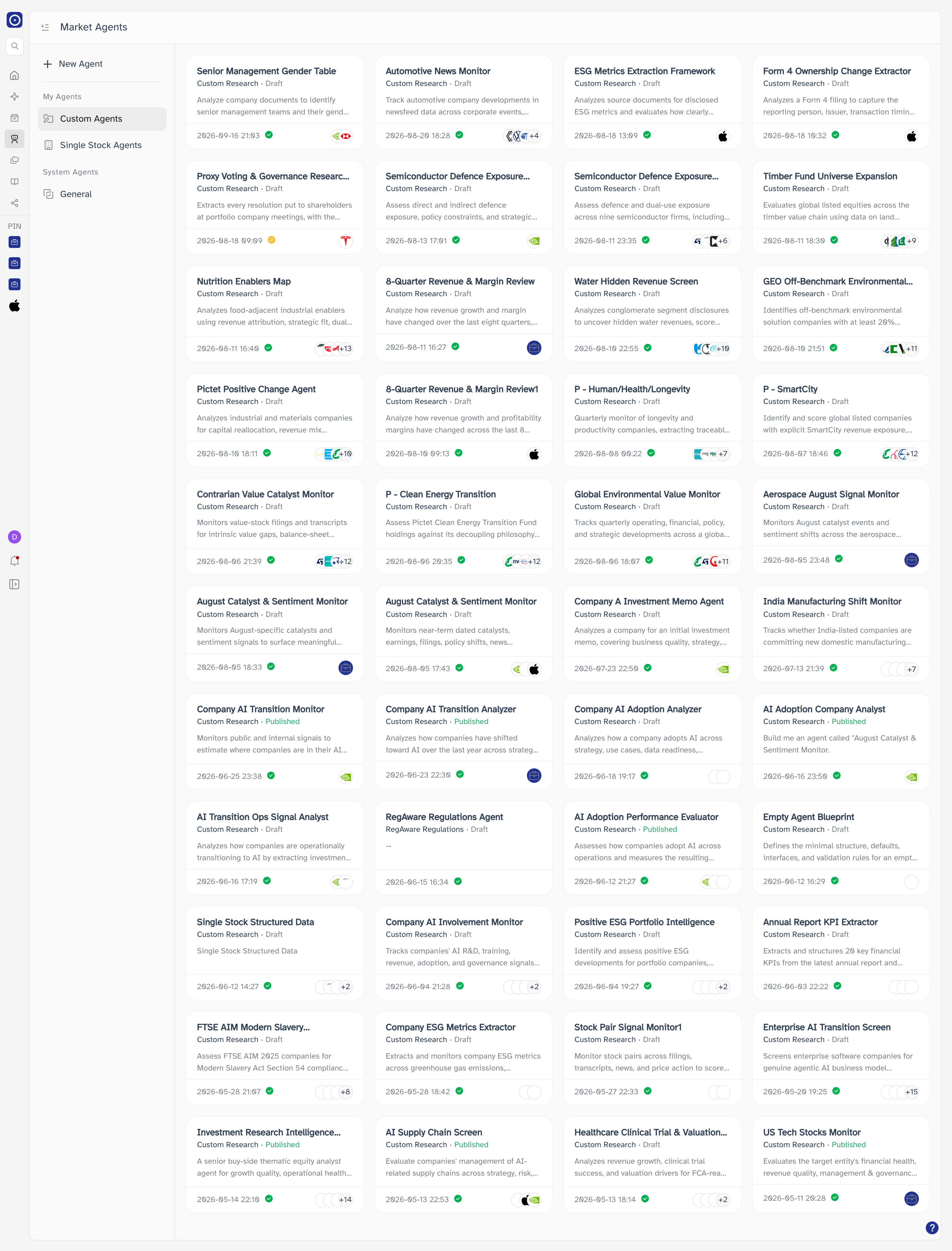
Three kinds of agent
The left column of the page splits your agents into three lists. Which list you are looking at is a choice held by the page only — it does not change the address, so a link to this page always opens on Custom Agents.
| List | What it holds |
|---|---|
| Custom Agents | Agents you built through the setup conversation. Covered by Creating a Custom Agent and The custom agent page. |
| Single Stock Agents | Agents that track one company each. Covered by Creating a Single Stock Agent and The single stock agent page. |
| General | Under System Agents — the ready-made agents Orbit provides, grouped by category. Not covered in this chapter. |
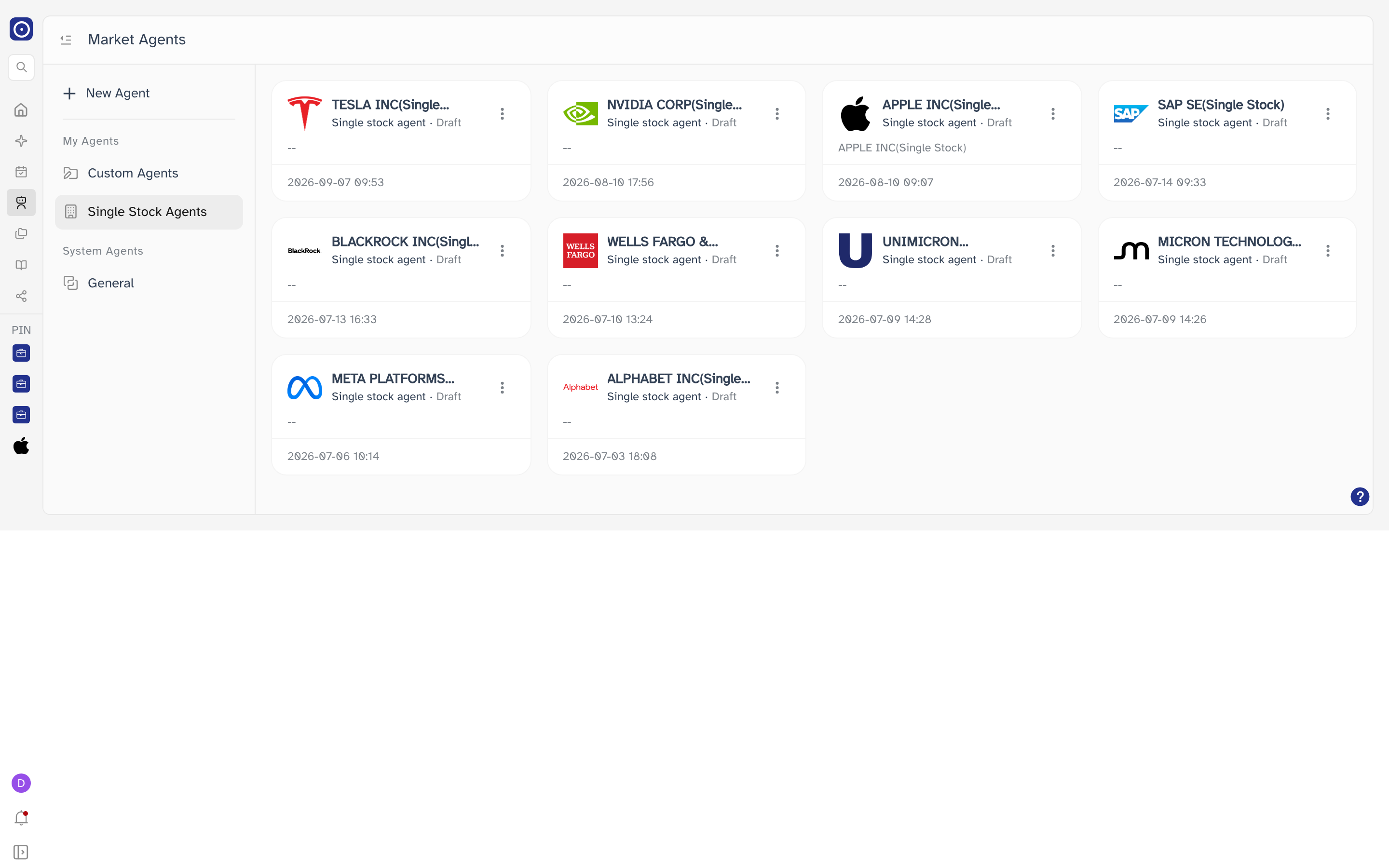
The button at the top left of the main header collapses and restores the whole left column.
Reading an agent card
Every agent in the first two lists is shown as a card carrying the same fields.
| Field | Meaning |
|---|---|
| Name | The agent's name. An agent saved without one reads Untitled Agent. |
| Type | Custom Research, Single stock agent or RegAware Regulations. |
| Published / Draft | Whether the agent's scheduled tasks are live. You switch this from the agent's own page. |
| Description | The description you gave it, or -- when there is none. |
| Date | When the agent was last updated. The grid is sorted by this, newest first. |
| Status icon | The small round mark beside the date, reporting how the agent's last run ended. It carries no label — green for a successful run, amber for one that has not run yet, red for a failure. |
A Custom Agents card shows either the companies it covers or the portfolio it covers — never both. Which one appears depends on how the agent's Company Universe was set, so the same slot holds different things on different cards. Overlapping company logos, with +N for any that do not fit, mean a list of companies; a single solid blue badge means a portfolio. A card whose Company Universe is still empty has neither.
Opening the companies behind a card
When a card covers individual companies, hovering the stacked logos lists them all. Clicking a company in that list opens its company page in a new browser tab, leaving the marketplace where it was. Clicking the logos themselves does not open the agent.
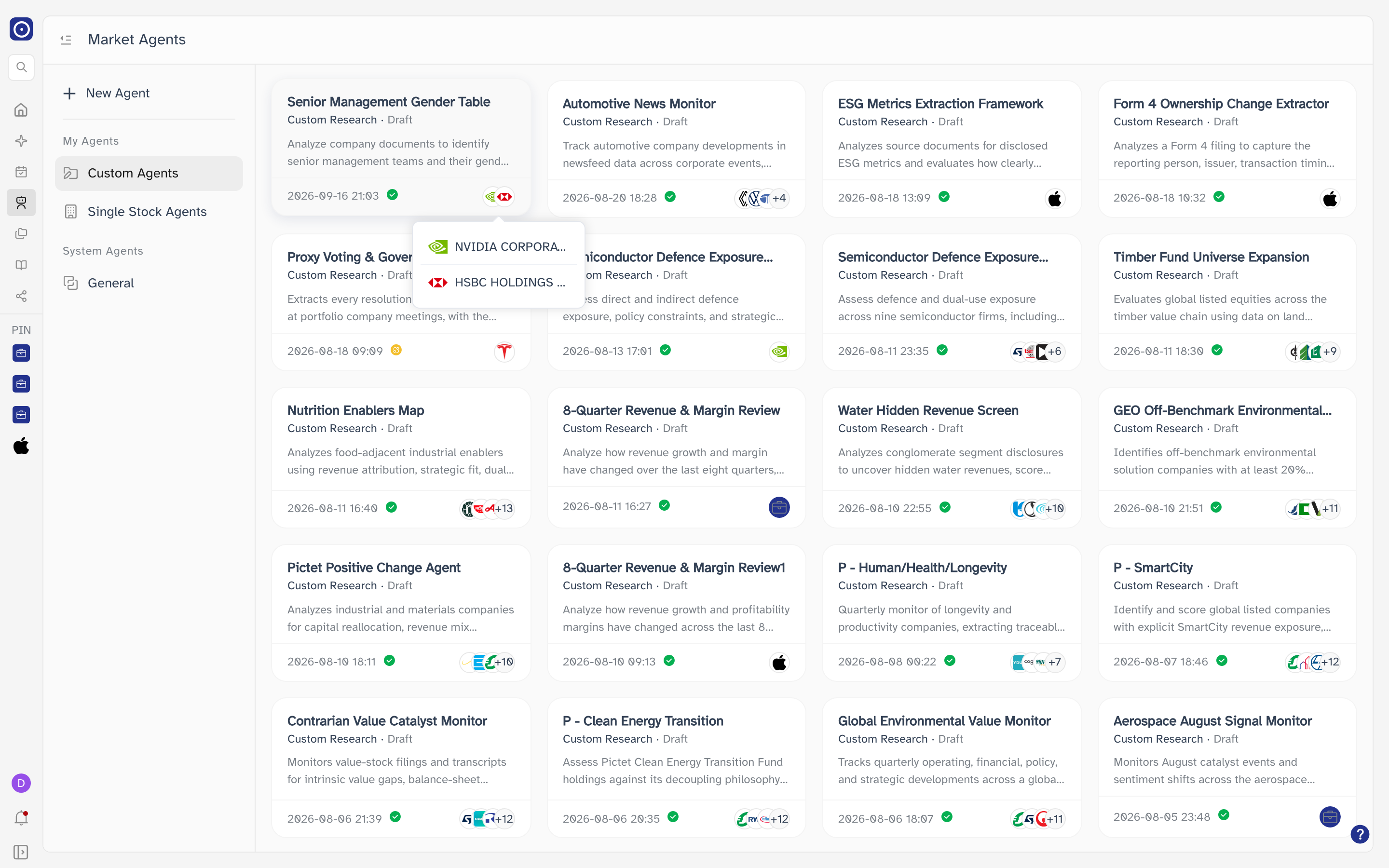
The company page covers what opens when you click a company: its header, the cards held for it, and the actions you can take on it.
Opening the portfolio behind a card
When a card covers a portfolio, hovering the portfolio icon shows the portfolio's name. Clicking the name opens it on Portfolio Management. As with the company logos, clicking the icon does not open the agent.
Opening an agent
Clicking anywhere else on a card opens that agent, and where you land depends on its type.
| Card type | Where it opens |
|---|---|
| Custom Research | The custom agent page. |
| Single stock agent | The single stock agent page. |
| RegAware Regulations | Not the agent page — the Reports tab of the RegAware system agent. That page is not in this manual yet. |
Deleting a single stock agent
Every card in Single Stock Agents carries a ⋮ menu at the top right, with one entry: Delete. Cards in Custom Agents have no such menu — delete those from the agent's own page instead.
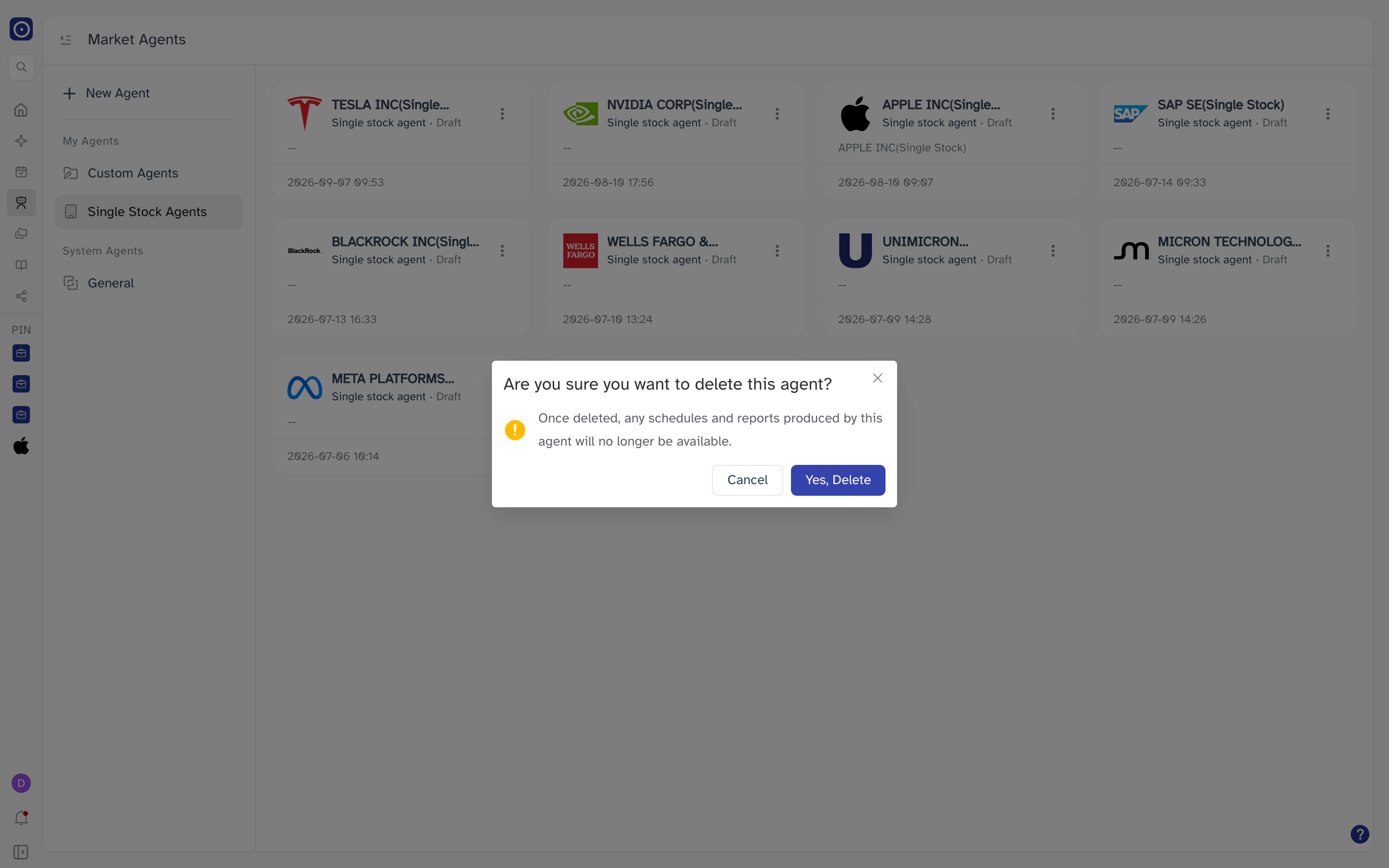
- Click ⋮ at the top right of the card.
- Choose Delete.
- Read the confirmation and click Yes, Delete, or Cancel to keep the agent.
The confirmation reads Once deleted, any schedules and reports produced by this agent will no longer be available. Deleting takes the agent's schedules and its past reports with it.
Creating an agent
New Agent at the top of the left column opens a menu with one entry per agent type.
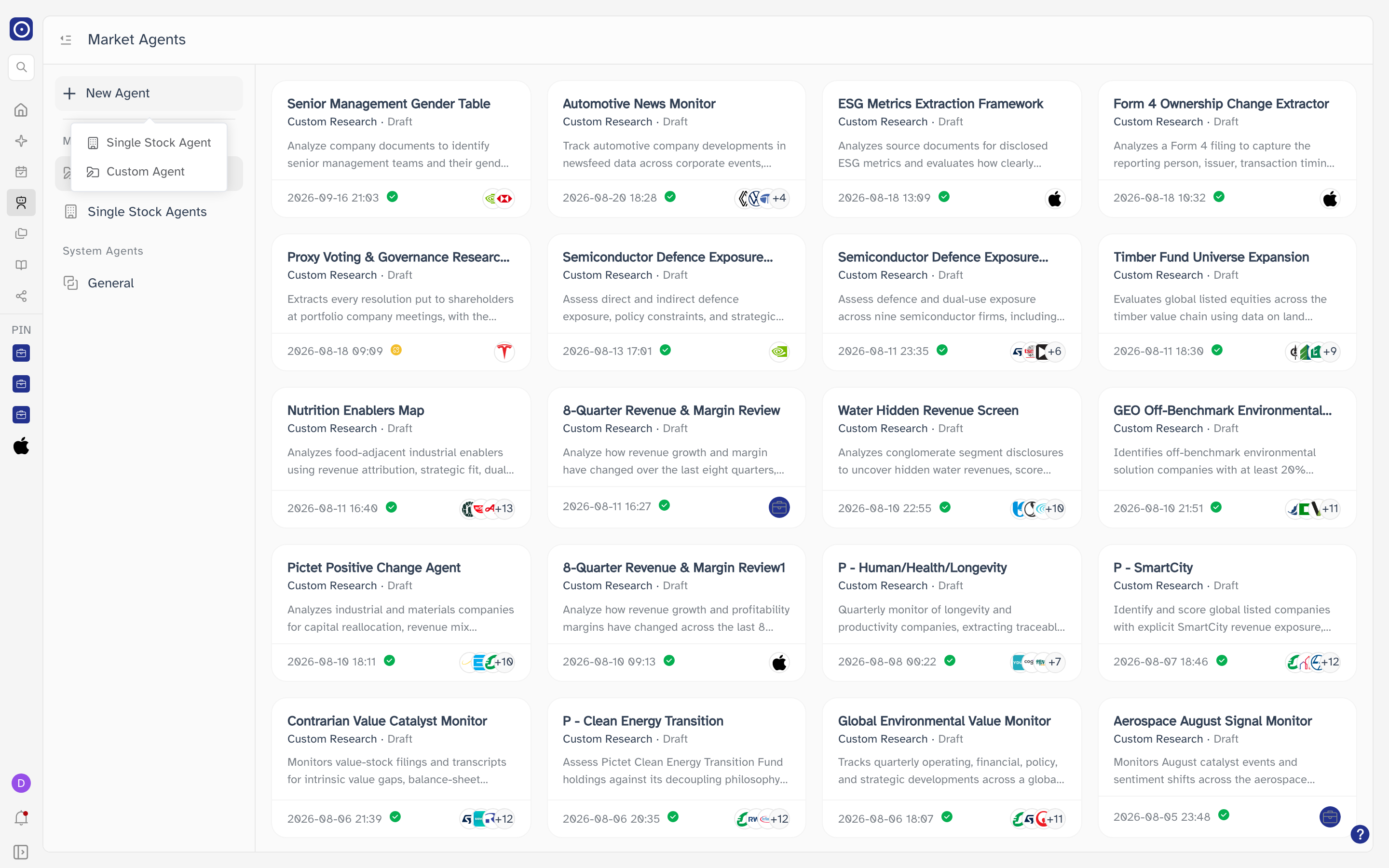
Single Stock Agent
Asks which company first, because a single stock agent is built around exactly one.
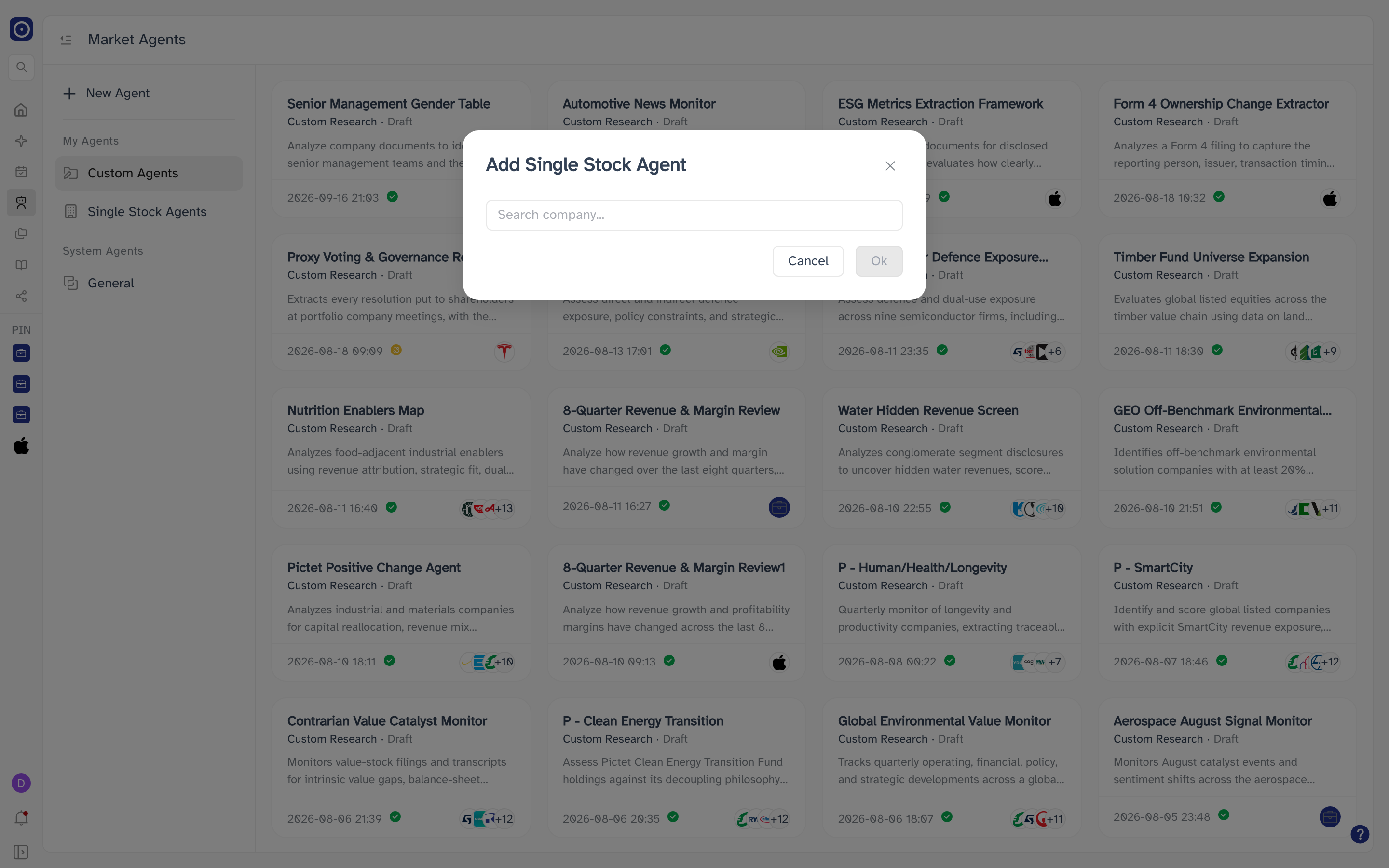
- Choose Single Stock Agent from the New Agent menu.
- Type into Search company... and pick a company from the results.
- Click Ok.
| Control | Notes |
|---|---|
| Search company... | Searches as you type and returns up to five companies at a time, each with its logo, name, ticker and ISIN. |
| Ok | Stays disabled until a company is selected. |
| Cancel | Closes the dialog. Your selection is not kept. |
Ok opens that existing agent rather than starting a second one — see The single stock agent page. Only a company with no agent yet takes you to Creating a Single Stock Agent.
Custom Agent
Goes straight to the setup conversation described in Creating a Custom Agent. Nothing is created until you finish that conversation.
When you have no agents yet
Both Custom Agents and Single Stock Agents show You haven't created any agents with the line Start building one tailored to your workflow. until the first one exists. The two lists are counted separately, so one can be empty while the other is not.