
Share
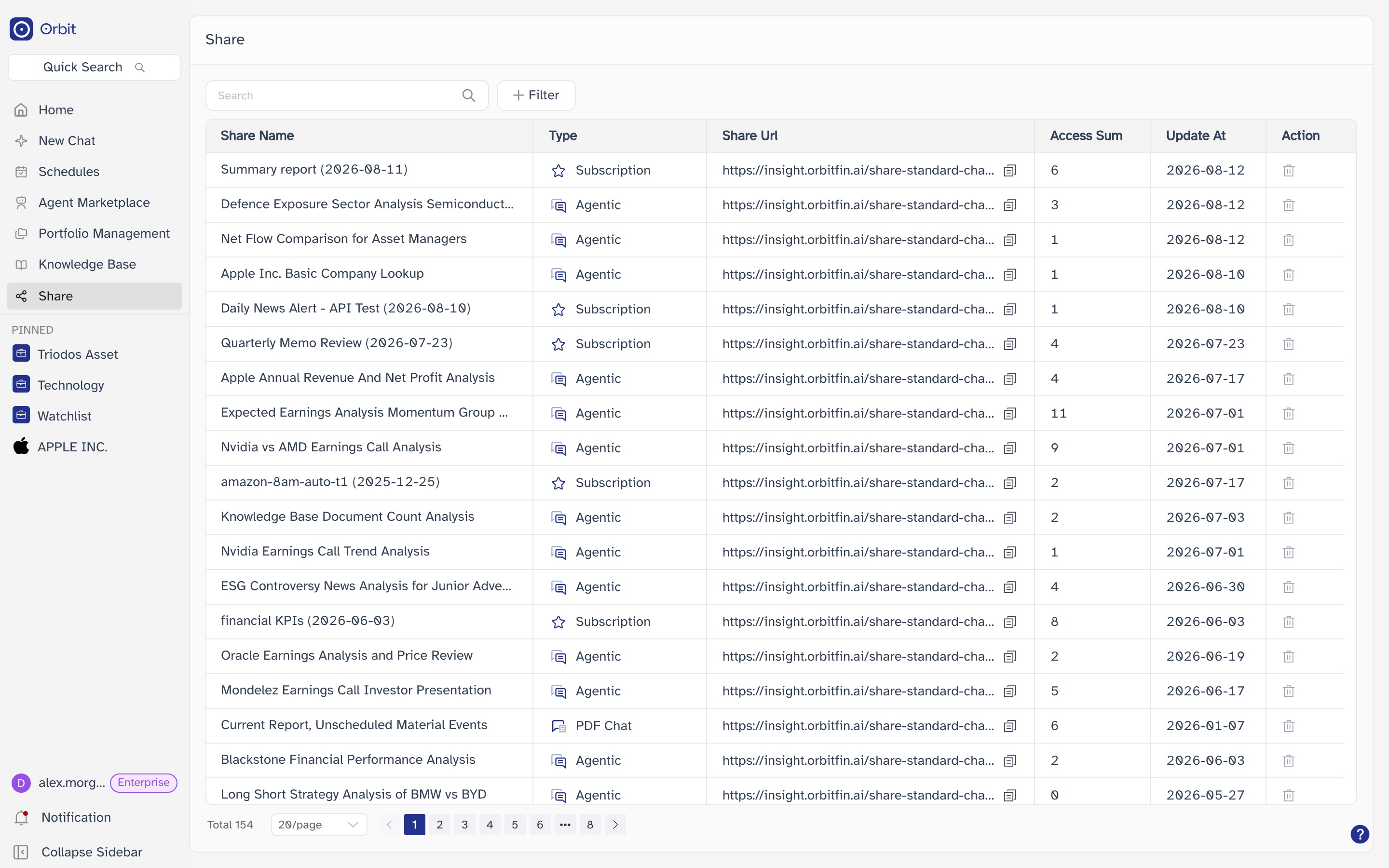
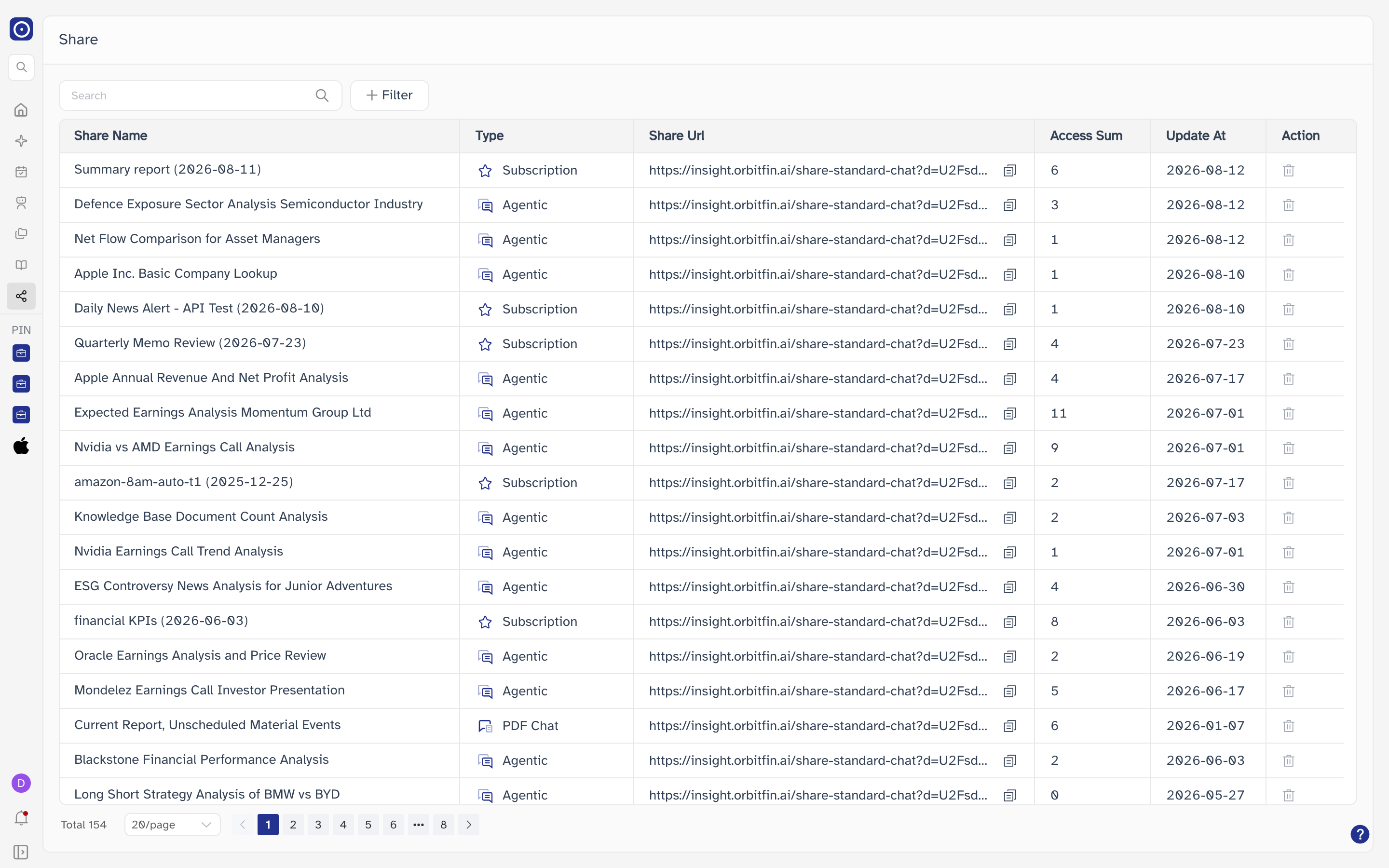
Every link you create with a Share button elsewhere in Orbit is collected on this page. It lists the links you own, shows how often each one has been opened, and lets you copy a link again or withdraw it.
Opening the page
- Click Share in the left rail.
The rail shows icons only until you expand it. The control at the bottom of the rail, labelled Collapse Sidebar, switches between icons and names.
Creating a share link
There is no New button here. Rows appear after you use a Share button somewhere else in Orbit. Clicking that button creates the link and copies it straight to your clipboard — there is no dialog to fill in and nothing else to confirm.
| Where you click Share | Type it gets in this list |
|---|---|
| Chat History | Matches the row you shared: Chat, Search, Deep Search, News Chat, PDF Chat or Agentic. |
| A Chat Agent conversation | Agentic |
| A PDF Chat conversation | PDF Chat |
| An agent report, from Schedules or Agent Builder | Subscription |
| A portfolio report summary | Report Summary |
In Chat History, sharing a row that already has a link copies the existing address rather than creating a second one, so you will not end up with duplicate rows for the same conversation.
A Deep Research row in Chat History only offers Share once the run has finished. While it is still working, the icon is not shown.
A share address works without signing in to Orbit. Treat it like a password: whoever you send it to can pass it on, and everyone who opens it sees the same content. If the result contains anything you would not want forwarded, do not share it.
Finding a link
Type into Search at the top of the page and press Enter, or click the magnifier, to match on the share name. Clearing the box brings the full list back.
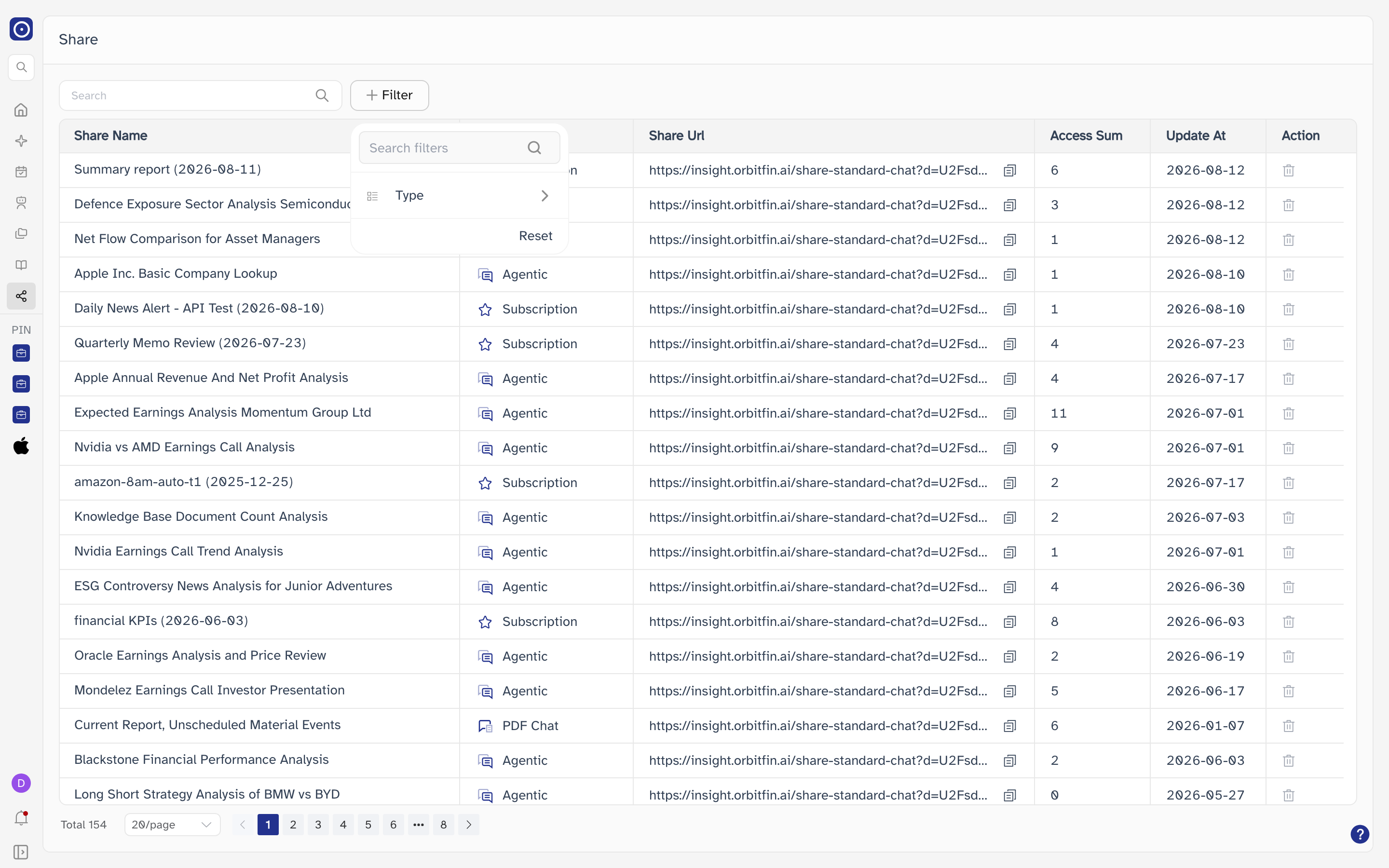
Filter narrows the list by type. Click it, then click Type to open the list of types.
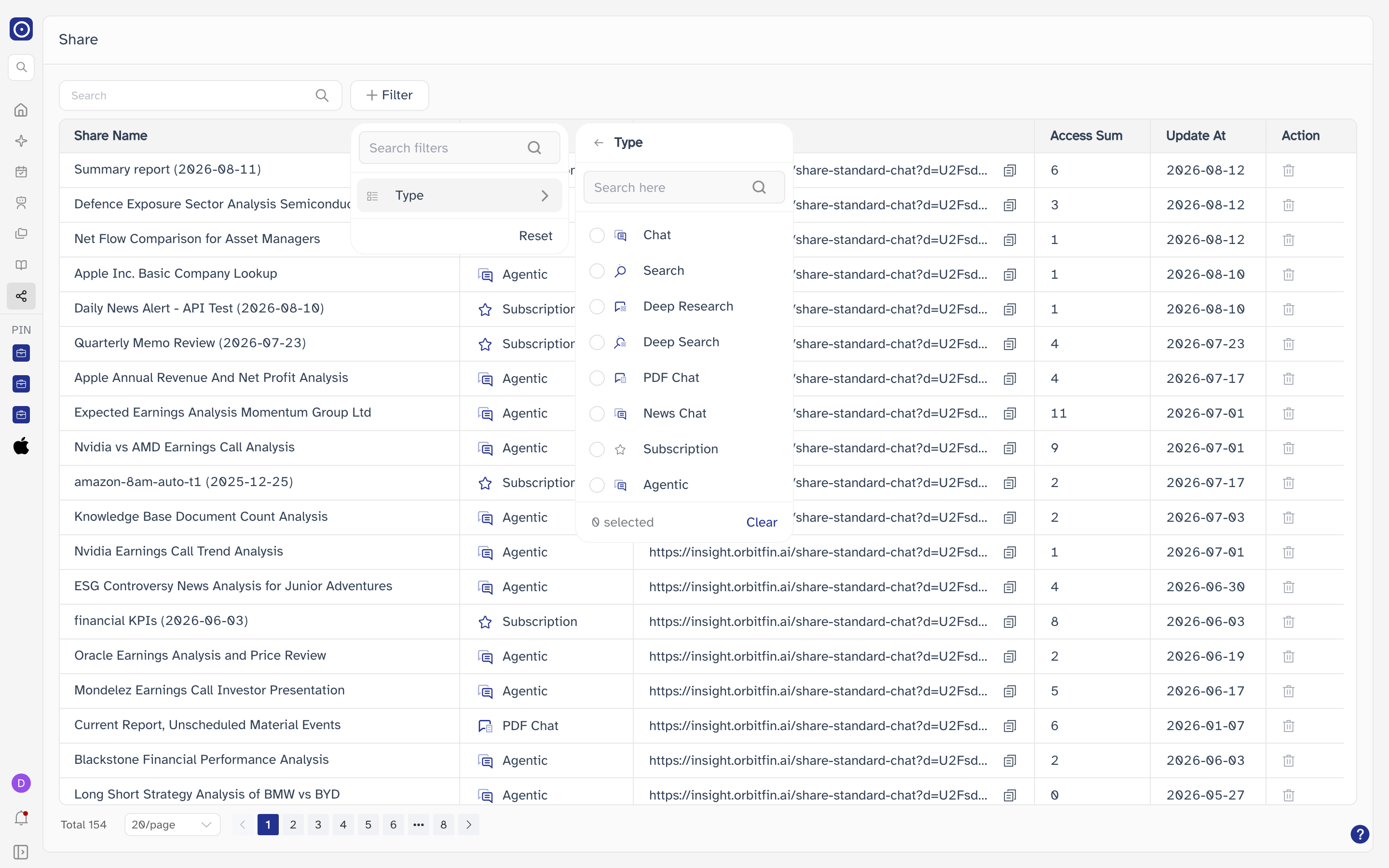
| Type | What was shared |
|---|---|
| Chat | A standard chat conversation. |
| Search | A search result. |
| Deep Research | A completed Deep Research run. |
| Deep Search | A Deep Search result. |
| PDF Chat | A conversation about one document, from PDF Chat. |
| News Chat | A news research conversation. |
| Subscription | A report produced by a scheduled agent. |
| Agentic | A Chat Agent conversation. |
The search text, the type you picked and the page you are on are all kept in the address bar. Refreshing the page, or coming back with the browser's Back button after opening a shared result, returns you to the same list rather than to the top.
What each column shows
| Column | Notes |
|---|---|
| Share Name | The title the item had when you shared it. Click it to open the shared result. |
| Type | What kind of result the link points at. See the table above. |
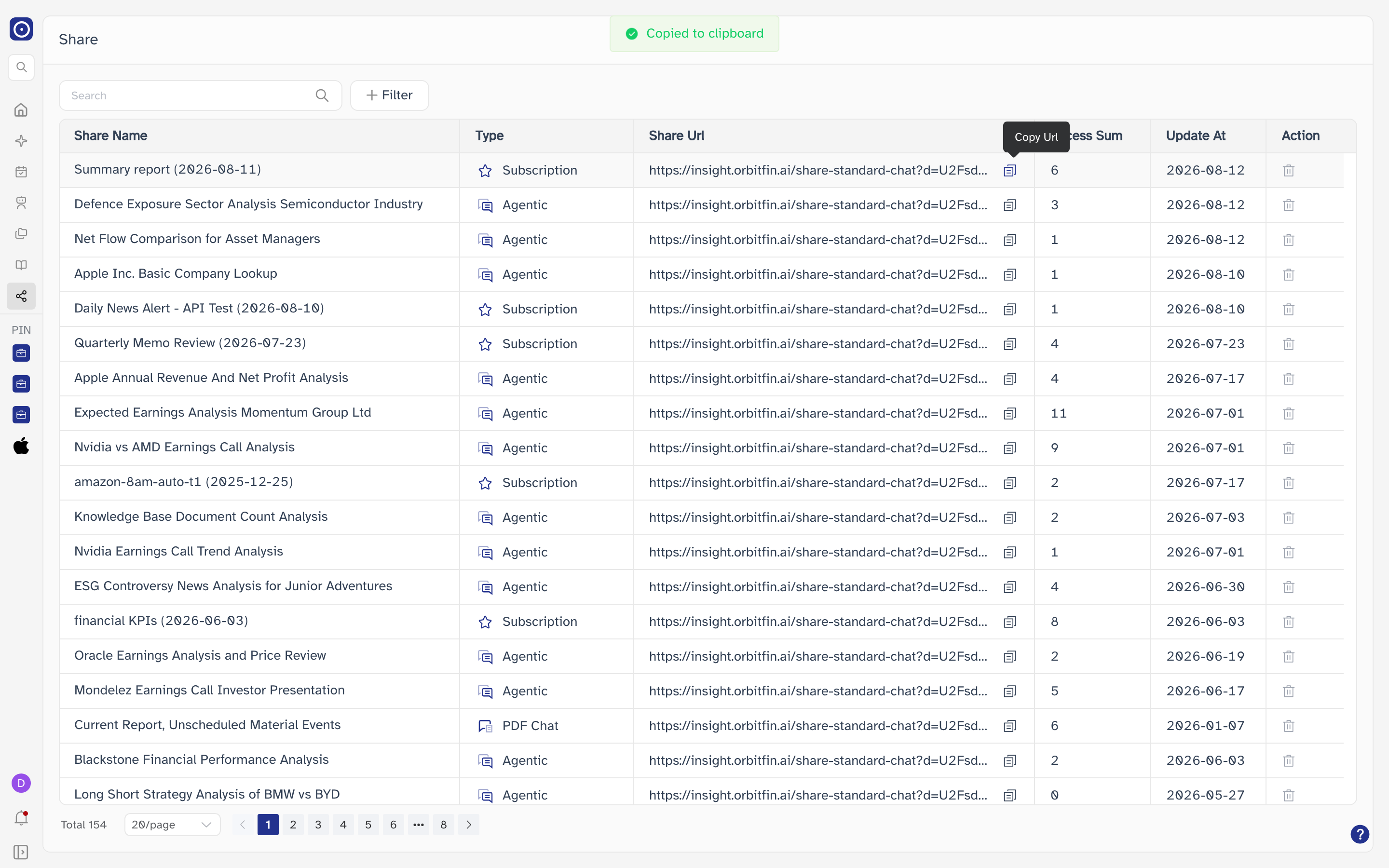
| Share Url | The full address you send to other people. Long addresses are cut off — use the copy icon rather than reading it off the screen. |
| Access Sum | How many times the link has been opened. |
| Update At | The date the link was created, as YYYY-MM-DD. |
| Action | Holds the delete control, covered under Removing a link below. |
Share Name is the name recorded when the link was made. Renaming the original conversation or report afterwards does not change what this list shows.
Copying a link again
Click the copy icon at the right of the Share Url cell — it is labelled Copy Url when you hover it. Orbit confirms at the top of the screen and the confirmation fades on its own.
Opening a shared result
Click a name in Share Name to open what the link points at — the same view your recipients see. Use this to check a link before you send it out.
Removing a link
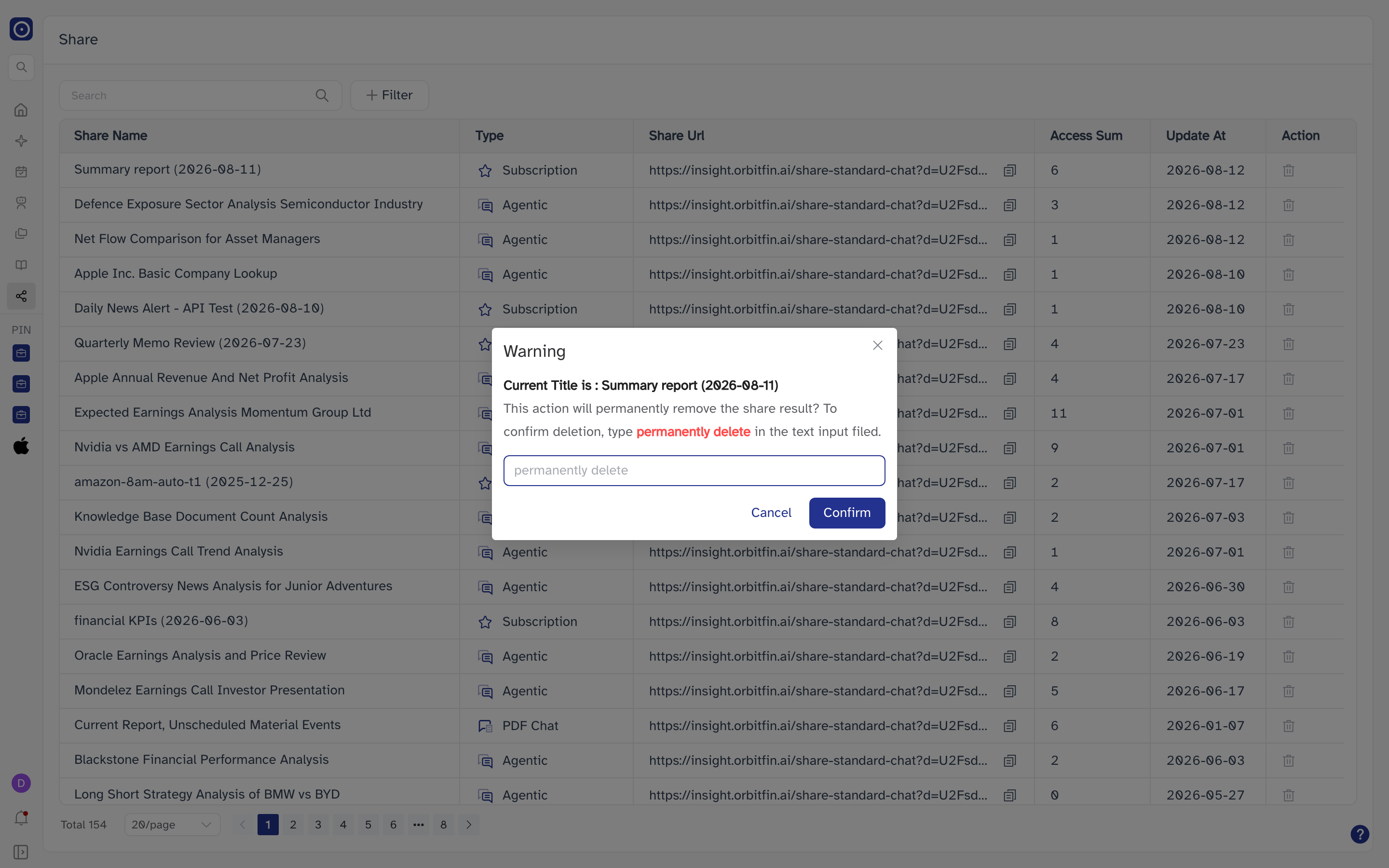
Click the bin icon in the Action column, labelled Delete when
you hover it. A confirmation appears naming the link, and you have to type
permanently delete into the box before Confirm will accept it.
Deleting the link revokes it. Anyone you already sent it to will no longer be able to open it, and sharing the item again produces a different address — the old one will not start working again. The conversation or report itself is not deleted, only the public link to it.
Paging through the list
The total number of links is shown at the bottom left. The list shows 20 per page by default; the page-size box offers 20, 50 and 100.