
Password
Change the password you use to sign in to Orbit. You need your current password to set a new one.
Opening the page
- Click your avatar at the bottom of the left rail and choose Settings.
- Under ACCOUNT, select Password.
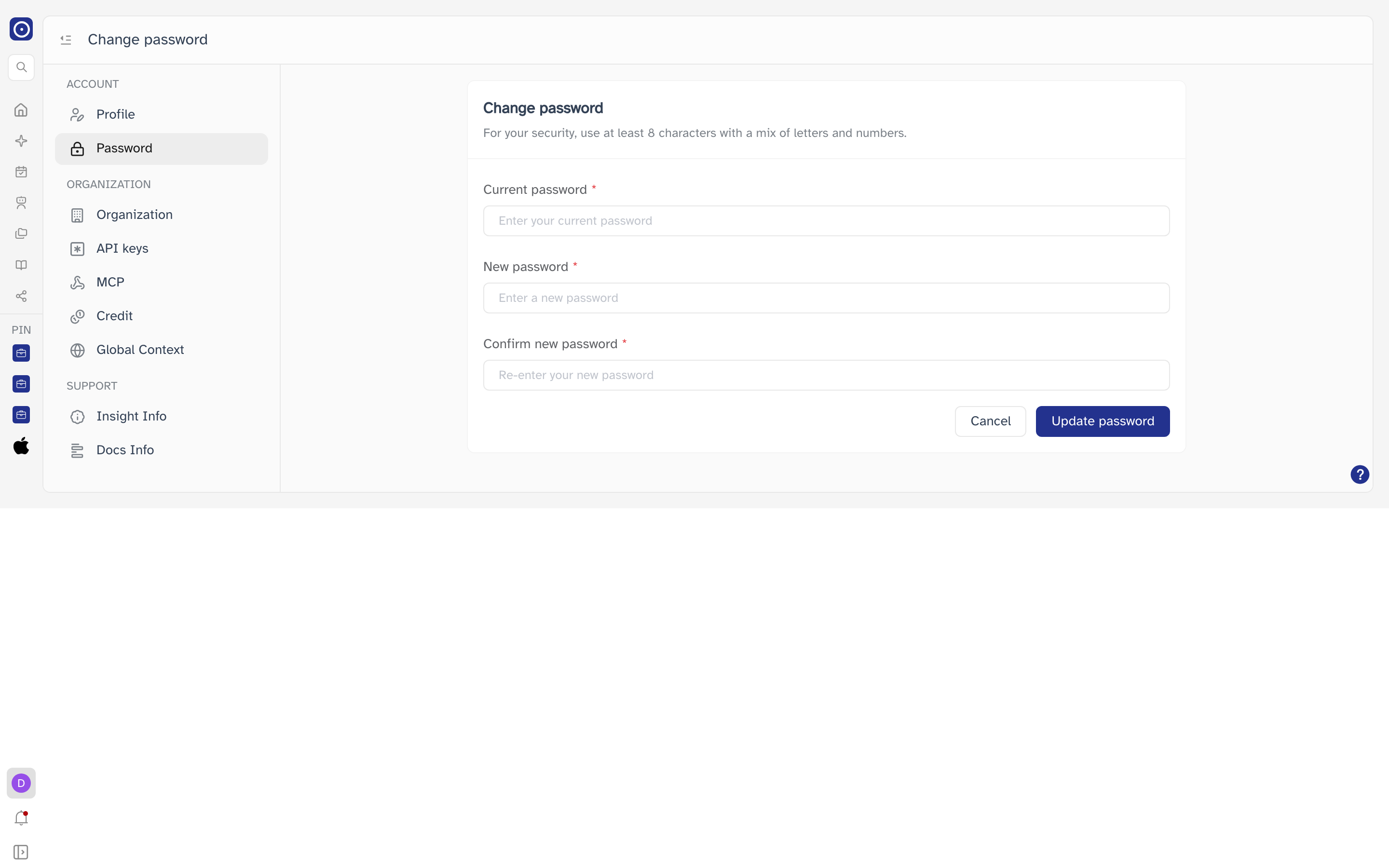
Changing your password
- Enter the password you sign in with today in Current password.
- Enter the password you want in New password.
- Type the same value again in Confirm new password.
- Click Update password.
Each field has a show/hide control at its right edge if you want to check what you have typed.
On success Orbit confirms the change and takes you to the Dashboard after a moment. Your new password applies the next time you sign in.
Choosing a password
Passwords must be between 6 and 20 characters. For your security, use at least 8 characters with a mix of letters and numbers.
If something goes wrong
| Message | What it means |
|---|---|
| New password and confirm password do not match | The two new-password fields differ. Retype them and try again. |
| Please input… length must be between 6 and 20 | A field is empty or outside the allowed length. |
| Change password failed, please try again | The current password was not accepted, or the request did not reach Orbit. Check your current password first; if it keeps failing, contact Orbit. |
Cancel clears all three fields and removes any validation messages. It does not leave the page.