
PDF Chat
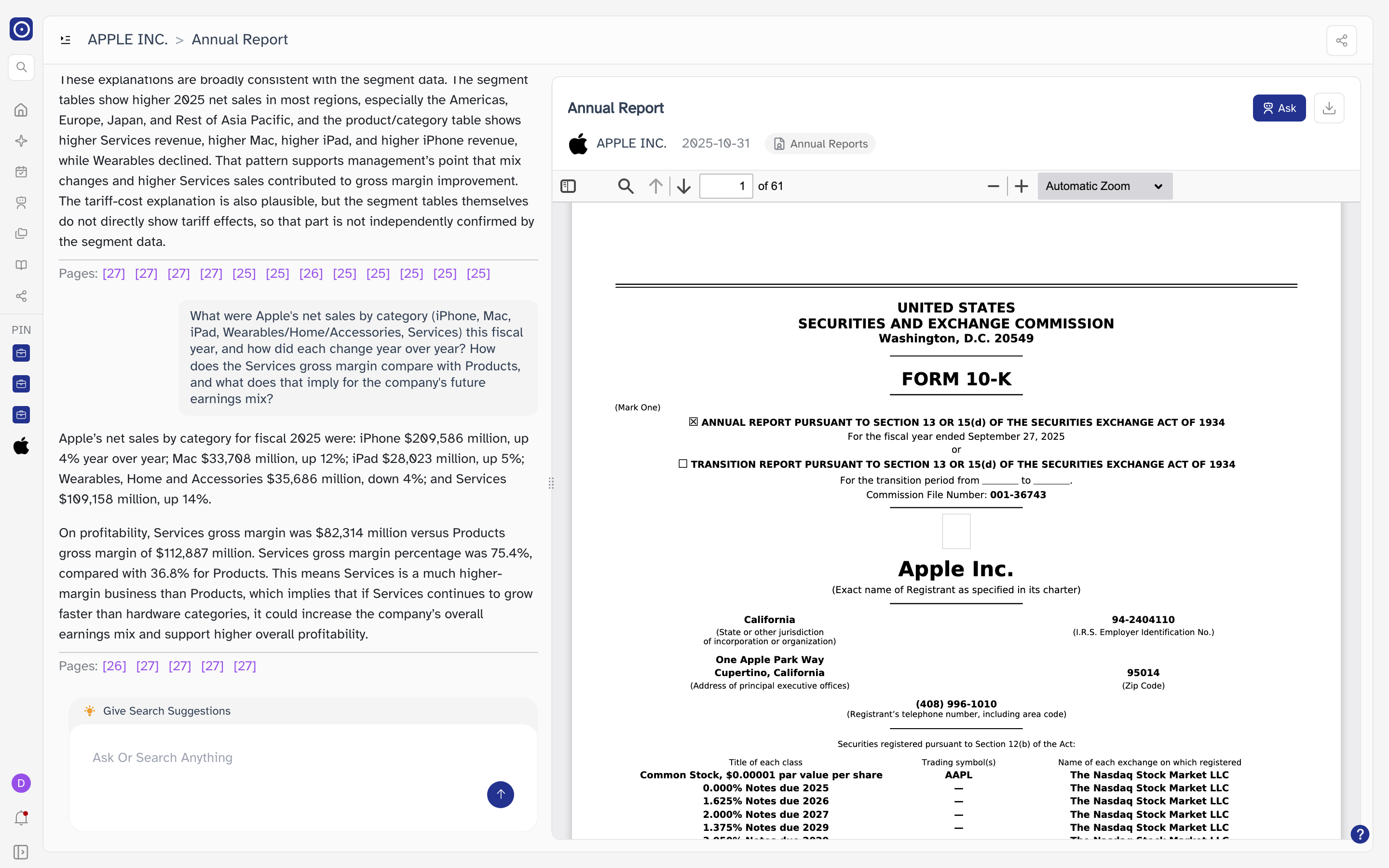
One document open beside a conversation about it. Ask a question in the left pane, and every answer carries the pages it was drawn from — click one and the document jumps there and highlights the passage, so you can check the answer against the filing itself.
Opening the page
PDF Chat has no entry in the left rail. It always opens with a document already loaded, from wherever you found that document.
| From | What to click |
|---|---|
| Portfolio detail | Select a filing under Last Reports, then Chat with Report above the reading pane. |
| Chat history | Any entry tagged PDF Chat, in the history list in the left rail or on the full history page. This reopens a past conversation rather than starting a new one. |
| Quick Search | A past PDF Chat result in the search panel at the top of the left rail. |
| A company's page | A report card under the filings list. |
| Document search results | The title of a matched document. This one also brings the matched passages with it — see The passage list. |
Most of these entries open PDF Chat in a new browser tab, leaving the page you came from where it was.
The page at a glance
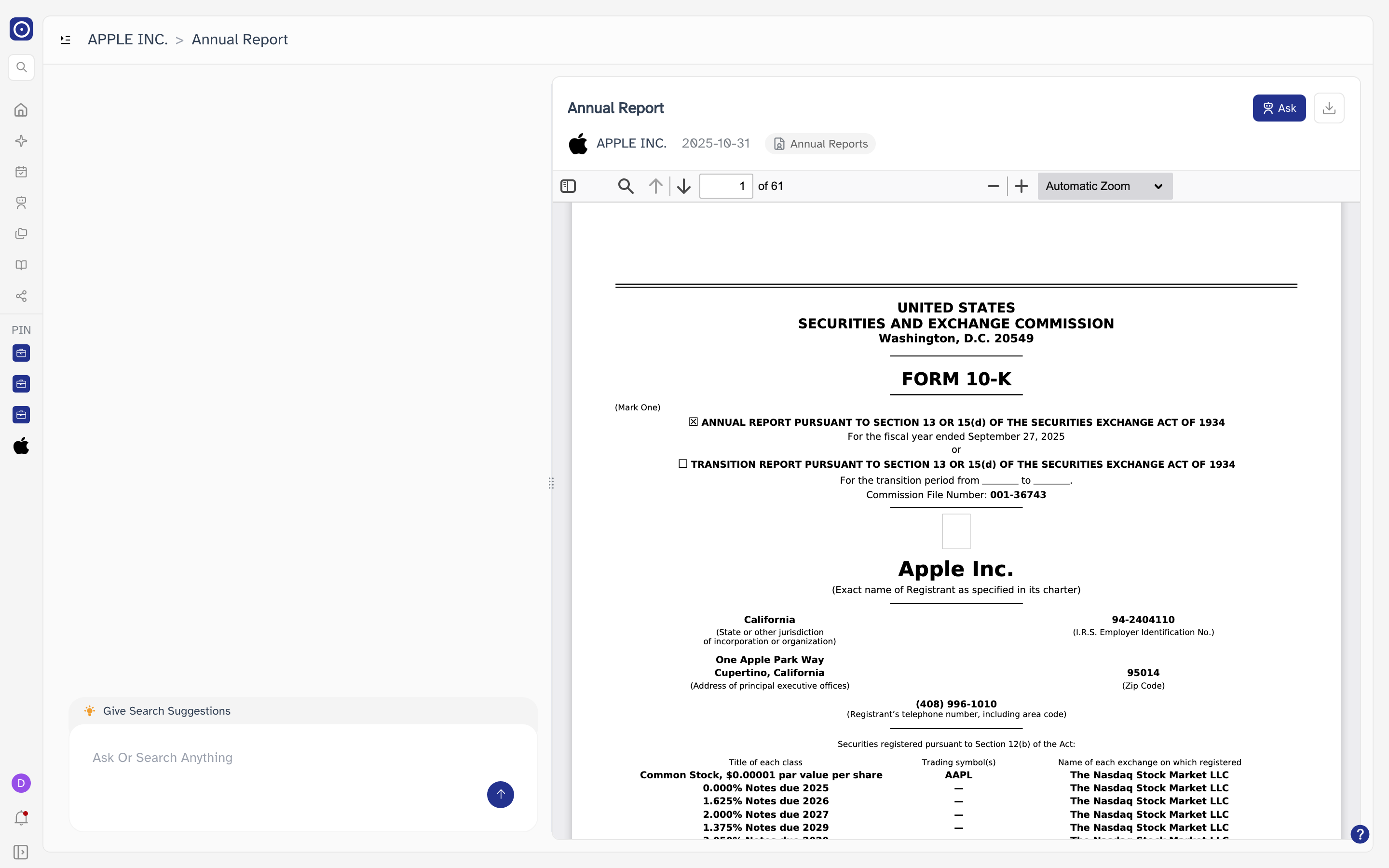
The two panes are separated by a drag handle. Drag it to give either side more room. Neither pane can be dragged away entirely — to do that, collapse the chat pane instead.
The document pane
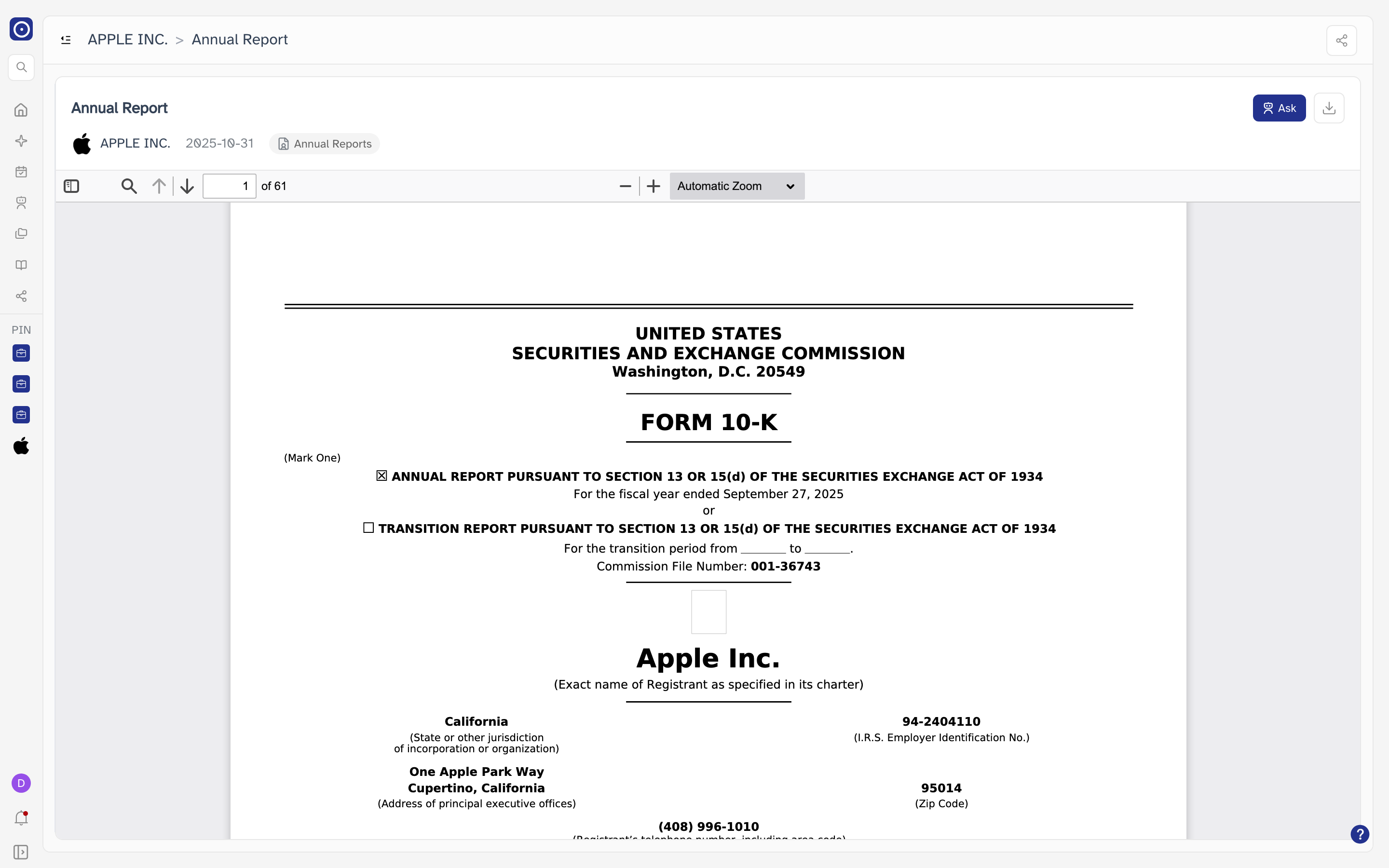
The header above the document describes what you are reading.
| Item | Meaning |
|---|---|
| Title | The report's title, on the first line. |
| Company | Logo and name of the company the report belongs to. Click it to open that company's page. Reports published by a regulator rather than a company show the regulator's name here instead, and clicking does nothing. |
| Date | When the report was published. Absent if the report carries no date. |
| Type tag | What kind of report it is — Annual Reports, Risk Alerts, and so on. A report can carry more than one tag. |
| Audio player | Only on reports that come with a recording, such as an earnings call. Plays in place. |
Two buttons sit at the top right of the header.
| Button | What it does |
|---|---|
| Ask | Shows and hides the chat pane. Only present when the document is a PDF and Orbit has finished processing it — a report still being processed, or one that failed, opens without a chat pane at all. |
| Download | An icon button; hover it for its name. Saves the original PDF to your computer, named after the company. The icon spins while the file is being fetched. |
Below the header is the document viewer's own toolbar: a thumbnails and outline panel, a text search, previous and next page, the current page number beside the total, and the zoom controls. These act on the document only and are independent of the conversation.
Asking a question
Type into Ask Or Search Anything at the bottom of the chat pane and press Enter. Shift + Enter starts a new line instead of sending. The arrow button to the right of the box does the same as Enter.
- Sending an empty box does nothing except show Please ask or search anything.
- The answer is written into the pane a few words at a time as Orbit produces it.
- While an answer is being written, the arrow button becomes a stop button. Click it to cut the answer short; a reload icon then appears on the unfinished answer, and clicking that asks the same question again.
Opening a document and re-reading a saved conversation are both free. Asking a question is not. Your balance is on the Credit page.
Reading an answer
Jumping to a cited page
Click any chip in the Pages: row. The document jumps to that page and shades the exact passage the answer used, so you can read the source in its own context rather than taking the answer's word for it. The chip you clicked stays marked until you click another one — only one chip is ever marked, across the whole conversation.
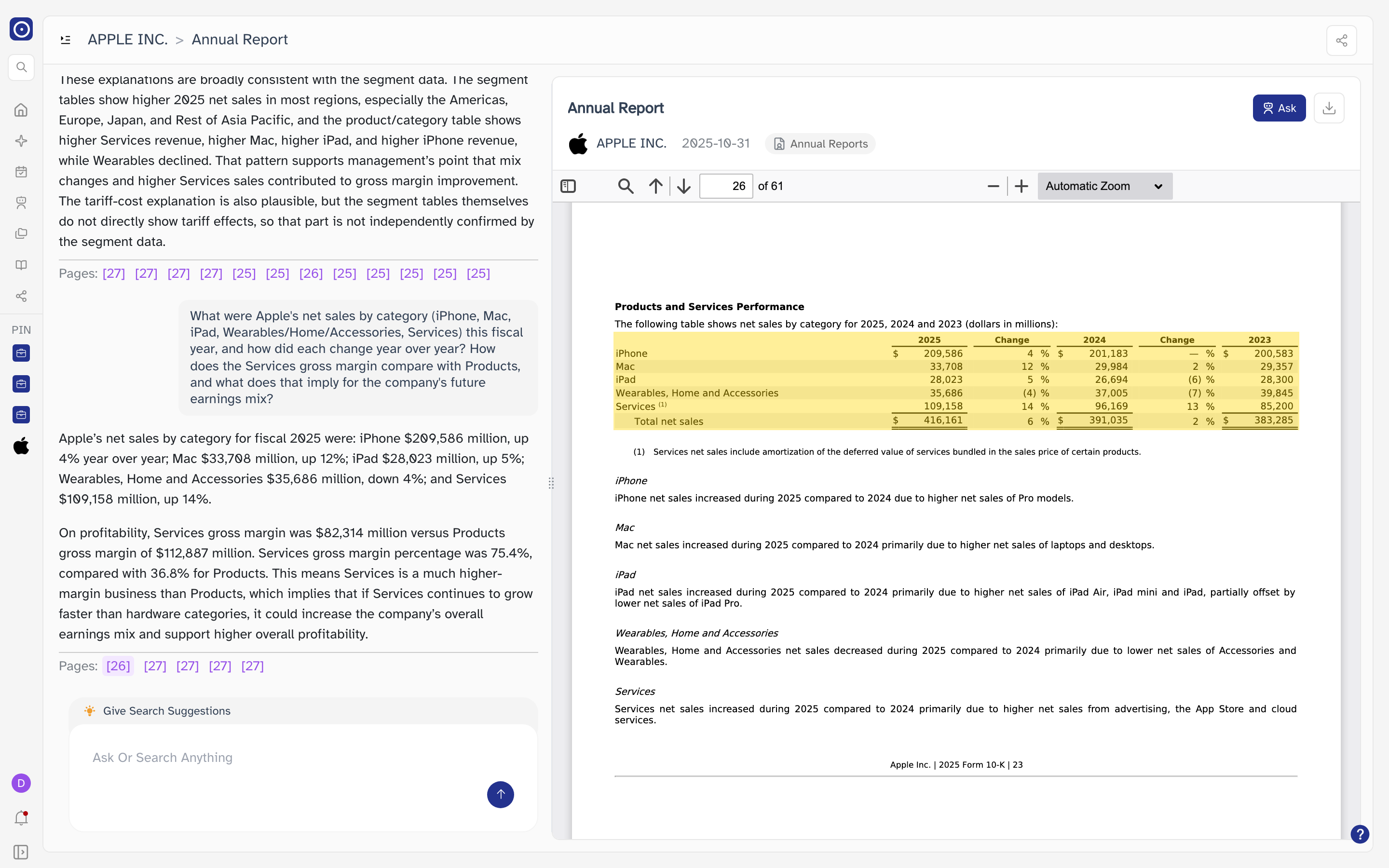
A row like [26] [27] [27] [27] [27] is not a mistake. There is one chip per passage, not per page, so four passages on page 27 produce four chips reading [27]. They look identical but each jumps to a different place on that page.
A chip counts pages from the front of the PDF, which is what the page box in the viewer's toolbar shows. It is usually not the page number printed at the foot of the document — a filing with a cover page and contents will be a few pages out. Trust the highlight, not the arithmetic.
Suggested questions
Give Search Suggestions, just above the input box, opens a catalogue of ready-made questions called Concept Filter. It is inert while an answer is being written, and in a shared conversation.
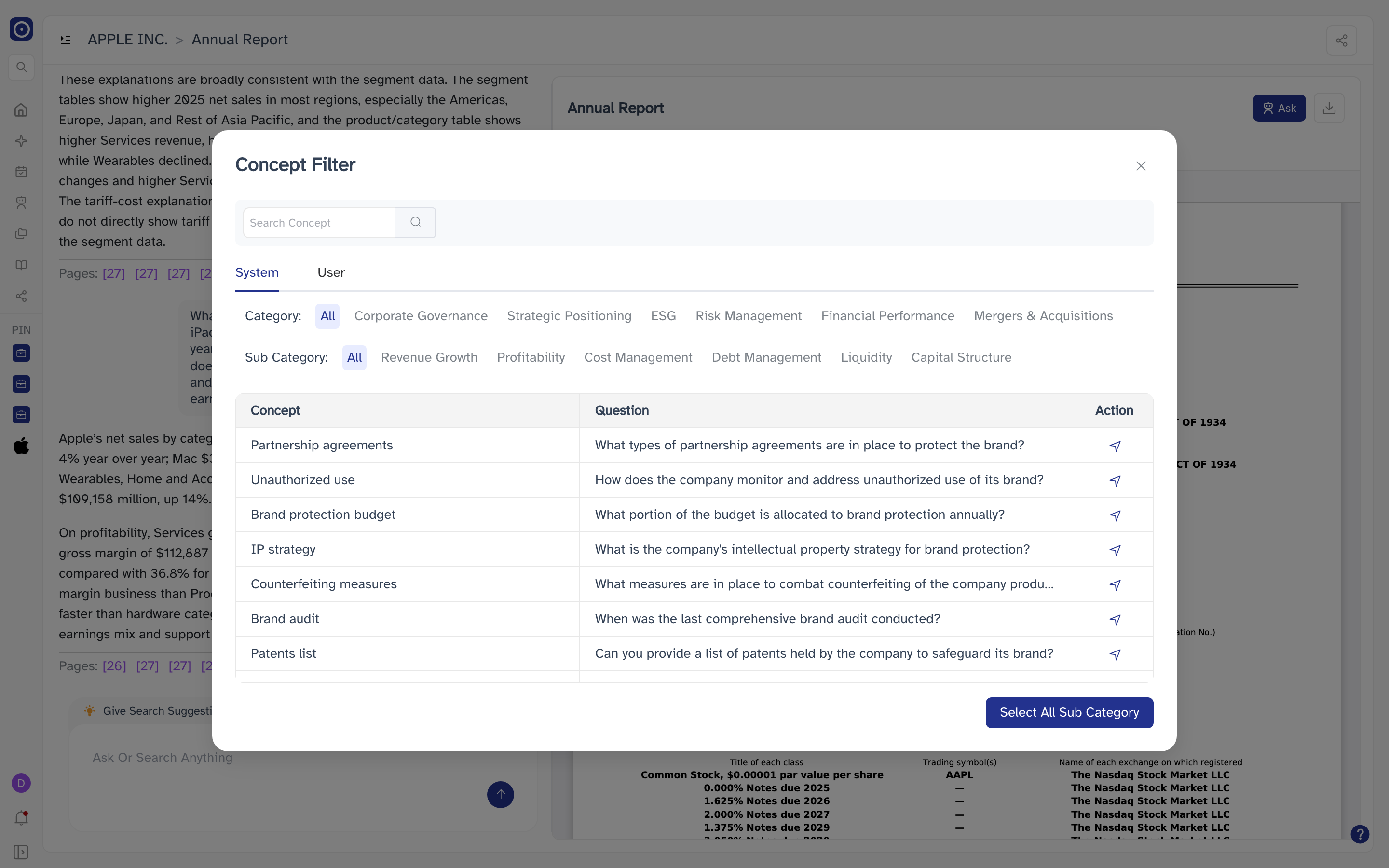
| Control | What it does |
|---|---|
| Search Concept | Filters the table by concept name. Press Enter or click the magnifier. |
| System / User | Switches between Orbit's own catalogue and the concepts your organisation has defined. Switching clears the search box and resets the category rows. |
| Category | Narrows the table. On System it is a two-level row — picking a Sub Category also highlights the Category it belongs to. On User it lists your themes instead, and there is no second row. |
| Concept | The concept's name. |
| Question | The question that will be asked. Long ones are cut short — hover to read the whole thing. |
| Action | A send icon. Closes the dialog and asks that one question. |
| Pager | User tab only. Shows the total across the whole catalogue and steps through it; changing the page size returns you to the first page. |
| Close | The ✕ at the top right. Leaves without asking anything. |
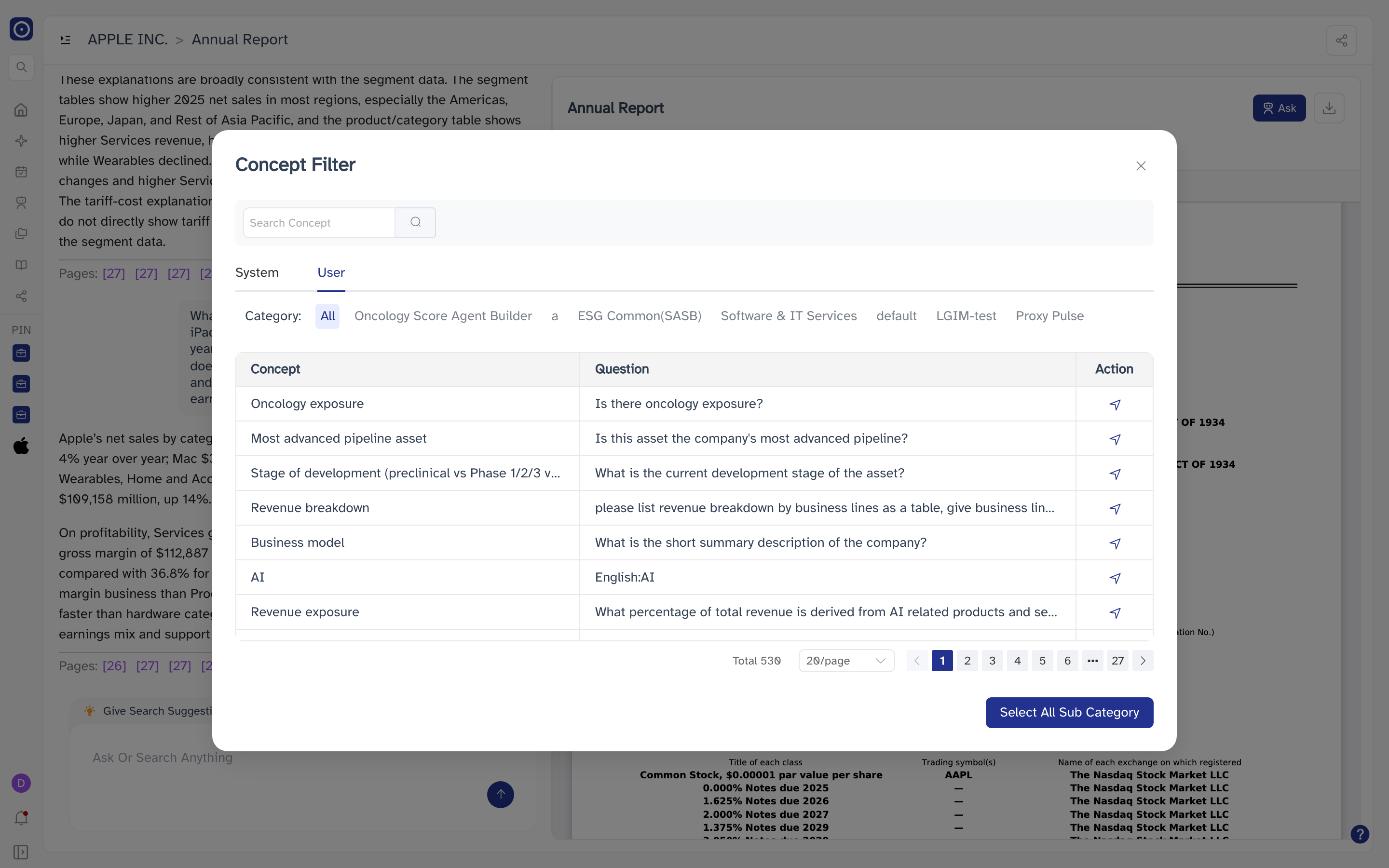
The button at the bottom right does not select rows for you to review. It closes the dialog and asks every question currently in the table, one after another, charging credits for each one. On the User tab that is the current page of the table, which can be twenty questions. There is no confirmation step and no way to call it back once it starts.
Giving the document the whole window
The toggle at the far left of the page header, beside the breadcrumb, slides the chat pane shut and lets the document fill the width. The same toggle brings it back, with the conversation intact.
The passage list
Arriving from a document search adds a third column, between the chat pane and the document, holding the passages that matched your search.
| Item | Notes |
|---|---|
| Total: N | How many passages matched. |
| A card | The passage itself, with a Page: N tag. Click the card to jump the document to that page and highlight it — the same behaviour as a Pages: chip. |
| Close icon | At the top right of the column. Collapses it and gives the room back to the document. |
| Bell button | Appears in the bottom-right corner once the column has been closed and the chat pane is hidden. Brings the column back. |
Arriving from a concept analysis gives a narrower column titled Concept, listing the concepts found in this document. It is a reference list only — the entries are not clickable. Hover one that is cut short to read it in full.
Entries that pass only the document — Chat with Report, a report card, a Chat History row — open PDF Chat with two panes and no third column. That is the normal case.
Saving and sharing
The conversation saves itself as soon as the first answer arrives. It is filed under the report's title, typed as PDF Chat, and appears in Chat History; the address in the browser bar gains the conversation's identifier, so reloading the page brings the questions and answers back rather than starting over. Later answers update the same entry.
Once there is something saved, a Share icon appears at the top right of the page header. Clicking it creates a link to this conversation and copies it to your clipboard — Copied to clipboard confirms it. Clicking it again on an already shared conversation just copies the link again.
| What the recipient gets | Notes |
|---|---|
| The document and the whole conversation | Read in the same two-pane layout, with the Pages: chips working as they do for you. |
| No input box | The box and the send button are disabled, and Give Search Suggestions does nothing. They cannot continue the conversation or spend your credits. |
| No sign-in | The link opens without an Orbit account. Treat it as public. |
Every link you create is listed on the Share page under the type PDF Chat, which is also the only place to revoke one.