
Global Context
Documents you upload here become shared context across Orbit, so Chat can draw on them wherever you are working — you do not need to attach them to each conversation.
Opening the page
- Click your avatar at the bottom of the left rail and choose Settings.
- Under ORGANIZATION, select Global Context.
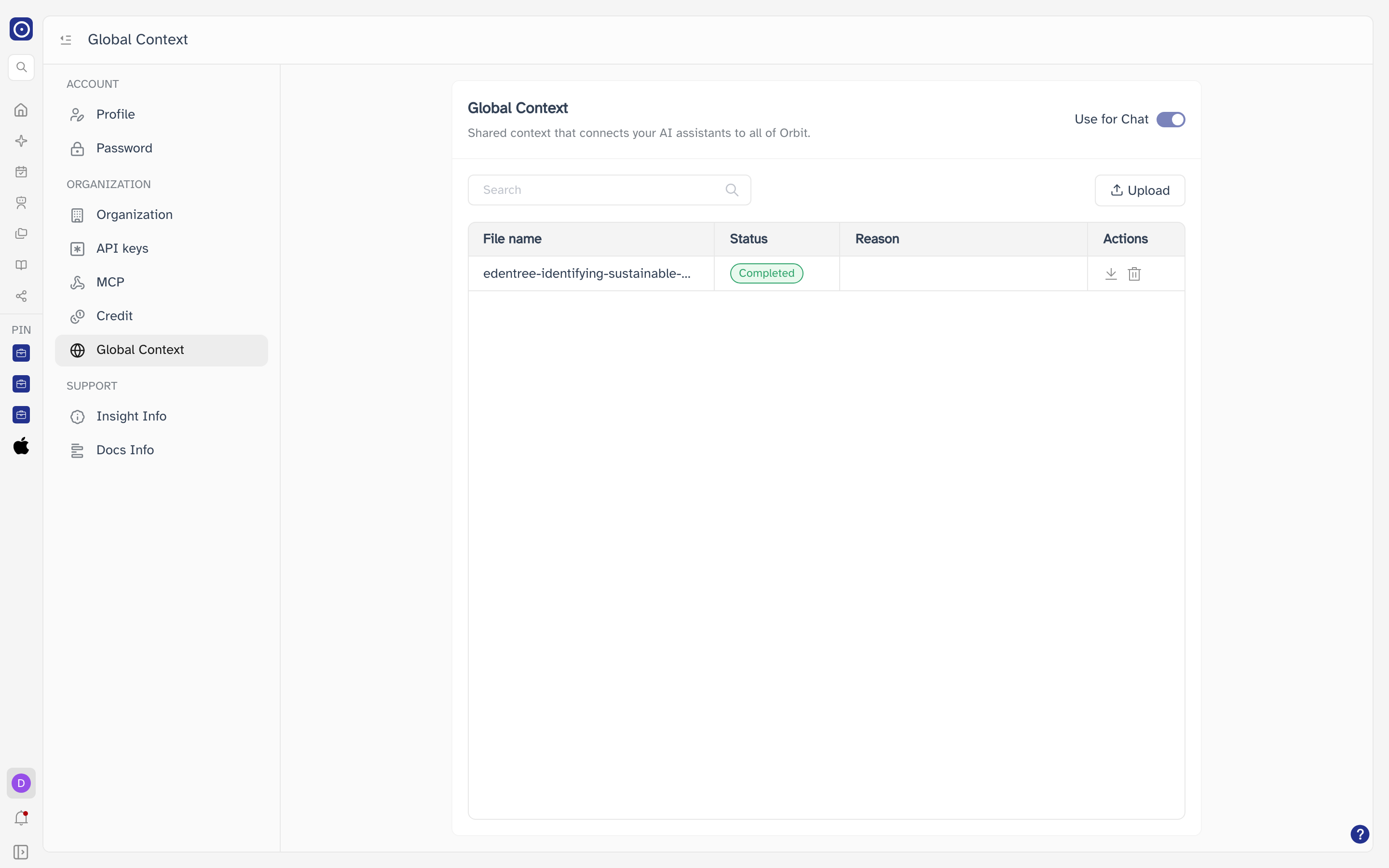
Uploading documents
There are two ways to add files:
- Click Upload and pick one or more files.
- Drag files from your desktop and drop them anywhere on the page.
PDF and DOCX. You can select several files at once.
After upload, Orbit processes each document before it can be used. Follow progress in the Status column.
| Status | Meaning |
|---|---|
| Init | The file has been received and is queued. |
| Running | Orbit is processing the document. |
| Completed | Processing finished. The document is now part of your global context. |
| Failed | Processing did not succeed. The Reason column explains why. |
Use for Chat
The switch at the top right shows whether your global context is active in Chat. It turns on automatically once you have at least one document here, and off when the list is empty — it is an indicator rather than a control you set yourself.
Managing your files
| Control | What it does |
|---|---|
| Search | Filters the list by file name. Press Enter to apply, or clear the box to show everything again. |
| Download | Downloads your original file. |
| Delete | Removes the document from your global context. Available once a file has finished processing or has failed. |
Deleting a document takes it out of the context Chat draws on. Upload it again if you need it back.