
Chat Agent
Where questions asked in Chat mode are answered. The agent decides for itself what to look up, calls Orbit's data tools to get it, and writes an answer with every claim linked back to the document it came from. This is the page behind the Agentic rows in Chat History.
Opening the page
Three ways in, all of which land on the same page:
- Send a question in Chat mode from New Chat. The agent starts working as soon as the page opens.
- Run a Quick Analysis card from New Chat — Run Chat opens the same page with the prompt already sent.
- Click an Agentic title in Chat History to reopen a run you have already paid for.
Coming in from Chat History replays a finished run: the questions, the answers and the tool calls are all read back from what was stored. Credits are only spent when you send something new from the box at the bottom.
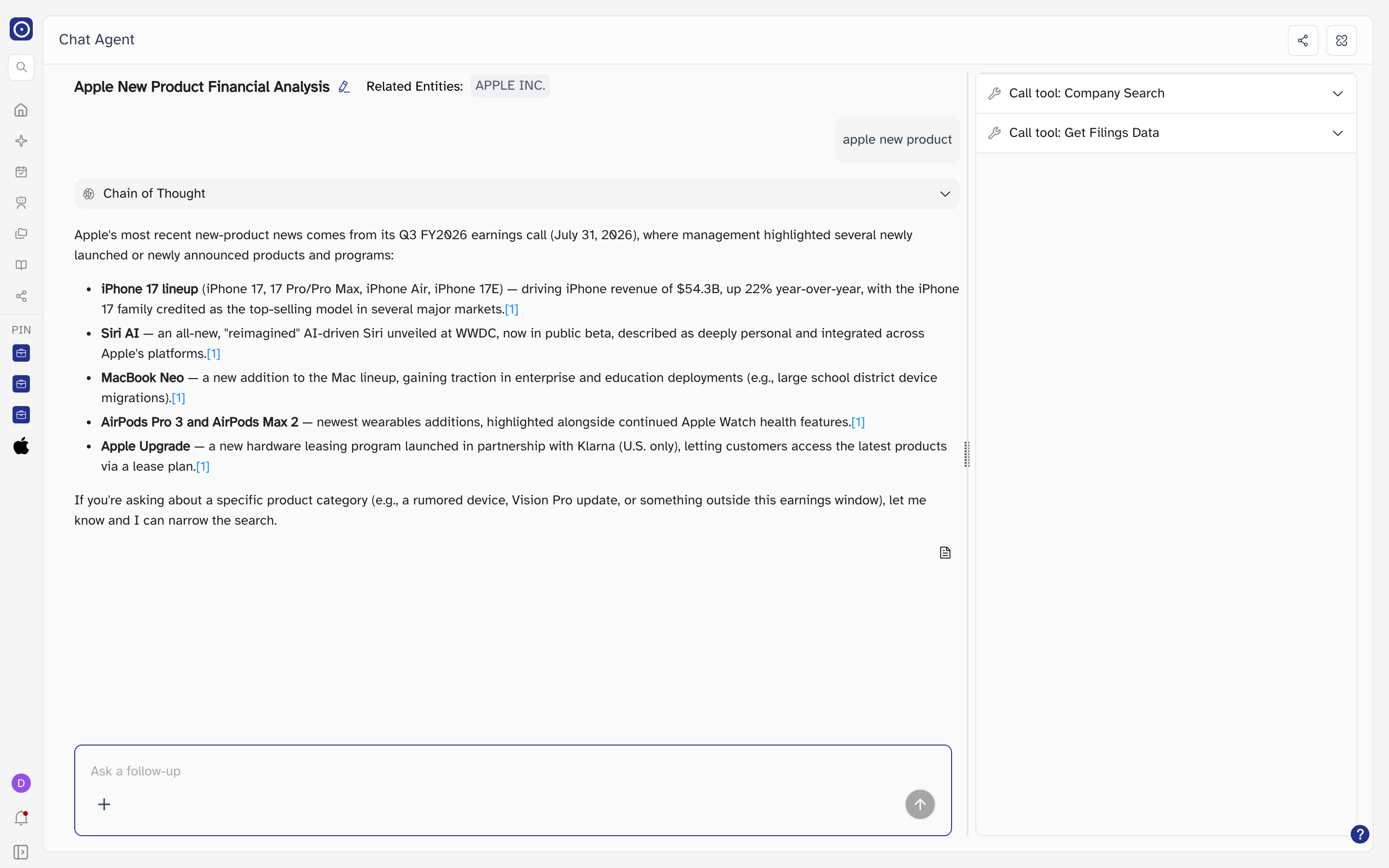
The header
| Element | What it does |
|---|---|
| Title | Written by Orbit from your first question. The pencil beside it, labelled Edit, renames the run — up to 100 characters, exactly as in Chat History. |
| Related Entities | The companies Orbit matched to the run. Only the first is shown; a +N after it means there are more, and hovering lists them all. Clicking a company Orbit has on file opens its page in a new browser tab. |
| Share | Top right of the screen. Creates a public link to this run and copies it to your clipboard — see Sharing a run below. |
| Reasoning Process | Beside Share. Shows and hides the right-hand column of tool calls. It is only there when the run used tools. |
Reading the answer
Your question sits in a grey bubble on the right; the agent's work follows underneath it. Chain of Thought is collapsed by default — open it to read how the agent decided what to look for before it answered.
The answer itself is ordinary formatted text: headings, bullets and tables. The Copy icon at the bottom right of an answer copies the whole thing as text and confirms with Copied to clipboard.
Citations
The bracketed numbers inside the answer are citations. Hover one to see which document the sentence came from, with a line of context.
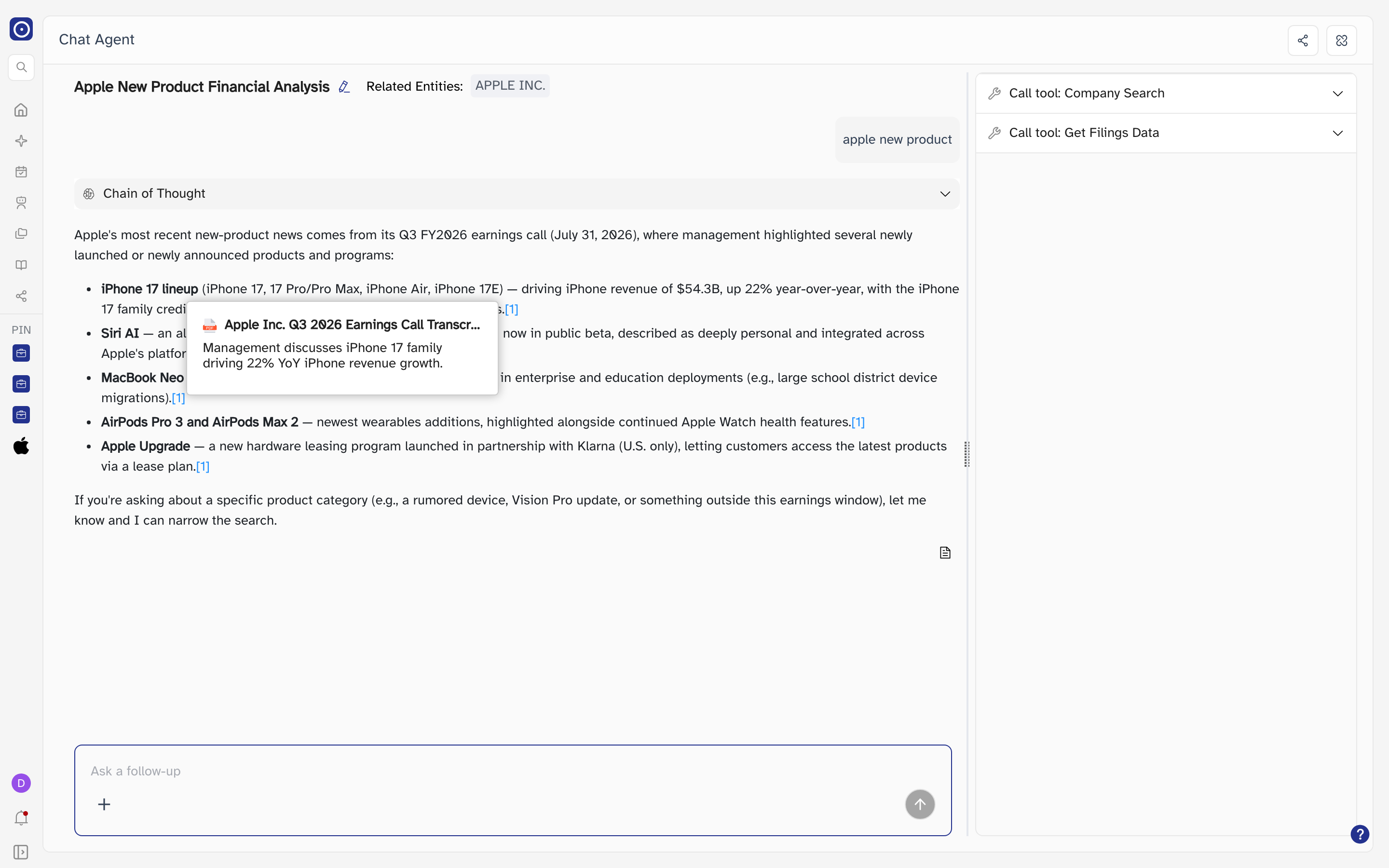
Citations are coloured by what they point at — blue for a document, green for a news article. Both behave the same way.
Reasoning Process
The right-hand column lists every tool the agent called, in order, named after the job it does — Company Search, Get Filings Data, Read Filing Pages and so on. Click a row to open it.
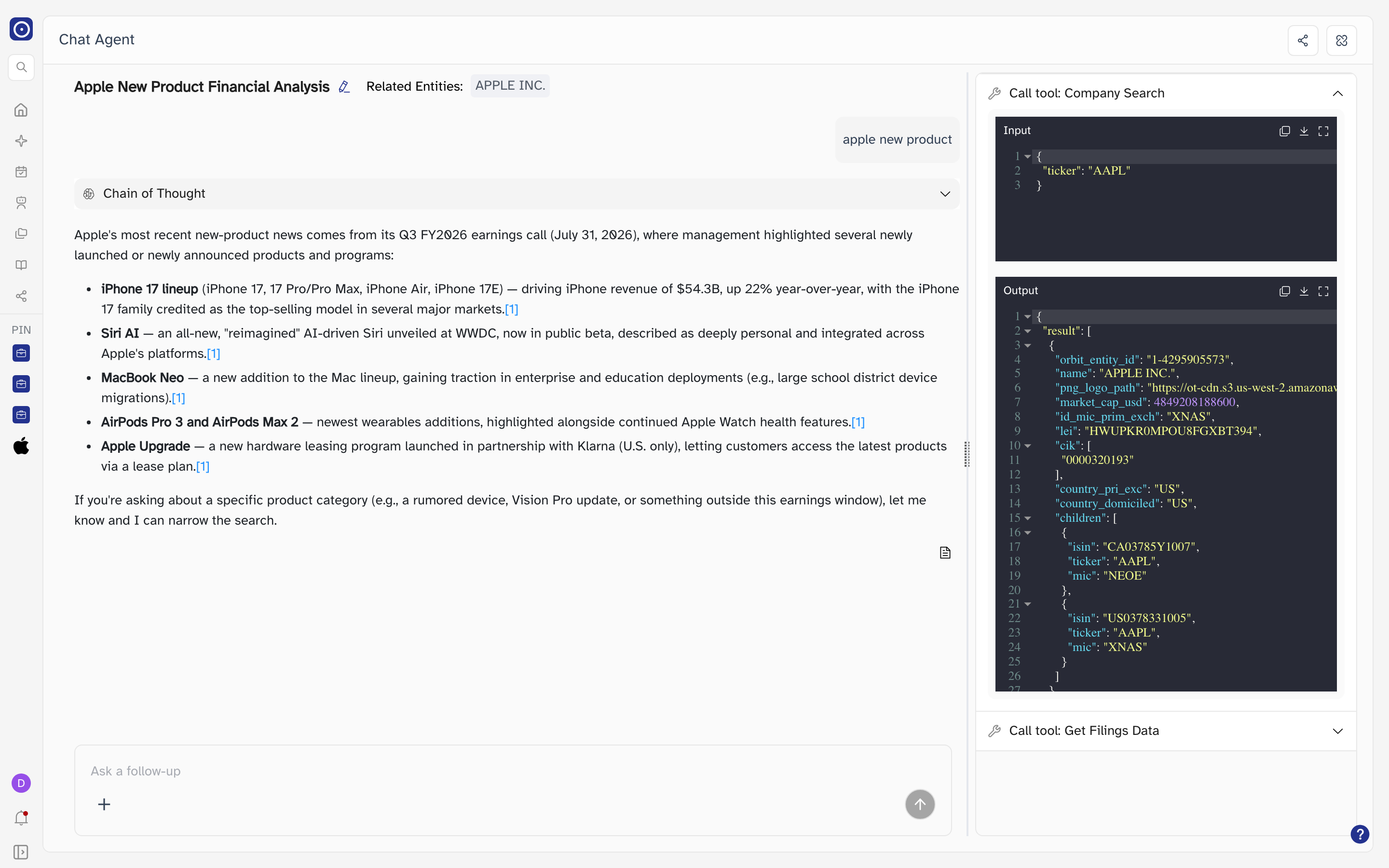
Longer runs also show a checklist of the steps the agent set itself, which you can expand the same way. None of this changes the answer — it is there so you can audit how the answer was reached.
Asking a follow-up
The box at the bottom, Ask a follow-up, continues the same conversation rather than starting a new one. The agent keeps everything above it in mind. Enter sends and the arrow button stays greyed out until you have typed something.
The + button sets what the agent may draw on, with the same four groups as New Chat.
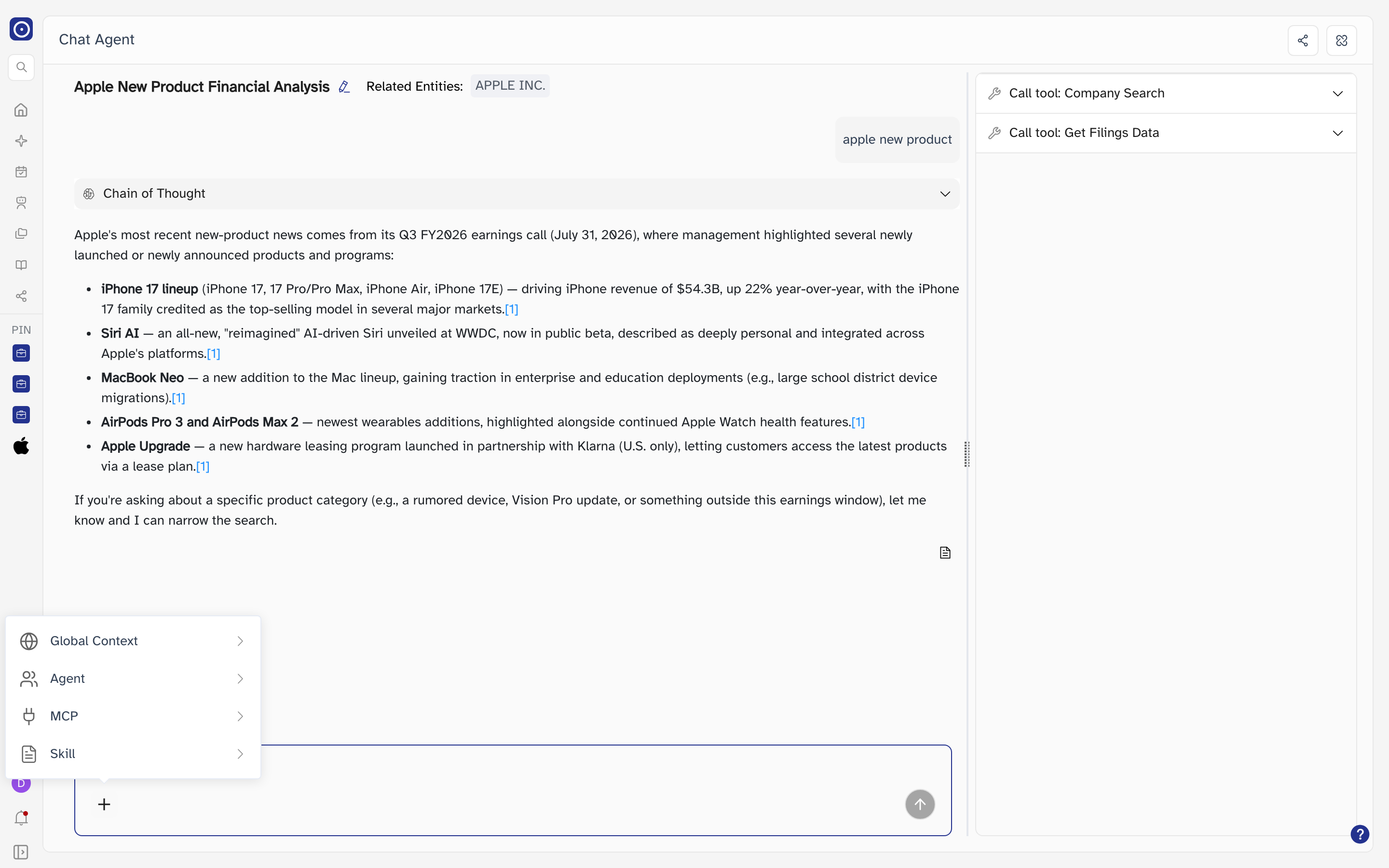
Every message you send here spends credits, the same as asking from New Chat. Reading, copying and expanding tool calls are all free — only sending costs anything.
Sharing a run
The share icon at the top right creates a link to this conversation and copies it to your clipboard in one step. Everything you see — question, answer, citations and tool calls — is visible to whoever opens it, and they do not need an Orbit account. The link is listed on the Share page, which is where you withdraw it again.
A shared run is read-only: the Ask a follow-up box is not shown, so nobody can continue the conversation or spend your credits from it.