
The custom agent page
Everything one custom agent produces and everything that governs it, in one place — the extracted data, the written reports and the run log on one side, the four configuration pages on the other.
Opening the page
- Click Agent Marketplace in the left rail.
- With Custom Agents selected, click the agent's card.
Finishing the setup conversation in Creating a Custom Agent opens the new agent here, and Edit Agent on a card in Schedules opens it straight on General.
An agent that has already produced reports opens on Reports. One that has not opens on General.
How the page is laid out
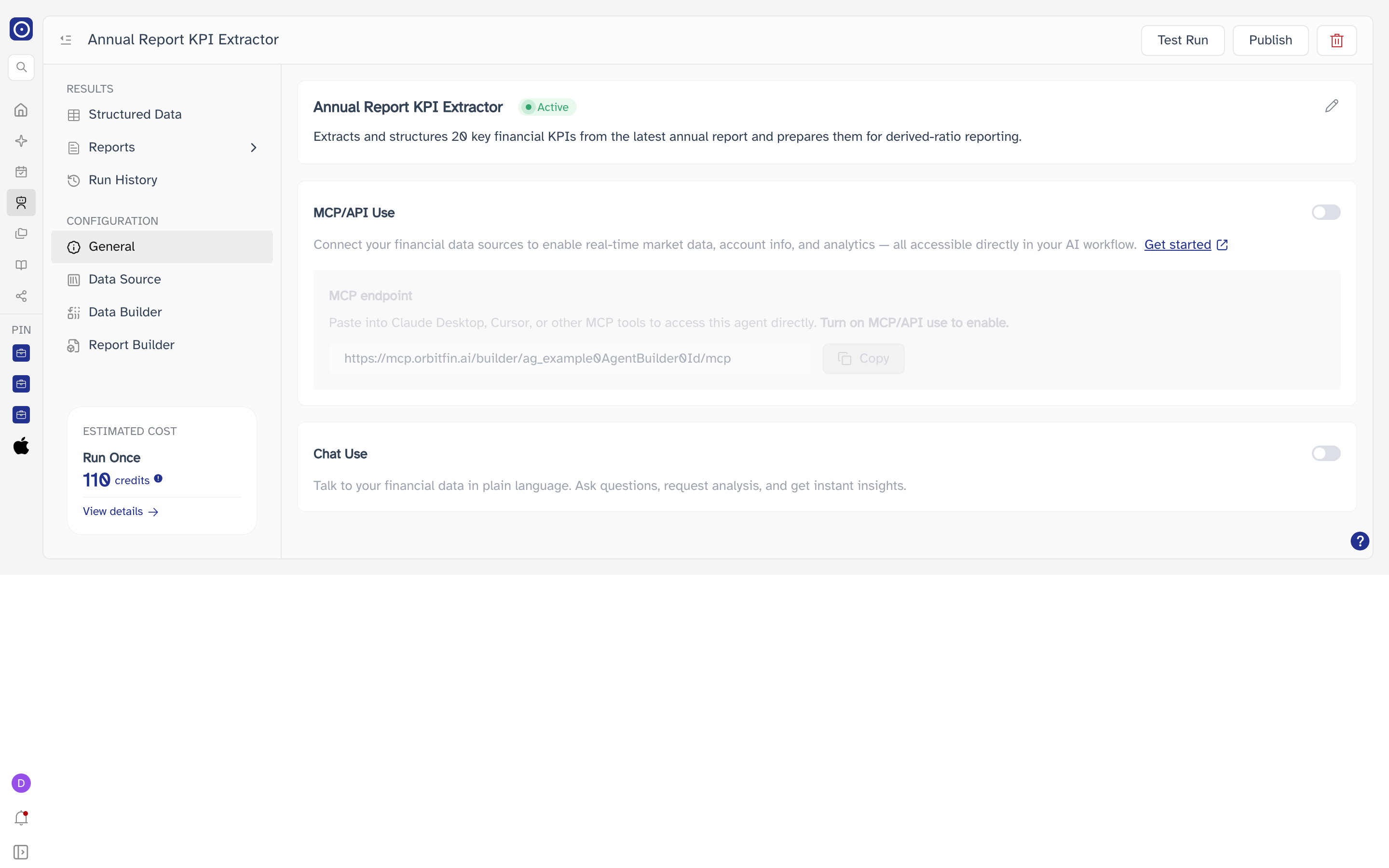
A second sidebar down the left lists everything about this agent, split into two groups. The button at the top left of the main header collapses and restores it.
| Group | Entries |
|---|---|
| RESULTS | Structured Data, Reports, Run History — what the agent has produced. |
| CONFIGURATION | General, Data Source, Data Builder, Report Builder — what it will do next time it runs. |
Estimated cost
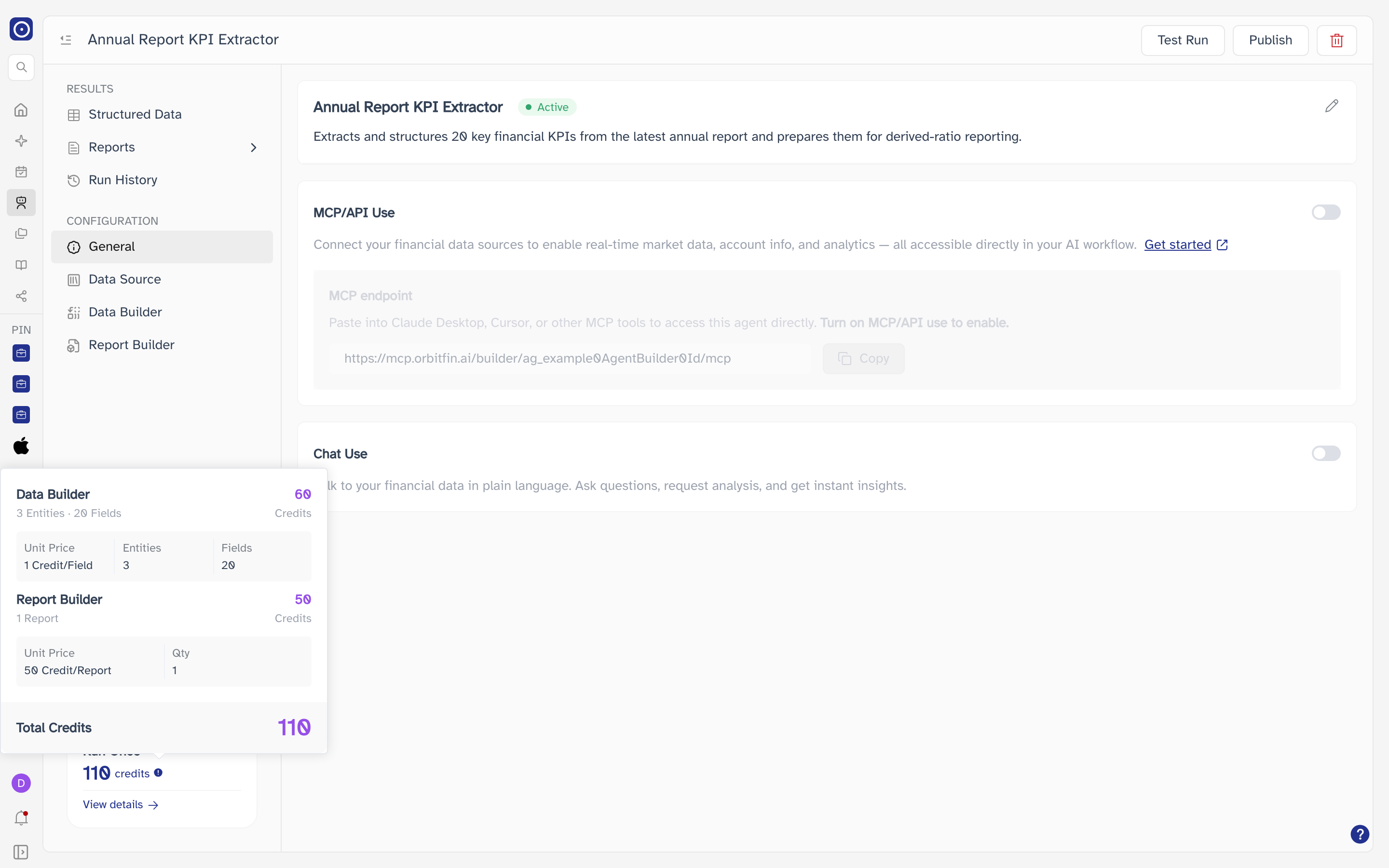
ESTIMATED COST sits at the bottom of the sidebar and stays there whichever page you are on. It gives the credits one Run Once of this agent would consume, at the agent's current configuration.
| Control | What it shows |
|---|---|
| ⓘ | Breaks the figure into Data Builder and Report Builder, each with its unit price and quantity, and a Total Credits line. |
| View details | Opens Credit, where your balance and past usage live. |
| Charged for | Unit price | Quantity |
|---|---|---|
| Data Builder | 1 Credit/Field | Entities × fields defined in Extraction Rules |
| Report Builder | 50 Credit/Report | Reports defined in Report Builder |
Header actions
Test Run, Publish and the delete button appear in the main header only while you are on one of the four CONFIGURATION pages. Switch to Structured Data, Reports or Run History and they go away.
Test Run
Runs the agent once, now, against its current configuration. Your unsaved configuration edits are saved first, so what runs is always what you can see.
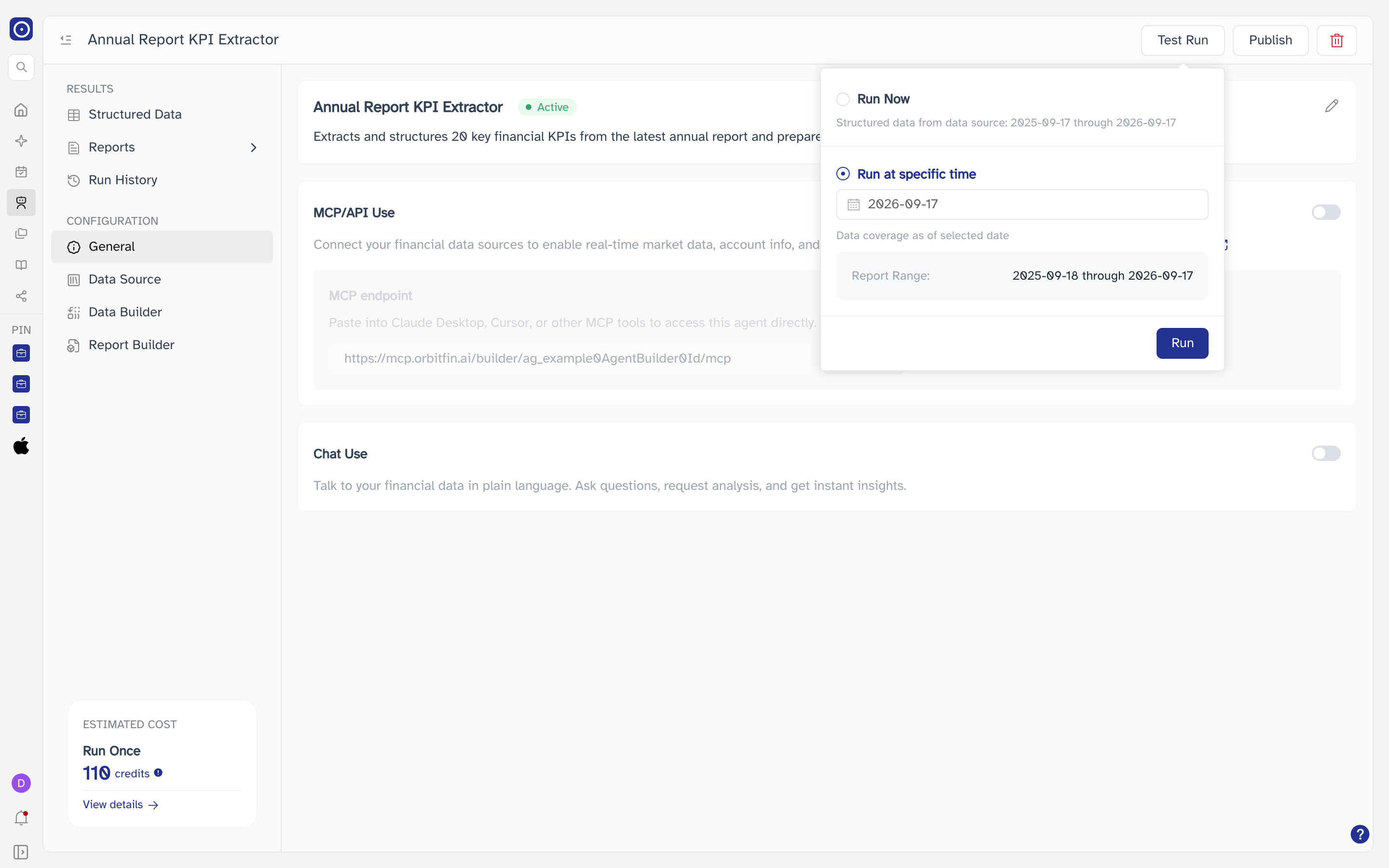
- Click Test Run to open the panel.
- Choose Run Now or Run at specific time.
- Click Run.
| Option | What it reads |
|---|---|
| Run Now | Data from one year ago up to today. The dates are spelled out on the option. |
| Run at specific time | Treats a date you pick as "today" and works back from it. The panel then lists each enabled data source with the window it would cover. Future dates cannot be picked, and Run stays disabled until a date is chosen. |
The cost is the ESTIMATED COST figure. If your balance will not cover it, the run is refused and a dialog explains why. Once started, progress is shown in a bar at the top of the window that survives navigating elsewhere.
Publish and Move to draft
A new agent is a Draft: it exists, it can be test-run, but its scheduled tasks do not fire. Publish activates the agent and enables all of them. Once published the button reads Move to draft and does the reverse.
| Button | Behaviour |
|---|---|
| Publish | Saves the configuration, then activates immediately — no confirmation. |
| Move to draft | Saves, then asks first: Move this agent to draft? Users won't be able to access it until republished. |
Deleting the agent
The delete button carries a bin icon rather than a label — hover it to see Delete.
The confirmation reads Once deleted, any structured data and reports produced by this agent will no longer be available. Confirming with Yes, Delete removes the agent and returns you to Agent Marketplace.
Configuration changes save on their own as you make them, and a small indicator reports the state of the last save. Test Run and Publish each save once more before acting.
Structured Data
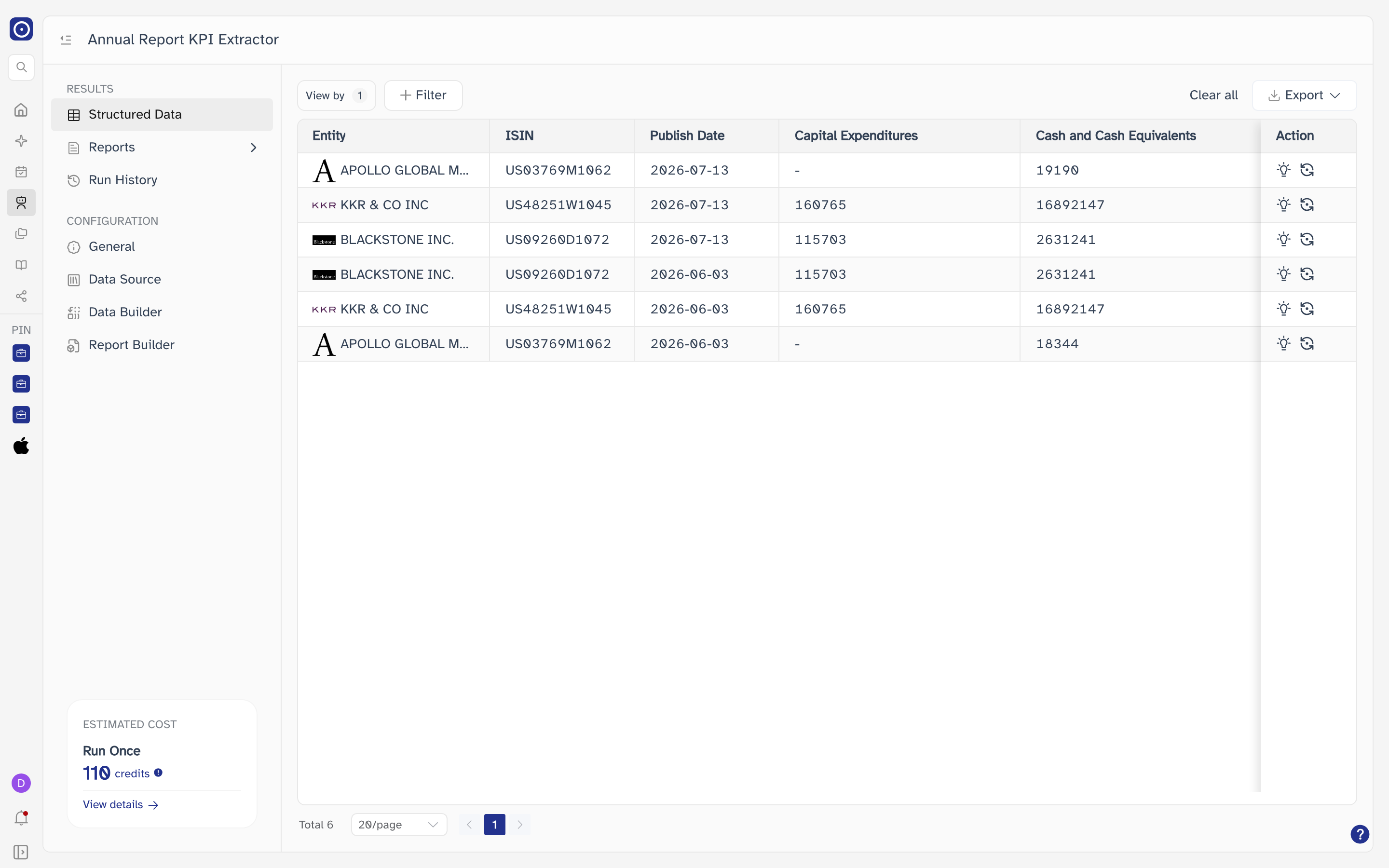
One row per document the agent has read, one column per field it was told to extract. This is the raw material the reports are written from.
-.
| Column | Contents |
|---|---|
| Entity | The company the document belongs to. Stays in place as you scroll sideways. |
| ISIN | That company's ISIN. |
| Publish Date | When the document was published. |
| One per extraction rule |
The value pulled out for that field, named after the rule in
Data Builder. A rule that found nothing reads -.
|
| Action | Per-row tools — see below. Also stays in place. |
Finding rows
| Control | What it does |
|---|---|
| View by | Chooses which extracted field the table is organised around. The number beside it is how many are in play. |
| Filter | Adds a condition — by entity, by date, or on an extracted value. |
| Clear all | Drops every condition at once, including the entity and date ones. |
| Page size | 20, 50 or 100 rows. The total sits to its left. |
Seeing where a value came from
Clicking a value opens Information Details, which shows what the agent extracted and which passages of the source document it took it from.
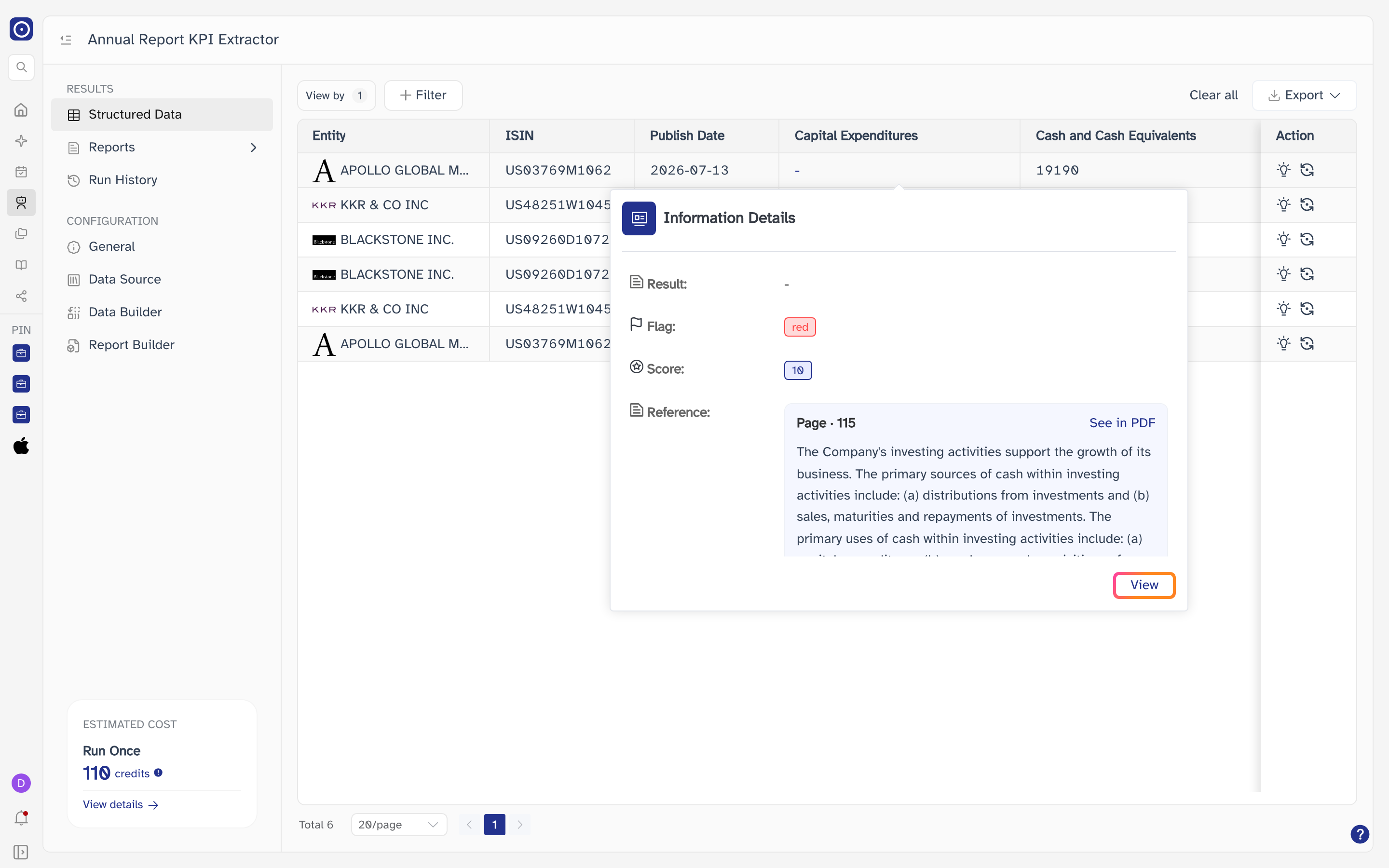
| Control | Where it goes |
|---|---|
| Result | The value itself, as it appears in the table. |
| Flag | A coloured tag summarising the extraction, where the rule produces one. |
| Score | A numeric tag, where the rule produces one. |
| Reference | One block per passage the agent drew on, each headed Page · and its page number. |
| See in PDF | On each passage. Opens the detail page at that passage. |
| View | Opens the same page at the first passage. |
Row actions
| Action | What it does |
|---|---|
| Thinking | Opens a Thinking Process panel on the right with the agent's reasoning for that row. |
| Retry | Extracts the row again. Available for the first two attempts. |
| Contact Support | Replaces Retry once the row has been retried twice, and raises the failure with support. |
A row shows one or the other, never both, so a screenshot can only ever show one of them.
Exporting
Export offers the table as a spreadsheet in two shapes.
| Choice | Contents |
|---|---|
| Raw Data | The values exactly as extracted. |
| Normalized Data | The values after Orbit's normalisation. |
Reports
The documents the agent writes. An agent can hold several report definitions, and each one produces a new report every time it runs — so this page is a two-level list before it is a reading view.
Finding a report
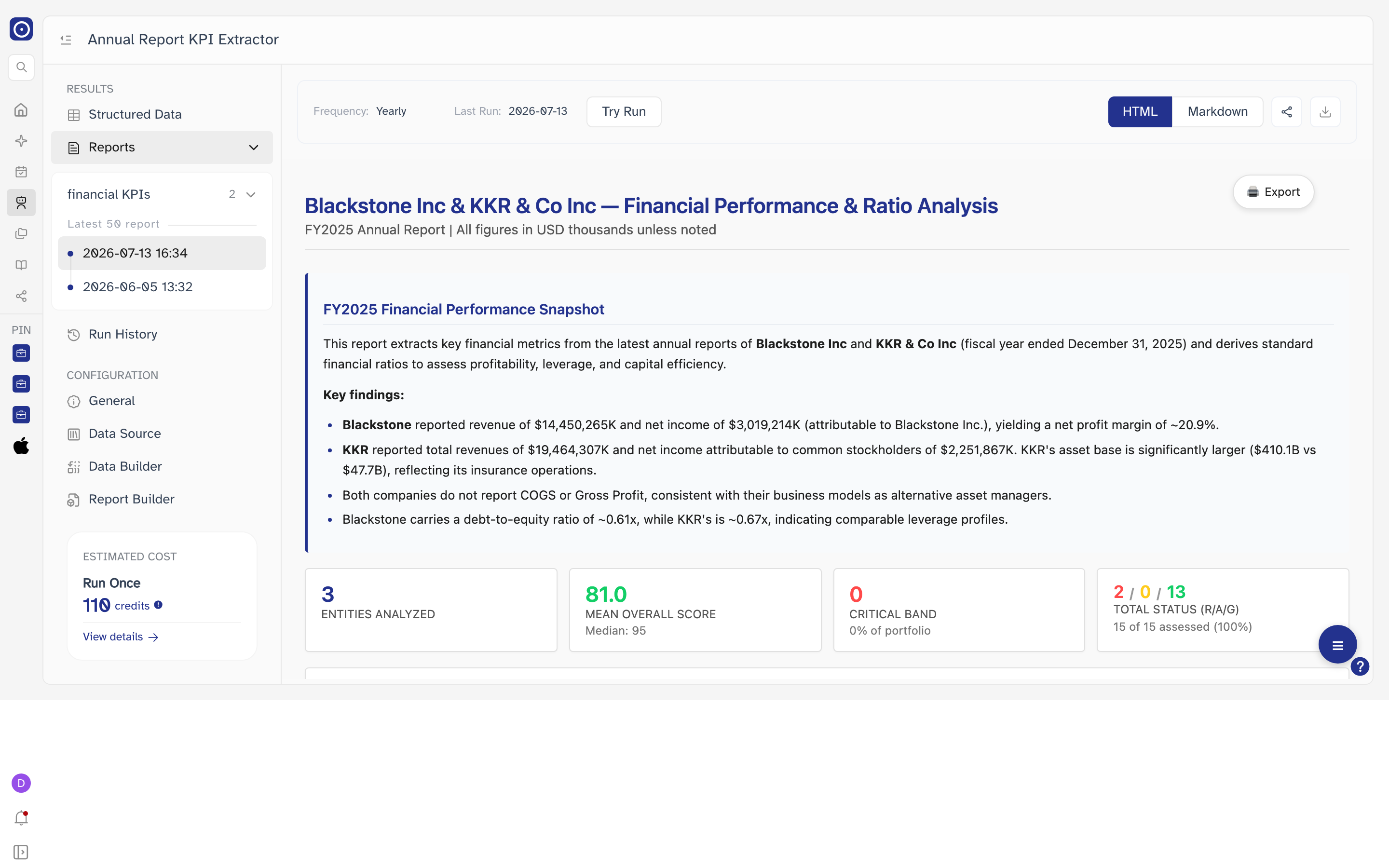
- Click Reports in the sidebar. Its report tree expands underneath.
- Click a report definition to list its runs, newest first. Clicking it again collapses it.
- Click a run to read it.
The first definition that has any reports opens on its own, showing the most recent run. Definitions with no reports yet stay collapsed. Leaving Reports and coming back returns you to the same report.
Reading a report
The bar above the report belongs to Orbit; everything below it is the report itself.
| Item | Meaning |
|---|---|
| Frequency | How often this definition runs. |
| Last Run | When the report on screen was produced. |
| Try Run | Produces this report again. Available for the first two attempts. |
| Contact us | Replaces Try Run after two attempts, and raises the failure with support. |
| HTML / Markdown | Switches how the report is rendered. A format the run did not produce is greyed out — most reports have only HTML. |
| Share icon | Creates a link to this report and copies it to your clipboard, confirming with Copied to clipboard. The link is then listed on Share. |
| Download icon | Saves the report. |
The page reads No report yet — This agent has no reports yet. Add one or more in Report Builder, then run the agent to generate them.
Run History
Every job this agent has run, whichever part of it produced them.
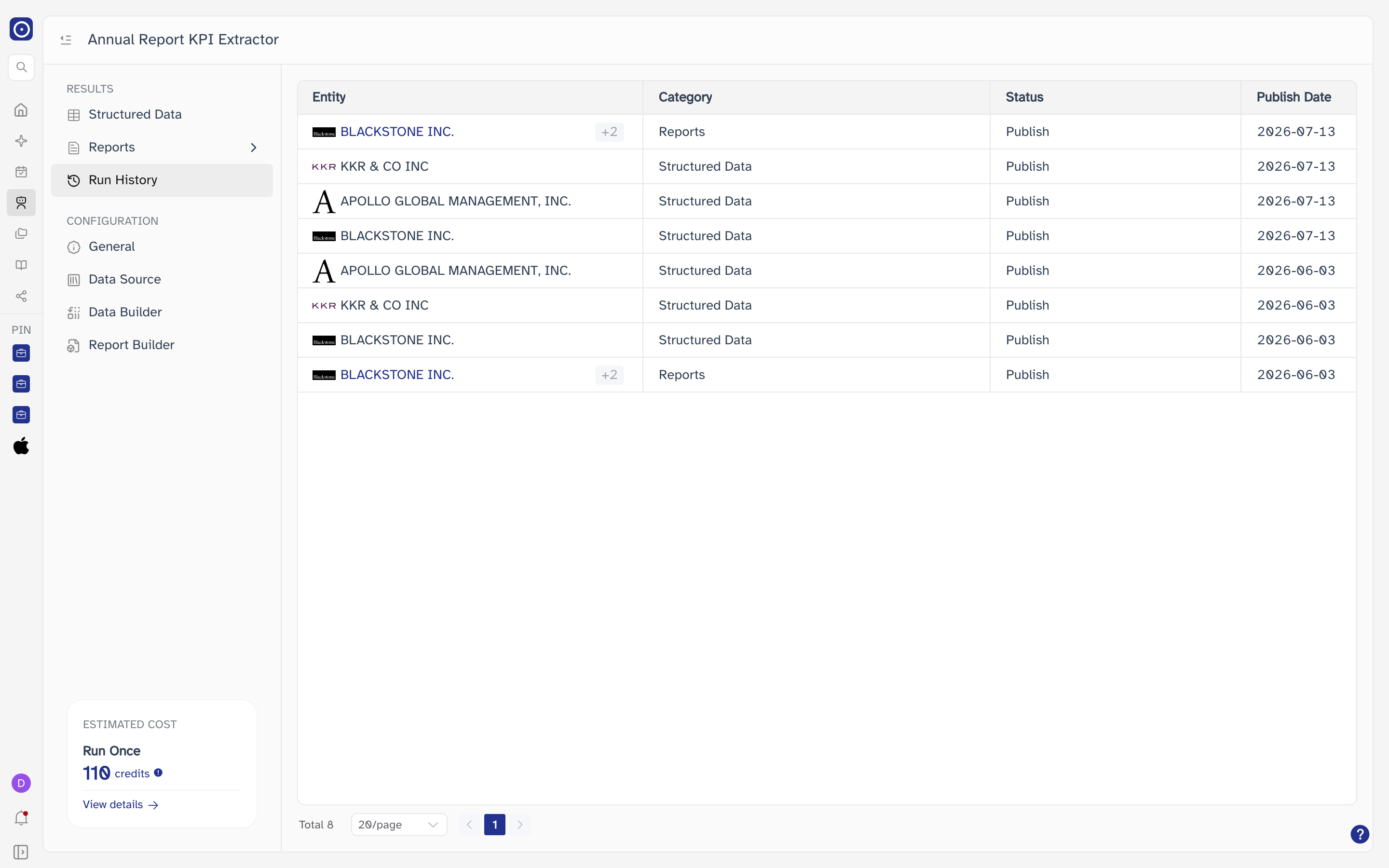
| Column | Contents |
|---|---|
| Entity | The company or portfolio the run covered. |
| Category | Structured Data or Reports. |
| Status | How the run ended. |
| Publish Date | When it produced its output. |
Company names shown in blue open that company's page in a new browser tab. Nothing else on the row can be clicked. The list pages at 20, 50 or 100 rows.
Extraction runs once per company, so those rows name one each. A report covers every company at once, so its row names one and folds the rest into +N.
General
The agent's identity and the two ways of reaching it from outside Orbit.
Agent information
The card carries the agent's name, its description, and a badge reading Active or Inactive. The pencil at its top right opens Edit General.
This badge reports whether the agent itself is enabled. Whether its scheduled tasks fire is a separate matter, governed by Publish in the header — so an agent can read Active here while still being a Draft on its marketplace card.
| Field | Notes |
|---|---|
| Agent Name | Required. Shown on the marketplace card and everywhere the agent is referred to. |
| Description | Free text. Shown on the marketplace card. |
Save Change applies the edit; Cancel discards it. An agent saved without a name reads Untitled Agent, and one without a description reads No description yet.
If a document was uploaded during setup, it is listed under the description. Clicking it previews the document when it is a PDF, and downloads it otherwise.
MCP/API Use
Exposes this agent over MCP so tools outside Orbit can call it. The switch is off by default. Turning it on marks the card Protocol Ready and enables the endpoint below.
| Control | Notes |
|---|---|
| MCP endpoint | The address to paste into Claude Desktop, Cursor or another MCP client. It ends in the agent's own id, so every agent has its own. |
| Copy | Copies the endpoint and confirms with Copied to clipboard. Disabled while MCP/API Use is off. |
| Get started | Opens Orbit's developer documentation for Agent Builder in a new browser tab. |
MCP covers connecting Orbit to an MCP client in general; this switch is only about exposing this one agent.
Chat Use
Lets you put questions to this agent's data in conversation. Also off by default.
Data Source
What the agent reads. Each source is a card; the pencil at its top right opens the card's own dialog. A card that has been given a time range carries a Range · badge beside its title.
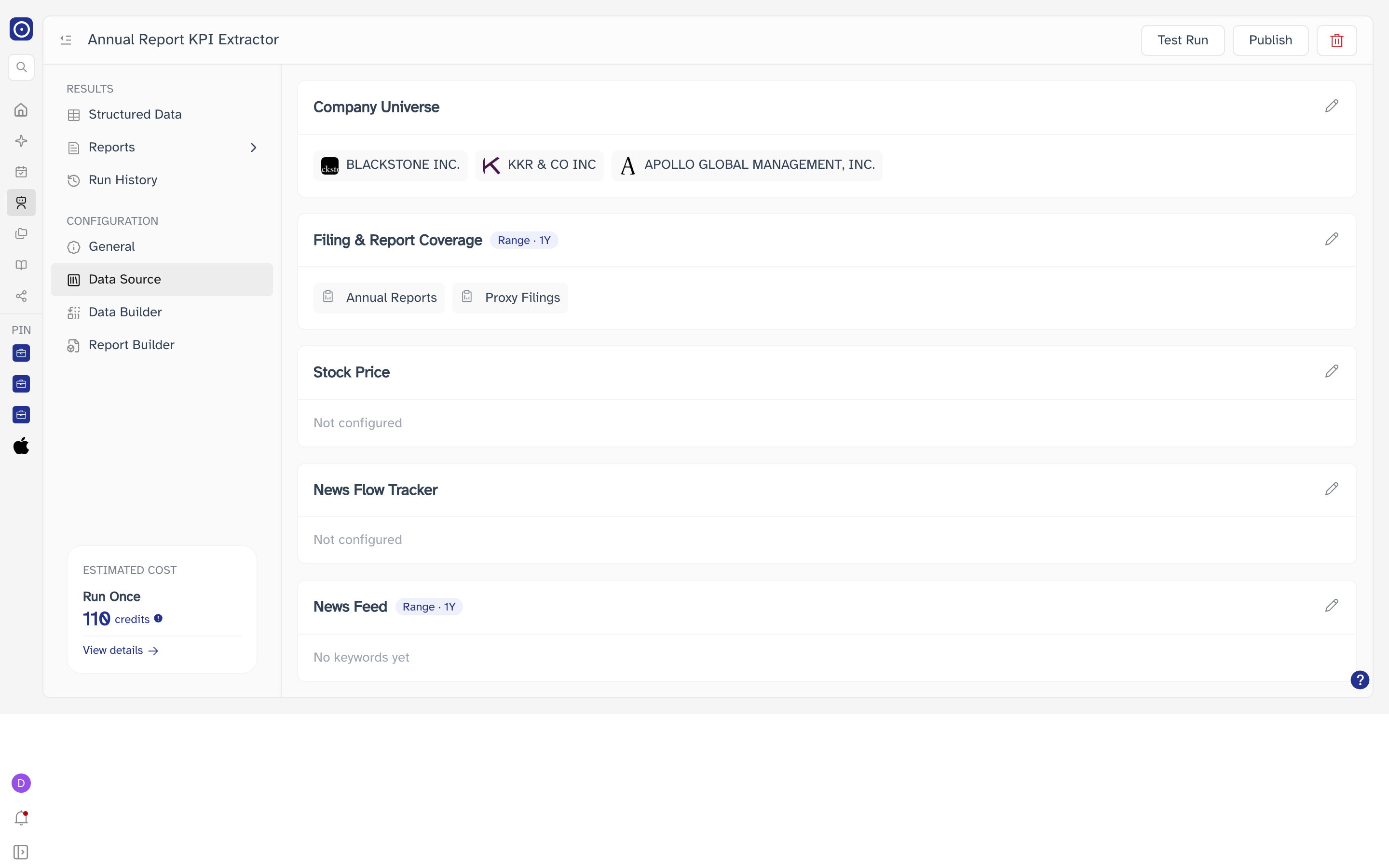
| Card | What it sets |
|---|---|
| Company Universe | Which companies the agent covers — either a list of companies or a single portfolio, not both. Reads No companies selected when empty. |
| Filing & Report Coverage | Which filing types to read and how far back. Reads No report types selected when empty. |
| Knowledge Base | Only present when the agent draws on a knowledge base. Read-only here. |
| Stock Price | Price history. Reads Not configured until set. |
| News Flow Tracker | Orbit's news tracking. Reads Not configured until set. |
| News Feed | Keyword-matched news. Reads No keywords yet when empty. |
Stock Price, News Flow Tracker and News Feed are always listed, configured or not, and a Range · badge only means a time range has been set — not that the source has anything to read. The reliable check is the coverage list under Test Run: a source that is genuinely feeding the agent gets a row there.
Data Builder
When the agent runs, and what it pulls out of each document when it does.
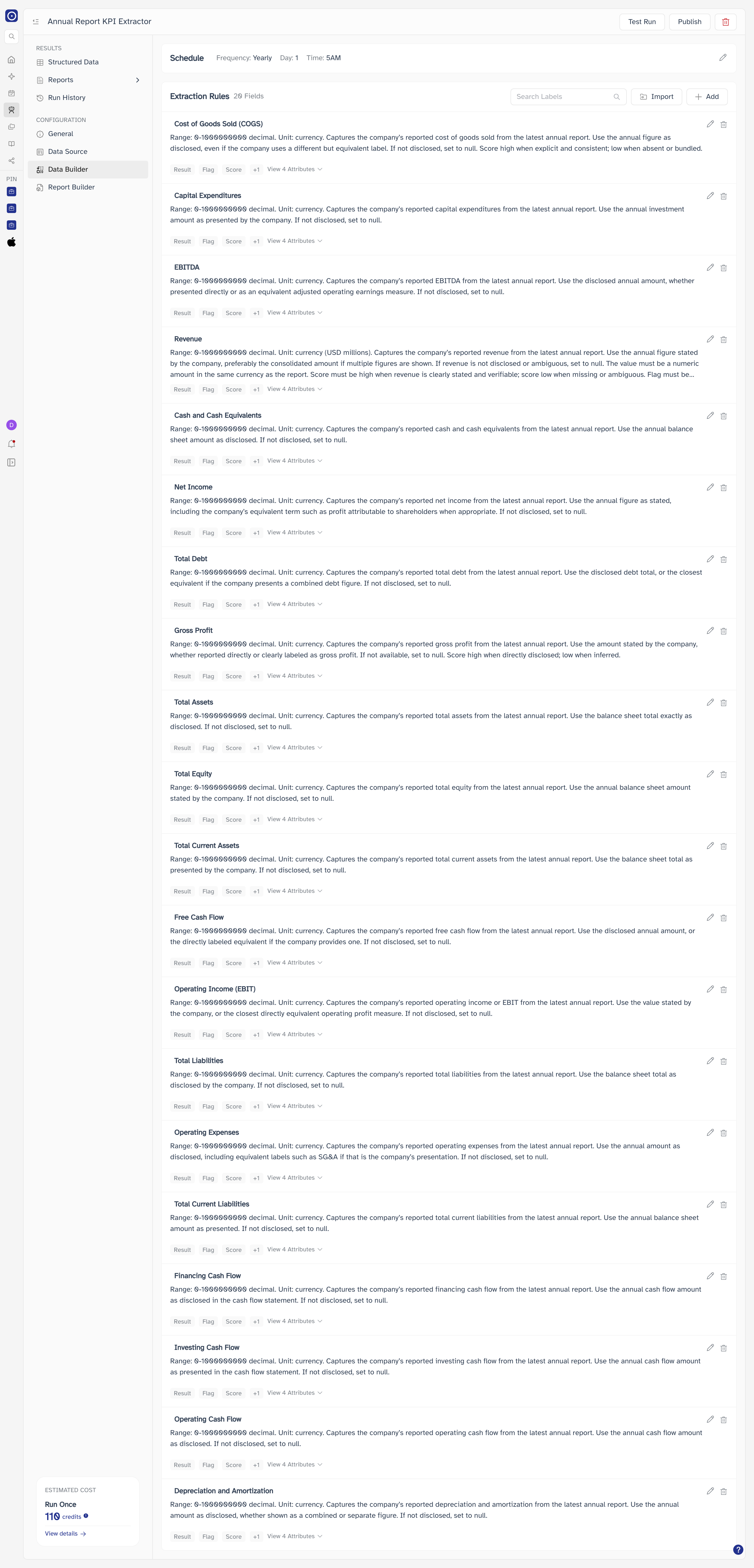
Schedule
States the Frequency, the Day where one applies, and the Time. The pencil opens the schedule dialog. Time is not yours to set — each frequency runs at a fixed hour.
| Frequency | When it runs |
|---|---|
| Daily | Every day at 8:00 AM. |
| Weekly | Every Monday at 7:00 AM. |
| Monthly | The 1st of each month at 8:00 AM. |
| Quarterly | 1 January, 1 April, 1 July and 1 October at 6:00 AM. |
| Yearly | 1 January at 5:00 AM. |
Extraction Rules
One card per field the agent extracts, with the field's label, what it means, and the attributes captured alongside it. The count beside the title reads N Fields.
| Control | What it does |
|---|---|
| Search Labels | Filters the cards by label. |
| Add | Adds a new extraction rule. |
| Import | Brings rules in from a file rather than typing them. |
| Edit | On each card. Changes that rule. |
| Delete | On each card. Not offered for every rule. |
| View N Attributes | Each rule captures more than the value itself — Result, Flag and Score are shown as tags with +N for the rest. This expands the card to list them all, and then reads Hide N Attributes. |
Every field is charged per entity, so adding rules raises ESTIMATED COST for every run.
Report Builder
The reports this agent writes. Each one has its own prompt, its own schedule and its own recipients, and each is listed in the sidebar's report tree once it has run.
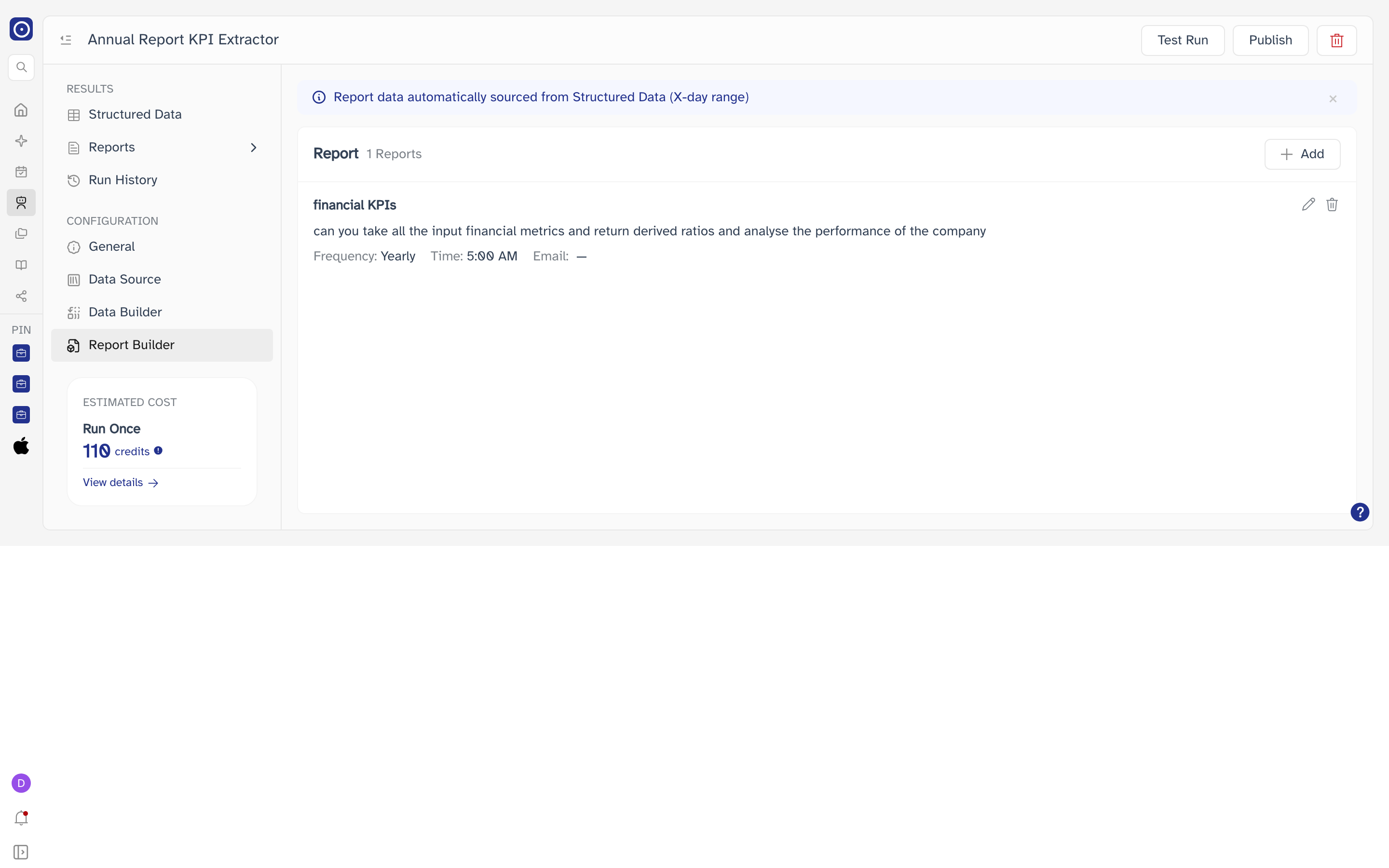
— when a report has no recipients: it will still
be produced and still appear under Reports, it just will not be sent to
anyone.
The banner at the top reads Report data automatically sourced from Structured Data (X-day range) — the X is not replaced with a number. The window each report actually reads is its own Data Window (Day), below. Closing the banner hides it until you next open the page.
Every row states the report's name, its prompt, and its Frequency, Time and Email. Time follows from Frequency and cannot be set independently. A report saved without a name reads Untitled Report; one with several recipients shows the first and folds the rest into +N.
| Control | What it does |
|---|---|
| Add | Opens Add Report. |
| Edit | Opens the same dialog as Edit Report. |
| Delete | Removes the report definition. |
Add Report and Edit Report
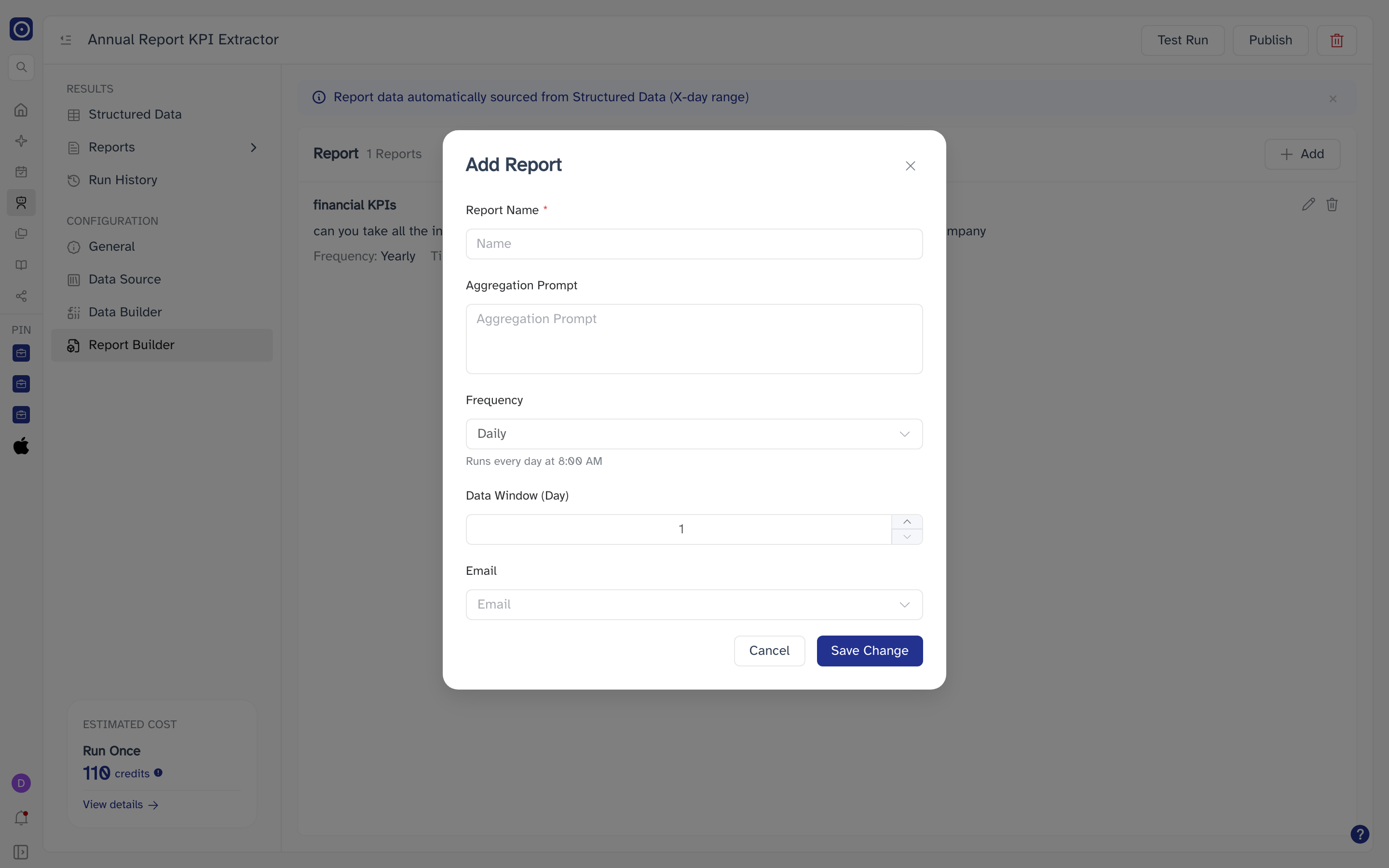
| Field | Notes |
|---|---|
| Report Name | Required, and marked as such. Up to 200 characters. |
| Aggregation Prompt | What the report should say about the extracted data. Also required, though it carries no asterisk — saving with it empty is refused. |
| Frequency | Daily, Weekly, Monthly, Quarterly or Yearly. The dialog states when each one runs. |
| Data Window (Day) | How many days back the report reads. Between 1 and 365, starting at 1 — worth raising for anything less frequent than Daily. |
| Who receives it. Choose any number of addresses from your organisation. |
Save Change keeps the report; Cancel discards it.
Each report definition costs 50 credits per run, against 1 credit per field per entity for extraction.