
Portfolio Management
Build and maintain the lists of companies the rest of Orbit works from. Every portfolio is a named set of companies that you can add to by hand, from a spreadsheet, or from a rule that keeps itself up to date.
Opening the page
- Open the left rail — click Collapse Sidebar at the bottom if it is showing icons only.
- Choose Portfolio Management.
The page at a glance
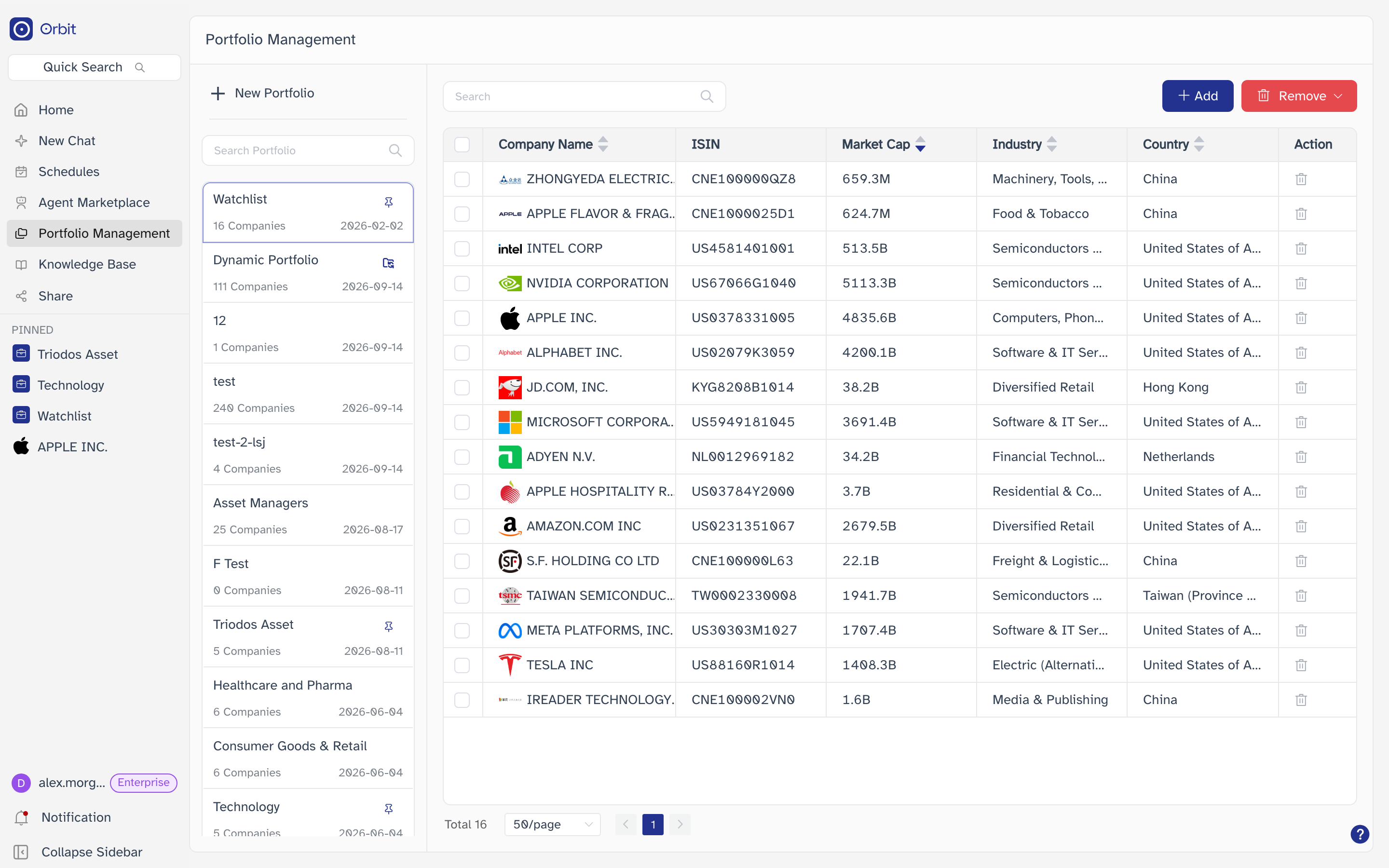
The page is two panes. On the left, every portfolio you can see. On the right, the companies inside whichever one is selected. Opening the page selects the first portfolio in the list.
The portfolio list
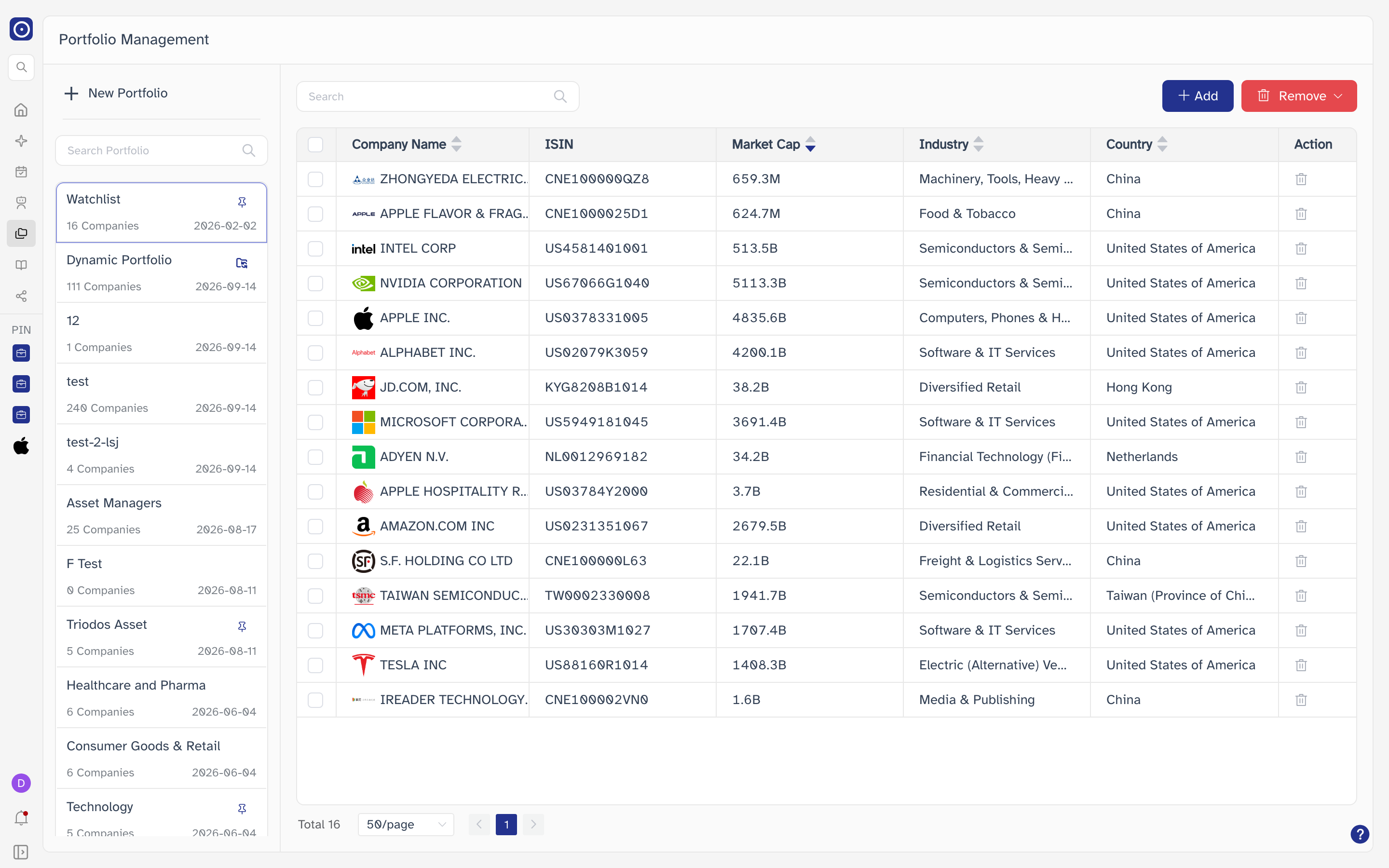
Search Portfolio at the top filters the list by name as you type. The list itself is scrollable, newest changes first.
| On a row | What it means |
|---|---|
| Name | Click it to load that portfolio's companies on the right. |
| N Companies | How many companies the portfolio currently holds. |
| Date | When the portfolio was last updated. |
| Pin icon | Shown when the portfolio is pinned to the left rail. |
| Sync icon | Shown when the portfolio is kept by a rule. See Rule-driven portfolios. |
| ⋮ | Appears on hover. Offers Pin / Unpin and Edit. |
Pin and Unpin
Pin puts the portfolio in the PINNED section of the left rail so you can open it from anywhere; Unpin takes it back out. A confirmation appears in the bottom-right corner either way. Pinning changes nothing about the portfolio's contents.
Edit
Renames the portfolio and changes its description.
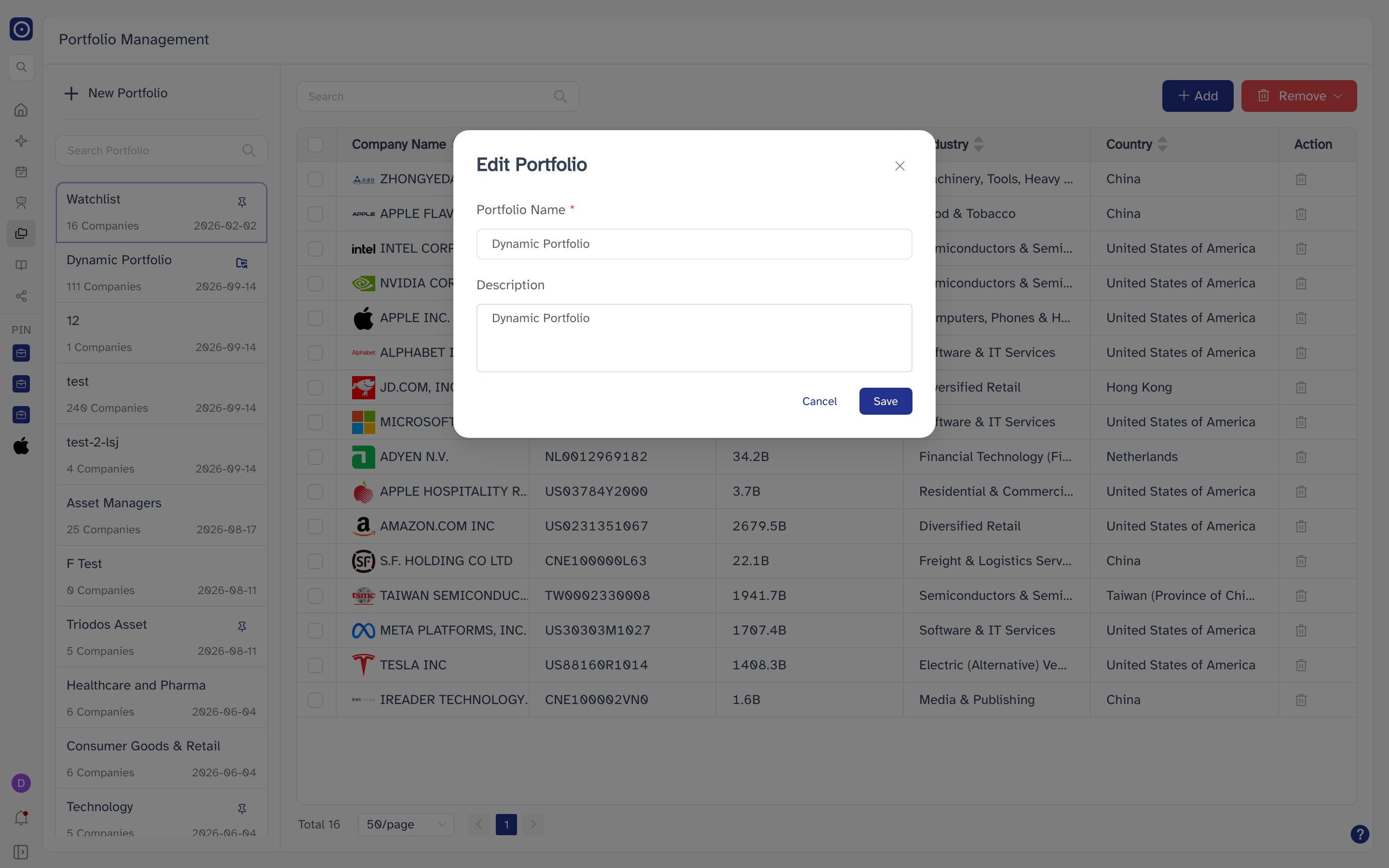
Watchlist is a built-in portfolio and has no Edit option. The name is reserved — a new or renamed portfolio cannot be called Watchlist, and the dialog rejects it if you try.
Creating a portfolio
New Portfolio at the top of the left pane opens a dialog. Give the portfolio a name, then pick one of three ways to fill it. Whichever you choose, the companies are added when you click Create Portfolio.
| Field | Notes |
|---|---|
| Portfolio Name | Required. Cannot be Watchlist. |
| Description (optional) | Free text, for your own reference. |
Moving between Select manually, Build by criteria, and Upload Excel empties whatever the previous tab had selected. Settle on one before you start choosing companies.
Select manually
Search the company universe and tick the ones you want. Selections survive paging — the panel on the right keeps the running list.
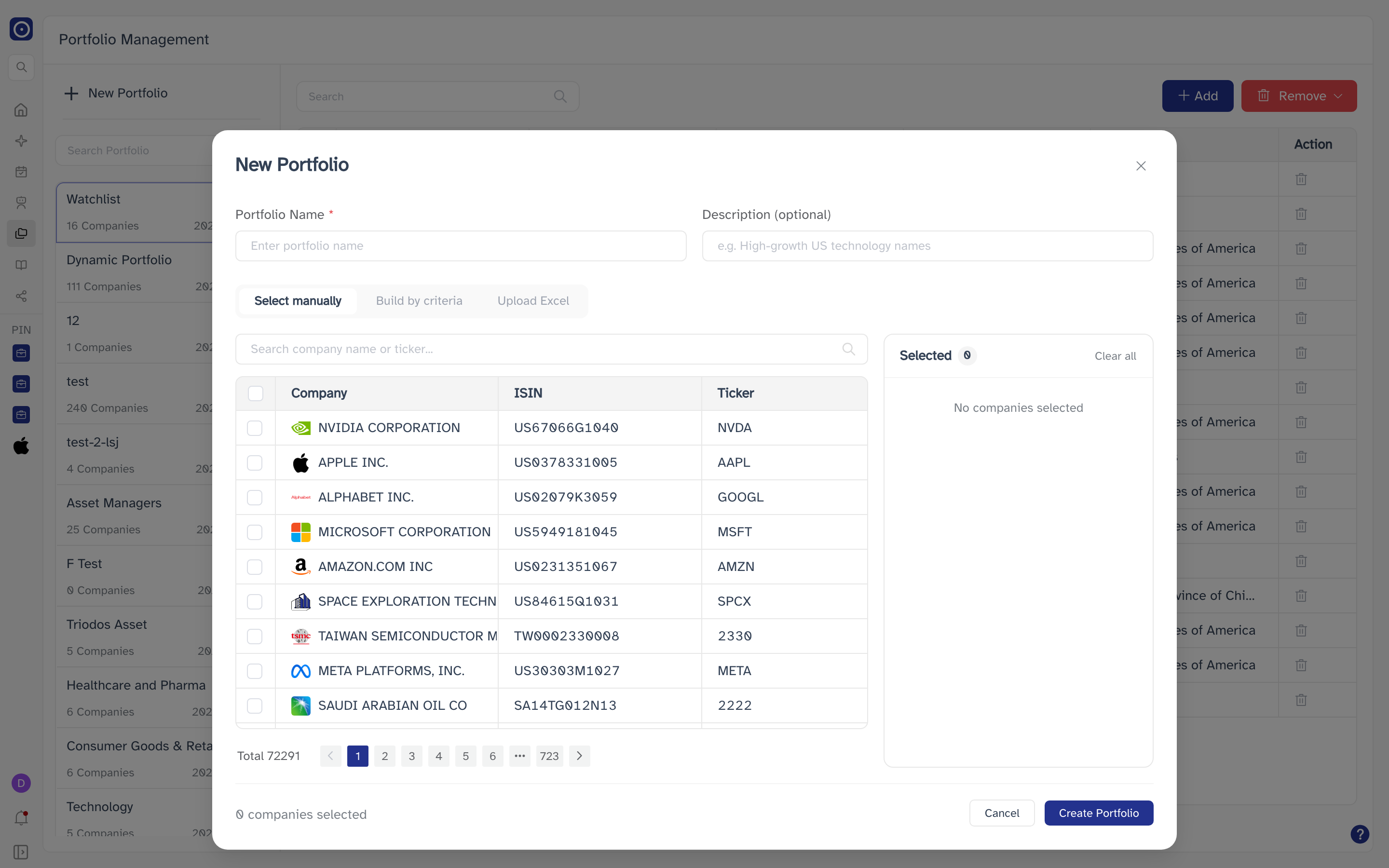
| Control | What it does |
|---|---|
| Search company name or ticker… | Filters the table. Searching resets you to page 1. |
| Header checkbox | Selects every company on the current page. |
| Selected | The right-hand panel — every company you have ticked, with its ticker and ISIN. |
| × | Removes one company from Selected. |
| Clear all | Empties Selected. |
Build by criteria
Describe the companies you want instead of naming them. Orbit counts the matches as you change the filters, and adds all of them when you create the portfolio.
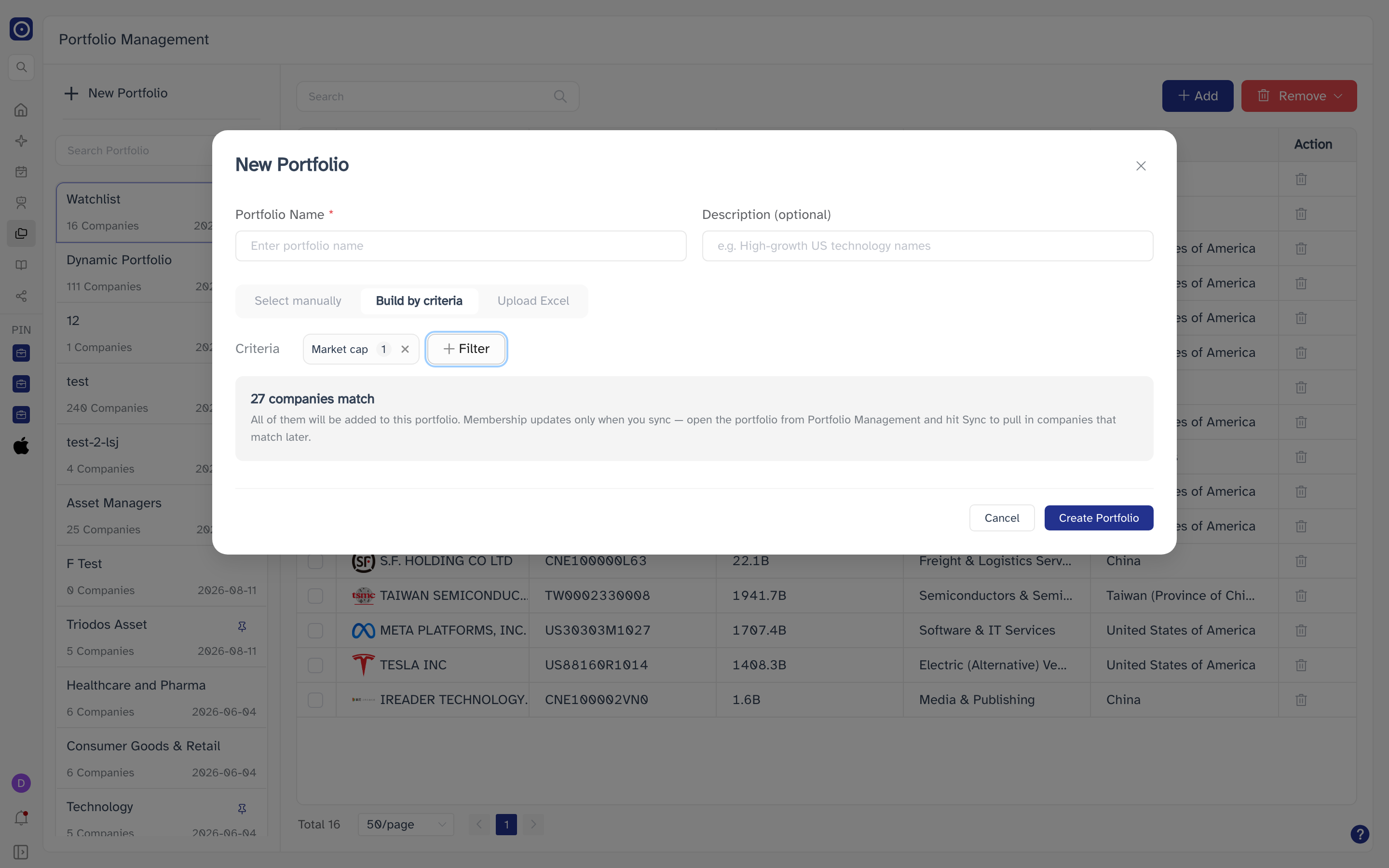
+ Filter offers three criteria, and you can combine them:
| Criterion | Choices |
|---|---|
| Country | Where the company is incorporated. Pick any number. |
| Sector | Industry sector. Pick any number. |
| Market cap | Less than 1B, 1B - 100B, 100B - 500B, More than 500B. |
A portfolio built this way keeps its rule. It does not refresh on its own — membership changes only when you come back to this page and click Sync. See Rule-driven portfolios.
With no filters applied the match count stays at 0 and creating the portfolio is refused with a prompt to filter first.
Upload Excel
Match companies from a spreadsheet of ISINs.
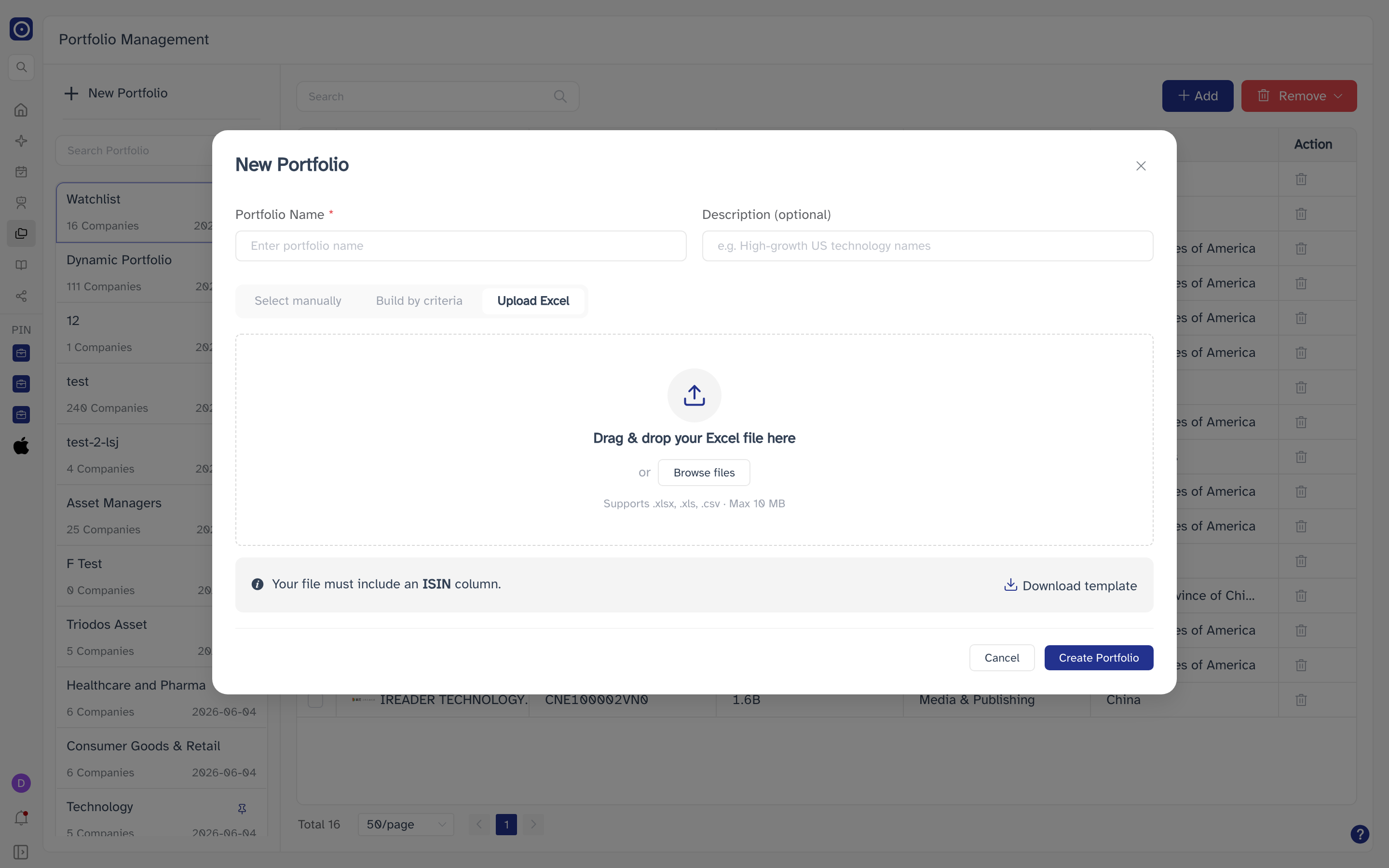
| Requirement | Detail |
|---|---|
| File types | .xlsx, .xls, .csv |
| Maximum size | 10 MB |
| Required column | ISIN — one per row. |
Dropping a file reads it straight away and reports back two counts: N matched and N unmatched. Unmatched rows are listed with the reason they failed and are skipped — only matched companies go into the portfolio. Download unmatched saves that list as a CSV so you can fix it and try again. Nothing is written until you click Create Portfolio.
Changing a portfolio's companies
With a portfolio selected, the toolbar above the company table holds everything that changes its contents. The Search box on the left filters the table by company name or ISIN.
Add
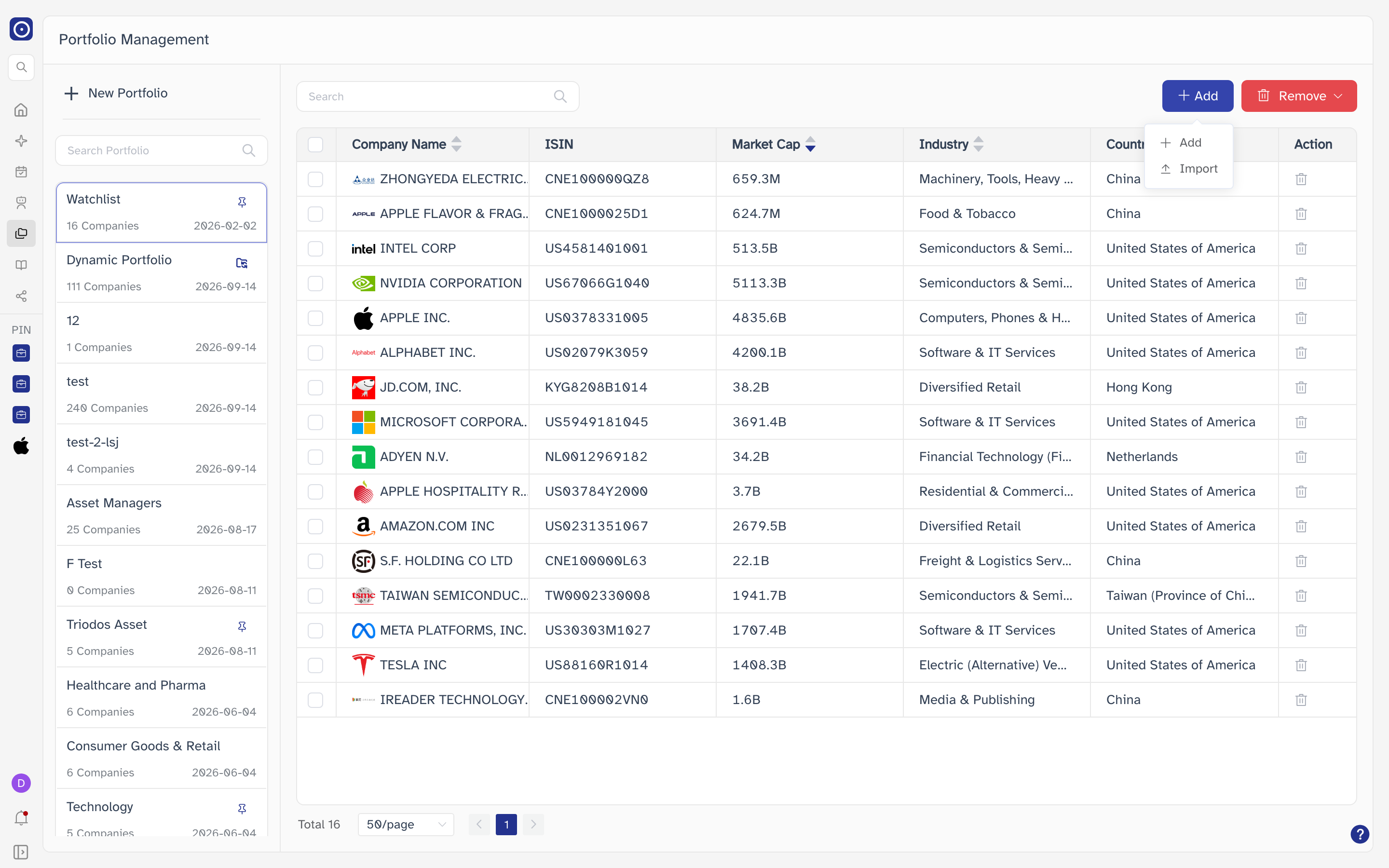
| Option | What it does |
|---|---|
| Add | Opens Add Companies. Search by company name, ticker, or ISIN and pick as many as you like, then click Add. |
| Import | Opens Import Portfolio for a spreadsheet of ISINs. |
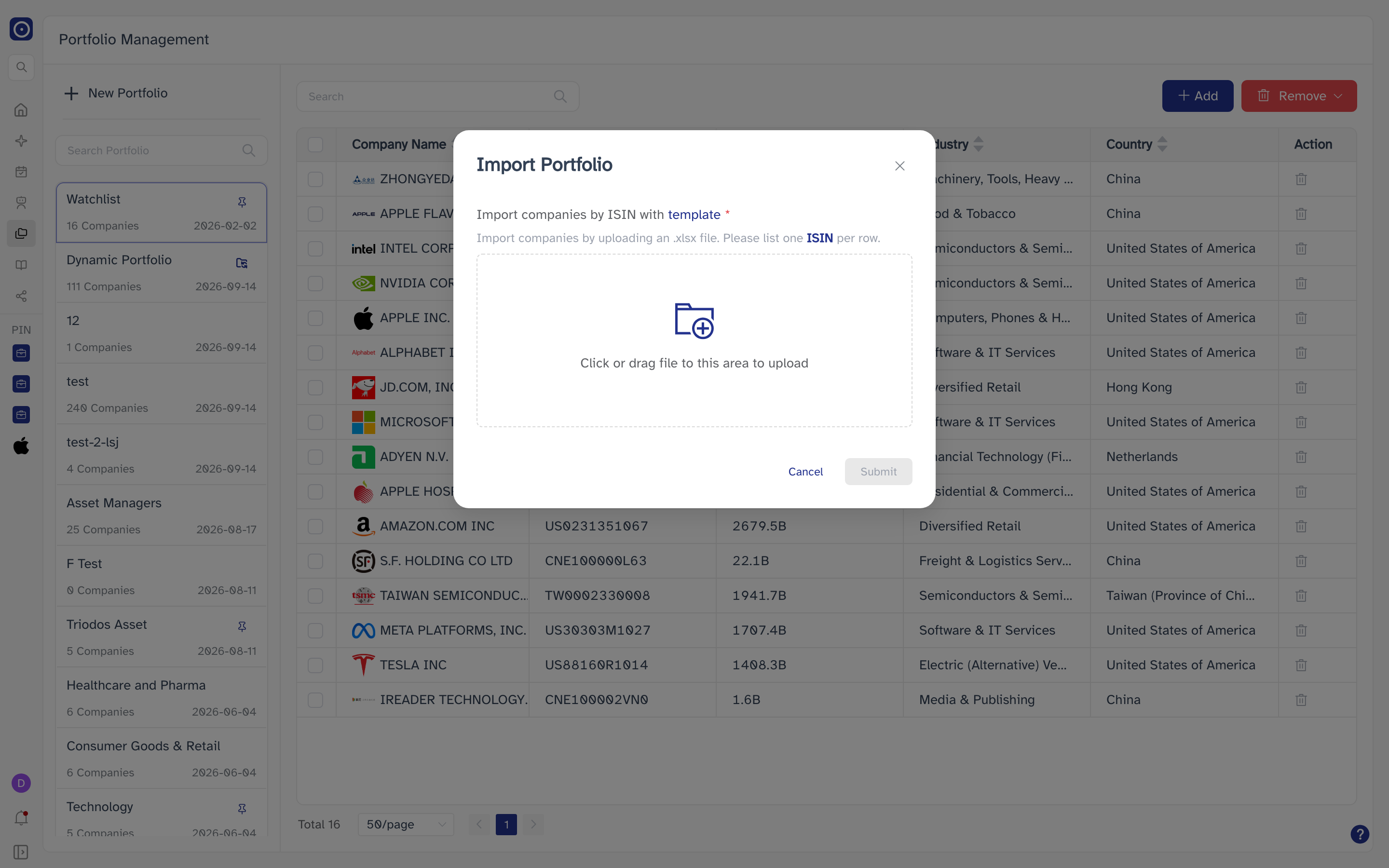
Remove
| Option | What it does |
|---|---|
| Remove Selected | Removes the companies you have ticked. Greyed out until at least one row is ticked. |
| Remove All | Removes every company in the portfolio. The portfolio itself stays. |
| Bin icon on a row | Removes that single company. |
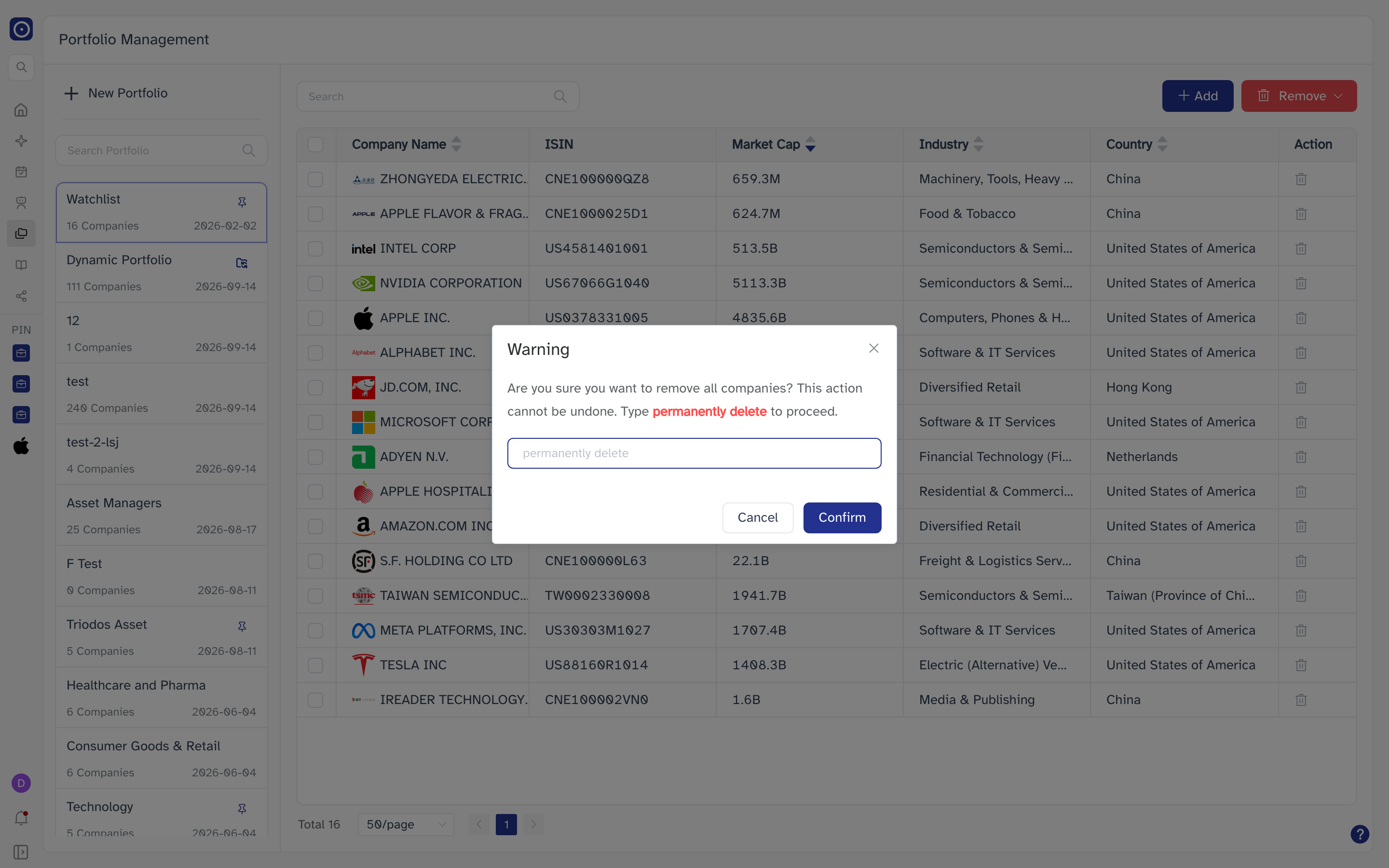
permanently delete.
There is no way to restore companies removed from a portfolio. If the portfolio was built from a spreadsheet or by hand, you will have to add them again yourself.
Rule-driven portfolios
A portfolio created with Build by criteria keeps the rule it was built from. It is marked with a sync icon in the left pane, and when you select it the toolbar changes: Add is replaced by Edit Rule and Sync.
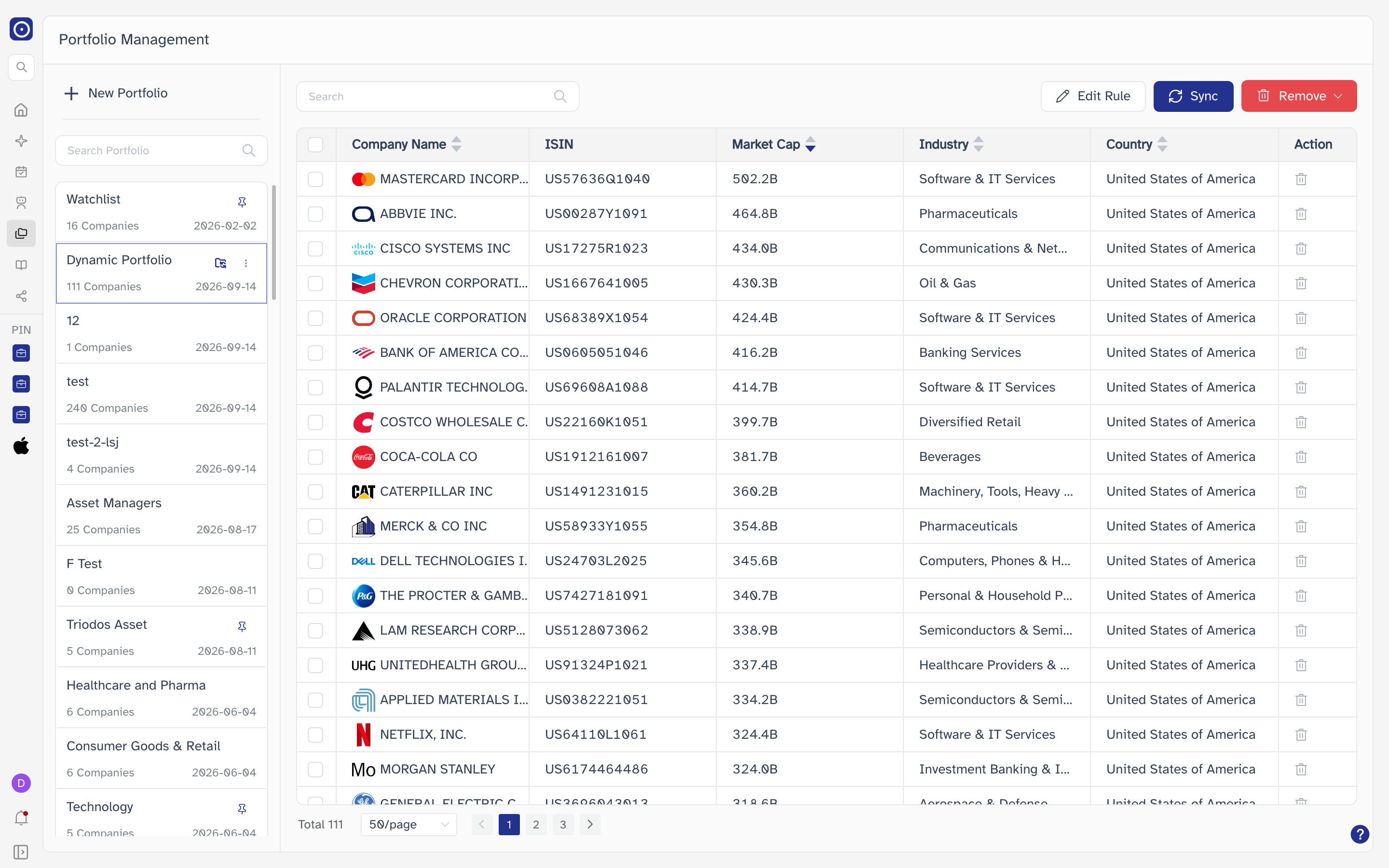
Nothing about a rule-driven portfolio changes until you open it and click Sync. A company that starts matching the rule tomorrow will not appear until you do.
Edit Rule
Opens Sync Settings, where the criteria work exactly as they do when creating a portfolio. As you change them, the panel tells you what saving would do.
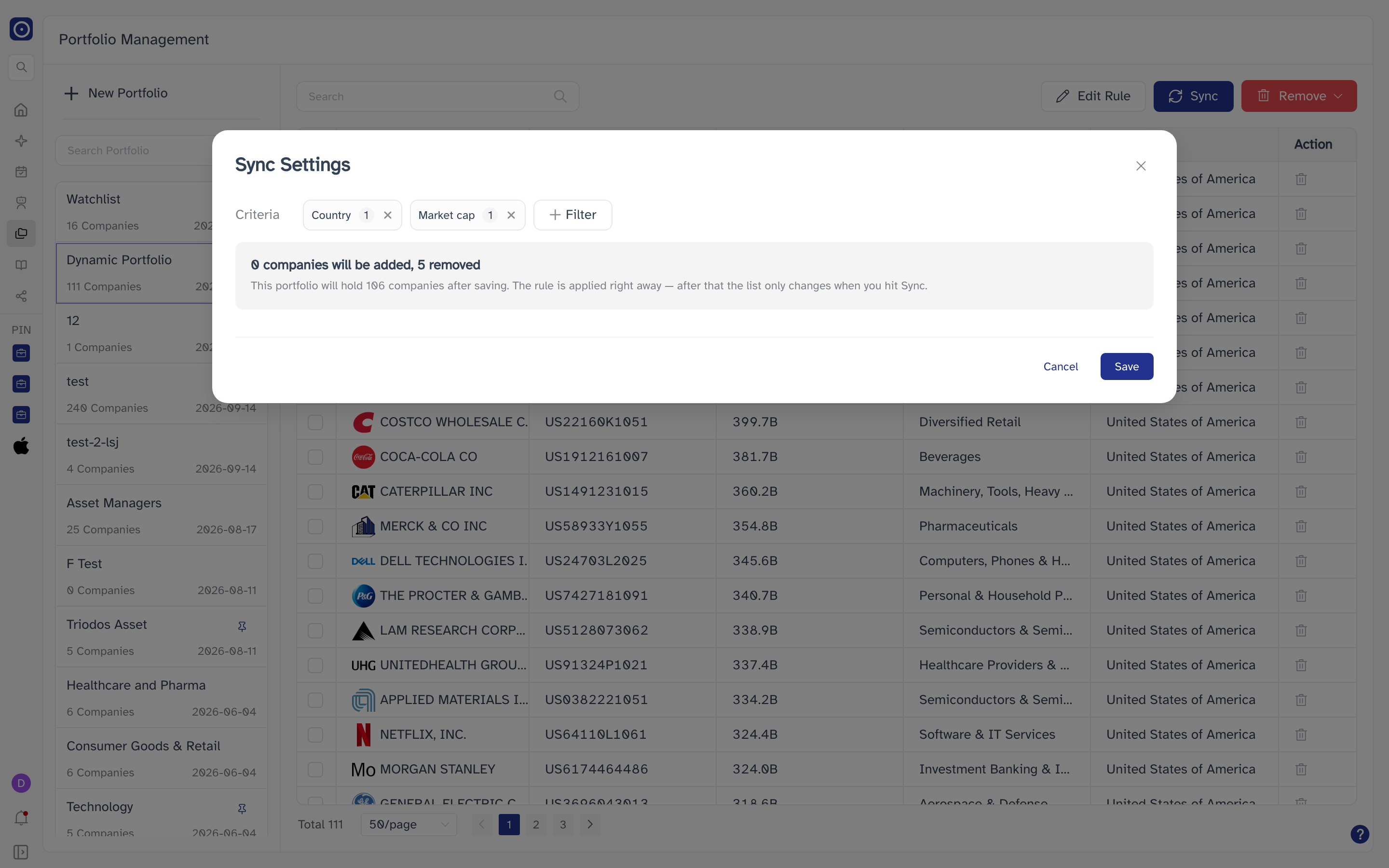
Save is refused if no criterion is set, or if the criteria match no companies at all.
Sync
Re-runs the existing rule and shows you the difference before anything changes.
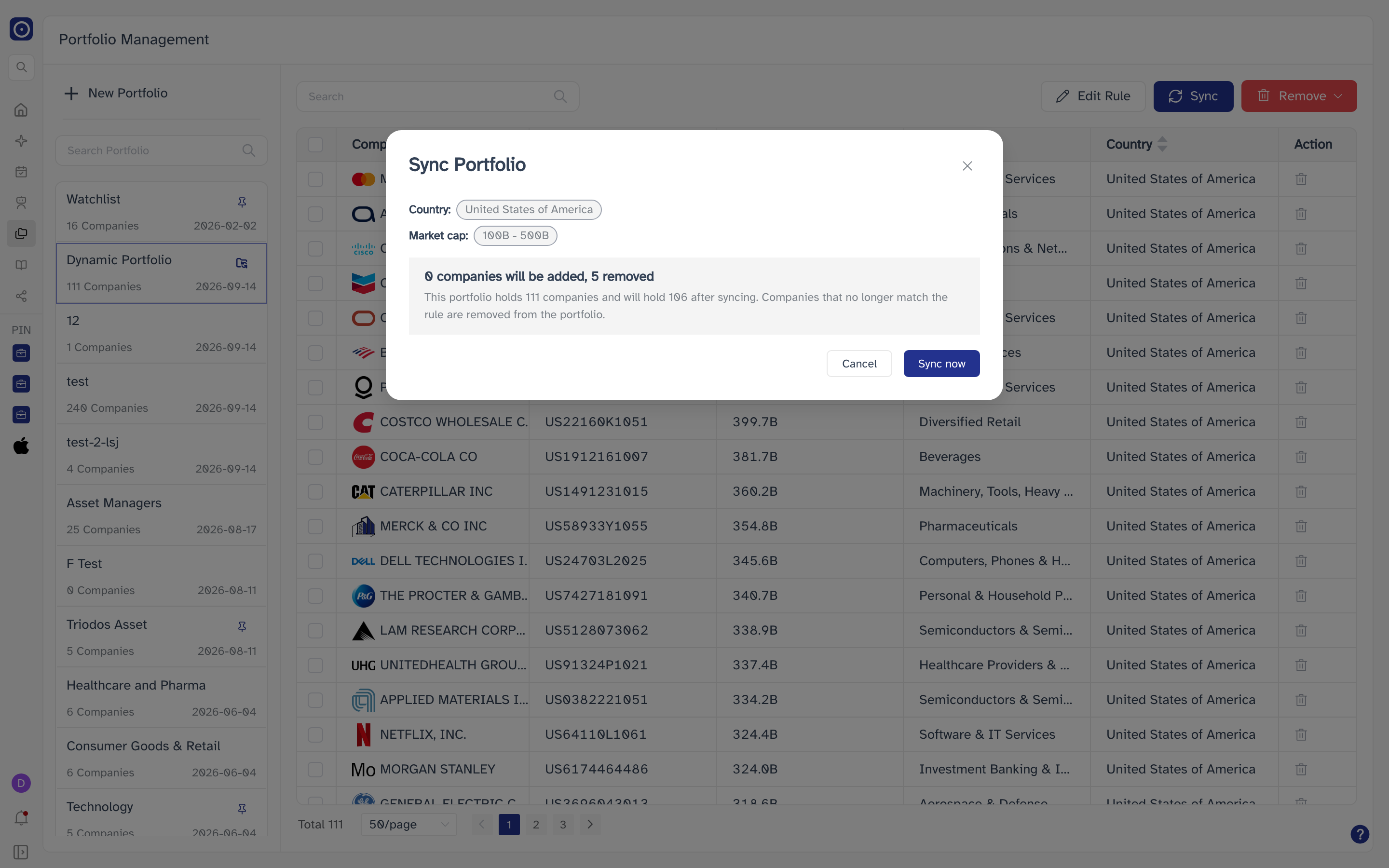
Companies that no longer match the rule are taken out of the portfolio. The preview counts them under removed — read it before clicking Sync now.
Sync now is greyed out when the rule would change nothing.
The company table
The table lists the companies in the selected portfolio, sorted by market cap, largest first. Click a company name to open its company page. Use the column arrows to sort by another column.
| Column | Meaning |
|---|---|
| Company Name | Name and logo. Sortable, and a link to the company. |
| ISIN | The company's International Securities Identification Number. |
| Market Cap | Market capitalisation in USD, shortened (for example 4835.6B). Sortable. |
| Industry | Industry classification. Sortable. |
| Country | Country of incorporation. Sortable. |
| Action | The bin icon removes that company. Not shown on portfolios owned by someone else. |
The table pages 50 rows at a time by default; the control at the bottom offers 20, 50, or 100 per page, with the total to its left.
What to do next
Pin a portfolio from the ⋮ menu and it appears in the left rail, one click from anywhere. From there you open Portfolio detail, where the news alerts and filings for the companies in it are collected.