
Profile
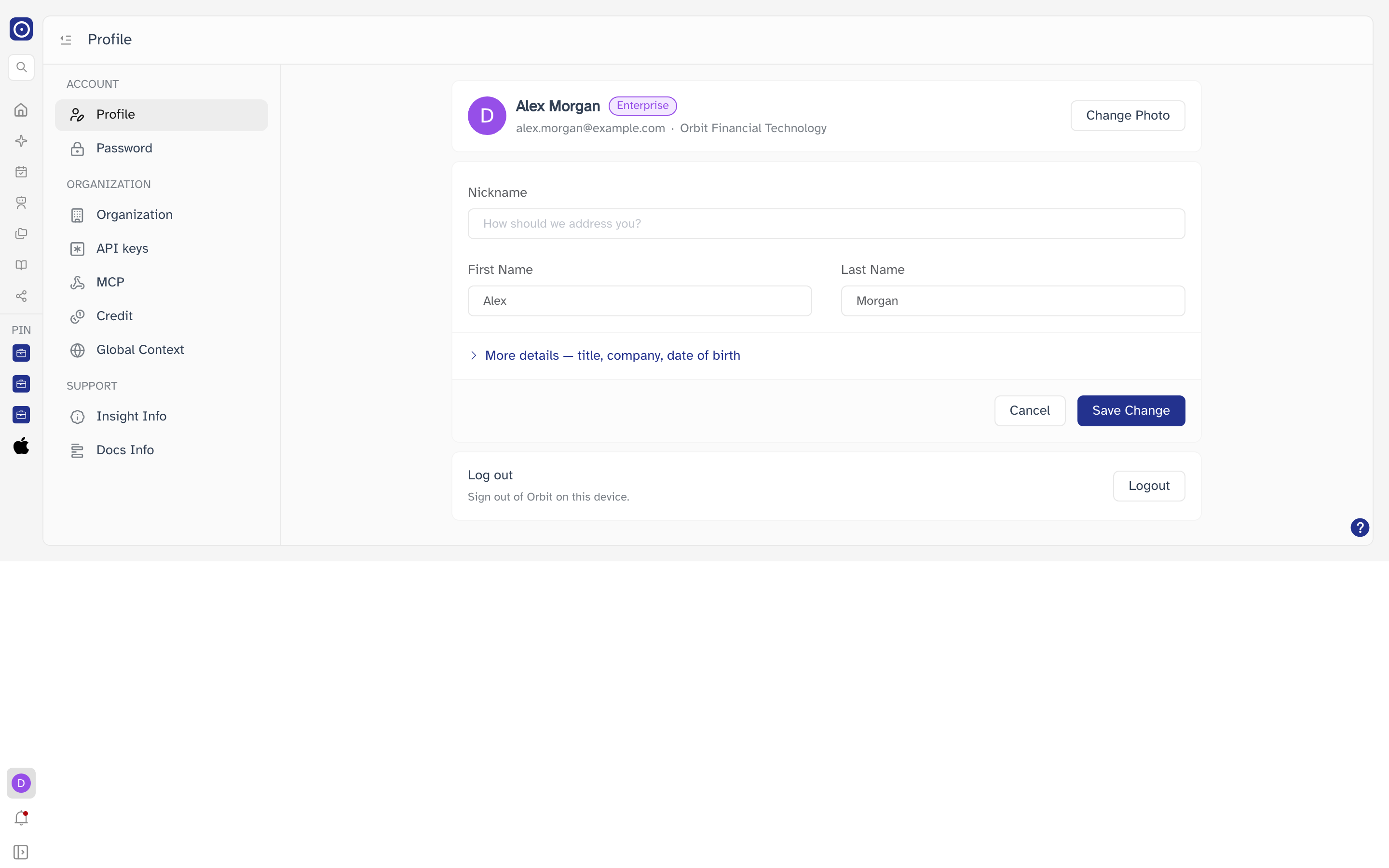
Your personal details in Orbit — the name and photo your colleagues see, your contact information, and the button to sign out of this device.
Opening the page
- Click your avatar at the bottom of the left rail.
- Choose Settings.
- Under ACCOUNT, select Profile. It is the page Settings opens on by default.
The account card
The card at the top is a read-only summary of who you are signed in as: your photo, your display name, your plan, and your email address alongside your company.
Change Photo opens a file picker and uploads the image immediately — there is no crop step and no separate save.
JPG or PNG only, and the file must be smaller than 2 MB. Anything else is rejected with an error message.
Editing your details
Nickname, First Name, and Last Name are shown straight away. Select More details — title, company, date of birth to expand the rest of the form.
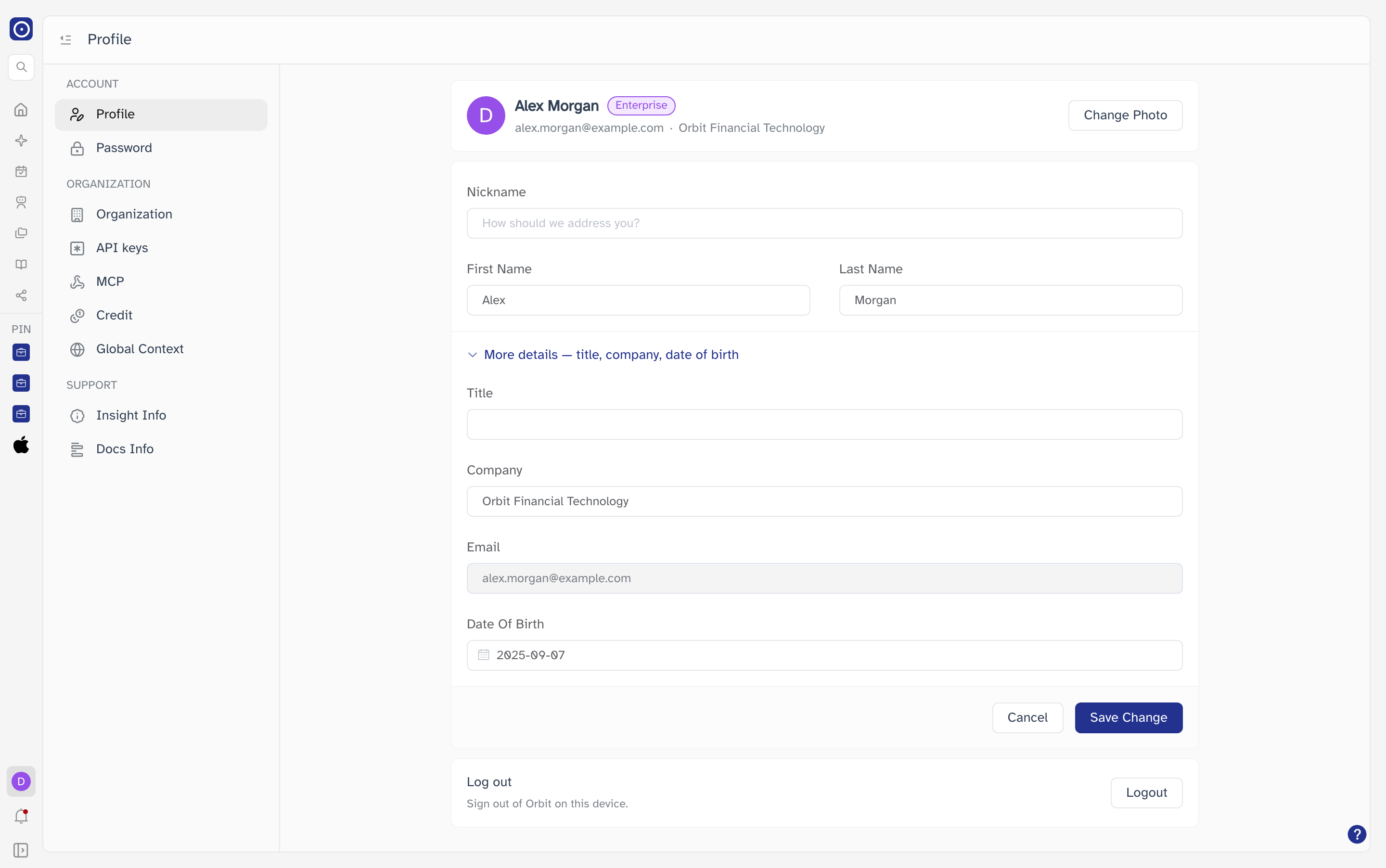
| Field | Notes |
|---|---|
| Nickname | How Orbit addresses you. Up to 48 characters. |
| First Name | Up to 28 characters. Used with Last Name to build your display name. |
| Last Name | Up to 50 characters. |
| Title | Your job title. Up to 80 characters. |
| Company | Up to 80 characters. Shown next to your email on the account card. |
| Read-only. Contact Orbit if your address needs to change. | |
| Date Of Birth | Date picker. Future dates cannot be selected. |
Your display name falls back through the values you have filled in: first and last name if both are set, otherwise your nickname, otherwise your email address.
Saving
- Edit any of the fields above.
- Click Save Change. The button shows a spinner while the update is in flight.
- The timestamp to the left of the buttons updates to show when the profile was last changed.
Cancel discards your edits and reloads the values currently stored on your account. It does not undo a save you have already made.
Logging out
The card at the bottom of the page signs you out of Orbit on this device and returns you to the sign-in screen. Sessions on your other devices are not affected.