
New Chat
The page a piece of research starts from. It carries the heading Orbit Research Agent and holds three things: your recent chats down the left, the question box in the middle, and a set of ready-made prompts called Quick Analysis underneath.
Opening the page
- Click New Chat in the left rail.
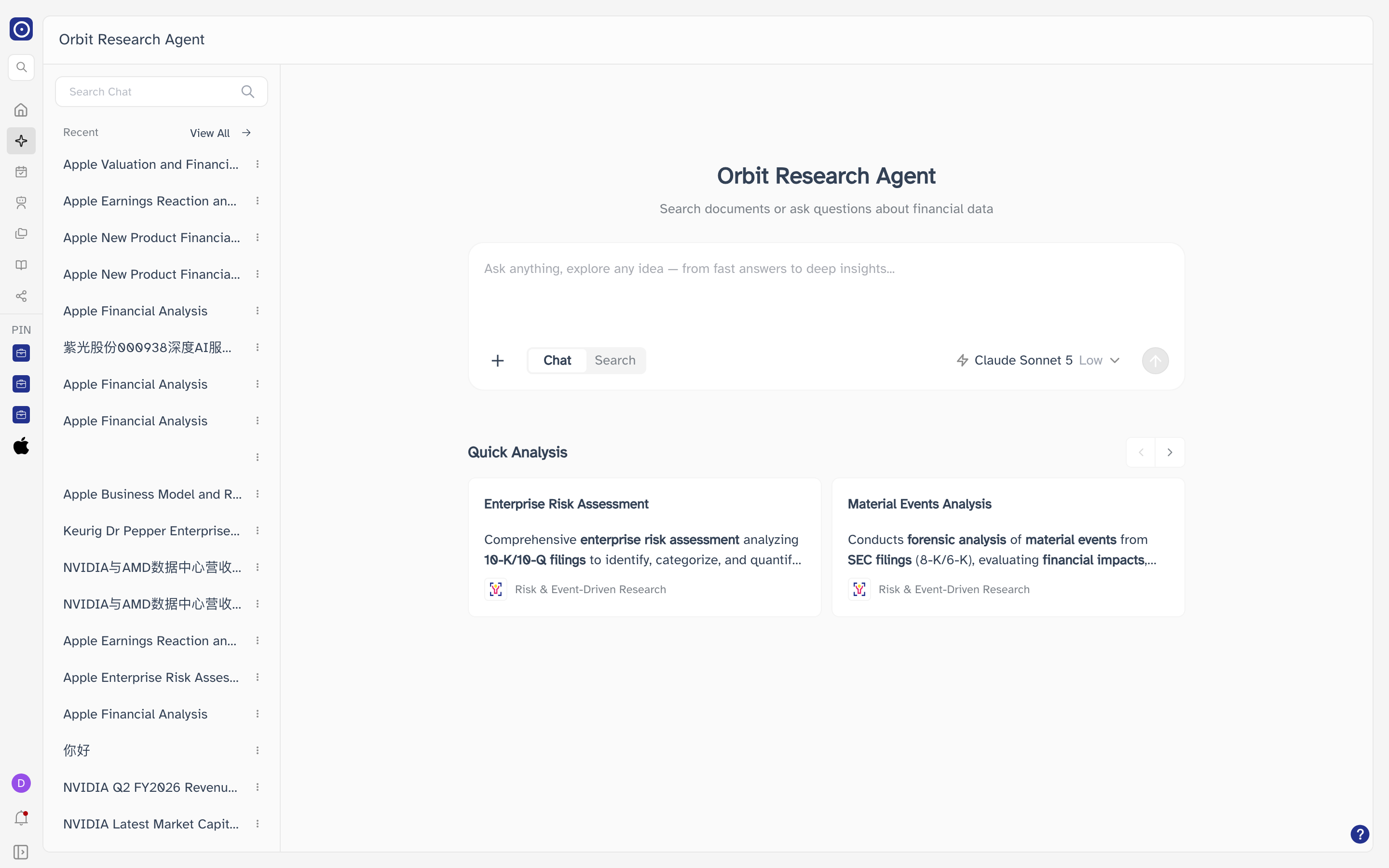
The rail shows icons only until you expand it. The control at the bottom of the rail, labelled Collapse Sidebar, switches between icons and names.
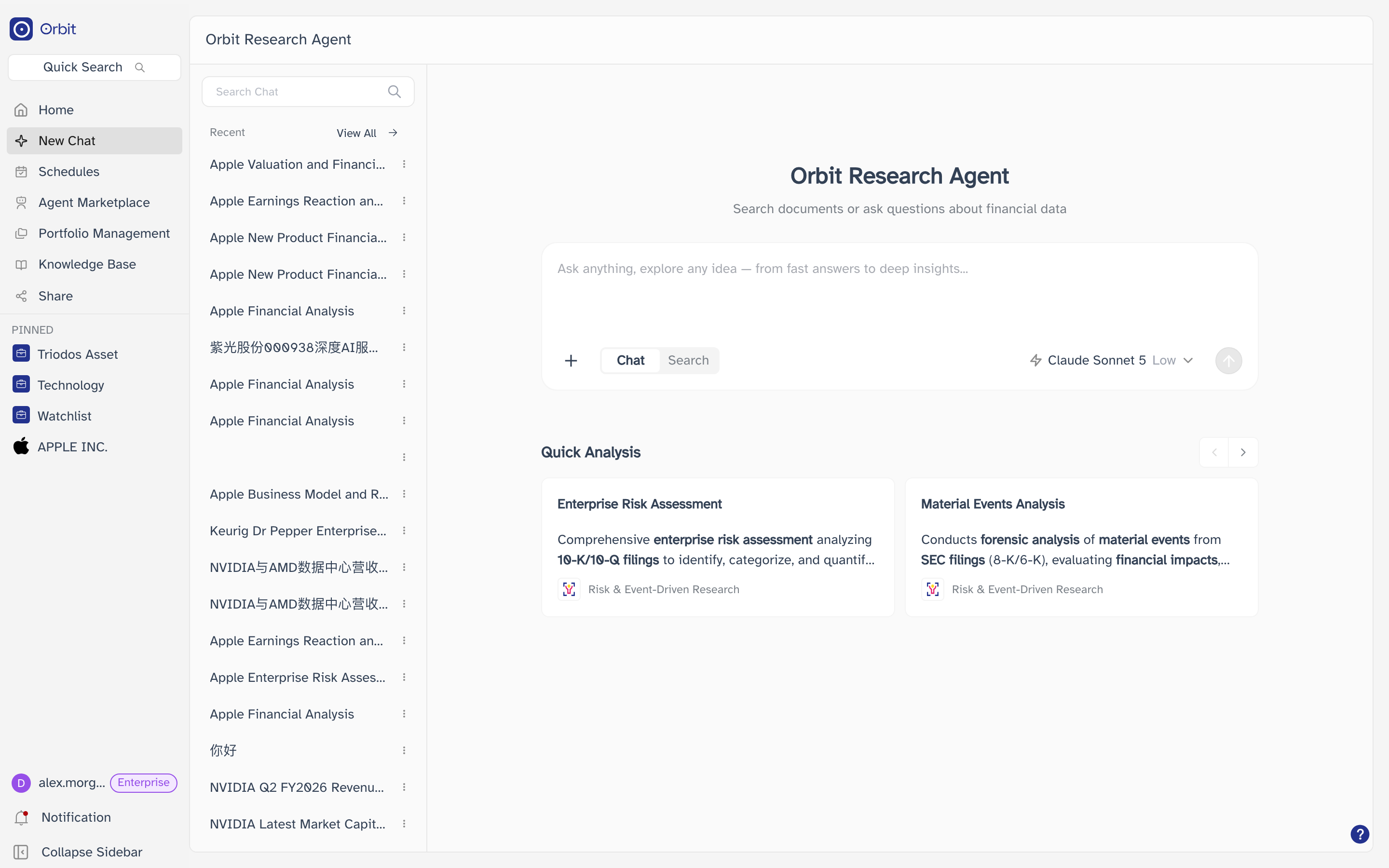
The Home entry immediately above it opens the dashboard, not this page. Use New Chat whenever you want to start a fresh conversation.
Asking a question
Type into the box under the heading and send it with the round arrow button on the right, or by pressing Enter. Shift + Enter adds a line break instead of sending. The arrow stays greyed out until the box contains something other than spaces.
The two buttons below the box, Chat and Search, decide what happens when you send.
| Mode | What it does |
|---|---|
| Chat | Selected by default. Sending opens a Chat Agent conversation and the agent answers there, using the model, effort and context you set on this page. |
| Search | Sending runs a document search and opens the results in Explore. A row of filters appears above the box in this mode — see Search filters below. |
Coming back to New Chat puts the mode back to Chat, the effort back to Low and clears any search filters you had set. The model you picked is kept.
Model and effort
The button at the bottom right of the box shows the current choices — the model name followed by the effort. Click it to open a panel with Model and Effort, then hover either row to see the values. A tick marks the one in use.
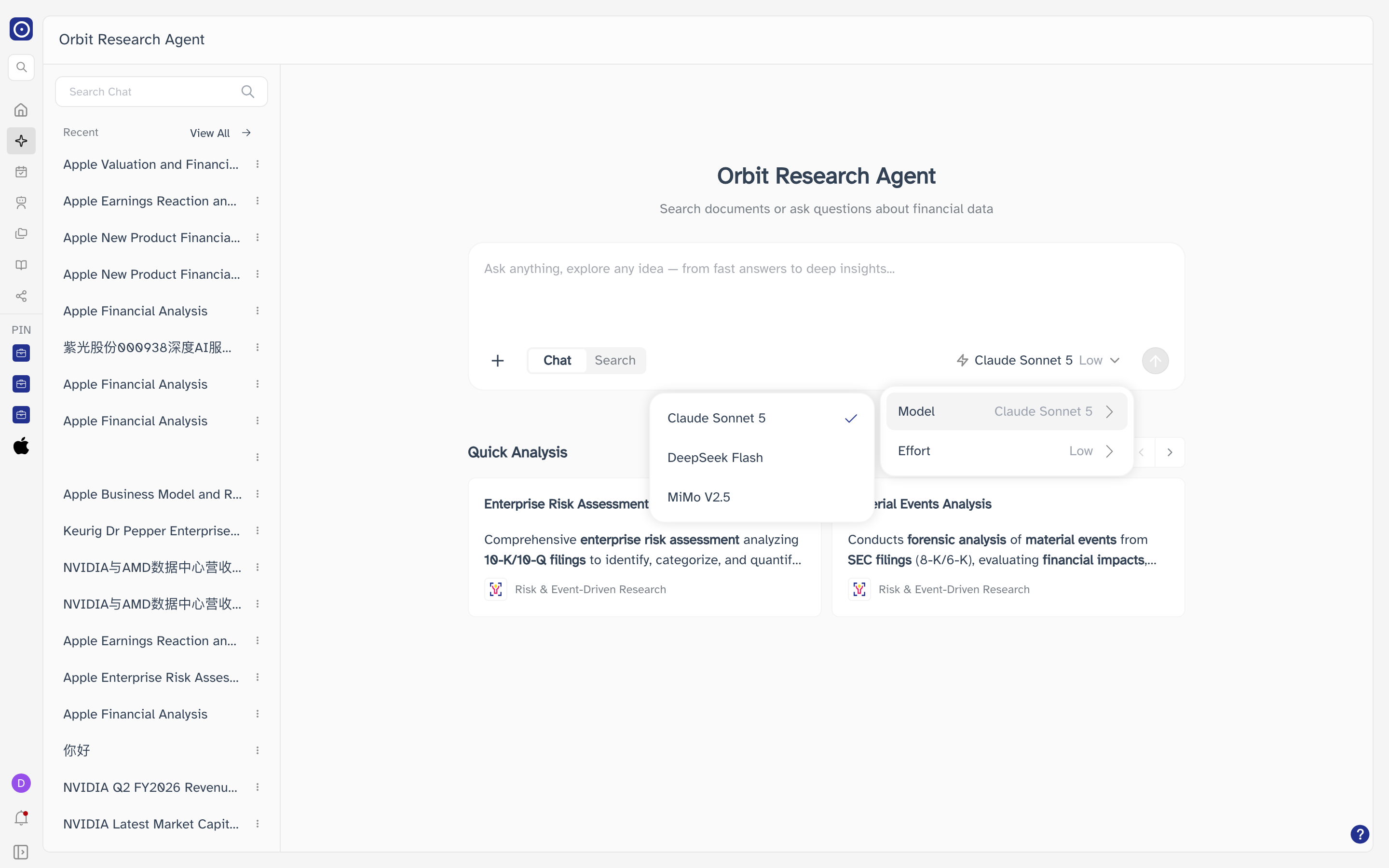
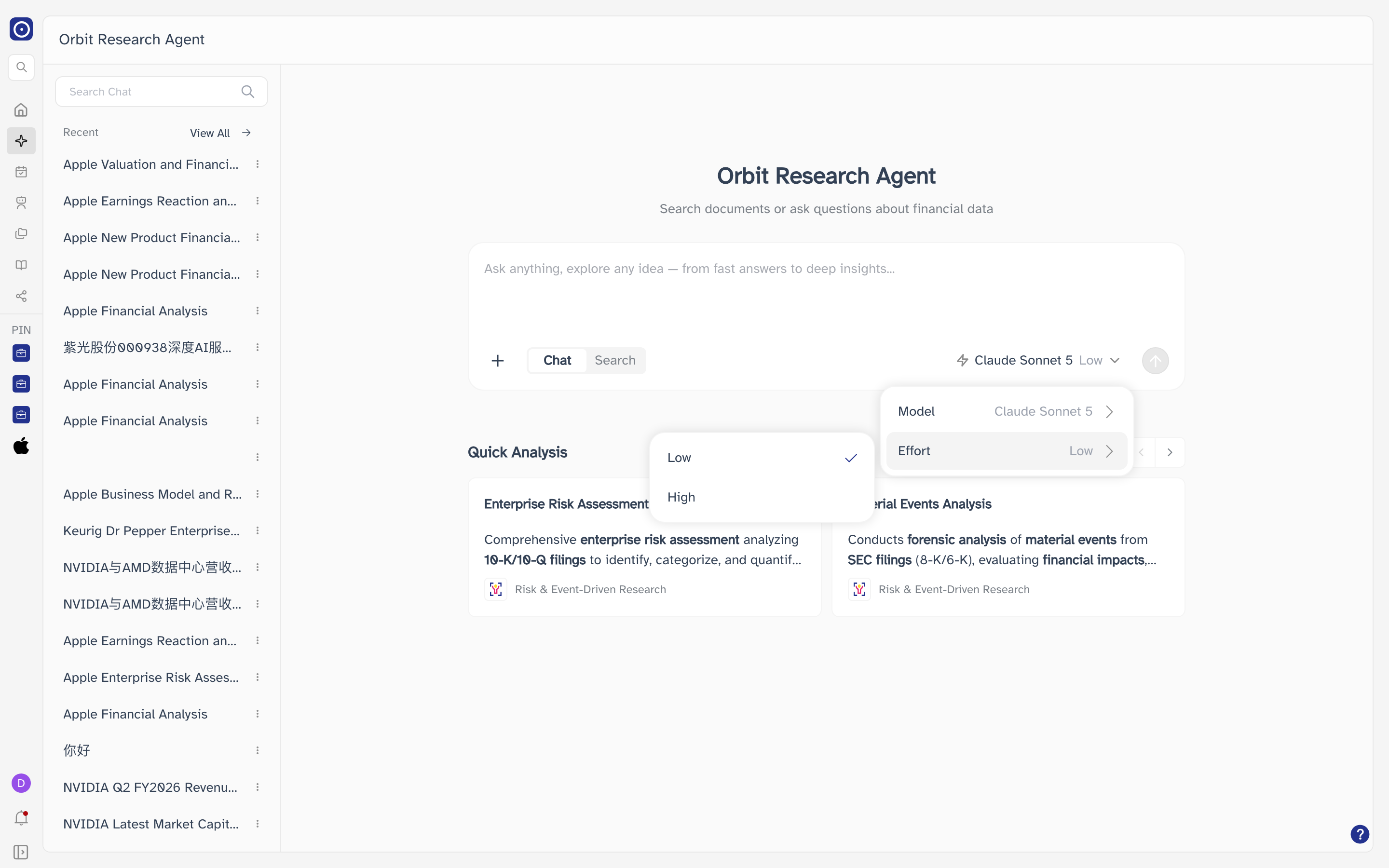
Switching to Search removes Model from that panel and the button shows the effort only. A document search does not go through a chat model.
Adding context to a chat
The + button at the bottom left of the box sets what the agent can draw on besides your question. It is available in Chat mode only. Hover a row to open its submenu.
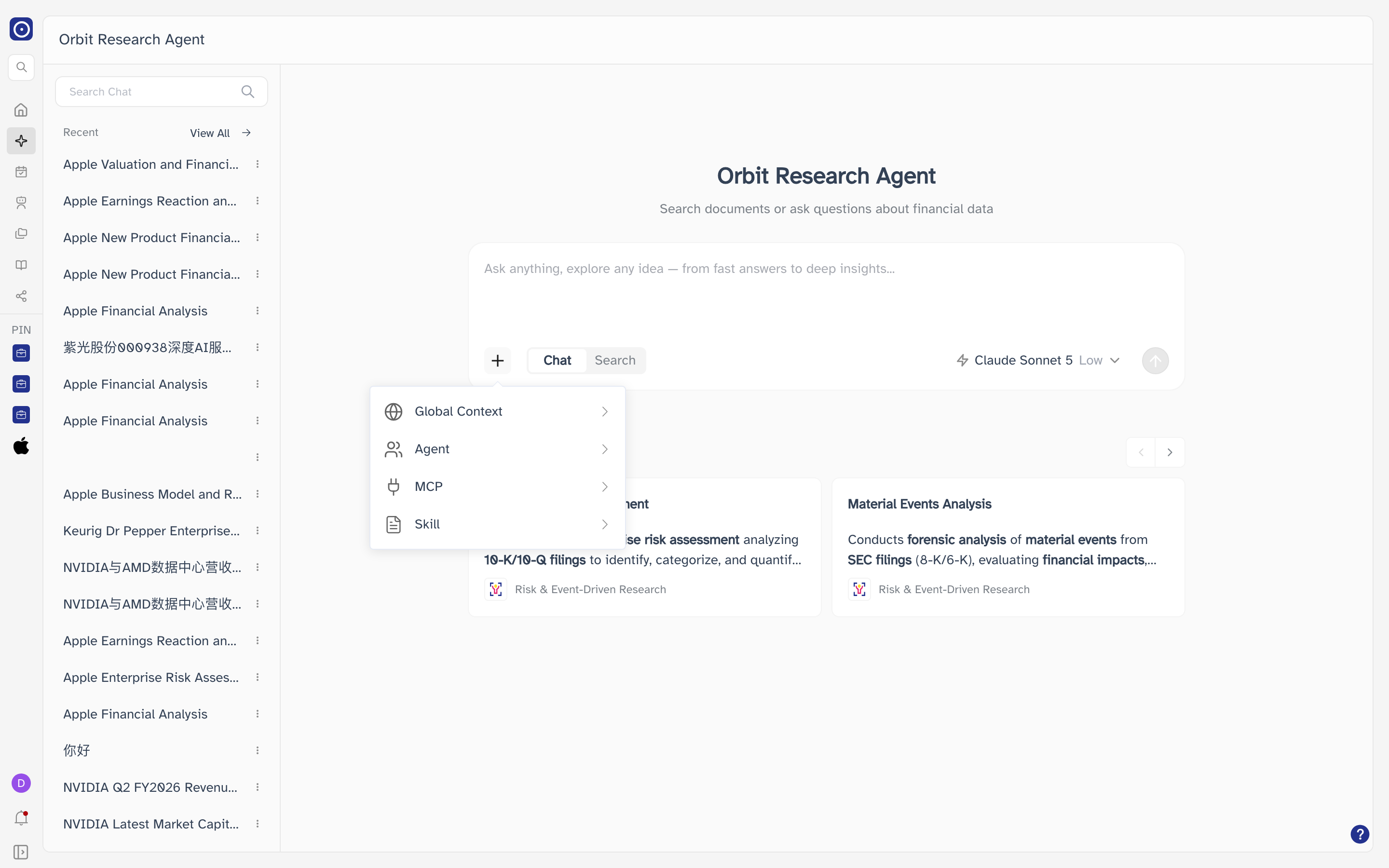
| Row | What its submenu holds |
|---|---|
| Global Context | A switch for the documents you have uploaded as shared context, an Upload button for adding more, and Manage context files. |
| Agent | Your own agents, grouped into Single Stock Agent and Custom Research Agent, each with a switch that decides whether this chat can use it. If you have none, the submenu says No agents yet. |
| MCP | The MCP servers the chat may call. Orbit MCP is on by default. |
| Skill | Ready-made analysis routines — earnings analysis, annual report deep dive, financial research and earnings time series. Hover a name to read what it does. Only one skill can be on at a time; switching one on switches the others off. |
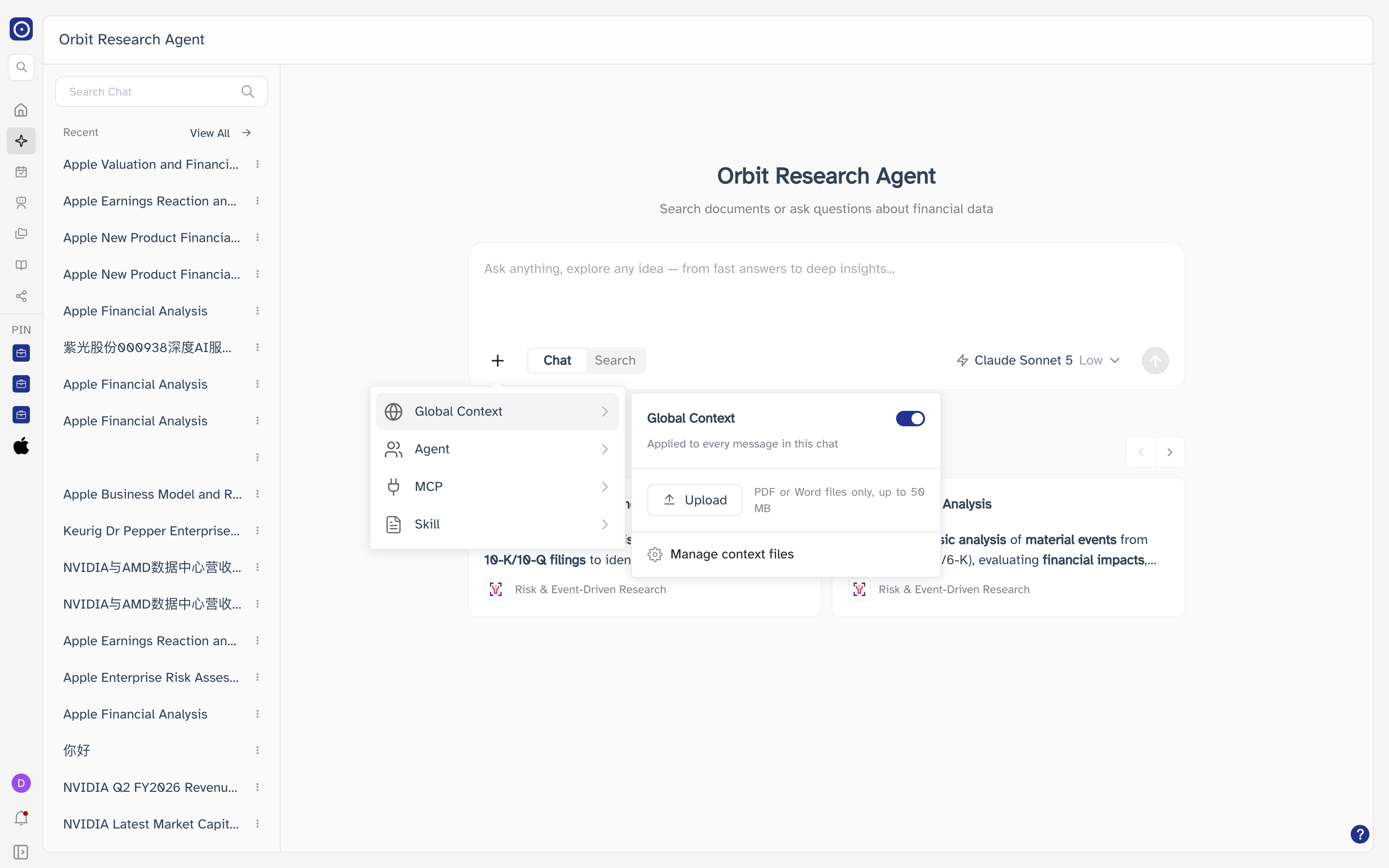
Upload accepts PDF and DOCX files only, at most 10 at a time and up to 50 MB each. Files added here land in the same place as the ones on the Global Context settings page, and Manage context files opens that page.
Search filters
Switching to Search adds a row of filters above the box. They narrow which documents are searched; they have no effect in Chat mode.
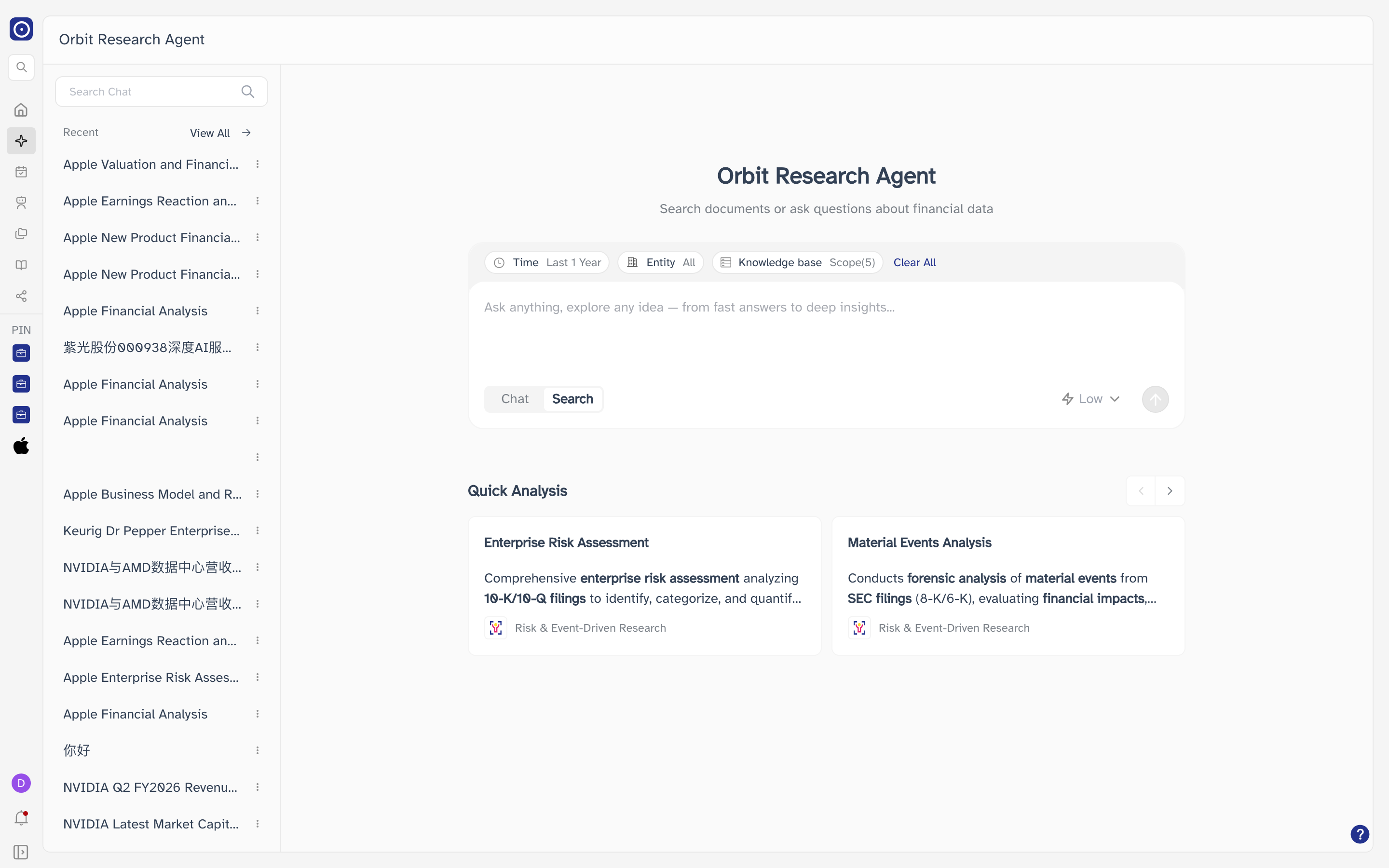
| Filter | Notes |
|---|---|
| Time | The publication window of the documents. Starts at the last year, and a calendar with last 7 days through last 1 year shortcuts opens when you click it. The range cannot be longer than one year. |
| Entity | What the documents are about: Companies, Portfolios, Countries, Sector and Market Cap. Starts at All. |
| Knowledge base | Which document types are searched. The number in brackets is how many are currently selected. |
| Clear All | Puts all three back to how they were when the page opened. |
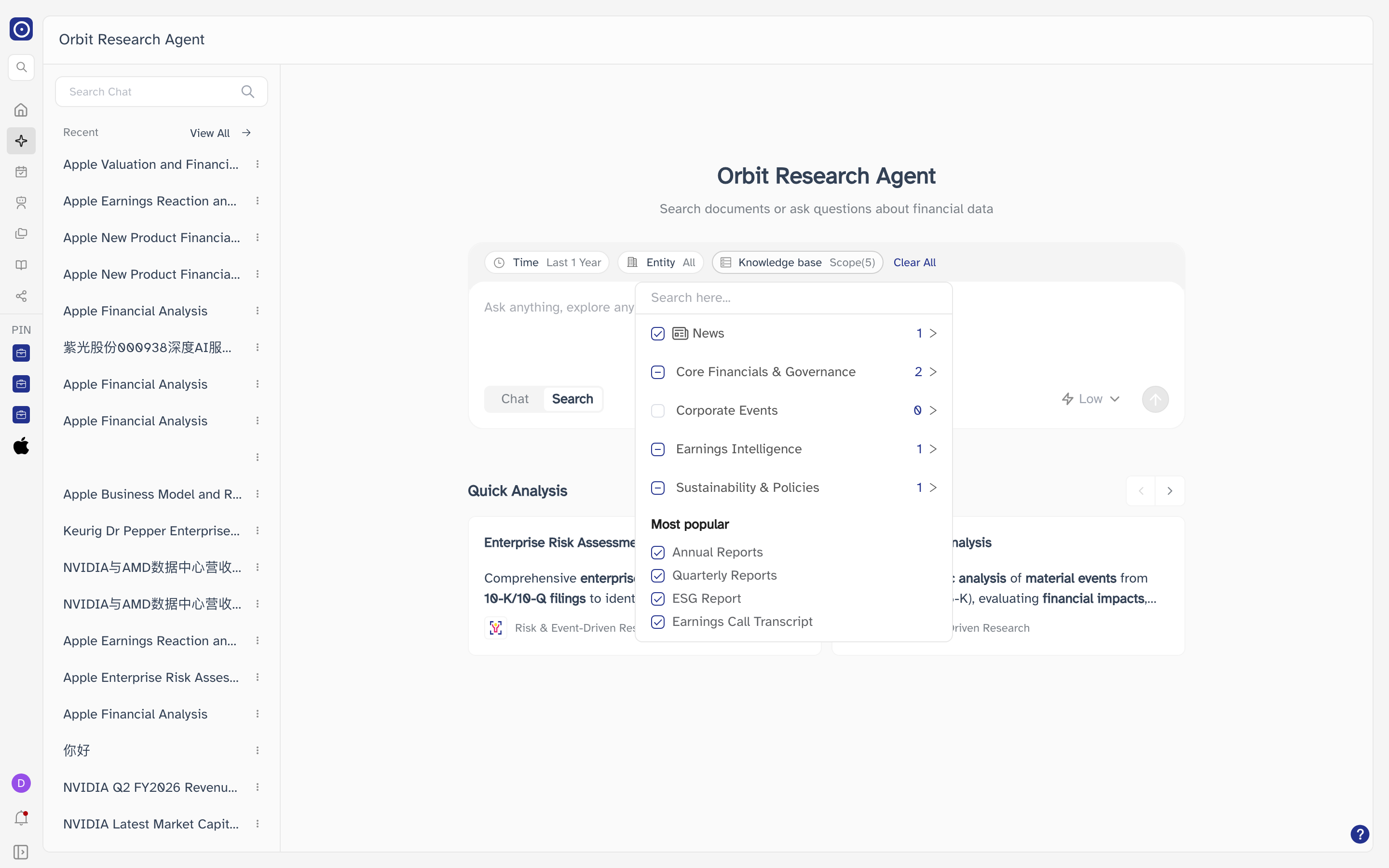
If you clear Knowledge base completely and then send, Orbit refuses the search and asks you to choose one. Nothing is lost — your question stays in the box.
Quick Analysis
The cards under the question box are prompts Orbit has written for you, each covering one kind of analysis. They are grouped by category — the arrows at the right of the Quick Analysis heading move between categories, and the category each card belongs to is repeated at the bottom of the card.
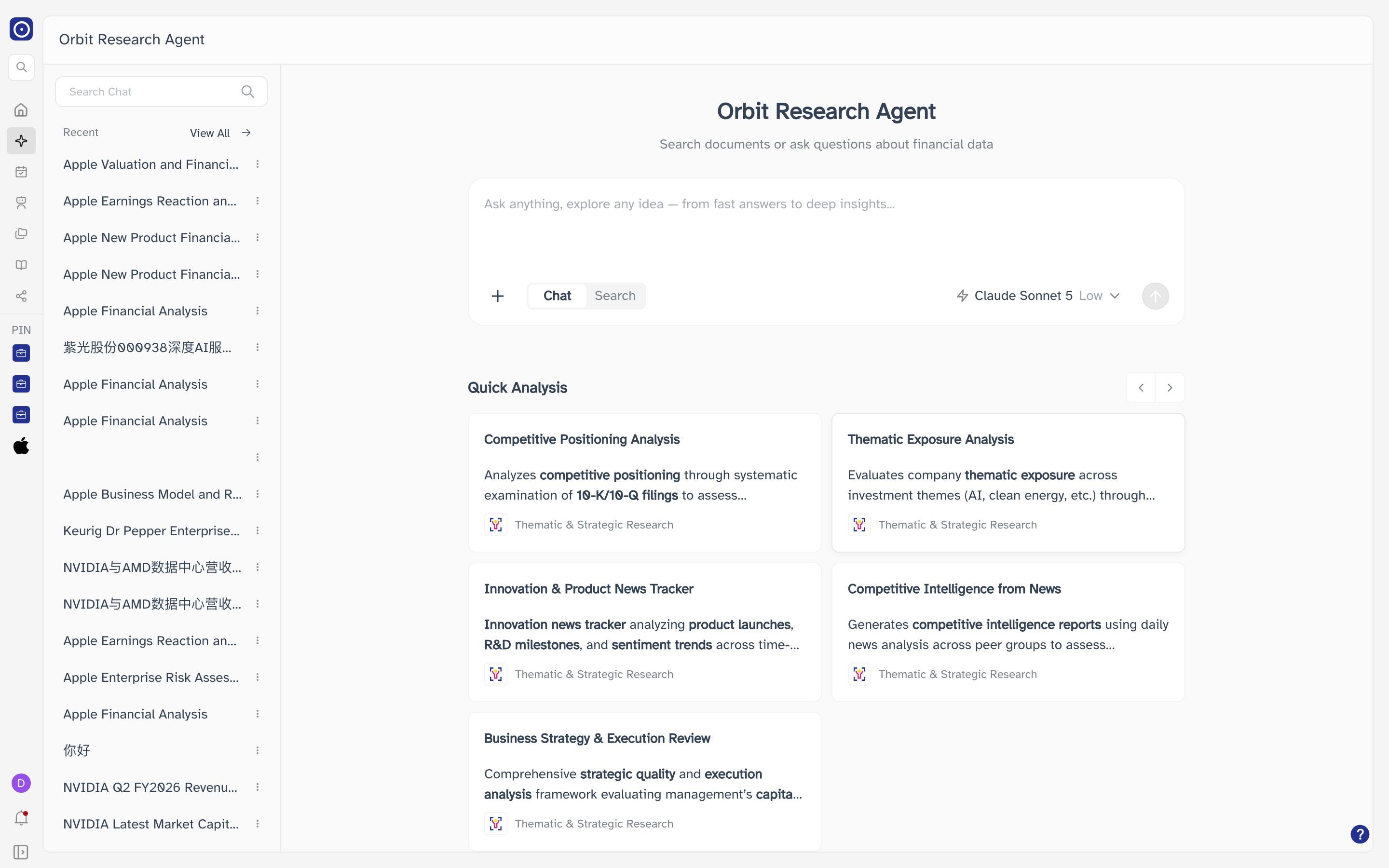
Clicking a card opens it. The dialog shows the full summary and asks for the one thing the prompt cannot supply itself — the company to run it on.
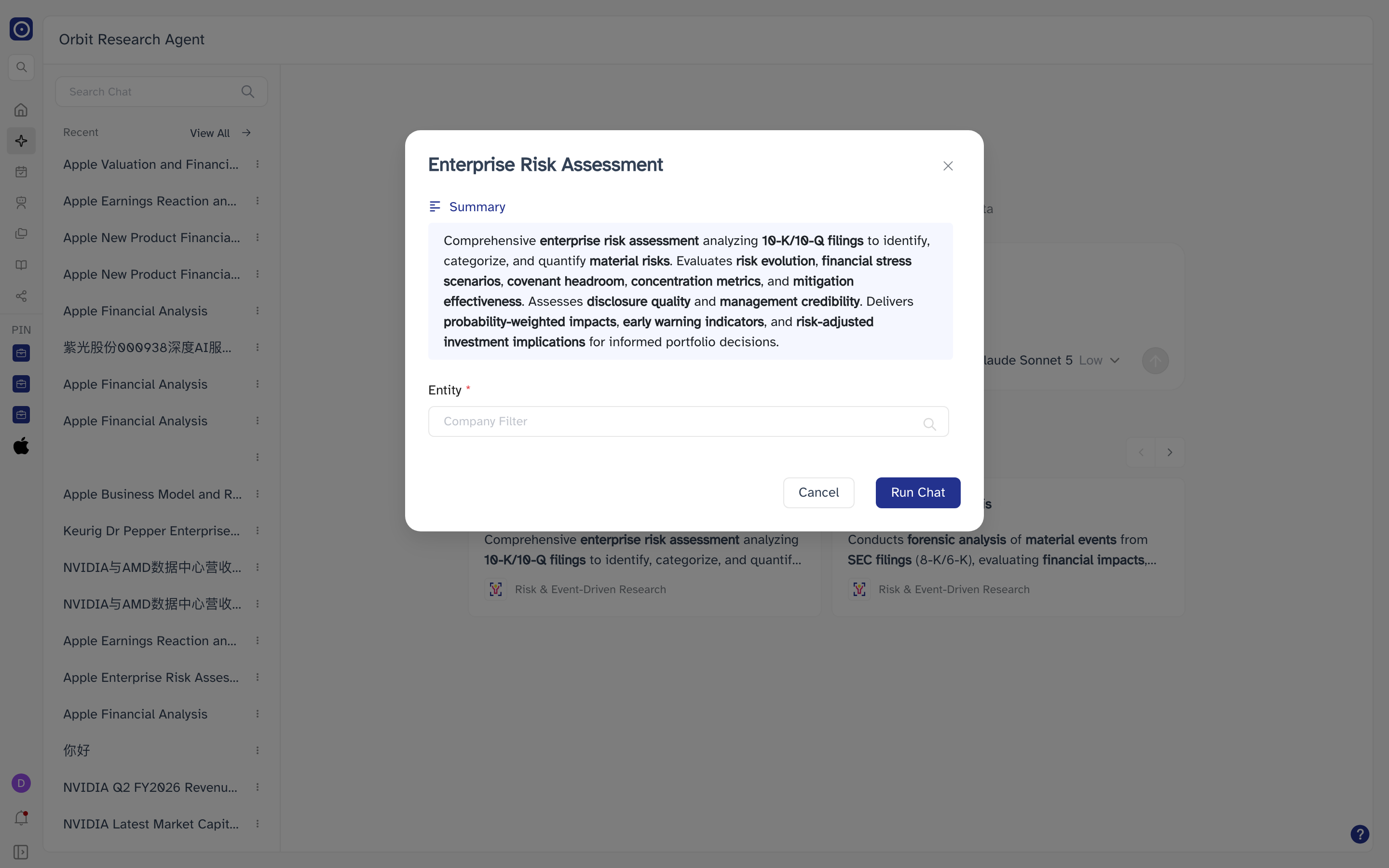
Run Chat starts a Chat Agent conversation from the prompt, with the company, the time range and the report types already filled in for you. Cancel closes the dialog and changes nothing.
Your recent chats
The column on the left lists your conversations, newest first, under Recent. Click a name to reopen that conversation. Anything you pin appears in a Pinned group above Recent.
| Control | What it does |
|---|---|
| Search Chat | Filters the list by title as you type. Clearing the box brings the full list back. |
| View All | Opens the full Chat History page. This column holds your 50 most recent conversations, so use View All to reach anything older. |
| ⋮ | The per-conversation menu: Edit, Pin and Delete. |
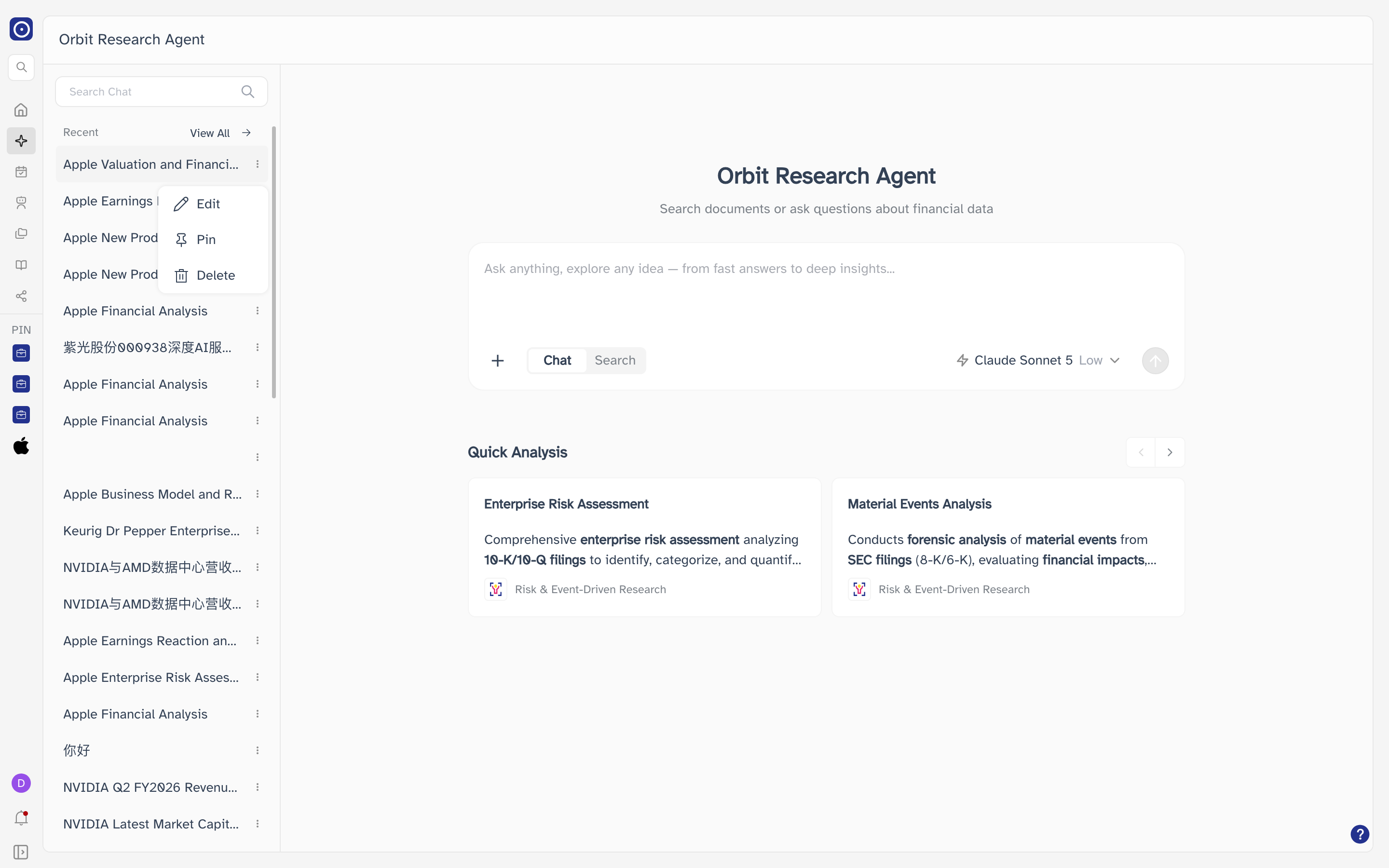
Edit renames the conversation. The title is required and can be up to 100 characters; the counter under the box shows how many you have used.
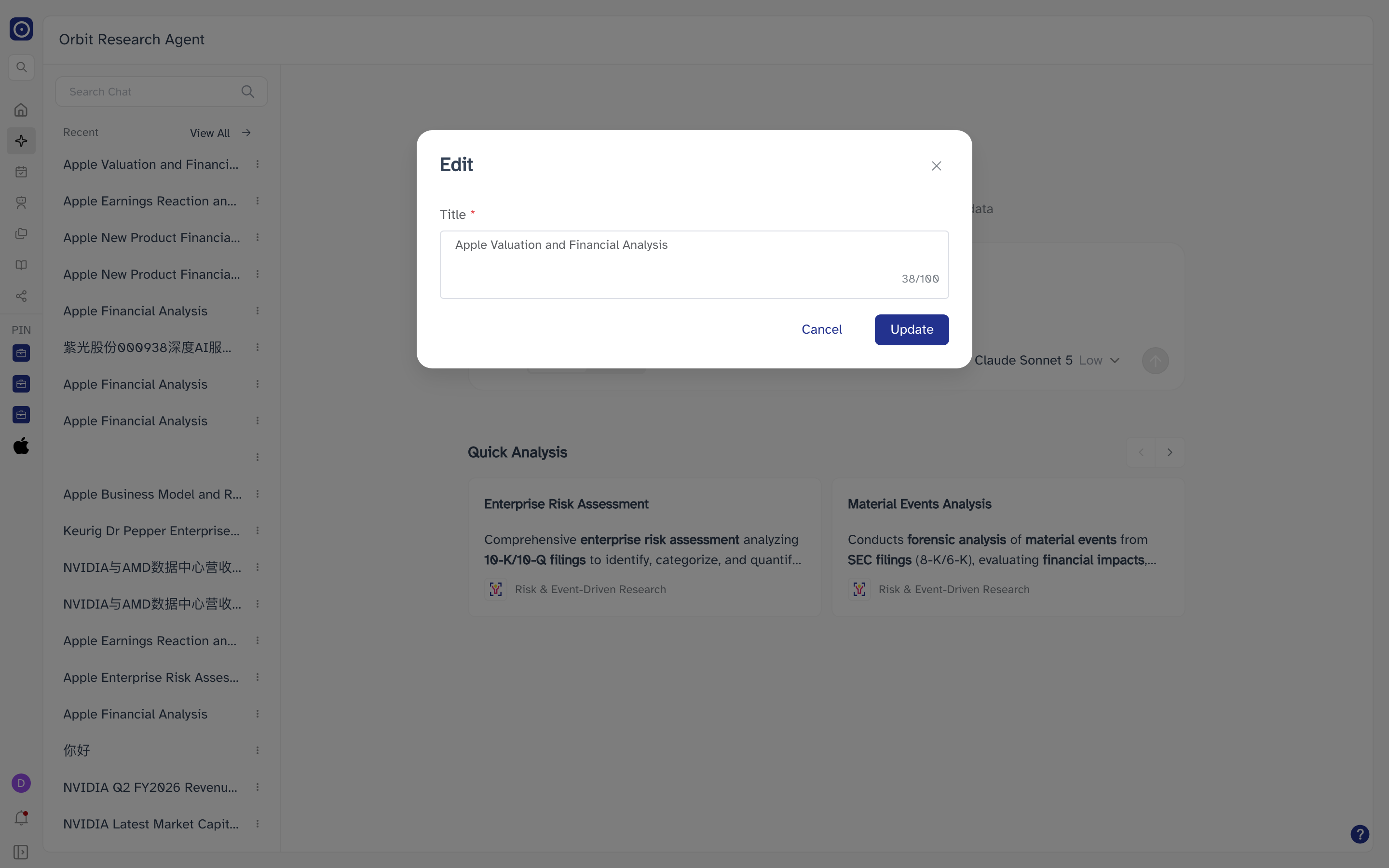
Delete asks you to confirm by typing permanently delete into the
box before Confirm will accept it.
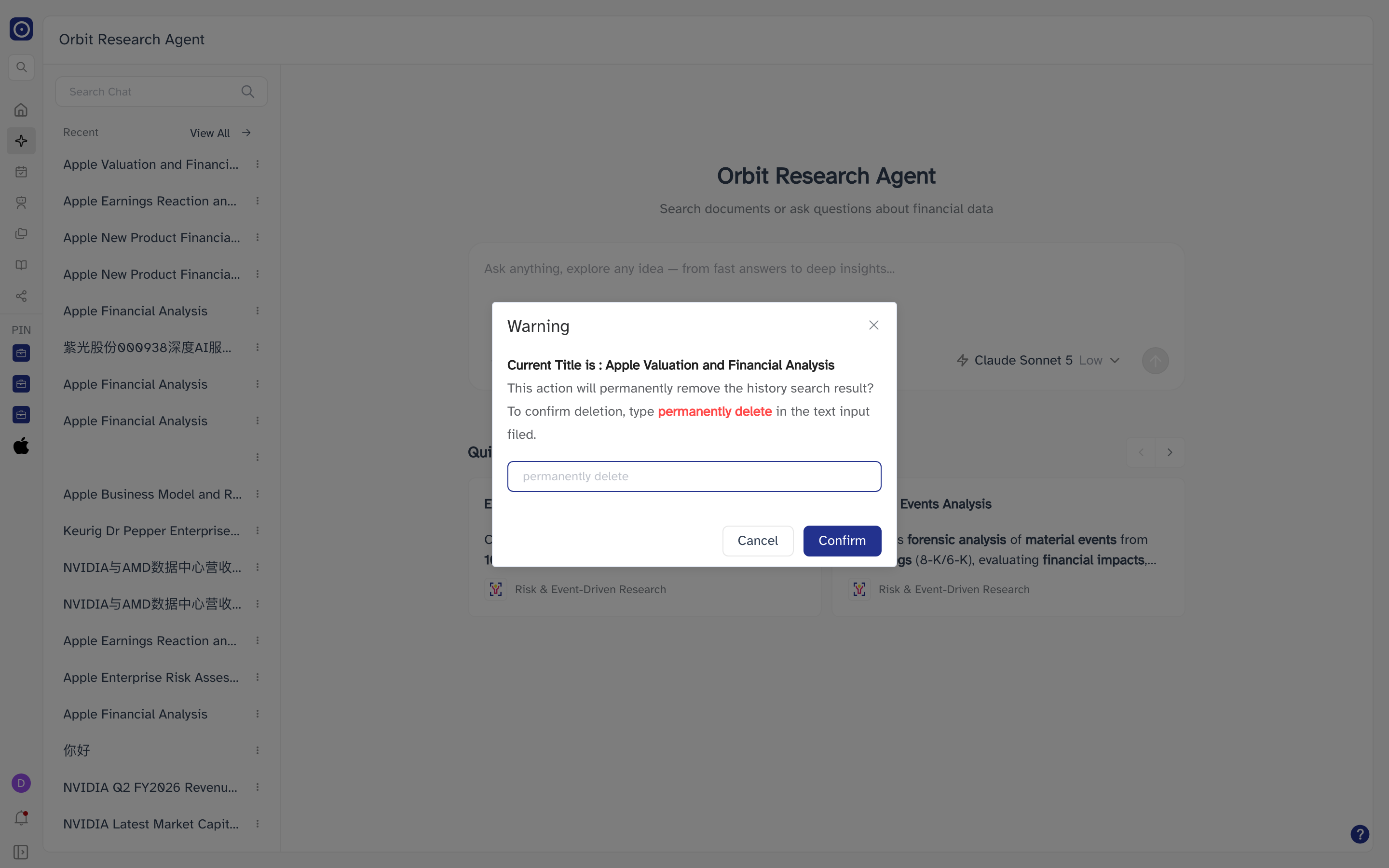
Deleting removes the conversation and its answers for good. There is no recycle bin and no way to restore it afterwards.
A pinned conversation jumps to the Pinned group straight away. If Orbit could not save the change it moves back and shows Failed to update pin status — try again.