
Concept Library
A concept is a reusable definition of the kind of company you want to track. Describe it in a sentence or two and the model turns it into keyword groups, translations and extraction fields that Screening agents can reuse.
Opening the page
- Click Agent Marketplace in the left rail.
- In the column at the left of the page, under System Agents, click Concept Library.
The page remembers which list you are on only while it is open. To land on the Concept
Library straight away, add ?active_view=concept to the Agent Marketplace
address (/bots/market). See Agent Marketplace
for the rest of that page.
Finding a concept
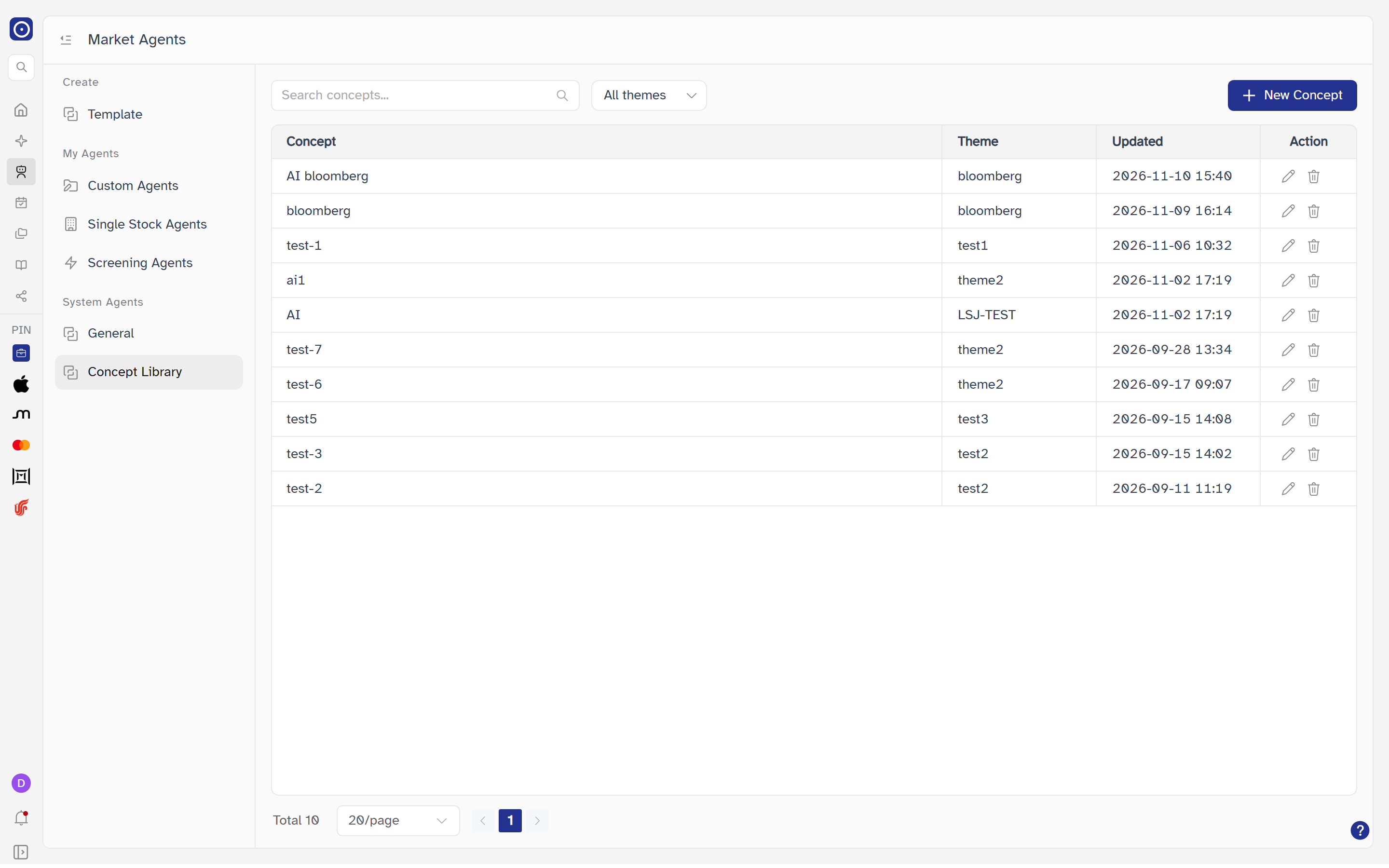
The page lists every concept in a table with a search box, a theme filter and a New Concept button above it. When you have no concepts at all, the table and its toolbar are replaced by an empty state instead — see When you have no concepts yet.
| Control | What it does |
|---|---|
| Search concepts... | Type a keyword and press Enter to filter the table. Clearing the box with its clear button searches again with no keyword. Searching always returns you to page 1. |
| Theme filter | Reads All themes until you pick something, the theme's name when you pick one, and N themes selected when you pick several. Opens the theme list described in Themes. |
| New Concept | Opens the Create concept drawer. If exactly one theme is selected in the filter, that theme is already chosen in the new concept. |
| Pagination | Shows the total, a page-size menu (10, 20 or 50 per page; 20 by default), and page controls. Changing the page size returns you to page 1. |
When nothing matches
| Situation | Message in the table |
|---|---|
| A search with no hits | No concepts match "…" with your keyword, and Try a different keyword or clear the search. A search message takes priority over a theme message. |
| One theme selected, no concepts in it | "<theme name>" has no concepts yet and Add the first concept to this theme, or move an existing one here from another theme. A New Concept button appears below the message. |
| Several themes selected, no concepts in them | No concepts match the selected themes and Add a new concept, or move an existing one into one of the selected themes. A New Concept button appears below the message. |
Reading the list
| Column | Notes |
|---|---|
| Concept | The concept's name. |
| Theme | The theme it is filed under, or - when it has none. |
| Updated | When it was last changed, as YYYY-MM-DD HH:mm. |
| Action | Two icons: edit and delete. See below. |
Clicking anywhere on a row except the two icons opens the concept detail drawer.
Row actions
Both are icons with no text: a pencil for edit and a bin for delete, side by side in the Action column.
| Icon | What it does |
|---|---|
| Edit | Opens the Edit concept drawer for that row without opening the detail drawer first. |
| Delete | Opens the delete dialog for that row. See Deleting a concept. |
Themes
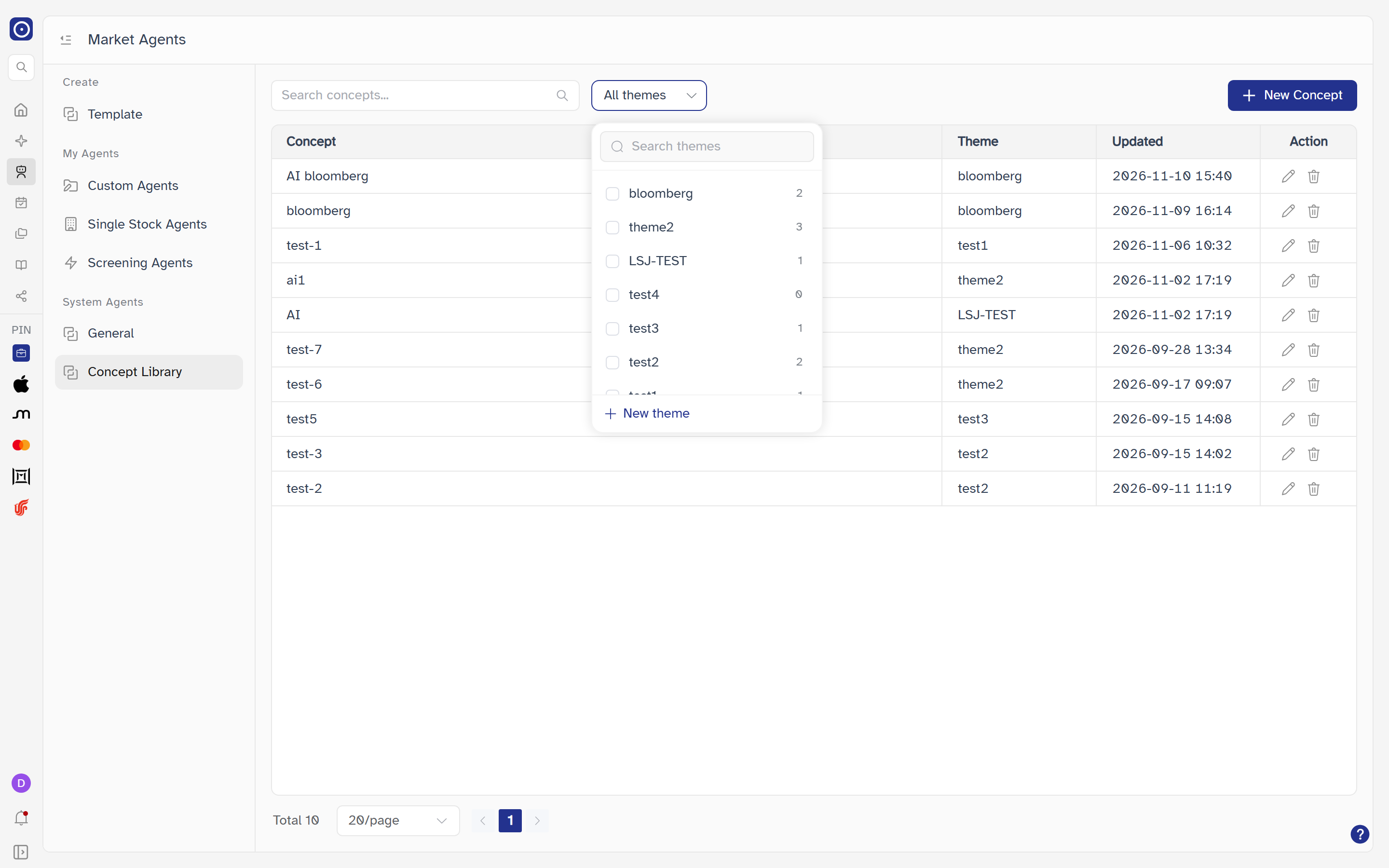
A theme is only a label for grouping concepts. The theme list opens from the theme filter in the toolbar, and from the Theme field inside the concept editor. It is the same list in both places, with two differences: the toolbar one lets you tick several themes at once, while the editor one picks exactly one theme and has no All themes choice (its empty state reads Select theme).
| Element | What it does |
|---|---|
| Search themes | Narrows the list to themes whose name contains what you type. Case does not matter. |
| Theme row | Shows the theme's name and how many concepts it holds. In the toolbar, clicking a row or its checkbox ticks or unticks that theme and the table reloads on page 1; the list stays open. In the editor, clicking a row picks that theme and closes the list. |
| More (three dots) on a row | Appears when you point at the row. Opens a menu with Rename and Delete. Both are described below. |
| New theme | At the bottom of the list. Closes the list and opens the New Theme dialog. |
New Theme and Rename Theme
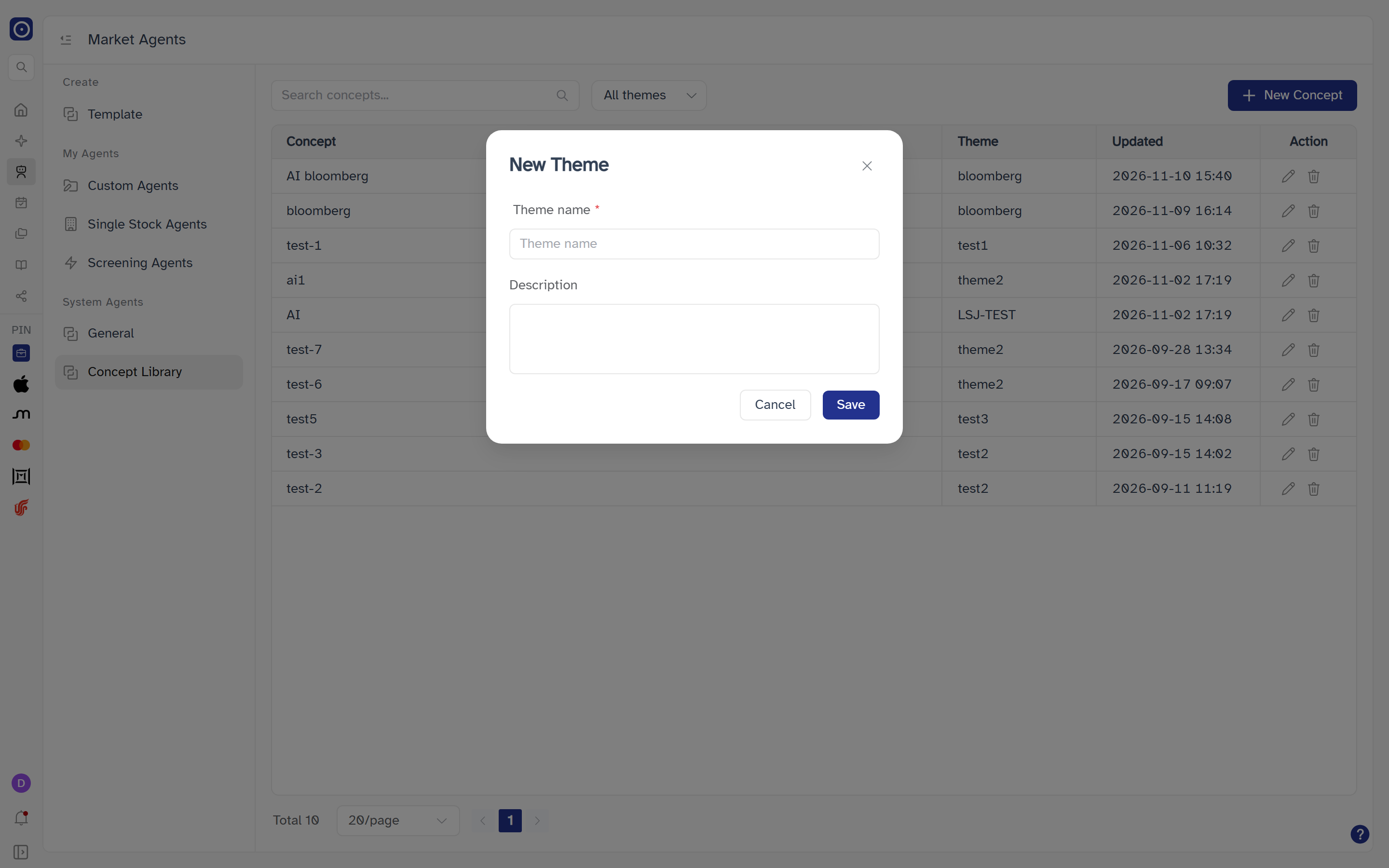
Both use the same dialog, titled New Theme or Rename Theme. It has a Theme name box and a Description box (three-line text area). Theme name is required — leaving it empty shows Please input theme name. Save stores the theme and refreshes the list; Cancel closes the dialog without saving. If saving fails you see Failed to save theme.
Deleting a theme
Delete in the theme menu is available only for a theme with no concepts in it; for any other theme the menu item is disabled. Choosing it opens Delete theme?: "<theme name>" will be deleted., with the lines No concepts are filed under it and This cannot be undone, and a note that A theme is only a label — deleting it does not affect any agent or report. Delete theme confirms; Cancel backs out. If that theme was ticked in the toolbar filter, it is dropped from the filter.
A deleted theme cannot be brought back.
Concept detail
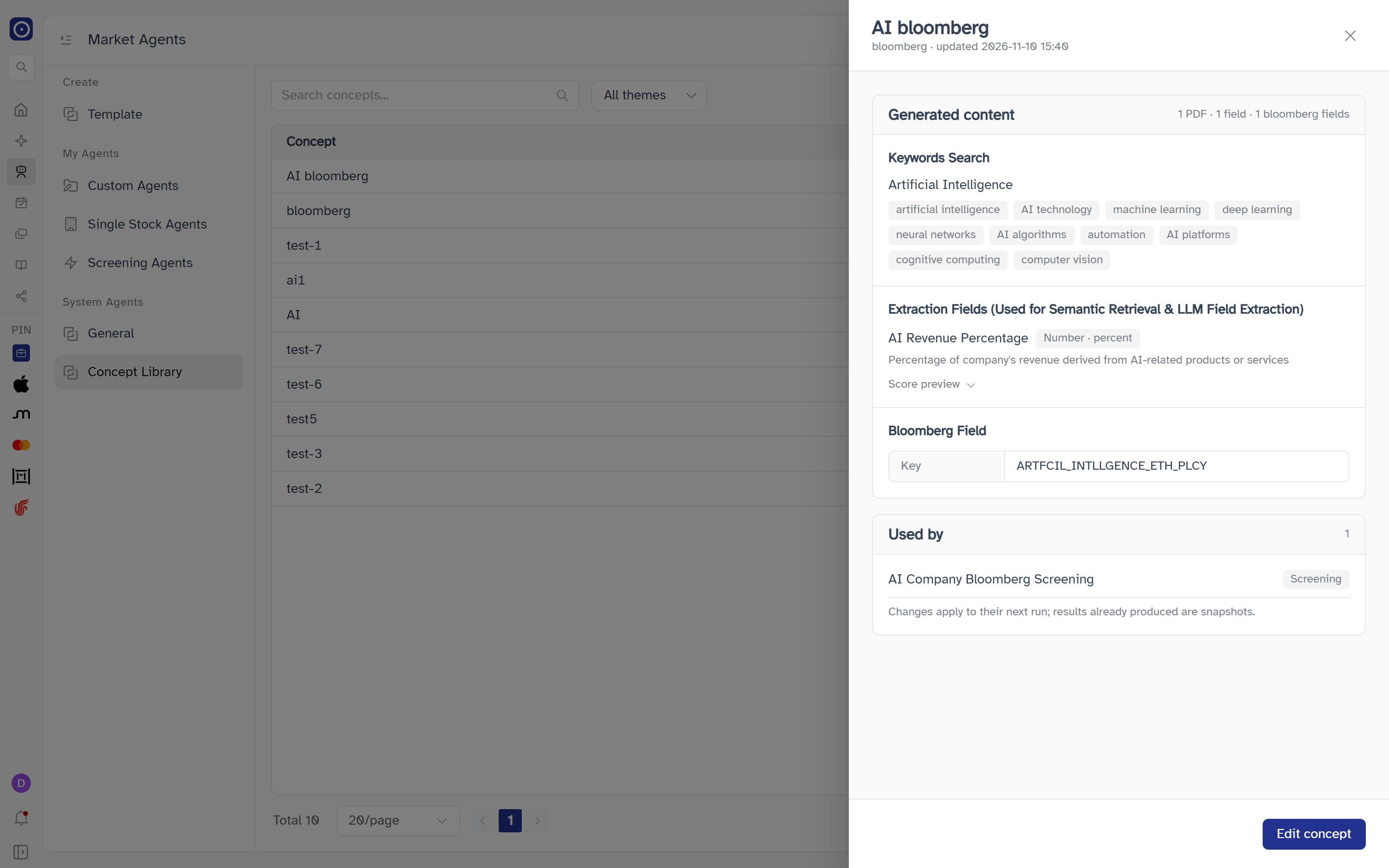
Click a row to open a drawer on the right with everything the concept contains. The drawer does not close when you click outside it; use the close button at its top right. A failed load closes the drawer and shows Failed to load concept detail.
| Part | What it shows |
|---|---|
| Header | The concept's name, then its theme (or —) and updated followed by the date and time. |
| Generated content | A summary at the right of the card heading in the form N PDF · M fields (field when there is exactly one). When the Bloomberg module is available to you (see Bloomberg Field), the summary ends with · K bloomberg fields. Below it are the modules listed next. |
| Keywords Search | Each group's name with its keywords. When the concept has more than one language, a Language row of tabs lets you switch which language's keywords are shown; the first language is selected on open. |
| Extraction Fields (Used for Semantic Retrieval & LLM Field Extraction) | Each field's name, a badge for its type — Number (with the unit, as Number · <unit>), Yes/No, Category, or for a third-party field Bloomberg · <mnemonic> (just Bloomberg when no mnemonic is set) — and the hint given to the model. |
| Bloomberg Field |
Only when the Bloomberg module is available to you. A Key row
with the field's key, or — when the concept has no Bloomberg field.
|
| Score preview |
Under each field. Click it to expand or collapse a line-by-line version of the field's
scoring (for example label → score, ending with no value → score)
and a segmented bar; pointing at a segment shows its label and points.
|
| Used by | The number of agents that reference the concept. When there are some, each is listed by name with its agent type, followed by Changes apply to their next run; results already produced are snapshots. When there are none, No screenings reference this concept yet. |
Footer buttons
| Button | When it shows | What it does |
|---|---|---|
| Edit concept | Always. | Closes the drawer and opens the Edit concept drawer. |
| Delete concept | Only when Used by is empty. | Closes the drawer and opens the delete dialog. |
Creating and editing a concept
New Concept, the edit icon in a row, and Edit concept in the detail drawer all open the same drawer, titled Create concept or Edit concept. It does not close when you click outside it; use the close button at its top right, or Cancel. It is made of three cards, from top to bottom: Basics, Concept Description, and Generated content, which holds the two modules and, when Bloomberg is available to you, a third one (Bloomberg Field). The footer has Cancel and Create concept (Update concept when editing); the drawer body scrolls between the header and the footer.
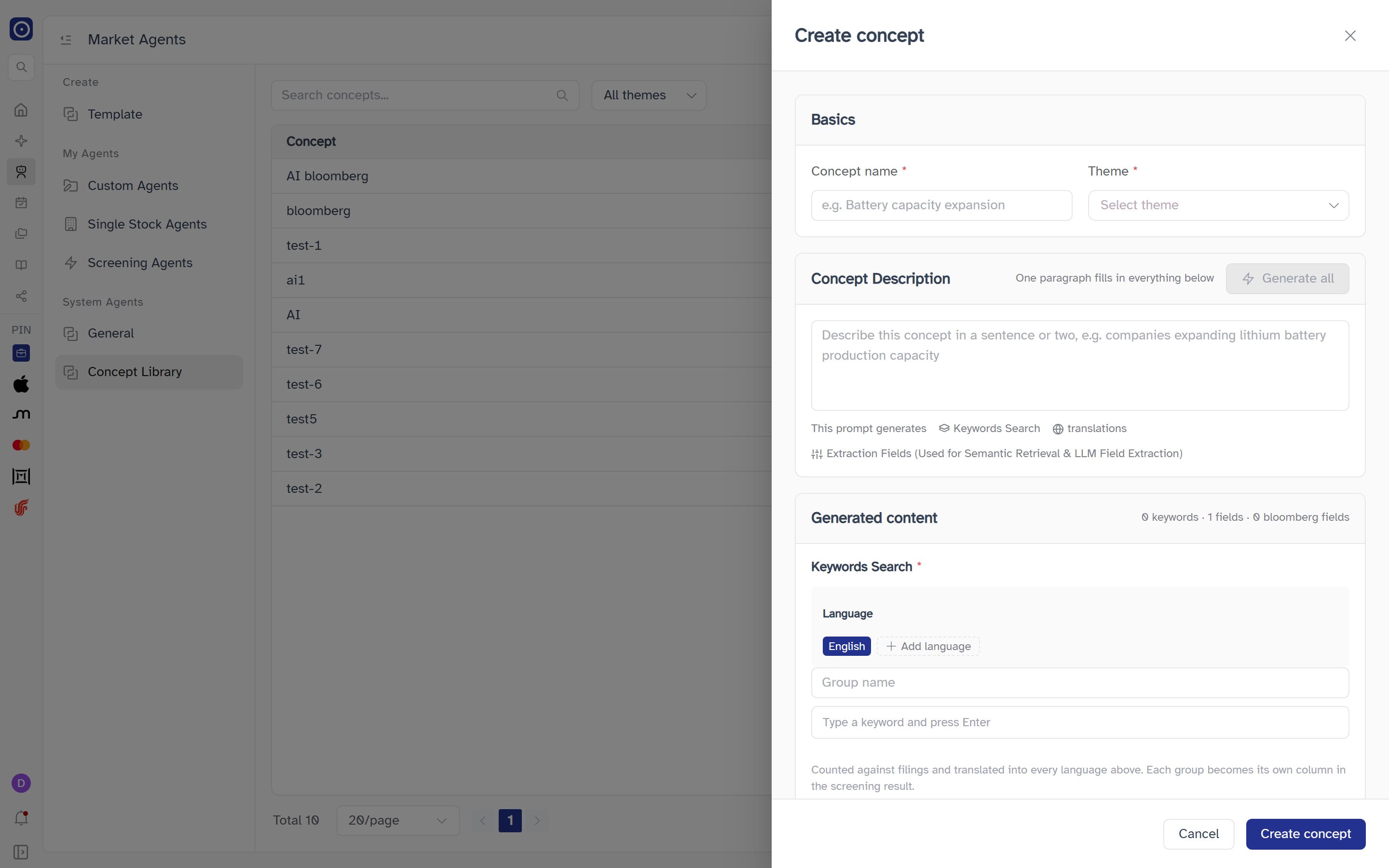
Basics
| Field | Notes |
|---|---|
| Concept name | Required — Please input concept name if left empty. Placeholder: e.g. Battery capacity expansion. |
| Theme | Required — Please select a theme if none is chosen. Opens the theme list described in Themes, so you can also add, rename or delete themes from here. |
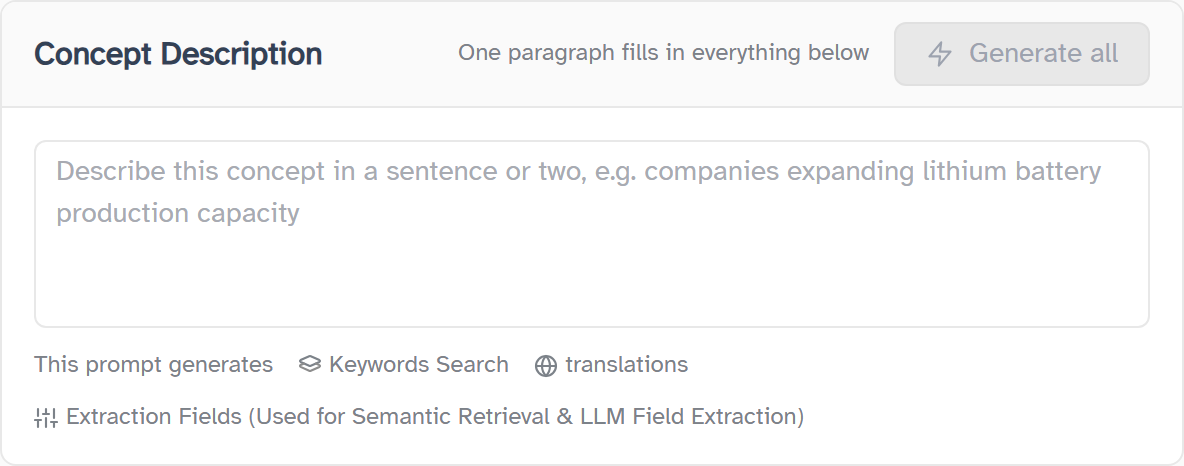
Concept Description and Generate all
The Concept Description card is headed One paragraph fills in everything below. Write a sentence or two in the text box — its placeholder suggests companies expanding lithium battery production capacity — and click Generate all to have the model fill the cards below. The line This prompt generates lists what it fills: Keywords Search, translations, and Extraction Fields (Used for Semantic Retrieval & LLM Field Extraction).
- The button is disabled until the box has some text.
- Generation always starts in English. Other languages are added afterwards with Add language in the Keywords Search module.
- It produces one keyword group and one extraction field. Anything beyond that is dropped, and a group is capped at 10 keywords.
- It never fills in or clears the Bloomberg Field module — whatever you have chosen there stays after you generate.
- Once the card below has any keyword, field name, hint or type, the button reads Regenerate all and asks first: Overwrite generated content — Regenerating will overwrite the current keyword group and extraction field. Continue? with Regenerate and Cancel.
- If generation fails you see the server's message, or Failed to generate concept content for a network error.
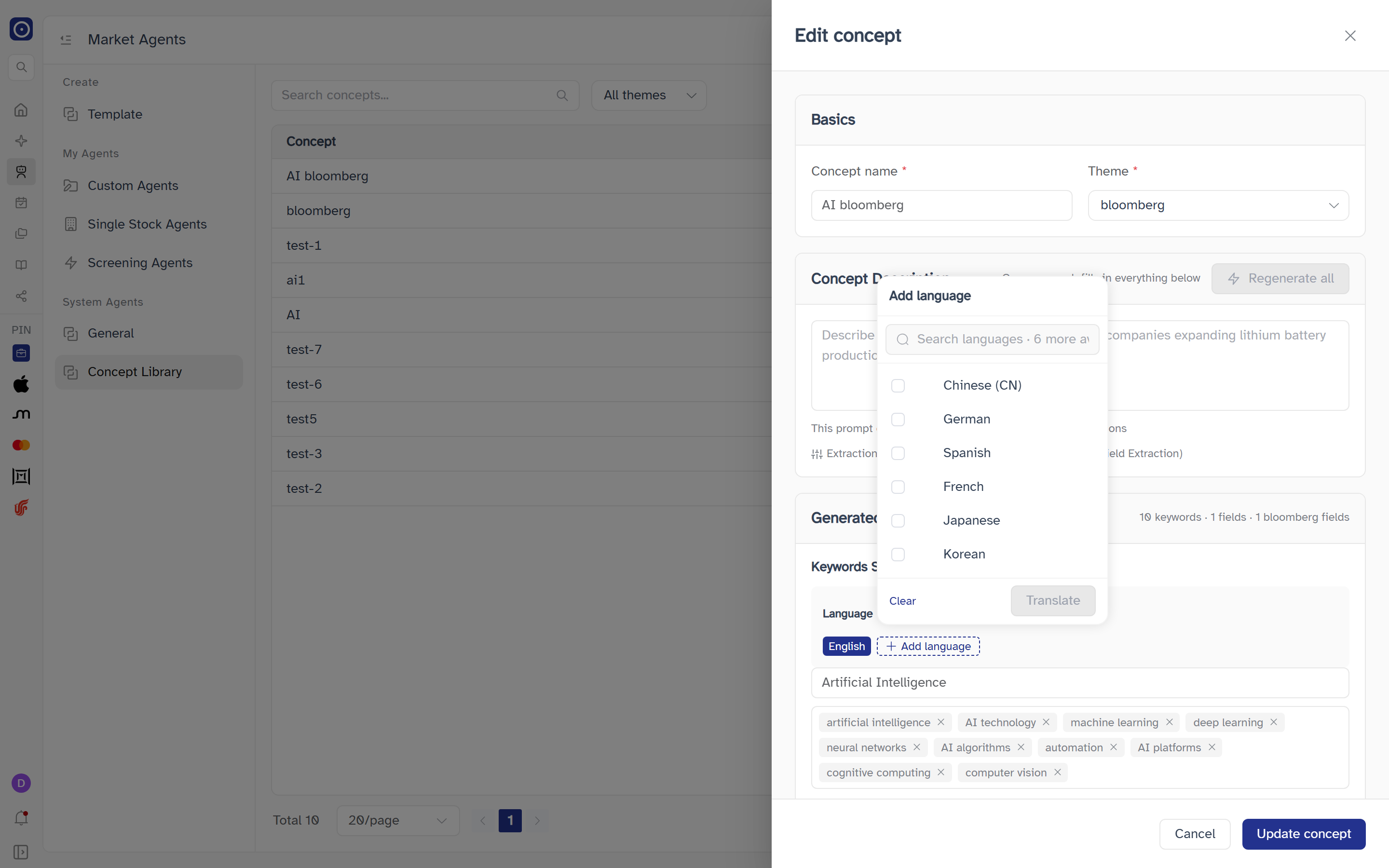
Generated content
The heading shows a running summary in the form N keywords · M fields. When the Bloomberg module is available to you the summary ends with · K bloomberg fields. Two modules sit inside it, both marked as required; a third, Bloomberg Field, is optional and appears only for some users.
Keywords Search
| Element | What it does |
|---|---|
| Language tabs | One tab per language the concept has. Click a tab to edit that language's keywords. Languages shown by name are English, Chinese (CN), German, Spanish, French, Japanese and Korean. |
| Remove (x) on a tab | Only shown when the concept has more than one language, so the last language can never be removed. Removes that language and its keywords from the group, immediately and without a confirmation. |
| Add language | Opens a list of the languages not yet added; see below. Disabled once all seven are in use, and while a translation is running. |
| Group name | A text box naming the keyword group. Required. |
| Keyword box | Type a word and press Enter, or click away, to add it as a chip. Placeholder: Type a keyword and press Enter. Empty entries and duplicates in the same language are ignored. A group holds up to 10 keywords per language; adding an eleventh shows Up to 10 keywords per group. Each chip has an x to remove it. |
A hint under the module reads Counted against filings and translated into every language above. Each group becomes its own column in the screening result.
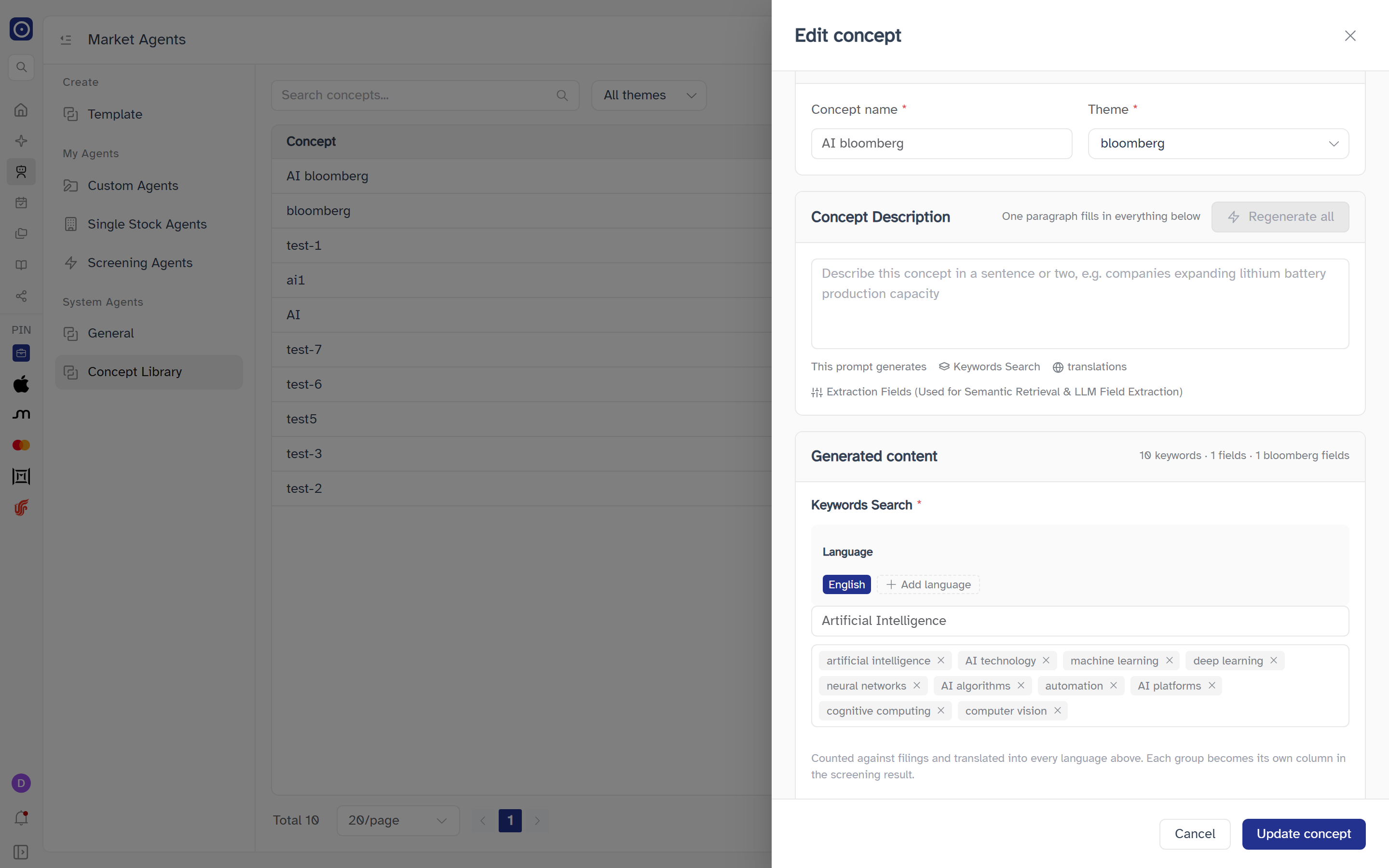
Add language
The Add language list has a search box (Search languages · N more available), a checkbox per remaining language, Clear to untick everything, and a Translate button. Translate is disabled until you tick at least one language, and then shows the count (for example Translate 2). Clicking it translates each group's keywords from the concept's first language into every ticked language, adds a tab for each, and selects the first new one. While it runs the list is locked; when it finishes the list closes. If it fails you see Failed to translate keywords and no language is added.
Extraction Fields (Used for Semantic Retrieval & LLM Field Extraction)
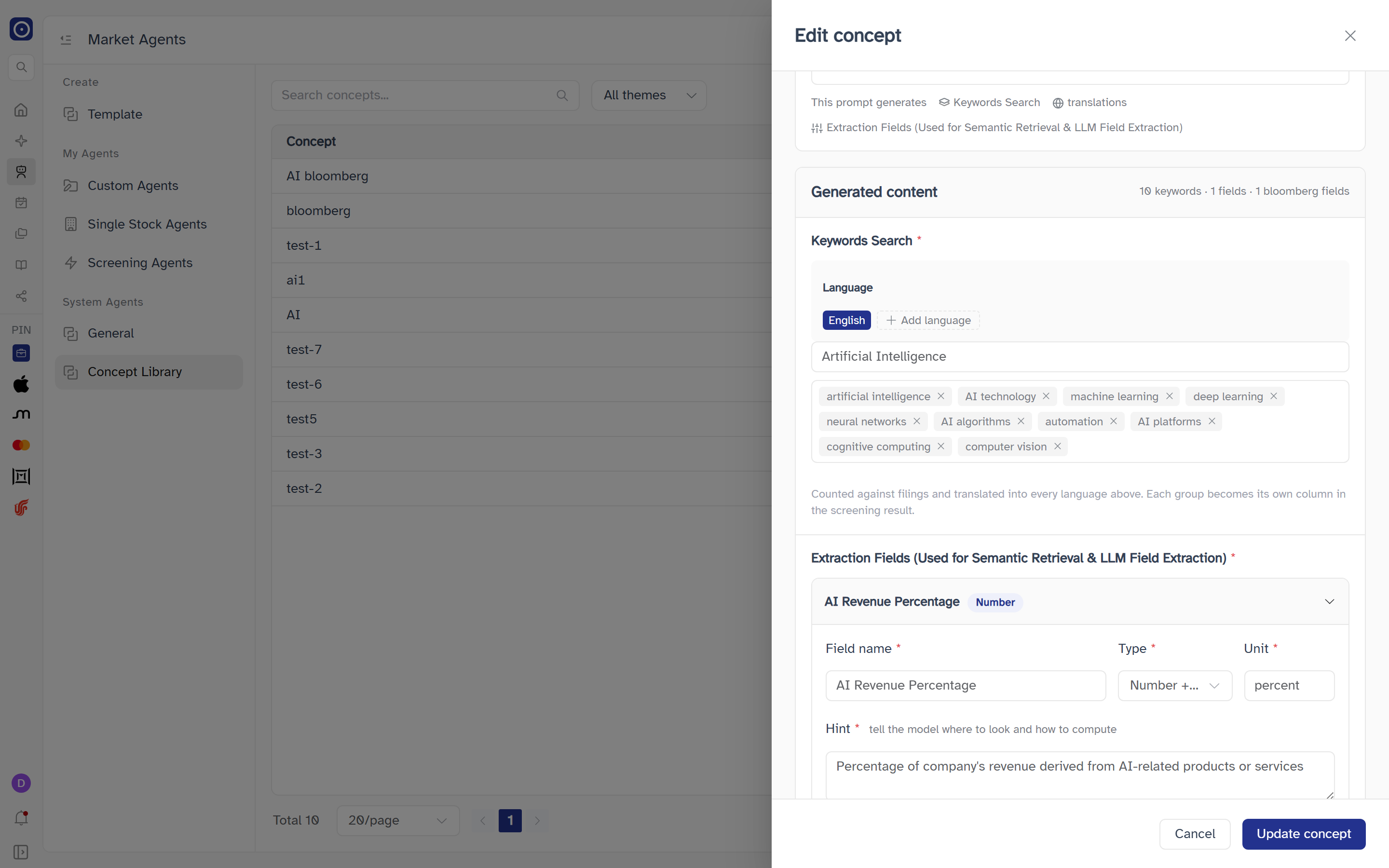
The module holds one field, shown as a collapsible panel titled with the field's name (Untitled field until you type one) and, once a type is chosen, a small badge naming it: Number, Bool or Enum, or Third-Party for third-party data. There is no button for adding a second field.
| Field | Notes |
|---|---|
| Field name | Required — Field name is required. Placeholder: appears in the result column header. |
| Type | Required — Type is required. Choose Number + unit, Yes / no, Category or Third-party data. Changing the type resets the scoring below to that type's default, and choosing Third-party data adds the boxes described in Third-party data fields. |
| Unit | Only for Number + unit, and required there — Unit is required. Placeholder: GWh, %. A third-party field with the value type Number + unit has its own optional Unit box instead. |
| Hint | Required — Hint is required; for a third-party field it is optional and its label carries no asterisk. Described as tell the model where to look and how to compute. Placeholder: e.g. find announced capacity under capacity plans or construction in progress, take the latest figure. |
Third-party data fields
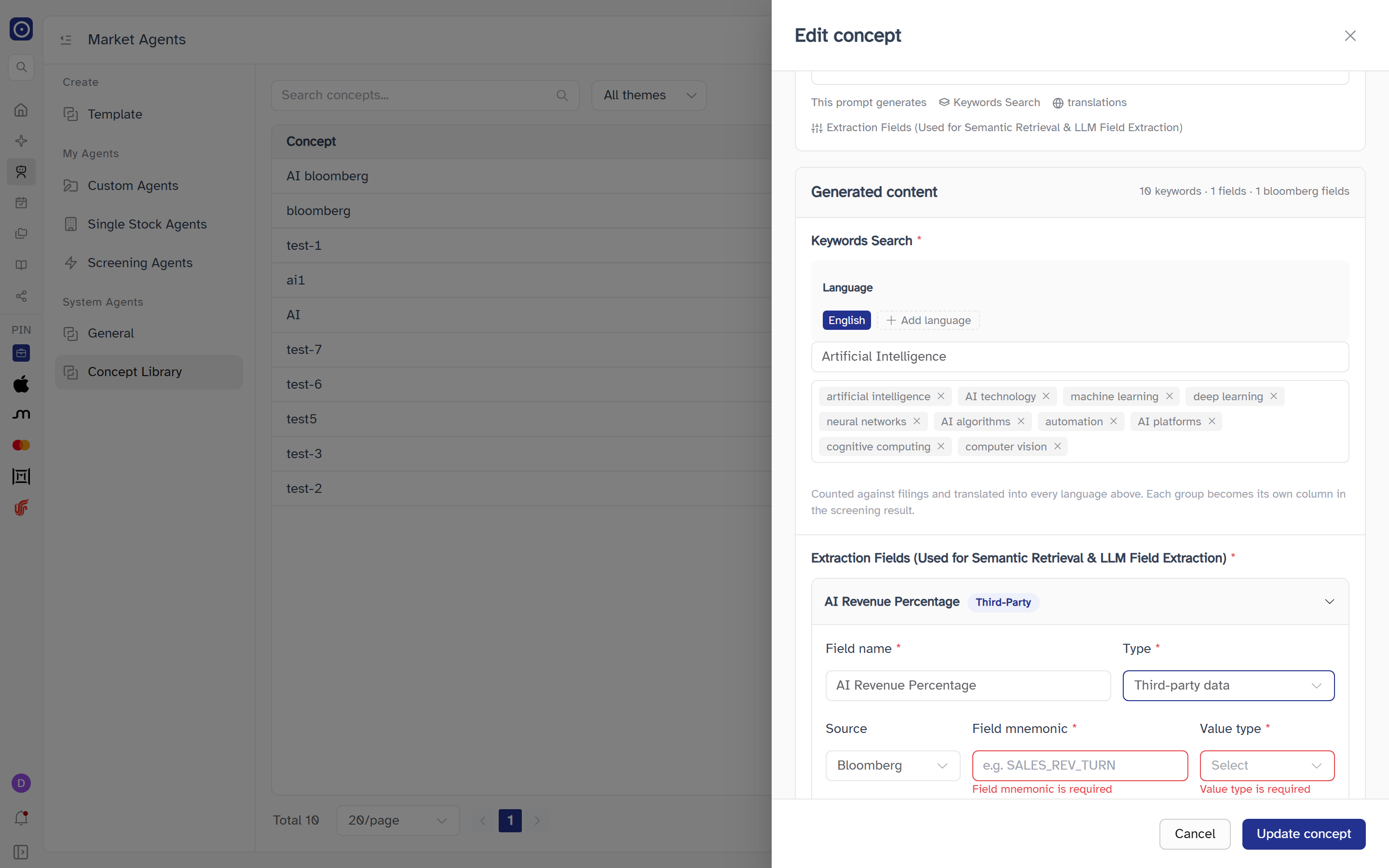
Choosing Third-party data as the type means the value is read from an outside data source rather than extracted from filings by the model, so the Hint is optional. At the moment Bloomberg is the only source. The panel adds a row of boxes under Field name and Type:
| Field | Notes |
|---|---|
| Source | A list with a single choice, Bloomberg. It is chosen for you. |
| Field mnemonic | Required — Field mnemonic is required. Placeholder: e.g. SALES_REV_TURN. Spaces are removed and the letters are capitalised when you leave the box and again when you save. |
| Value type | Required — Value type is required. Choose Number + unit, Yes / no or Category. It decides which scoring rule the field uses, and changing it resets the scoring. |
| Unit | Only when the value type is Number + unit. Optional; placeholder optional. |
Scoring rule
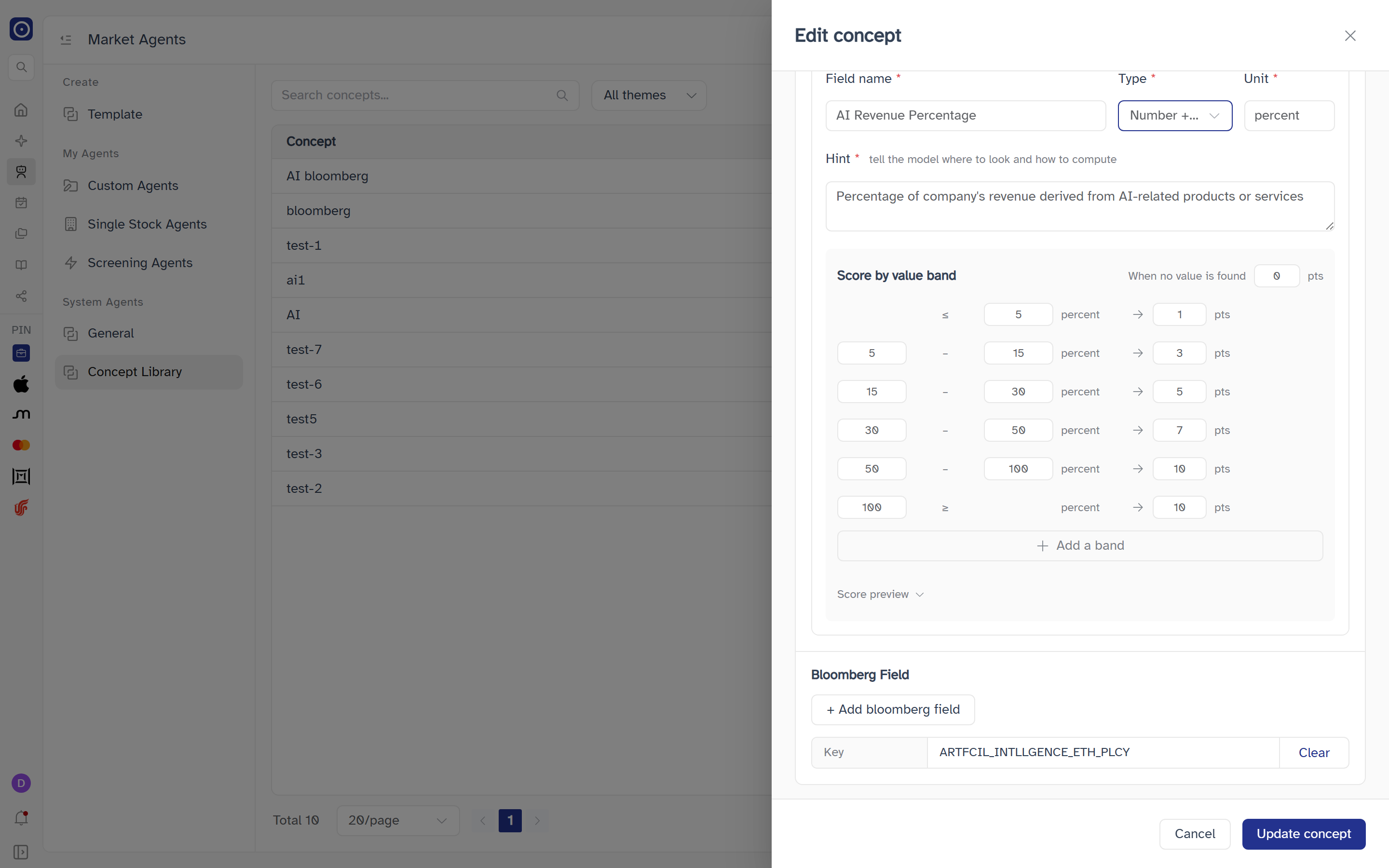
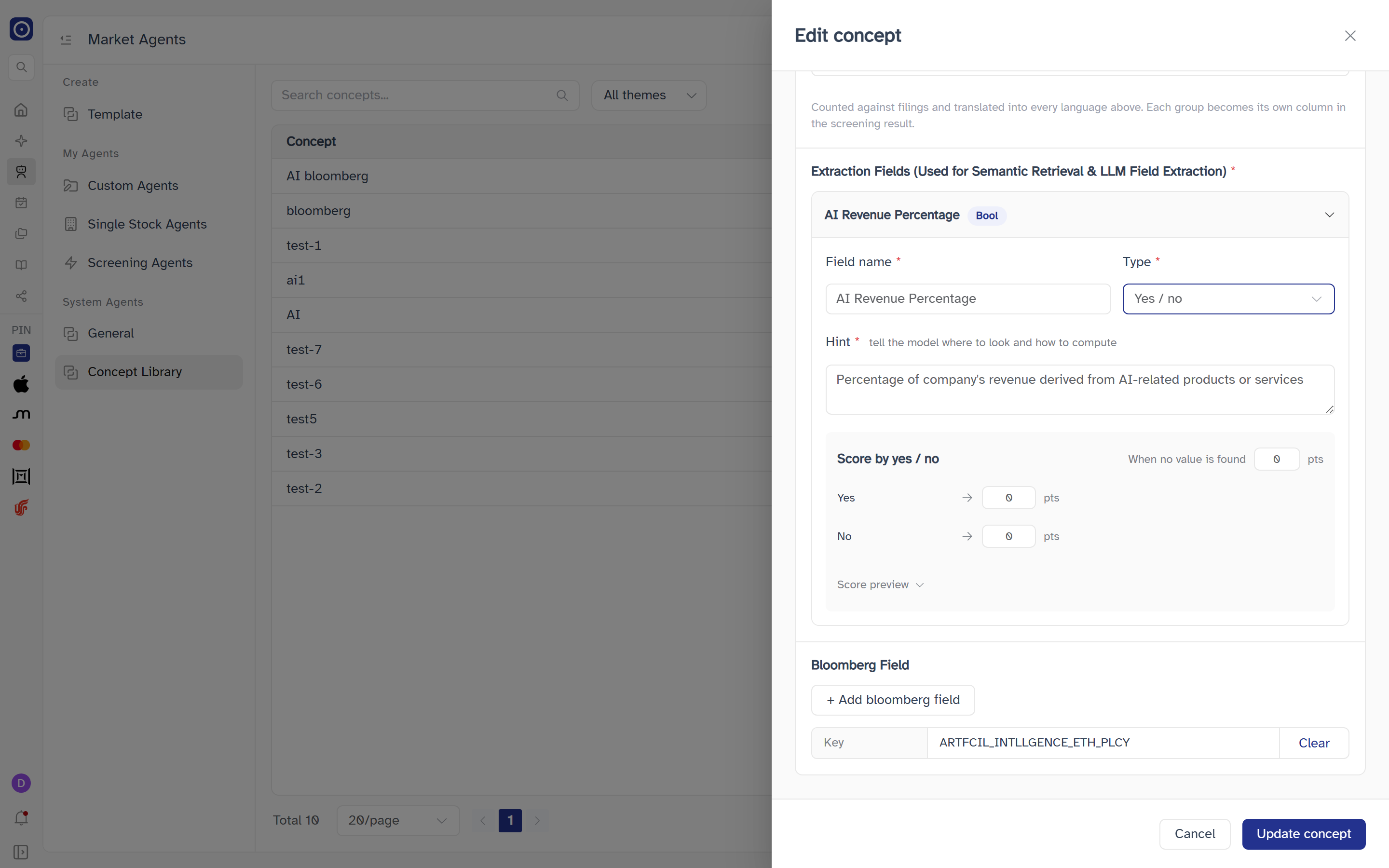
Until you pick a type, the area reads Pick a type and the scoring rule appears here. For a third-party field it reads Pick a value type and the scoring rule appears here. until a value type is chosen, and after that follows the value type. After that, the title and rows depend on the type. Every type also has When no value is found, a number of points given when the model finds nothing; it starts at 0.
| Type | Scoring section | Rows |
|---|---|---|
| Number + unit | Score by value band | Value bands, each with its own points. A new field starts with a single Any value band. With more bands, the first reads ≤ an upper limit, the last reads ≥ a lower limit, and the ones between have both limits. Add a band inserts a band before the last one, starting where the previous band ends. The last band has no delete icon; every other band has one, which stays hidden until you point at the row. Bands may leave gaps but may not overlap, and a band's lower limit must be below its upper limit. |
| Yes / no | Score by yes / no | One row for Yes and one for No, each with points. |
| Category | Score by category | One row per category, each with a Category value box and points. Add a category adds a row; every row has a delete icon. A new Category field has no rows, and the section shows Every category needs a non-empty value in red until you add one. |
Below the rows, Score preview is the same expandable preview as in the detail drawer.
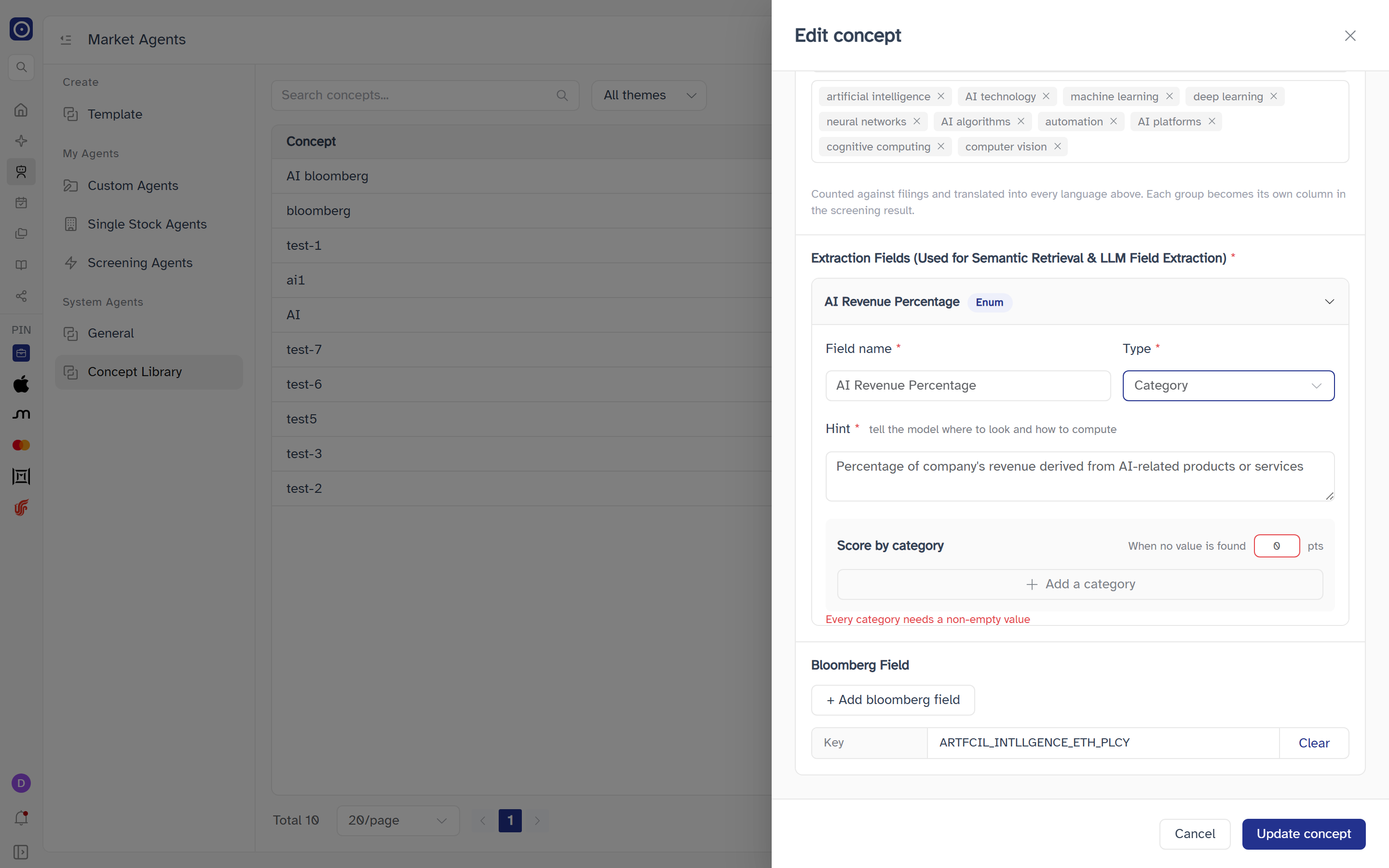
Bloomberg Field
A third module in Generated content, headed Bloomberg Field and not marked as required. It links the concept to one field from the Bloomberg field catalogue.
The Bloomberg Field module, in both the detail drawer and this editor, and the bloomberg fields count in the summaries, are shown only to an administrator who has saved Bloomberg credentials. Everyone else sees neither. The state is read each time you open a drawer, so after credentials are saved you only need to open the drawer again. See Bloomberg Connection.
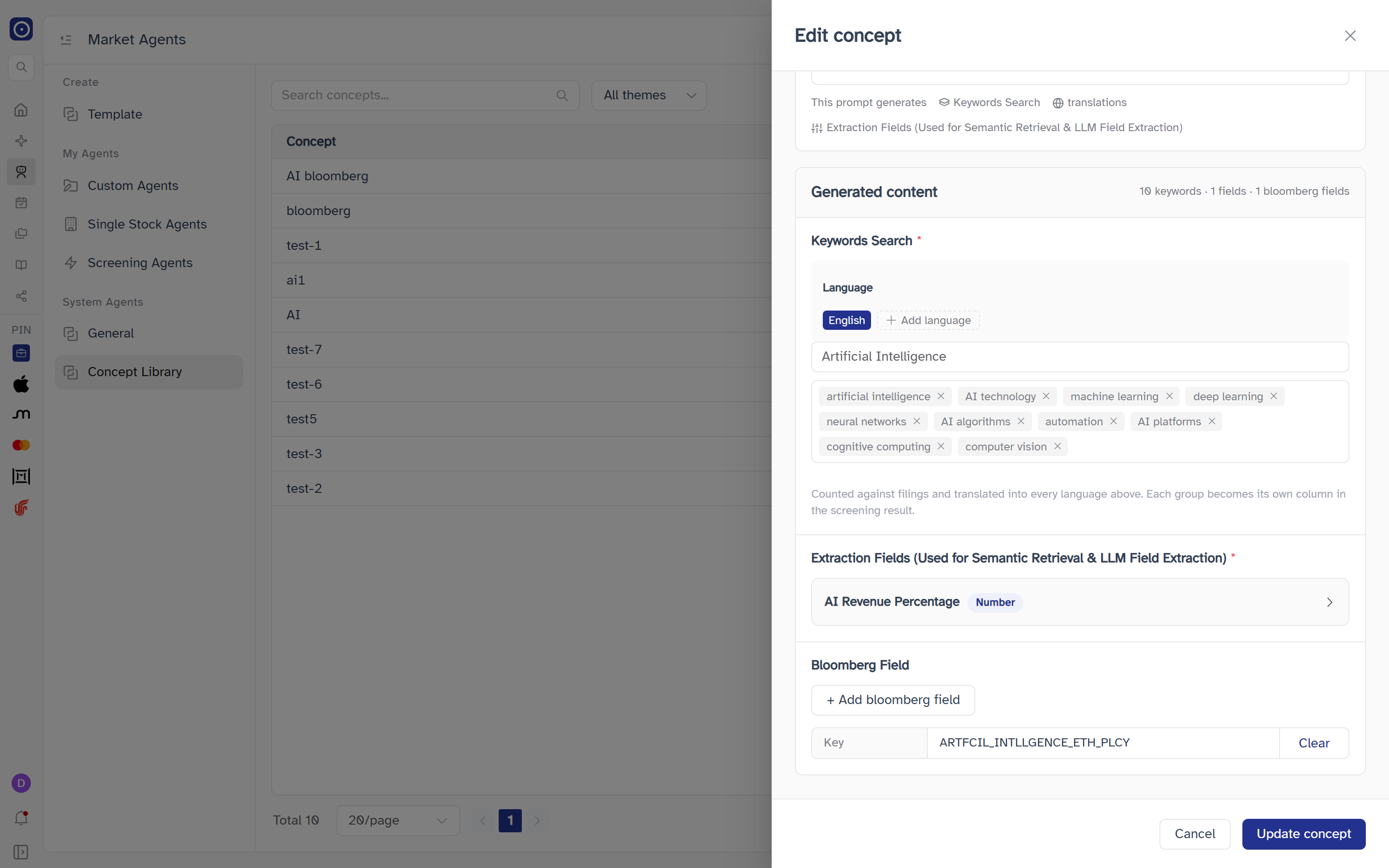
| Element | What it does |
|---|---|
| + Add bloomberg field | Opens the field picker below. It stays available after a field is chosen, to replace it. |
| Key | Once a field is chosen, a Key row shows the field's key. |
| Clear | Beside the Key row. Removes the field at once, without a confirmation. |
A concept holds at most one Bloomberg field. When you open an existing concept for editing, only the first one it has is loaded.
Choosing a field
+ Add bloomberg field opens a panel with a search box and the field catalogue. You pick one row, then confirm.
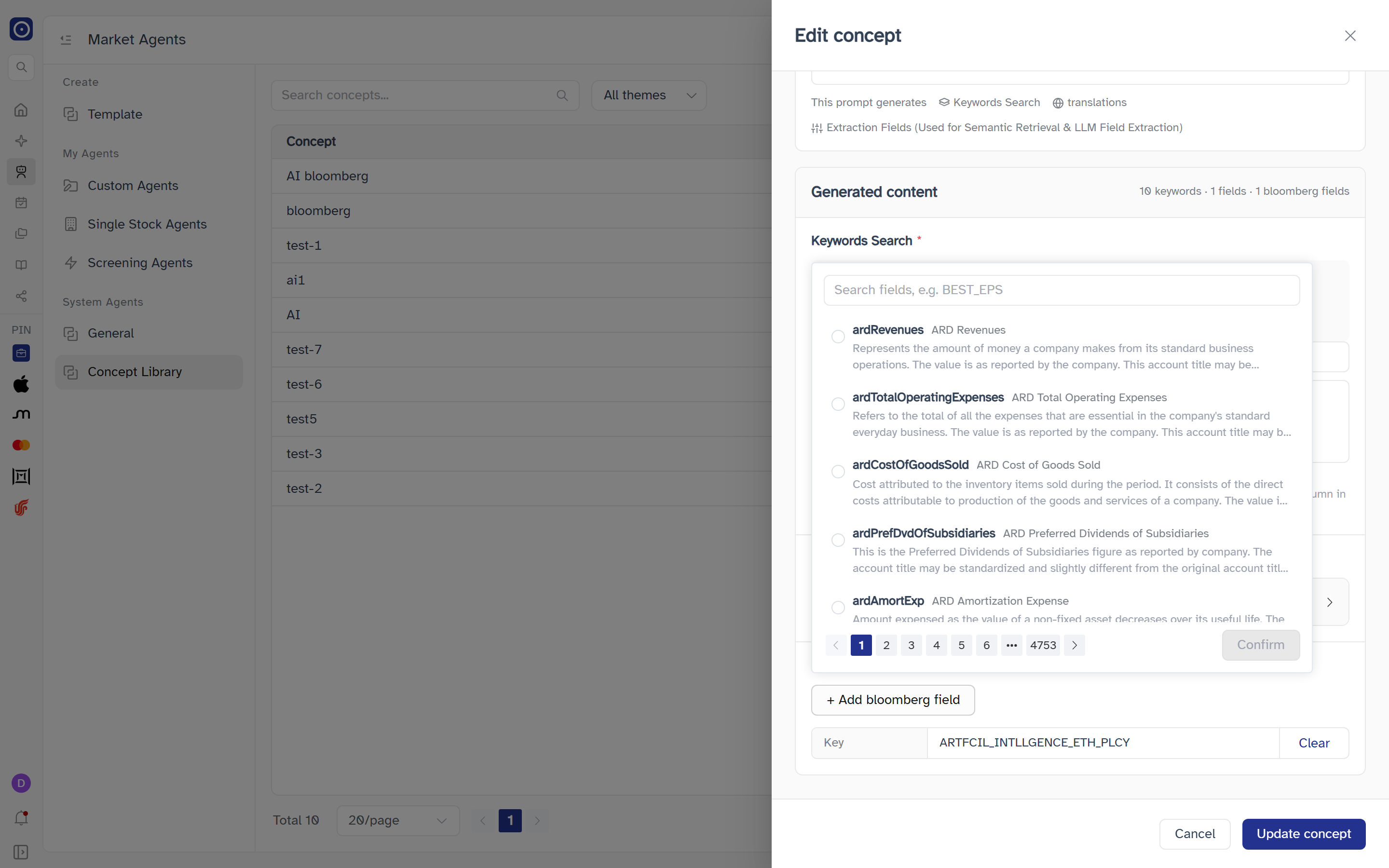
| Element | What it does |
|---|---|
| Search | Placeholder Search fields, e.g. BEST_EPS, with a clear button. The list reloads a moment after you stop typing and returns to the first page. |
| Field row | A radio button, the field's identifier, its title and a description (hover the description for the full text). Click a row to select it; click it again to unselect. Only one row can be selected. |
| No fields match | Shown when the search finds nothing. |
| Failed to load fields | Shown with a Retry button when the catalogue cannot be fetched; a Failed to load Bloomberg fields message also appears. |
| Page controls | Prev, page numbers and Next at the foot, 20 fields per page. Shown only when there are more than 20 matches. |
| Confirm | Disabled until a row is selected. It looks up the field's key and puts it in the module, then closes the panel. If the lookup fails you see Failed to get Bloomberg field key and the panel stays open. |
Closing the panel without confirming drops the selection and the search, so it opens on the full first page next time. The catalogue itself is read live from Bloomberg; it is the same list shown under Field Catalog in Settings.
Saving
Cancel closes the drawer without saving. Create concept (or Update concept when editing) checks the form first and stops at the first problem. Besides the required fields above, it reports:
| Message | When |
|---|---|
| Add at least one language | The concept has no language left. |
| Add at least one PDF keyword group | The keyword group is missing. |
| Every PDF keyword group needs a name | The group name is blank. |
| Every PDF keyword group needs at least one keyword for each language | Some language tab has no keywords. |
| Add at least one extraction field | The field is missing. |
| Every extraction field needs a name and a hint | The name or hint is blank. |
| Every extraction field needs a name | A third-party field has no name (its hint is optional). |
| Every extraction field needs a type | No type is chosen. |
| Every third-party field needs a field mnemonic | A third-party field has a blank mnemonic. |
| Every third-party field needs a value type | A third-party field has no value type. |
| Every number field needs a unit | A number field has a blank unit. A third-party field's unit is not checked. |
| Every category field needs at least one non-empty option | A category field has no options, or an option is blank. |
| Value bands cannot overlap | Two bands of a number field overlap. |
On success the drawer closes and the table and the theme counts refresh. If saving fails you see Failed to save concept and the drawer stays open.
When you open an existing concept for editing, the editor loads only its first keyword group and its first extraction field, and Update concept saves what the editor holds. A concept that was created elsewhere with more than one group or field therefore keeps only the first of each once you update it. The same applies to Bloomberg fields: only the first is loaded.
Deleting a concept
The delete icon in a row, and Delete concept in the detail drawer, both open a dialog that first checks which agents use the concept. What it says depends on the answer.
| The concept is… | Dialog |
|---|---|
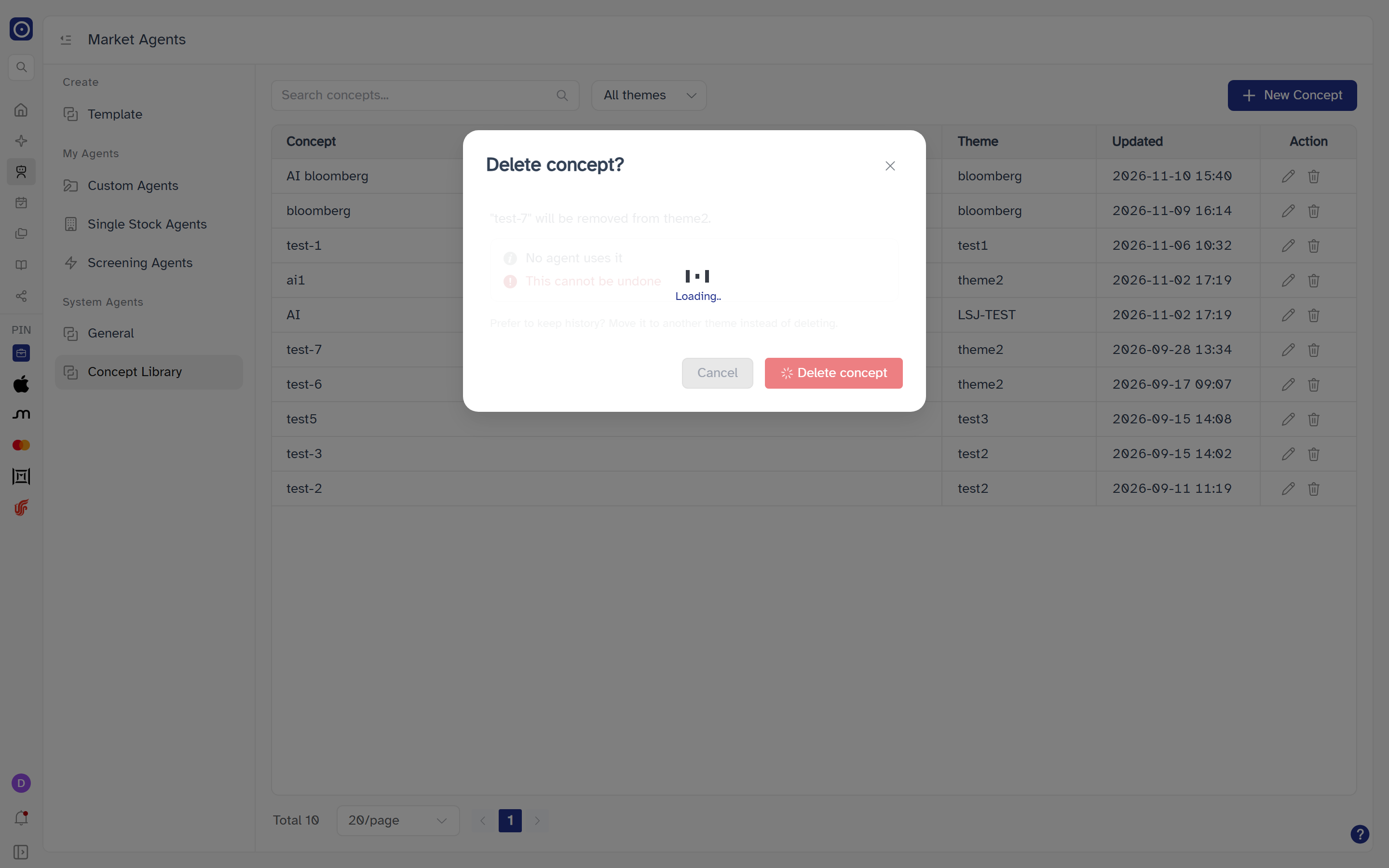
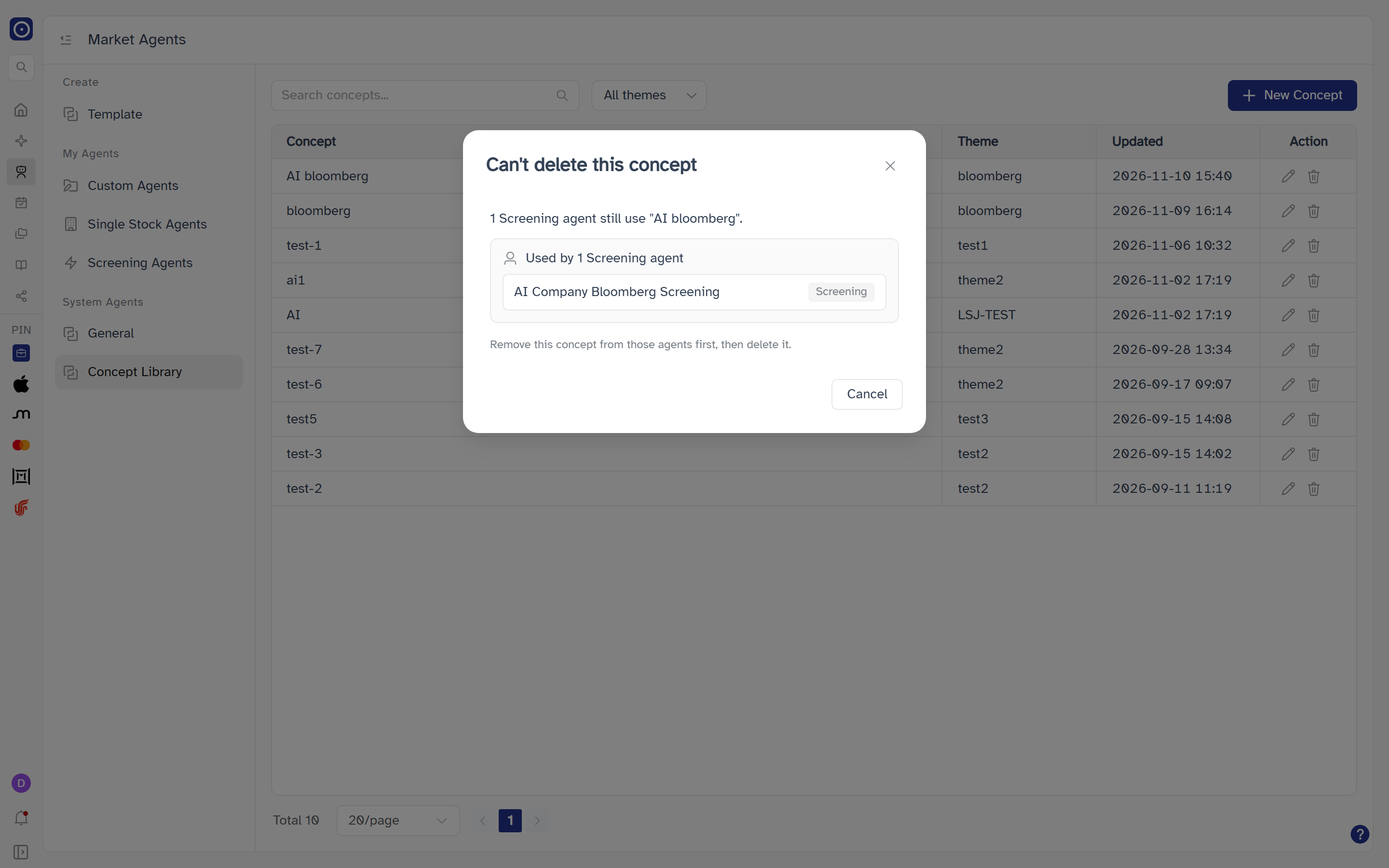
| Used by one or more Screening agents | Titled Can't delete this concept. It reads N Screening agents still use "<name>". (agent for exactly one), lists each agent by name with its type under Used by N Screening agents, and ends with Remove this concept from those agents first, then delete it. Only Cancel is offered. |
| Not used by any agent | Titled Delete concept?. It reads "<name>" will be removed from <theme>. (or will be deleted. when it has no theme), with the lines No agent uses it and This cannot be undone, and the note Prefer to keep history? Move it to another theme instead of deleting. Delete concept confirms; Cancel backs out. |
After a successful delete you see Deleted and the table reloads. If the server finds that an agent still uses the concept at that moment, the dialog switches to the blocked version instead. Any other failure shows Failed to delete concept.
A deleted concept cannot be restored. To keep it for the record, move it to another theme instead.
When you have no concepts yet
If the library has no concepts at all, the toolbar and table are replaced by a single message: No concepts yet, followed by A concept is a reusable definition — describe the kind of company you want to track and the model turns it into keyword groups, semantic queries and extraction fields. Its New Concept button opens the same Create concept drawer.