
Templates and Creating a Screening Agent
Start a new agent from a ready-made template, then set up a Screening agent: pick a portfolio, the concepts to score it against, and the methods that do the scoring, with an estimate of the credits it will use.
Opening the page
- Open Agent Marketplace from the left rail.
- Choose Template under Create in the left column of the page.
- Click a Screening template card.
The New Agent card at the start of the template grid opens the same creation page without a template — see The New Agent card. The Agent Marketplace opens on Template by default.
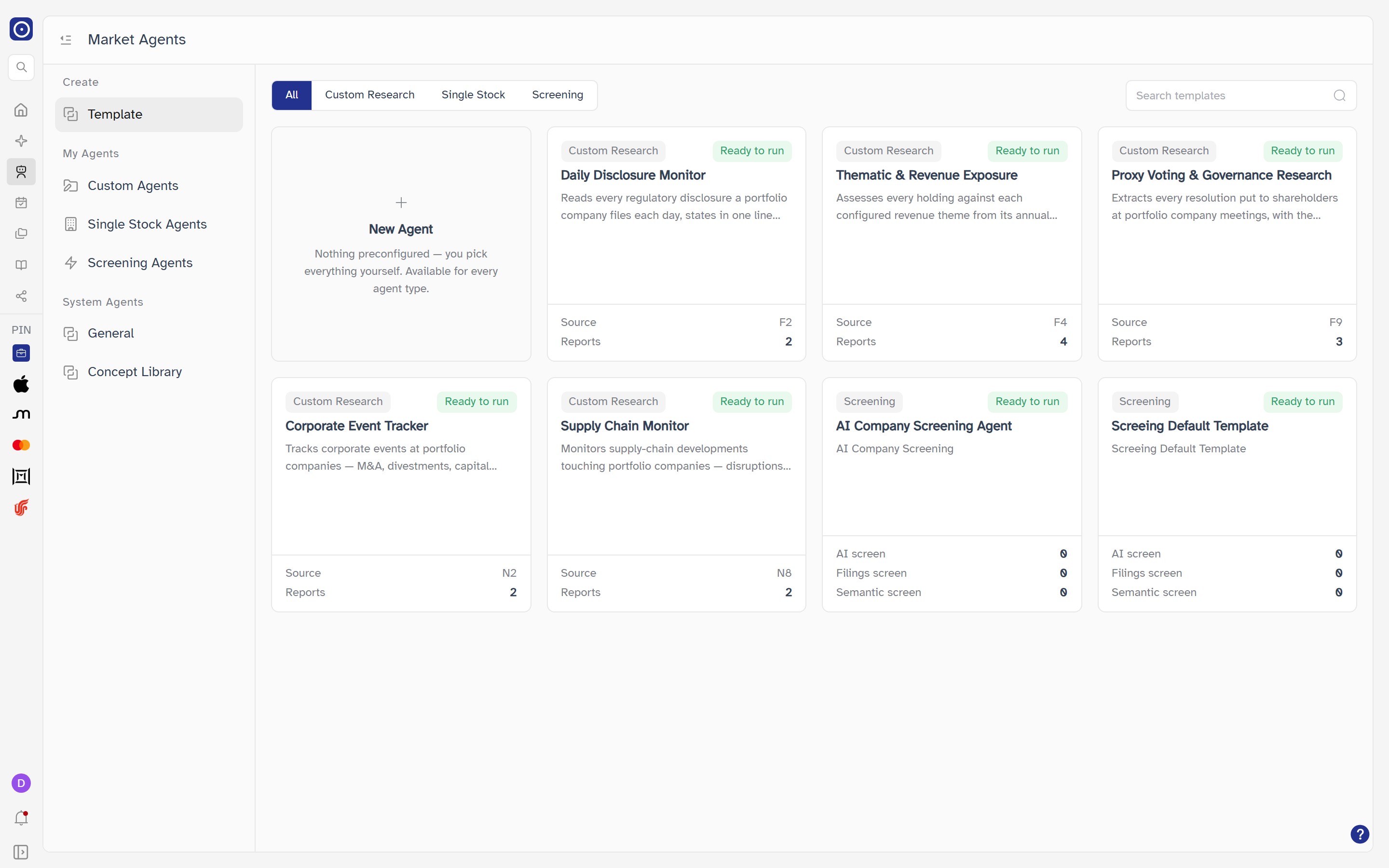
Browsing templates
A template is an agent that is already set up. Clicking a Screening card takes you to the Screening creation page with the template's settings filled in; nothing is created until you save there. The Custom Research cards from Orbit's shared library work differently — see What a card opens.
| Control | Notes |
|---|---|
| All / Custom Research / Single Stock / Screening | Filters the grid by agent type. All is selected when the page opens and lists the templates of all three types. The shared Custom Research templates appear under All and Custom Research only, ahead of the other cards, and every user sees them. |
| Search templates | Narrows the cards on screen by template name as you type. Descriptions are not searched. |
| Template card |
Shows the agent type, a Ready to run tag, the template name and a short
description. Screening cards also list AI screen,
Filings screen and Semantic screen, each with the
number of filing types that template covers. A Custom Research card from the shared
library lists Source (a short code such as F2 or N8, or
-- when it has none) and Reports, the number of reports the
template writes, instead.
|
| No templates found | Appears when the selected type, or your search, matches no template. |
What a card opens
| Card type | Where it goes |
|---|---|
| Screening | The Screening creation page, with the template's settings filled in. |
| Single Stock | The Add Single Stock Agent dialog described in Agent Marketplace. The template itself is not carried over — you pick a company, as for New Agent. |
| Custom Research (shared library) | The Create Agent from Template dialog described in Creating an agent from a shared template. |
| Custom Research (any other) | Starts a new Custom Research agent, exactly as New Agent does — see Starting a Custom Research agent. As with Single Stock, the template itself is not carried over. |
The New Agent card
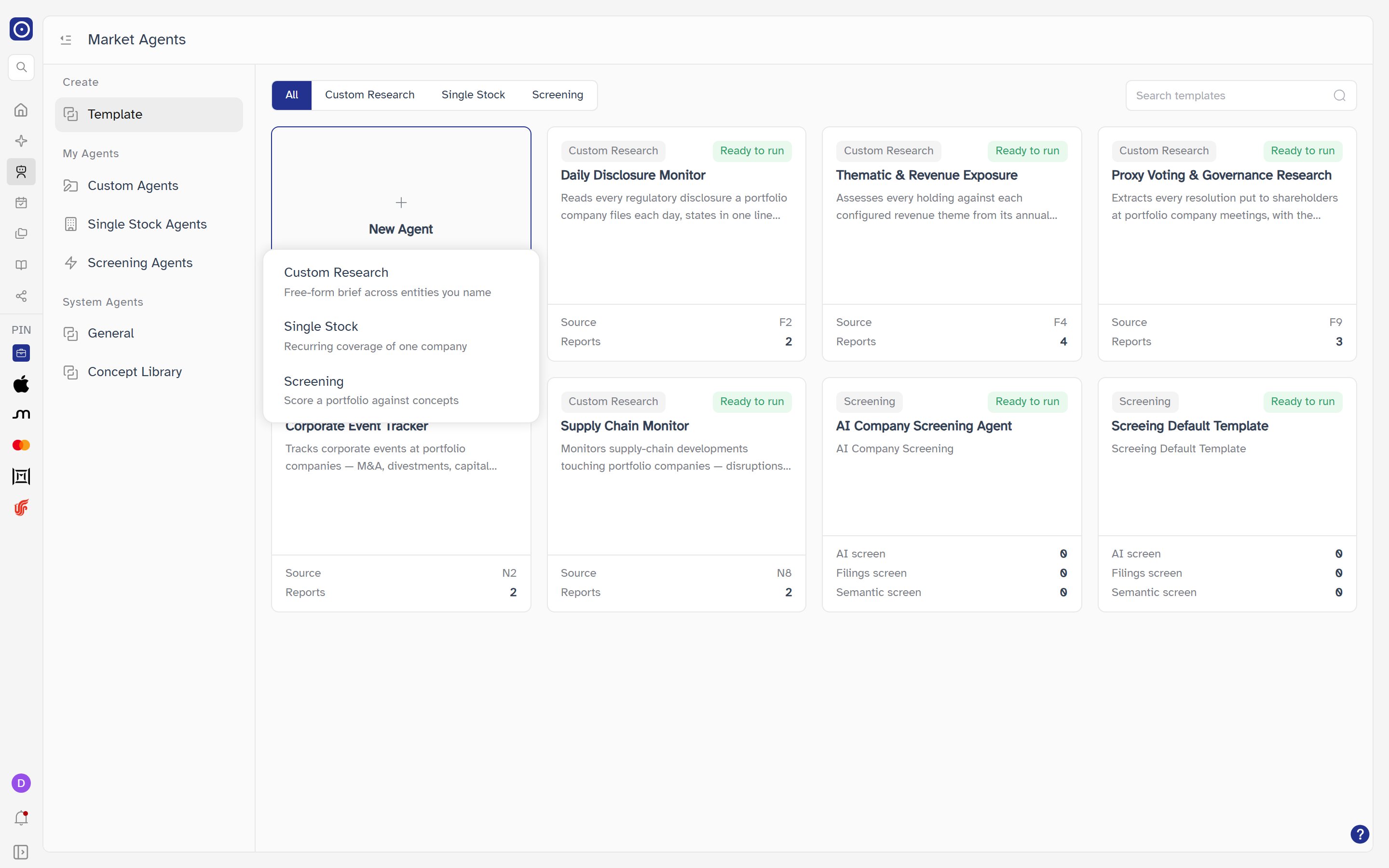
The first card in the grid, New Agent, starts an agent with nothing preconfigured. What it does depends on the filter:
- With All selected, it opens a small menu with three entries — Custom Research (free-form brief across entities you name), Single Stock (recurring coverage of one company) and Screening (score a portfolio against concepts). Choosing one starts that type: Custom Research as described in Starting a Custom Research agent, Single Stock by opening the Add Single Stock Agent dialog, and Screening by opening the creation page below without a template.
- With Custom Research, Single Stock or Screening selected, it skips the menu and goes straight to that type.
Starting a Custom Research agent
New Agent with Custom Research, and a Custom Research card that is not from the shared library, no longer lead to a setup conversation. Orbit creates a draft agent and opens its own page. Each user has one unfinished draft at a time:
- If you have no draft, or the one you have is still empty, it opens straight away.
- If your draft already has content, a box titled You have an unfinished agent asks first. It reads "<name>" isn't finished yet. Continue where you left off, or start a new agent. Starting new discards this draft. Continue draft reopens it; Start new throws the old draft away and opens a fresh one. Closing the box with the × or Esc does nothing.
- If Orbit cannot create or load the draft, a notice at the bottom right reads Couldn't start a new agent. Please try again.
An unfinished draft is not listed in the agent lists of Agent Marketplace; you pick it up from here.
Creating an agent from a shared template
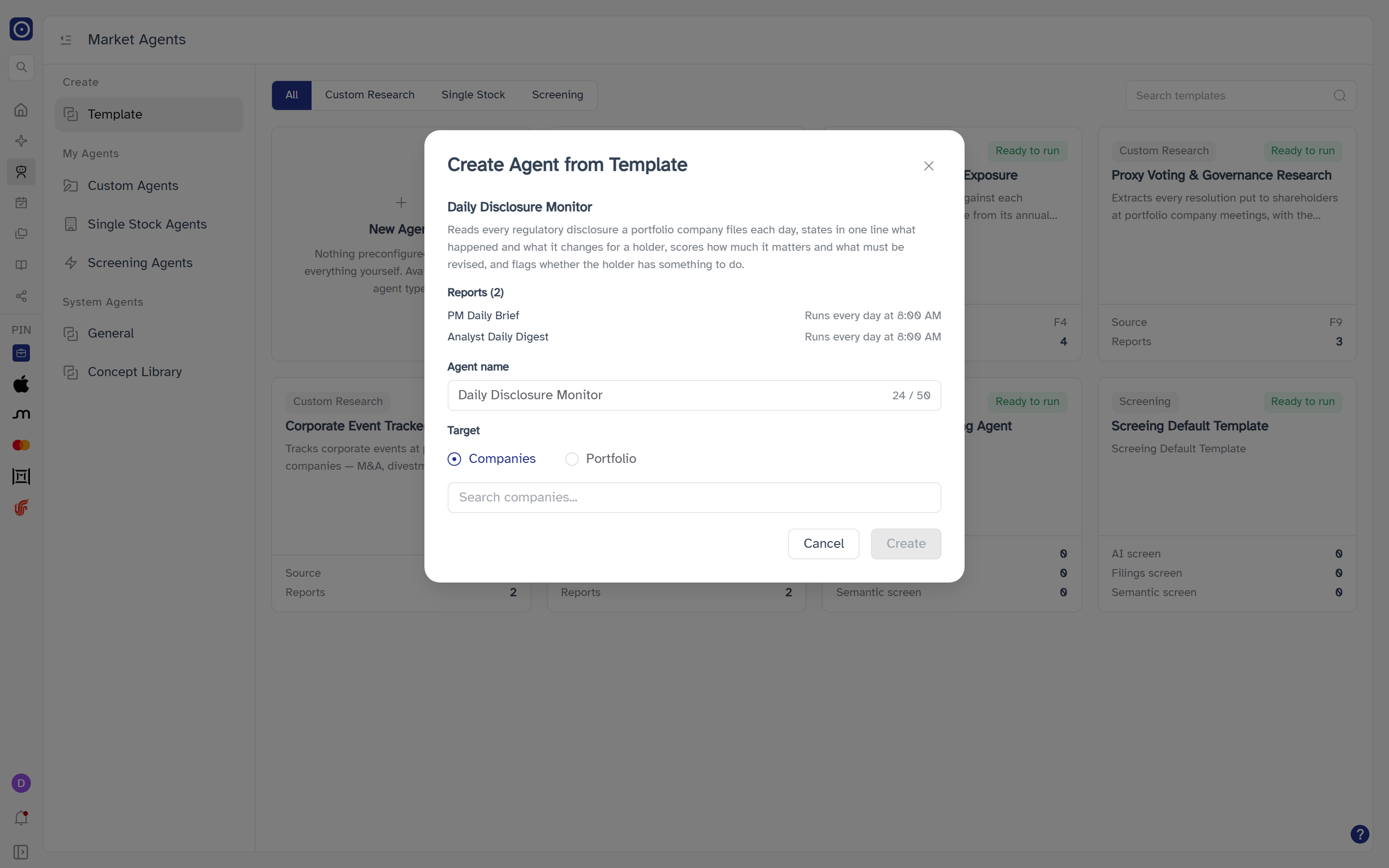
Clicking a Custom Research card from the shared library opens Create Agent from Template. It builds a Custom Research agent for you from the template, so you only say what to call it and what to cover. The agent is created and active, but it is not run for you.
| Part of the dialog | Notes |
|---|---|
| Template summary | The template's name and, when it has one, a description, then Reports followed by the number of reports in brackets, each listed with its name and its schedule. If the template cannot be loaded, the area shows the error instead, or Failed to load the template. |
| Agent name | Starts as the template's name. Up to 50 characters, with a counter. Required — Create stays disabled while it is blank. |
| Target | Companies (the default) or Portfolio. Pick one. |
| Companies |
A multi-select you search by typing (Search companies...). Each match shows the
company's logo, its name and its ticker, followed by / and its ISIN when it
has one; a search returns up to 8 matches. You can pick several. Companies you have
already picked stay in the list when you search again.
|
| Portfolio | A single-choice list (Select a portfolio) that shows each portfolio as its name and company count in brackets. Your portfolios are loaded the first time you switch to it. |
| Cancel | Closes the dialog; nothing is created. |
| Create | Disabled until the template has loaded, the name is not blank, and at least one company (or a portfolio) is chosen. Creates the agent, shows Created — Agent "<name>" has been created., with an extra note after it when Orbit has one — and opens the new agent's own page, described in The custom agent page. If it fails you see Failed with the reason, or Failed to create the Agent, and the dialog stays open. |
Creating a Screening agent
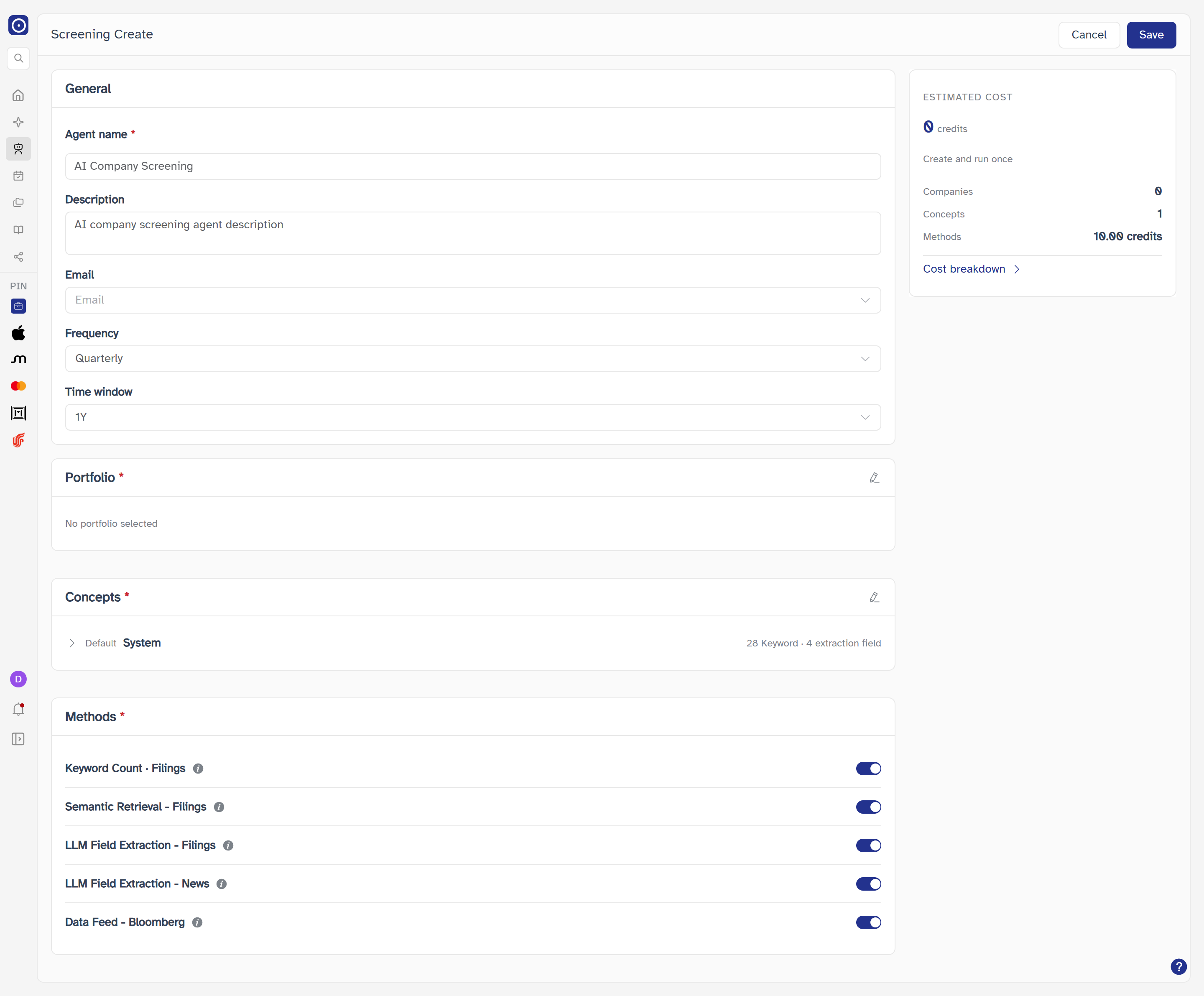
A Screening agent scores every company in a portfolio against one or more concepts and reports the result. The creation page is one form in four sections, with a cost card beside it. Cancel and Save sit in the header at the top right of the page.
Cancel and Save
| Button | Notes |
|---|---|
| Cancel | Goes back to the page you came from. Nothing is saved. |
| Save | Checks the form first. If a required field is missing, the field shows its message and nothing is created. Otherwise the agent is created, a Saved message reading Screening agent has been created. appears at the bottom right, and the page moves on to the new agent's own page. If creating fails, a Failed message reading Failed to save appears and you stay on the form. |
The cost card is labelled Create and run once: the estimate is what a single run of this agent will use. Check the number, and open Cost breakdown, before you click Save. Save itself only creates the agent and opens its page; a run is started from there, as described in Screening Agent result.
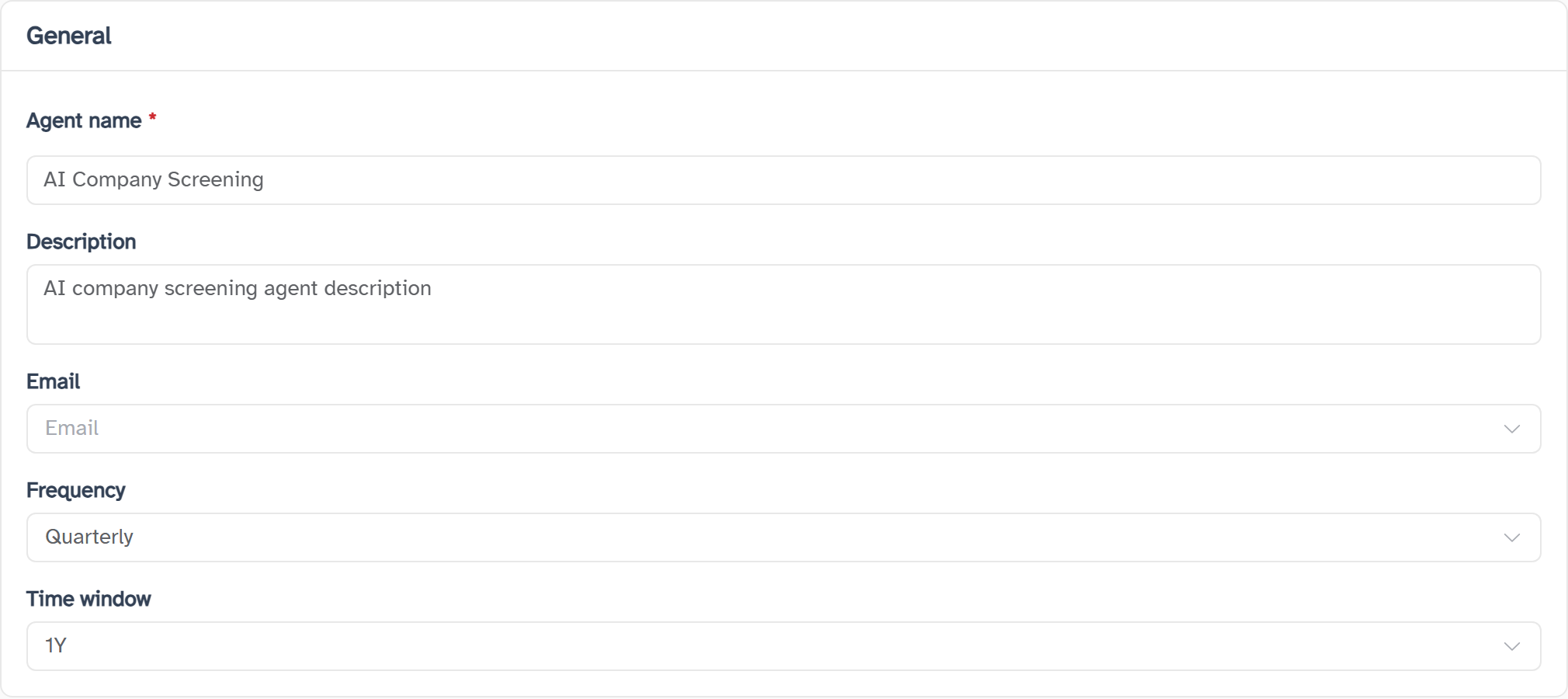
General
| Field | Notes |
|---|---|
| Agent name | Required. Leaving it empty shows Please input agent name when you click out of the field or press Save. Spaces at the start and end are removed. |
| Description | Optional, free text, two lines tall. |
| Optional, and you can pick more than one. The list holds the email addresses of the members of your organisation, or only your own address if the organisation list is not available. You can type to filter the list. | |
| Frequency | Daily, Weekly, Monthly, Quarterly or Yearly. Starts on Quarterly. |
| Time window | 1M, 3M, 6M, YTD or 1Y. Starts on 1Y. One window is shared by every method. |
Portfolio
The set of companies to score. Required — leaving it empty shows Please select a portfolio. The section shows the chosen portfolio's name and its number of companies, or No portfolio selected.
Choosing a portfolio
The pencil icon at the right of the Portfolio heading opens a picker. You can choose only one portfolio.
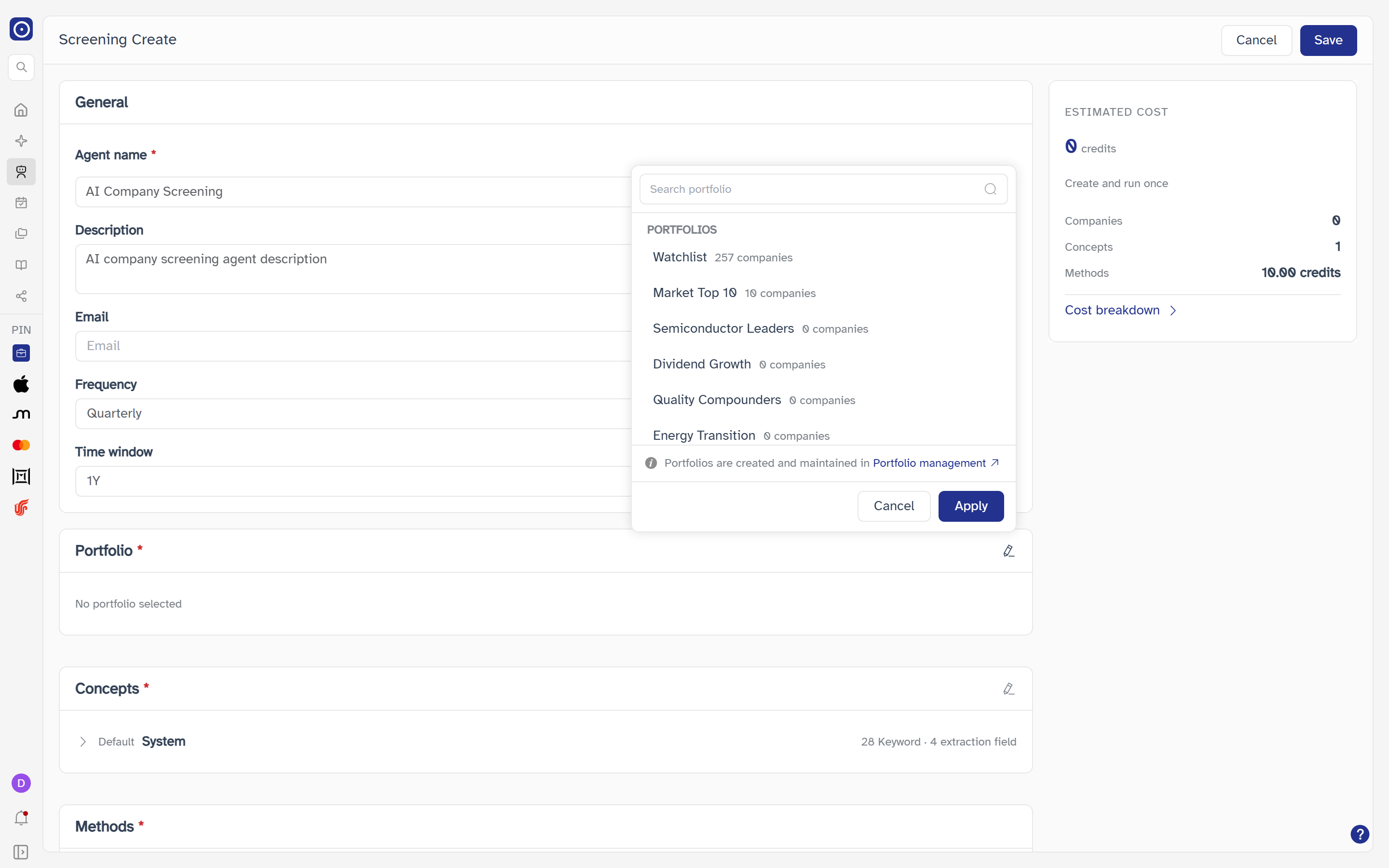
| Control | Notes |
|---|---|
| Search portfolio | Filters the list by portfolio name. |
| Portfolio row | Click to mark it, with a tick. Each row shows the portfolio's name and its number of companies. No portfolios found appears when nothing matches. |
| Portfolio management | A link in the note at the bottom: portfolios are created and maintained there. Opens Portfolio Management. |
| Cancel | Closes the picker and keeps the previous choice. |
| Apply | Sets the marked portfolio as the agent's portfolio and closes the picker. |
Concepts
What each company is scored against. Required — leaving it empty shows Please select at least one concept. You can pick up to 20; trying to pick a 21st shows Up to 20 concepts can be selected. With none picked, the section reads No concept selected. What a concept is, and how to build your own, is covered in Concept Library.
Choosing concepts
The pencil icon at the right of the Concepts heading opens a picker.
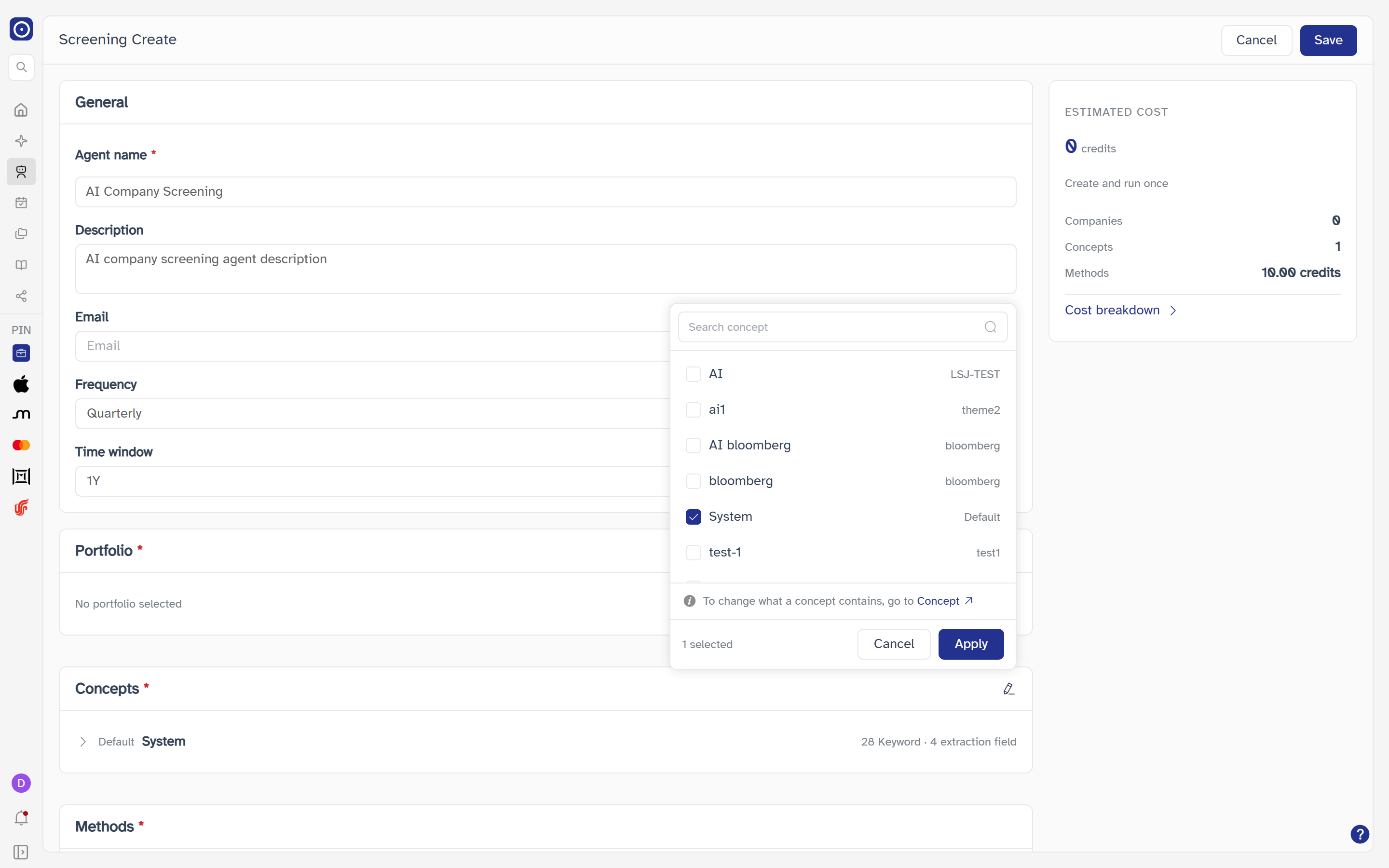
| Control | Notes |
|---|---|
| Search concept | Filters the list by concept name or by theme name. |
| Concept row | Click to tick or untick it. Each row shows the concept's name and its theme. No concepts found appears when nothing matches. |
| Concept | A link in the note at the bottom, To change what a concept contains, go to Concept. Opens the Concept Library view of the Agent Marketplace; see Concept Library. |
| N selected | How many concepts are ticked right now, before you apply. |
| Cancel | Closes the picker and keeps the previous choice. |
| Apply | Replaces the agent's concepts with the ticked ones and closes the picker. |
Reading a chosen concept
Each chosen concept is one row showing an arrow, its theme in small text, its name in bold, and at the right a count in the form N Keyword · M extraction field. Click the arrow or the name to open or close the row. You cannot edit a concept from this page.
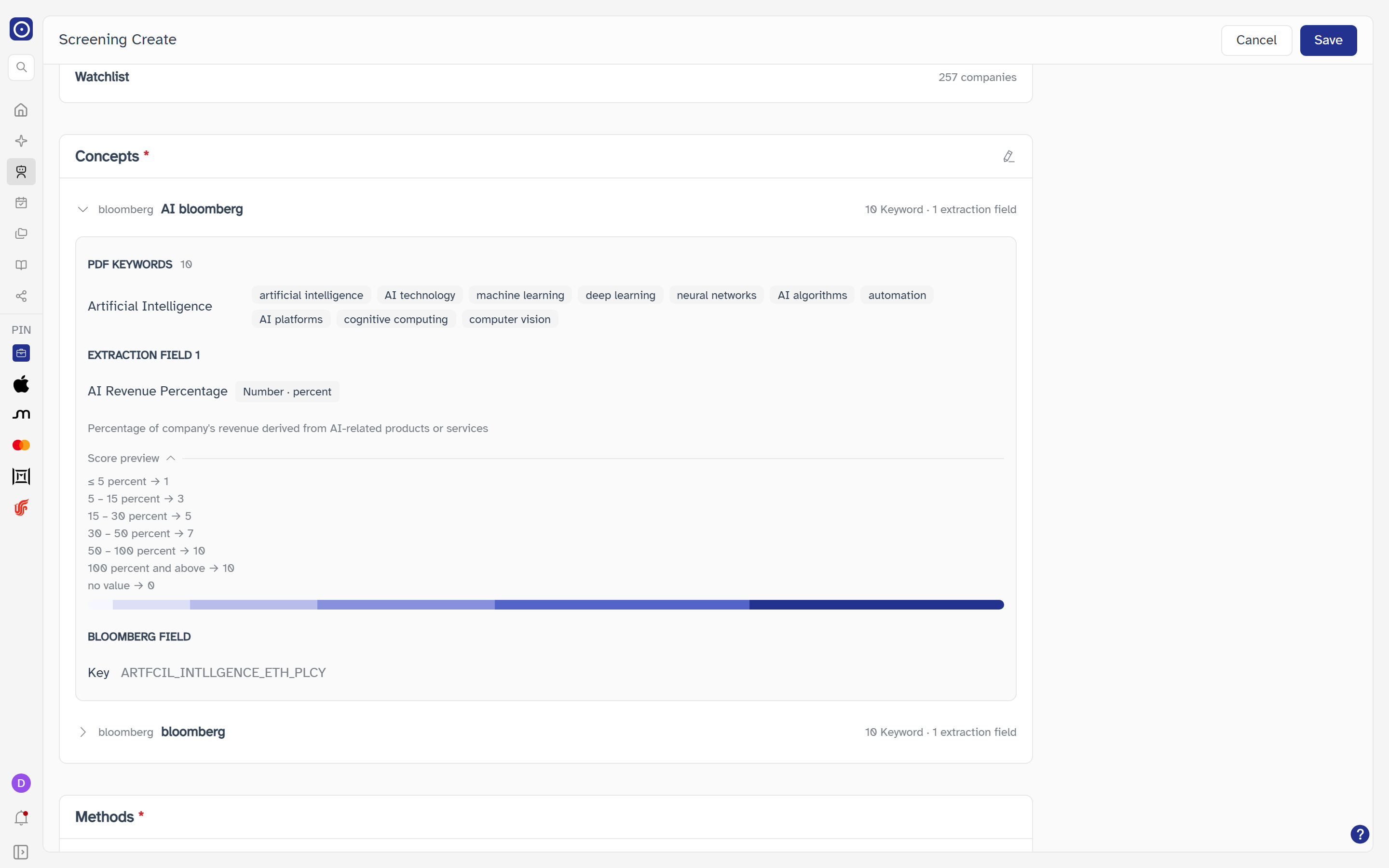
| Part of an open concept | Notes |
|---|---|
| PDF KEYWORDS | The keyword groups the concept searches for in filings, with a total count. |
| EXTRACTION FIELD 1, 2… | One block per field the concept asks the model to extract, with its name, its type — Number (with its unit, if it has one), Yes / no or Category; or Bloomberg · <mnemonic> for a field whose value comes from Bloomberg — and the instruction given to the model. |
| BLOOMBERG FIELD |
Shown only when your account has Bloomberg credentials configured. Reads
Key followed by the Bloomberg field's identifier chosen in the concept
(a concept holds at most one), or — when it has none. Concepts saved
before this existed show —. It sits at the foot of the open concept, after
Score preview.
|
| Score preview | Closed at first. Click to list how each possible value of the field turns into a score, ending with the score given when no value is found. |
Methods
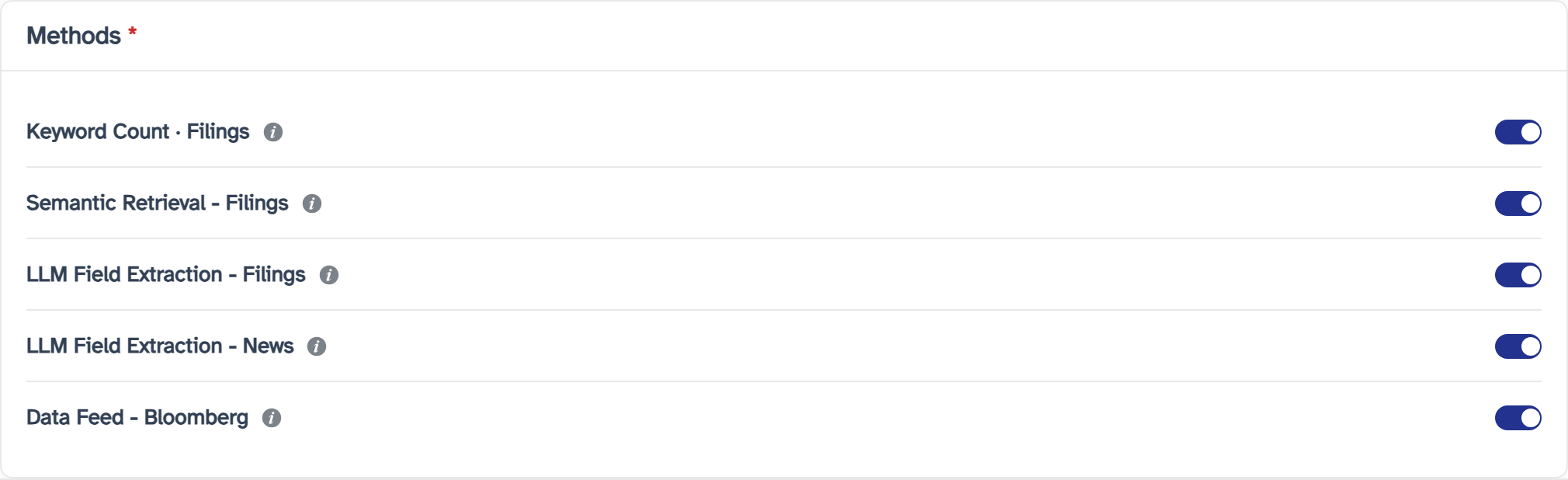
How the scoring is done. Required — if every method is switched off, the section shows Please enable at least one method and Save does nothing. The card holds the method switches; the time window they share is set in General.
| Control | Notes |
|---|---|
| Method switch | Turns a method on or off. Every method starts on. |
| Info icon | Hover for about a third of a second to read what the method does. |
| Method | What it does |
|---|---|
| Keyword Count · Filings | Counts how often your selected keywords appear across company filings — annual, interim and quarterly reports, earnings call transcripts, ESG reports, AGM materials, announcements and IR presentations. |
| Semantic Retrieval - Filings | Uses Semantic Search to find filings that are contextually relevant to your keywords, even when the exact wording differs. Generally recommended when running against several thousand companies; references are given, but not to the depth of LLM Field Extraction. |
| LLM Field Extraction - Filings | Uses large language models to analyse and score Extraction Prompts across company filings, with context, sources and evidence statements behind each score. |
| LLM Field Extraction - News | Uses large language models to analyse and score Extraction Prompts across global news, with context, sources and evidence statements behind each score. |
| Data Feed - Bloomberg | Pulls structured JSON data for your selected Bloomberg Fields from Bloomberg. It is only listed — as a fifth row after the four above, switched on — when your account has Bloomberg credentials configured on the Connection page under Settings → Bloomberg (see Bloomberg Connection). Without credentials, or if Orbit cannot tell, the row is not there at all and the page behaves as before. |
Estimated cost
The card beside the form updates as you change the portfolio, the concepts and the methods.
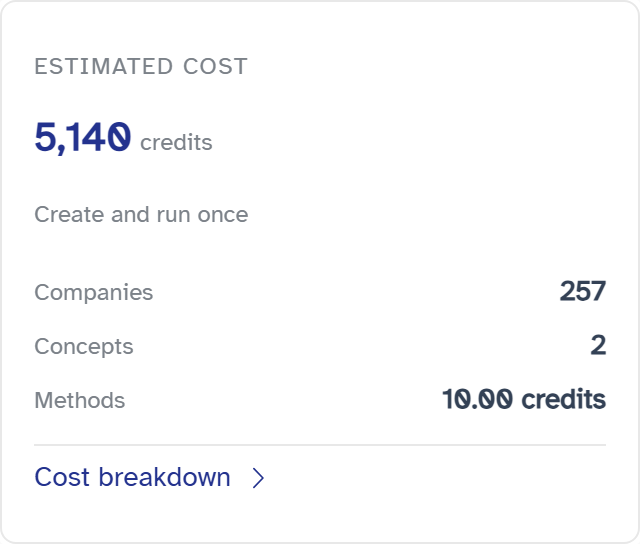
Companies in the portfolio × number of concepts × the combined rate of the methods that are switched on. Each method has its own rate per company per concept, set by Orbit, so a method you switch off stops counting. With no portfolio or no concept chosen the estimate is 0. For example, 11 companies × 2 concepts × 10 credits is 220 credits.
When this page was captured the four methods were priced as below. Orbit sets these rates and they can change, so read the current figures in Cost breakdown.
| Method | Credits per company per concept |
|---|---|
| Keyword Count · Filings | 1 |
| Semantic Retrieval - Filings | 1 |
| LLM Field Extraction - Filings | 3 |
| LLM Field Extraction - News | 5 |
Data Feed - Bloomberg has no rate in this list: on this page it adds nothing to the estimate, whether it is switched on or off. In Cost breakdown its row reads 0.00 credits.
| Part of the card | Notes |
|---|---|
| ESTIMATED COST | The estimate in credits, with Create and run once under it. |
| Companies | The number of companies in the chosen portfolio. |
| Concepts | The number of concepts chosen. |
| Methods | The combined rate of the methods that are on, in credits. |
Cost breakdown
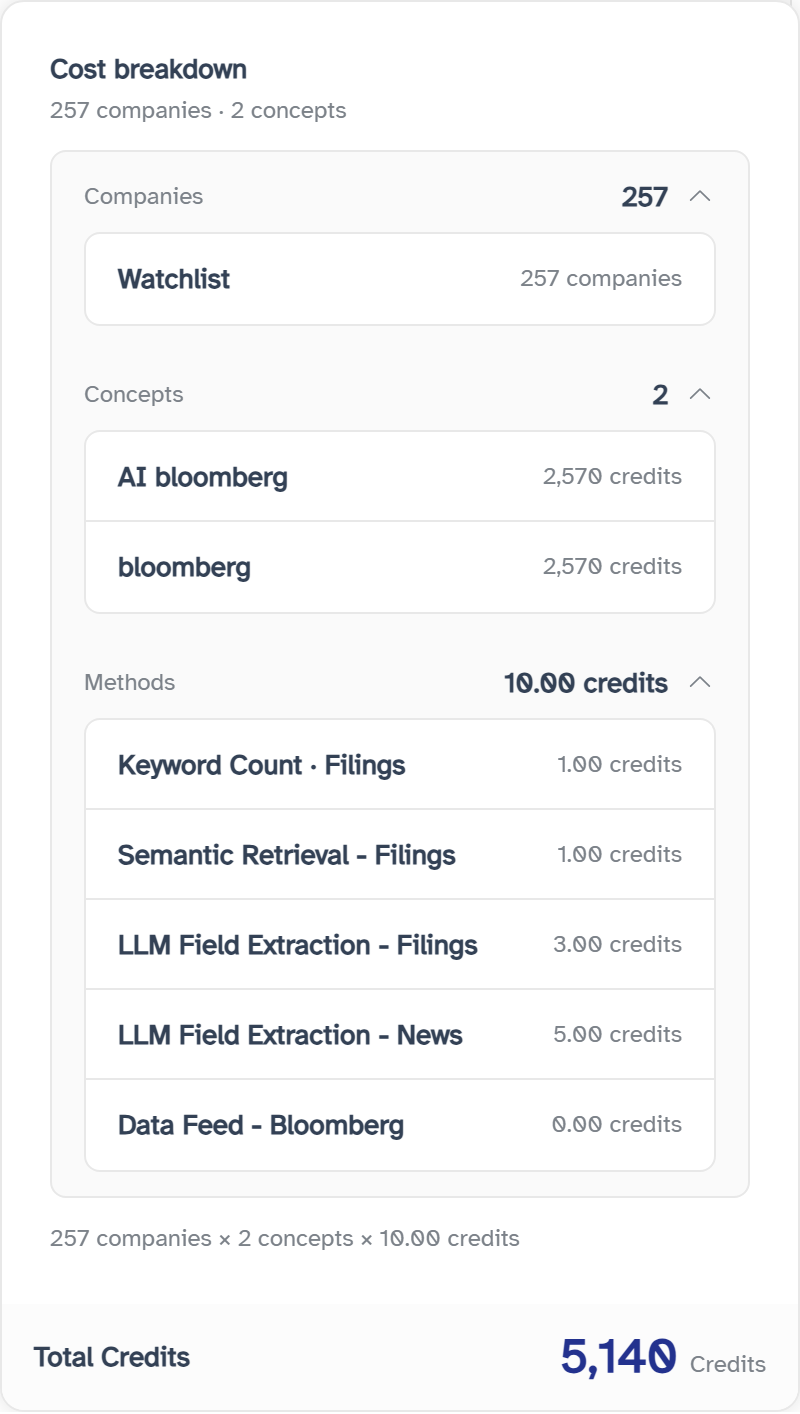
Cost breakdown at the bottom of the card opens a panel that shows how the estimate is built up.
| Row | Notes |
|---|---|
| Companies | Click to open. Shows the portfolio's name and its number of companies. |
| Concepts | Click to open. Lists each chosen concept with the credits it accounts for. |
| Methods | Click to open. Lists the methods with the credits each one adds — the four above, plus Data Feed - Bloomberg when that row is shown; a method that is switched off reads Off. |
| Total Credits | The total at the foot of the panel, with the sum written out above it as companies × concepts × credits. |
Starting from a template
When you arrive from a Screening template card, the form opens already filled in from the template, and you can change anything before saving. A template can set the agent name, the description, the concepts, the time window and which methods are switched on — including Data Feed - Bloomberg, when that row is shown. A template does not choose a portfolio, so Portfolio still needs your pick.
Opened from New Agent, the form starts with the defaults above and no concepts or portfolio.
After you save
The page moves to the new agent's own page. That page, and where the agent appears in the list, is covered in Screening Agent result. You can also find it later under Screening Agents in the left column of the Agent Marketplace.