
The screening agent page
Everything one screening agent produces and everything that governs it — the reports from each run on one side, and on the other the portfolio it screens, the concepts it looks for and the methods it uses.
Opening the page
- Click Agent Marketplace in the left rail.
- Under My Agents, click Screening Agents.
- Click the agent's card.
When a test run finishes, the Batch test run completed dialog offers View Results, which opens the agent here. Creating a screening agent from a template also ends on this page.
An agent that has already produced reports opens on Results & reports. One that has not opens on General. Once you have chosen a page yourself, the page does not move you again.
How the page is laid out
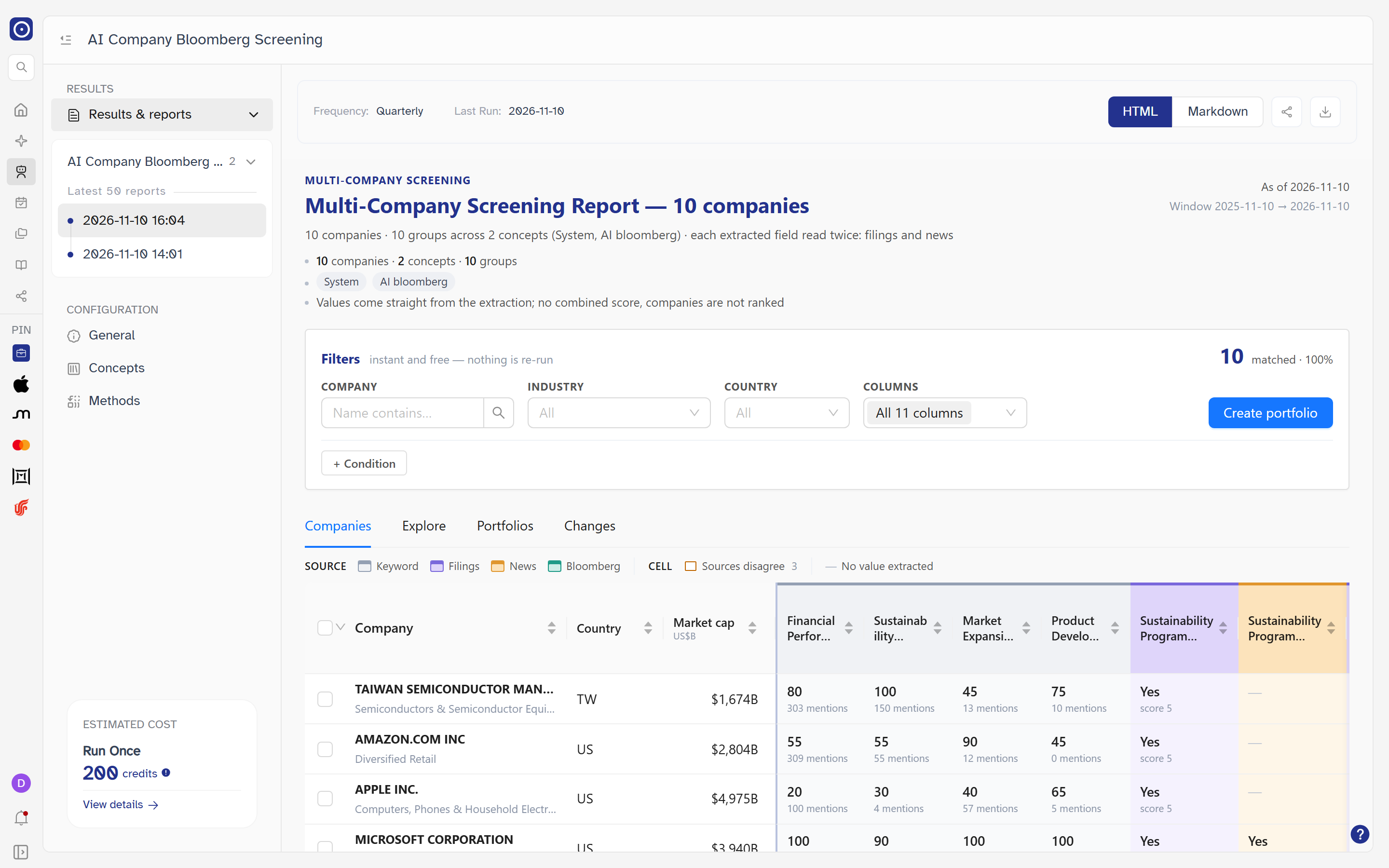
A secondary menu lists everything about this agent, split into two groups. The button at the top left of the main header collapses and restores it. The agent's name replaces the generic title in the page's breadcrumb.
| Group | Entries |
|---|---|
| RESULTS | Results & reports — what the agent has produced. It expands to a tree of reports. |
| CONFIGURATION | General, Concepts, Methods — what it will do next time it runs. |
A screening agent has no Structured Data, Run History, Data Source, Data Builder or Report Builder pages. Its scope is a portfolio, its criteria are concepts, and its output is the reports. Compare The custom agent page.
Estimated cost
ESTIMATED COST sits at the bottom of the menu and stays there whichever page you are on. It gives the credits one Run Once of this agent would consume at its current configuration, and updates as you change the portfolio, the concepts or the methods.
| Control | What it shows |
|---|---|
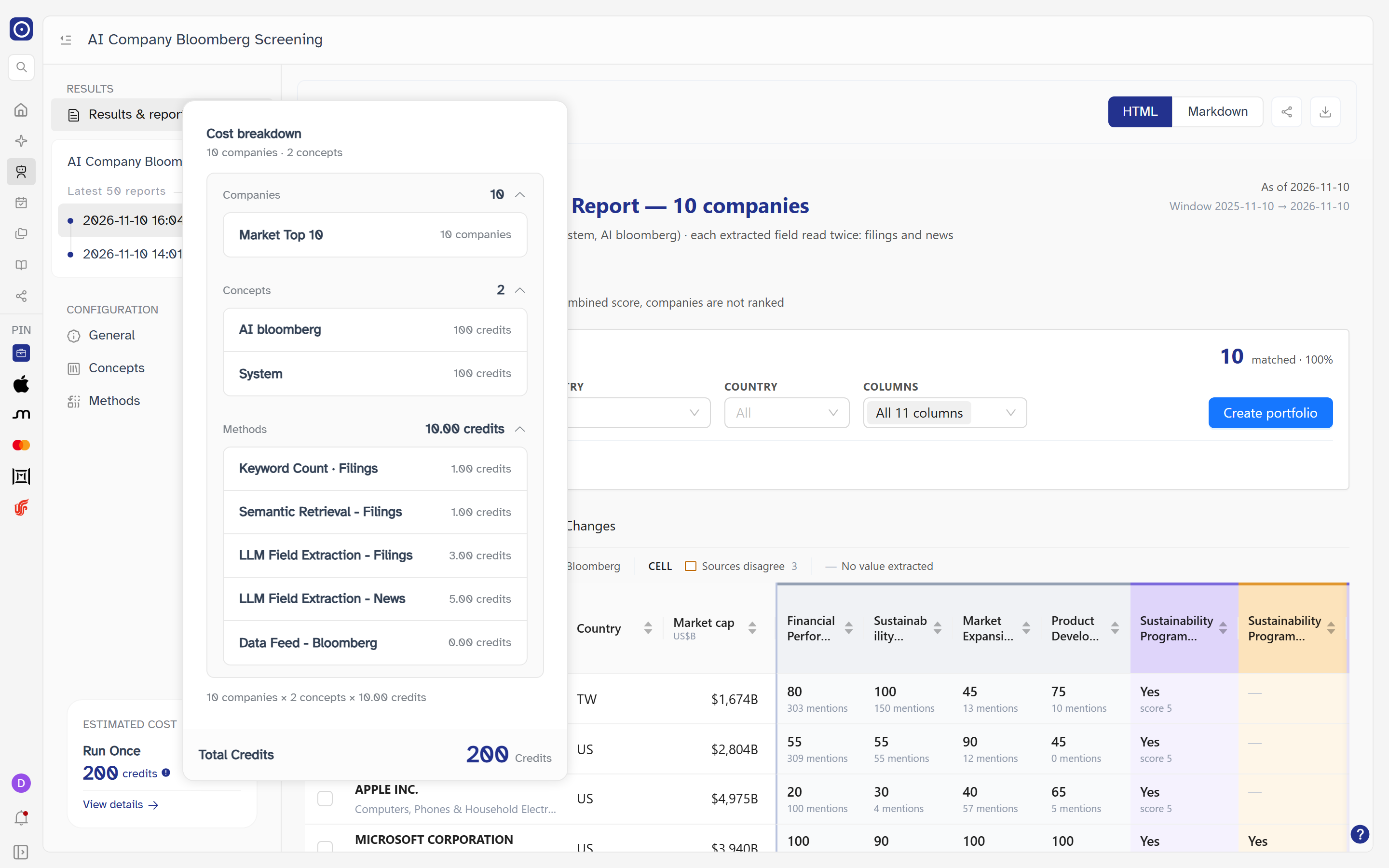
| Round exclamation mark beside the figure | Opens Cost breakdown, headed by the number of companies and concepts. Companies, Concepts and Methods each expand: Companies to the portfolio and its company count, Concepts to the credits each concept costs, Methods to each method's rate (Off for a method switched off). A formula line and a Total Credits figure close the panel. Not available while the page is still loading. |
| View details | Opens Credit, where your balance and past usage live. |
The estimate is the number of companies in the portfolio × the number of concepts × the sum of the rates of the methods that are switched on. Each method has its own rate per company per concept, except Data Feed - Bloomberg, which has none.
The four rates are listed on the creation page. In the picture below every method is switched on, so each company and concept pair costs the sum of the rates; Data Feed - Bloomberg is listed with 0.00 credits because it adds nothing. A method that is switched off reads Off instead.
Header actions
Test Run, Publish and the delete button appear in the main header only while you are on one of the three CONFIGURATION pages. Switch to Results & reports and they go away.
Test Run
Runs the agent once, now, against its current configuration.
- Click Test Run to open the panel.
- Leave Run Now selected. The panel spells out the dates it covers: Structured data from data source: one year ago through today.
- Click Run. If the agent has no email recipient, a prompt asks about email first — see Email prompt before a run.
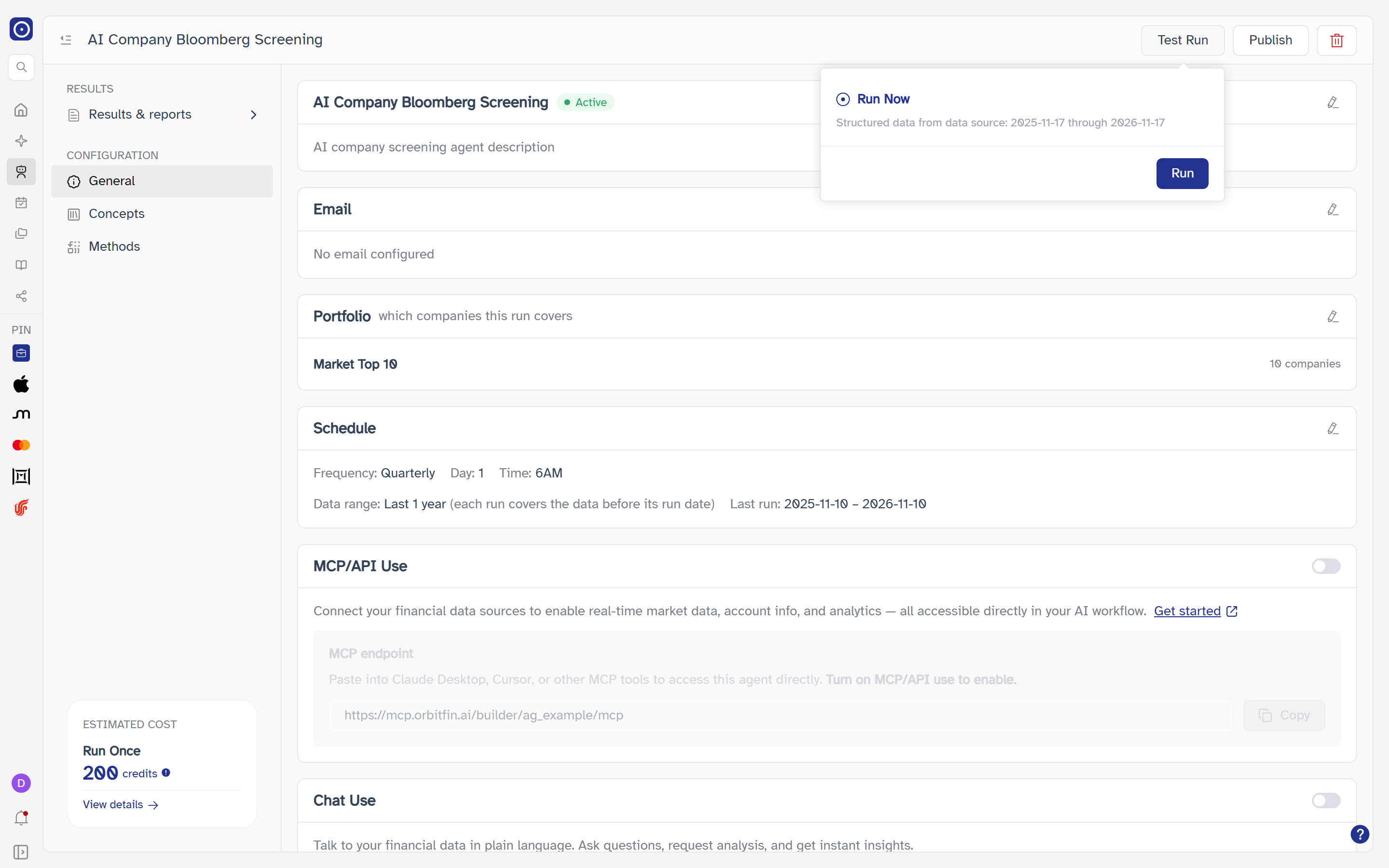
The cost is the ESTIMATED COST figure, checked for the methods that are switched on. If your balance will not cover it, the run is refused and a dialog explains why. Data Feed - Bloomberg has no credit rate in the credit check, so switching it on adds nothing to the figure.
Email prompt before a run
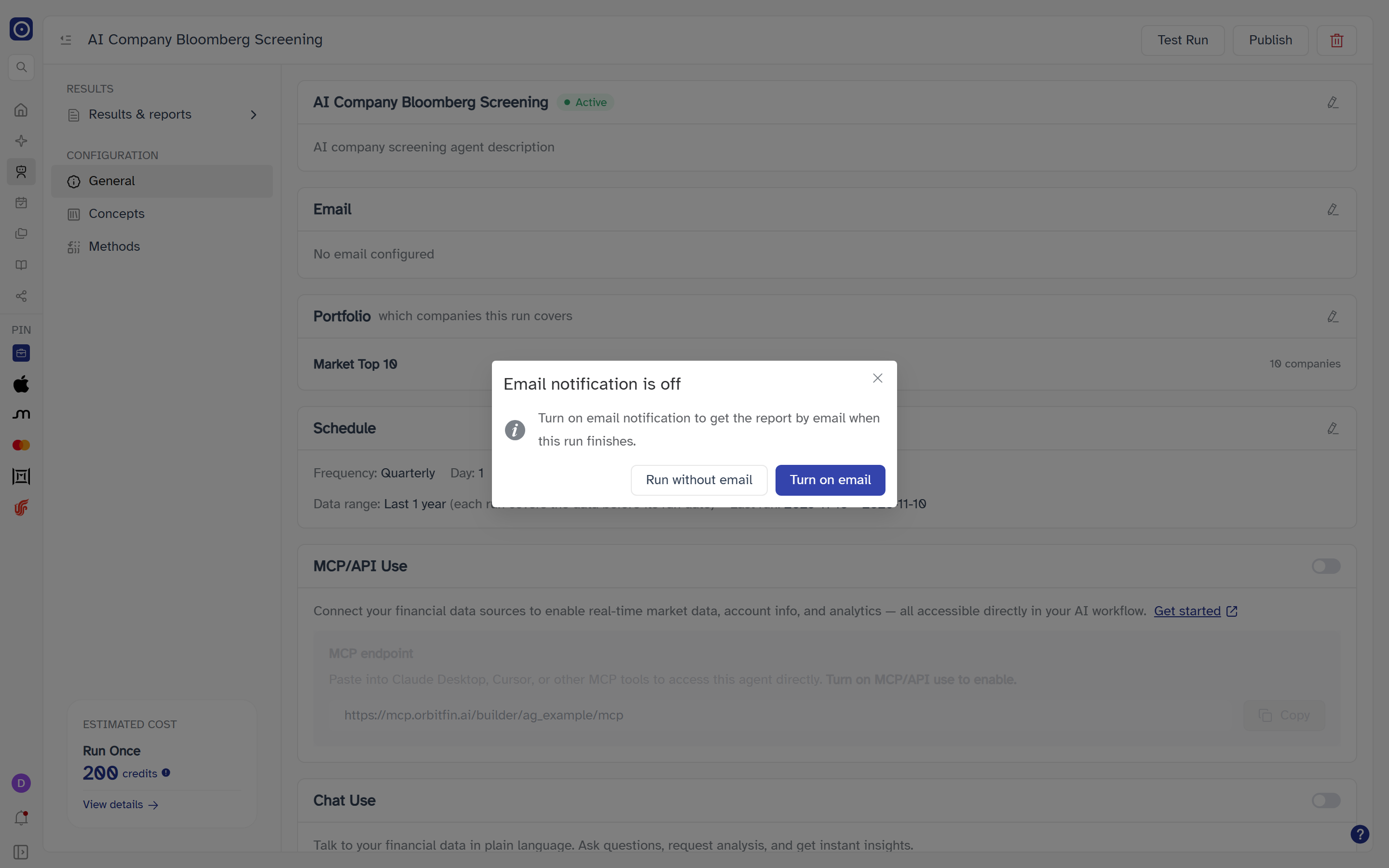
Clicking Run on an agent whose Email card has no recipient does not start the run straight away. A prompt titled Email notification is off reads Turn on email notification to get the report by email when this run finishes. and offers three ways out:
| Choice | What happens |
|---|---|
| Turn on email | Opens Edit email with your own address already filled in, when Orbit knows it. Once you save there, the run starts. If you close that dialog without saving, nothing runs. |
| Run without email | Starts the run now, with email left off. |
| Close (the × or Esc) | Cancels. The run does not start. |
The prompt does not appear when the agent already has at least one address on its Email card.
Once a run starts, progress is shown as Test run in progress with a percentage, in a bar at the top of the window that survives navigating elsewhere. When it finishes, the Batch test run completed dialog appears — Click below to view your results, or continue with your current workflow. View Results opens this page again; Cancel dismisses it.
Unlike a custom agent, a screening agent's Test Run offers only Run Now; there is no Run at specific time. Edits you have made are already saved, so what runs is always what the configuration pages show.
Publish and Move to draft
A new agent is a Draft: it exists and can be test-run, but its scheduled tasks do not fire. Publish activates the agent and enables all of them. Once published the button reads Move to draft and does the reverse. Hovering it explains which: Activate agent and enable all scheduled tasks. or Deactivate agent and disable all scheduled tasks.
| Button | Behaviour |
|---|---|
| Publish | Activates immediately — no confirmation — and confirms with Now published. |
| Move to draft | Asks first: Move this agent to draft? Users won't be able to access it until republished. Draft confirms, Cancel backs out. Confirming shows Moved to draft. |
Deleting the agent
The delete button carries a bin icon rather than a label — hover it to see Delete.
The confirmation is headed Are you sure you want to delete this agent? and reads Once deleted, any structured data and reports produced by this agent will no longer be available. Confirming with Yes, Delete removes the agent and returns you to Agent Marketplace.
Every change on the configuration pages is saved the moment you confirm it — a dialog's save button, or a switch being flipped. A Saved notification confirms each one; a Failed notification means the change did not go through.
Results & reports
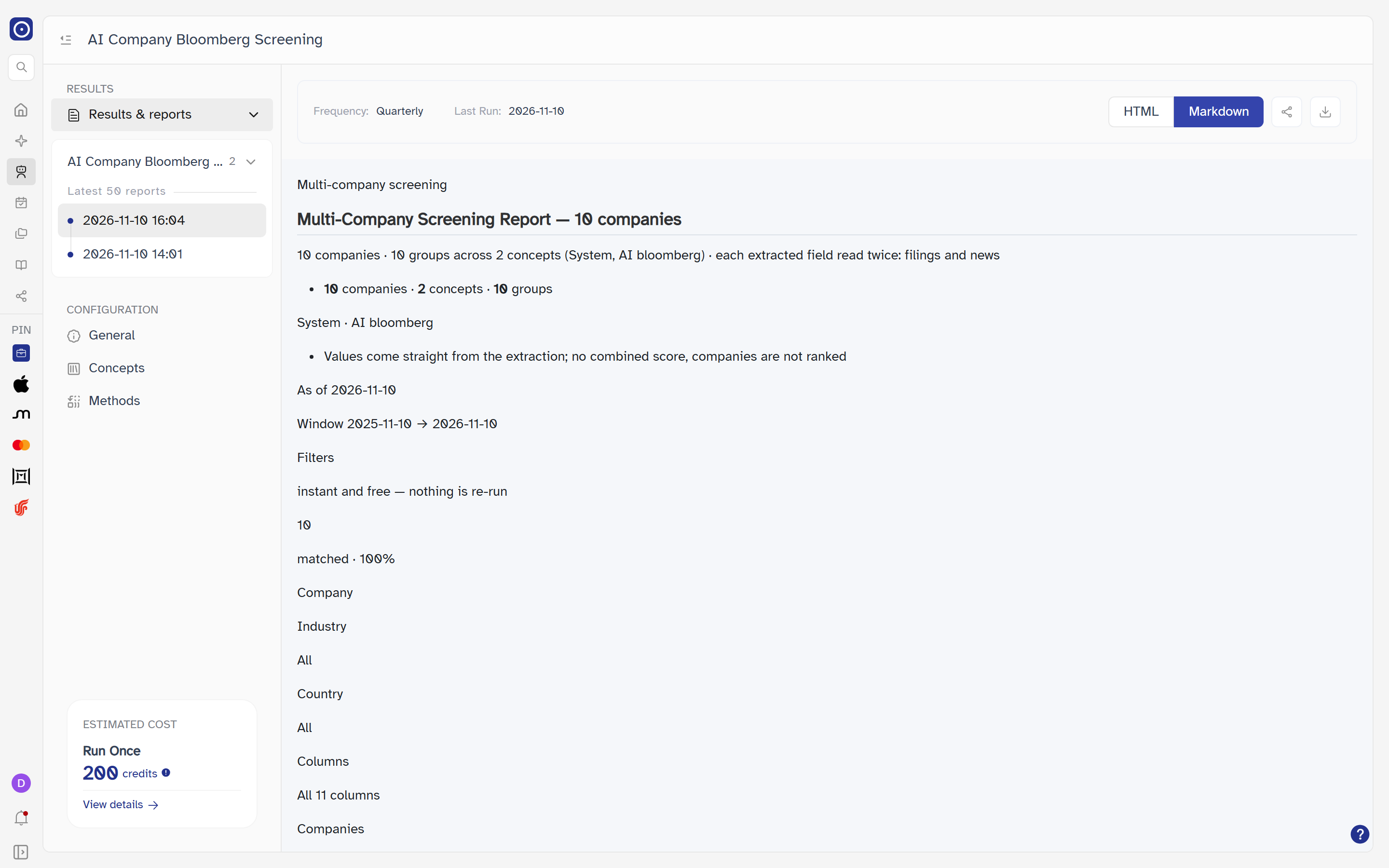
The documents the agent writes. Each run of the agent produces a new report, so this page is a two-level list before it is a reading view.
Finding a report
- Click Results & reports in the menu. Its report tree expands underneath.
- Click a report to list its runs, newest first. Clicking it again collapses it. The number beside it is how many runs it has.
- Click a run to read it. The list holds the latest 50 and is headed Latest 50 reports.
The first report that has any runs opens on its own, showing the most recent one. Reports with no runs yet stay collapsed.
Reading a report
The bar above the report belongs to Orbit; everything below it is the report itself.
| Item | Meaning |
|---|---|
| Frequency | How often this report runs. See Schedule. |
| Last Run | The date the report was last produced, as YYYY-MM-DD; - when unknown. |
| HTML / Markdown | Switches how the report is rendered; the selected one is filled dark blue. A format the run did not produce is greyed out, as are both while one is loading. A Markdown view with no content shows a no-data placeholder. |
| Share icon | A three-dot share icon. Hover it for Share. Creates a link to this report and copies it to your clipboard, confirming with Copied to clipboard. The link is then listed on Share. |
| Download icon |
A downward arrow into a tray. Saves the report as a file named after the report —
.html or .md according to which format is showing. It has no
tooltip.
|
The page reads No report yet — This agent has no reports yet. Once it runs, the generated report will show up here.
Saving the result as a portfolio
A report can hand the companies it found back to Orbit so you can keep them as a portfolio. That control lives inside the report itself, not in Orbit's own bar — the report's filter bar carries a Create portfolio button. When the report asks Orbit to create a portfolio, Save result opens and the report waits for the outcome.
Save result only creates a new portfolio. Adding companies to a portfolio you already have is done inside the report, where you confirm a preview of the change; Orbit then applies it without opening this dialog. A report that has already updated a portfolio cannot do it a second time.
| Item | Notes |
|---|---|
| Intro line | These N companies are saved as a result with an AI-written report. The list itself goes into a portfolio. |
| Portfolio name | Required; placeholder Enter portfolio name. Save and write the report stays disabled while it is blank. |
| Note under the box | A new portfolio is created in Portfolio management holding these N companies. The portfolio appears in Portfolio Management. |
| Save and write the report | Creates the portfolio and closes the dialog. Orbit shows no Saved notification of its own here — the report confirms the result itself. |
| Cancel (or the × at the top right) | Closes the dialog without creating anything; the report is told the request was cancelled. |
If creating the portfolio fails, a Failed notification shows the server's reason, or Failed to save result when it gives none. The dialog stays open so you can change the name and try again. A failed update of an existing portfolio shows Failed with Portfolio "<name>" not updated: followed by the reason.
General
The agent's identity, who it emails, the portfolio it screens and when it runs — plus the two ways of reaching it from outside Orbit. Each card except the last two has a pencil icon that opens its own edit dialog.
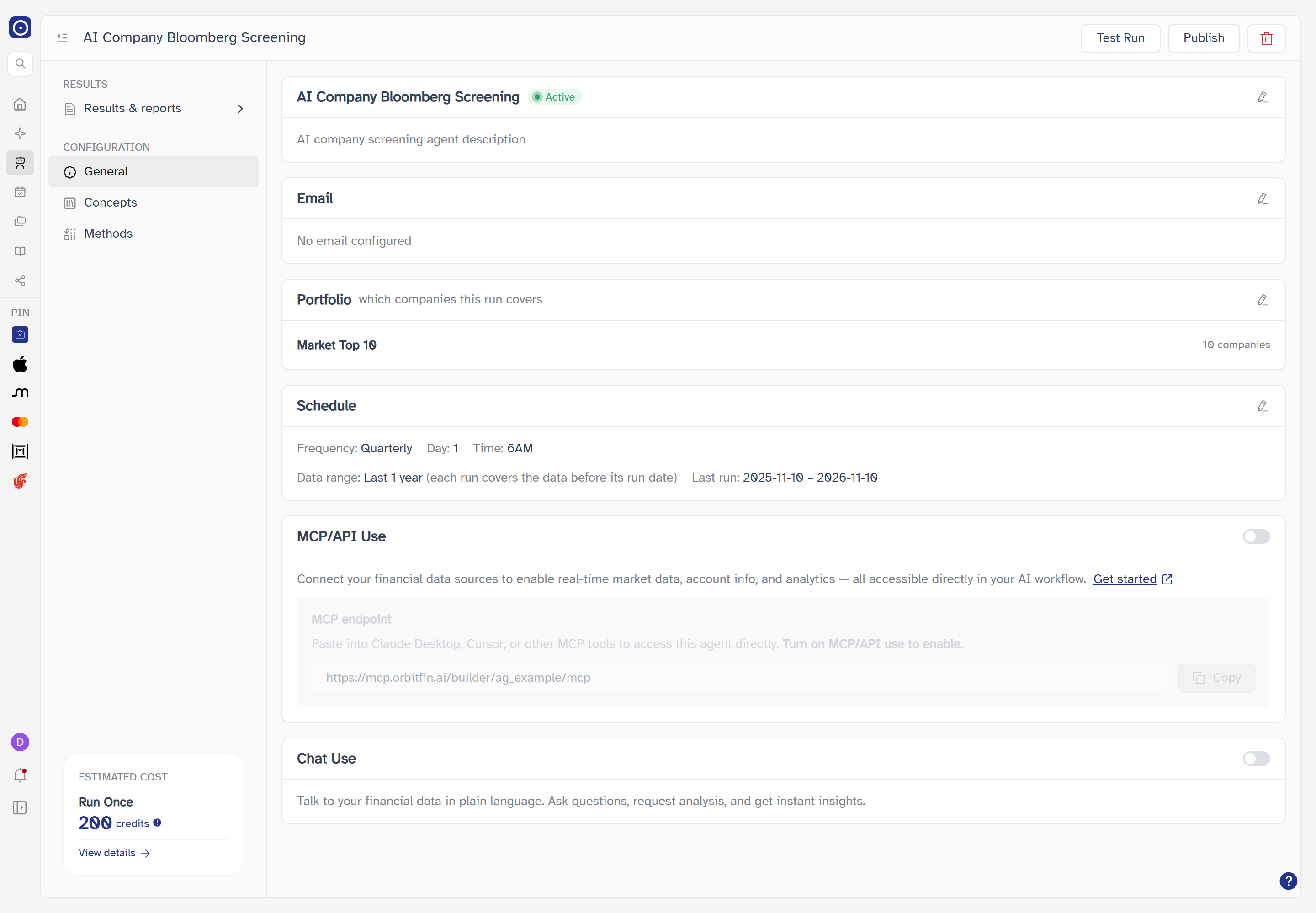
Agent information
The card carries the agent's name, a status badge, and its description. The pencil at its top right opens Edit basics.
| Field | Notes |
|---|---|
| Agent name | Required. Save changes does nothing while it is blank. An agent saved without one reads Untitled Agent. |
| Description | Free text, two lines tall. Shown on the marketplace card. Reads -- when empty. |
Save changes applies the edit and confirms with Saved; Cancel discards it.
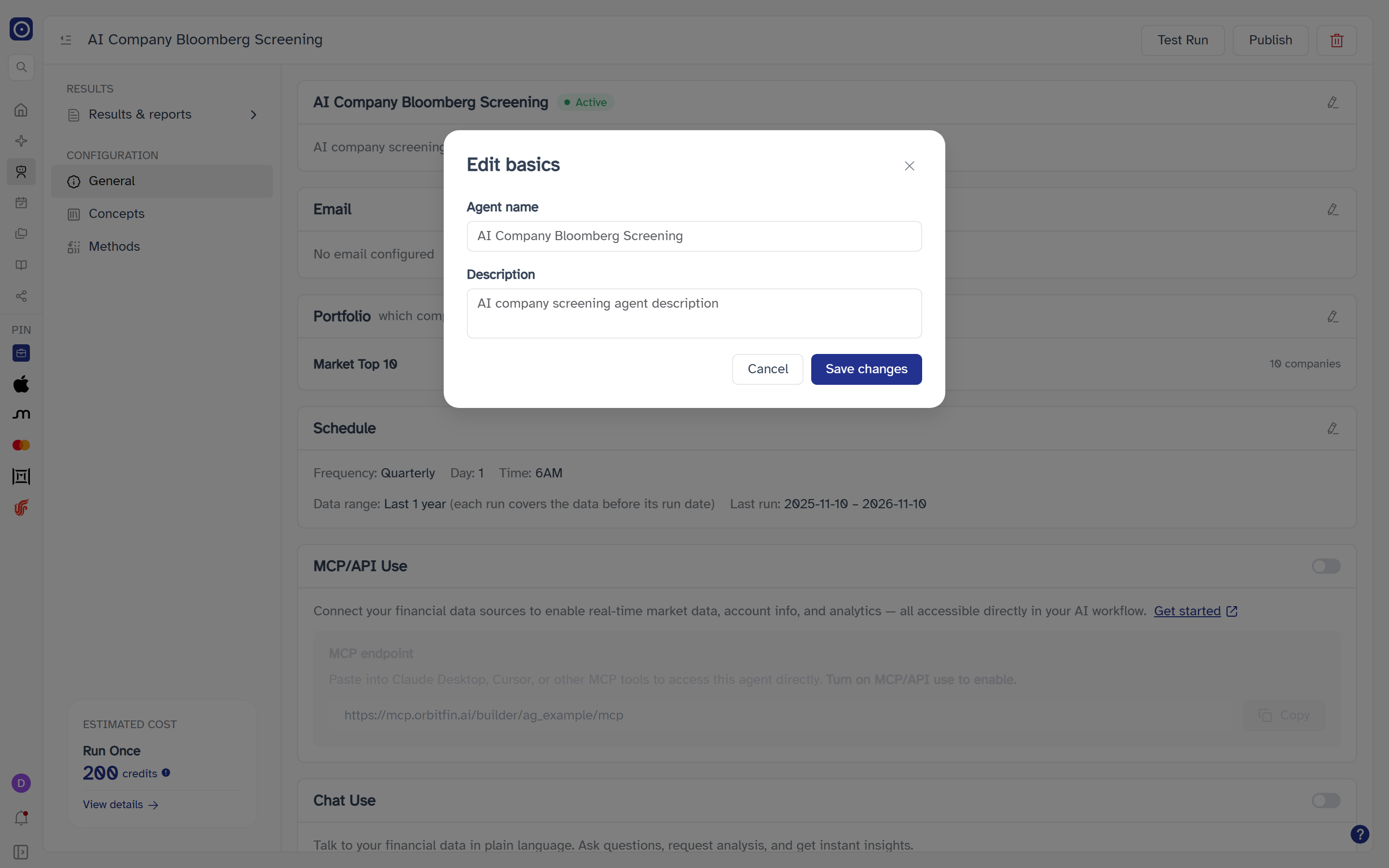
Who receives the agent's email. The card lists the addresses separated by commas, or reads No email configured. The pencil opens Edit email.
| Field | Notes |
|---|---|
| A multi-select you can type into to filter. The choices are the email addresses of the members of your organisation (see Organization); if there are none to list, your own address is the only choice. Leaving it empty turns email off. Many selections collapse into a counter with a hover list. |
Save changes / Cancel, as above.
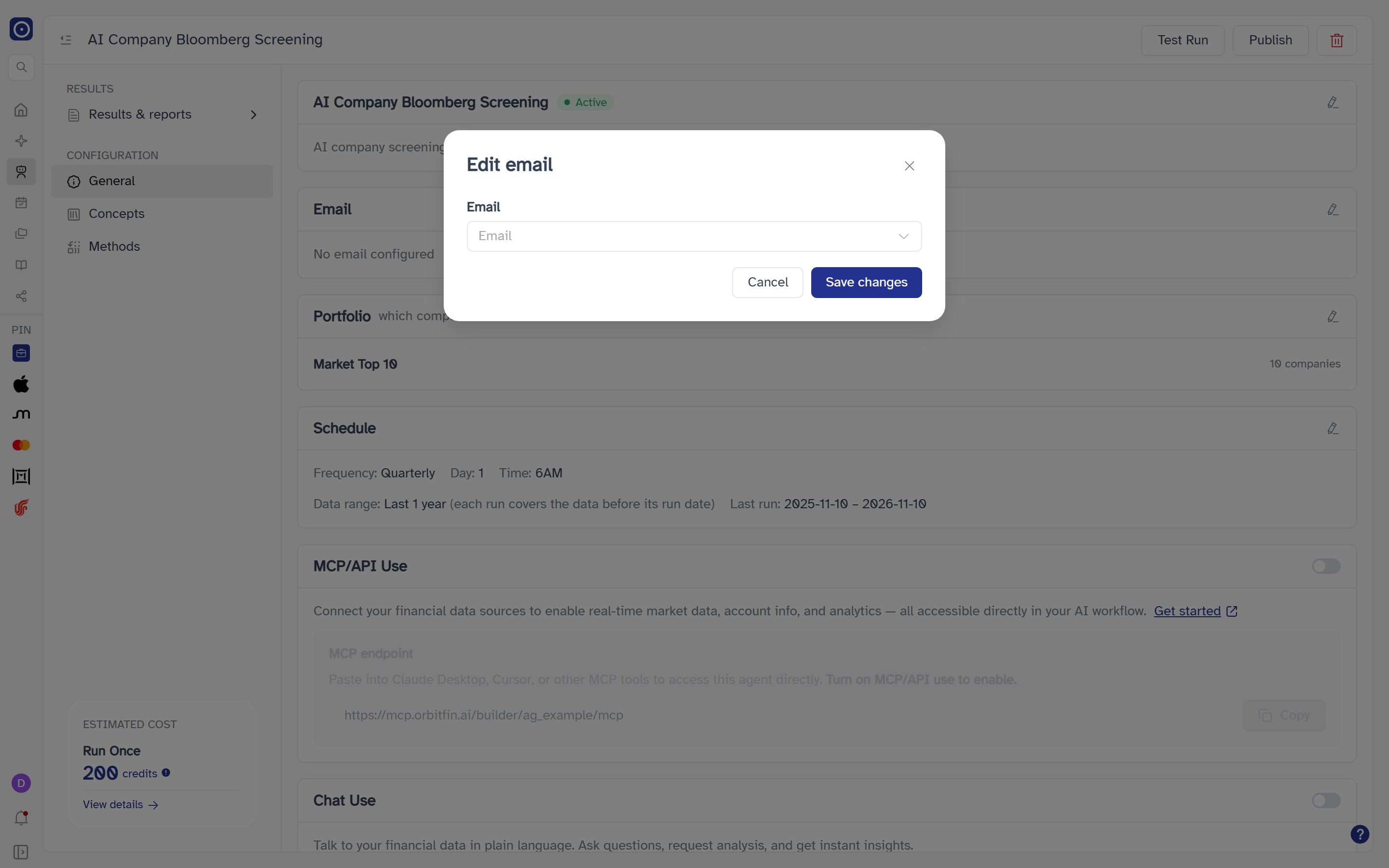
Portfolio
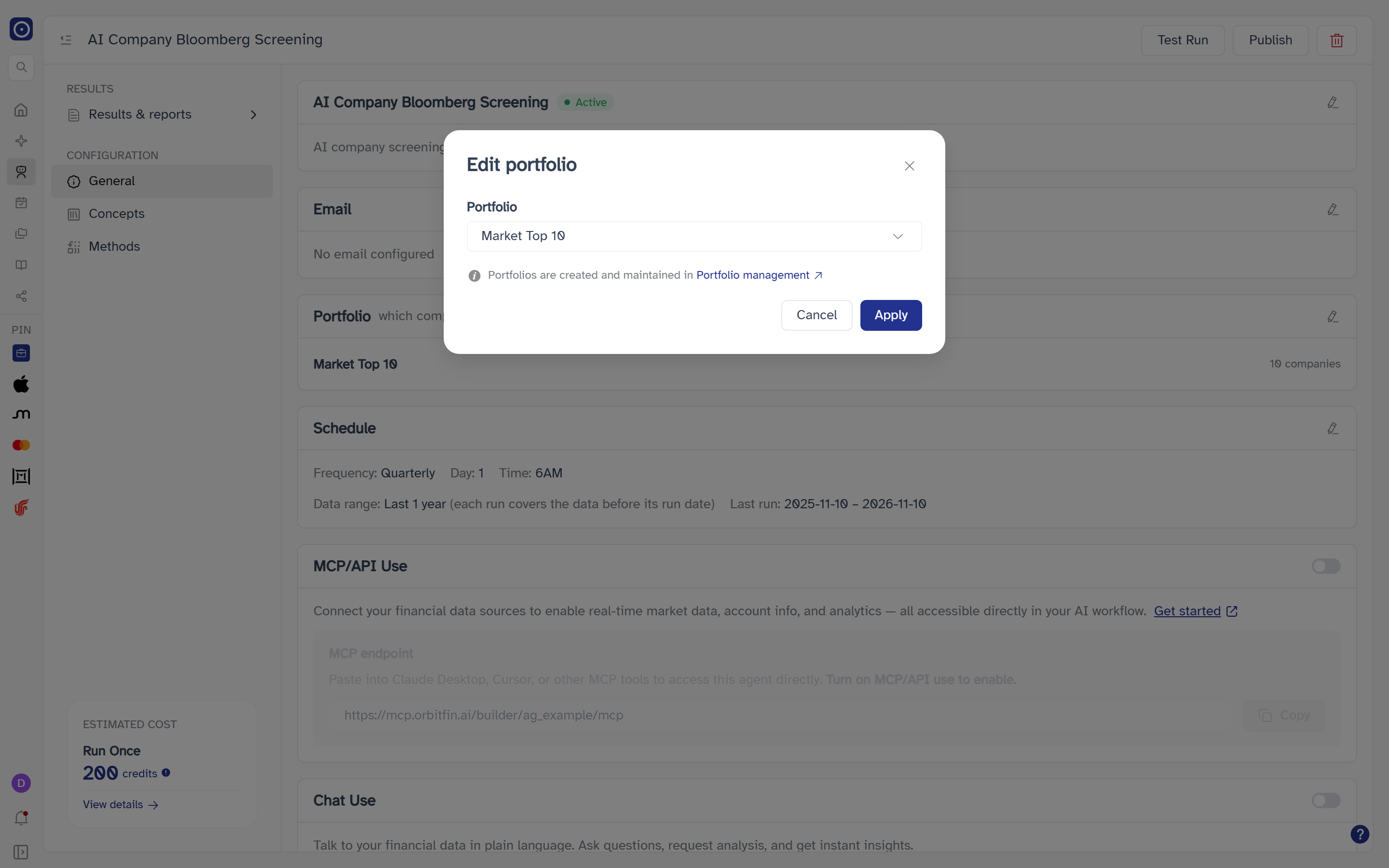
which companies this run covers — the card shows the portfolio's name and its company count (No portfolio selected when there is none). The pencil opens Edit portfolio.
| Control | Notes |
|---|---|
| Portfolio | Opens a list of your portfolios, each with its company count, with a Search portfolio box. Reads No portfolios found when the search matches nothing. The current portfolio is pre-selected. |
| Portfolio management | Link in the note under the field: Portfolios are created and maintained in Portfolio Management. Leaves this page. |
| Apply | Saves the choice and confirms with Saved — Portfolio has been updated. Does nothing until a portfolio is selected. The cost estimate updates to the new company count. |
| Cancel | Closes the dialog. |
Schedule
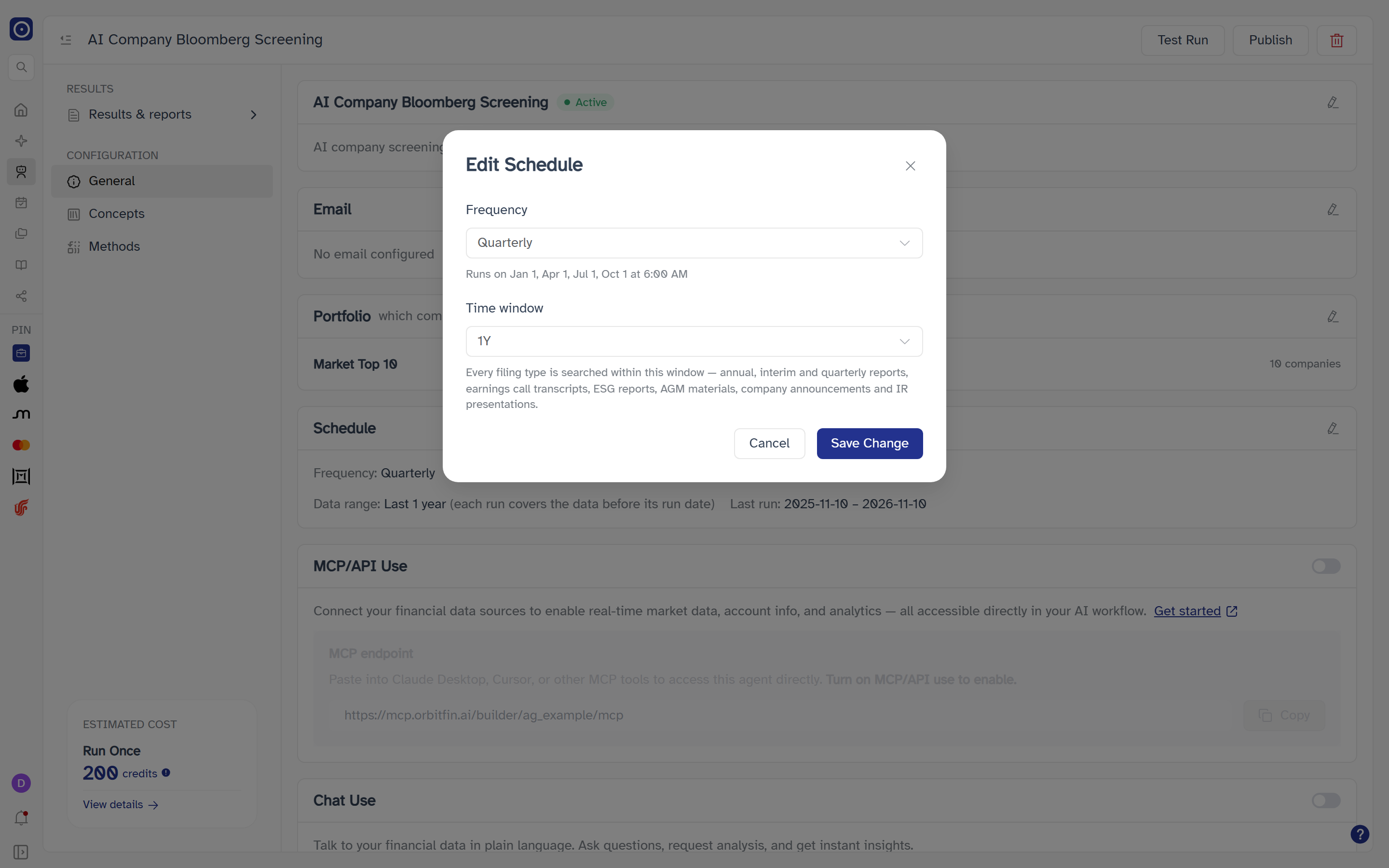
How often the published agent runs, and how far back each run looks. The card shows Frequency, the Day where it applies (a weekday for Weekly, a day of the month for Monthly, Quarterly and Yearly), and Time. Under them a second line shows the time window. The pencil opens Edit Schedule.
| On the card | Meaning |
|---|---|
| Data range | The time window in words, followed by (each run covers the data before its run date). 1M reads Last 1 month, 3M Last 3 months, 6M Last 6 months, YTD Year to date and 1Y Last 1 year. The line is left out when the agent has no window stored. |
| Last run |
The dates the agent's most recent report actually covered, as
YYYY-MM-DD – YYYY-MM-DD. Left out until the agent has a run with both
dates.
|
| Frequency | When it runs |
|---|---|
| Daily | Every day at 8:00 AM. |
| Weekly | Every Monday at 7:00 AM. |
| Monthly | The 1st of each month at 8:00 AM. |
| Quarterly | Jan 1, Apr 1, Jul 1 and Oct 1 at 6:00 AM. |
| Yearly | January 1st at 5:00 AM. |
The dialog has two lists. Frequency starts on the agent's current frequency, with the line above for the option you pick underneath it. Time window comes next and is shared by every method on the Methods page. It starts on the agent's stored window, or 1Y when it has none. Save Change saves both and confirms with Saved — Schedule has been updated. Cancel discards them. The schedule only fires while the agent is published.
| Time window option | Notes |
|---|---|
| 1M, 3M, 6M, YTD, 1Y | Under the list: Every filing type is searched within this window — annual, interim and quarterly reports, earnings call transcripts, ESG reports, AGM materials, company announcements and IR presentations. |
The line in the dialog is the standard time for the frequency you pick. The Time on the Schedule card is read from the schedule stored on the agent, so the two can differ. For the agent shown on this page they agree: the card reads 6AM and the dialog says 6:00 AM. When they disagree, the card is what is stored on the agent.
MCP/API Use
Exposes this agent over MCP so tools outside Orbit can call it. The switch is off by default. Turning it on saves at once, marks the card Protocol Ready and enables the endpoint below.
| Control | Notes |
|---|---|
| MCP endpoint | The address to paste into Claude Desktop, Cursor or another MCP client. It ends in the agent's own id, so every agent has its own. Dimmed, with Turn on MCP/API use to enable., while the switch is off. |
| Copy | Copies the endpoint and confirms with Copied — Copied to clipboard. Disabled while MCP/API Use is off. |
| Get started | Opens Orbit's developer documentation for Agent Builder in a new browser tab. |
MCP covers connecting Orbit to an MCP client in general; this switch is only about exposing this one agent.
Chat Use
Lets you put questions to this agent's data in conversation. Also off by default; flipping it saves at once. Either switch that fails to save returns to where it was and shows a Failed notification.
Concepts
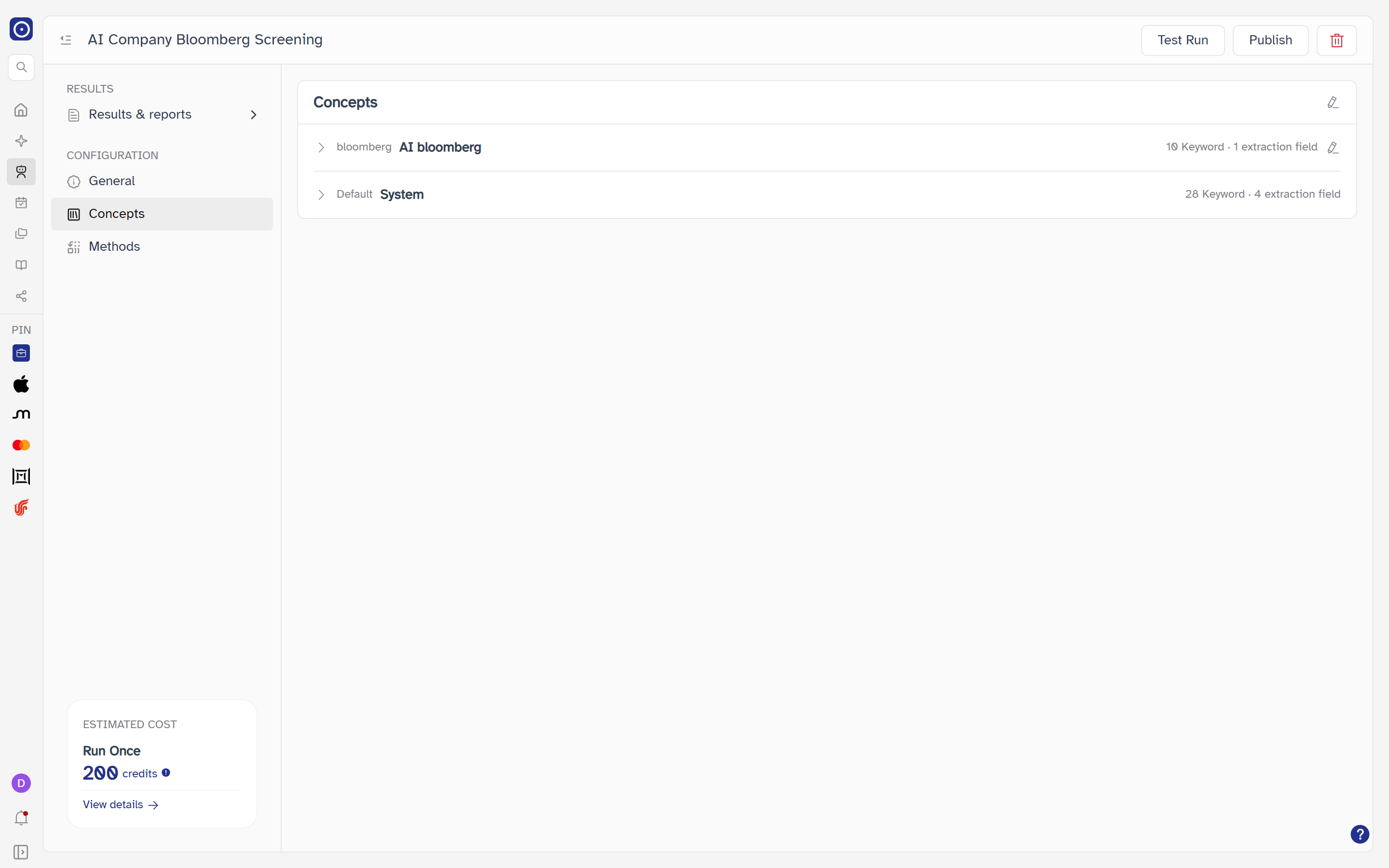
The concepts the agent screens each company for. A concept is a reusable definition of one thing to look for — see Concept Library.
Reading the list
One row per concept: an arrow, its theme in small text, its name in bold and, at the right, a count in the form N Keyword · M extraction field followed by a pencil icon. With none added, the list reads No concept selected. Click the arrow, or the name, to expand a row.
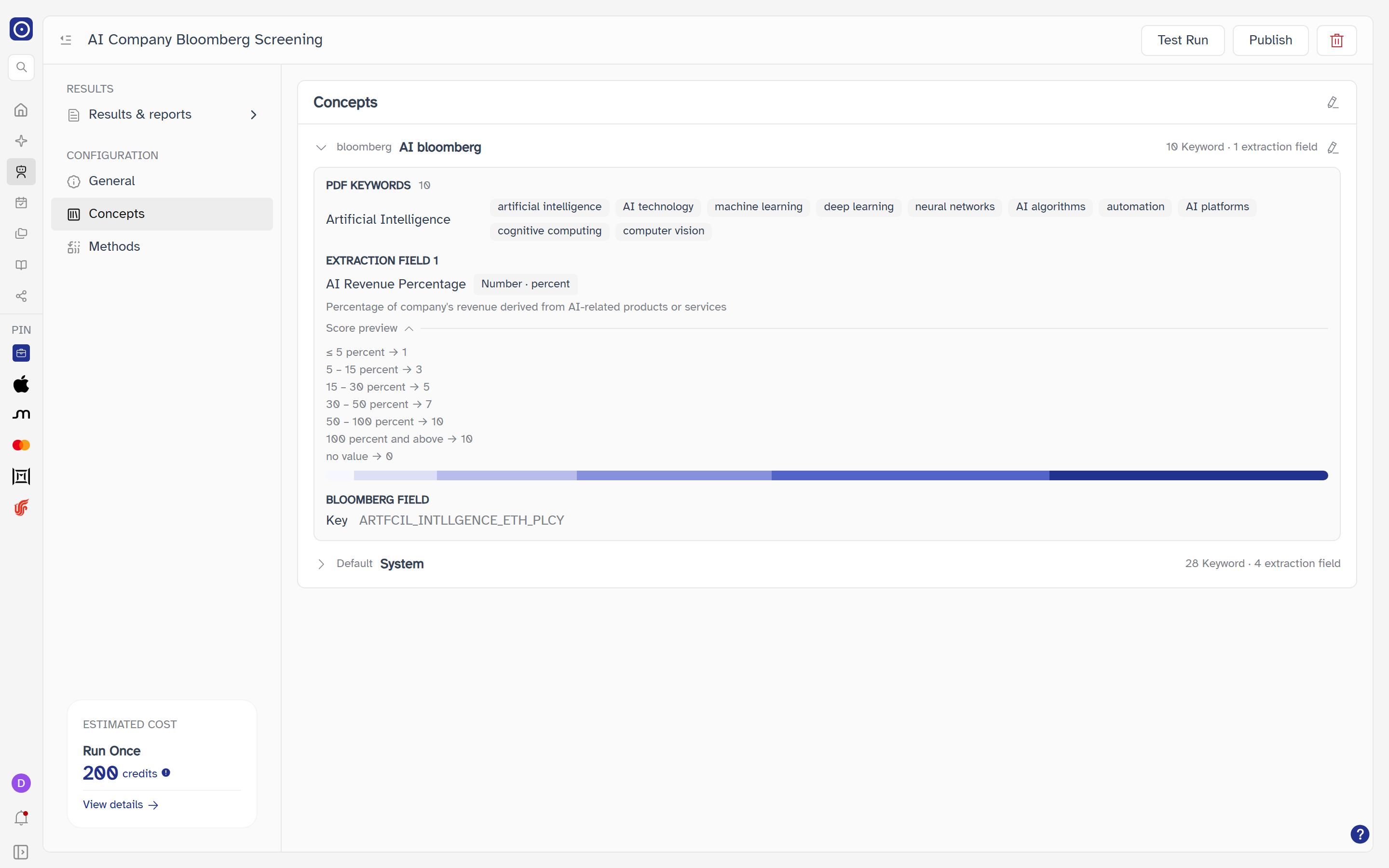
| Expanded section | What it holds |
|---|---|
| PDF KEYWORDS | The keyword groups the concept searches filings for, each with its keywords as chips, and the total count. |
| EXTRACTION FIELD n | One section per field: its name, a badge for its type (Number, with the unit when there is one; Yes / no; Category; or, for a field that takes its value from Bloomberg, Bloomberg · <mnemonic>), and the extraction rule in words. A Bloomberg field is scored with the same kind of rules as a number, yes / no or category field. |
| BLOOMBERG FIELD |
Shows Key followed by the Bloomberg field identifier the concept
uses, or — when it uses none. A concept can use only one Bloomberg field.
This section appears only when Bloomberg is set up for you — see
When Bloomberg appears.
|
| Score preview |
Inside each field, collapsed by default. Lists each value or range and the score it
earns (value → score), ending with the score for no value,
with a bar of the same bands.
|
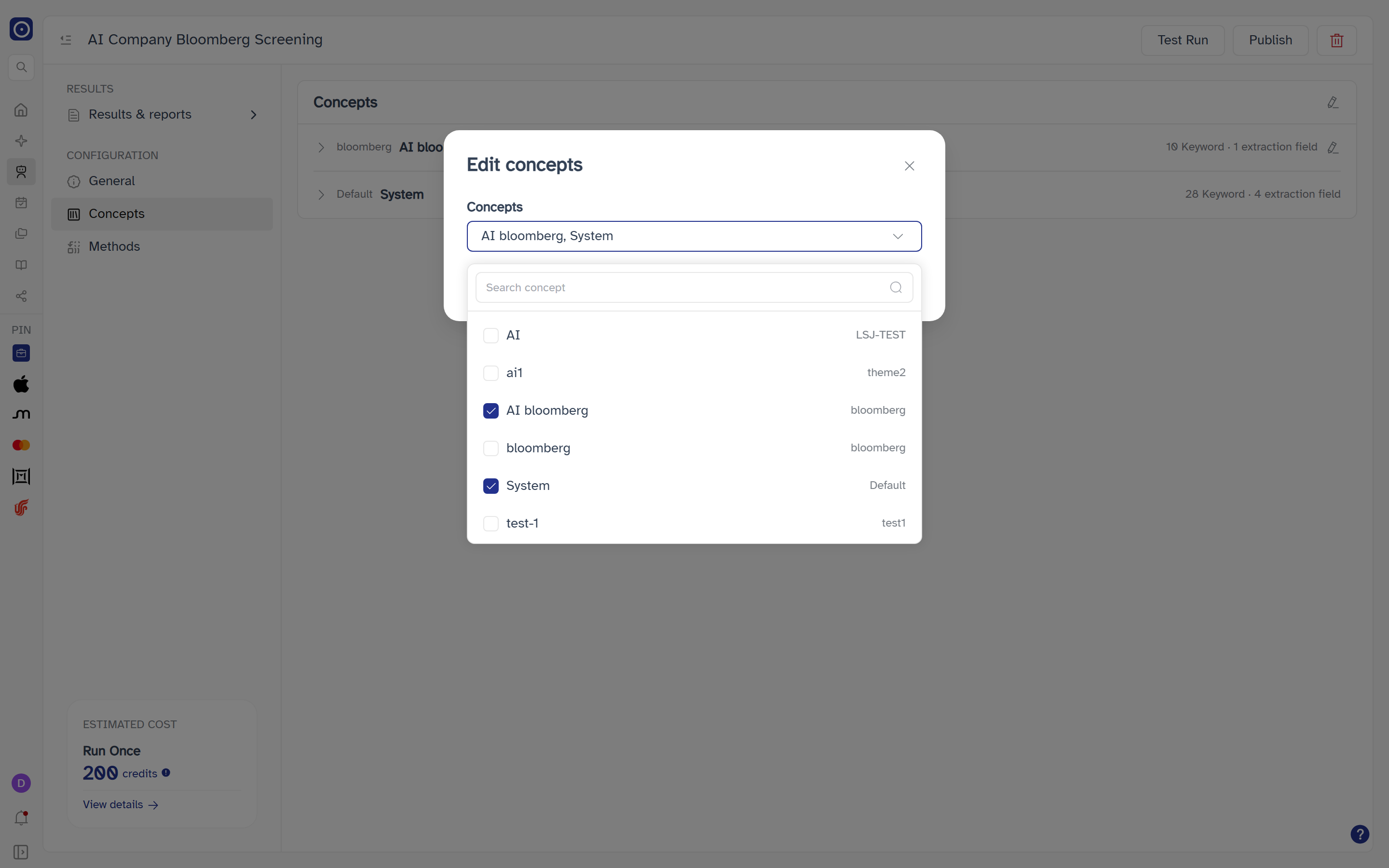
Adding or removing concepts
The pencil at the top right of the card opens Edit concepts.
| Control | Notes |
|---|---|
| Concepts | Opens a checklist of every concept you can use, each with its theme and a Search concept box that matches on name or theme. Click a row to tick or untick it. No concepts found appears when the search matches nothing. |
| Limit | Up to 20 concepts. Ticking a twenty-first is refused with Up to 20 concepts can be selected. |
| N selected | Running count of ticked concepts. |
| Apply | Saves the selection and confirms with Saved — Concepts have been updated. The cost estimate updates. |
| Cancel | Closes the dialog. |
Editing a concept
A pencil on a concept's own row edits that concept in place. It does not appear on public concepts, which cannot be edited from here. It opens the same editor as the Concept Library, and saving it refreshes the agent.
Methods
How each company is checked against the concepts. Each method can be switched on or off. The card has no pencil icon: the time window every method shares is set on the General page, in Schedule.
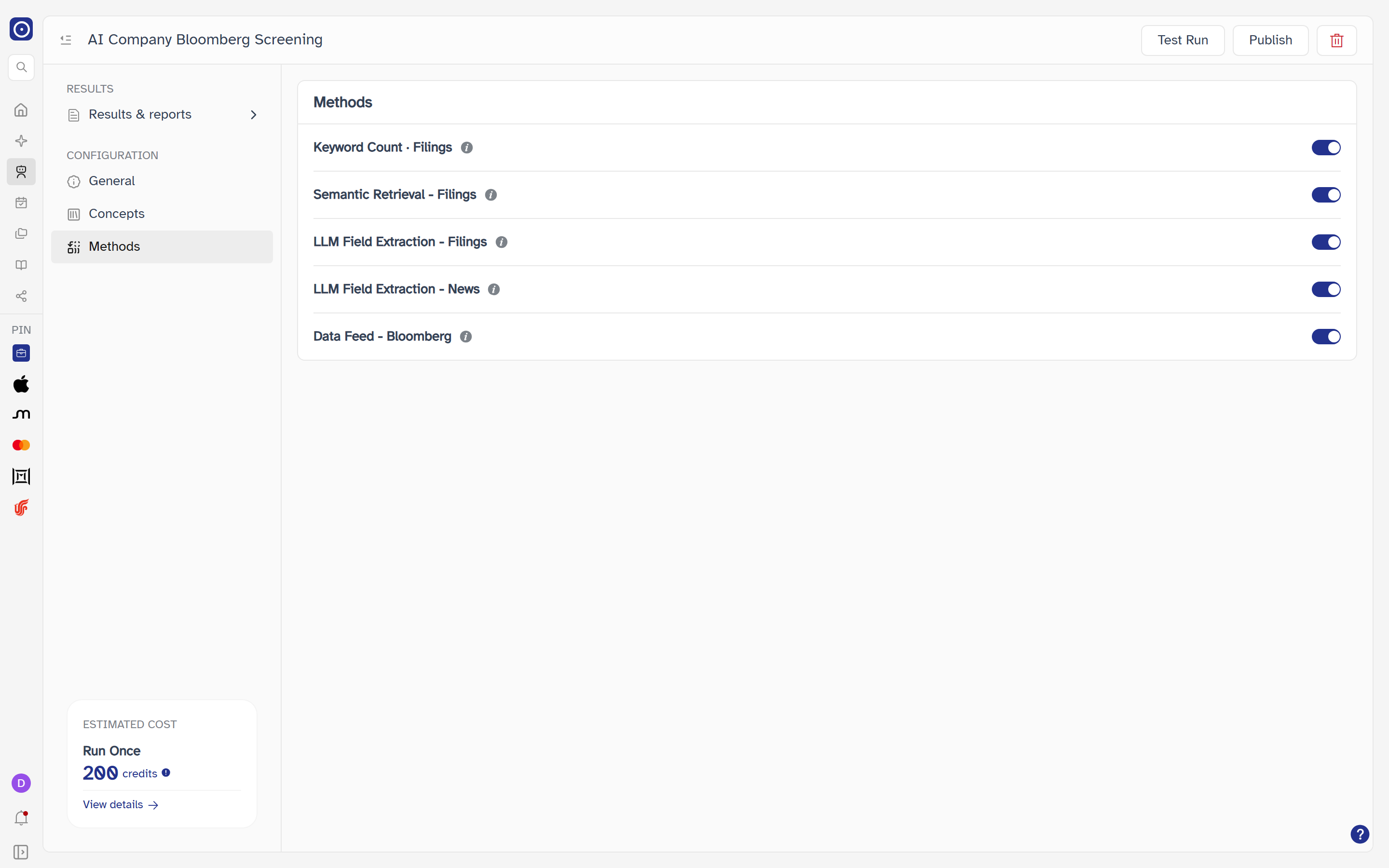
| Method | What it does |
|---|---|
| Keyword Count · Filings | Counts how often your selected keywords appear across company filings — annual, interim and quarterly reports, earnings call transcripts, ESG reports, AGM materials, announcements and IR presentations. |
| Semantic Retrieval - Filings | Uses Semantic Search to find filings that are contextually relevant to your keywords, even when the exact wording differs. Generally recommended for running against several thousand companies — references are provided but not to the depth of LLM Field Extraction. |
| LLM Field Extraction - Filings | Uses Large Language Models to analyse and score Extraction Prompts across company filings, with context, sources and evidence statements to underpin each score. |
| LLM Field Extraction - News | The same, across global news. |
| Data Feed - Bloomberg |
Pulls structured JSON data for your selected Bloomberg Fields from Bloomberg. Shown
only when Bloomberg is set up for you — see
When Bloomberg appears. Its switch saves like the
others. It has no credit rate in the cost estimate, so when it is on it reads
0.00 credits in Cost breakdown.
|
Hover the info icon beside a method's name to read its description. The switch at the right of each row saves immediately; if it fails, the switch returns to where it was and Failed to update method appears. Each method except Data Feed - Bloomberg carries its own credit rate — see Estimated cost.
When Bloomberg appears
Bloomberg controls are shown only to a signed-in administrator who has saved a Bloomberg credential for the organisation. For everyone else — and whenever Orbit cannot read that state — they are hidden and the page behaves as before. That covers Data Feed - Bloomberg here and the BLOOMBERG FIELD section on Concepts. Open the page again after saving a credential to see them. Credentials are saved on Bloomberg Connection.
Time window
One window is shared by every method, and it is no longer edited on this page. Open General and use the pencil on the Schedule card: Edit Schedule has a Time window list next to Frequency.
Where the page leads
| From | To |
|---|---|
| View details (ESTIMATED COST) | Credit |
| Share icon on a report | Share |
| Portfolio management link in Edit portfolio, and the save-result dialog | Portfolio Management |
| Delete → Yes, Delete | Agent Marketplace |
| Get started (MCP/API Use) | Orbit developer documentation, in a new tab |