
Sharing and members
Decide who can open a shared knowledge base, and what each person and team can do in it.
Which knowledge bases have members
Only Shared knowledge bases have a member list.
| Kind | Access |
|---|---|
| Organization | Fixed: everyone in the organisation can read it, organisation admins manage it. No member list. |
| Personal | Only you. To bring other people in, convert it to shared first — see Managing knowledge bases. Converting needs an organisation; see Without an organisation. |
| Shared | Set by its access setting and member list, described on this page. |
Opening the Share dialog
Open the knowledge base and click Members in the details column. Hold the pointer over it first to see what it will do: Manage members if you can change access, View members if you can only look. On your own Personal knowledge base it reads Convert to shared and add members and converts it first.
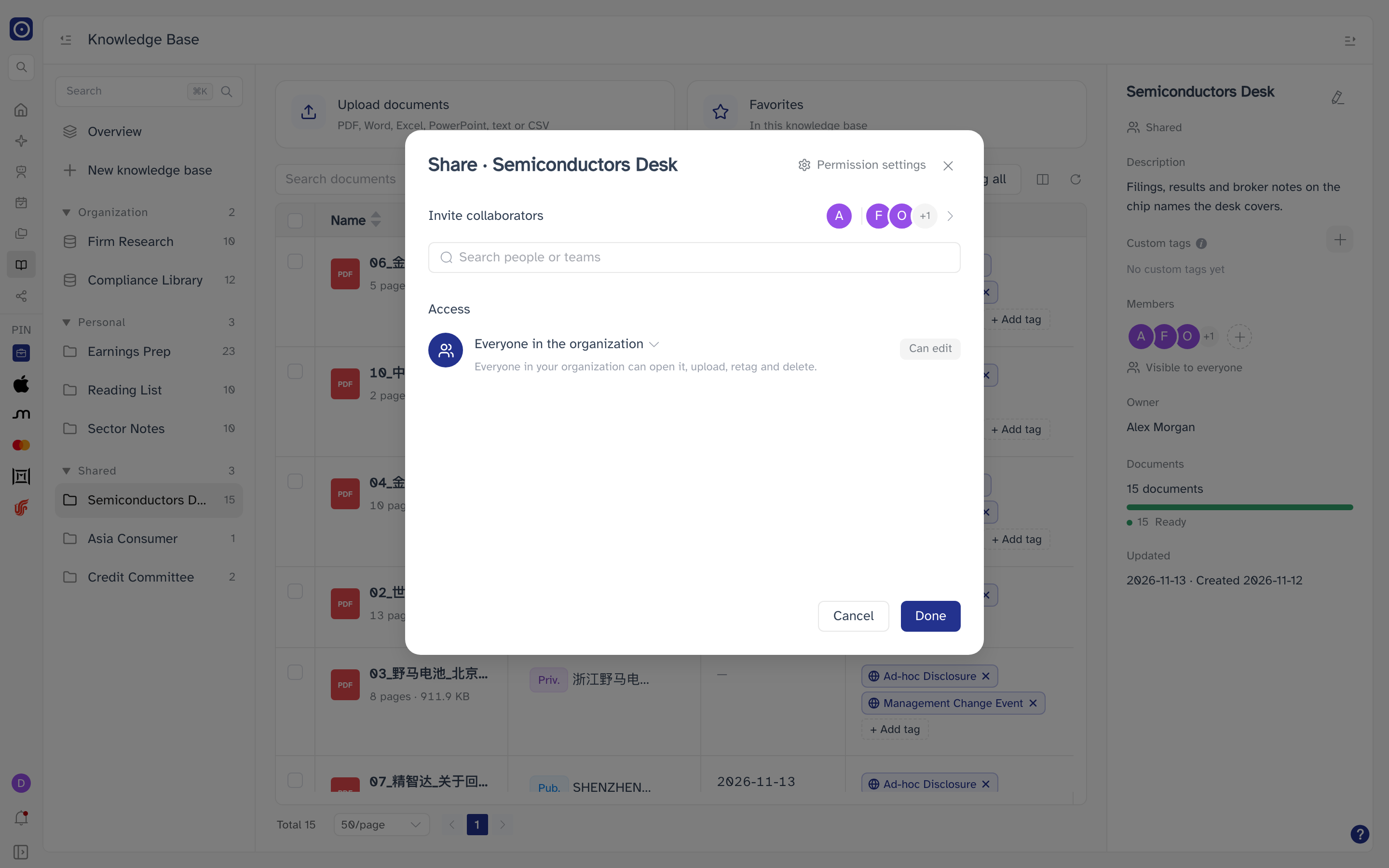
The dialog is titled Share followed by the knowledge base's name. If you cannot manage the knowledge base, it lists who has access but says Only people who can manage this knowledge base can invite others or change access. in place of the search box.
Access: who can open it
The Access setting decides who the knowledge base is open to.
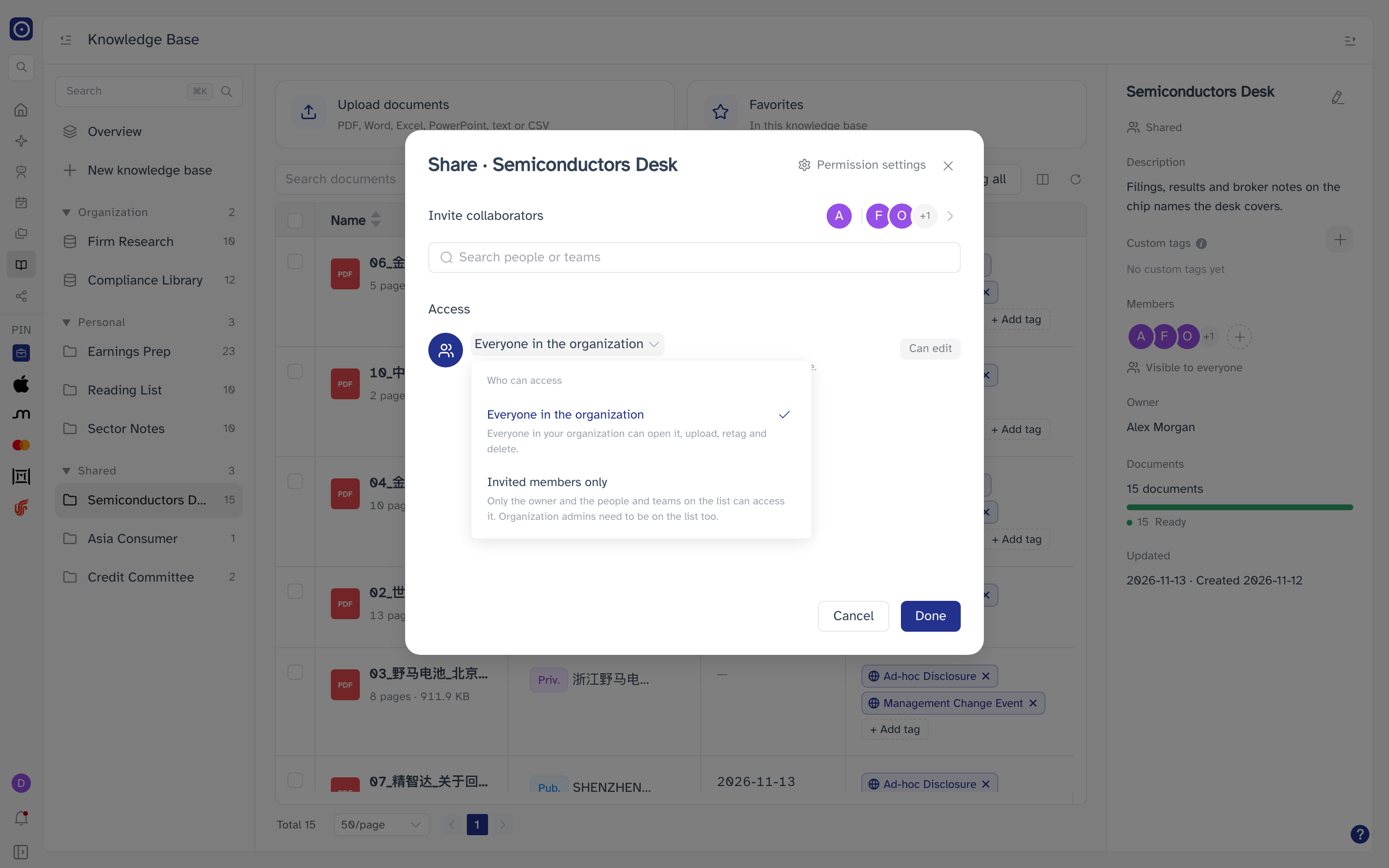
| Setting | Meaning |
|---|---|
| Everyone in the organization | Everyone in your organisation can open it, upload, retag and delete. The member list only matters for who can manage it. A new Shared knowledge base starts with this setting. |
| Invited members only | Only the owner and the people and teams on the list can open it, each with the role they were given. Organisation admins need to be on the list too. A knowledge base converted from Personal starts with this setting and an empty list. |
Switching from Invited members only to Everyone in the organization keeps the list; it applies again if you switch back.
Roles
| Role | Can |
|---|---|
| Can view | Open, chat with and favorite documents only. |
| Can edit | Also upload, retag, rename and delete documents, and change their tags. |
| Can manage | Also change members, access and settings: rename the knowledge base, edit its custom tags, delete it. |
- The owner always has Can manage, heads the list, and cannot be removed or changed.
- Under Everyone in the organization, everybody can already edit, so Can view has no effect and Can manage is the only role that adds anything. Organisation admins can manage it without being listed.
- Under Invited members only, organisation admins have no special access unless the owner has left the organisation or their account was disabled — then admins can manage it, so it is not stranded.
- Someone listed both by name and through a team gets the higher of the two roles.
Inviting people and teams
- Click Search people or teams. Suggestions appear before you type anything.
- Type part of a name or email address, or a team name, and pick a result. It is added to the list as Can view.
- Change the role if needed — see Changing roles.
- Click Done to save.
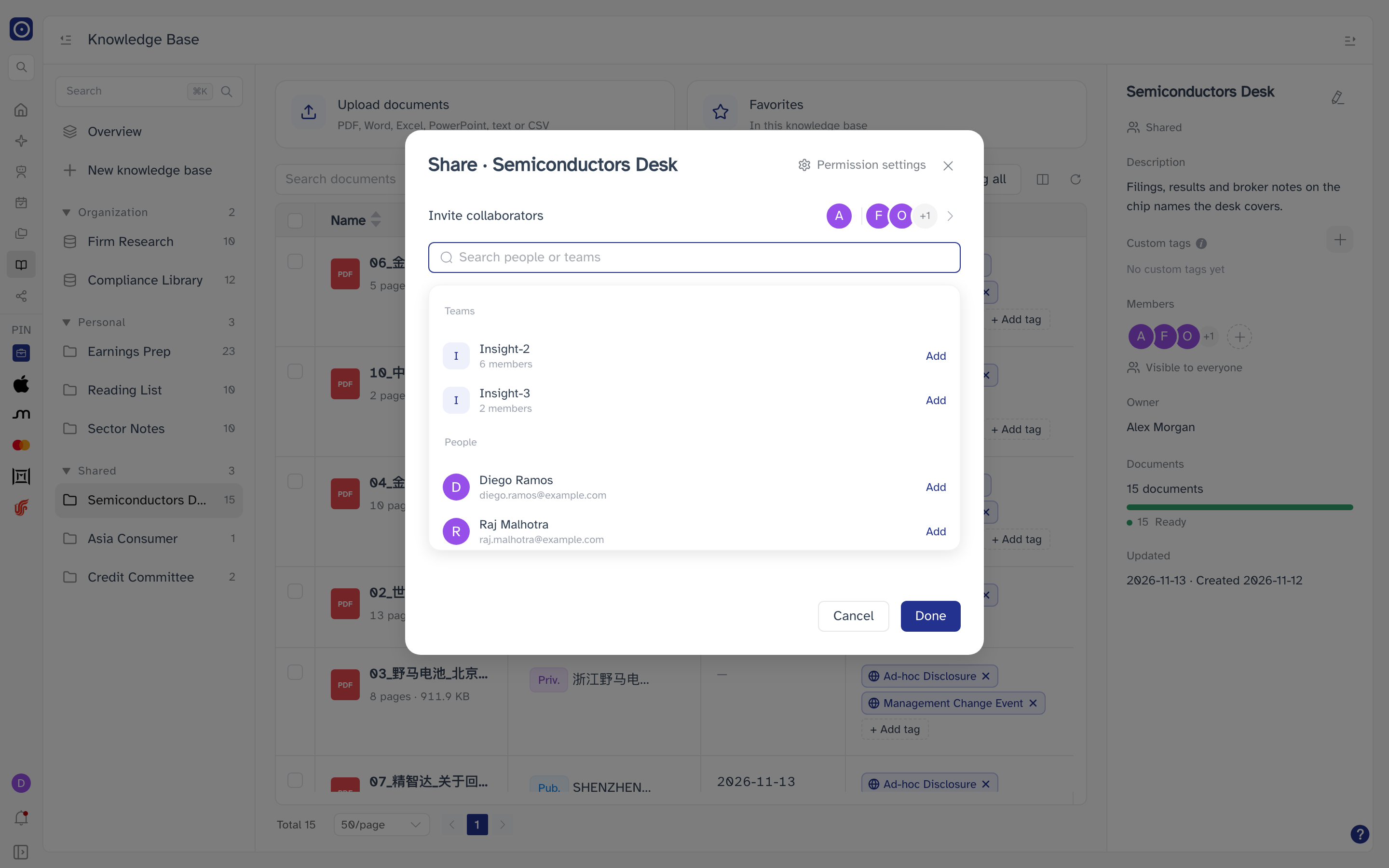
- Teams are listed first, then people. Up to 20 of each are shown; keep typing to narrow down.
- The owner, people already on the list and disabled accounts are left out. People already covered by a team can still be added by name.
- A team on the list covers everyone in it, now and in future — people who join the team later get access, and people who leave it lose it. Teams are set up in User management.
Changing roles and removing people
Click the row of avatars beside Invite collaborators to open Manage collaborators: everyone on the list, the owner first.
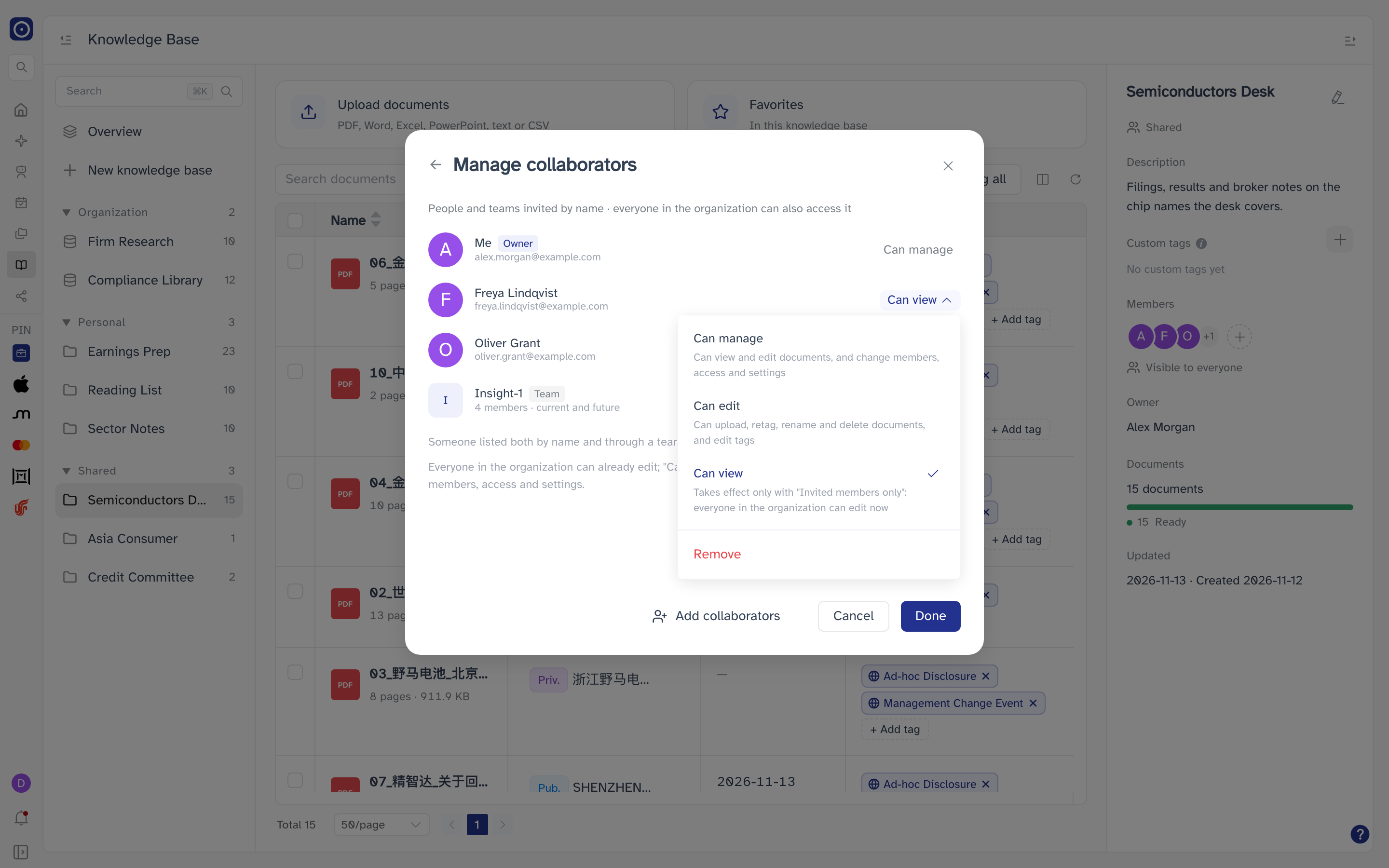
- People show their name — Me for you — and email address. A Disabled tag marks an account that has been switched off.
- Teams carry a Team tag and their member count, current and future.
- If you can manage the knowledge base, click a role to change it to Can manage, Can edit or Can view, or choose Remove.
- Add collaborators at the bottom left takes you back to the search box. The arrow at the top left goes back without searching.
Saving your changes
Nothing in the dialog is saved as you go. Adding people, changing roles, removing people and changing access are all held until you click Done — Changes are saved when you click Done reminds you. Cancel, the × or Esc throws them all away, and clicking outside the dialog does not close it.
If some changes cannot be saved, the dialog stays open and lists which ones failed and why, for example Add …: This person is already a member. The rest are saved.
Unsharing
Only the owner can unshare. It turns the knowledge base back into a Personal one that only the owner can see.
- In the Share dialog, click Permission settings at the top. Owners only.
- Click Unshare and read what will happen.
- Click Revert to personal, or Not now to step back.
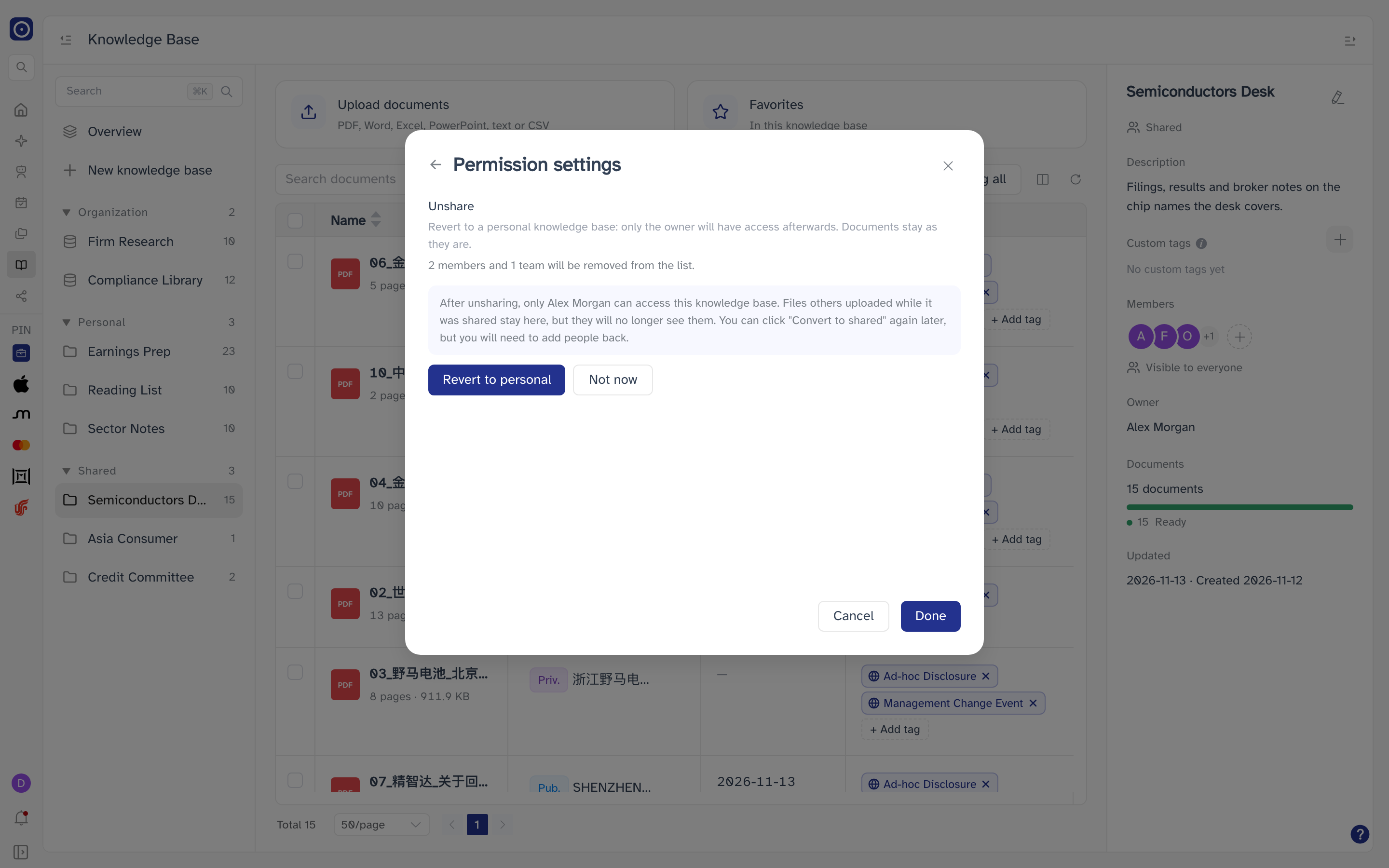
Unshare is also in the knowledge base's ⋮ menu — see Managing knowledge bases. Either way it takes effect at once, without waiting for Done, and Reverted to a personal knowledge base confirms it.
Every person and team is removed. Documents other people uploaded stay in the knowledge base, but they can no longer see them. You can convert it to shared again later, but you will have to invite everyone again.