
Uploading documents
Add files to a knowledge base. Once they are in, Orbit reads each one, identifies the company it is about, finds its publication date and tags it.
You need to be able to edit the knowledge base: its owner, anyone invited as Can edit or Can manage, or everyone in the organisation when a shared knowledge base is open to all. Only organisation admins can upload to an Organization knowledge base. The full table is in Managing knowledge bases.
Starting an upload
| Where | What to use, and what happens |
|---|---|
| Overview | The Upload card. Asks which knowledge base to upload to, then opens the upload page. See Overview. |
| A knowledge base | The Upload documents card above its document list. Opens the upload page for that knowledge base; greyed out if you cannot edit it. |
| An empty knowledge base | The Upload documents button in the empty document list. The same. |
| Anywhere | Drag files onto the main area. See Dragging files in. |
Choosing a knowledge base
Starting from the overview asks where the files should go. The dialog lists only the knowledge bases you can upload to, most recently updated first, with the first one already selected.
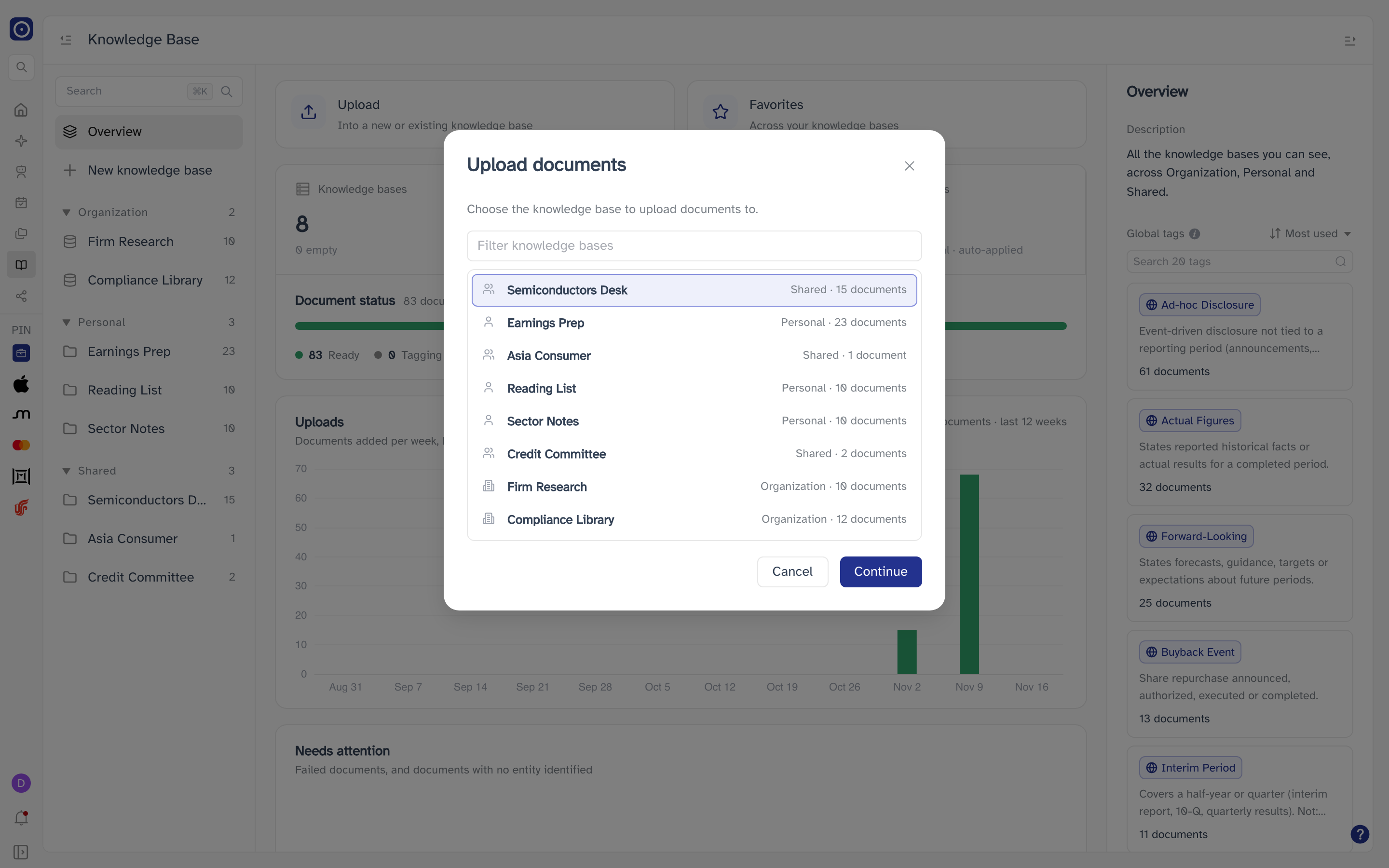
- Click a knowledge base, then Continue — or double-click it.
- With more than six to choose from, a Filter knowledge bases box appears above the list.
- If there is nowhere you can upload, New knowledge base opens instead, so you can create one first. Files you dragged in are not carried over — add them again once it exists.
Dragging files in
Drop files anywhere on the main area. While you drag, the area tells you where they will go — Drop documents to upload them to … when a knowledge base you can edit is open, Drop documents to choose a knowledge base otherwise.
- Dropped on a knowledge base you can edit: the files are added to it and the upload page opens.
- Dropped on a knowledge base you cannot edit: You can’t upload to “…”. Choose another knowledge base., then the dialog above.
- Dropped on the overview: the dialog above, with the files waiting.
The upload page
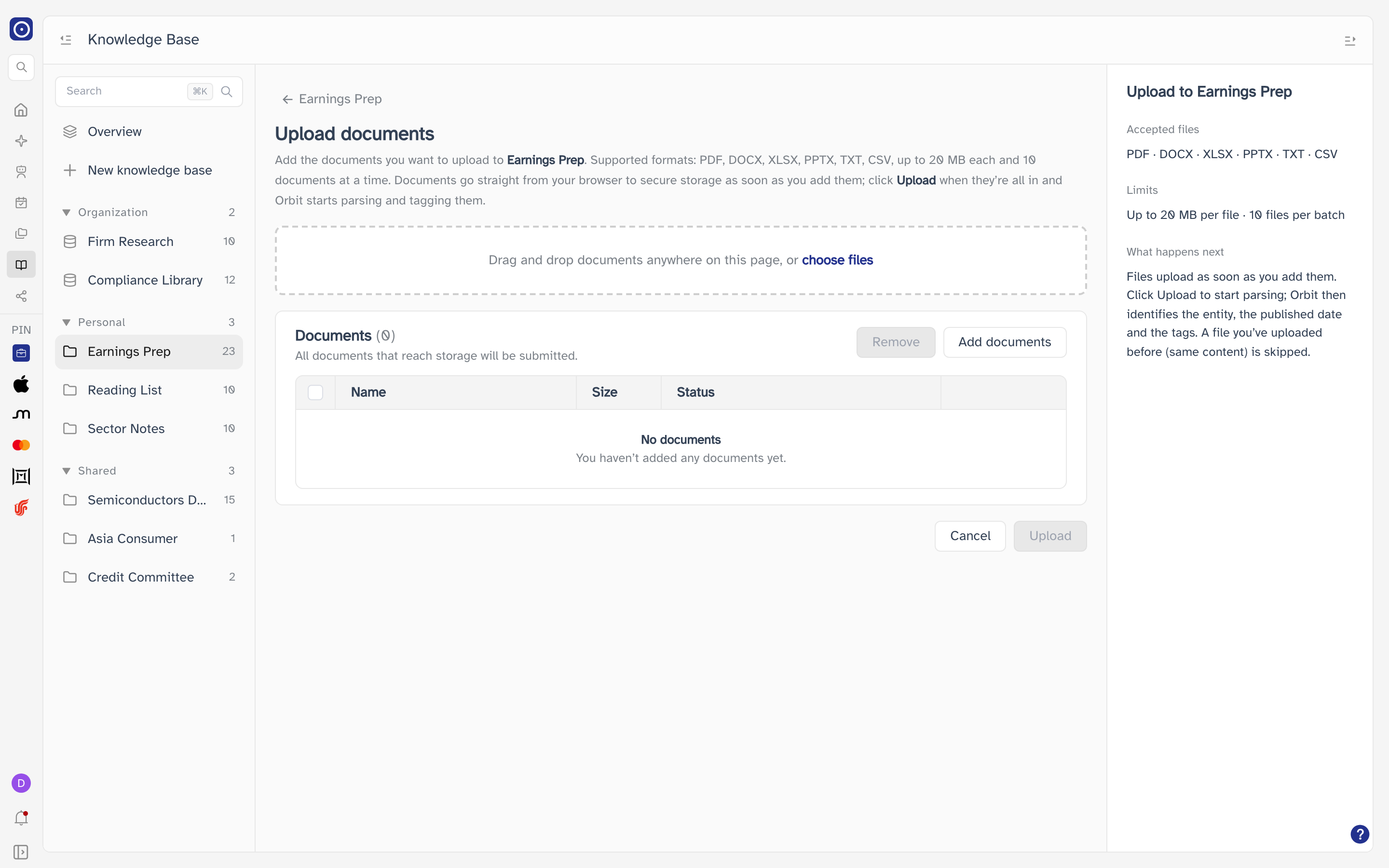
Add files by dropping them anywhere in the middle of the page, by clicking choose files in the dashed box, or with Add documents. The details column repeats the rules: accepted files, limits, and what happens next.
Cancel, or the knowledge base's name at the top left, takes you back to its document list. Files already on their way keep uploading — see Leaving the upload page.
Accepted files and limits
| Rule | Detail |
|---|---|
| File types | .pdf, .docx, .xlsx, .pptx, .txt, .csv. Older Office formats — .doc, .xls, .ppt — are not accepted; save them in the newer format first. |
| Size | Up to 20 MB per file. Empty files are refused. |
| Batch | Up to 10 documents at a time. Files with a problem stay in the list, marked, but do not count towards the 10. |
| Same file twice in a batch | A file with the same name and size as one already in the list is refused: “…” is already in the list. |
A file that breaks a rule is listed with the reason and won’t be uploaded:
- Unsupported file type. Supported formats: .pdf, .docx, .xlsx, .pptx, .txt, .csv
- File must be smaller than 20MB.
- File is empty
Two steps: storage, then Upload
Uploading is deliberately split in two.
- Adding a file sends it to secure storage straight away, three at a time. Each row shows its progress, then In storage · ready to submit. Nothing has been added to the knowledge base yet.
- Click Upload — the button reads Upload followed by the number of documents and their total size. Only now are the documents added to the knowledge base and handed to Orbit to read.
The Upload button stays greyed out while any file is still transferring, or while nothing has reached storage yet. Hold the pointer over it to see what it is waiting for — Wait for the documents to finish uploading, Retry the failed uploads, or remove them, or Add at least one document.
| Row control | What it does |
|---|---|
| Retry | On a row whose transfer to storage failed. Tries again. |
| Remove | Takes the file out of the batch. |
| Remove | The button above the list. Removes every row you have ticked, and shows how many in brackets. |
If a transfer to storage fails, the row says why:
- Couldn’t get upload credentials. Refresh the page and try again.
- Couldn’t reach storage (network error). Check your connection and retry.
- Upload failed: followed by the reason.
After you click Upload
A banner reports the result — Upload succeeded: … queued for parsing, or Nothing new was added to this knowledge base if every file was skipped — and each row shows what happened to it.
| Result | The row says, and what it means |
|---|---|
| Added | Submitted · queued for parsing. Orbit will read and tag it. |
| Duplicate | Skipped: you’ve uploaded the same file before. You already uploaded a file with exactly the same content, to this or another knowledge base. Delete that copy first if you want it here instead. |
| Already in | Already submitted earlier · skipped. This file had already been submitted, so nothing new was added for it. |
| Wrong place | Belongs to another knowledge base · not processed. The stored file is tied to a different knowledge base. |
| Name clash | A different file is already stored under this name. Remove the row and add the file again. |
| Failed | Submit failed · retry. The submission did not go through. |
| Unconfirmed | Not acknowledged by the server · retry. Orbit did not confirm it received the document. |
Submitted documents appear in the knowledge base's document list straight away, marked Parsing, then Tagging, and finally Ready, Incomplete or Failed — see Documents. Along the way Orbit fills in each document's Entity (the company that published it), its Published date, and its tags: every global tag, and every one of this knowledge base's custom tags, whose criteria the document meets. The list does not refresh by itself — use its refresh button to follow progress.
If the submission fails
The banner reads Couldn’t submit the documents, with the reason.
| Cause | The banner says, and what to do |
|---|---|
| Session | Your session can’t access this knowledge base. Refresh the page and try again. Refresh; if it persists, your access may have changed. |
| No access | This knowledge base no longer exists or you don’t have access to it. It was deleted, or you were removed from it. |
| Too busy | Too many requests. Wait a moment and try again. Wait, then click Retry submit. |
| Network or server | Network error. Check your connection and try again., or the server's own reason. Click Retry submit. |
Retry submit is only offered when trying again can help; otherwise the button reads Back to documents.
Leaving the upload page
You can leave the upload page while files are still on their way — open another knowledge base, go back to the list — and the batch carries on. A status row above the document list keeps you informed.
| Stage | The status row says, and what you can do |
|---|---|
| Uploading | Uploading … to storage… x of y done. Wait, go back to the upload page with Open upload page, or drop the batch with Discard. |
| Waiting for you | … in storage, waiting to be submitted — Open the upload page and click Upload to start parsing them. Continue returns to the upload page; Discard drops the batch. |
| Submitted | Upload succeeded: … queued for parsing. Upload more starts a new batch; Got it hides the row. |
| Failed | Couldn’t submit the documents. Open upload page, or Retry submit when it can help. |
A batch you have not submitted only lives in this browser tab. Reloading the page or closing the tab drops it, and the files have to be added again. Click Upload before you leave.