
Documents
The document list inside a knowledge base: find documents, follow their processing, open them in Chat, and correct what Orbit identified.
Opening the list
Click a knowledge base in the list on the left of the Knowledge Base page. You also land here from the overview's Needs attention and Recently added cards, and from a search result.
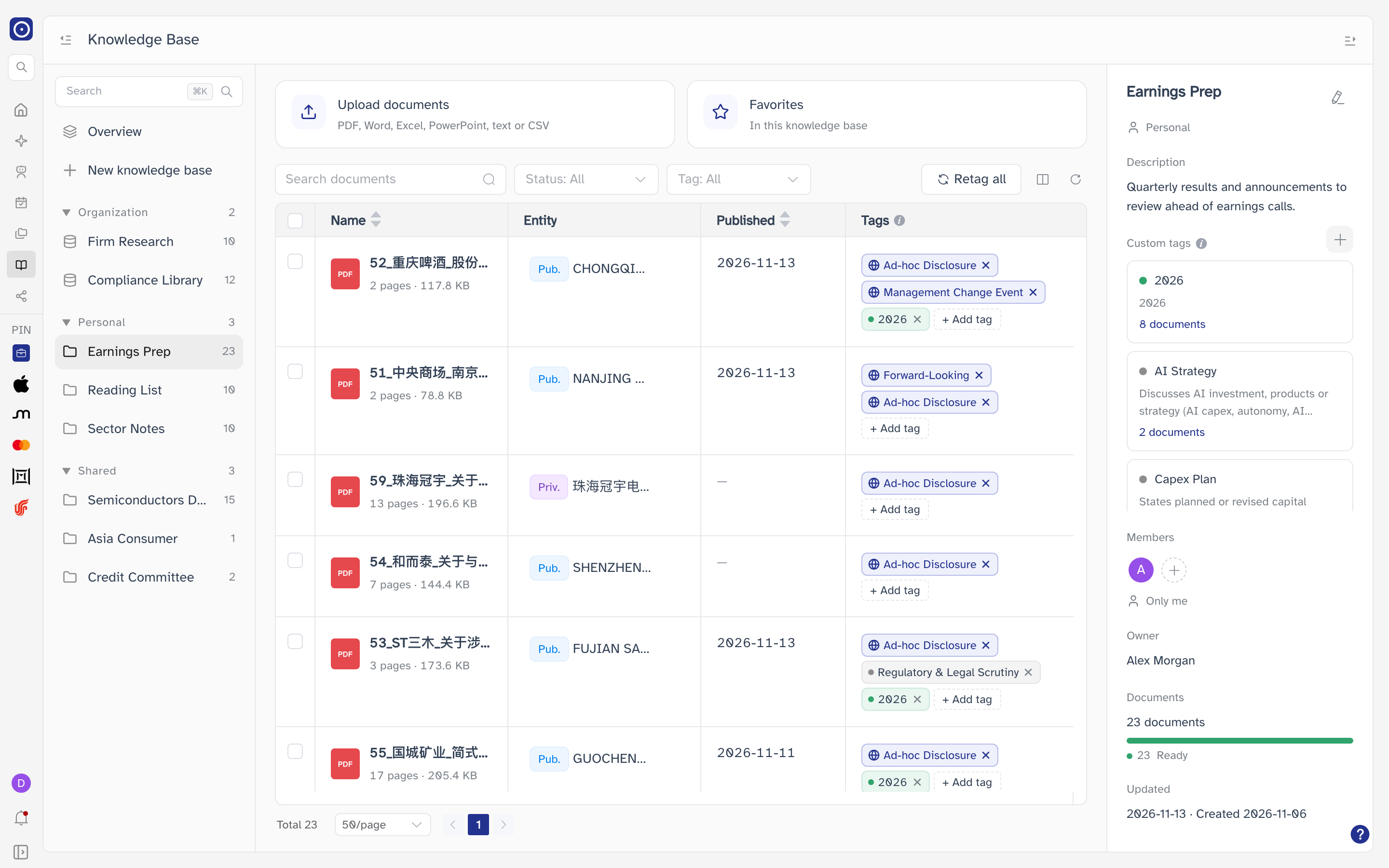
Above the table sit the Upload documents and Favorites cards, and — while a batch is on its way — the upload status row described in Uploading documents.
The details column
| Item | Shows |
|---|---|
| Name and pencil | The knowledge base's name. The pencil edits the name and description, if you can manage it — see Managing knowledge bases. |
| Scope line | Organization, Personal or Shared. |
| Description | What the knowledge base is for. |
| Custom tags | This knowledge base's own tags. See Tags. |
| Members | Who has access — Only me, Members only or Visible to everyone — with their avatars. Opens the sharing dialog where there is one; see Sharing and members. |
| Owner | Who created it. |
| Documents | How many it holds, with a bar and a count for each status. |
| Updated | When it last changed, and when it was created. |
What you can do here
Anyone who can see the knowledge base can open its documents, chat with them and mark them as favorites. Uploading, renaming, deleting, retagging and correcting a document's entity, date or tags need edit rights — see Managing knowledge bases. Without them, the edit controls described below simply are not there, and a document's menu says You can only view this knowledge base.
The table
| Column | Shows |
|---|---|
| Name | The file's type, its name, and underneath, its page count and size. A star marks your favorites. Hold the pointer over a long name to read it in full. |
| Entity | The company that published the document. See Entity. |
| Published | When the document was published. See Published date. |
| Tags | The tags Orbit applied. Hold the pointer over the ⓘ in the heading for a reminder of how tags work. See Tags on a document. |
| Status | Where the document is in processing. See Statuses. |
| Uploaded by | Who uploaded it — Me for you, a dash if that account no longer exists. |
| Modified | Hidden until you turn it on. The date the document last changed. |
| Created | Hidden until you turn it on. The date it was uploaded. |
| Action | Chat, Preview PDF and More. See Opening a document and The document menu. |
- Click the Name, Published, Status, Modified or Created heading to sort. Unsorted, the newest uploads come first.
- Drag the edge of a heading to widen or narrow a column.
- The pager under the table shows the total and pages through it, 50 documents at a time by default; switch to 20 or 100 per page there.
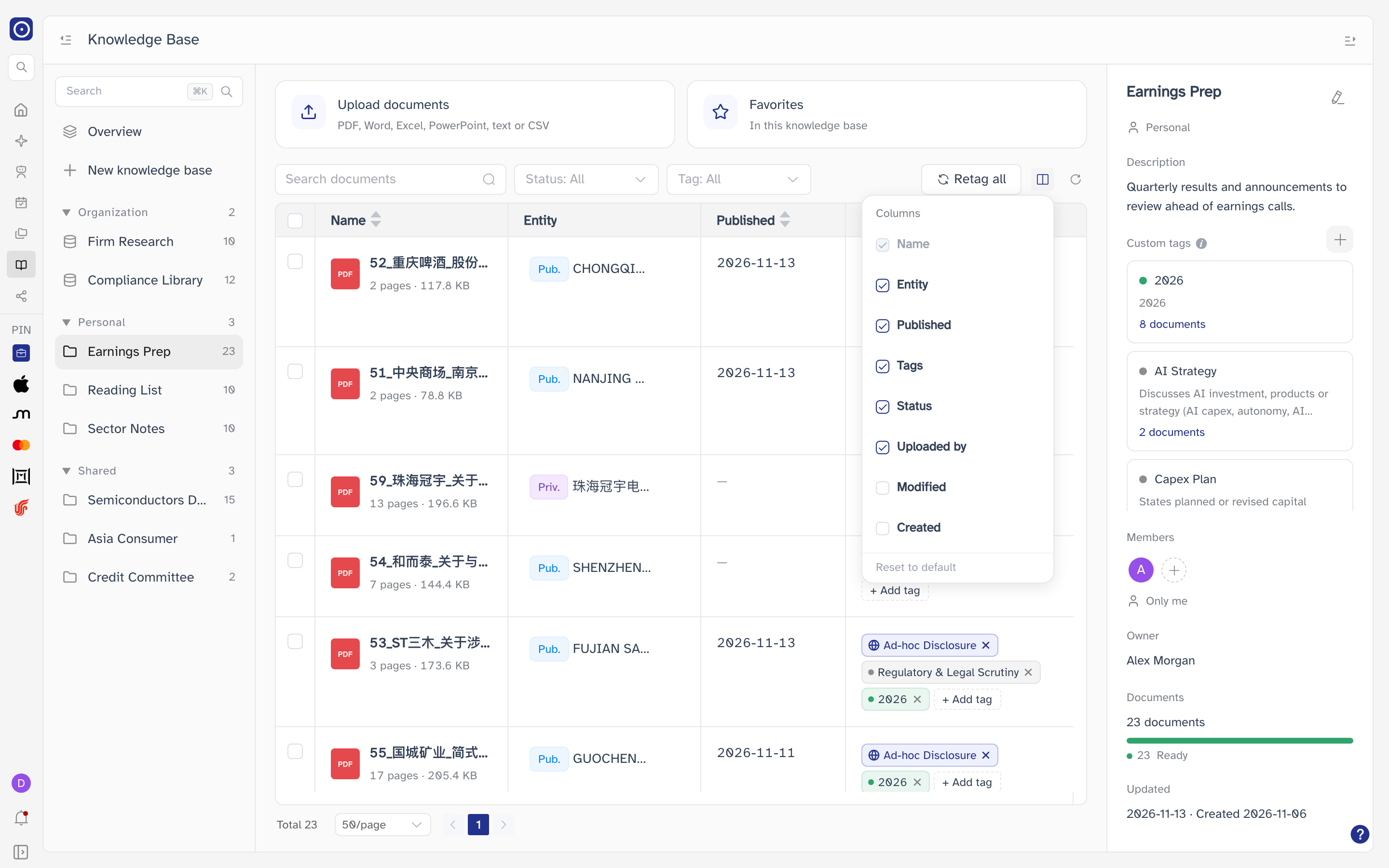
Choosing columns
The Columns icon at the top right of the table opens a list of the columns with a tick beside each. Name is always shown. Reset to default brings back the original set. Your choice is remembered on this browser and applies to every knowledge base.
Statuses
The Status column follows each document from upload to ready.
| Status | Meaning | What you can do |
|---|---|---|
| Parsing | Uploaded, and waiting for or going through text extraction. | Preview, rename or favorite it. Chat, retag, corrections and delete wait until processing finishes. |
| Tagging | Orbit is identifying the company, the date and the tags. Also shown while a document is being retagged. | As for Parsing. A document being retagged can still be opened in Chat. |
| Ready | Done. | Everything. |
| Incomplete | Processing finished, but Orbit could not identify the company — often because the first pages hold no readable text, as in a scan. | Correct, retag, rename, delete. Not chat. Setting the entity by hand does not change the status — it stays Incomplete and still cannot be chatted with; retagging may get it to Ready. |
| Failed | Processing failed. | Delete it and upload it again. |
The list does not update by itself. Click the Refresh icon at the top right of the table to see progress.
Finding documents
| Control | Notes |
|---|---|
| Search documents | Finds documents whose name contains what you typed, ignoring upper and lower case. Press Enter to search; clearing the box shows everything again. |
| Status: All | Pick one or more statuses. |
| Tag: All | Pick one tag, from Global tags or this knowledge base's Private tags. |
When the table is empty, it says why.
| Situation | The table says |
|---|---|
| Filtered out | No documents match the current filters. Your search or filters exclude everything; Clear filters resets them. |
| Empty | No documents in this knowledge base yet. Upload documents is offered if you can upload. |
| No favorites | No favorites yet, in the favorites view. |
| Load error | Couldn’t load the documents. Try again reloads. |
Opening a document
| Click | What happens |
|---|---|
| The document's name | A Ready document, or one being retagged, opens in PDF Chat, in the same tab, where you can ask questions about it. A Failed document has nothing to preview and only shows Nothing was stored for this document.; any other opens in the PDF preview. |
| Chat | Opens the document in PDF Chat, as above. Greyed out until the document is ready — hold the pointer over it to see why. |
| Preview PDF | Opens the document in a panel from the right, without leaving the page. Greyed out for a document that failed, since nothing was stored. |
Opening a document in PDF Chat is free; asking it questions is charged as described on PDF Chat.
The document menu
Click More in a document's row, or right-click anywhere on the row.
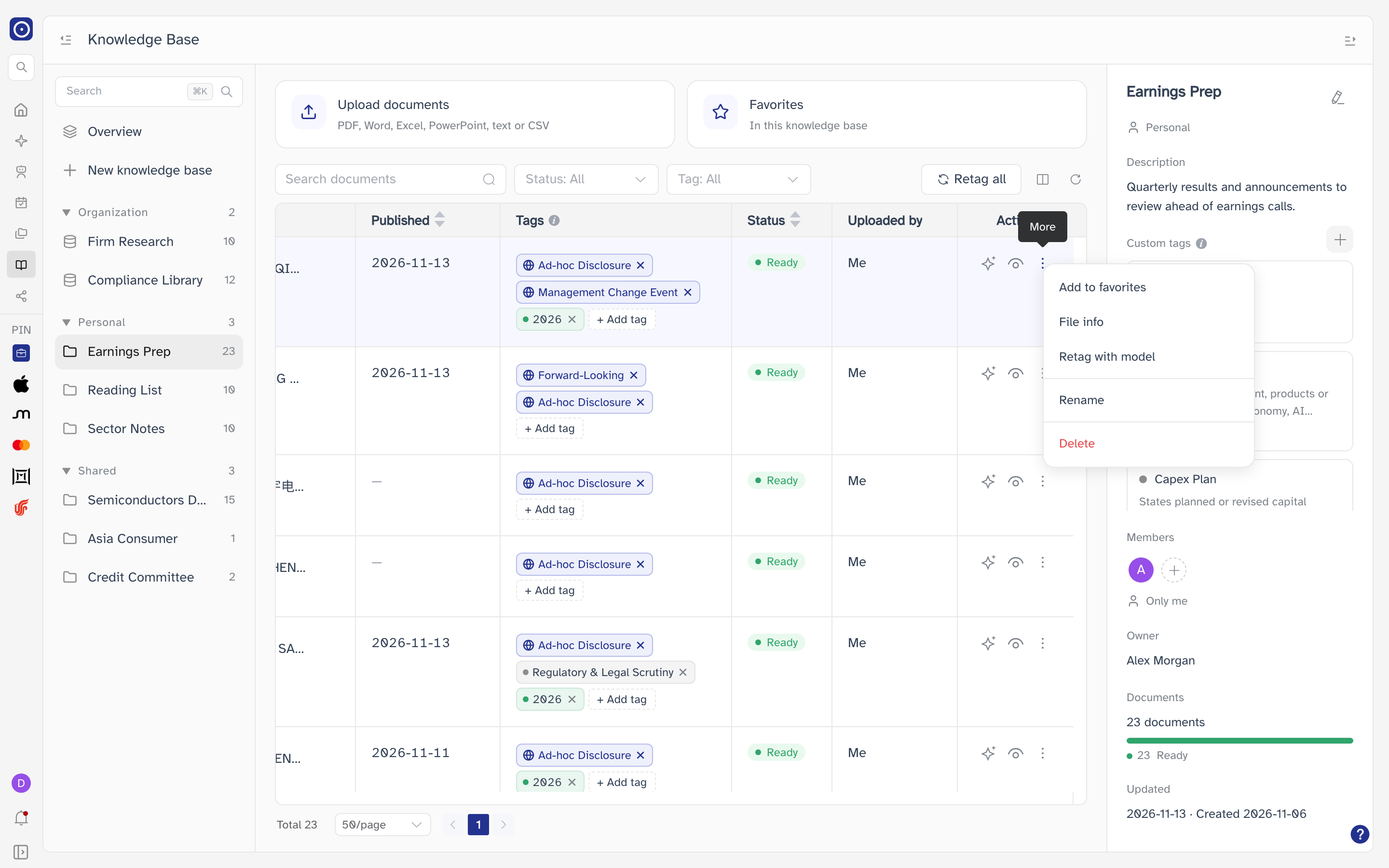
| Item | What it does |
|---|---|
| Add to favorites | Marks the document as one of your favorites. On a favorite it reads Remove from favorites. Available to everyone who can see the document. |
| File info | The document's details. See below. |
| Retag with model | Has Orbit read this document again. See Retagging. Only for Ready and Incomplete documents. |
| Rename | See Renaming a document. |
| Delete | See Deleting a document. |
Retag with model, Rename and Delete only appear if you can edit the knowledge base. Esc or a click elsewhere closes the menu.
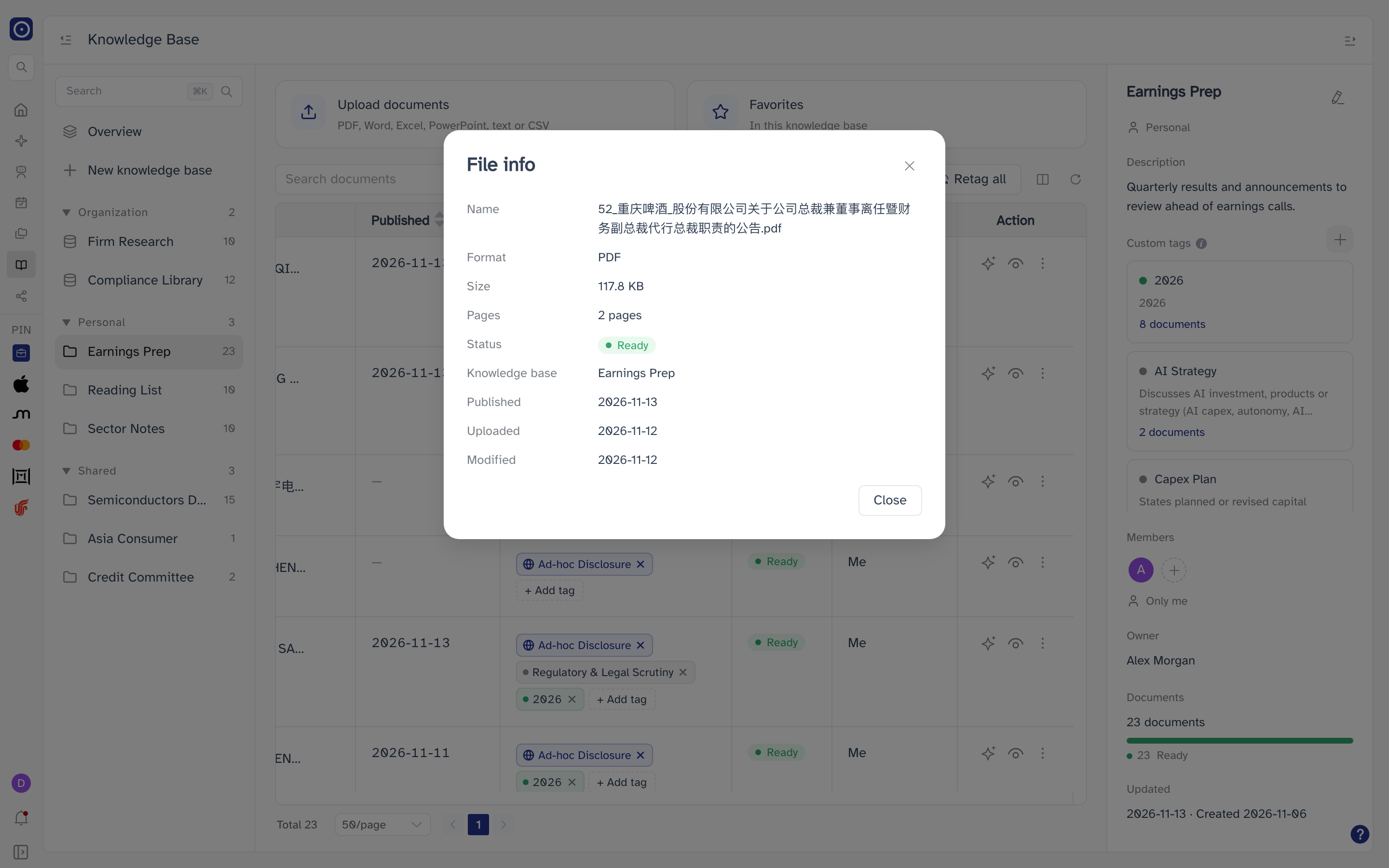
File info
A read-only summary: Name, Format, Size, Pages, Status, Knowledge base, Published, Uploaded and Modified.
Renaming a document
Choose Rename, edit the File name and click Save. The name is required and can be up to 255 characters; two documents may share a name. Document renamed confirms it.
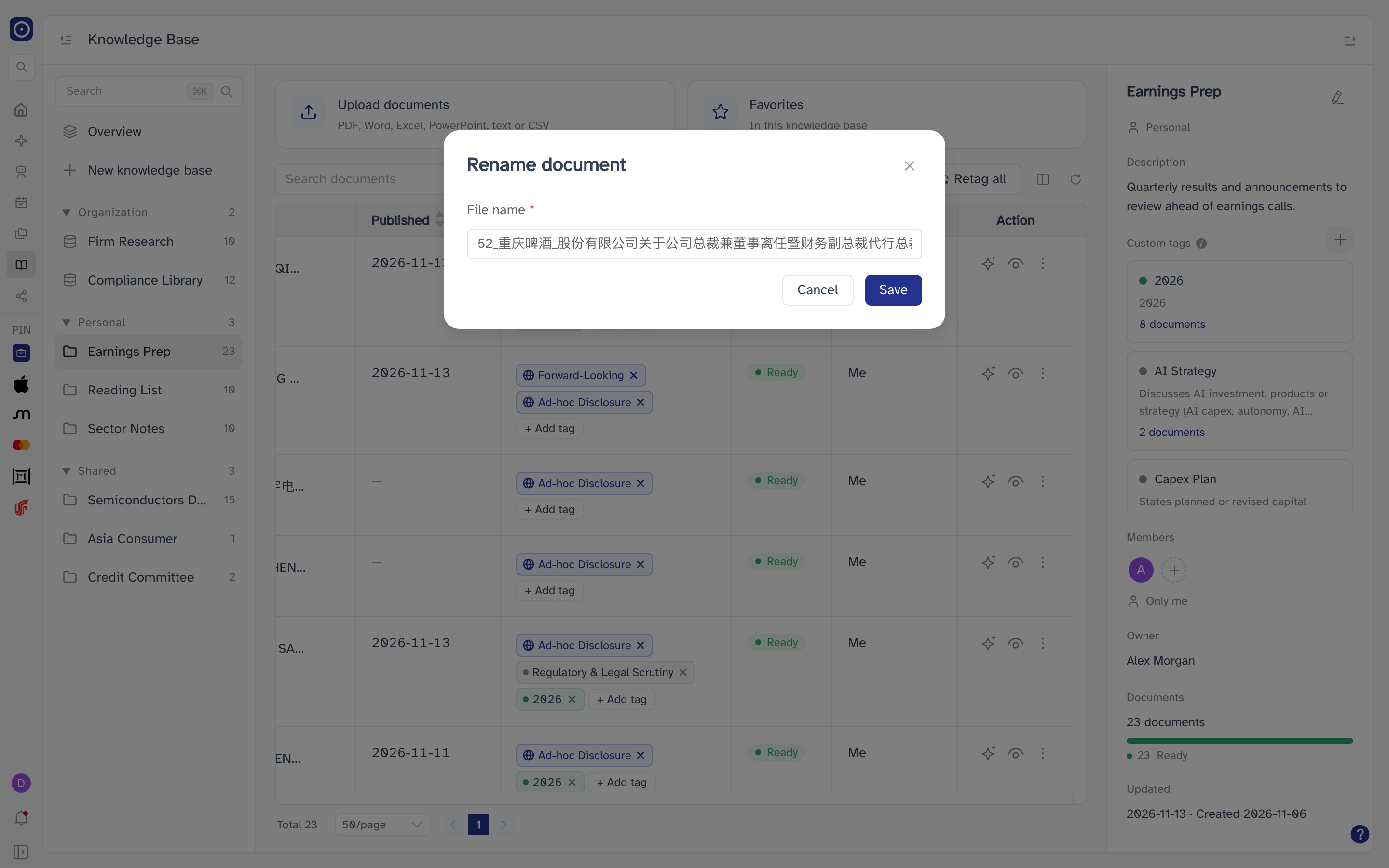
The file type shown in the table and in File info is read from the end of the
name. Rename report.pdf to report and the document no longer shows
as a PDF.
Deleting a document
Choose Delete, read the confirmation and click Delete. Document deleted confirms it.
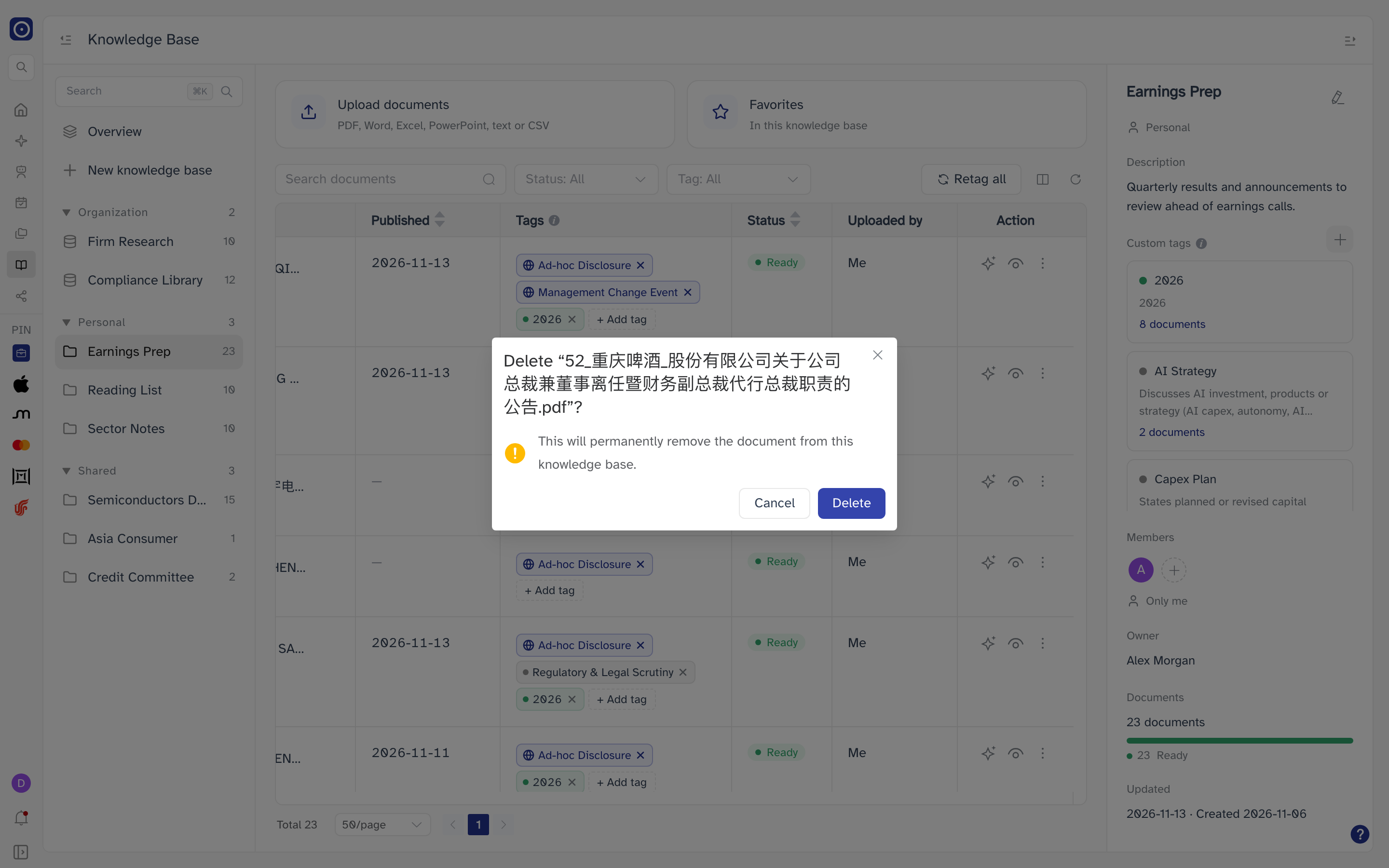
The document is removed from the knowledge base for everyone, along with anyone's favorite mark on it. A document still being parsed or tagged cannot be deleted — Orbit tells you to wait. Once it is deleted you can upload the same file again.
Correcting what Orbit identified
Orbit fills in a document's entity, published date and tags on its own. If it got something wrong, correct it in the table. Corrections are possible on Ready and Incomplete documents, by anyone who can edit the knowledge base, and are blocked while a document is being retagged.
Retagging a document replaces its entity, published date and tags with whatever Orbit finds again — including anything you corrected by hand. See Retagging.
Entity
The Entity column names the company that published the document. Up to two are shown; more are gathered under +N more — hold the pointer over it to see them all.
| Item | Meaning |
|---|---|
| Pub. | A company Orbit covers. When Orbit has matched it to a company, click it to open its company page in a new tab. |
| Priv. | A private entity — a company Orbit does not cover, either found while tagging or added by hand. Not clickable. |
| Identifying… | Orbit is still working on it. |
To change it, hold the pointer over the cell and click the pencil (Edit entity), or use Edit entity in the +N more list.
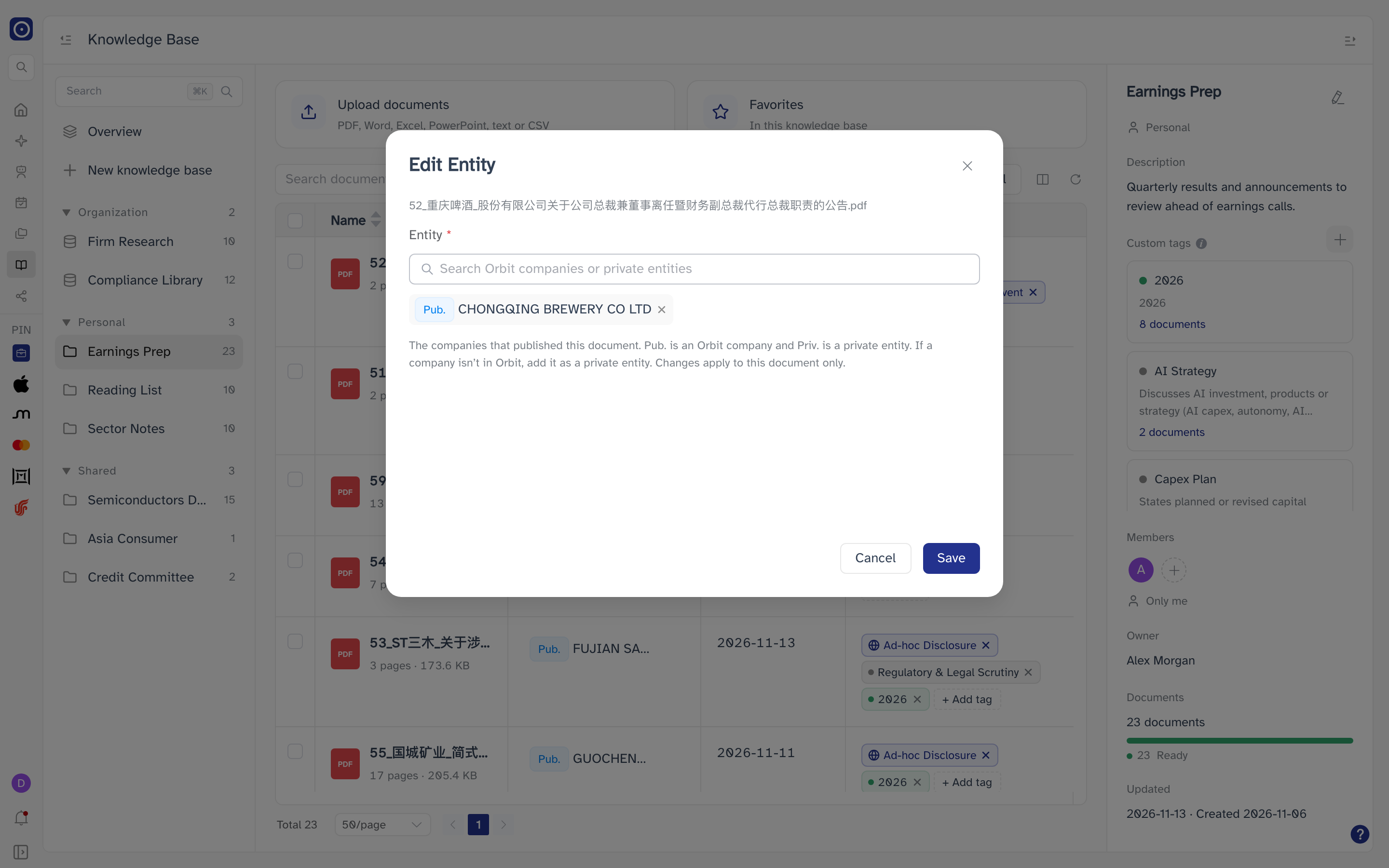
- Search Orbit companies and your Private entities in one box. If the company is not there, choose Add “…” as a private entity; it is created when you save.
- A document needs at least one entity, and can have up to 100 of each kind.
- Click Save. Entities updated confirms it. The change applies to this document only.
The +N more list also has a × on each entity to remove it on the spot, without a confirmation. The last entity cannot be removed that way — add another first.
Published date
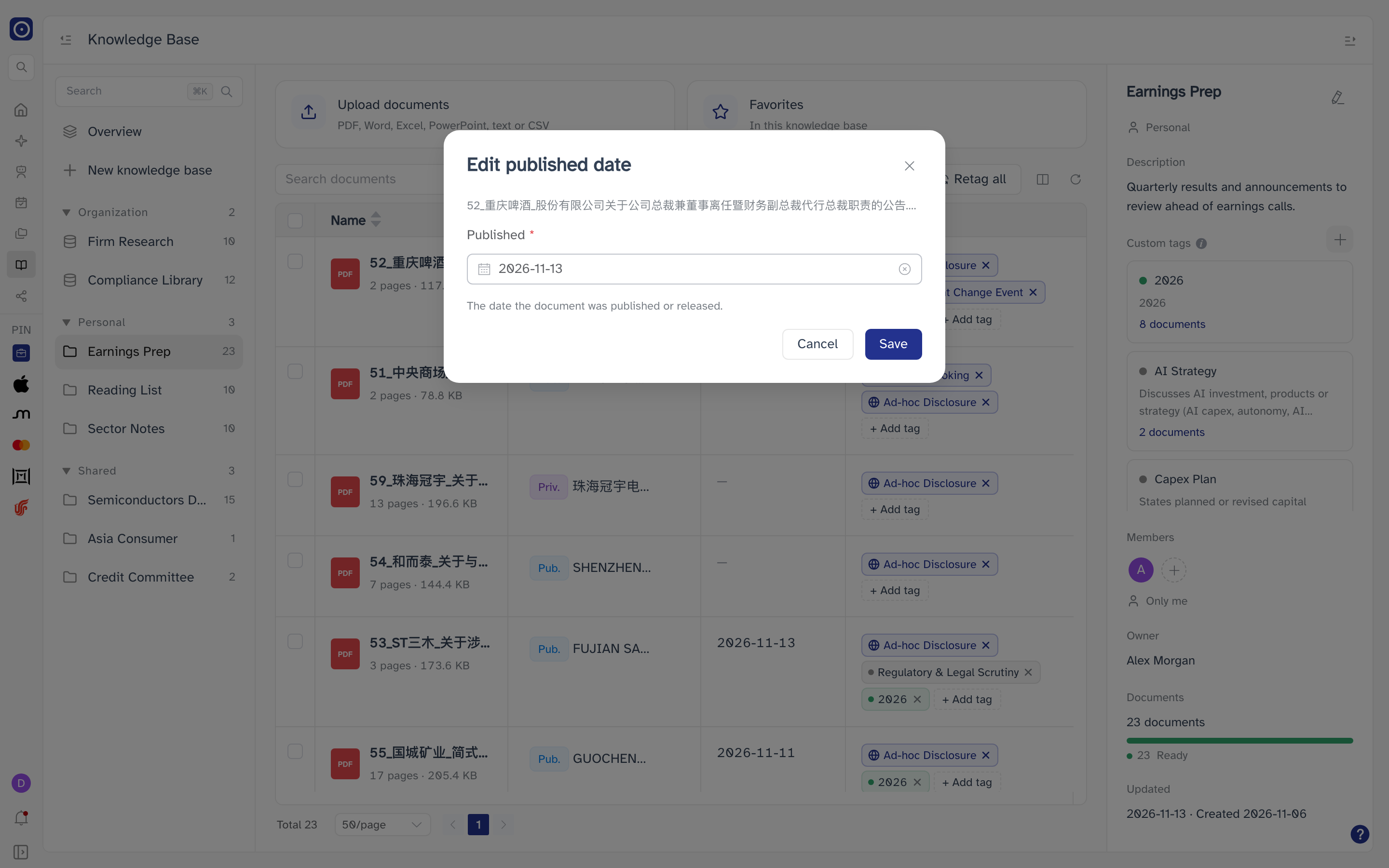
Hold the pointer over the Published cell and click the pencil (Edit published date). Pick a date and click Save; the date cannot be left empty. Published date updated confirms it.
Tags on a document
The Tags column shows up to six tags; more are gathered under a +N badge — hold the pointer over it to see them all, split into global and private. Global tags are blue with a globe icon; private tags are tinted in the tag's own colour, with a dot of that colour.
- Remove a tag with the × on its chip. There is no confirmation; Tag removed confirms it. Only this document is affected. A tag Orbit applied may come back the next time the document is retagged.
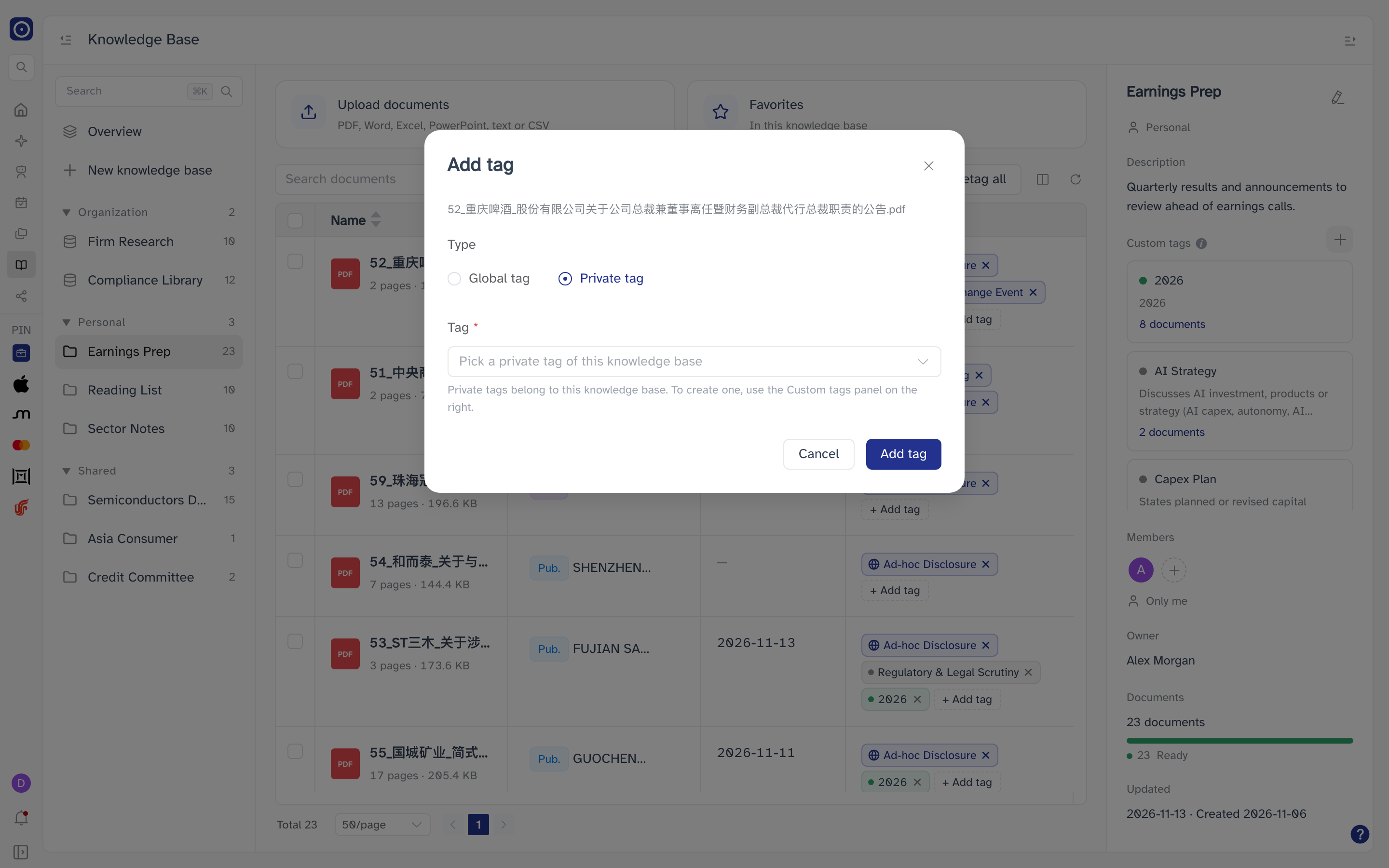
- Add a tag with + Add tag. Choose Global tag or Private tag, pick one from the list — each shows its definition — and click Add tag. Only existing tags can be added; to create a new private tag, see Custom tags. Not available in the favorites view.
Retagging
Retagging has Orbit read documents again and fill in their entity, published date and tags from scratch. Use it after adding or changing a custom tag — tags only apply to new uploads otherwise — or when the first attempt went wrong.
| Button | Where, and what it retags |
|---|---|
| Retag all | Above the table. Every Ready and Incomplete document in the knowledge base; others are skipped, and the dialog says how many. |
| Retag selected (N) | Replaces Retag all once you tick rows. The ticked documents that can be retagged — N counts only those. |
| Retag with model | In a document's menu. That one document. |
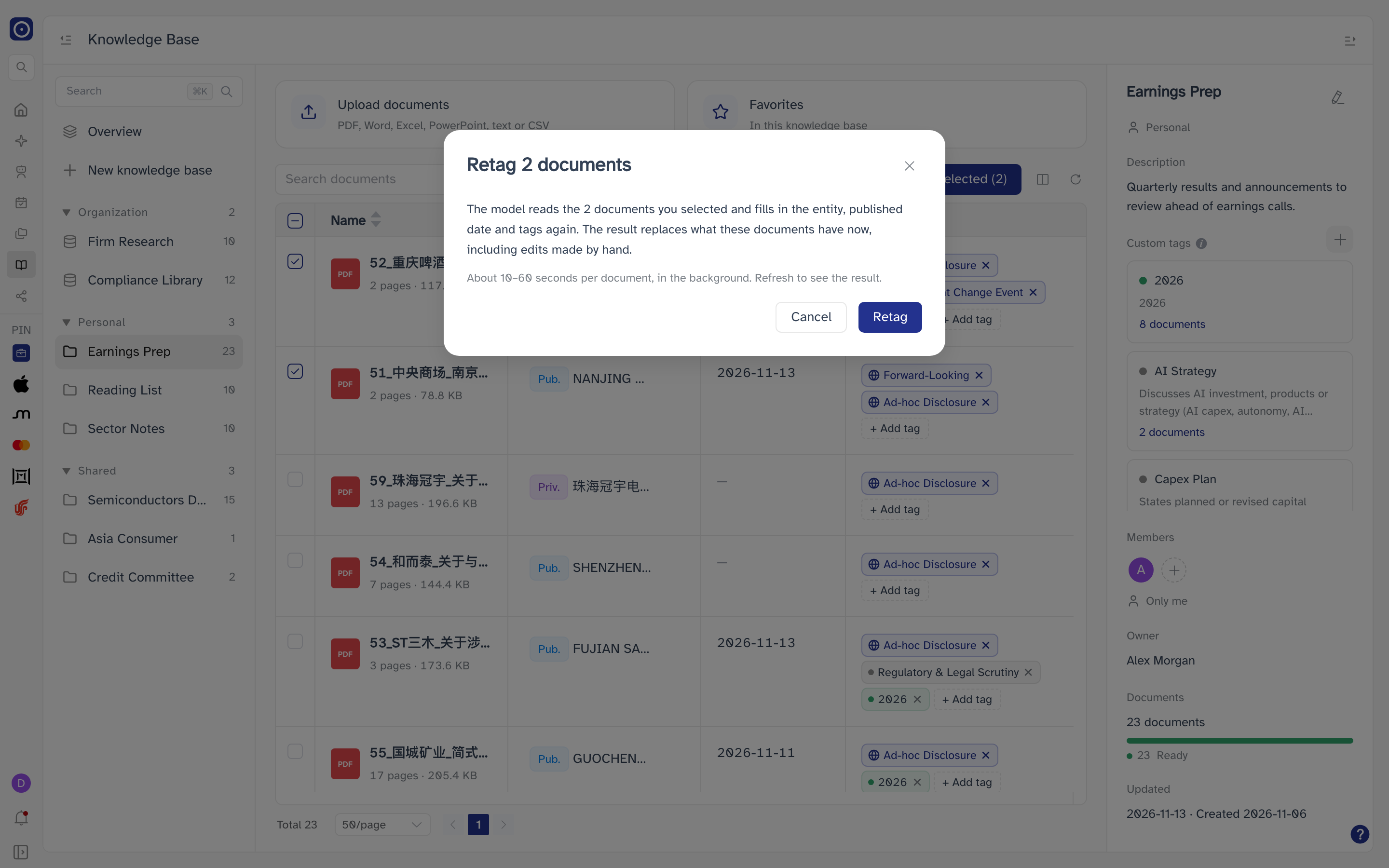
Orbit first checks the documents' latest status, then asks you to confirm. Click Retag. The documents show Tagging while it works — about 10 to 60 seconds each, in the background — and a notice above the table says so; click Refresh in it to see the results, or Dismiss to hide it. Retag all is refused while a retag is still running in the knowledge base.
Retagging needs edit rights. If none of the documents can be retagged, Orbit says so instead of asking — for example Only ready documents can be retagged. The selected documents are still processing or failed.
Tags
Every document can carry two kinds of tag.
| Kind | Set by | Applies to |
|---|---|---|
| Global tags | Orbit. The same for everyone, and cannot be changed. Listed on the overview. | Every knowledge base. |
| Private tags (custom tags) | Whoever manages the knowledge base. | This knowledge base only. |
For both, Orbit reads each uploaded document and applies every tag whose criteria the document meets.
Custom tags
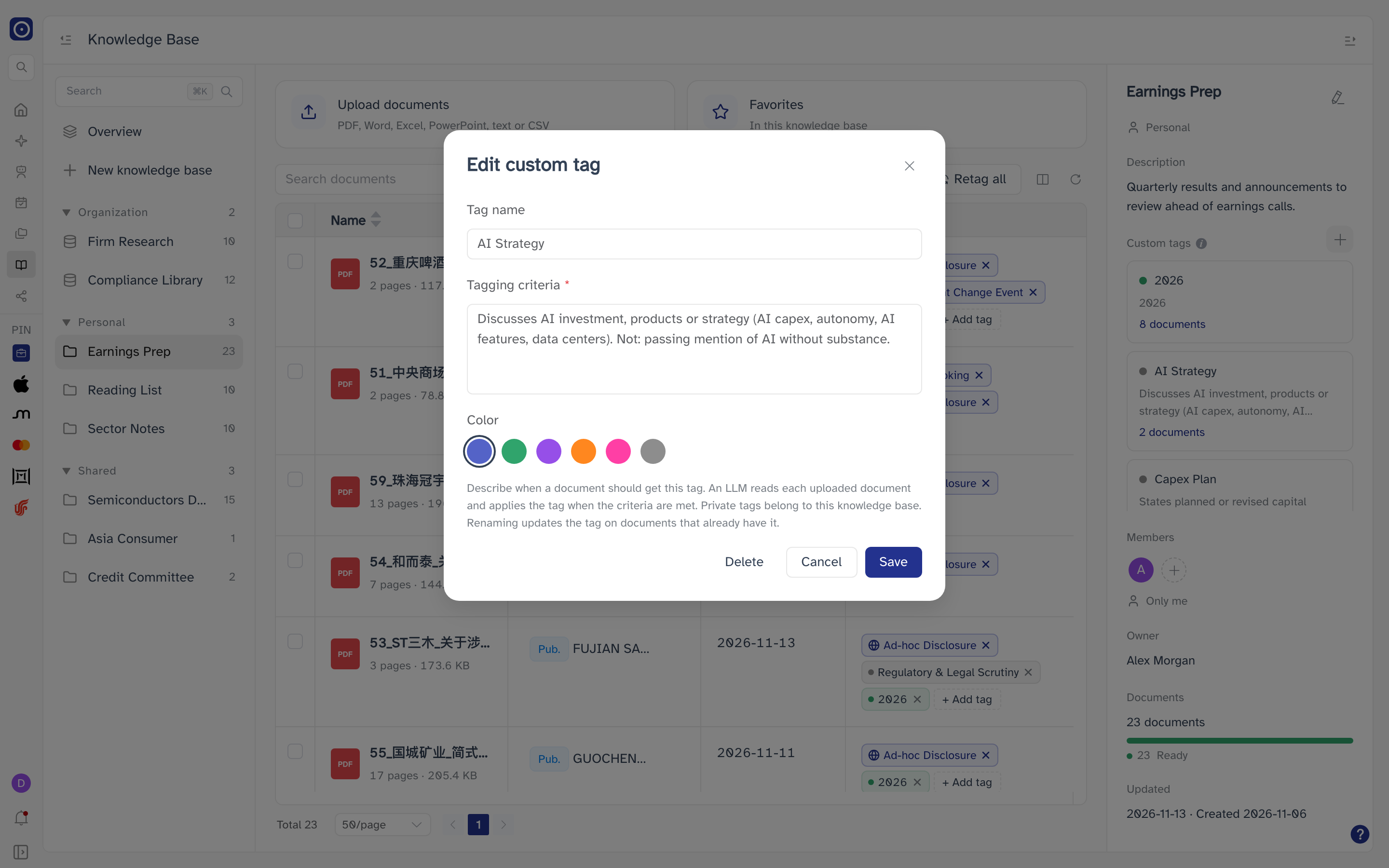
Custom tags are listed in the details column of the knowledge base, each with the number of documents carrying it — click the number to filter the table to those documents. If you can manage the knowledge base, + adds a tag and clicking a tag edits it.
| Field | Notes |
|---|---|
| Tag name | Required, up to 60 characters. Must differ from this knowledge base's other private tags, ignoring upper and lower case. It may repeat a global tag's name. |
| Tagging criteria | Required, up to 500 characters. Describe when a document should get this tag — Orbit applies it to documents that meet the description. |
| Color | Blue, Green, Purple, Orange, Pink or Gray. Only changes how the tag looks. |
| Change | Effect on documents |
|---|---|
| Add a tag | None yet. It is applied to new uploads; retag to apply it to documents already here. |
| Rename a tag | Renamed on every document that has it. Not possible while a retag is running. |
| Change criteria | None until you retag. |
| Change colour | Every chip of that tag changes colour straight away. |
| Delete a tag | Removed from every document in this knowledge base and no longer applied to new uploads. Global tags are not touched. |
To delete a tag, open it and click Delete, then confirm. Deleting cannot be undone, and is not possible while a retag is running.