
Managing knowledge bases
Create, rename, convert and delete knowledge bases — and who is allowed to do each.
Who can do what
What you can do depends on the kind of knowledge base and your place in it. The three kinds are introduced in Knowledge Base; how a shared knowledge base is opened to people is in Sharing and members.
Permissions come in three levels, each including the one before it:
- View — see the knowledge base, open its documents, chat with them and mark them as favorites.
- Edit documents — also upload, retag, rename and delete documents, and correct their entity, date and tags.
- Manage — also rename the knowledge base, change its description, edit its custom tags and members, and delete it.
Who gets which level depends on the kind of knowledge base:
| Kind | View | Edit documents | Manage |
|---|---|---|---|
| Organization | Everyone in the organisation | Organisation admins | Organisation admins |
| Personal | The owner | The owner | The owner |
| Shared, open to all | Everyone in the organisation | Everyone in the organisation | The owner, organisation admins, and anyone listed as Can manage |
| Shared, invited only | The owner, and the people and teams on its list | The owner, and anyone listed as Can edit or Can manage | The owner, and anyone listed as Can manage |
A Shared knowledge base is open to all or invited only depending on its Access setting — see Sharing and members. Organisation admins cannot see anyone else's Personal knowledge bases, and get no special access to an invited-only one unless they are on its list — or the owner has left the organisation or been disabled, in which case admins can manage it so it is not stranded.
Two actions sit outside the table:
| Action | Who can do it |
|---|---|
| Create | A Personal knowledge base: anyone. A Shared one: anyone in an organisation. An Organization one: organisation admins only. Accounts without an organisation can only create Personal ones — see Without an organisation. |
| Convert | Only the owner, between Personal and Shared. Organization knowledge bases can never be converted. |
The owner is whoever created the knowledge base. Ownership cannot be handed to someone else. Organisation admins are the people whose Role is Admin in User management.
Actions you are not allowed to take are either missing or greyed out. Hold the pointer over a greyed-out button to see why — for example Only organization admins can create Organization knowledge bases.
Creating a knowledge base
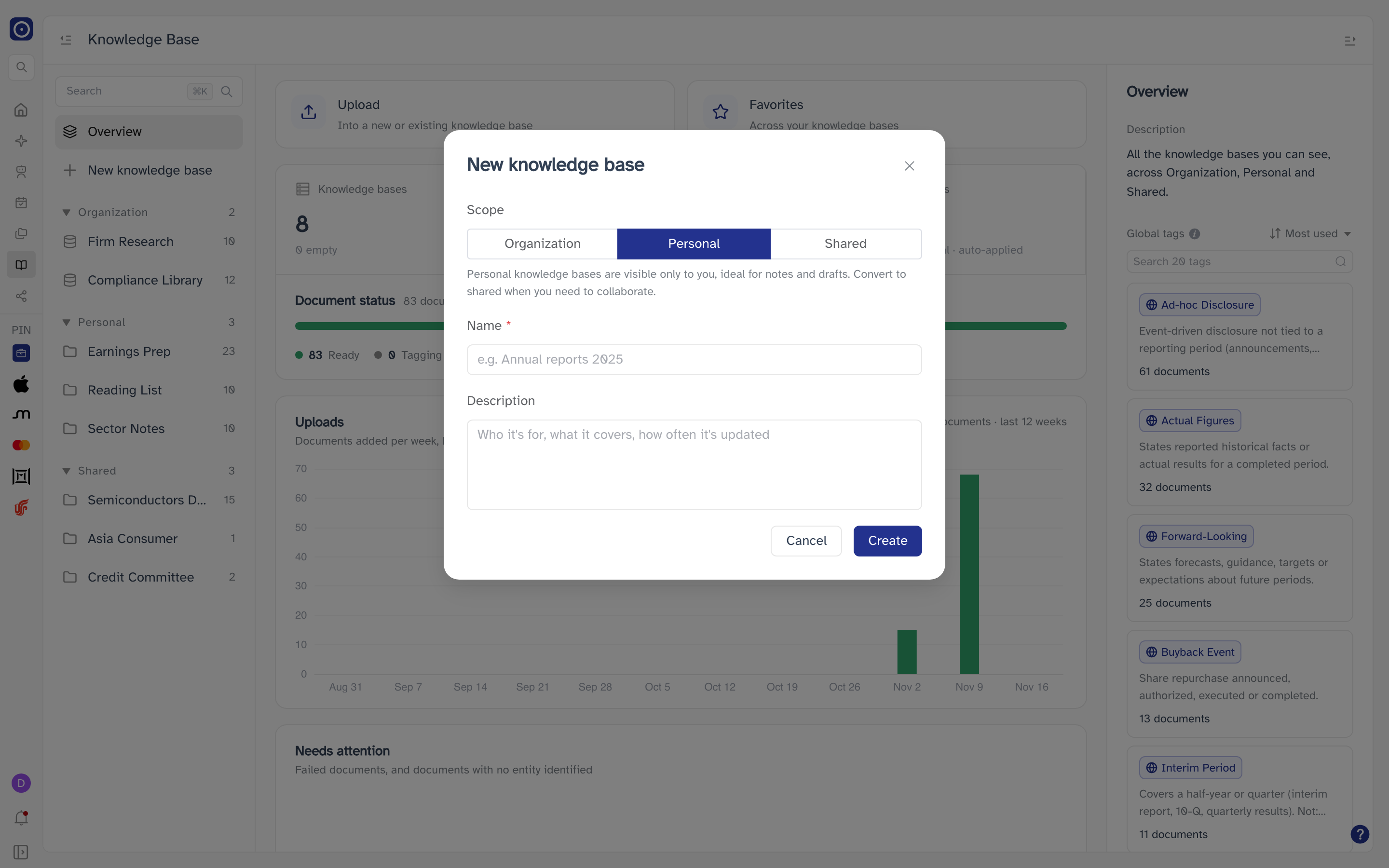
- Click New knowledge base near the top of the knowledge base list.
- Choose a Scope, give it a Name, and optionally a Description.
- Click Create.
| Field | Notes |
|---|---|
| Scope | Organization, Personal or Shared. The group you were looking at is chosen for you — Personal when you start from the overview — and a sentence underneath explains who will see it. Kinds you are not allowed to create cannot be picked. |
| Name | Required, up to 255 characters. Leaving it empty shows Enter a name. |
| Description | Optional, up to 2,000 characters. Shown in the details column — say who it is for, what it covers and how often it is updated. |
Knowledge base created confirms it, and the new knowledge base opens straight away, ready for its first upload. A new Shared knowledge base starts open to the whole organisation; change that from its members — see Sharing and members.
Clicking outside the dialog does not close it; use Cancel. The scope cannot be changed afterwards, except by converting a Personal knowledge base to Shared and back.
The ⋮ menu
Hold the pointer over a knowledge base in the list and click the ⋮ that appears in place of its document count.
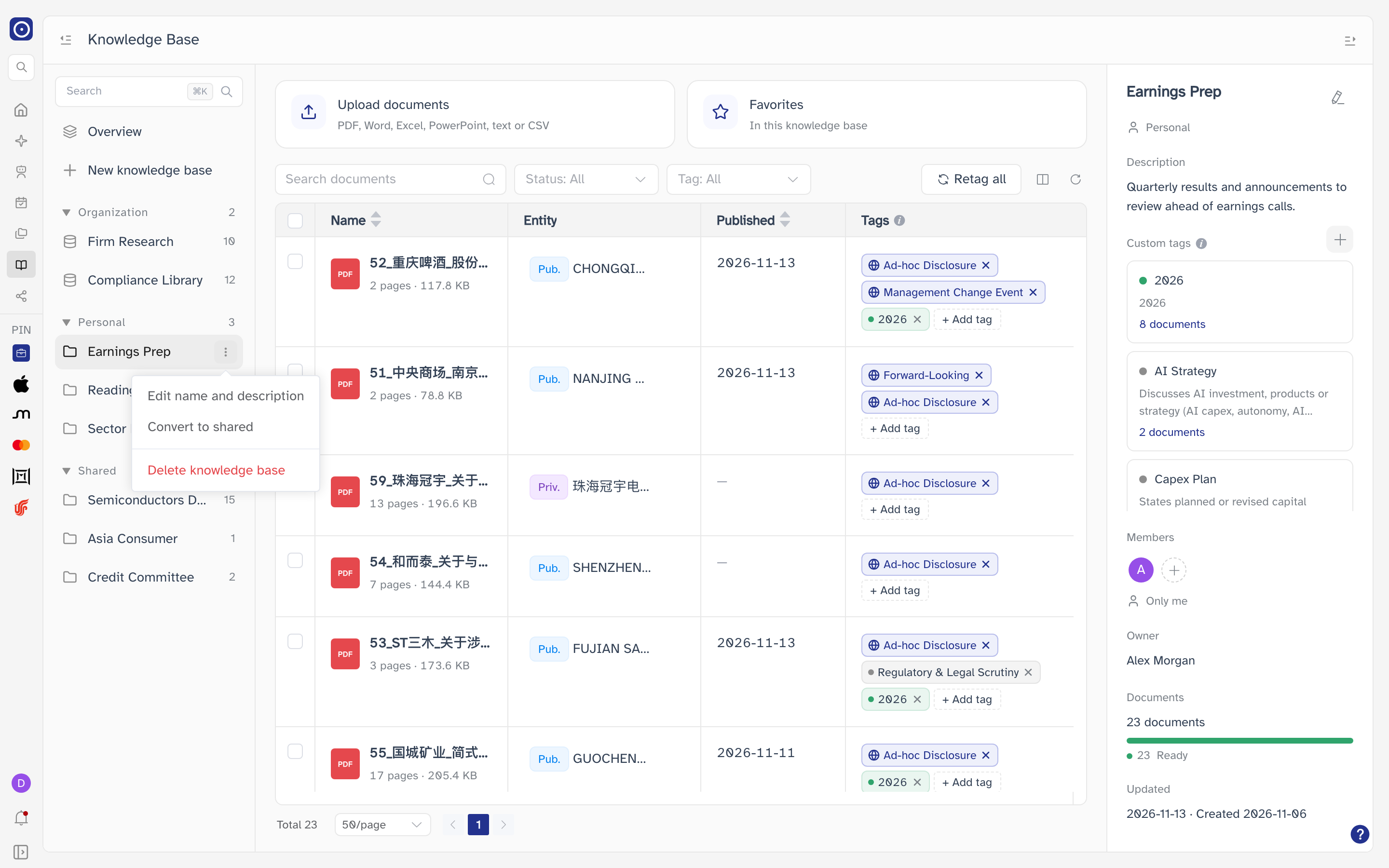
| Item | Shown when | What it does |
|---|---|---|
| Edit name and description | You can manage it | See Editing the name and description. |
| Convert to shared | It is your own Personal knowledge base, and you are in an organisation | See Converting to shared. |
| Unshare | It is your own Shared knowledge base | Turns it back into a Personal one. See Unsharing. |
| Delete knowledge base | You can manage it | See Deleting a knowledge base. |
If you cannot manage the knowledge base, the menu holds only a greyed-out note, Only organization admins can rename or delete it — shown even on a Shared knowledge base, where the owner and anyone listed as Can manage could do so.
Editing the name and description
Choose Edit name and description from the ⋮ menu, or click the pencil beside the knowledge base's name at the top of the details column. The Edit knowledge base dialog has the same Name and Description fields as when it was created; the scope is shown but cannot be changed. Click Save — Knowledge base updated confirms it.
Converting to shared
Only the owner can do this, and only for a Personal knowledge base. Choose Convert to shared from the ⋮ menu, or click Members in the details column, and confirm.
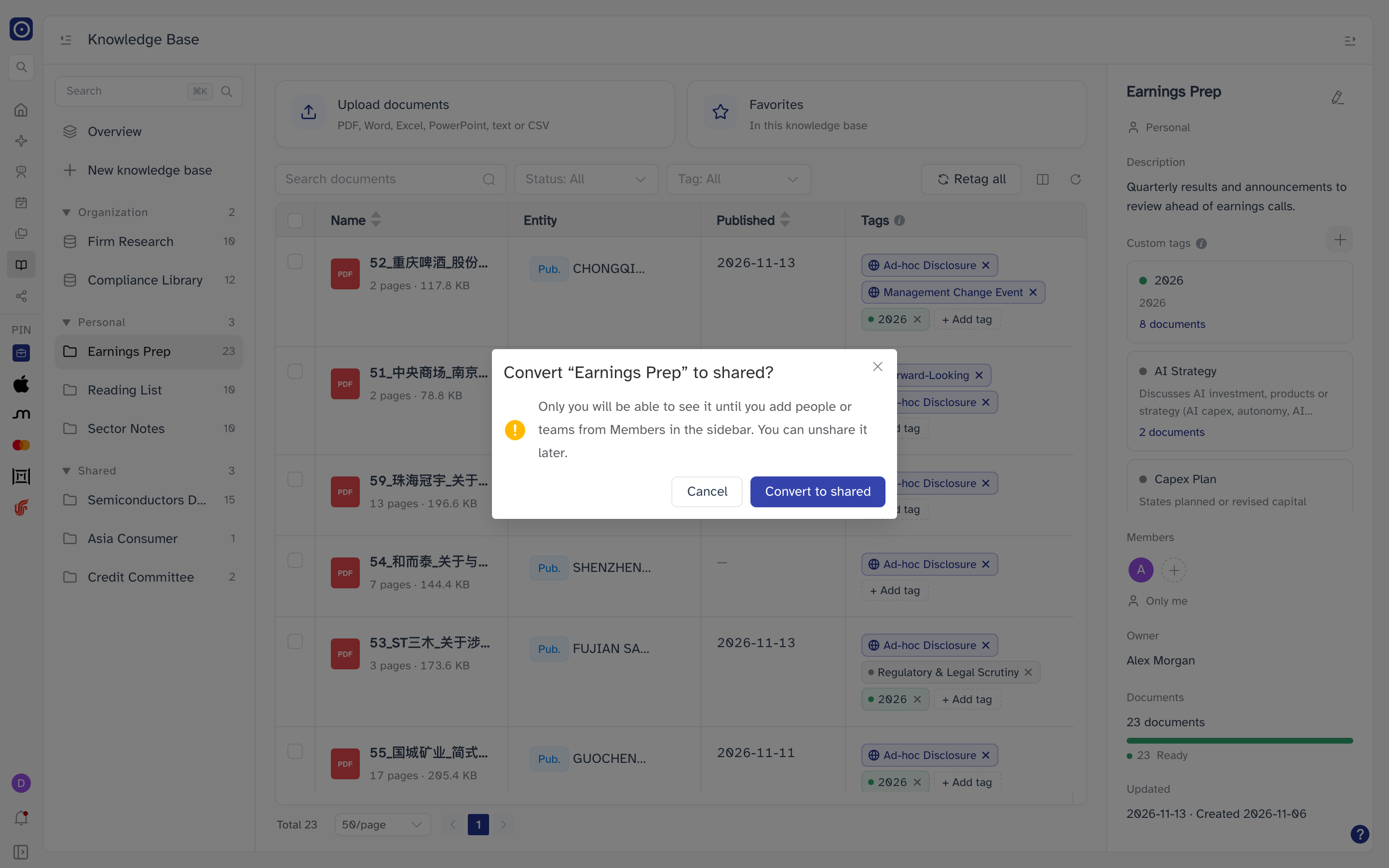
The knowledge base moves to the Shared group, but its access is set to Invited members only and nobody has been invited — so for now it is still only visible to you. Converted to shared · Only you can see it for now. Add people from Members in the sidebar confirms the change. Invite people next, as described in Sharing and members.
To go back, use Unshare — see Unsharing. Organization knowledge bases can never be converted.
Deleting a knowledge base
- Choose Delete knowledge base from the ⋮ menu.
- Read the confirmation and click Delete.
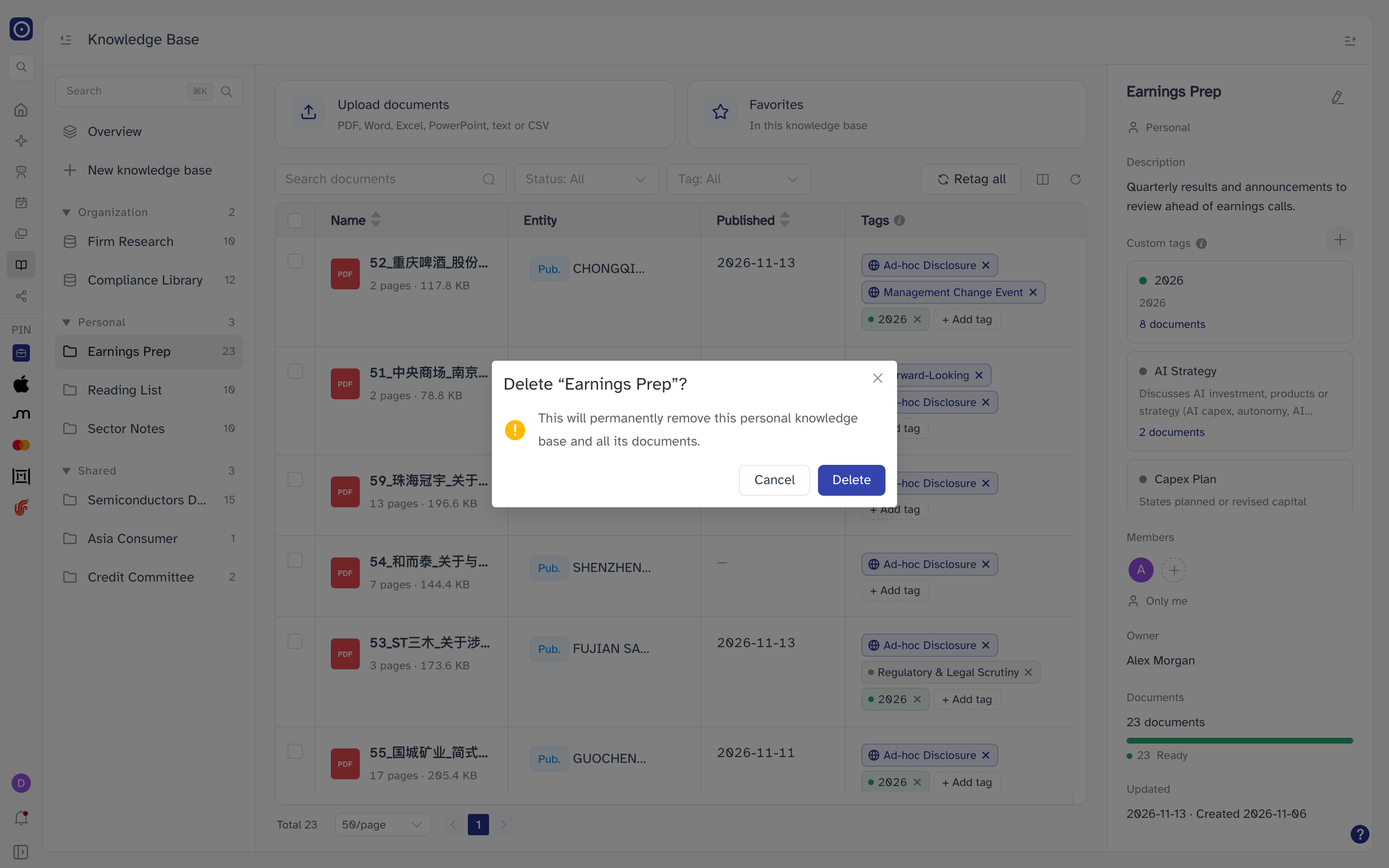
The knowledge base, all of its documents and its custom tags are removed permanently. There is no undo, and the documents are gone for everyone who could see them.
A knowledge base cannot be deleted while any of its documents is still being parsed or tagged. Orbit checks first and, if anything is in progress, tells you how many documents to wait for instead of asking for confirmation. Once it is deleted, Knowledge base deleted confirms it; if it was the one you had open, you are taken back to Overview.